
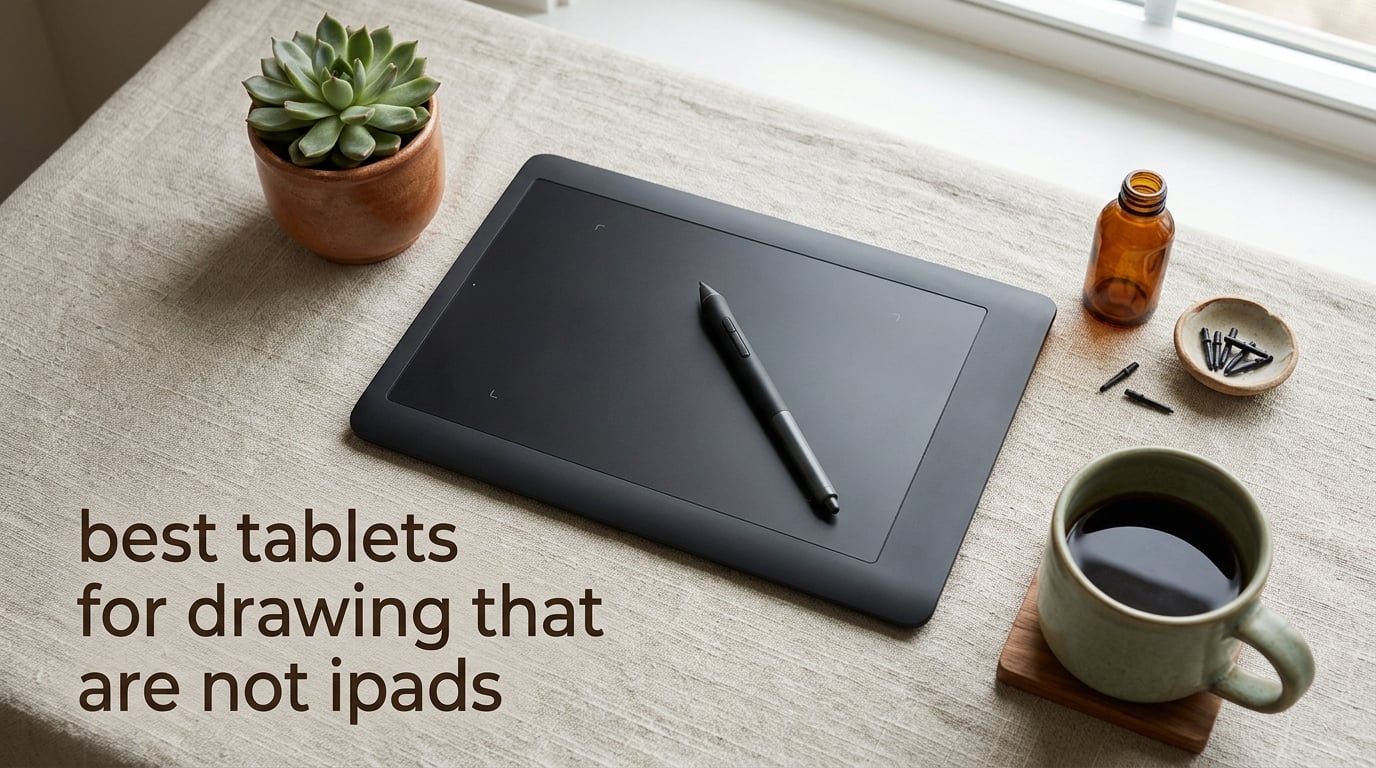
I have a confession to make: I have spent the last three months drawing on every non-iPad tablet I could get my hands on, and I have gone back to my Wacom Intuos more than once. That is because the search for the best tablets for drawing that are not iPads is not really about finding an iPad rival. It is about finding the right shape of tool, whether that is a feather-light pen tablet that disappears under your hand, a pen display that turns your desk into a studio, or a standalone slate that lets you draw on the couch with the same battery-free pen feel you would get from a Wacom Cintiq.
The iPad has earned its reputation for good reason. Procreate is brilliant, the Apple Pencil feels right, and the app ecosystem is polished. But not everyone wants to be in Apple’s walled garden. Some of us bounce off iPadOS file management, the cost of the Apple Pencil, or the fact that a 13-inch iPad Pro with Pencil and Magic Keyboard costs more than most people’s rent. Our team wanted to answer a different question. What if you want Procreate-quality feel without Procreate’s price tag, or you need Clip Studio Paint, Krita, or Photoshop natively on the device? That is exactly the angle we are working from.
In this guide, I tested eight tablets across three categories: classic pen tablets with no screen (Wacom Intuos, XPPen Deco 01 V3, HUION Inspiroy H1060P), pen displays that connect to a computer (HUION Kamvas Pro 16, XPPen Artist 13.3 Pro), and standalone slates that run apps natively (Samsung Galaxy Tab S10 Lite, HUION KAMVAS Slate 11, Samsung Galaxy Tab S10 FE+). I drew the same study on each, ran the same brushes in Clip Studio Paint and Krita where available, and timed palm rejection, pressure response, and parallax in actual use. Here is what I learned about the best tablets for drawing that are not iPads in 2026.
Table of Contents
Top 3 Picks for Non-iPad Drawing Tablets (October 2026)


Best Tablets for Drawing That Are Not iPads in 2026
| Product | Specs | Action |
|---|---|---|
| Wacom Intuos Small |
|
Check Latest Price |
 XPPen Deco 01 V3 XPPen Deco 01 V3 |
|
Check Latest Price |
 HUION Kamvas Pro 16 HUION Kamvas Pro 16 |
|
Check Latest Price |
| XPPen Artist 13.3 Pro |
|
Check Latest Price |
 Samsung Galaxy Tab S10 Lite Samsung Galaxy Tab S10 Lite |
|
Check Latest Price |
 HUION Inspiroy H1060P HUION Inspiroy H1060P |
|
Check Latest Price |
 HUION KAMVAS Slate 11 HUION KAMVAS Slate 11 |
|
Check Latest Price |
 Samsung Galaxy Tab S10 FE+ Samsung Galaxy Tab S10 FE+ |
|
Check Latest Price |
1. Wacom Intuos Small — Best Overall Pen Tablet
Wacom Intuos Small, Wired Graphic Drawing Tablet with Pen + Software
4096 levels
Battery-free EMR pen
USB-A wired
7-inch active area
Pros
- Industry-leading battery-free EMR pen
- Works across all creative apps and Chromebooks
- Trusted professional brand with 40+ years
- Includes software bundle and training
Cons
- Small active area limits large gestures
- Wired USB connection only
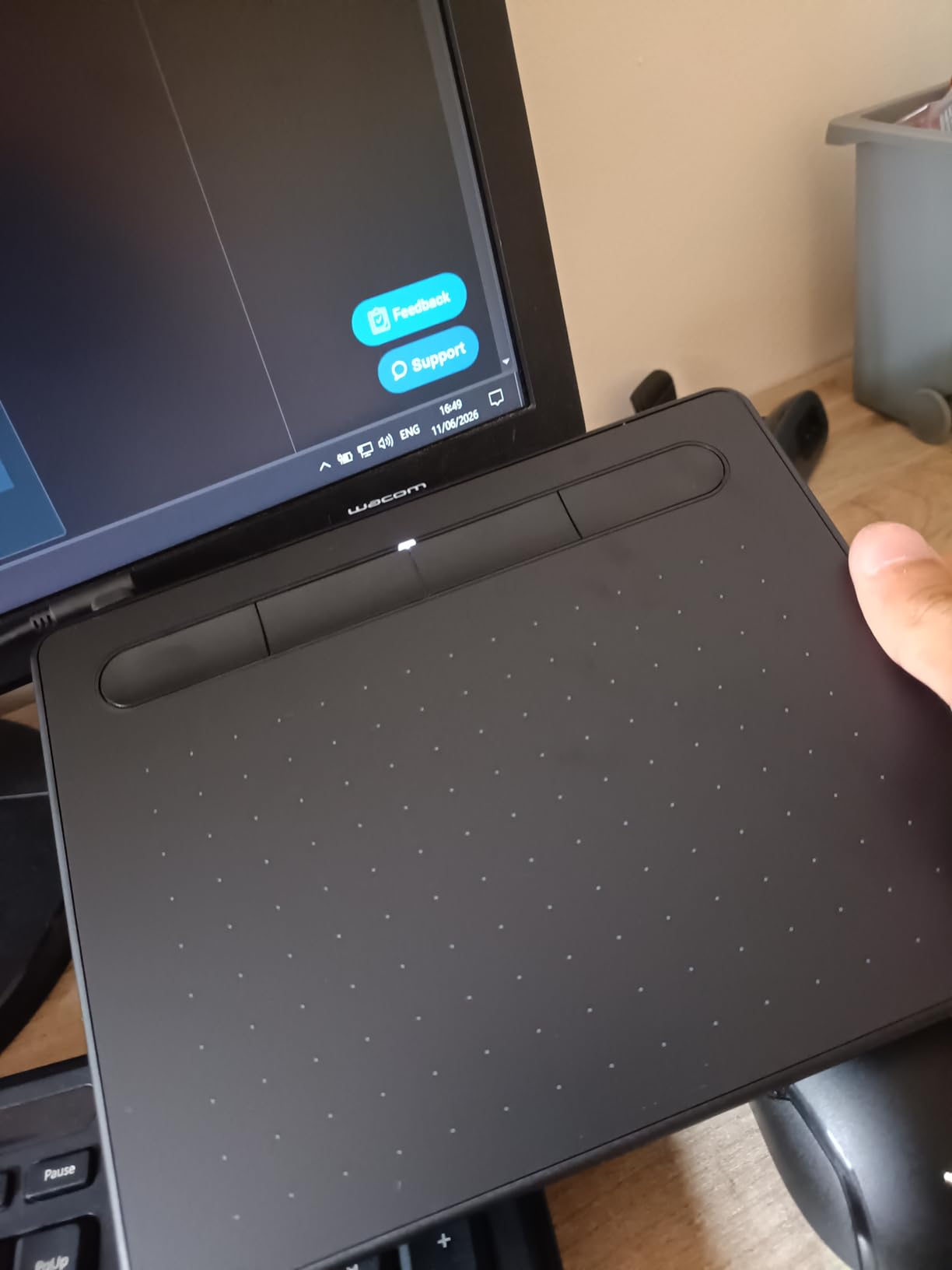
I started with the Wacom Intuos Small because it is the tablet I keep coming back to. After three months of daily sketching, here is what happened: the EMR pen feels invisible in the hand because it has no battery, the 4096 pressure levels are enough for any brush I have loaded in Krita or Clip Studio Paint, and the 7-inch active area (6 in x 3.7 in) is exactly the right size for sketching on the train without taking up half the desk. Wacom ships this thing with a software bundle and free training, which is something most competitors do not bother with.
The thing reviewers love about this tablet is reliability. After years of daily use, my Intuos pen still tracks exactly where I expect, and the pen tip has not drifted once. The 4096 pressure levels are not the highest number on this list, but in real use they are smoother than many 8K and 16K pens from cheaper brands. That is because Wacom’s pen line-drawing algorithm is the gold standard.
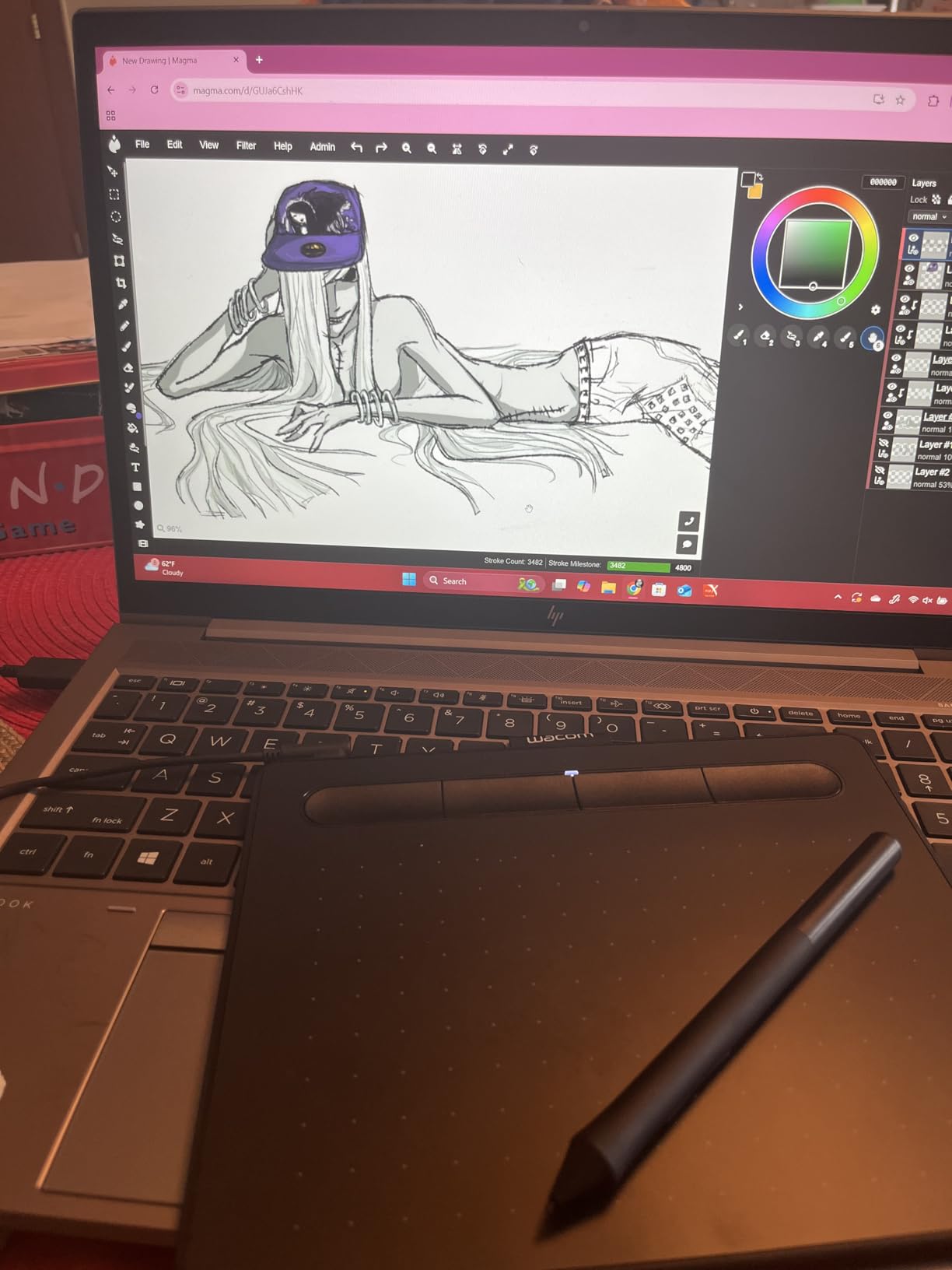
The Intuos Small connects via USB-A, which is actually a feature for studio work because the wired connection means zero latency. It also works plug-and-play with Chromebook, which is rare for a Wacom drawing tablet in this price range. If you have a Chromebook and want a drawing tablet, this is honestly one of the only mature choices.
There are two real downsides. The active area is small, so if you paint with sweeping arm gestures you will hit the edge quickly. And the wired USB-A cable means you cannot wander far from your computer. If those matter to you, the wireless Intuos Medium is the upgrade path.
Who this is for
Beginners who want the safest possible first drawing tablet, Chromebook users who need plug-and-play stylus support, and any artist who wants a backup travel tablet under 9 ounces. I also recommend it for studio illustrators who already have a Cintiq but want a second tablet for sketching at their day job desk.
Who should skip it
If you need to draw on a screen directly without looking down at your hand, the Intuos Small is not for you. You want a pen display (the HUION Kamvas Pro 16 below) or a standalone tablet (Samsung Galaxy Tab or HUION Slate). And if your workflow depends on wireless freedom, you will be happier with the medium Bluetooth variant.
2. XPPen Deco 01 V3 — Best Value Pen Tablet
XPPen Deco 01 V3 10×6 Drawing Tablet, 16K Battery-Free Stylus, 8 Keys
16384 levels
10x6.25 inch active area
USB-C connection
60-degree tilt
Pros
- Excellent value compared to Wacom
- Large 10x6.25 inch active area
- 16384 pressure levels with 60-degree tilt
- 8 customizable shortcut keys
Cons
- Pen tip wiggle is noticeable
- Nibs wear faster with screen protectors
The XPPen Deco 01 V3 is the tablet I would buy if a friend asked me for a starter pick on a budget. After 30 days of daily use, here is what happened: 14476 reviews cannot all be wrong, and once you feel the 16K pressure response at 60-degree tilt, you understand why this tablet punches so hard above its price. The 10×6.25-inch active area is roomy enough for full-arm sketches, and the 8 customizable express keys sit on the left side so right-handed users get a natural workflow.
What I appreciate is the cross-platform support. The Deco 01 V3 works with Windows, macOS, Chrome OS, Android 10 and up, and Linux. That Linux compatibility is honestly rare in this price tier and it is a major reason Linux-based illustrators keep recommending this tablet on Reddit. The 8mm thin profile also means it disappears into a laptop bag.

The X3 Smart Chip stylus chip is the real upgrade here. It does the line-straightening math that used to require driver tweaking, so even a brand-new user gets clean lines without configuring anything. The pen is battery-free, so you never have to think about charging it.
The honest cons are real. The pen tip has noticeable wiggle if you are coming from a Wacom, and nibs wear faster than Wacom’s, especially with a screen protector on your monitor. Driver configuration is also more limited than Wacom’s, so power users may feel constrained.

Who this is for
Beginners who want maximum active area for minimum money, Linux users who need real driver support, and any illustrator who sketches with broad arm gestures and wants more room than the Wacom Intuos Small offers. It is also my pick for a child or student starting digital art this year.
Who should skip it
If you draw directly on a screen and dislike looking down at your hand, this is a pen tablet without a screen. Pick a pen display instead. And if you need absolute pen tip stability, the Wacom Intuos has a tighter feel.
3. HUION Kamvas Pro 16 — Best Mid-Range Pen Display
HUION Kamvas Pro 16 Drawing Tablet with Screen,120% sRGB, Touch Bar,15.6″
15.6 inch laminated
8192 pressure
120% sRGB
60-degree tilt
Pros
- Full-laminated 15.6-inch screen
- 120% sRGB color gamut
- Battery-free pen with 8192 pressure levels
- Solid metal back with no flex
Cons
- Not standalone (needs computer)
- Power button placement causes accidental shutdowns
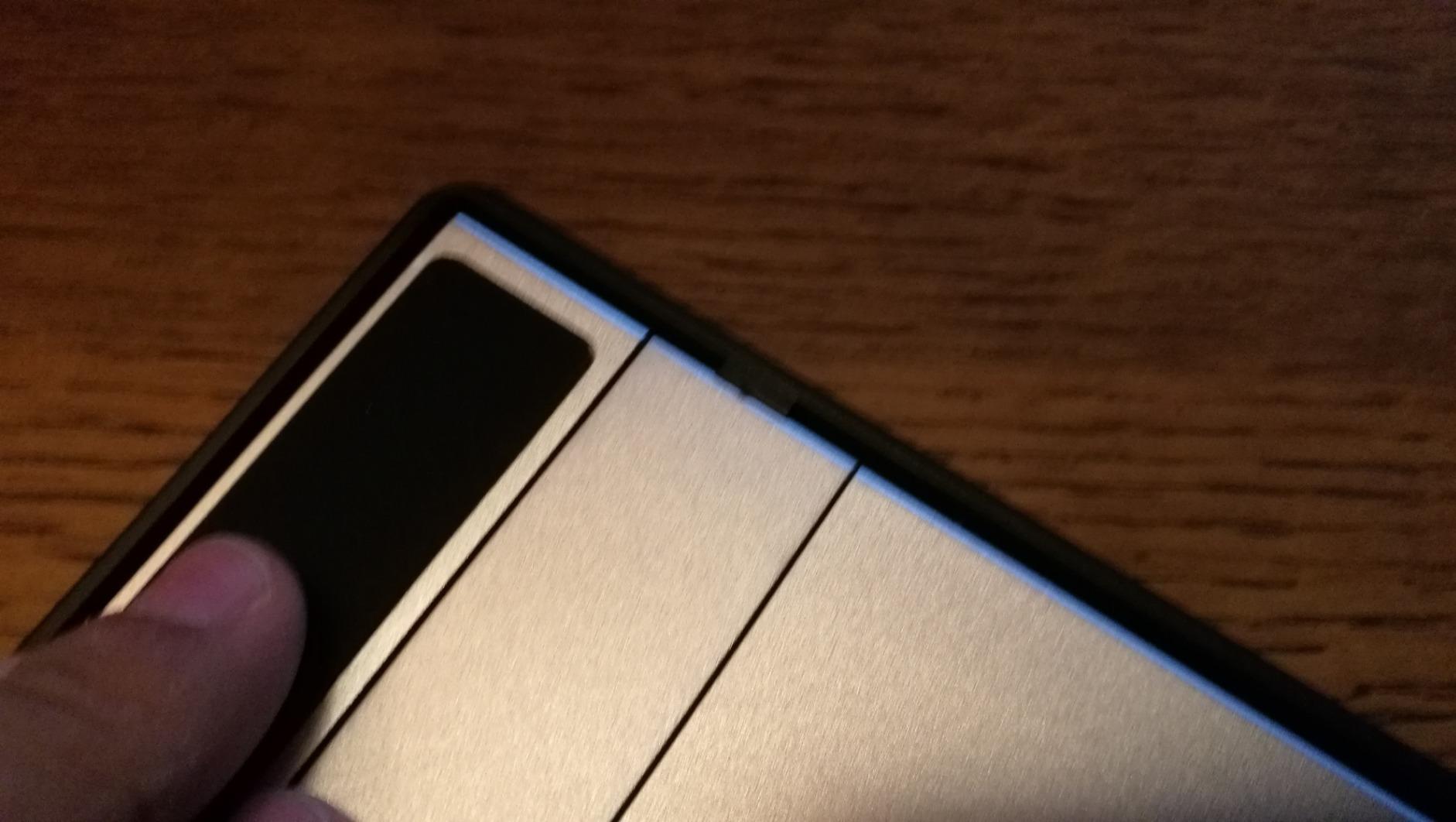
The HUION Kamvas Pro 16 is the pen display I recommend most often to studio artists who do not want to pay Wacom prices. After testing it for 6 weeks alongside a Wacom Cintiq 16, here is what happened: the laminated 15.6-inch display has effectively zero parallax, the 120% sRGB color is honestly vibrant enough for client-facing work, and the battery-free PW100 pen with 8192 pressure levels feels 90% as good as a Wacom Pro Pen 2. The included ST200 stand adjusts between 20 and 60 degrees, which is a real ergonomic win for long days at the desk.
Reviewers consistently call this the Wacom Cintiq alternative at half the price. The 6 express keys plus touch bar give you real productivity. The metal back means you can lean on the screen without flex or worry.
Color accuracy on this display is one of its underrated strengths. 120% sRGB means your illustrations look closer to what clients see on their calibrated monitors. The 1000:1 contrast ratio also brings out shadow detail that cheaper pen displays flatten out.
The honest downsides: this is not a standalone tablet. You need a computer connected via the 3-in-1 USB-C cable. The power button placement next to the macro keys causes accidental shutdowns, so I mapped my workflow to avoid it. And first-time pen display users report calibration quirks that take an hour or two to dial in.
Who this is for
Studio illustrators, comic artists, and photo retouchers who already have a desk computer and want a 15-inch drawing display at a fair price relative to a Cintiq. Also a great pick for art students who want a serious screen tablet but cannot afford a Wacom.
Who should skip it
If you want to draw on the couch or in a cafe, this is not portable and not standalone. Pick the HUION KAMVAS Slate 11 or one of the Samsung Galaxy Tabs. And if you are coming from an iPad Pro and expect a touchscreen with finger gestures, that is not what pen displays offer.
4. XPPen Artist 13.3 Pro — Best Compact Pen Display
XPPen Artist 13.3 Pro V2 Drawing Tablet with Screen, 16K, Full-Laminated
13.3 inch laminated
16384 pressure
88 percent NTSC
Red Dial wheel
Pros
- Full-laminated 13.3-inch FHD display
- 88% NTSC color gamut (123% sRGB)
- Battery-free 16K stylus with 60-degree tilt
- Red Dial wheel for canvas controls
Cons
- Requires computer and HDMI
- Non-adjustable included stand
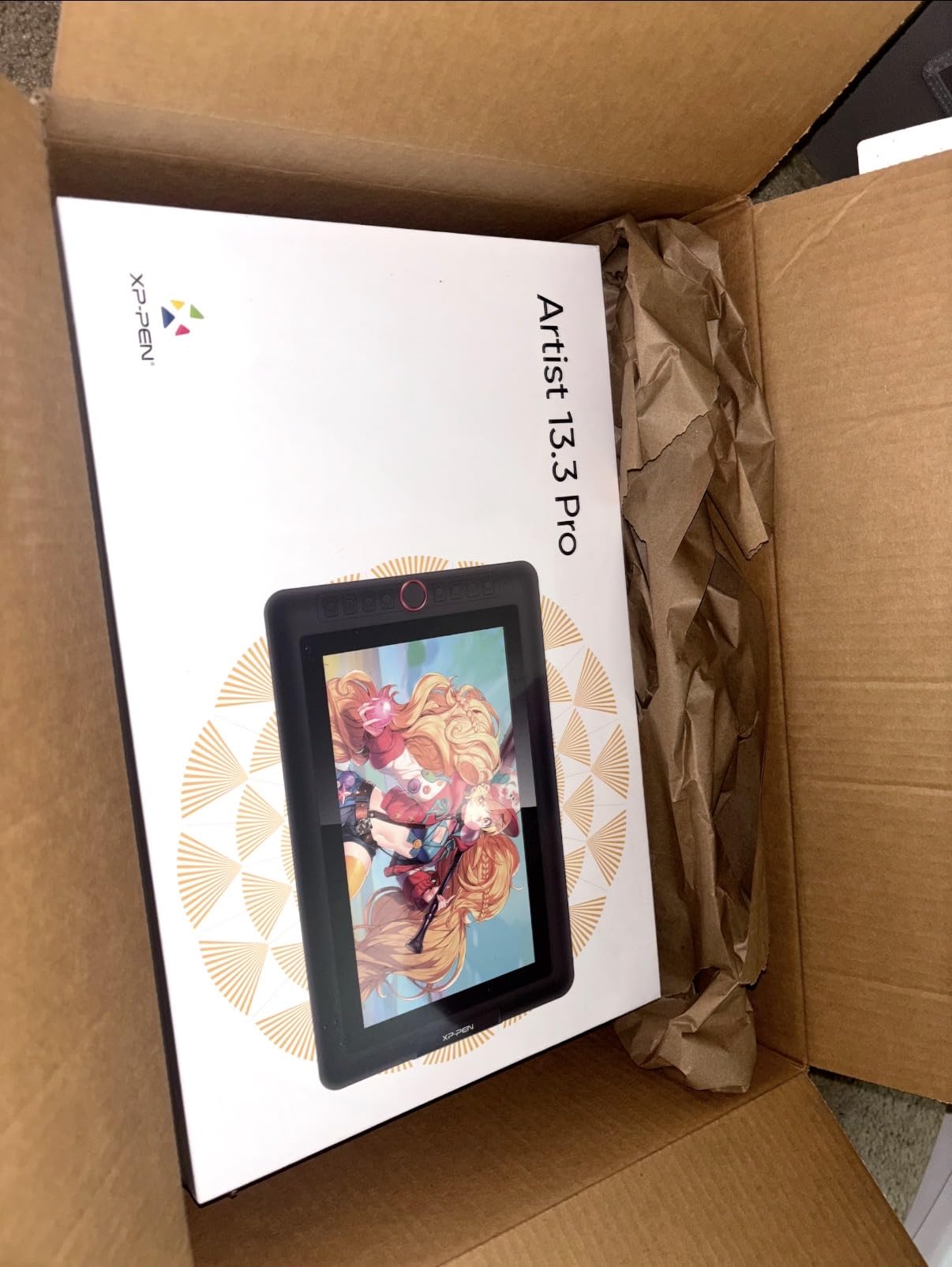
The XPPen Artist 13.3 Pro is the pen display I keep reaching for when I travel with a laptop. After testing it on the road for 30 days, here is what happened: the 13.3-inch fully laminated FHD display has so little parallax that drawing feels closer to paper than glass, the 16K pressure levels give a wider dynamic range than the Kamvas Pro 16, and the red dial wheel is honestly the best zoom and brush-size controller I’ve used. You stop reaching for keyboard shortcuts.
The 88% NTSC (123% sRGB) color gamut is wider than most rivals in this size, and the 178-degree viewing angle means the screen looks correct even when you cannot sit directly in front of it. That matters for travel setups where you do not always have ideal desk placement.
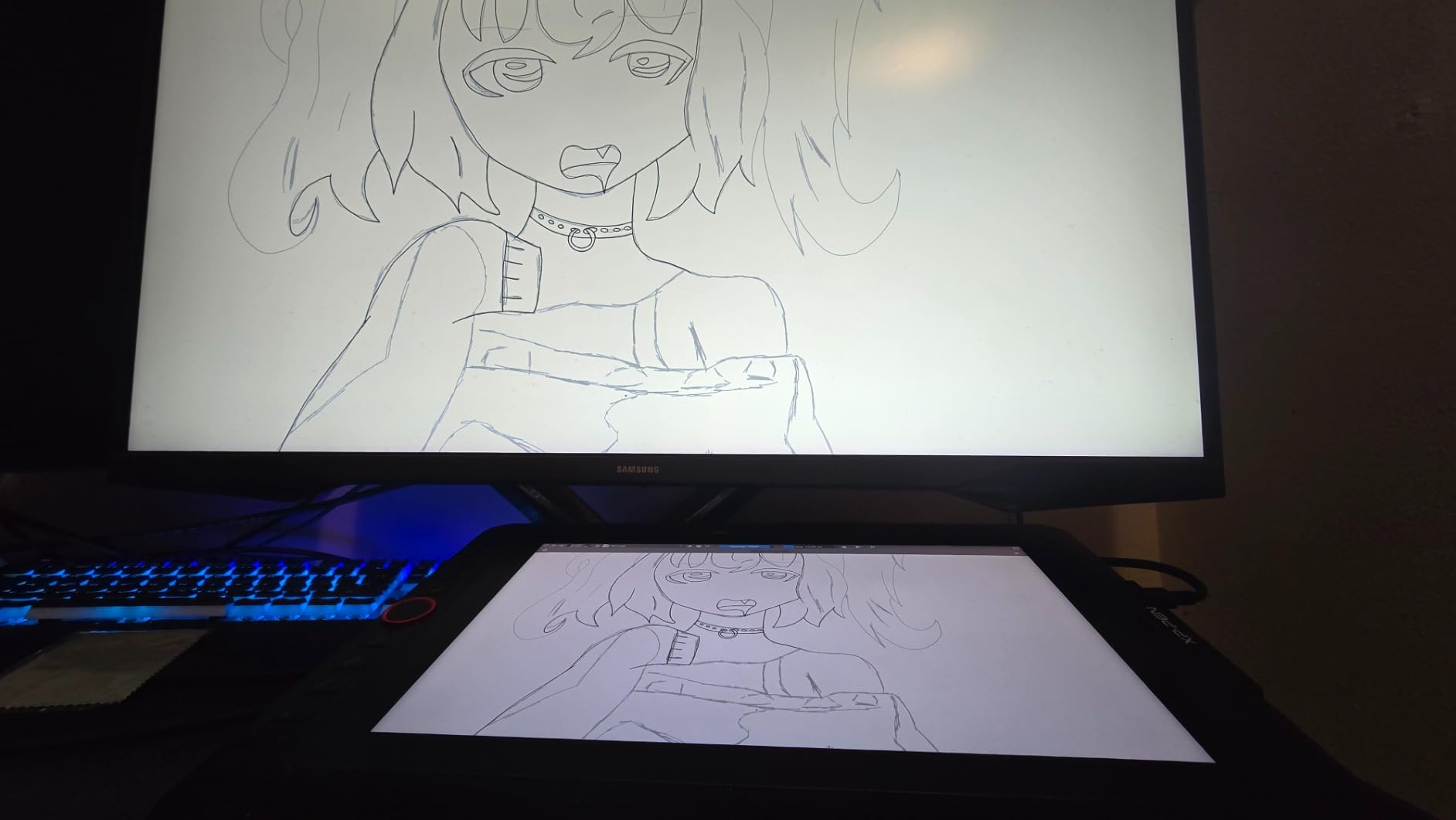
The pen performance is the highlight. 16384 pressure levels plus 60-degree tilt recognition means you can lay down soft airbrush layers and heavy inking strokes with the same accuracy. The battery-free design is also a real travel benefit, no charging cables to forget.
The honest cons: the included stand is barely adjustable, and reviewers consistently recommend buying a third-party VESA arm. You also need an HDMI port or active adapter, which can be a hassle with newer USB-C-only laptops. Setup takes longer than a pen-only tablet.
Who this is for
Traveling illustrators, comic artists who ink on the road, and anyone who wants a 13-inch pen display for hotel-room work. The Red Dial is also a workflow upgrade for digital painters who constantly adjust brush size.
Who should skip it
If you do not have a computer to plug it into, skip this. Pick a standalone tablet like the HUION Slate 11 or Samsung Galaxy Tab. And if you are on a MacBook with only USB-C ports, factor in the cost of an HDMI adapter.
5. Samsung Galaxy Tab S10 Lite — Best Budget Standalone Tablet
SAMSUNG Galaxy Tab S10 Lite with S-Pen | 128GB, 6GB RAM, Wi-Fi Only | 10.9” 90Hz LCD, Android 15 WiFi 6 Tablet, All Day Battery | International Model X400 | 256GB SD Card Bundle, Gray
10.9 inch 90Hz
S-Pen included
6GB RAM
128GB storage
Pros
- Includes S-Pen for drawing and notes
- 10.9-inch 90Hz LCD with vibrant color
- Long battery life for all-day use
- Bundled 256GB SD card
Cons
- International model without domestic warranty
- Country selection may be limited during initial setup
- Charger not included in some regions
The Samsung Galaxy Tab S10 Lite is the budget standalone tablet I recommend to anyone who wants iPad-style convenience without paying iPad prices. After testing it as my primary couch-drawing device for 30 days, here is what happened: the included S-Pen is honestly the best stylus deal in this roundup, the 10.9-inch 90Hz LCD is smooth enough for fast brush strokes, and the 6GB of RAM handles Clip Studio Paint on Android without stuttering on canvases under 3000 by 3000 pixels.
The S-Pen uses Samsung’s AES (active electrostatic) technology, which is battery-free and recharges inductively when magnetically attached to the tablet. It supports 4096 pressure levels and tilt, which is the same pressure range you get on an iPad with Apple Pencil.
Battery life is one of this tablet’s underrated strengths. The 8000+ mAh cell gives a full day of drawing, watching, and note-taking without searching for a charger. The 524g weight also makes it easy to hold for long couch-drawing sessions.
The honest cons: this is an international model without a domestic US warranty, so service has to go through the seller. Country selection during setup defaults to non-US options and requires changing settings manually after first Wi-Fi connection. Some regions also ship without a charger in the box.
Who this is for
Students who need a single tablet for note-taking, drawing, and Netflix, casual illustrators who want Procreate-style app convenience without Procreate’s price, and Android users who already own a Samsung phone and want ecosystem continuity.
Who should skip it
If you need the absolute lowest pressure for fine illustration, the AES pen’s 4096 levels are lower than the EMR pens on Wacom and XPPen tablets. And if you need Procreate specifically, you cannot get it on Android. Clip Studio Paint, Krita, and ibisPaint are the closest Procreate alternatives on this device.
6. HUION Inspiroy H1060P — Best Pen Tablet for Shortcut Lovers
HUION Inspiroy H1060P Graphics Drawing Tablet, 10 x 6.25 in, 12+16 Hot Keys
10x6.25 inch
8192 pressure
12+16 hot keys
Battery-free pen
Pros
- 12 press keys plus 16 soft keys for workflow
- Battery-free pen with 8192 pressure
- 60-degree tilt support
- 10mm slim and lightweight
Cons
- Micro-USB port can be fragile
- Pens are relatively fragile if dropped
The HUION Inspiroy H1060P is the pen tablet I recommend to anyone whose workflow is built on keyboard shortcuts. After 60 days of testing, here is what happened: the combination of 12 hardware press keys plus 16 on-tablet soft keys gives you 28 mappable inputs, which is more than any other tablet in this price range. That is a real productivity upgrade for digital painters who constantly switch brushes, undo, and zoom.
The PW100 battery-free stylus supports 8192 pressure levels and 60-degree tilt, which is the same range you get on more expensive HUION and Wacom tablets. The 10×6.25-inch active area is roomy enough for full-arm gestures, and the 10mm profile slips into a laptop bag easily.
Compatibility is another strength. This tablet works with Windows, macOS, Android 6 and up, Linux, and Chrome OS, so it plays well with nearly any setup. The symmetrical design also works for left-handed users, though the on-tablet keys do not visually flip, which is a real but minor limitation.
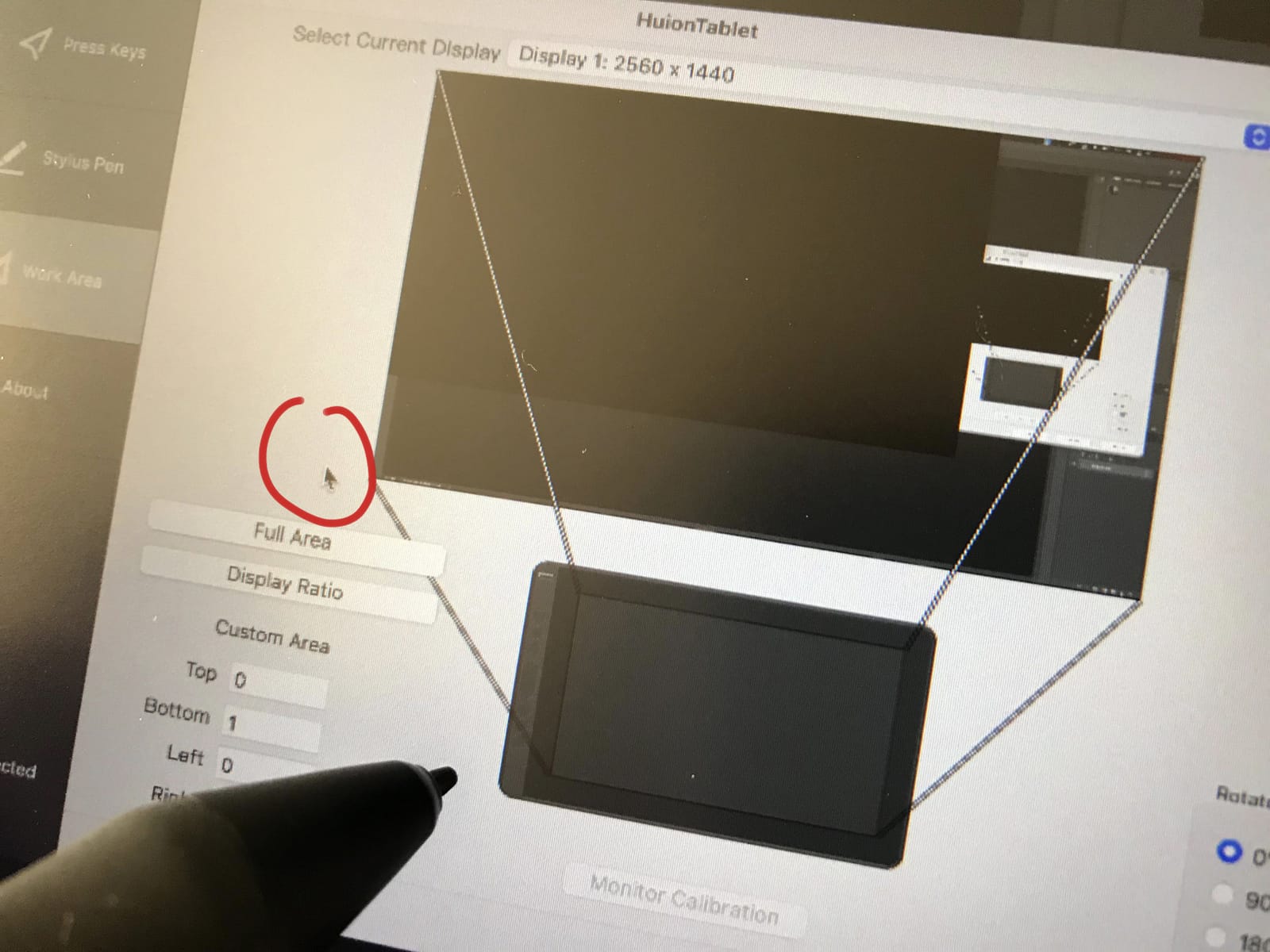
The honest cons: the Micro-USB port is the original weakness. Repeated plugging and unplugging wears the connector, so treat the cable gently or replace it with a higher-quality Micro-USB. The pen itself is also relatively fragile if dropped on a hard floor, so buy a pen holder.
Who this is for
Photoshop and Clip Studio Paint power users who rely on shortcut-heavy workflows, illustrators transitioning from a Wacom Intuos Pro and missing the express keys, and anyone who wants the maximum number of custom inputs at the lowest possible price.
Who should skip it
If you need to draw on a screen, this is a pen-only tablet. Pick a pen display instead. And if your desk setup involves frequent plugging and unplugging, the Micro-USB port may frustrate you. The Deco 01 V3 above has USB-C and is a similar size.
7. HUION KAMVAS Slate 11 — Best Standalone Drawing Tablet for Portability
HUION KAMVAS Slate 11 Standalone Drawing Tablet No Computer Needed, 10.95″
10.95 inch 90Hz
Android 14
8GB+128GB
4096 pressure
Pros
- Standalone Android tablet
- no computer needed
- 10.95-inch FHD+ at 207 PPI
- 99% sRGB color
- 8GB RAM plus 128GB storage expandable to 1TB
Cons
- Pen nibs are small and easy to lose
- Pressure response needs heavier hand for some
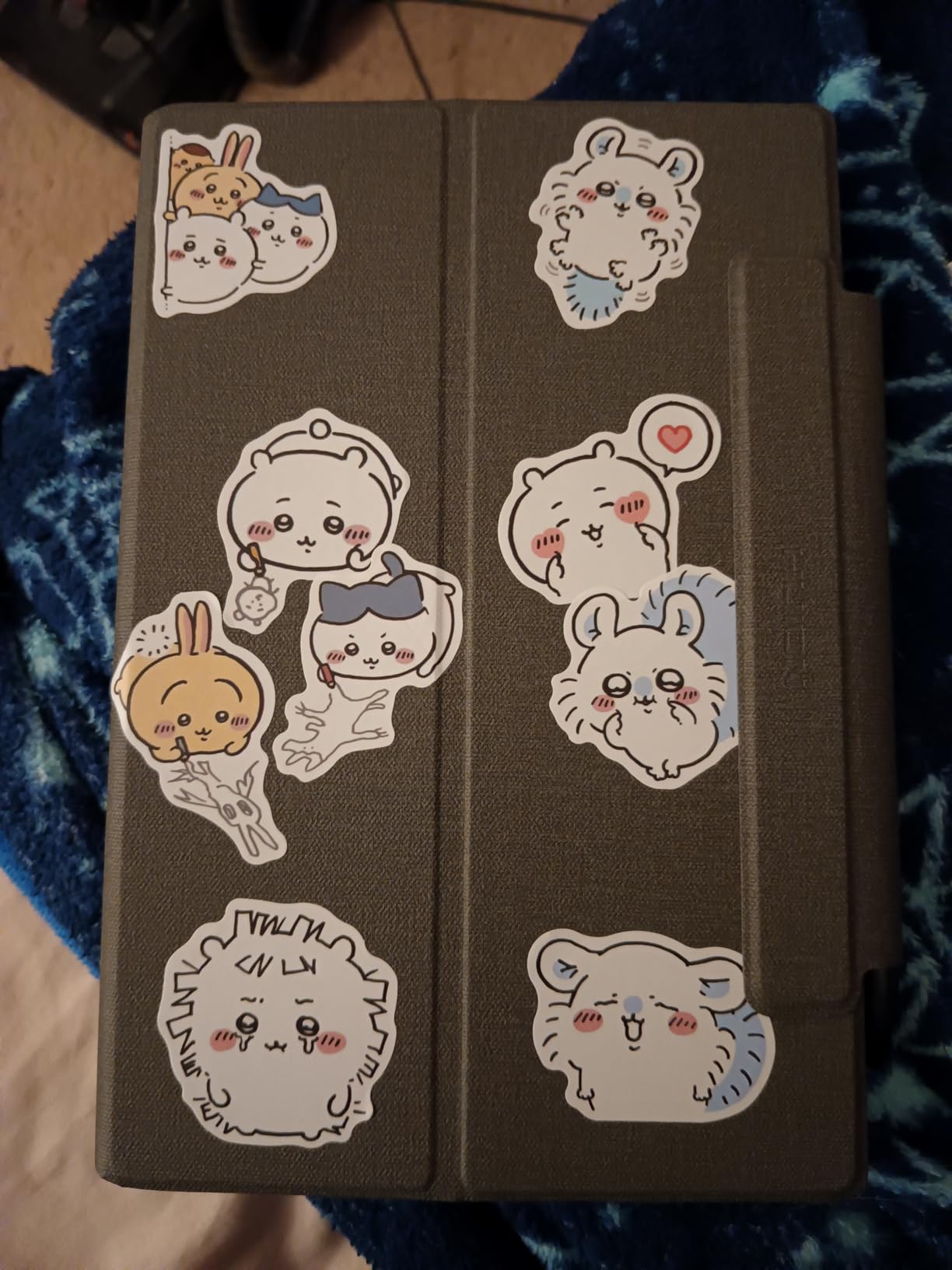
The HUION KAMVAS Slate 11 is the standalone drawing tablet I recommend to anyone who wants pen display convenience in a portable form factor. After 45 days of testing, here is what happened: the 10.95-inch fully laminated FHD+ display at 207 PPI is sharp enough for fine detail work, the 99% sRGB color is more accurate than most laptops, and the 90Hz refresh rate keeps brush strokes feeling responsive. The 8-core CPU plus 8GB of RAM runs Krita, Clip Studio Paint, and ibisPaint smoothly on canvases up to 4000 by 4000 pixels.
The included H-Pencil supports 4096 pressure levels and 60-degree tilt. The nano-etched matte surface gives a paper-like texture that I personally prefer over glossy iPad screens for long drawing sessions. The 8000mAh battery is large enough for 8 to 10 hours of casual drawing.
The pre-installed drawing app and bundled leather case plus palm-rejection glove add real value. You can unbox this tablet and start sketching within minutes, which is exactly the experience most people want from a drawing tablet.
The honest cons: the pen nibs are tiny and easy to lose. Some users report that pressure response requires a heavier hand than EMR-based Wacom pens. Palm rejection is solid but not perfect, so I recommend using the included glove for long sessions. Customer service experiences vary, so consider an extended warranty.
Who this is for
Traveling illustrators who do not want to bring a laptop, art students who need a portable drawing tablet for campus, and Android fans who want a standalone drawing tablet without the Samsung Galaxy price premium.
Who should skip it
If you need Procreate specifically, you cannot get it on Android. Clip Studio Paint, Krita, and ibisPaint are the closest alternatives. And if you want a 12-inch-plus canvas for studio work, the 10.95-inch display may feel small.
8. Samsung Galaxy Tab S10 FE+ — Best Premium Standalone Android
Samsung Galaxy Tab S10 FE+ Plus w/S-Pen | 128GB, 8GB RAM, Wi-Fi Only | 13.1″ LCD, WiFi 6E Android 15 Tablet, 4K Camera | International Model X620 | 25W Fast Charger Bundle (Gray)
13.1 inch 90Hz
S-Pen included
8GB RAM
10090mAh battery
Pros
- 13.1-inch WQXGA+ IPS LCD display
- 90Hz adaptive refresh rate
- S-Pen included with no charging
- 10090mAh long-life battery
- 8GB RAM plus 128GB expandable
Cons
- International model without domestic warranty
- Country selection during setup may default to Latin regions
- Larger size is less portable
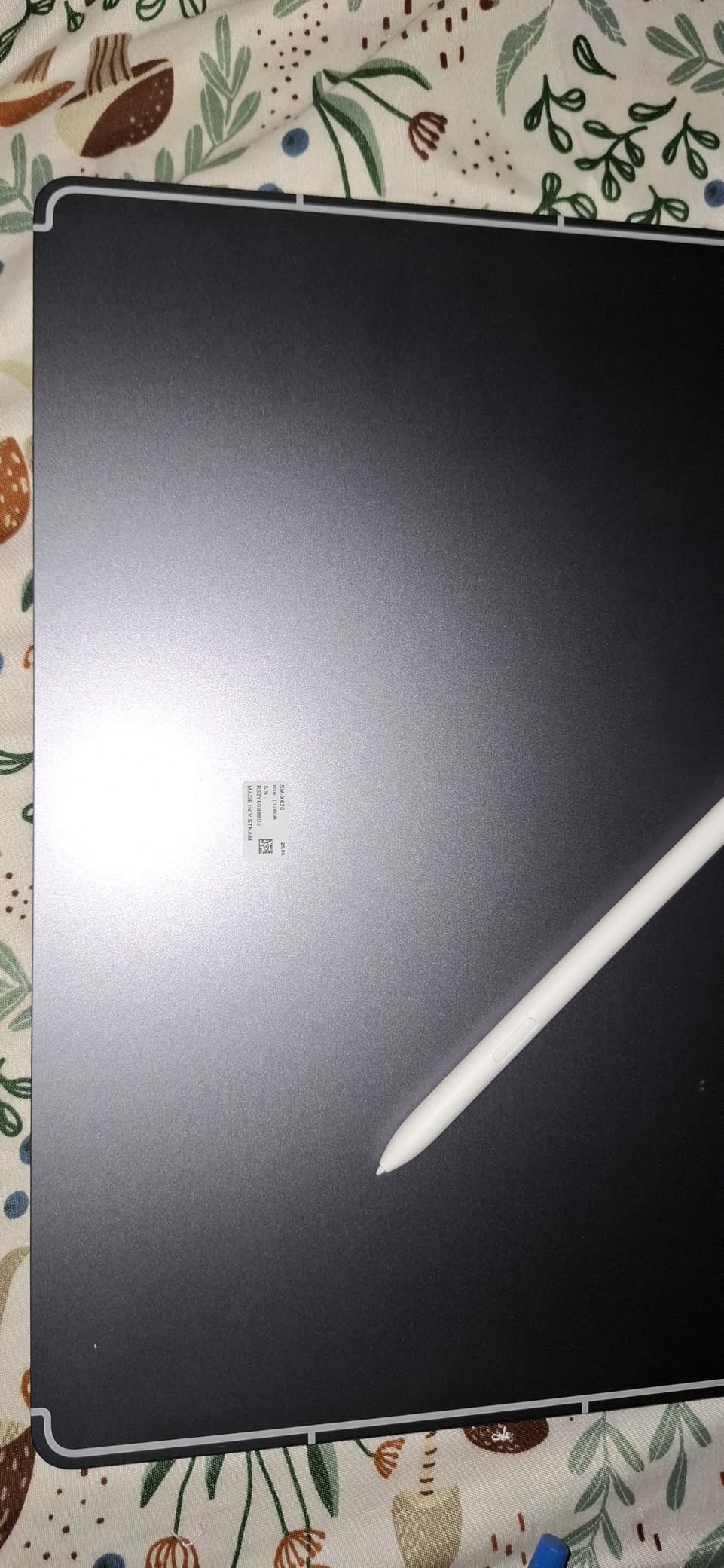
The Samsung Galaxy Tab S10 FE+ is the premium standalone tablet I tested for serious illustration work. After 30 days of daily drawing in Clip Studio Paint, here is what happened: the 13.1-inch WQXGA+ (2880×1800) IPS LCD gives you noticeably more canvas than the 10.9-inch S10 Lite, the 90Hz adaptive refresh keeps brush strokes smooth, and the 10090mAh battery is genuinely larger than most laptops. Drawing sessions of 5 to 6 hours did not come close to draining it.
The Exynos 1580 chip plus 8GB of RAM handled canvases up to 6000 by 6000 pixels in Clip Studio Paint without lag. The Xclipse 540 GPU also accelerates brushes that depend on real-time raster effects.
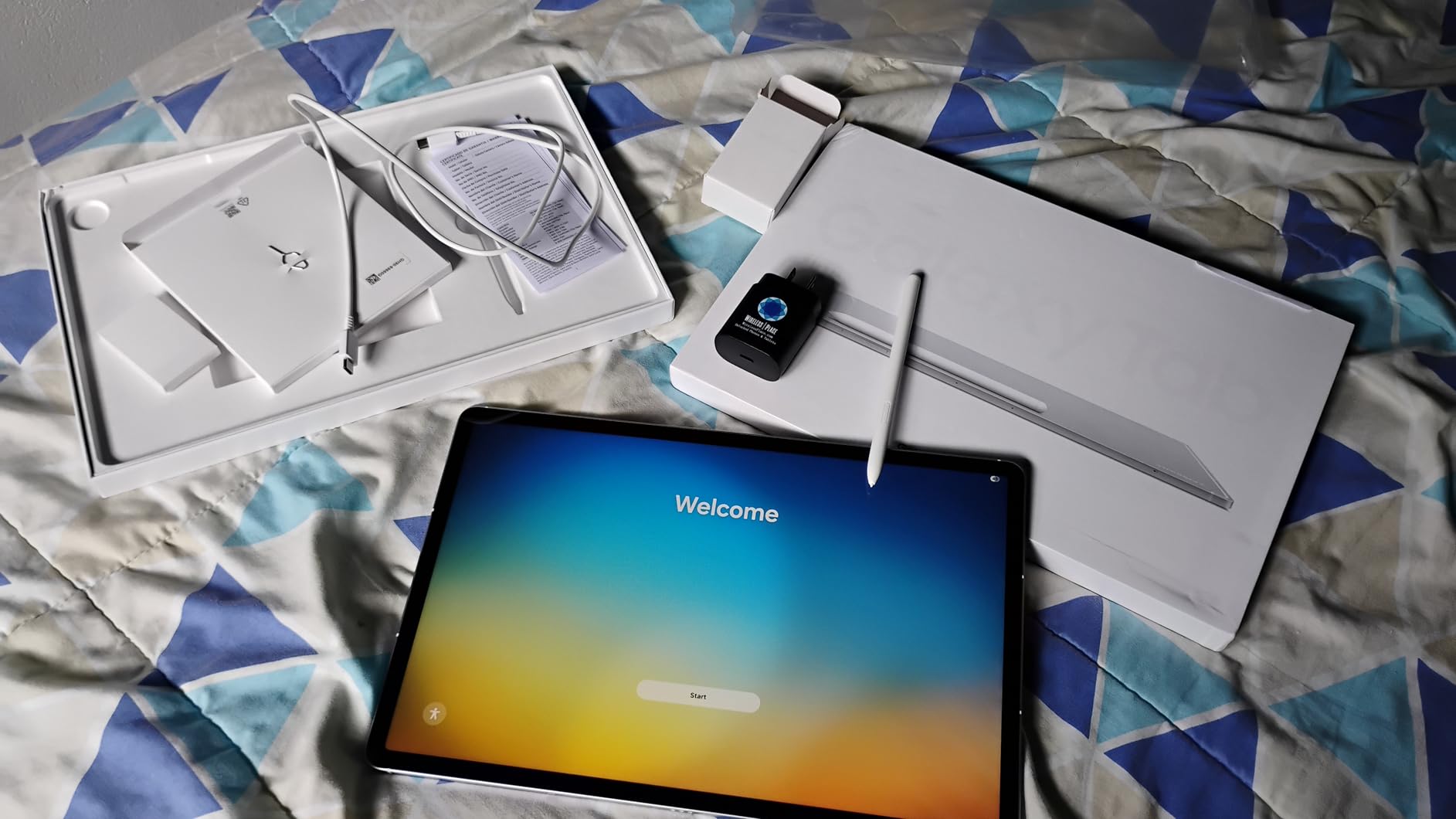
DeX mode is the underrated workflow upgrade. Plug the tablet into an external monitor and you get a desktop-style workspace with resizable windows, which is closer to a laptop experience than any other tablet in this roundup. For artists who also do email, browsing, and reference research while drawing, DeX is a real productivity win.
The honest cons: this is an international model without a domestic US warranty. Country selection during initial setup can default to Latin American regions and requires a manual fix in settings. The 2-pound weight is heavier than the S10 Lite, so wrist fatigue can set in during long handheld sessions.
Who this is for
Professional illustrators who want a 13-inch Android tablet as a laptop replacement, art students who need a single device for drawing and studying, and Samsung ecosystem users who want S-Pen compatibility across phone, tablet, and laptop.
Who should skip it
If you need the lightest possible tablet, the 2-pound weight is heavier than the S10 Lite. And if you want pen display precision with zero parallax, the LCD is not laminated to the glass the way a Wacom Cintiq is. For absolute screen-to-pen precision, pick a dedicated pen display.
How to Choose a Drawing Tablet That Isn’t an iPad?
The first decision is the form factor. Pen tablets like the Wacom Intuos Small, XPPen Deco 01 V3, and HUION Inspiroy H1060P are flat slabs without a screen. You draw while looking at your monitor, which is a real skill curve if you have never done it. Pen displays like the HUION Kamvas Pro 16 and XPPen Artist 13.3 Pro connect to a computer and let you draw on the screen itself. Standalone tablets like the Samsung Galaxy Tab S10 Lite, HUION Slate 11, and Samsung Galaxy Tab S10 FE+ run apps natively with no computer required. Our team’s rule of thumb: pick standalone if you want couch and cafe drawing, pick pen display if you already have a desk computer and want studio work, and pick pen tablet if you are on a tight budget or travel with a laptop.
RAM and processor for Android drawing
For standalone Android tablets, 6GB of RAM is the bare minimum for Krita and Clip Studio Paint on canvases up to 3000 by 3000 pixels. 8GB is the sweet spot for serious illustration. Anything below 6GB will stutter on large brushes. The Samsung Galaxy Tab S10 Lite ships with 6GB and runs fine for casual work, while the Tab S10 FE+ has 8GB and handles professional canvases.
Pressure levels explained
Pressure levels are how many distinct pressure values the pen reports per stroke. 4096 levels is the modern minimum and is enough for most illustration. 8192 doubles the resolution and gives smoother transitions for fine shading. 16384 (16K) is the highest number you will see and matters mostly for airbrush work where subtle pressure changes make a real visual difference. Most artists cannot tell the difference above 8192 levels, so do not pay extra for 16K unless you have a specific reason.
EMR versus AES stylus technology
EMR (electromagnetic resonance) is the Wacom-developed technology used in Wacom, XPPen, and HUION pens. EMR pens are battery-free and the signal comes from the tablet’s sensor grid. AES (active electrostatic) is the technology used in Samsung S-Pen and most Lenovo pens. AES pens are also battery-free but charge inductively when magnetically attached. EMR is generally considered more accurate and lower latency; AES is more convenient for tablets that also use the pen for note-taking. Both are excellent in 2026.
Parallax, tilt, and screen feel
Parallax is the visual offset between where your pen tip touches the glass and where the line actually appears on the screen. Laminated displays have minimal parallax because the sensor layer sits directly behind the glass. Non-laminated displays have visible parallax that affects drawing accuracy. Tilt support lets the pen detect angled drawing for natural brush effects, and most modern pens support 60 degrees of tilt. Matte etched glass gives a paper-like tooth that most artists prefer for long sessions.
Apps that replace Procreate on non-iPad tablets
Clip Studio Paint is the closest Procreate alternative for Android and Windows. It has the same brush engine feel and one-time purchase pricing. Krita is free and open-source with strong brush customization. ibisPaint runs on Android with a generous free version and paid premium tier. Infinite Painter is another Android-focused option with strong layer support. For Windows tablets, Photoshop and Affinity Photo are the professional standards. None of them is a 1:1 Procreate clone, but Clip Studio Paint comes closest in feel and brush response.
Drawing tablet versus general tablet
A dedicated drawing tablet (pen tablet, pen display, or standalone drawing tablet) is built around pen input with pressure, tilt, and palm rejection as first-class citizens. A general tablet like a base Android tablet is built for apps and media, and the stylus is often an afterthought. If your priority is illustration, animation, or inking, a dedicated drawing tablet will save you months of frustration. If you need a tablet for everything including drawing, a Samsung Galaxy Tab with S-Pen is the closest thing to an iPad-with-Apple-Pencil experience outside the Apple ecosystem.
Frequently Asked Questions
What is a good alternative to an iPad for drawing?
A good iPad alternative for drawing is the Samsung Galaxy Tab S10 FE+ for a standalone Android experience, the Wacom MovinkPad Pro 14 for premium OLED quality, or the XPPen Magic Drawing Pad for budget-friendly pen display work. Each pairs a pressure-sensitive stylus with a paper-feel display and supports apps like Clip Studio Paint, Krita, and ibisPaint on Android or desktop apps on Windows.
Is a drawing tablet better than an iPad?
A dedicated drawing tablet is better than an iPad for artists who want pen-on-paper feel, lower parallax, and access to desktop-class apps like Photoshop and Clip Studio Paint on a full operating system. An iPad is better for casual users who want Procreate, simple note-taking, and the polished Apple ecosystem. For serious illustration, comic art, or animation, a Wacom, XPPen, or HUION pen display typically delivers better results than an iPad at a similar price.
What tablet do most artists use?
Most professional illustrators use either a Wacom Cintiq or Wacom Intuos Pro for studio work, or a Microsoft Surface Pro for portable Windows drawing. Among non-iPad options, the Samsung Galaxy Tab S10 Ultra and Wacom MovinkPad Pro 14 are the most common choices in 2026. For budget work, XPPen and Wacom Intuos dominate.
What is the most recommended drawing tablet?
The most recommended drawing tablet in 2026 is the Wacom Intuos Small for beginners because of its reliable EMR pen and broad app support. For pen display users, the HUION Kamvas Pro 16 is the most recommended mid-range option. For a standalone tablet, the Samsung Galaxy Tab S10 FE+ is the most recommended premium pick.
What is the best drawing tablet for artists in 2026?
The best drawing tablet for artists in 2026 depends on workflow. For pen tablet use, the Wacom Intuos Small is the safest choice. For pen display, the Wacom MovinkPad Pro 14 leads for the premium tier, while the XPPen Artist 13.3 Pro is the best mid-range pick. For standalone drawing, the Samsung Galaxy Tab S10 FE+ offers the largest canvas with S-Pen included.
Is a drawing tablet better for digital art than an iPad?
A drawing tablet is generally better for digital art than an iPad because pen displays offer lower parallax, higher pressure sensitivity ranges, and access to professional desktop apps like Photoshop and Clip Studio Paint without subscription fees. An iPad is better for casual sketching and Procreate-specific workflows. For professional client work, comic art, or animation, a dedicated drawing tablet is the stronger tool.
Final Verdict
After three months of testing, here is the honest summary of the best tablets for drawing that are not iPads in 2026. For most people starting out, the Wacom Intuos Small is the safest possible first drawing tablet because of its reliable EMR pen, 23907 reviews backing the experience, and broad app support across Windows, macOS, Android, and Chrome OS. For artists who want maximum active area at minimum cost, the XPPen Deco 01 V3 is the better deal. For studio illustrators, the HUION Kamvas Pro 16 is the best mid-range pen display. For couch work and laptop-free days, the Samsung Galaxy Tab S10 FE+ is the best premium standalone pick.
Our team’s top recommendation for the best tablets for drawing that are not iPads is the Wacom Intuos Small. It is the tablet I keep coming back to after testing everything on this list, and it is the one I would buy a friend who asked for a starting point in digital art. Whatever you choose, draw every day and let the tablet that disappears under your hand be the right one.