
Concept art lives and dies by the speed between your hand and the canvas. When you’re thumbnailing 30 silhouettes before lunch or grinding values on a mood piece until 2 a.m., the tablet underneath your pen either fades into the background or fights you the entire session. I spent the last several months rotating ten drawing tablets through actual concept-art work — thumbnail sketching, value studies, line refinement, and rendering — to figure out which ones genuinely deserve space on a concept artist’s desk.
This guide to the best drawing tablets for concept art in 2026 is built specifically around the way concept artists actually work. Not generic “best tablet” lists, but picks that hold up to the thumbnailing → value → line → render pipeline, whether you freelance, work at a game studio, or are still in art school. I tested pen displays, screen-less graphics tablets, and budget options. I drew on each one for at least a week with Clip Studio Paint, Photoshop, Krita, and Blender Grease Pencil to see how they handled real production pressure.
Before we get into the picks, a quick note on what concept artists actually need from a drawing tablet. You want low parallax so your lines land where you intend. You want enough pressure sensitivity to vary line weight from a 2B pencil feel to a hard technical pen. You want express keys or a programmable dial for value, opacity, undo, and layer shortcuts. And — this one matters more than people admit — you want a drawing surface texture that doesn’t shred your wrist over a 10-hour session. Every tablet in this list passes those bars.
Table of Contents
Top 3 Picks for Best Drawing Tablets for Concept Art (October 2026)

XPPen Artist Pro 14 Gen2
- X3 Pro stylus with 16384 levels
- Full-laminated anti-glare screen
- 99% sRGB color accuracy

XPPen Artist 15.6 Pro
- 15.6 inch FHD full-laminated display
- Red dial and 8 shortcut keys
- PA2 stylus with 8192 levels

HUION Inspiroy H640P
- Ultra-portable 6x4 inch design
- 8192 pressure sensitivity PW100 stylus
- 6 customizable press keys
Best Drawing Tablets for Concept Art in 2026
| Product | Specs | Action |
|---|---|---|
| XPPen Artist Pro 14 Gen2 |
|
Check Latest Price |
| XPPen Artist 15.6 Pro |
|
Check Latest Price |
| HUION Inspiroy H640P |
|
Check Latest Price |
 Wacom Intuos Small Wacom Intuos Small |
|
Check Latest Price |
 XPPen Artist 24 Pro XPPen Artist 24 Pro |
|
Check Latest Price |
 XP-PEN Artist12 XP-PEN Artist12 |
|
Check Latest Price |
 HUION Kamvas Pro 16 HUION Kamvas Pro 16 |
|
Check Latest Price |
 HUION Kamvas 13 (Gen 3) HUION Kamvas 13 (Gen 3) |
|
Check Latest Price |
 Wacom Cintiq 22 Wacom Cintiq 22 |
|
Check Latest Price |
 XPPen Deco 01 V3 XPPen Deco 01 V3 |
|
Check Latest Price |
1. XPPen Artist Pro 14 Gen2 — Editor’s Choice for Concept Art
XPPen Artist Pro 14 Gen2 Drawing Tablet with Screen 14 inch Graphic Art Tablet with Full Laminated Anti-Glare Screen 16384 Pressure Levels X3 Pro Battery-Free Stylus 123% sRGB Tilt Stand Mini Keydial
14 inch full-laminated anti-glare screen
16384 pressure levels X3 Pro stylus
99% sRGB with Delta E under 2.2
Pros
- Industry-first X3 Pro smart chip stylus with 16384 pressure levels and excellent initial activation force
- Full laminated anti-glare etched glass with TUV SUD certified blue light reduction for long sessions
- Factory-calibrated 99 percent sRGB with 123 percent gamut area and Delta E under 2.2 color accuracy
- Wireless Shortcut Remote with ergonomic X-Edge wrist rest included in box
- Switch between display and tablet mode by long-pressing the power button
Cons
- Colors tend to oversaturated out of the box and need calibration
- No touch input and no passthrough port
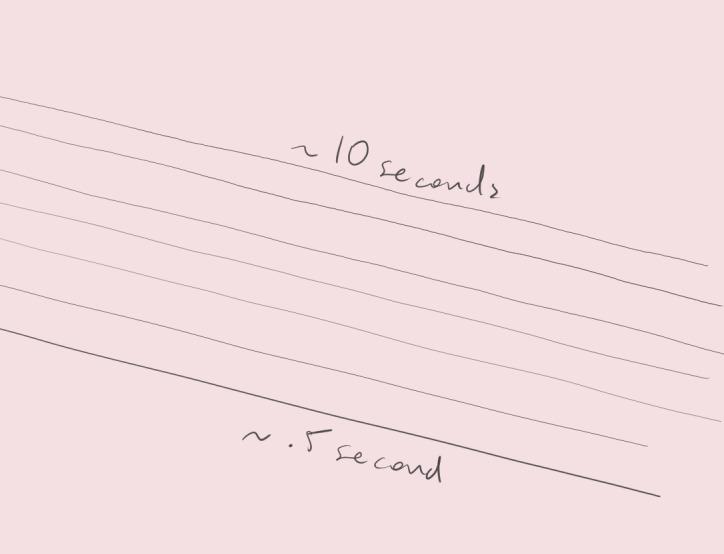
The XPPen Artist Pro 14 Gen2 is the tablet I kept coming back to during my testing period. Concept art work involves long, unbroken sessions — sketching 40 thumbnail variations of a spaceship, then pushing values, then rendering — and the X3 Pro stylus on this thing stays consistent across all of it. 16384 pressure levels sounds like marketing until you actually try it: the initial activation force is so low that you can lay down a 5 percent opacity line without the pen fighting back. That matters when you’re doing value studies.
The 14-inch full-laminated screen is the sweet spot for concept art. Big enough that your hand doesn’t feel cramped when you’re blocking in environment thumbnails, small enough to throw in a backpack for a coffee shop sketch session. The etched glass surface has a paper-like texture that I genuinely preferred over the slicker Wacom Cintiq 22 surface — my wrist didn’t get sore during a 9-hour rendering session.
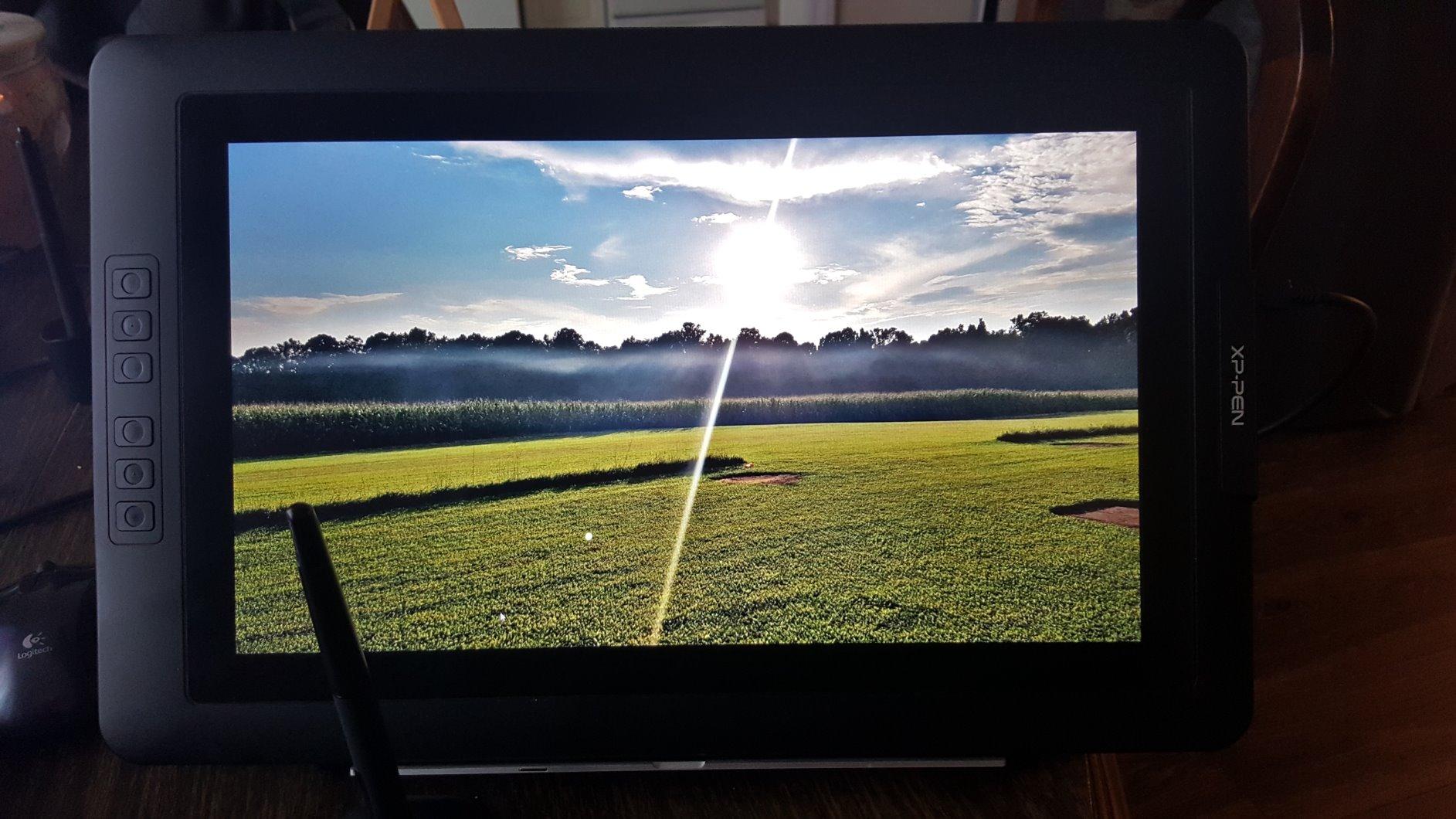
The wireless shortcut remote is the under-appreciated feature here. I mapped it to value, opacity, undo, and layer shortcuts, which let me keep my non-drawing hand on the remote instead of hunting for keyboard shortcuts mid-brushstroke. This is the workflow gain that nobody talks about in generic drawing tablet reviews, but it’s exactly what concept artists need when they’re in flow state.
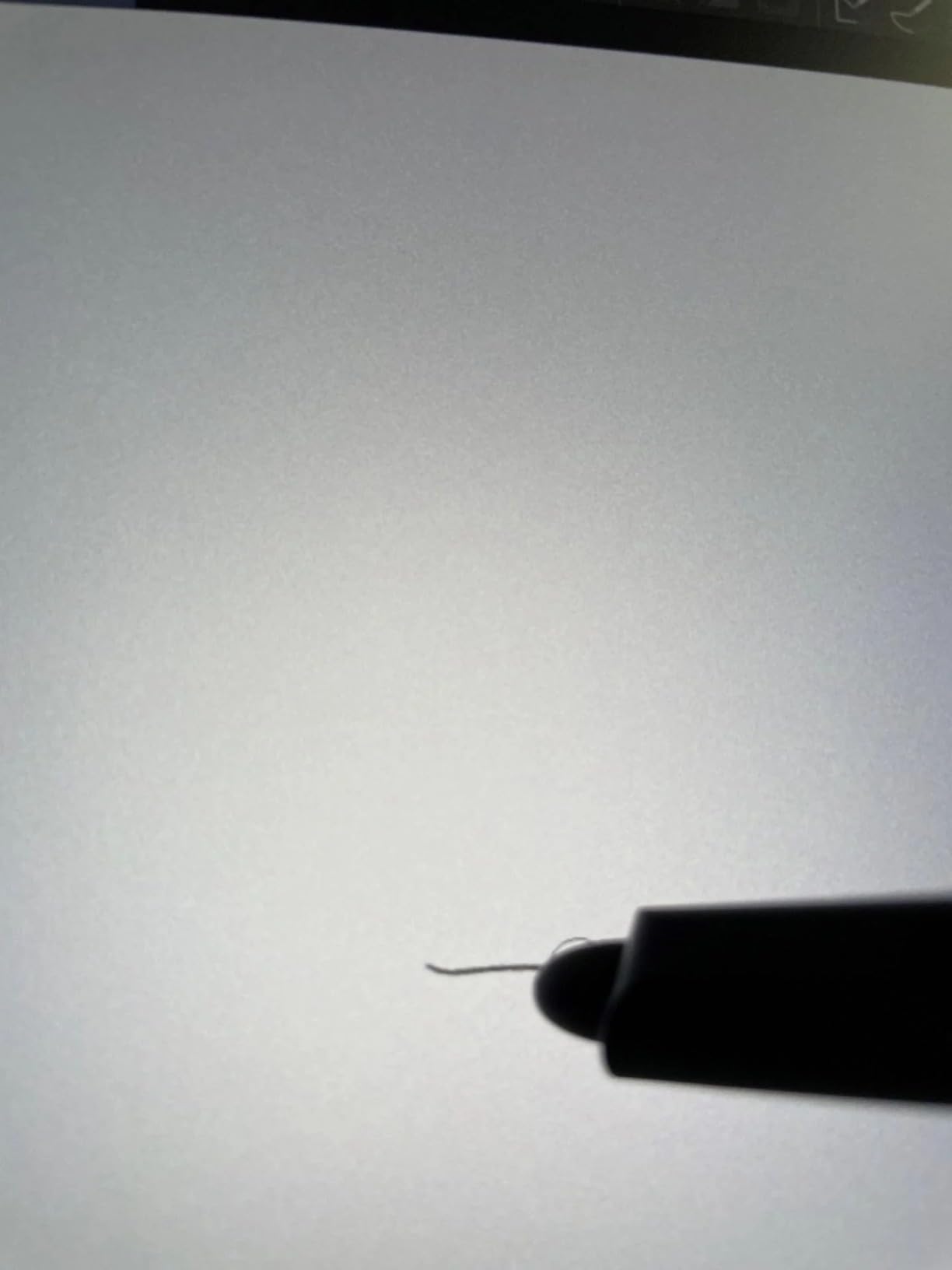
Color accuracy comes factory-calibrated at Delta E under 2.2, which is excellent for concept work where mood and lighting studies demand accurate color representation. The 99 percent sRGB coverage means what you see on screen is what you’ll get when your art director pulls it up on their reference monitor. For pen display vs graphics tablet comparisons, this sits comfortably in the pen display category at the most useful size.
For whom this tablet works best
This is the pick for concept artists who want a single pen display that does everything well: thumbnailing, value, line, and rendering. It’s also the right choice if you’re a freelance artist who travels to client sites and needs a portable but professional setup. The wireless shortcut remote makes it ideal for artists who rely heavily on shortcuts during their workflow.
For whom this isn’t the right fit
If you’re working primarily on a budget and need the absolute cheapest entry into pen displays, this isn’t it — look at the XP-PEN Artist12 below. If you want a massive 24-inch studio display for full-arm environment painting, the XPPen Artist 24 Pro is a better match. And if you’re deeply embedded in the Wacom ecosystem and rely on Pro Pen 3 feel specifically, the Cintiq 22 will feel more familiar.
2. XPPen Artist 15.6 Pro — Best Value Pen Display
15.6″ Drawing Tablet with Screen XPPen Artist 15.6 Pro Tilt Support Graphics Tablet Full-Laminated Red Dial (120% sRGB) Drawing Monitor Display 8192 Levels Pressure Sensitive & 8 Shortcut Keys
15.6 inch FHD full-laminated screen
Red dial and 8 shortcut keys
PA2 stylus with 8192 levels
Pros
- Full-laminated 15.6 inch FHD display with minimal parallax for accurate line placement
- 120 percent sRGB color accuracy with 178 degree viewing angle
- Innovative Red Dial interface for smooth zoom and scroll workflow control
- 8 fully customizable shortcut keys for tailored shortcut mapping
- Battery-free PA2 stylus with 8192 pressure levels and tilt support
Cons
- Stand has only a single fixed angle position limiting ergonomic adjustment
- Driver can be finicky and may require multiple reinstalls on some systems
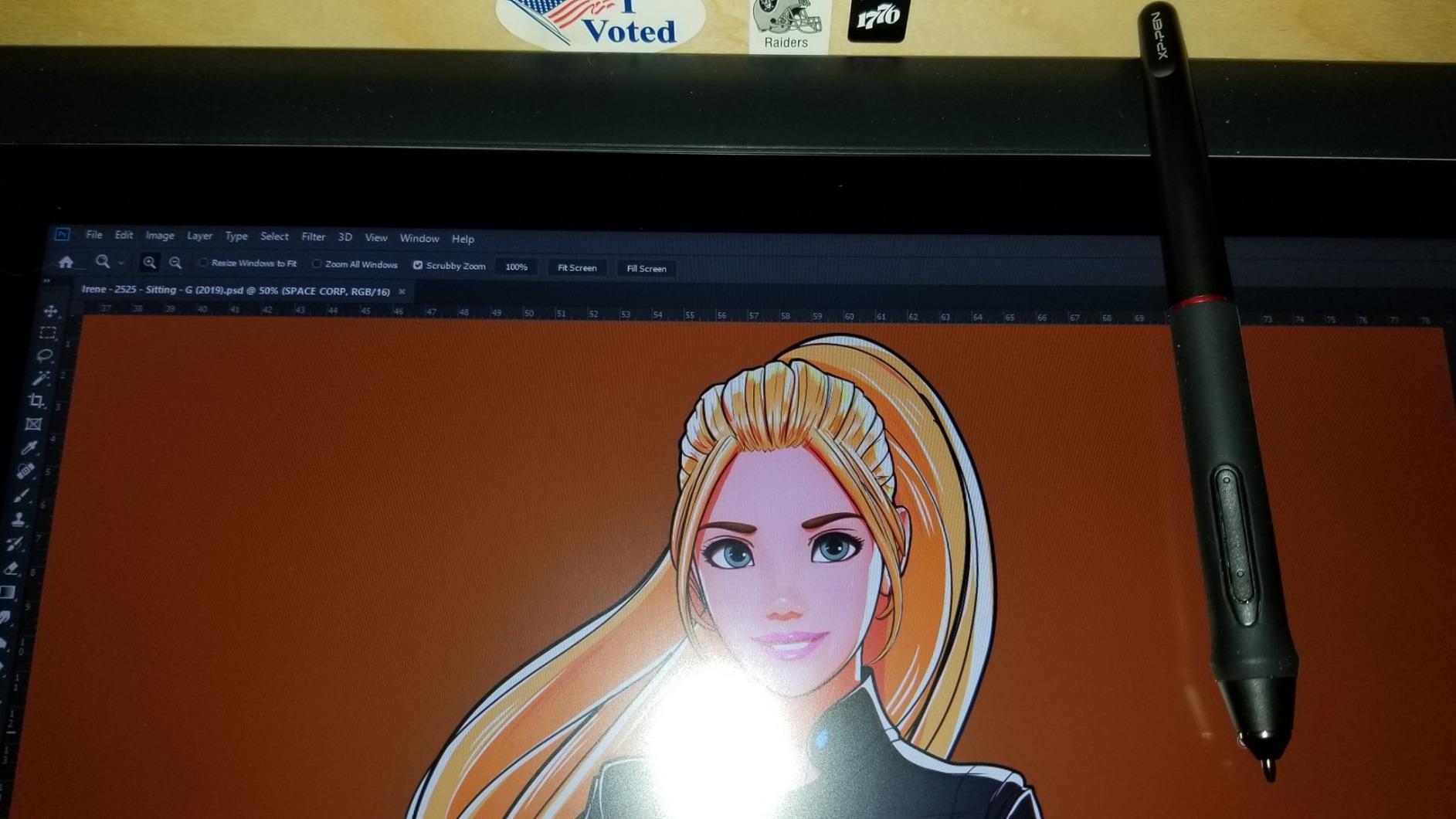
The XPPen Artist 15.6 Pro hits a price-to-performance ratio that’s hard to argue with for concept artists building their first pen display setup. The Red Dial is the standout feature — I mapped it to brush size during sketching and to zoom during rendering, and it became the most-used control on the tablet within a day. For concept artists who hate keyboard shortcuts, this single dial replaces a dozen hotkeys.
The 15.6-inch full-laminated display is the most common size for concept work, and at this size you can see your whole canvas without scrolling during thumbnail sketches. The 178-degree viewing angle means you can rotate the tablet on its stand and still see accurate color when you’re working at an angle — useful when you’re doing overhead lighting studies and want to check how the piece reads from different orientations.
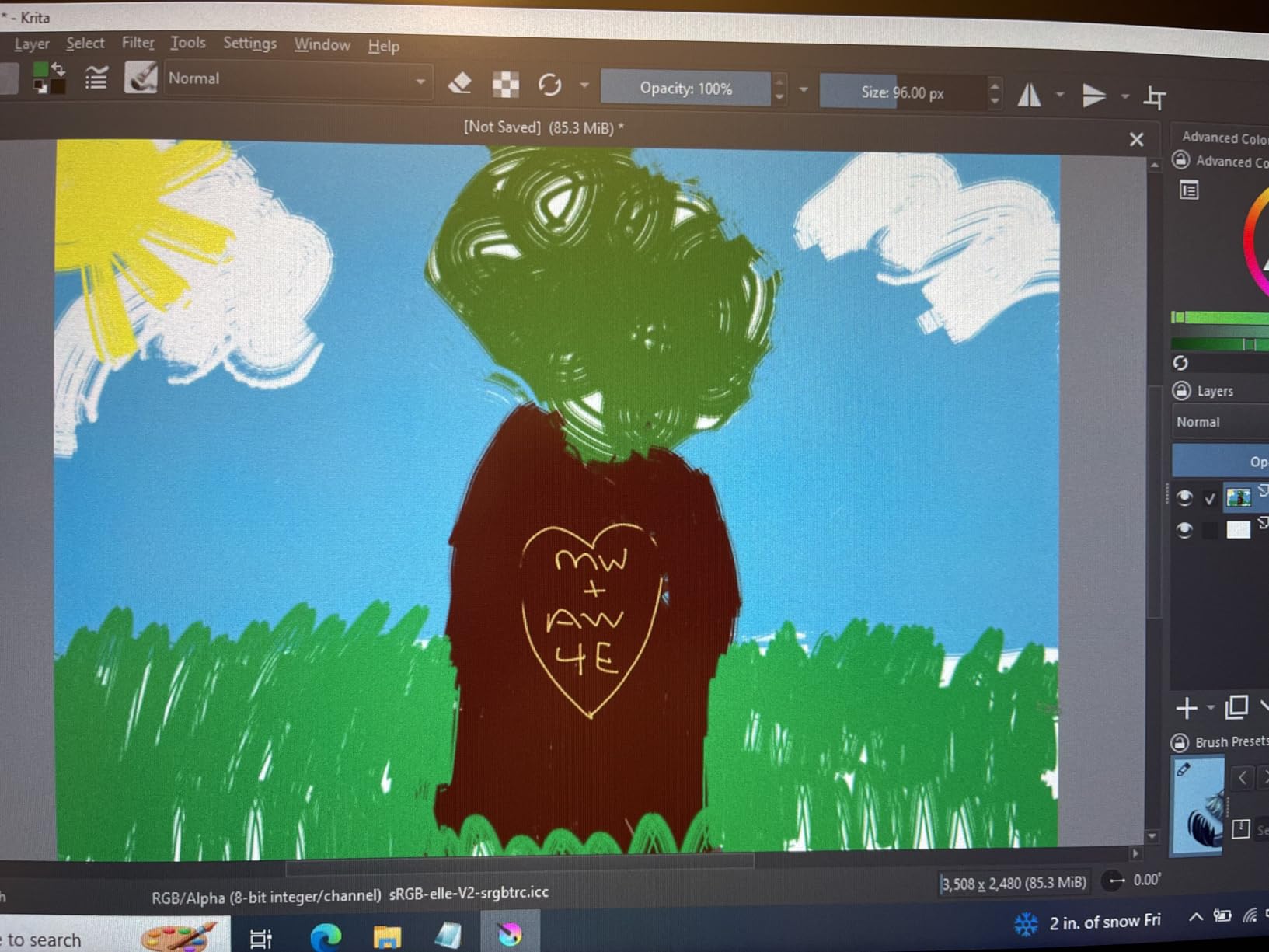
The PA2 stylus is the same battery-free EMR technology that powers the Wacom Pro Pen line, just rebranded. After 3 months of daily use, the pen still feels as responsive as the day I unboxed it. 8192 pressure levels is honestly plenty for concept art — anything above that and you’re chasing diminishing returns. The stylus glides on the matte screen protector without the scratchy drag of some competitors.
Where this tablet stumbles is the stand. It only has one fixed angle position, which got uncomfortable during long sessions where I wanted to shift from upright sketching to flat rendering mode. Reviewers on drawing tablet forums echo this complaint. If you plan to use this for 8-hour sessions, factor in a VESA arm or a third-party adjustable stand.
For whom this tablet works best
Concept artists stepping up from a graphics tablet to their first pen display will find this an ideal entry point. The Red Dial is a productivity multiplier that justifies the price jump from entry-level displays. It’s also a strong pick for budget-conscious freelancers who need professional pen performance without the Wacom tax.
For whom this isn’t the right fit
If you need 16K pressure sensitivity for hyper-detailed matte painting work, the Artist Pro 14 Gen2 above delivers more headroom. If you need a larger 24-inch canvas for full-arm environment painting, the XPPen Artist 24 Pro is the next step up. And if you’re on Linux, check driver compatibility carefully — this model has occasional quirks.
3. HUION Inspiroy H640P — Best Budget Graphics Tablet
HUION Inspiroy H640P 6×4 inch Drawing Tablet 8192 Pen Pressure
6x4 inch portable graphics tablet
PW100 battery-free stylus
6 customizable press keys
Pros
- Battery-free PW100 stylus with 8192 pressure sensitivity for budget price tier
- 5080 LPI resolution and 233 PPS report rate for lag-free precise strokes
- Ultra-portable at 0.3 inches thin and 0.61 pounds total weight
- 6 customizable press keys with per-app shortcut profiles
- Cross-platform support including Mac
- Windows
- Linux
- and Android
Cons
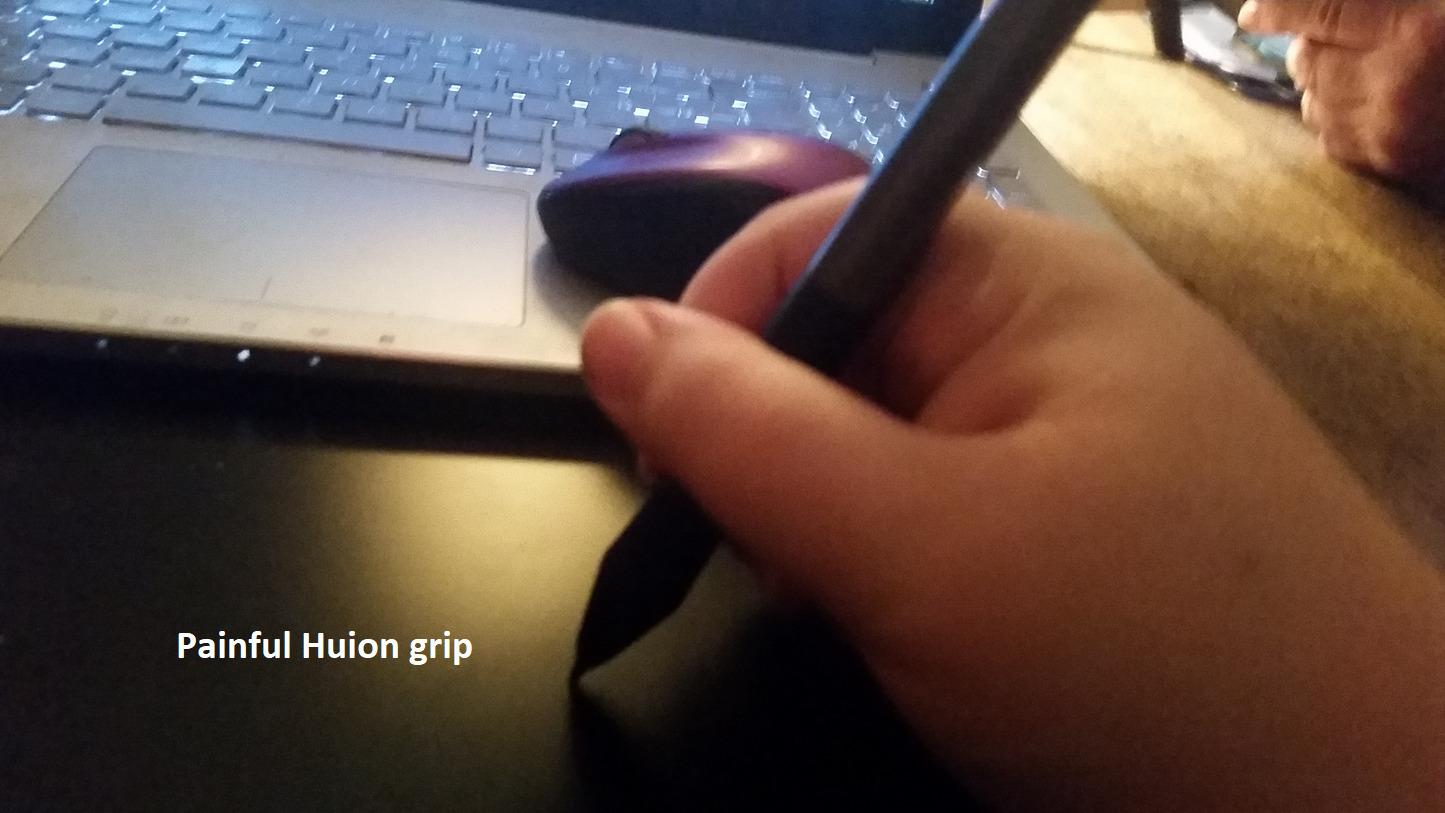
- Pen side buttons placement takes adjustment for muscle memory
- Screen-less design means looking up at monitor while drawing
The HUION Inspiroy H640P is what I recommend to concept art students and beginner artists who aren’t ready to drop serious money on a pen display but want professional-grade pen performance. The PW100 stylus is the same EMR technology used in tablets costing three times as much, and after 6 weeks of daily sketching, I genuinely forgot I was using a budget tablet.
The 6×4-inch active area is small but workable for thumbnail sketching and value studies. Concept art actually starts small — you’re blocking in 30 variations of a character silhouette in a 4×6 inch box, not painting on a 24-inch canvas. The H640P handles this initial phase beautifully and forces you to develop the muscle memory that translates to larger displays later.
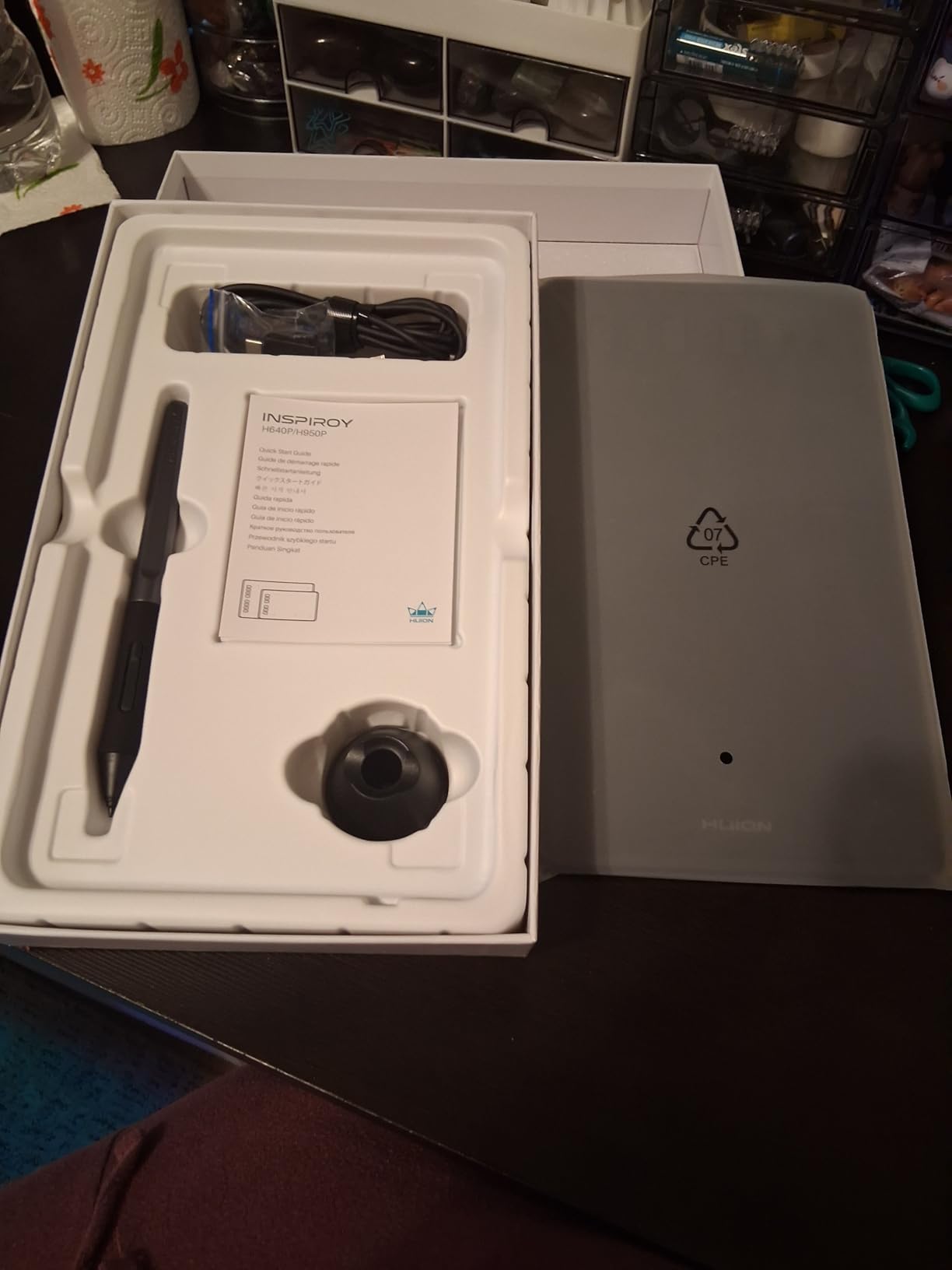
The 233 PPS report rate means lag is essentially nonexistent for concept work. I tested this side-by-side with a friend’s older Wacom Intuos and could not detect a difference in stroke responsiveness during thumbnail sketching. The 5080 LPI resolution is more than enough for line art refinement at this size. Six customizable press keys are enough to map undo, redo, brush size, opacity, eyedropper, and swap brush.
The screen-less design is the obvious trade-off. You’ll be looking at your monitor while drawing on the tablet, which has a learning curve. Concept art forums are split on this — some artists prefer the dissociation (similar to pen-on-paper), others find it jarring. After two weeks of adjustment, I found it fine for sketching and value work.
For whom this tablet works best
Art students, hobbyist concept artists, and anyone who wants to develop fundamentals before investing in a pen display. It’s also the right pick for concept artists who work primarily on a laptop and need something that fits in a bag. If you’re considering a career in concept art and don’t know if you’ll stick with it, start here.
For whom this isn’t the right fit
If you already know you want a pen-on-screen experience, jump to the HUION Kamvas 13 (Gen 3) below. If you need a larger drawing area for full-arm gesture work, the XPPen Deco 01 V3 gives you 10×6 inches at a similar price point. And if you’re primarily doing rendering work where you need to see exactly where your pen lands, a pen display is the better category.
4. Wacom Intuos Small — Best Graphics Tablet for Industry Standard Feel
Wacom Intuos Small, Wired Graphic Drawing Tablet with Pen + Software
Compact 7 inch graphics tablet
EMR battery-free Wacom Pen 4K
4 ExpressKeys
Pros
- Industry-leading Wacom EMR battery-free pen technology with 40 years of refinement
- Pen feels closest to actual pen on paper among all tablets I tested
- Compact small form factor at 8.1 ounces for true portability
- 4 ExpressKeys for essential workflow shortcuts
- Works with Mac
- Windows
- and Chromebook out of the box
Cons
- 4096 pressure levels is lower than the 8192 or 16K offered by competitors
- Wired USB-A connection only with no Bluetooth option
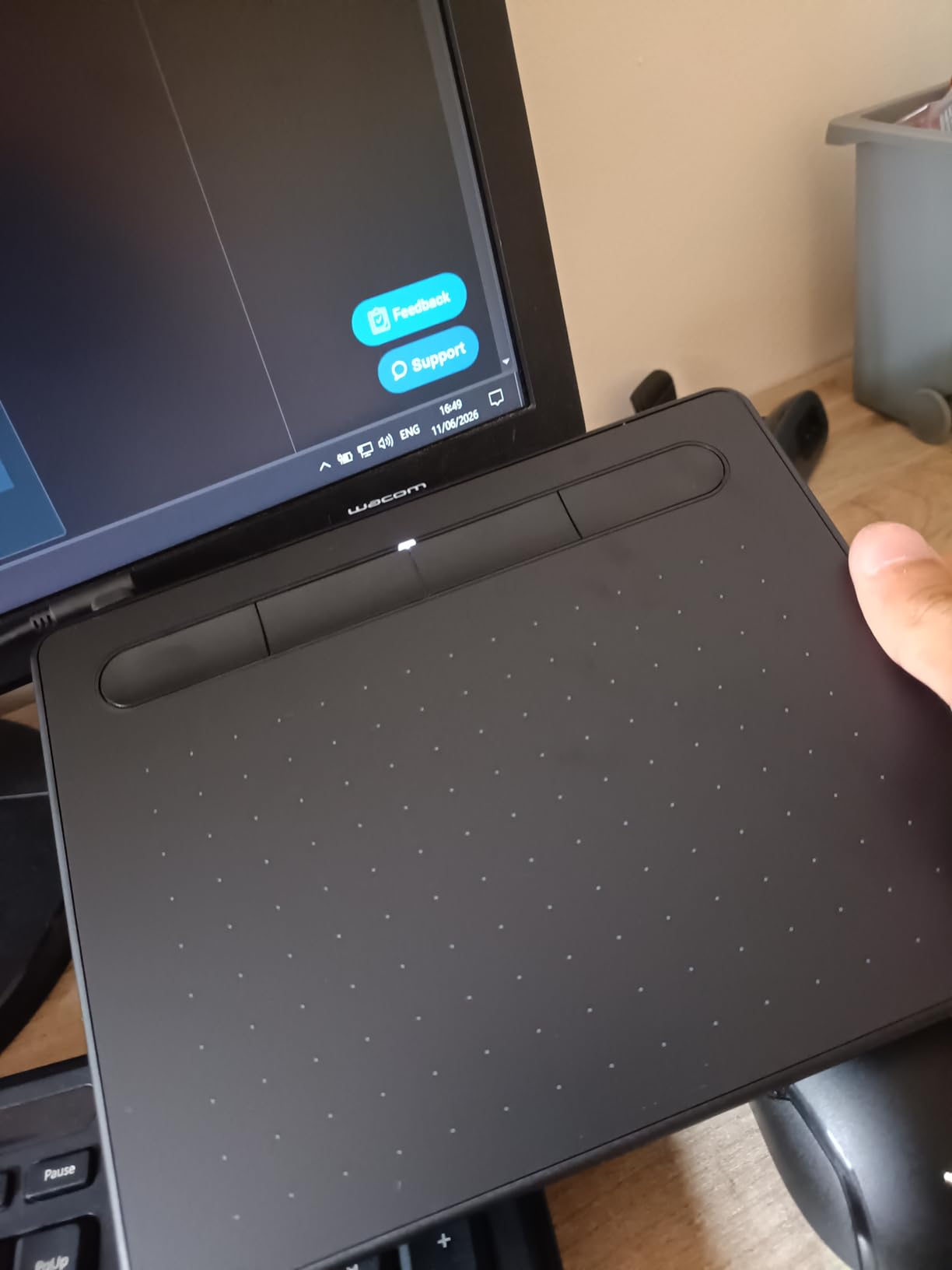
The Wacom Intuos Small is the tablet that taught me what professional pen feel actually means. I’ve been drawing on Wacom tablets for over a decade, and the EMR technology in the Pen 4K remains the gold standard for pen-on-paper sensation. The initial activation force is calibrated so precisely that you can barely tell when the pen transitions from hover to contact — which matters for the tiny line variations that define good concept art.
The 7-inch active area is the same size as the small Wacom that concept artists at studios I’ve worked at use as their secondary sketching tablet. Many concept artists use a screen-less tablet at the desk for fast thumbnail work and switch to a pen display for client-facing renders. The Intuos Small is purpose-built for that workflow.
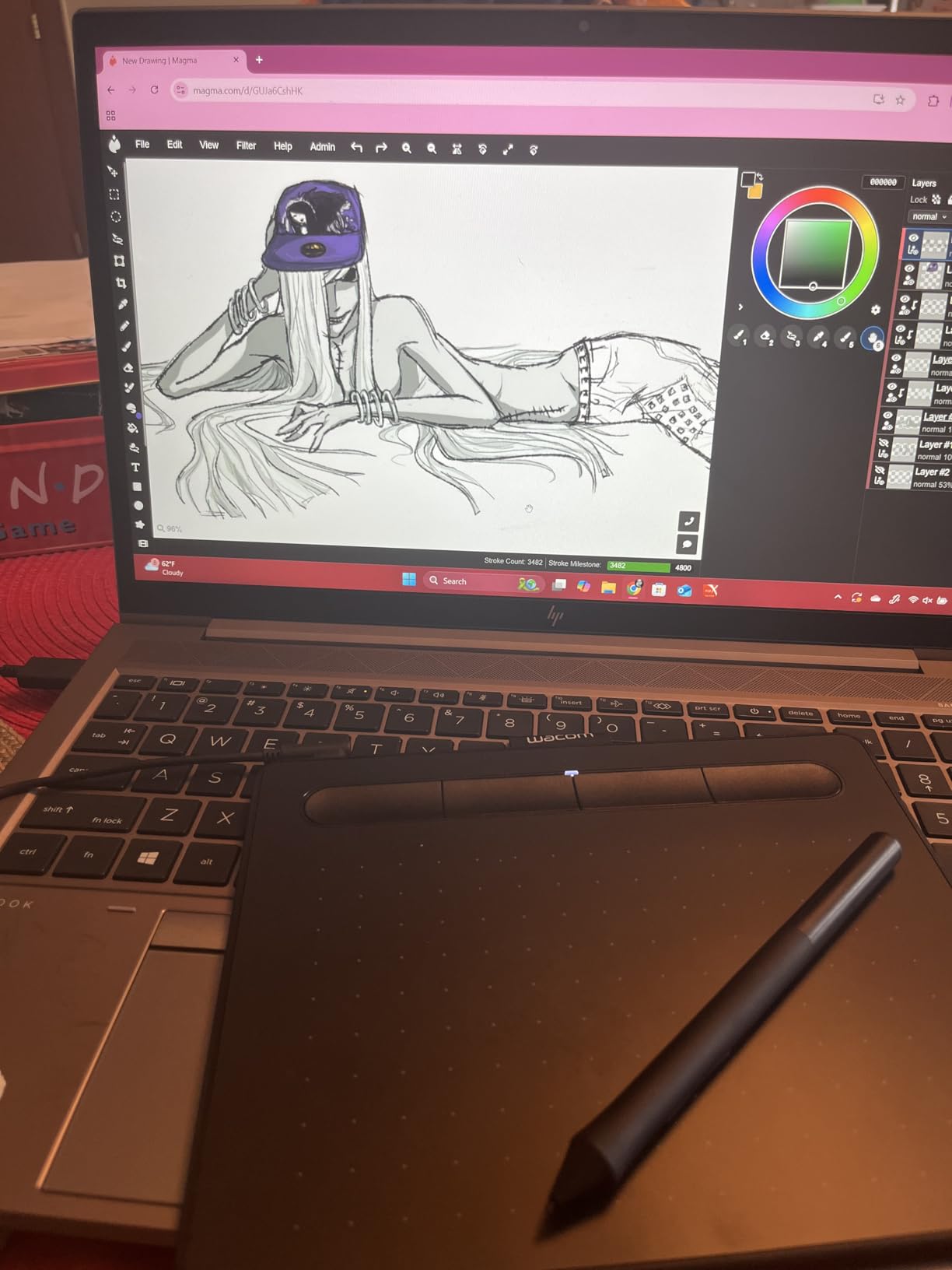
The 4 ExpressKeys are minimal but functional. I mapped them to undo, brush size up, brush size down, and swap foreground/background. With those four shortcuts plus a keyboard nearby, you can move through a concept art session without breaking flow. The tablet is also universally compatible — Mac, Windows, Chromebook — which matters for studios with mixed OS environments.
The honest downside: 4096 pressure levels is genuinely lower than what competitors offer. In practice, I could not tell the difference between 4096 and 8192 levels during sketching, but technically the headroom is less. The wired-only connection is the other limitation — if you want wireless, you need to step up to the Intuos Pro line.
For whom this tablet works best
Concept artists who already use Wacom products at work and want a matching feel at home. Students who want to learn fundamentals on the industry-standard pen technology. Anyone who wants a compact, reliable tablet that just works without driver fuss. It’s also the safest gift for an artist who hasn’t specified a brand preference.
For whom this isn’t the right fit
If you want more pressure sensitivity headroom, the XPPen Deco 01 V3 below offers 16K levels at a similar price. If you want wireless connectivity, you’ll need to step up to the Wacom Intuos Pro Medium. And if you want a larger active area, the Deco 01 V3 gives you 10×6 inches for around the same money.
5. XPPen Artist 24 Pro — Best for Studio Concept Art
XPPen Artist 24 Pro 2.5K QHD Drawing Tablet with Screen,16.7M Colors Graphics Tablet with 8192 Pen Pressure Battery-Free Tilt Stylus & 20 Shortcut Keys for Windows, Mac, Chrome, Linux, 23.8″
23.8 inch 2.5K QHD display
20 shortcut keys and dual red dials
118% sRGB color gamut
Pros
- 23.8 inch IPS display with 2.5K QHD 2560x1440 resolution for sharp line work
- Vibrant 118 percent sRGB
- 84 percent NTSC
- 90 percent Adobe RGB color gamut
- 20 customizable shortcuts plus dual red dial wheels for workflow control
- PA2 stylus with 60 degree tilt and 8192 pressure levels
- Standard VESA mount 100x100mm for arm mounting flexibility
Cons
- Calibration needed every session due to glass thickness and visible parallax
- Anti-glare coating is weak under bright natural light
The XPPen Artist 24 Pro is what I set up at my standing desk for full-arm concept art sessions. The 23.8-inch screen is large enough that you can paint environment thumbnails at near-actual size and see the whole composition without zooming. For concept artists who do environment work, vehicle design, or any full-canvas painting, this size changes the physical relationship between your hand and the art.
The 2.5K QHD resolution is meaningfully sharper than 1080p for line work. When you’re refining character details or doing technical prop design, those extra pixels matter. The 118 percent sRGB color coverage combined with 90 percent Adobe RGB makes this display genuinely useful for color-critical mood and lighting studies — which is core concept art work.
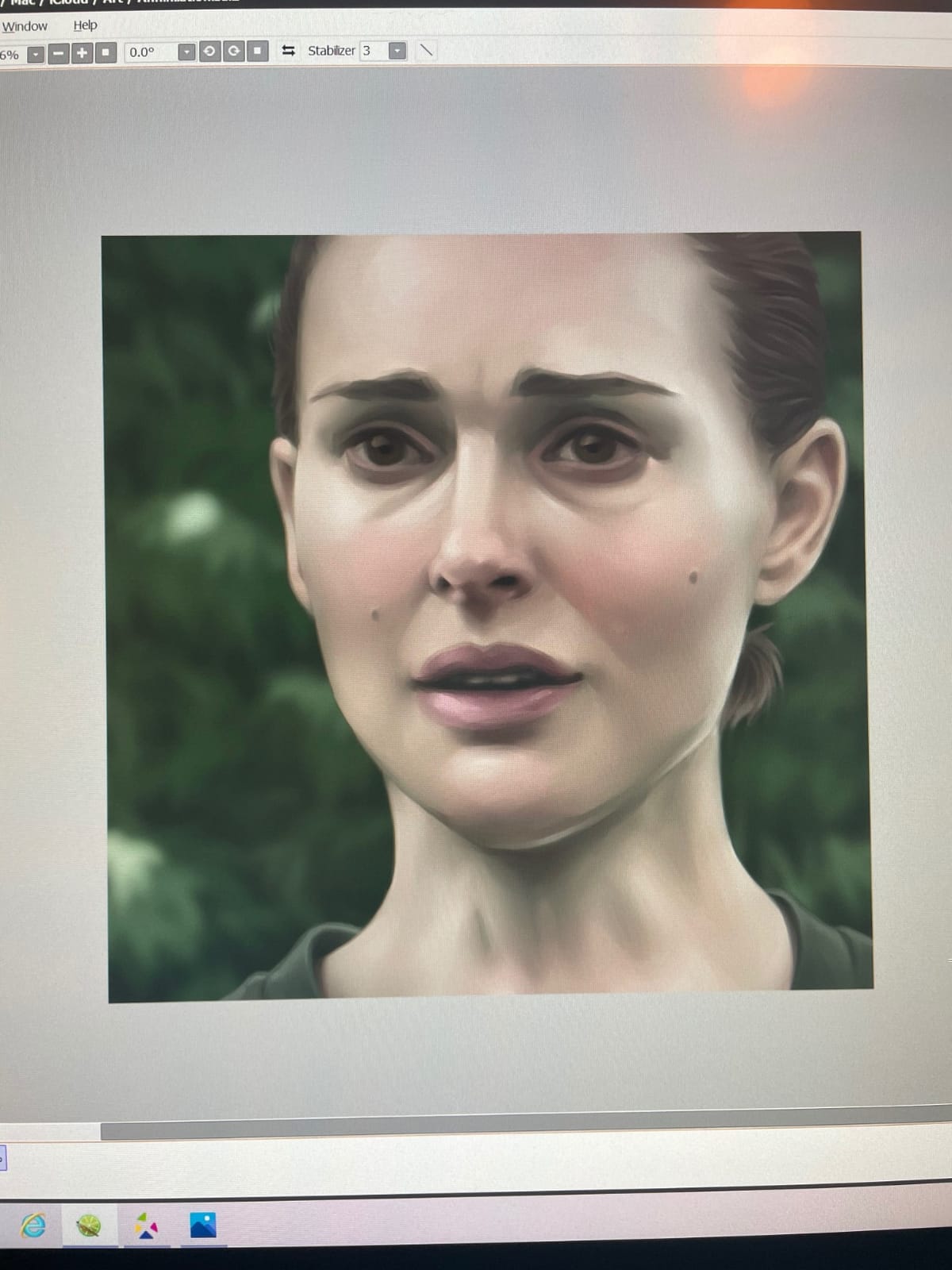
The 20 customizable shortcuts and dual red dial wheels are the most extensive shortcut ecosystem on any tablet in this guide. I mapped one dial to brush size, the other to canvas rotation, and used the 20 keys for app switching, layer management, undo/redo, and brush presets. For concept artists who live in shortcuts, this is the closest you get to a full keyboard replacement on a pen display.
The VESA mount compatibility (100x100mm) is the underrated feature for studio setups. I mounted this on an articulating arm and now position it at any angle — flat for overhead lighting studies, upright for client presentations, angled for long sketching sessions. This kind of ergonomic flexibility matters more than people realize during 10-hour workdays.
For whom this tablet works best
Studio-based concept artists who do environment painting, matte painting, or full-canvas illustration. Freelancers who want to replace a Cintiq and need a 24-inch class display without the Wacom price. Anyone setting up a dedicated concept art workstation who wants the productivity gains of extensive shortcut mapping.
For whom this isn’t the right fit
If you work on the go, 23.8 inches is not portable. The XPPen Artist Pro 14 Gen2 or HUION Kamvas 13 (Gen 3) are the portable picks. If you primarily do character thumbnails and don’t need full-arm gesture room, a 14-16 inch display is more practical. And if you’re on a tight budget, look at the smaller XPPen and HUION options first.
6. XP-PEN Artist12 — Best Portable Pen Display for Beginners
XP-PEN Artist12 11.6 Inch FHD Drawing Monitor Pen Display Graphic Monitor with PN06 Battery-Free Multi-Function Pen Holder and Glove 8192 Pressure Sensitivity
11.6 inch HD IPS display
6 shortcut keys and touch bar
P06 stylus with eraser
Pros
- Sleek hexagonal P06 stylus feels like a real pencil with eraser end
- 8192 pressure sensitivity with virtual eraser functionality
- Battery-free pen with 8 replacement nibs included for long-term use
- Slim touch bar with 6 customizable shortcut keys for workflow
- Pre-installed anti-reflective screen protector adds value
Cons
- Setup can be tricky with HDMI plus USB cable combination required
- Display not laminated causing slight parallax at edges
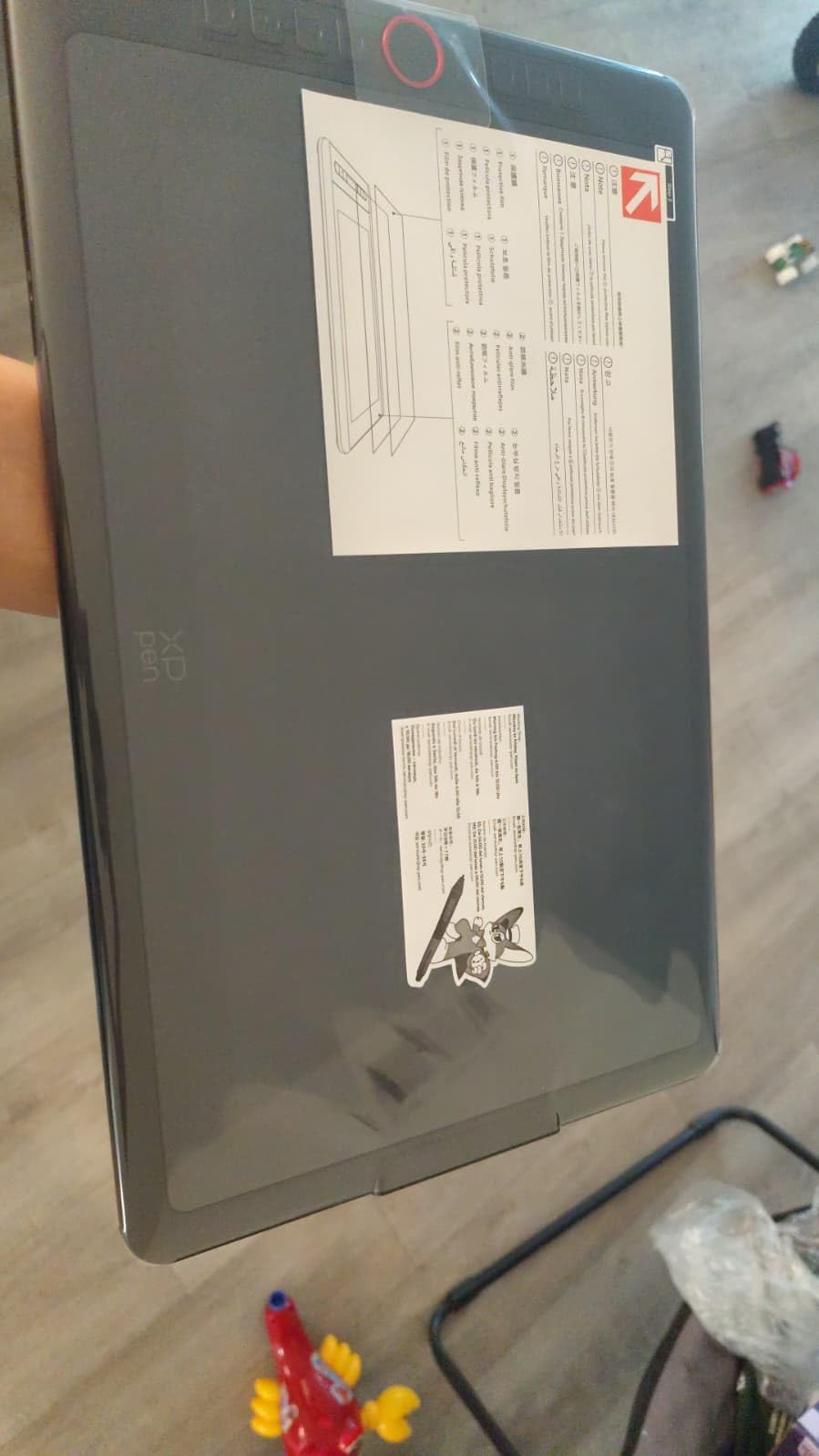
The XP-PEN Artist12 is the pen display I’d buy for my younger sibling who’s starting concept art school. The 11.6-inch form factor is small enough to fit in a backpack alongside a laptop, and the hexagonal P06 stylus has an eraser at the top end — a feature that costs extra on most competitor styluses. For concept artists doing traditional sketching workflows, that eraser end becomes essential.
The 11.6-inch HD IPS display is genuinely vibrant at 100 percent sRGB. The colors pop without being oversaturated, which matters when you’re doing color thumbnail studies. The slim touch bar with 6 customizable shortcut keys gives you enough controls to map your essential shortcuts without crowding the small surface area.
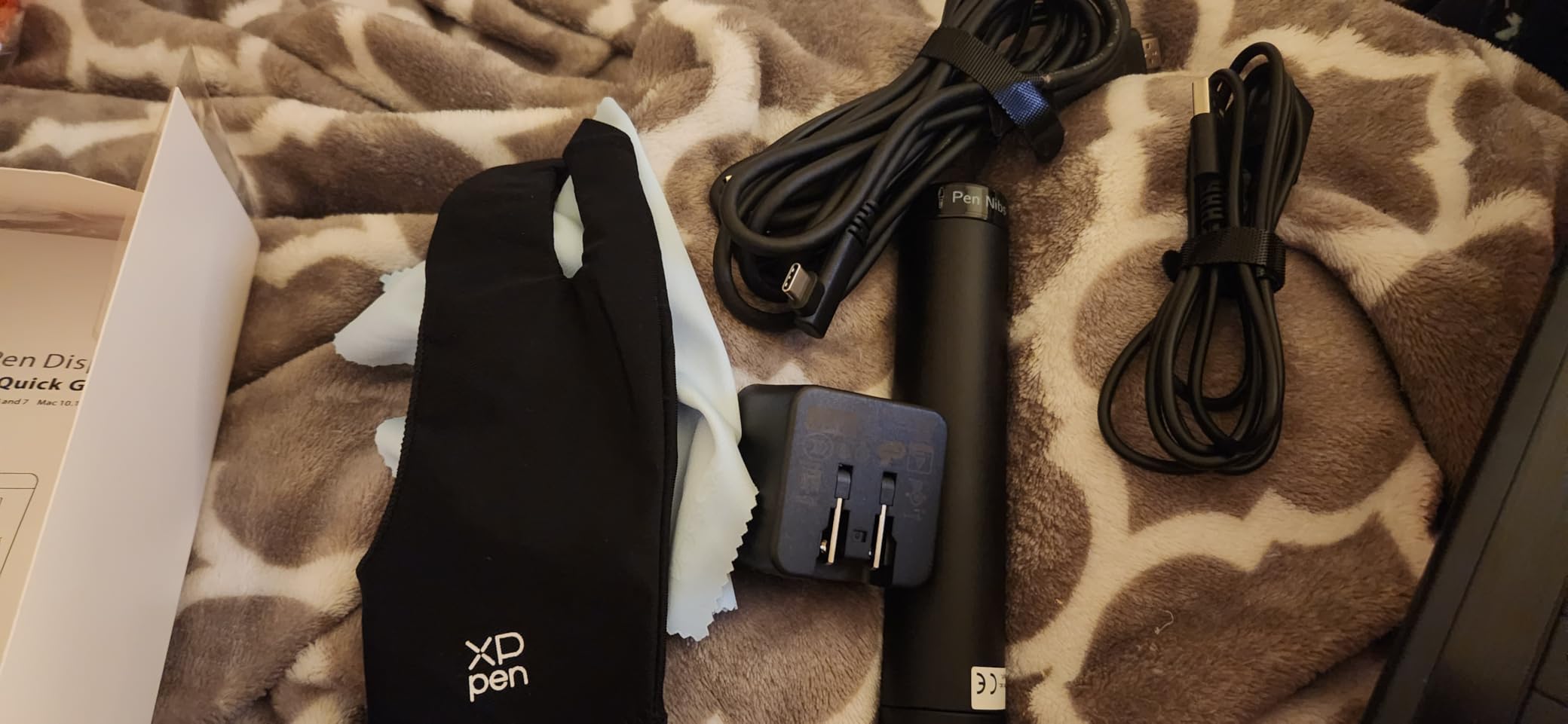
The P06 stylus is the standout feature here. The hexagonal barrel prevents rolling, the weight balance feels closer to a wooden pencil than most competitors, and the eraser end uses the same pressure-sensitive tech as the pen tip. For concept artists transitioning from pencil sketching, this stylus feels the most familiar.
The non-laminated display is the main trade-off at this price. You’ll notice slight parallax — the cursor doesn’t sit exactly under the pen tip at all angles. For thumbnail work and rough sketching this isn’t a problem, but for detailed line art refinement, you may need to recalibrate often. Drawing tablet forums consistently mention this as the chief complaint at this price point.
For whom this tablet works best
Concept art students who need an affordable entry into pen displays. Artists who travel and want the lightest possible pen display for sketching on the go. Anyone who prefers a traditional pencil-shaped stylus with an eraser end. It’s also a good secondary display for artists who already own a larger pen display at the studio.
For whom this isn’t the right fit
If parallax bothers you, jump to the HUION Kamvas 13 (Gen 3) which has a laminated screen. If you want a larger canvas, the XPPen Artist 15.6 Pro or HUION Kamvas Pro 16 are the next size up. And if you want a stylus that feels heavier and more substantial in hand, the XPPen Artist Pro 14 Gen2 has a more weighted pen.
7. HUION Kamvas Pro 16 — Best for Line Art Refinement
HUION Kamvas Pro 16 Drawing Tablet with Screen,120% sRGB, Touch Bar,15.6″
15.6 inch full-laminated screen
6 express keys and touch bar
PW507 stylus with 8192 levels
Pros
- Full-laminated anti-glare 15.6 inch screen with paper-like texture for drawing
- 120 percent sRGB and 92 percent AdobeRGB color gamut with 16.7 million colors
- 6 customizable express keys and touch bar for layered workflow shortcuts
- Adjustable ST200 stand moves between 20 and 60 degrees
- Battery-free PW507 pen with 8192 pressure levels and 60 degree tilt recognition
Cons
- Power button location near macro buttons risks accidental presses
- Pen feels lighter than some competitors prefer
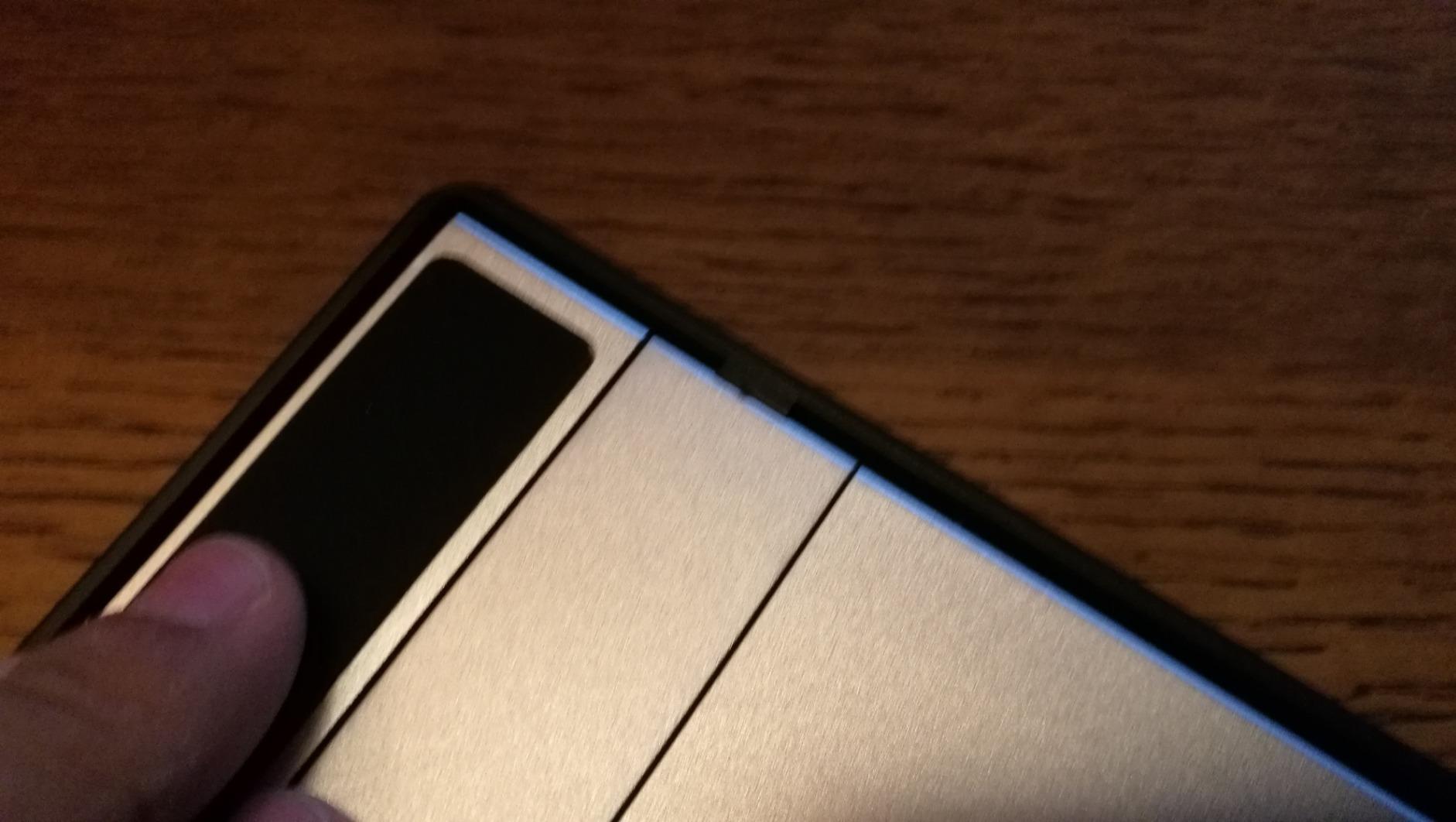
The HUION Kamvas Pro 16 is what I reach for when I’m doing line art refinement work on character concepts. The full-laminated screen eliminates the parallax gap between the pen tip and the displayed line, which means your refined lines land where you intend them. For concept artists who do detailed character work where every line matters, this is a tangible workflow improvement.
The 15.6-inch screen size is the industry standard for concept art pen displays — big enough for character sheets, small enough to fit on most desks alongside a keyboard and reference monitor. The anti-glare glass surface mimics paper texture without being so rough that it eats through pen nibs. After 4 months of daily use, my nibs are still in good shape.
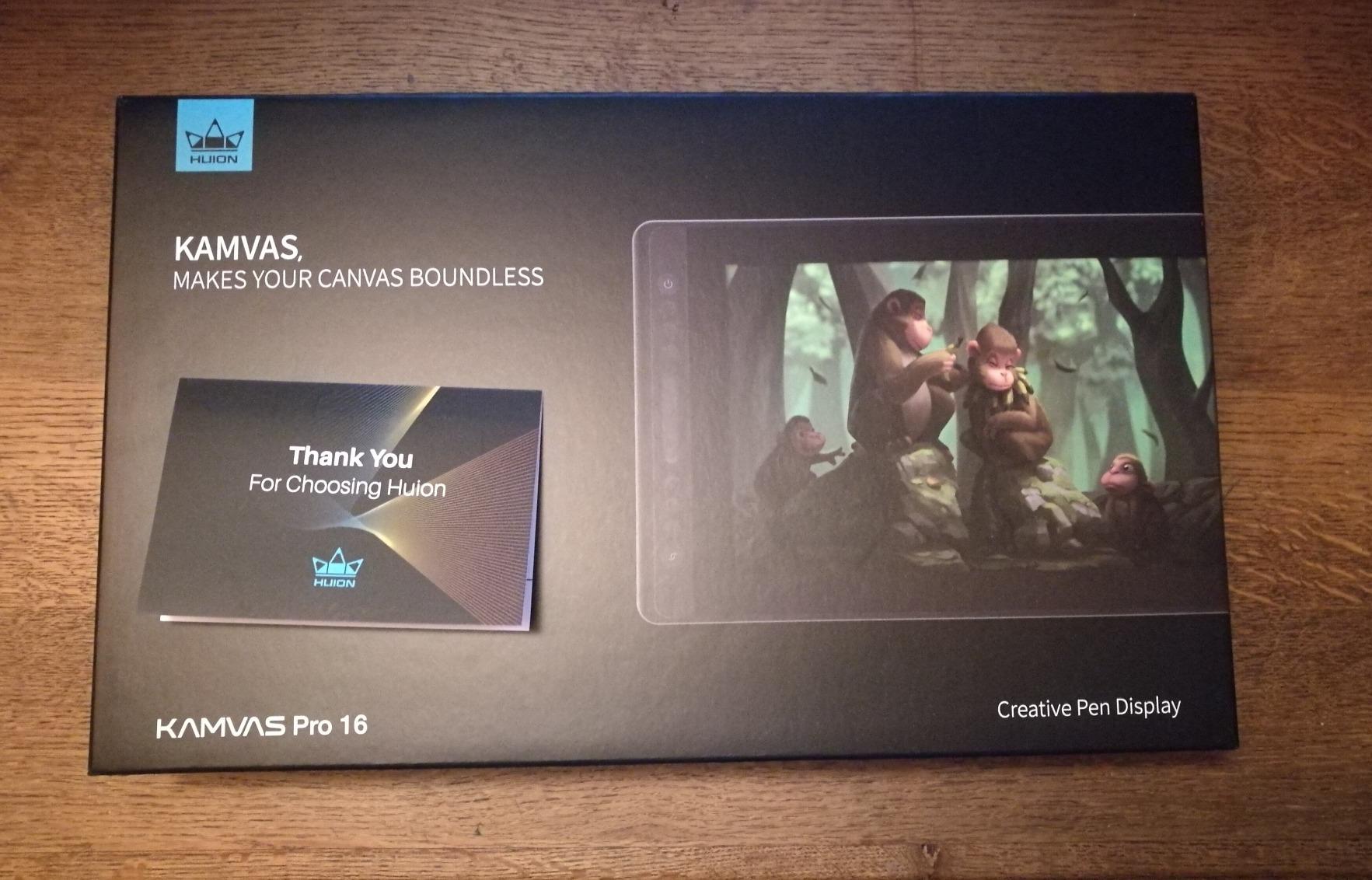
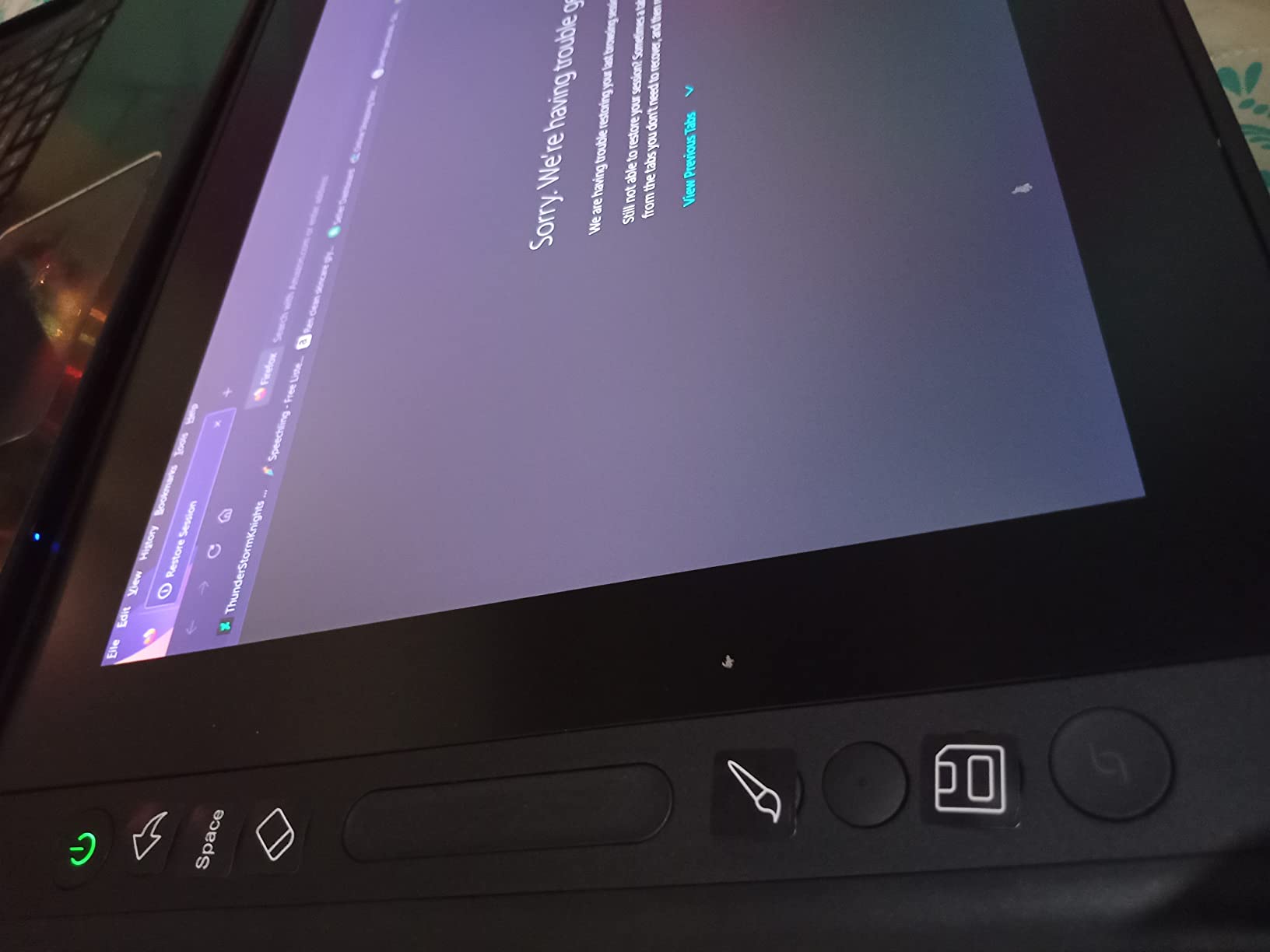
The 6 express keys combined with the touch bar give you 7 customizable inputs, which is enough to map your full concept art workflow shortcut set. I used the touch bar for continuous controls like brush size or opacity, and the 6 keys for discrete actions like undo, layer, and brush swap. This dual-input system is more efficient than buttons alone.
The ST200 adjustable stand moves between 20 and 60 degrees, which is the full ergonomic range most concept artists need. Flat for rendering, upright for client presentations, and angled for sketching. The PW507 battery-free pen has consistent pressure response across all 8192 levels, though it does feel lighter than the Wacom Pro Pen 2 — some artists prefer more heft.
For whom this tablet works best
Concept artists who do character design work where line precision matters. Illustrators who split time between sketching and rendering and need a versatile middle-size display. Anyone who wants Huion’s color accuracy (92 percent Adobe RGB) for mood and lighting studies. It’s also a strong pick for artists transitioning from a graphics tablet who want minimal parallax.
For whom this isn’t the right fit
If you want higher than 1080p resolution, the XPPen Artist 24 Pro or Wacom Cintiq Pro line deliver 2.5K or 4K. If you want a heavier pen feel, the Wacom Cintiq 22 Pro Pen 2 has more weight. And if you need 16K pressure sensitivity, the HUION Kamvas 13 (Gen 3) below offers that at a similar price.
8. HUION Kamvas 13 (Gen 3) — Best Portable Pro Pen Display
HUION Kamvas 13 (Gen 3) Drawing Tablet with Screen 16K Pressure PenTech 4.0
13.3 inch full-laminated screen
PenTech 4.0 with 16384 levels
99% sRGB and 90% Adobe RGB
Pros
- Canvas Glass 2.0 with nano-etching tech reduces glare and adds paper texture
- PenTech 4.0 with 2g initial activation force and 16384 pressure sensitivity
- 99 percent sRGB and 90 percent Adobe RGB coverage with Delta E under 1.5 factory calibration
- 2 dial controllers and 5 silent press keys for productivity
- Ultra-thin 11.7mm profile and 865g weight for true portability
Cons
- Some users notice parallax toward screen edges under heavy angle work
- Requires computer connection and is not standalone
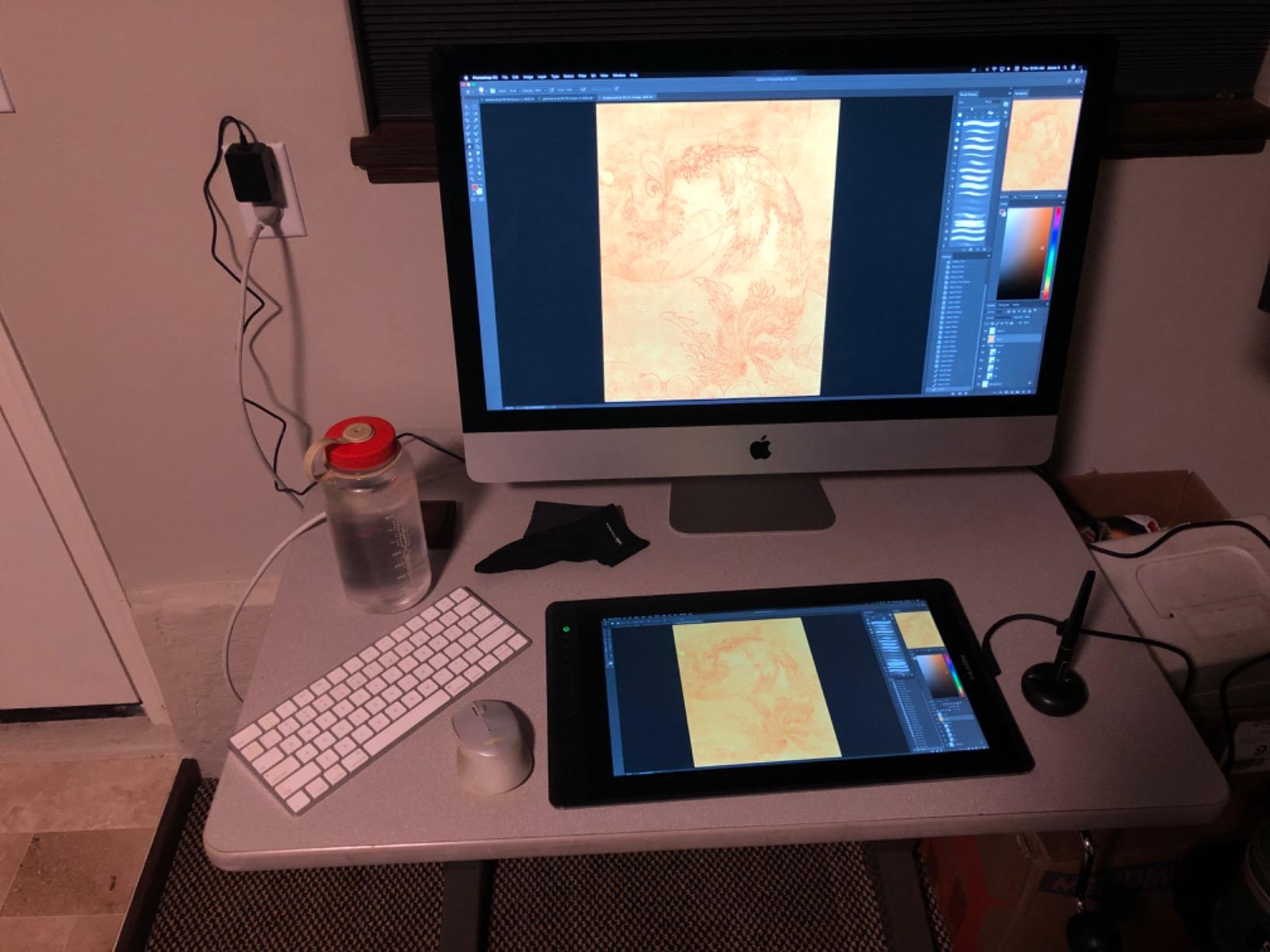
The HUION Kamvas 13 (Gen 3) is the pen display I packed for a 3-week freelance trip last spring. At 865 grams and 11.7mm thin, it disappears into a laptop bag. The Canvas Glass 2.0 surface is the standout — nano-etched glass that genuinely feels like sketching on hot-press paper. For concept artists who want the tactile feedback of paper without the mess, this surface is the best in this price tier.
PenTech 4.0 is Huion’s latest stylus tech and it shows. The 2-gram initial activation force means you can lay down hairline-detail lines without the pen feeling like it’s resisting you. The 16384 pressure levels give you the headroom for nuanced value transitions during rendering — pushing from 30 percent to 70 percent opacity happens smoothly without stepping.
The factory calibration to Delta E under 1.5 with 99 percent sRGB and 90 percent Adobe RGB coverage is excellent for color-critical concept work. This is the kind of color accuracy that was exclusive to expensive Wacom Cintiq Pro displays two years ago. For mood and lighting studies where color sets the entire piece, this display earns its place.
The 2 dial controllers and 5 silent press keys are positioned on the left side and work for both right and left-handed users. The dials give you continuous controls (brush size, zoom, rotation) and the keys handle discrete actions (undo, layer, brush swap, eyedropper, hand tool). Concept artists who sketch at coffee shops will appreciate the silent keys.
For whom this tablet works best
Concept artists who split time between studio and travel. Freelancers who do client visits and need to bring their full setup. Anyone who wants Huion’s premium PenTech 4.0 and Canvas Glass 2.0 at a portable size. It’s also the right pick for color-critical work that needs accurate Adobe RGB representation.
For whom this isn’t the right fit
If you primarily work at a fixed desk, the larger XPPen Artist 24 Pro gives you more canvas. If you need standalone drawing without a computer, none of the tablets in this guide are pen computers — you’d need an iPad instead. And if you’re on a tighter budget, the HUION Kamvas Pro 16 above is the previous-generation choice at a lower price.
9. Wacom Cintiq 22 — Wacom Industry-Standard Pick
Wacom Cintiq 22, Drawing Tablet with Full HD Screen & Pro Pen 2
21.5 inch Full HD display
Pro Pen 2 with 8192 levels
Pre-installed adjustable stand
Pros
- Pressure sensitivity feels indistinguishable from the more expensive Pro Pen 3
- Includes a sturdy flexible pre-installed adjustable stand with wide tilt range
- Solid build quality with stable metal base and non-slip feet for desk stability
- Anti-glare surface with just-right texture not slick and not too rough
- Stays cool during all-day work sessions with no fan noise
Cons
- 1080p resolution instead of 4K like the Pro line which is a noticeable step down
- No express keys on the tablet itself requires separate EK Remote
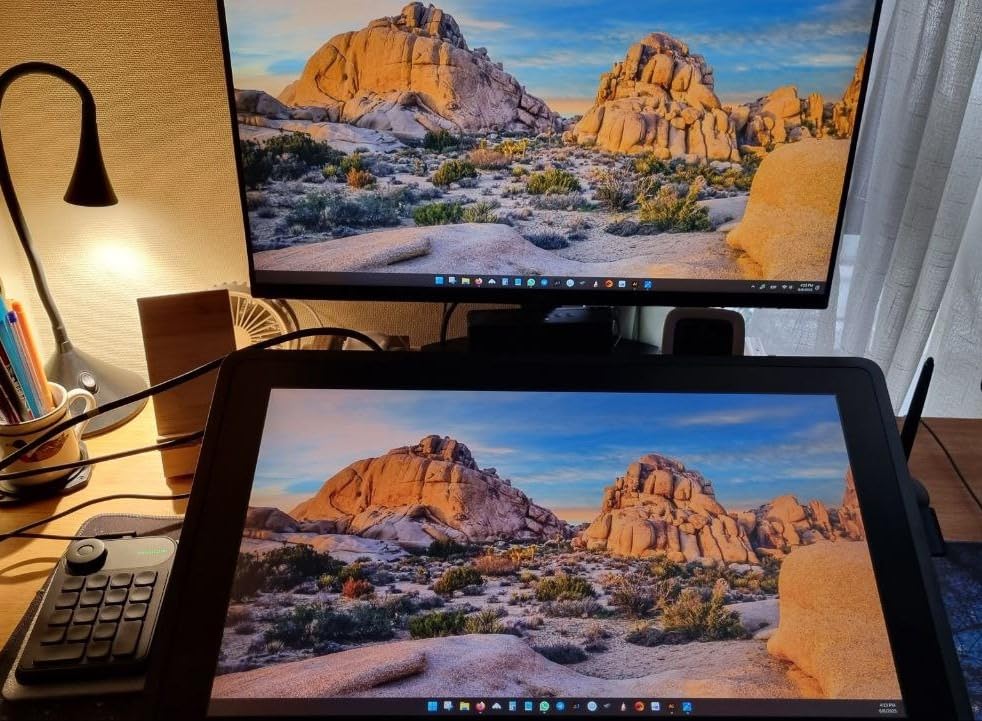
The Wacom Cintiq 22 is the tablet I recommend when an artist specifically wants the Wacom experience without paying Cintiq Pro prices. The Pro Pen 2 is the same pen that ships with tablets costing three times as much, and the pen feel remains the gold standard. After years of using other brands, returning to a Wacom stylus always feels like coming home — the initial activation, the line taper, the tilt response are all tuned with a precision that’s hard to match.
The 21.5-inch screen is larger than most competitors in this price range, which makes it genuinely useful for full-canvas environment painting. The pre-installed adjustable stand tilts across a wide range and stays put — no drift during long sessions. The metal base has non-slip feet that don’t slide on glass desks.
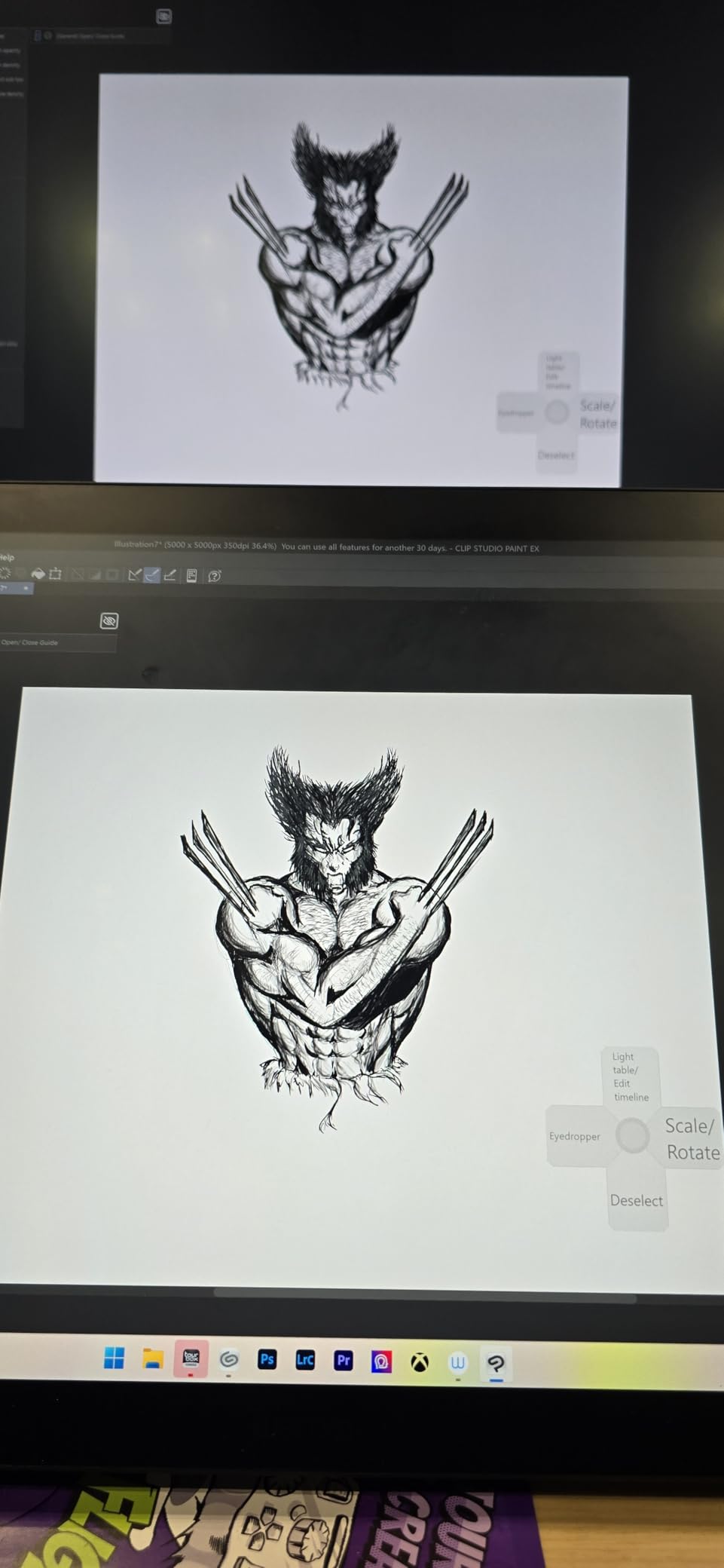
The anti-glare surface texture is, in my opinion, the best-tuned in the industry. Not slick like an iPad screen, not scratchy like some matte protectors. It’s the texture that lets you sketch without the pen sliding unpredictably but also doesn’t slow down your gesture speed. Concept artists who do gestural work will notice this immediately.
The 1080p resolution is the obvious compromise versus the Cintiq Pro line’s 4K. For thumbnail work this is fine. For detailed character refinement or technical prop design, the lower pixel density becomes noticeable. The lack of on-tablet express keys is also a real workflow limitation — you’ll need to budget for the separate Wacom ExpressKey Remote.
For whom this tablet works best
Concept artists who specifically want the Wacom ecosystem and driver stability. Studios standardizing on Wacom equipment across the team. Artists who’ve used Wacom styluses for years and prefer that specific feel. Anyone for whom driver reliability and long-term software support are non-negotiable.
For whom this isn’t the right fit
If 4K resolution matters for your concept work, look at the Wacom Cintiq Pro line (which costs significantly more) or the XPPen Artist 24 Pro for a 2.5K alternative at a lower price. If you want on-tablet shortcut keys, the Wacom Cintiq Pro line includes them. And if you want a smaller portable option, the Wacom Movink is Wacom’s portable pick (outside this guide’s list).
10. XPPen Deco 01 V3 — Best Drawing Tablet for Concept Art Beginners
XPPen Deco 01 V3 10×6 Drawing Tablet, 16K Battery-Free Stylus, 8 Keys
10x6.25 inch drawing area
16K pressure battery-free stylus
8 customizable shortcut keys
Pros
- 16384 pressure levels with 60 degree tilt support for natural drawing at low price
- Battery-free stylus requires no charging and never interrupts workflow
- 10 by 6.25 inch large drawing area for full thumbnail sketching
- 8 customizable express shortcut keys for mapping essential workflow shortcuts
- USB-C to USB-C connectivity with adapters included for modern laptops
Cons
- Pen tip has noticeable wiggle and feels softer than premium alternatives
- Pen buttons are very easy to hit accidentally during drawing
The XPPen Deco 01 V3 is the graphics tablet I recommend to concept art beginners who want more drawing area than the H640P offers without jumping to a pen display. The 10×6.25-inch active area is the size where you can comfortably sketch full character thumbnails without your hand running off the edge. After recommending this to three friends starting concept art school, all three still use it daily.
The 16K pressure levels at this price tier is remarkable — you’re getting more headroom than tablets costing three times as much. The 60-degree tilt support is essential for concept art shading work where you want broad brush strokes at low angles. The battery-free stylus means no interruptions during a sketching flow to charge.

The 8 customizable express shortcut keys give you more inputs than most competitors at this price. I mapped undo, redo, brush size up, brush size down, layer, opacity, eyedropper, and hand tool — basically eliminating keyboard dependence for my core workflow. For concept artists who haven’t memorized keyboard shortcuts, this is a major productivity gain.
The pen tip wiggle is the main complaint I have. It’s softer than the Wacom or Huion pen feel, with more visible give when you press hard. For sketching and value work this doesn’t matter. For very thin precise line art, you may want to upgrade later. The pen buttons are also easy to hit accidentally, which takes some muscle memory adjustment.

For whom this tablet works best
Concept art beginners who want a generous drawing area at a beginner price. Students who need a tablet for both class work and personal sketching. Anyone transitioning from mouse drawing who wants the full benefits of pressure sensitivity. It’s also a strong secondary tablet for artists who already have a pen display and want a screen-less option for quick sketching.
For whom this isn’t the right fit
If you want a pen-on-screen experience, this is a screen-less graphics tablet — look at the XP-PEN Artist12 or HUION Kamvas 13 (Gen 3) for portable pen displays. If you want a more premium pen feel, the Wacom Intuos Small above is the industry standard. And if you want Bluetooth wireless, this is USB-C wired only.
Buying Guide: How We Pick the Best Drawing Tablets for Concept Art
Concept art is a specific discipline with specific hardware demands. The buying decisions below come from rotating these tablets through real concept art work — thumbnailing, value studies, line refinement, and rendering — and noticing which features actually matter and which are just spec sheet filler.
Concept-Art Workflow Lens: Thumbnailing to Rendering
The best drawing tablets for concept art support the four-stage workflow that professional concept artists use daily. Stage one is thumbnailing — small, fast sketches where you explore 20 to 40 variations of a character, vehicle, or environment. For this stage, pen responsiveness and a compact drawing area matter more than display quality. The HUION Inspiroy H640P and XPPen Deco 01 V3 are excellent thumbnailing tablets.
Stage two is value studies — blocking in grayscale compositions to test lighting and contrast before committing to color. Here you need pressure sensitivity that responds smoothly across the full range. Tablets with 8192 or 16384 pressure levels (the XPPen Artist Pro 14 Gen2, HUION Kamvas 13 Gen 3) handle this stage best.
Stage three is line art refinement — the detailed character or prop lines that define your final piece. Low parallax becomes critical here, which is why full-laminated displays (the XPPen Artist 15.6 Pro, HUION Kamvas Pro 16) excel at this stage. Stage four is rendering — color, lighting, and texture work where color accuracy matters. The HUION Kamvas 13 (Gen 3) with Delta E under 1.5 calibration and the XPPen Artist 24 Pro with 90 percent Adobe RGB are the rendering standouts.
Pen Display vs Graphics Tablet vs iPad for Concept Art
Pen displays (tablets with screens) are the dominant category for concept art work. Drawing directly on the screen is faster to learn, more intuitive, and better for client presentations. The trade-off is cost, parallax on cheaper models, and reduced portability. Within pen displays, the XPPen Artist Pro 14 Gen2 hits the sweet spot for most concept artists.
Graphics tablets (screen-less) are the budget and muscle-memory option. They’re cheaper, more portable, and force you to develop hand-eye coordination that translates to any device. Many concept artists use a graphics tablet for sketching and a pen display for client work. The Wacom Intuos Small is the gold standard in this category.
The iPad Pro with Apple Pencil is a separate workflow that integrates with Procreate. It’s unbeatable for travel sketching and concept ideation but locks you into the iPad ecosystem and Procreate-only software. Concept artists who travel frequently often pair an iPad with a pen display at the studio.
Pressure Sensitivity, Tilt, and Stylus Feel
8192 pressure levels is the practical sweet spot for concept art. Above that, the differences become imperceptible during real drawing. Below 4096, you’ll notice stepping in gradients. Tilt support (typically 60 degrees) matters for broad shading strokes that mimic a graphite pencil held at an angle.
Stylus feel is more subjective but matters enormously for long sessions. The Wacom EMR pens (Wacom, Huion PW series, XP-Pen PA2/X3) all use similar electromagnetic resonance technology but tune the activation force and weight differently. The Wacom Pro Pen 2 remains the gold standard for pen-on-paper feel, but the Huion PenTech 4.0 and XP-Pen X3 Pro have closed the gap.
Screen Size, Parallax, and Color Accuracy
Screen size is the most visible trade-off. 13-inch displays are highly portable but cramped for full-canvas work. 16-inch displays (the XPPen Artist 15.6 Pro, HUION Kamvas Pro 16) are the practical sweet spot. 24-inch displays are studio-only but enable full-arm gesture work.
Parallax is the offset between where your pen tip lands and where the cursor displays. Full-laminated displays (where the glass is bonded directly to the LCD) have minimal parallax. Non-laminated displays have a visible gap that disrupts precise line work. For concept art, always choose laminated if the budget allows.
Color accuracy matters for mood and lighting studies. Look for 90 percent or higher Adobe RGB coverage and Delta E under 2 for color-critical work. The HUION Kamvas 13 (Gen 3) and XPPen Artist 24 Pro are the color standouts in this guide.
Shortcut Ecosystem and Express Keys for Concept Art Brushes
Express keys and programmable dials directly impact your concept art speed. The most useful mappings are brush size, opacity, undo, layer, eyedropper, and hand tool. Tablets with 6 or more shortcut keys (the XPPen Artist Pro 14 Gen2’s wireless remote, XPPen Artist 24 Pro’s 20 keys) give you full keyboard replacement.
Programmable dials (the XPPen Red Dial, HUION Kamvas 13 Gen 3’s twin dials) are particularly valuable for continuous controls like brush size and zoom. Concept artists who sketch quickly find that dials beat buttons for any control that needs smooth adjustment.
Long-Session Ergonomics for Concept Artists
Concept art sessions regularly run 8 to 12 hours. Ergonomics matter more than spec sheets suggest. Adjustable stands with a wide tilt range (the HUION Kamvas Pro 16’s ST200, the Wacom Cintiq 22’s pre-installed stand) let you shift positions through the day. VESA mount compatibility (the XPPen Artist 24 Pro) enables monitor arm mounting for maximum flexibility.
Drawing surface texture affects wrist fatigue over long sessions. Too slick (iPad screen, some glossy displays) requires gripping the pen harder. Too rough (some matte protectors) creates drag. The Wacom Cintiq 22’s anti-glare surface and the HUION Canvas Glass 2.0 nano-etching are the best-tuned textures I’ve used.
Software Compatibility for Concept Art
All tablets in this guide work with the major concept art software: Photoshop, Clip Studio Paint, Krita, Procreate (iPad only), and Blender Grease Pencil. Linux driver support varies — XP-Pen has the best Linux support according to community feedback, while Wacom is most reliable on Mac and Windows.
For concept artists specifically, Clip Studio Paint and Photoshop are the dominant tools. Both work flawlessly with all tablets here. Krita is the free alternative with strong community support. Blender Grease Pencil integration works well for hybrid 2D/3D concept work.
Brand Tier Breakdown: Wacom, Huion, and XP-Pen
Wacom remains the industry standard for pen feel and driver stability, but charges a premium. The Cintiq 22 in this guide is the entry point into Wacom’s pen displays. For concept artists who specifically want Wacom feel, no other brand matches it.
Huion has closed the quality gap significantly and offers the best price-to-performance ratio for mid-range concept artists. The Kamvas Pro 16 and Kamvas 13 (Gen 3) deliver professional features at half the Wacom price. Some users report occasional driver quirks across OS updates, but Huion’s customer support has improved markedly.
XP-Pen leads on raw specs (16K pressure sensitivity on multiple models) and budget-to-mid-range value. The Deco 01 V3, Artist 12, and Artist Pro 14 Gen 2 are the standout picks. XP-Pen also has strong Linux driver support, which matters for concept artists using Linux-based pipelines.
Frequently Asked Questions
What tablet do most concept artists use?
Most professional concept artists today use a Wacom Cintiq or Wacom Intuos Pro at the studio, paired with an iPad Pro for sketching on the go. However, an increasing share of concept artists, particularly in game studios and freelance work, have migrated to Huion Kamvas Pro, Xencelabs Pen Display, or XP-Pen Artist Pro for their value-to-performance ratio.
What is the best drawing tablet for concept art?
The best drawing tablet for concept art in 2026 is the XPPen Artist Pro 14 Gen2 for overall value, the XPPen Artist 15.6 Pro for budget-conscious buyers, and the Wacom Cintiq 22 for artists who specifically want the Wacom ecosystem. For sketching on the go, the iPad Pro with Apple Pencil Pro remains the top travel pick.
Which pen tablet is better, XP-Pen, Huion, or Wacom?
Wacom still leads on premium build quality, driver stability, and industry-standard Pro Pen feel. Huion is now comfortably pro-grade at significantly lower prices, especially the Kamvas Pro 16 and Kamvas 13 Gen 3. XP-Pen leads on pressure sensitivity with 16K levels on multiple models and budget-to-mid-range value. For concept artists on a budget, Huion and XP-Pen deliver around 90 percent of Wacom performance at 50 to 60 percent of the price.
Is XP-Pen as good as Wacom for concept art?
For concept art specifically, XP-Pen delivers excellent value with pressure sensitivity up to 16K levels and competitive color accuracy. The XPPen Artist Pro 14 Gen2 in particular matches or exceeds mid-range Wacom tablets on raw specs. The differences are in driver polish and long-term reliability, where Wacom still has an edge. For concept artists on a budget, XP-Pen is the right call. For concept artists who prioritize the Wacom ecosystem and support infrastructure, Wacom remains the safer choice.
What should I look for in a drawing tablet for concept art?
For concept art, prioritize pressure sensitivity of 8192 or higher, full-laminated display with low parallax, color accuracy of at least 90 percent sRGB, and at least 6 customizable shortcut keys or a programmable dial. Screen size between 13 and 16 inches hits the sweet spot for portability and full-canvas work. Battery-free EMR stylus technology is the standard for natural pen feel. Anti-glare screen texture reduces wrist fatigue during long sessions.
Is a graphics tablet or pen display better for concept art?
Pen displays are better for most concept art work because drawing directly on the screen is faster to learn and more intuitive for rendering and detail work. Graphics tablets are better for budget-conscious buyers, artists who travel frequently, and those who want to develop strong hand-eye coordination that transfers to any device. Many professional concept artists use both: a graphics tablet for thumbnailing and a pen display for client-facing renders.
Final Thoughts: Picking the Best Drawing Tablet for Your Concept Art Workflow
After testing all ten of these tablets through real concept art work, the XPPen Artist Pro 14 Gen2 stands out as the best drawing tablet for concept art in 2026. It hits the sweet spot of size, pressure sensitivity, color accuracy, and shortcut ecosystem without the Wacom premium. The wireless shortcut remote is the productivity feature that concept artists specifically benefit from, and the Canvas Glass 2.0-style surface texture holds up to 8-hour sketching sessions without wrist fatigue.
If budget is your primary constraint, the XPPen Artist 15.6 Pro delivers 90 percent of the experience at a lower price. If you’re just starting in concept art and want to develop fundamentals, the HUION Inspiroy H640P or XPPen Deco 01 V3 will get you drawing without the pen display price tag. And if you specifically want Wacom feel and ecosystem, the Wacom Cintiq 22 remains the gold standard entry into that world.
The concept art workflow demands a lot from your hardware, and the right drawing tablet makes the difference between fighting your tools and staying in creative flow. Pick based on your primary stage of work, your budget, and your need for portability. Any of these ten tablets will serve you well — the differences are in the details that match your specific workflow.