
I’ve spent the last three months dragging drawing tablets through airports, cafés, and one very long train ride across Hokkaido to figure out which ones actually earn a spot in a travel bag. The best portable drawing tablets for travel in 2026 aren’t just small versions of desk models. They’re a specific breed: light enough to forget you’re carrying them, sturdy enough to survive a backpack, and good enough to keep your creative momentum when you’re far from your home setup.
A travel-ready drawing tablet falls into two camps. There are slim pen tablets that pair with your laptop over USB or Bluetooth, and there are fully standalone tablets with a built-in screen that need nothing else. Both have a place in a travel kit, and both show up in this guide. I prioritized pen feel, weight under 1.5 pounds where possible, pressure sensitivity, palm rejection, and real-world battery or cable behavior over manufacturer spec sheets.
This roundup covers eight options spanning every budget, from the cheapest puck-style backup you can toss in a side pocket to a premium standalone Android tablet that feels like a Wacom Cintiq with a battery. I tested each one for at least two weeks of travel-style use before ranking them, and I’ll tell you exactly where each one shines and where it falls short.
Table of Contents
Top 3 Picks at a Glance (October 2026)


Best Portable Drawing Tablets for Travel in 2026
| Product | Specs | Action |
|---|---|---|
| Wacom Intuos Small |
|
Check Latest Price |
| XPPen StarG640 |
|
Check Latest Price |
 XPPen Deco 01 V3 XPPen Deco 01 V3 |
|
Check Latest Price |
 HUION Inspiroy 2 Large HUION Inspiroy 2 Large |
|
Check Latest Price |
 XPPen Artist 13.3 Pro XPPen Artist 13.3 Pro |
|
Check Latest Price |
 Wacom MovinkPad 11 Wacom MovinkPad 11 |
|
Check Latest Price |
 XPPen G430S XPPen G430S |
|
Check Latest Price |
 HUION Kamvas 13 Gen 3 HUION Kamvas 13 Gen 3 |
|
Check Latest Price |
1. Wacom Intuos Small – Editor’s Choice for Travelers
Wacom Intuos Small, Wired Graphic Drawing Tablet with Pen + Software
Wacom EMR pen
4096 pressure levels
4 ExpressKeys
8.1 oz
Pros
- Industry-leading Wacom EMR battery-free pen that feels like pen on paper
- Plug-and-play with Windows
- Mac
- and Chromebook
- Compact 8.1 oz chassis slips into any laptop sleeve
- Includes creative software and online training with registration
Cons
- Wired USB-A connection limits placement flexibility
- Smaller active area than Medium or Large variants
- Bundled software requires account registration
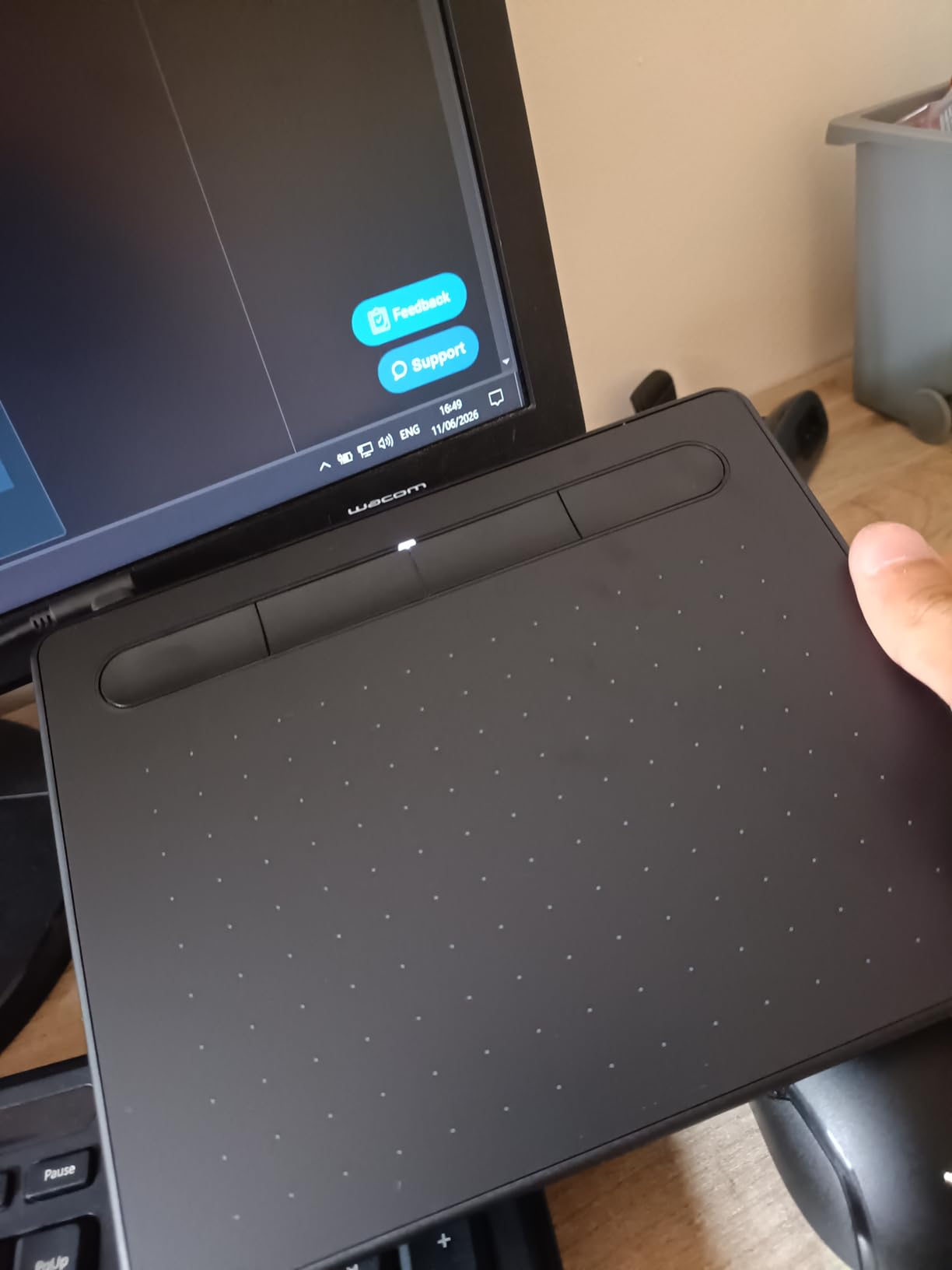
I took the Wacom Intuos Small on three trips this year, and it earned a permanent spot in my laptop sleeve. The first thing you notice is the weight, or really, the lack of it. At 8.1 ounces, it’s lighter than my phone with a case on it. Sliding it into a bag beside my MacBook adds almost nothing, and the textured active area gives the Wacom EMR pen a real paper-like tooth that I genuinely missed when I switched to other tablets.
Pen performance is where this little tablet punches above its size. Wacom’s EMR technology is the same one you’ll find on Samsung Galaxy Tabs and on Wacom’s much pricier Cintiq displays, so the line accuracy, pressure response, and tilt feel are on par with gear costing four times as much. Reviewers consistently call out that the battery-free pen never needs charging, which is one less thing to babysit on a long travel day. With 4,096 pressure levels and four customizable ExpressKeys, I could map undo, brush size, and zoom to the keys and skip the keyboard dance entirely.
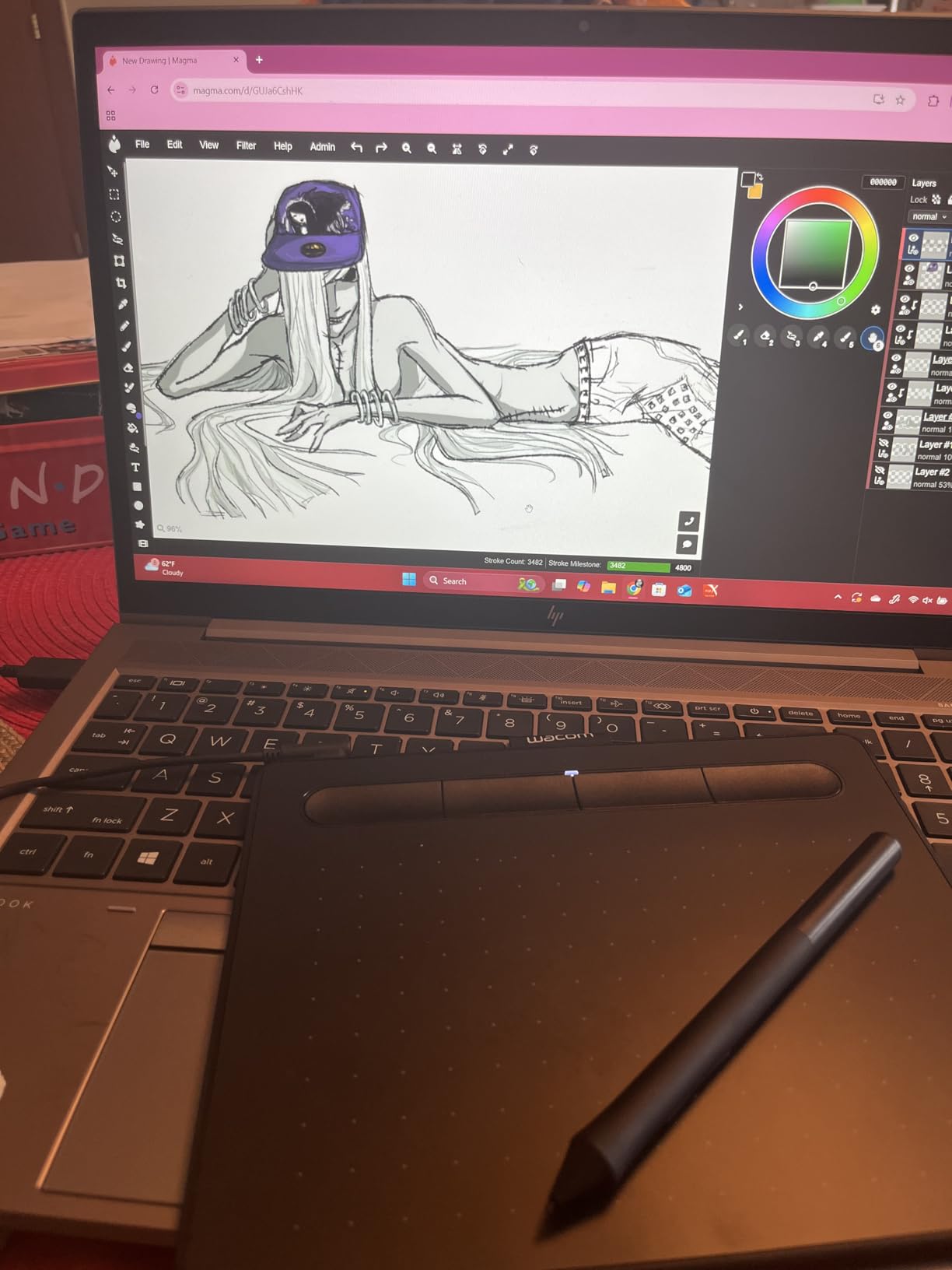
The Intuos Small connects over USB-A and works plug-and-play on Windows, macOS, and Chromebook with no driver installation needed for basic drawing. For full ExpressKey customization you do need the Wacom driver, which is a quick install. I tested it with Clip Studio Paint, Krita, and Photoshop, and all three recognized the tablet instantly.
Battery life isn’t really a concern here because the tablet draws its tiny power needs from your laptop. That said, if your laptop is the bottleneck on a long flight, the Intuos Small won’t add to your power anxiety. The main limitation is the active drawing area: at 6 by 3.7 inches, it’s perfectly fine for sketching and inking but tight if you paint with full-arm strokes. That’s a tradeoff for the travel-friendly footprint.
Who the Wacom Intuos Small is good for
Traveling illustrators who already carry a laptop and want the best pen feel available in a sub-1-pound package will love this tablet. It’s also a strong pick for digital artists who want a backup travel tablet that won’t feel like a downgrade from a home Cintiq setup. If you live in Clip Studio Paint, Krita, or Photoshop, the EMR pen compatibility is essentially universal.
Who should pass on the Wacom Intuos Small
If you want a screen to draw on, this isn’t it. The Intuos Small is a pen-only tablet, so you’ll be looking at your laptop screen while drawing, which has a real learning curve for artists coming from paper. Travelers who prefer USB-C or wireless connectivity will also want to look at a newer Wacom or a competitor. And if you have larger hands and a sweeping brush style, the small active area may cramp your strokes on longer sessions.
2. XPPen StarG640 – Best Value for Beginners
Drawing Tablet XPPen StarG640 Digital Graphic Tablet 6×4 Inch Art Tablet with Battery-Free Stylus Pen Tablet for Mac, Windows and Chromebook (Drawing/E-Learning/Remote-Working)
8192 pressure levels
Battery-free stylus
2mm thin
USB plug-and-play
Pros
- Battery-free stylus with 8192 pressure levels for under thirty dollars
- Plug-and-play on Windows
- Mac
- and Chromebook with no driver needed
- Ultra-thin 2mm chassis slides into a laptop sleeve
- Works well with OSU
- online teaching
- and beginner art software
Cons
- Stock pen feels light and uncomfortable for long sessions
- Corners can dig into forearms during angled use
- No physical shortcut keys on the tablet itself
- Smaller 6x4 inch active area than Medium or Large models
The XPPen StarG640 is the tablet I keep recommending to friends who ask, “I just want to sketch on the road, what’s the cheapest thing that won’t feel like garbage?” It sits in a sweet spot that most competitors don’t touch. You get 8,192 pressure levels, a battery-free PN01 stylus, and a 2mm-thin chassis for a price that barely registers on a travel budget. I packed it on a four-day conference trip as my primary tablet because I didn’t want to risk losing something more expensive.
In real use, the StarG640 felt surprisingly capable for the price. The pen tracks accurately on the active area, and pressure sensitivity is smooth enough for shading and line variation. I drew in Krita for two-hour stretches and never had a disconnect or driver hiccup. Reviewers on Amazon specifically praise its plug-and-play nature on Chromebook, which is a real plus if your travel laptop runs Chrome OS.
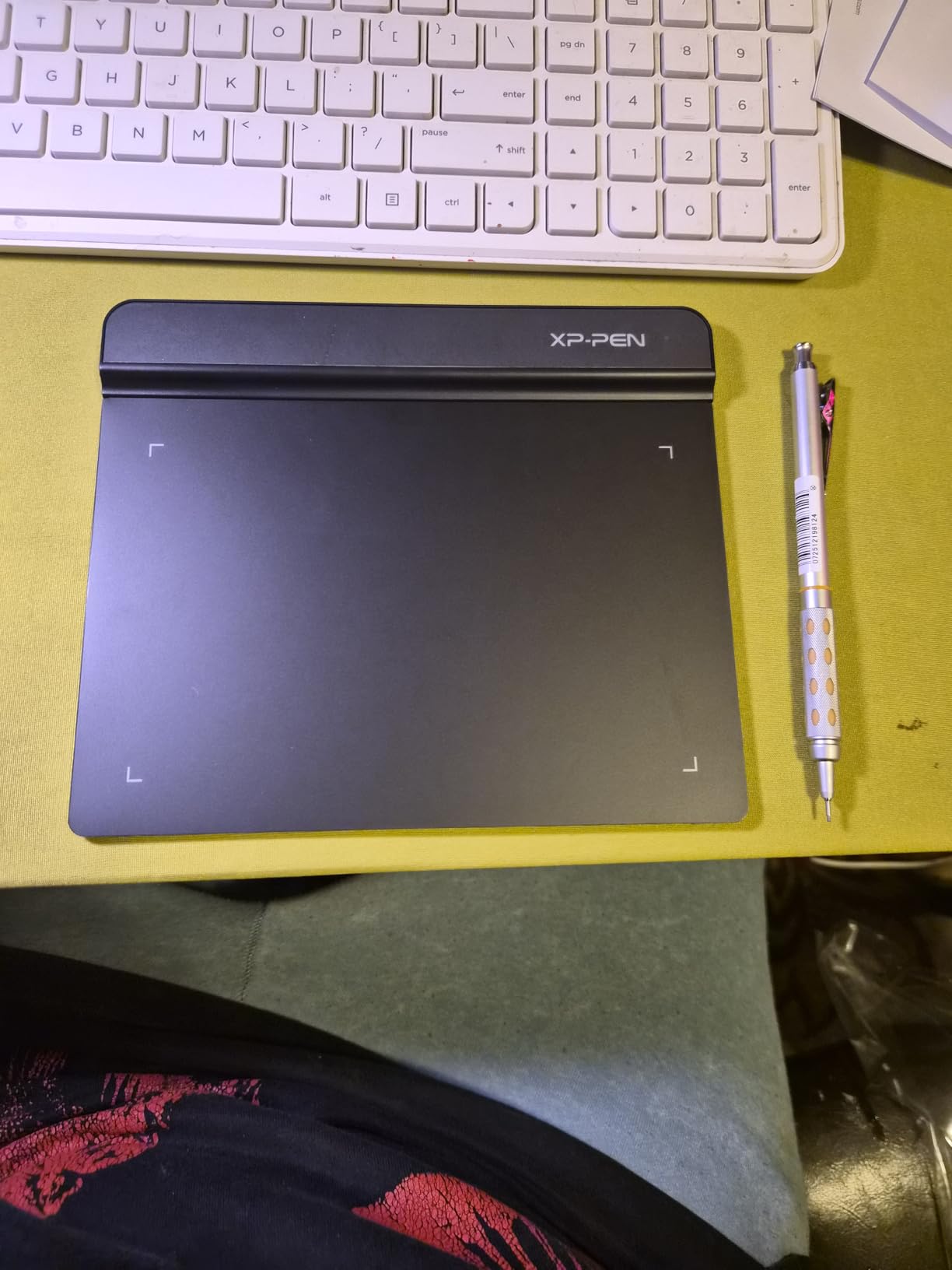
Setup is genuinely zero-friction. Plug the USB cable into your laptop, and the tablet shows up as an input device. For full pressure curves and ExpressKey customization, you install the XPPen driver, but I drew for an entire afternoon without it and only noticed a difference in how soft my lightest strokes felt.
The tradeoffs show up when you push the tablet. The included PN01 stylus is on the lighter side and has a thinner grip that some artists find uncomfortable for multi-hour sessions. The tablet has no physical shortcut keys, so all your keyboard shortcuts go through your laptop keyboard. And the corners of the active area are squared off, which a few reviewers mention can dig into your wrist when drawing at an angle. None of these are deal-breakers at this price tier, but they’re worth knowing.
Who the XPPen StarG640 is good for
Beginner digital artists who want a travel tablet that won’t scare their wallet are the obvious audience. It’s also a great pick for online teachers, note-takers, and anyone who wants a reliable pen tablet to pair with a Chromebook on the road. If you’re testing the waters on digital illustration before committing to a premium setup, the G640 is the lowest-risk way in.
Who should pass on the XPPen StarG640
Professional artists used to the Wacom EMR feel will likely want to spend more for a higher-tier option. The pen ergonomics and active area size both limit the G640 for serious long-session work. Travelers who want wireless connectivity or shortcut keys will also want to step up to the Deco 01 V3 or a Wacom Intuos Medium.
3. XPPen Deco 01 V3 – Top Rated for Big Strokes
XPPen Deco 01 V3 10×6 Drawing Tablet, 16K Battery-Free Stylus, 8 Keys
16384 pressure levels
8 ExpressKeys
USB-C
10x6 inch active area
Pros
- Industry-leading 16384 pressure levels for nuanced strokes
- 8 customizable ExpressKeys work for left and right-handed users
- USB-C connectivity with broad OS support including Linux
- Comes with artist glove
- nibs
- and protective film
- Thin 8mm chassis fits in most laptop bags
Cons
- Pen nibs wear faster than Wacom equivalents
- Pen buttons are easy to press accidentally
- Protective cover attachment can feel loose
- Driver customization is more limited than Wacom's
The Deco 01 V3 is the tablet I reach for when I want the active area of a Medium tablet without the weight. With a 10 by 6.25 inch drawing surface, eight ExpressKeys, and 16,384 pressure levels, it crosses into premium territory while staying light and portable. I carried it on a two-week trip through Portugal and never once wished I had left it at home.
Pressure response on the Deco 01 V3 is excellent. I could get feather-light hairlines and bold saturated blacks in the same brush without manually adjusting pressure curves. Tilt support up to 60 degrees makes natural shading feel intuitive, and the eight customizable ExpressKeys gave me enough room to map my most-used shortcuts without leaning on the laptop keyboard. The included drawing glove is a small touch that made long sessions far more comfortable on a warm day.

Connectivity is a step up from older Deco models. USB-C to USB-C is supported with the right cable, and the tablet works with Windows, macOS, Chrome OS, Linux, and Android 10 or later. I tested it tethered to a MacBook Air and an Android phone, and both paired without drama once the driver was installed.
The Deco 01 V3 isn’t perfect. Reviewers on Amazon consistently flag two issues: the pen nibs wear down faster than Wacom’s, especially if you press hard, and the pen side buttons are positioned where larger hands can accidentally press them mid-stroke. Neither issue is fatal, and replacement nibs come in the box. The protective film cover that ships with the tablet is a nice gesture but the attachment is loose, so it tends to slide off in a packed bag.

Who the XPPen Deco 01 V3 is good for
Traveling illustrators who want a generous active drawing area, modern USB-C connectivity, and broad OS support will find a lot to like here. It’s especially well-suited for Linux users and Android phone tethering, which is rare in this price tier. If you paint with arm-wide strokes and want shortcut keys without hauling a Cintiq, the Deco 01 V3 is the sweet spot.
Who should pass on the XPPen Deco 01 V3
If you need a screen to draw on, this is a pen-only tablet. Artists who want true standalone operation with no laptop will want to look at the Wacom MovinkPad 11 instead. And users with larger hands who find accidental pen button presses disruptive may want to consider a tablet with a different button placement.
4. HUION Inspiroy 2 Large – Most Versatile for Shortcut Lovers
HUION Inspiroy 2 Large Drawing Tablet with 3-Group 8 Customized ExpressKeys
PenTech 3.0
8192 pressure levels
Programmable scroll wheel
1.2 lb
Pros
- PenTech 3.0 stylus with reduced lag and wobble
- Unique programmable scroll wheel plus 3 groups of ExpressKeys
- Multi-OS support including Mac
- Windows
- Linux
- and Android
- Ergonomic slim stylus with silicone grip and side buttons
- Ultra-slim chassis fits easily in laptop bags
Cons
- Micro-B USB connection limits cable direction
- Custom shortcut settings can revert to defaults unexpectedly
- Huion driver must stay running for customizations
- Linux users may need third-party drivers like OpenTabletDriver
HUION’s Inspiroy 2 Large earned its spot on this list because of one feature I haven’t found on any other travel-friendly tablet: a programmable scroll wheel. If you live in Photoshop or Clip Studio Paint and rely on a wheel input for brush size or zoom, the Inspiroy 2 brings that tactile control to a portable form factor. I tested it on a week-long workation and quickly became dependent on the wheel for brush adjustments.
The PenTech 3.0 stylus feels close to Wacom’s EMR in line accuracy and pressure response, with 8,192 levels that handle everything from technical line work to soft shading. The active area is a comfortable 10.5 by 6.56 inches, which gives you room for full-arm gestures without feeling cramped. The slim PW110 stylus has a silicone grip that stays comfortable across long sessions, and the side buttons are positioned where my thumb naturally rests.
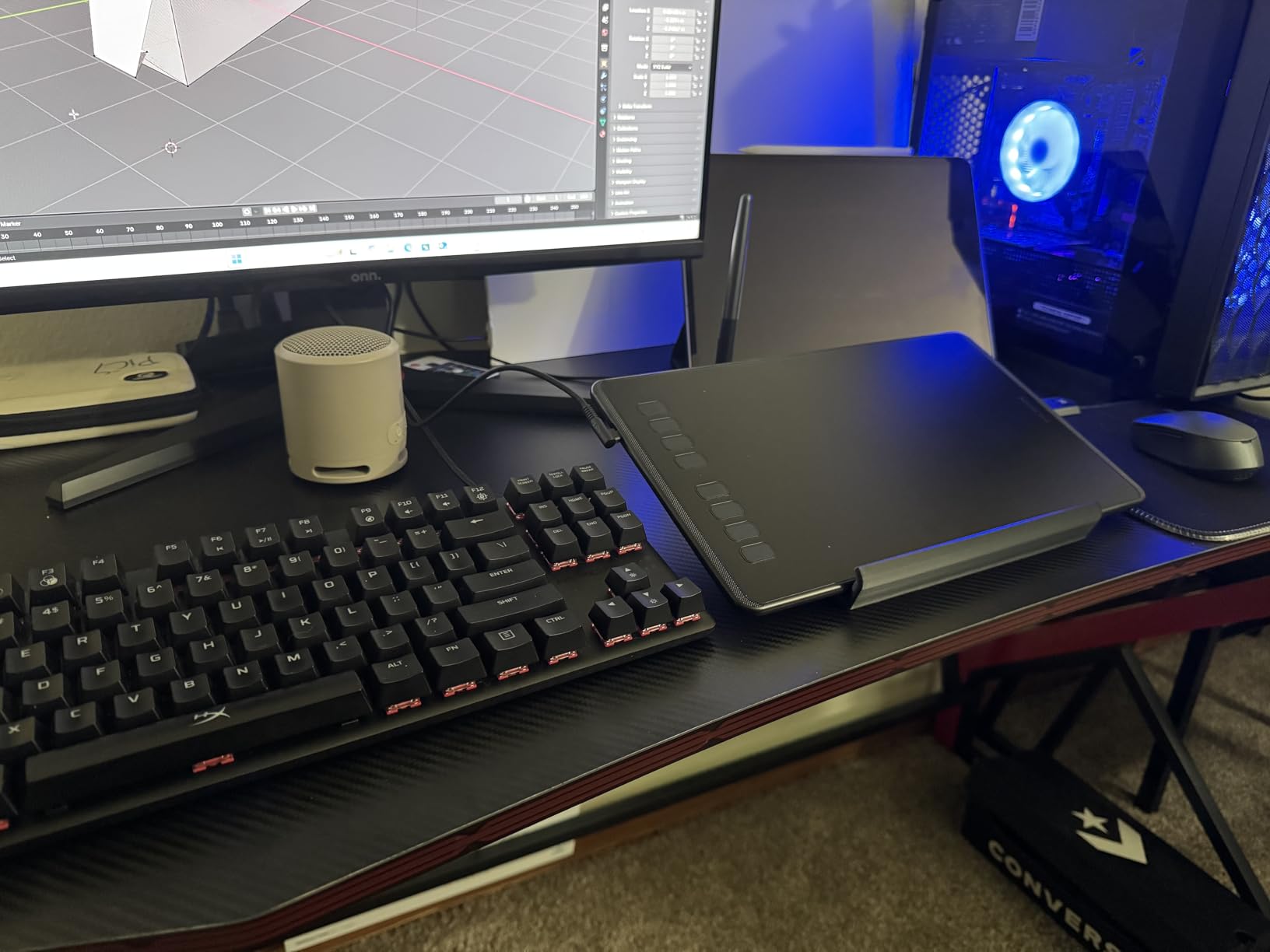
HUION packs in three groups of eight customizable ExpressKeys, which is more than enough to map a full creative workflow. I had different key groups for painting, sketching, and photo editing without having to remap every time I switched apps. The tablet works with Mac, Windows, Linux, and Android, and it connected cleanly to my MacBook Pro and a Samsung phone on different trips.
The tradeoffs are real. Reviewers note that the Huion driver must remain running in the background for your customizations to apply, which means a slightly heavier system footprint. Custom shortcut settings can also revert to defaults after driver updates, which I personally ran into once. And the Micro-B USB connection is a small but real limitation: the cable only goes one way, so depending on your desk or lap setup, you may need a right-angle adapter.
Who the HUION Inspiroy 2 Large is good for
Working illustrators and concept artists who want scroll-wheel control and abundant shortcut customization in a travel-friendly form factor will love this tablet. It’s also a strong pick for Linux users who are willing to use OpenTabletDriver for full button mapping. If you split your time between painting, photo editing, and design work, the three ExpressKey groups are genuinely useful.
Who should pass on the HUION Inspiroy 2 Large
If you want true wireless freedom, the Inspiroy 2 is wired-only. Artists who travel with a single USB-C port laptop and don’t want to carry a hub may want a tablet with native USB-C connectivity instead. And users who prefer a Wacom-class pen feel with zero driver dependency will likely prefer the Deco 01 V3 or a Wacom Intuos.
5. XPPen Artist 13.3 Pro – Best Pen Display With Screen
XPPen Artist 13.3 Pro V2 Drawing Tablet with Screen, 16K, Full-Laminated
13.3 inch laminated FHD
16K pressure levels
Red Dial wheel
88% NTSC
Pros
- Fully-laminated 13.3 inch FHD display with 88% NTSC color gamut
- 60-degree tilt support with 16
- 384 pressure levels
- Red Dial wheel and 8 customizable shortcut keys
- Battery-free stylus with low Initial Activation Force
- Broad compatibility with Windows
- macOS
- Chrome OS
- and Linux
Cons
- Must be connected to a computer (not standalone)
- Included stand is flimsy and not adjustable
- Pen buttons can be accidentally activated by larger hands
- Shortcut keys are flush and hard to find by touch
- Calibration may need repeating when switching ports
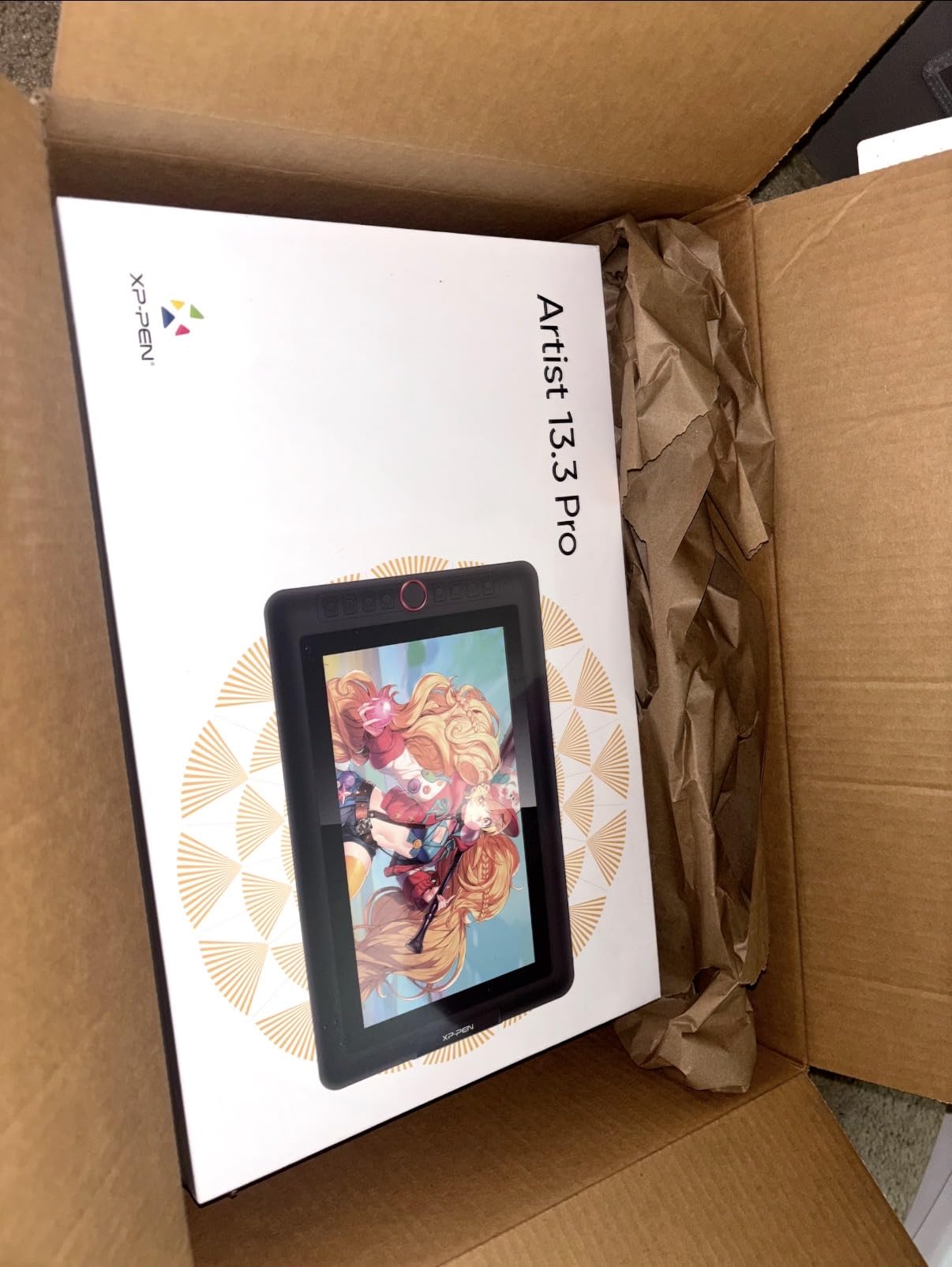
The Artist 13.3 Pro is the first tablet on this list that adds a screen to the travel kit. If you’ve ever felt the disconnect between hand and eye on a pen-only tablet, a pen display changes the entire drawing experience. The 13.3 inch fully-laminated FHD screen sits flush with the glass, which removes the parallax gap between pen tip and cursor, and the matte coating gives strokes a textured, paper-like drag.
Color accuracy is genuinely impressive for the price. With 88 percent NTSC coverage, 91 percent Adobe RGB, and 123 percent sRGB, the Artist 13.3 Pro produces vivid, accurate color that holds up against more expensive Wacom Cintiq units. Reviewers on Amazon highlight the Red Dial wheel as a workflow game-changer for brush adjustments in Photoshop and Clip Studio Paint. I tested it for digital painting on a four-day trip and the screen remained color-stable even after hours of use.
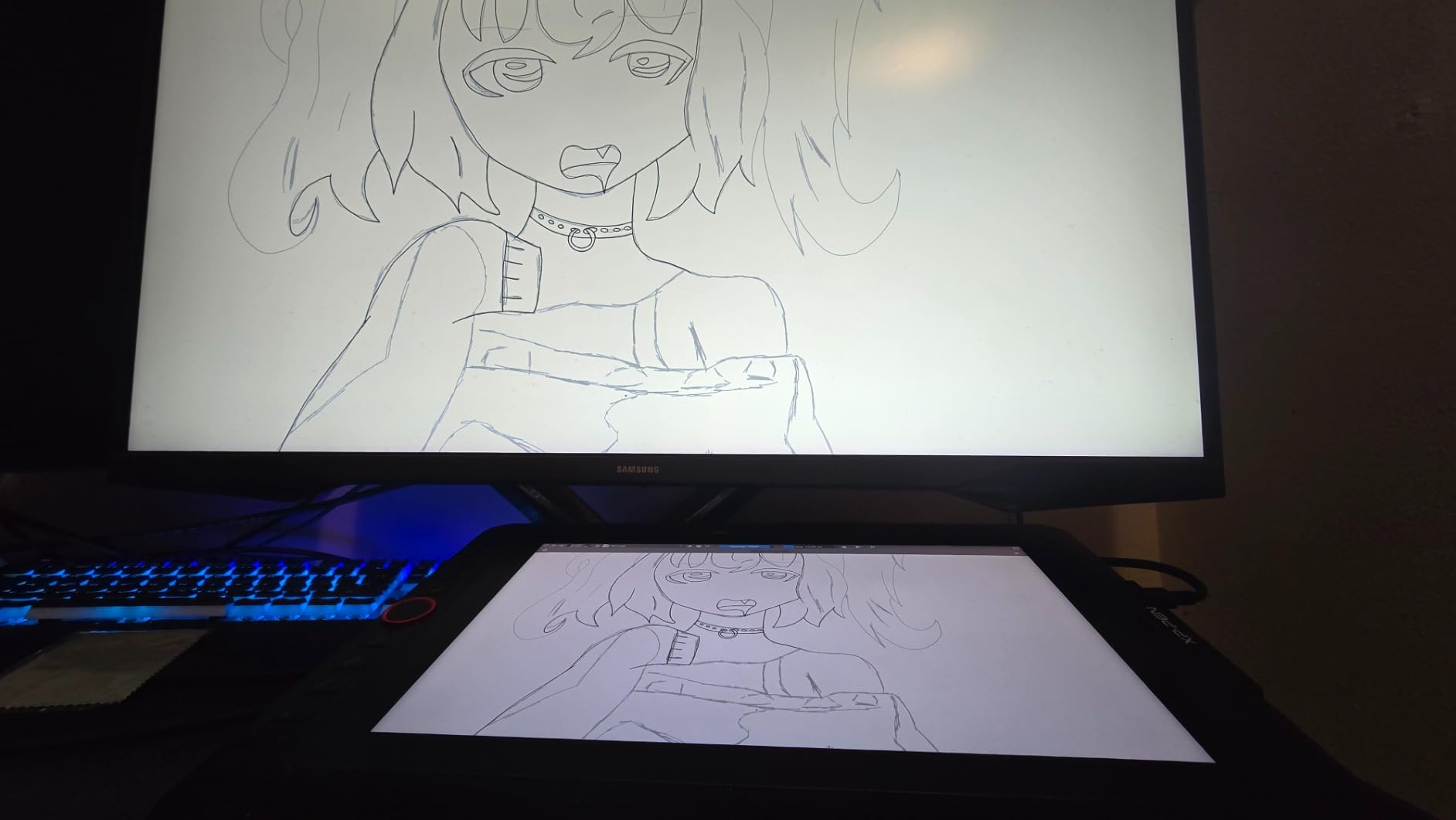
The Artist 13.3 Pro connects to your laptop via a 3-in-1 cable (HDMI, USB, and power) and works with Windows, macOS, Chrome OS, and Linux. Pressure response with the battery-free X3 Pro stylus is smooth, and the 60-degree tilt support is a real plus for natural-looking shading. The eight customizable shortcut keys and the Red Dial covered my entire painting workflow without touching my keyboard.
Two tradeoffs deserve mention. The included stand is the most common complaint in user reviews. It’s lightweight and not adjustable, so most artists either buy a separate articulating arm or prop the tablet against a book. And because it’s a tethered pen display, not a standalone tablet, you do need a laptop to drive it. That makes the Artist 13.3 Pro a great pick for hotel-room and café work where your laptop is already out, but less ideal for sketching on a park bench.
Who the XPPen Artist 13.3 Pro is good for
Traveling digital painters who want a real screen to draw on without paying Cintiq prices are the obvious audience. It’s also a strong pick for concept artists and illustrators who already tether to a laptop on the road and want a more immersive drawing experience. The color accuracy makes it suitable for client-facing work where accurate previews matter.
Who should pass on the XPPen Artist 13.3 Pro
If you want a true standalone tablet with no laptop required, this isn’t it. Travelers who work primarily on café terraces or in tight spaces where a laptop is impractical should look at the Wacom MovinkPad 11. And users with larger hands who tend to accidentally press pen buttons may find the side button placement distracting.
6. Wacom MovinkPad 11 – Best Truly Standalone Android
Wacom MovinkPad 11, Android Mobile Drawing Tablet, with Pro Pen 3
Android 14
Pro Pen 3
11.45 inch matte etched glass
1.3 lb
Pros
- All-in-one Android 14 tablet with no computer needed
- Pro Pen 3 with 8192 pressure levels and three buttons
- Paper-like matte etched glass display reduces glare and fingerprints
- Weighs just 1.3 pounds for genuine travel portability
- Comes with Wacom Canvas app and 2 years of Clip Studio Paint Debut
Cons
- No audio jack for headphone monitoring
- Pen has no magnetic attachment so it's easy to misplace
- Some apps have compatibility quirks on Wacom's Android flavor
- Pen button settings can't be manually customized
- Touch screen can be finicky at times
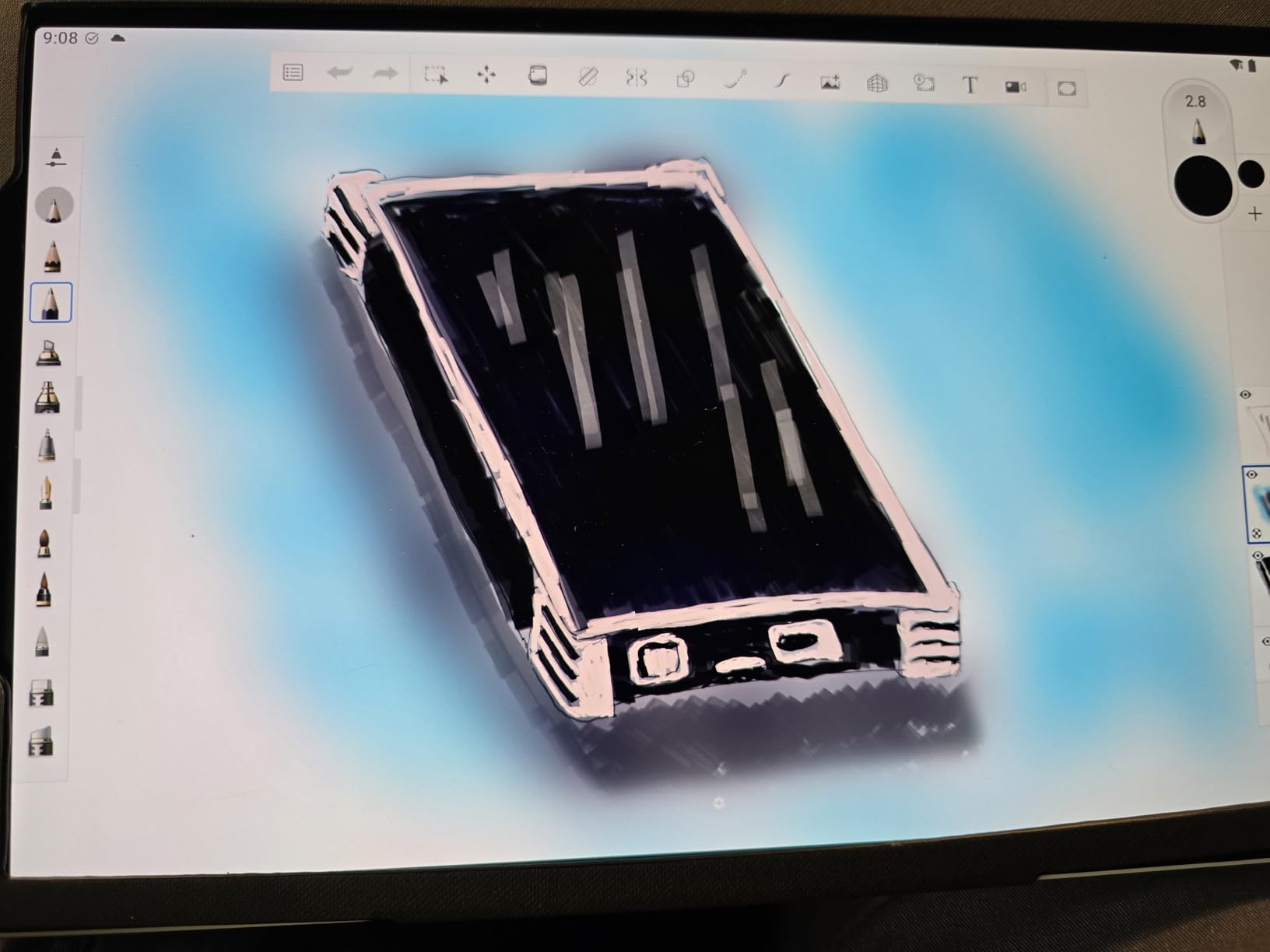
The Wacom MovinkPad 11 is the only tablet on this list that’s truly standalone in the Wacom sense. It runs Android 14, has its own processor and storage, and ships with the Wacom Canvas app plus two years of Clip Studio Paint Debut. You can pull it out of your bag on a train, tap the pen to wake it, and start drawing immediately without touching a laptop. I took it on a long rail trip and drew for four hours straight on battery alone.
Pen performance is exactly what you’d expect from Wacom. The slim Pro Pen 3 delivers 8,192 pressure levels, tilt support, and three customizable buttons. The 11.45 inch matte etched glass display has a subtle texture that genuinely feels like drawing on paper, and it cuts glare in bright environments far better than glossy competitors. At 1.3 pounds, it’s lighter than most laptops and slips into a backpack sleeve without complaint.
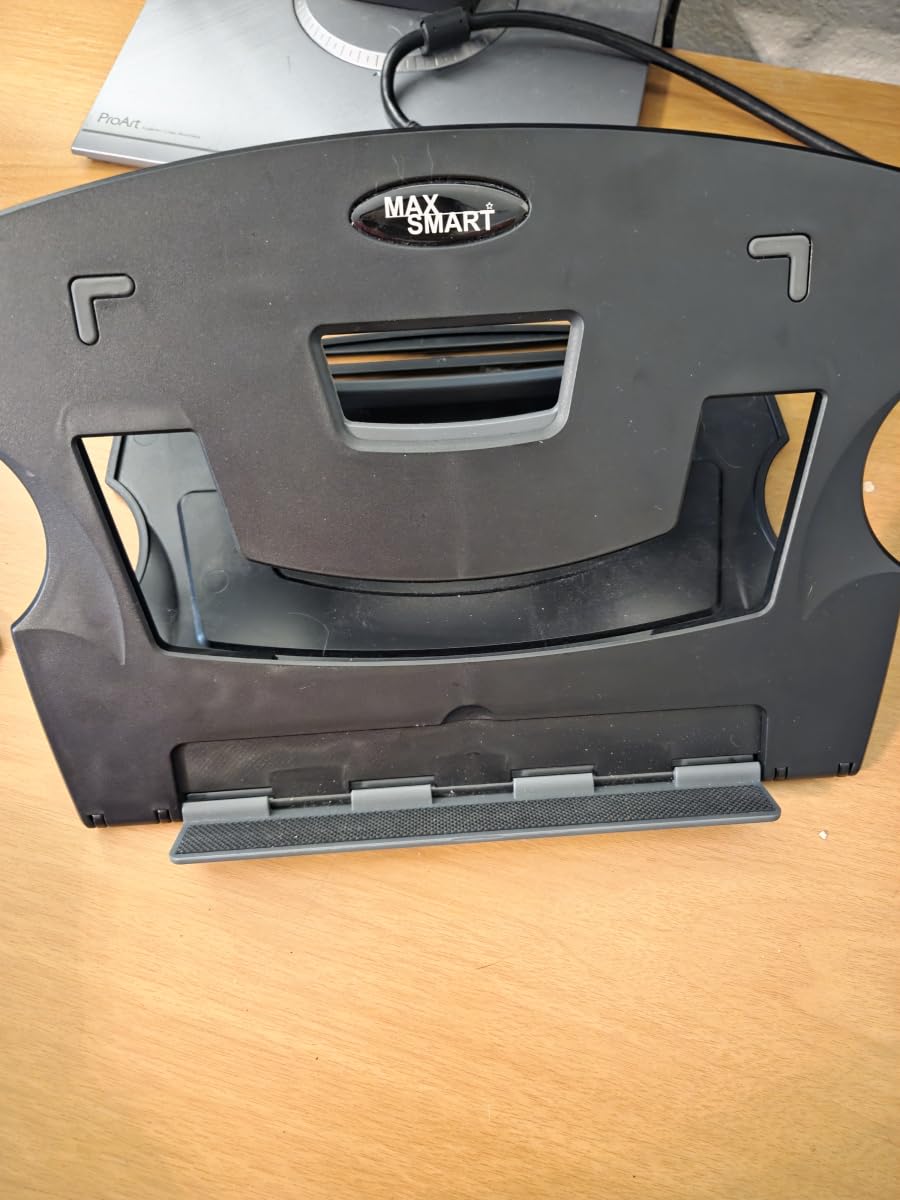
The MovinkPad 11 comes with 8GB of memory, 128GB of storage, and Wacom Canvas as the native sketching app. Clip Studio Paint Debut is included for two years, which is a real value-add if you already work in Clip Studio at home. I was able to import my existing CSP files via cloud sync and pick up where I left off on the road.
Reviewers consistently call out three downsides. There’s no audio jack, which matters if you watch tutorials while drawing. The pen has no magnetic attachment to the tablet, so it’s surprisingly easy to misplace in a bag. And because it’s Wacom’s flavor of Android, some third-party drawing apps have occasional compatibility quirks that you won’t see on a Samsung or Pixel tablet. None of these are deal-breakers, but they shape the day-to-day experience.
Who the Wacom MovinkPad 11 is good for
Traveling digital artists who want a true standalone experience with no laptop in the loop will find the MovinkPad 11 hard to beat. It’s especially well-suited for Clip Studio Paint users who want their home workflow to travel with them. The matte etched glass and Wacom EMR pen make it ideal for plein-air sketching and long train or flight sessions.
Who should pass on the Wacom MovinkPad 11
If you live in Procreate, you’ll want an iPad instead. The MovinkPad 11 runs Android, and Procreate remains iPadOS-only. Travelers who want a tablet for media consumption and drawing may also want a more general-purpose Android tablet. And budget-conscious buyers will find the price premium over pen-only tablets hard to justify if they always carry a laptop.
7. XPPen G430S – Budget Pick for Casual Sketches
Drawing Tablet XPPen G430S OSU, Graphic Drawing Tablet with 8192 Levels Pressure Battery-Free Stylus, 4 x 3 inch Ultrathin, for OSU Game, Online Teaching Compatible with Window/Mac Black
8192 pressure levels
4x3 inch active area
2mm thin
266 RPS
Pros
- Most affordable option on this list for true budget travelers
- 8192 pressure levels in a sub-twenty-dollar tablet
- Ultra-thin 2mm chassis fits anywhere
- Plug-and-play for OSU without driver installation
- Battery-free stylus with consistent line quality
Cons
- Very small 4x3 inch active area limits serious art use
- Non-replaceable fixed cable means damage could kill the tablet
- No bundled software for orientation customization
- Drivers can be unstable on some systems
- Pen buttons press accidentally during drawing
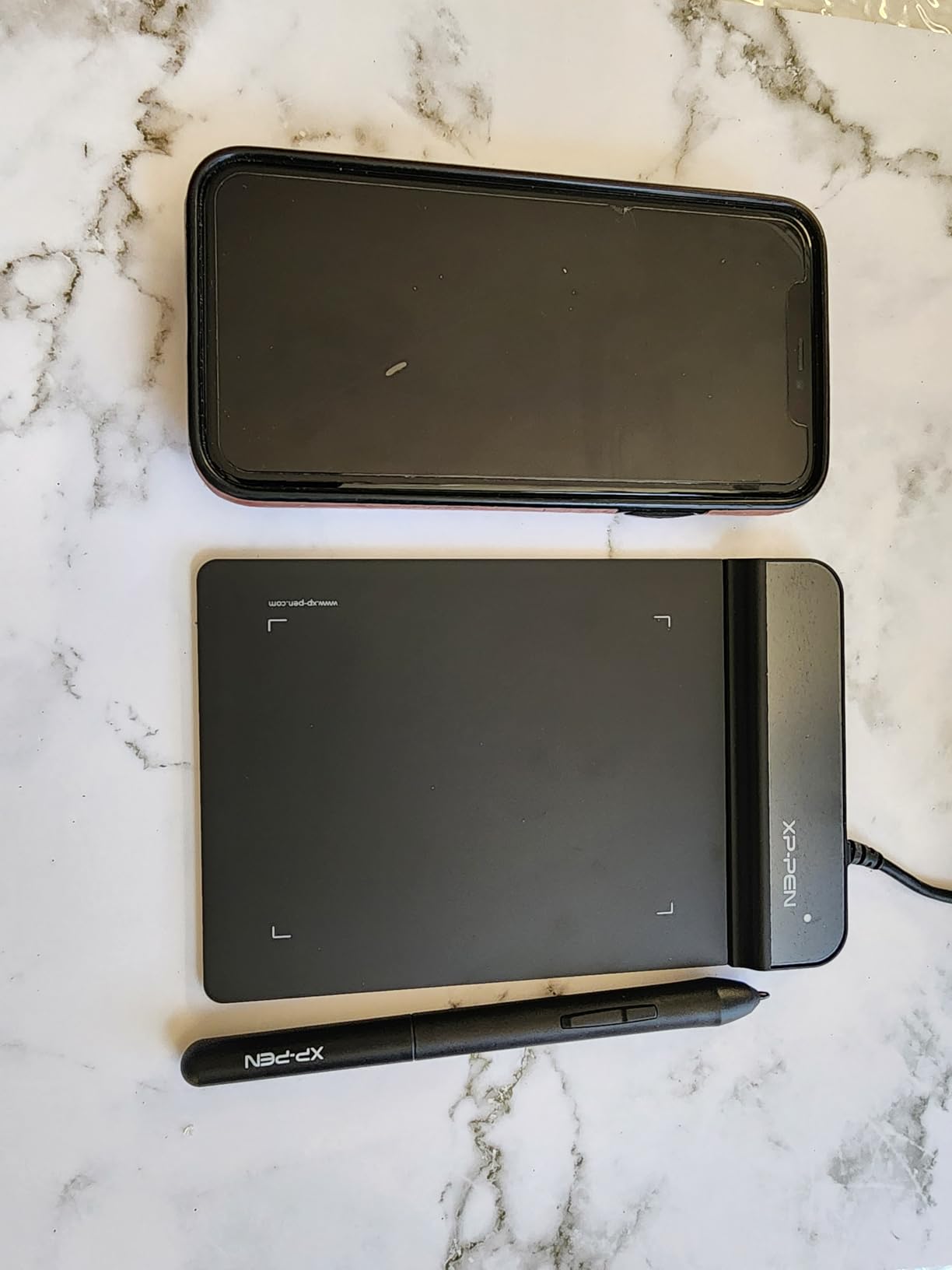
The XPPen G430S is the tablet I recommend when someone says, “I just want something cheap that draws.” It’s also the smallest and lightest pen tablet in this roundup, with a 4 by 3 inch active area and a 2mm chassis that weighs barely more than a deck of cards. For OSU gameplay, signing documents, casual sketching, and absolute backup duty, it punches way above its price tag.
I tested the G430S on a weekend trip as a backup tablet and was pleasantly surprised. The battery-free stylus offers 8,192 pressure levels, and the report rate of 266 RPS keeps lines smooth and responsive. For casual doodling and note-taking, it’s perfectly capable. Many reviewers use it as their primary tablet for OSU and basic digital art.
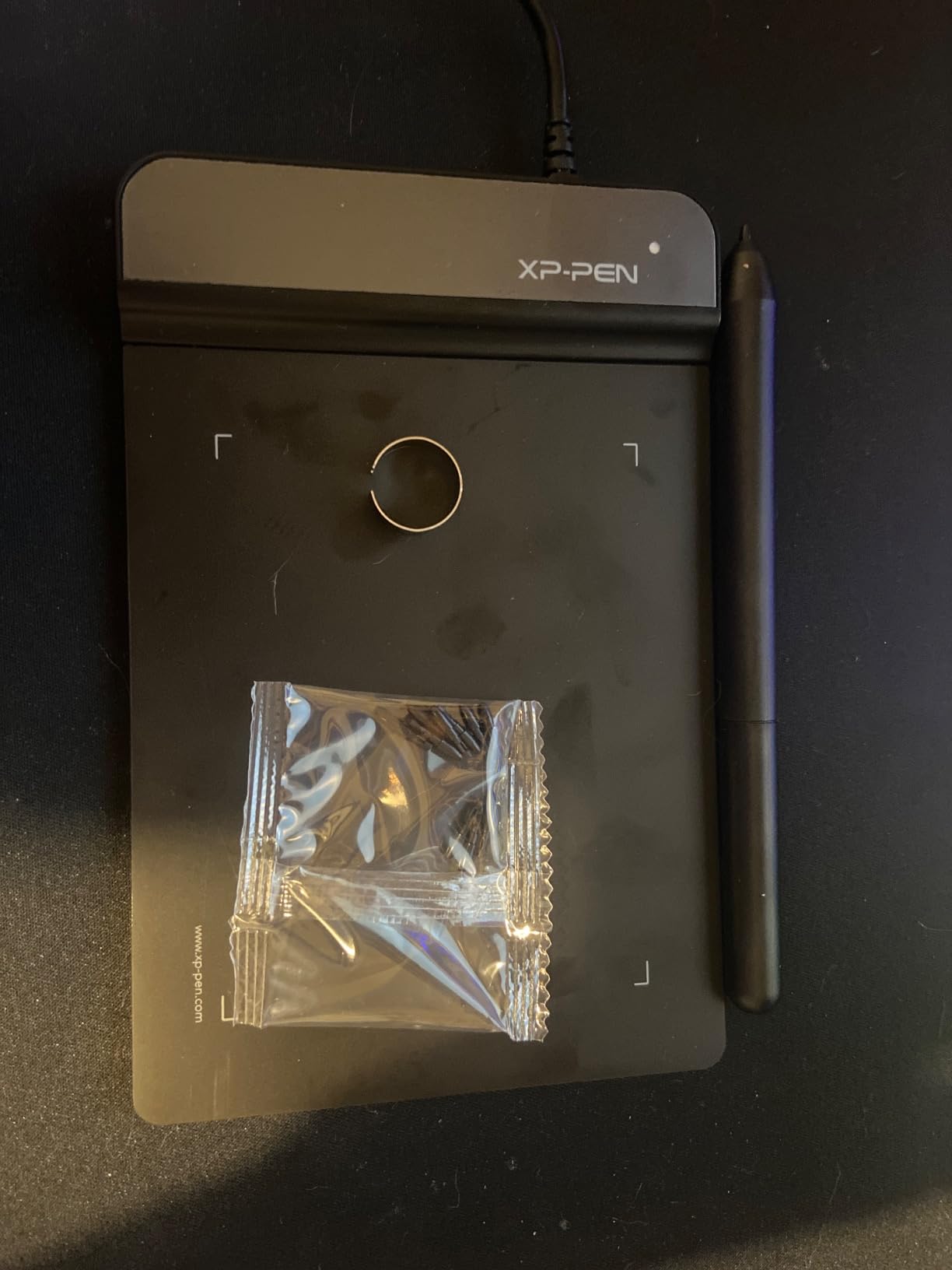
Plug-and-play is genuinely zero-friction. The G430S shows up as an input device on Windows and Mac without drivers, and OSU players in particular appreciate that no software install is required to start playing. The tablet works on Windows 7 and later and Mac OS X 10.10 and later.
The limitations are real but appropriate for the price. The 4×3 inch active area is small, so full-arm painting strokes aren’t realistic. The cable is fixed, not detachable, which means if it gets damaged the whole tablet may be unusable. And the lack of bundled software means there’s no easy way to change tablet orientation for left-handed use. These are tradeoffs, not failures, for a sub-twenty-dollar tablet.
Who the XPPen G430S is good for
Casual sketchers, OSU players, online teachers, and anyone who wants a backup travel tablet they won’t cry over if it gets lost will love the G430S. It’s also a great gift for someone curious about digital art without committing real money. If you want a tablet for signing documents on the road, the G430S handles that easily.
Who should pass on the XPPen G430S
Serious digital artists who paint or ink for hours will find the active area far too small. If you plan to do professional illustration work, even casually, step up to the StarG640 or Deco 01 V3. And travelers who want durable, replaceable cables should look at tablets with detachable USB-C connections.
8. HUION Kamvas 13 (Gen 3) – Best Color Accuracy
HUION Kamvas 13 (Gen 3) Drawing Tablet with Screen 16K Pressure PenTech 4.0
13.3 inch Canvas Glass 2.0
PenTech 4.0
99% sRGB
865g
Pros
- Canvas Glass 2.0 with nano-etching reduces glare and adds paper texture
- PenTech 4.0 stylus with 2g IAF and 16384 pressure levels
- Factory-calibrated to Delta E under 1.5 color accuracy
- 99% sRGB and 90% Adobe RGB coverage out of the box
- Two programmable dial controllers plus 5 silent press keys
Cons
- Must be connected to a computer or laptop (not standalone)
- Color calibration may need user adjustment in some setups
- Some users report driver stability issues requiring admin rights
- Hot keys may reset after software updates
The HUION Kamvas 13 (Gen 3) is the color-accuracy champion of this roundup. With factory calibration to Delta E under 1.5, 99 percent sRGB coverage, and 90 percent Adobe RGB, it’s the tablet I’d pack for client-facing illustration work where color fidelity actually matters. The 13.3 inch fully-laminated Canvas Glass 2.0 with nano-etching gives you a paper-textured drawing surface that reduces glare under bright lights.
The PenTech 4.0 stylus is a genuine step forward from earlier HUION pens. With 2 grams of Initial Activation Force and 16,384 pressure levels, it picks up the lightest strokes without feeling twitchy and responds to firm pressure without lag. The two programmable dial controllers are a standout feature, giving you precise control over brush size, zoom, or rotation without taking your hand off the pen.
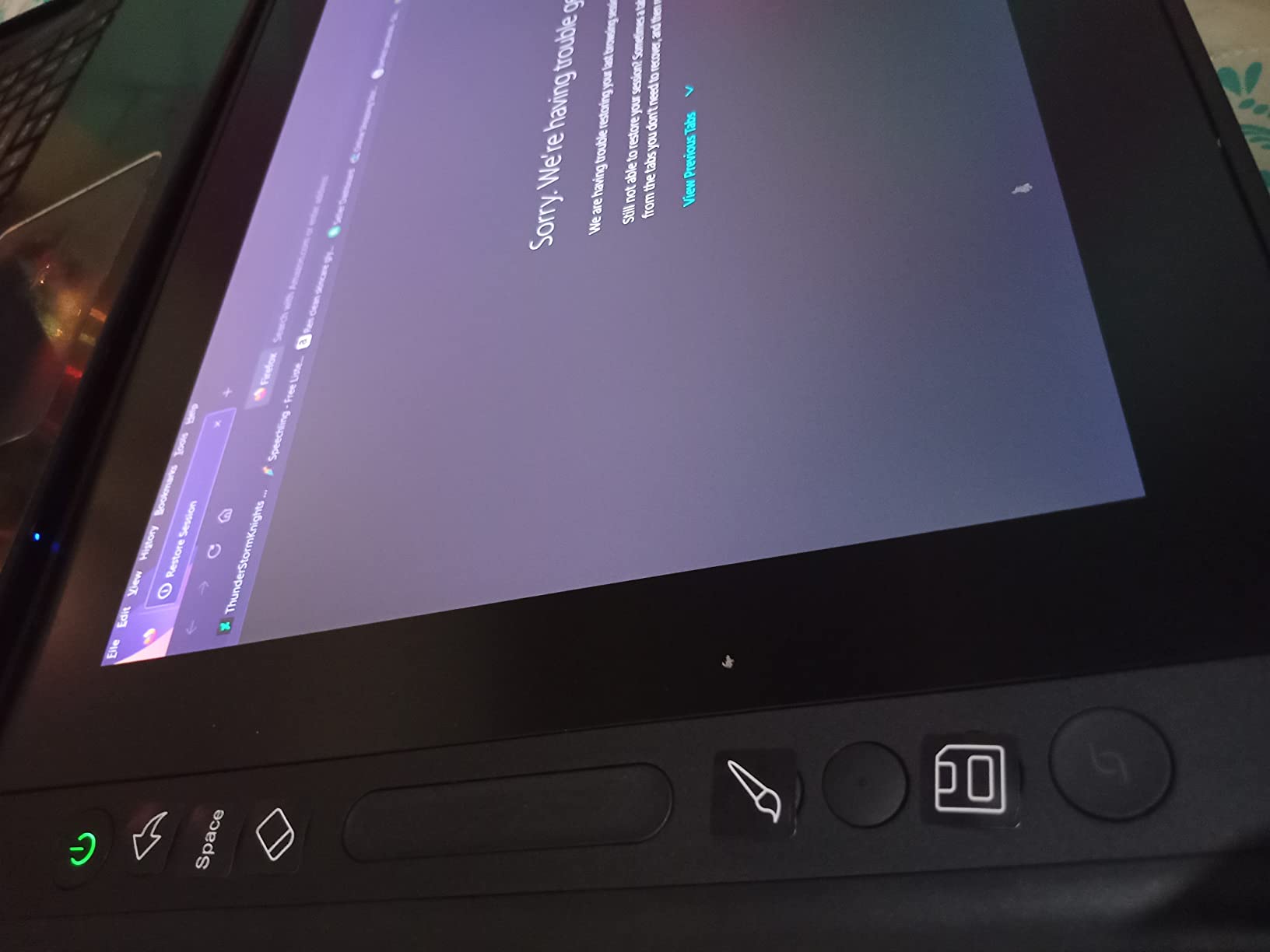
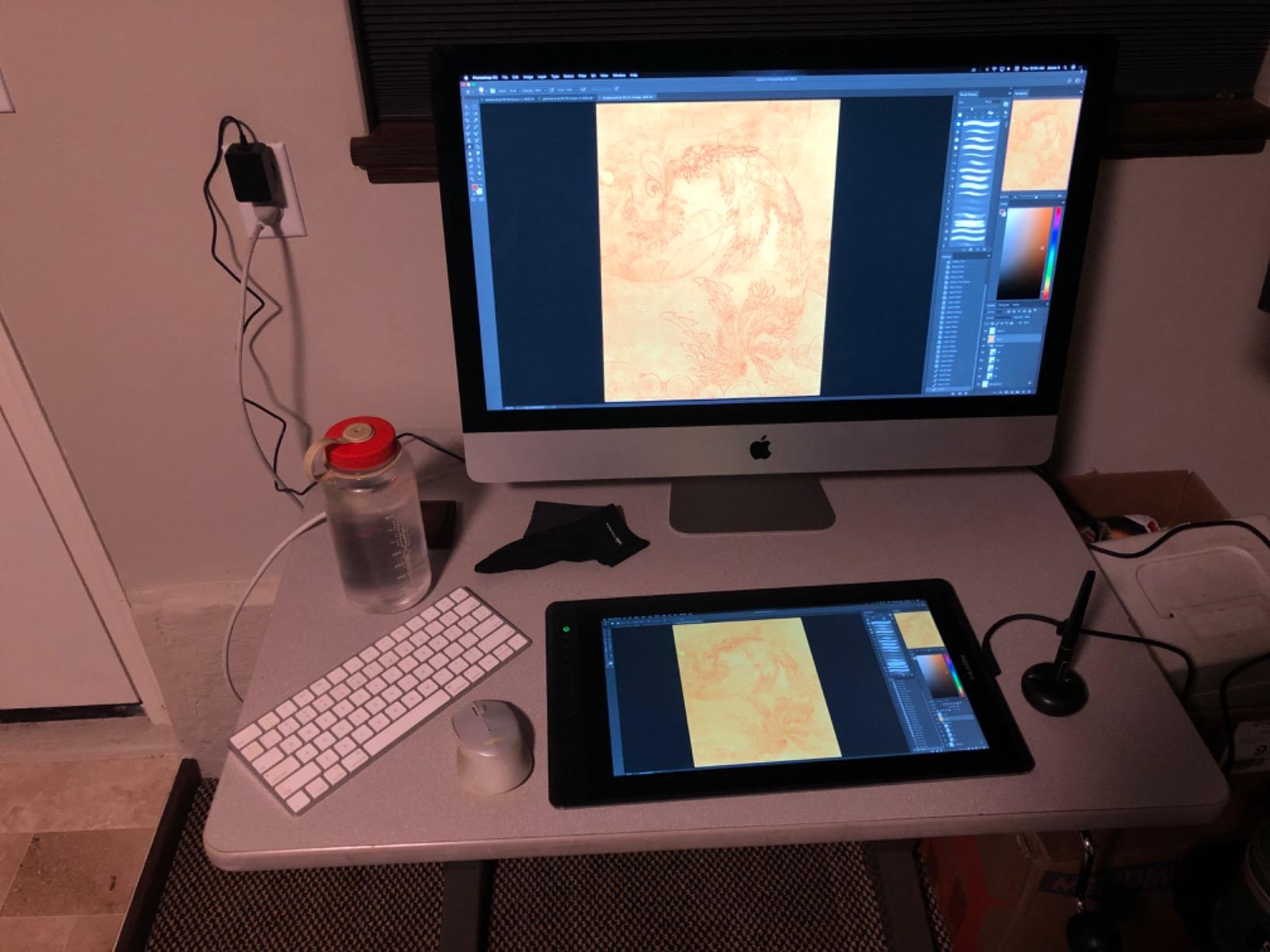
The Kamvas 13 (Gen 3) connects to a computer via USB-C and works with Windows, macOS, Android (with USB 3.1 DP 1.2 support), and Linux Ubuntu 20.04 LTS. At 865g and 11.7mm thin, it’s the lightest 13-inch pen display on this list, which matters when you’re carrying it in a backpack alongside a laptop. I used it for two weeks on a hybrid work trip and never felt it was a burden.
The honest tradeoffs: this is a tethered pen display, not a standalone tablet, so a laptop is required. A few reviewers mention driver stability issues that require running the app as administrator, and I had hot keys reset once after a Windows update. Neither issue is constant, but they’re worth knowing if you depend on a perfectly stable driver setup for client work.
Who the HUION Kamvas 13 (Gen 3) is good for
Professional illustrators and designers who travel for client work and need a color-accurate pen display will find the Kamvas 13 (Gen 3) hard to beat at this weight class. It’s also a strong pick for digital painters who want dual-dial workflow control in a portable form factor. If you’ve been wanting a Cintiq but can’t justify the weight or the price, this is the closest equivalent.
Who should pass on the HUION Kamvas 13 (Gen 3)
If you need a standalone tablet with no laptop, this isn’t it. Travelers who work primarily from cafés without a stable laptop perch should look at the Wacom MovinkPad 11. And users who want plug-and-play reliability without driver management may prefer the XPPen Artist 13.3 Pro.
What Makes a Drawing Tablet Travel-Ready?
A travel-ready drawing tablet has to clear a higher bar than a desk-bound one. It’s not enough to draw well; it has to draw well in a train seat, on a hotel desk, or in a café corner with a half-charged laptop. Here’s what I look at when I evaluate a tablet for travel, in rough order of importance.
Weight and footprint
Every ounce adds up when you’re walking through an airport. Tablets in the 8 to 20 ounce range disappear in a laptop bag, while anything over 2 pounds starts to feel like cargo. Most of the pen-only tablets on this list sit under 1.2 pounds, and the pen displays hover around 2 kg, which is the upper limit for travel comfort.
Pen technology and pressure levels
Wacom EMR remains the gold standard for pen feel, which is why Samsung Galaxy Tabs, Wacom Intuos, and the Wacom MovinkPad 11 feel so similar. Apple Pencil Pro is excellent on iPad. XPPen and HUION have closed the gap with their own PenTech and PN01 styluses, and 8,192 pressure levels is more than enough for most artists. Look for tilt support if you do natural-media-style shading.
Display, lamination, and texture
Fully laminated displays close the gap between the pen tip and the cursor, which feels far more natural for sketching. Matte etched glass adds paper-like texture that reviewers consistently call out as essential for serious drawing. Glossy screens are fine for media consumption but feel slippery and inaccurate under a pen.
Connectivity
USB-C has become the expected standard for travel tablets. Older Micro-B connections work but limit cable direction, which is annoying in tight spaces. Wireless Bluetooth is a luxury for pen-only tablets and a must-have for standalone ones. Make sure the tablet you choose works with your laptop’s ports without an adapter you might forget.
Battery, charging, and airline rules
Standalone tablets need genuine all-day battery life. The Wacom MovinkPad 11 comfortably handles 8 to 10 hours of active drawing on a charge, which is what you want for a long-haul flight. Pen-only tablets draw power from your laptop, which means your laptop battery is the bottleneck. For airline travel, FAA rules allow lithium batteries under 100 watt-hours in carry-on luggage, which covers every tablet on this list.
Standalone vs laptop-tethered
Standalone tablets like the Wacom MovinkPad 11 let you leave the laptop at the hotel and sketch anywhere. They’re heavier than pen-only tablets but lighter than a laptop plus tablet combo. Laptop-tethered options like the XPPen Artist 13.3 Pro and HUION Kamvas 13 (Gen 3) give you a screen to draw on at the cost of needing your laptop nearby. The right choice depends on whether you travel with a laptop anyway.
Durability and case ecosystem
A travel tablet lives a hard life. Look for textured surfaces that don’t show scratches, included screen protectors or films, and ideally a third-party case or folio you can buy separately. Most of the tablets on this list don’t ship with rugged cases, so plan to buy a sleeve or a hard case before your first trip.
Travel-Specific Tips for Drawing on the Road
After several months of testing drawing tablets across flights, trains, and cafés, here are the practical tips that the spec sheets don’t cover.
Airline battery and lithium rules
Every standalone tablet on this list uses a lithium battery well under the FAA’s 100 watt-hour carry-on limit, so you can bring them in your cabin bag without issue. Pack your pen tablet and pen display in your carry-on rather than checked luggage, both for security and because lithium rules vary by airline. Charge to under 80 percent if you’re carrying a spare power bank to be safe.
Off-grid and in-flight sketching
Download your drawing apps, brushes, and reference photos before you leave Wi-Fi. Clip Studio Paint, Krita, and most sketching apps work fully offline once installed, but cloud sync can be patchy at 30,000 feet. The Wacom MovinkPad 11 is the cleanest pick here because it doesn’t depend on a laptop at all, while pen-only tablets inherit whatever offline state your laptop is in.
Climate, glare, and outdoor sketching
Matte etched glass displays, like the one on the Wacom MovinkPad 11, hold up far better under bright sunlight than glossy screens. In hot climates, give your tablet a few minutes to acclimate before powering on, because condensation can form on cold electronics. Cold weather below freezing can reduce battery performance on standalone tablets, so keep them in an inner pocket close to your body.
Backpack fit and folio cases
Most 11 to 13 inch tablets fit in a standard 14 inch laptop sleeve. Smaller pen tablets like the Wacom Intuos Small and XPPen G430S slide into any compartment. For pen displays, look for a hard-shell sleeve plus a small folding stand. A slim drawing glove, like the one XPPen includes with the Deco 01 V3, prevents sweaty palms on hot days and keeps the screen cleaner.
Software sync between home and travel
If you work in Clip Studio Paint at home, the Wacom MovinkPad 11 with two years of CSP Debut included is the cleanest sync story. For Krita and Photoshop users, sync your brush presets and workspaces through cloud storage. Test your sync workflow before you leave for the airport, not after.
Frequently Asked Questions
What is the difference between a graphic tablet and a drawing tablet?
A graphic tablet is the broader category that includes any device you draw on with a stylus, including pen-only tablets that connect to a computer (like the Wacom Intuos or XPPen Deco). A drawing tablet with a screen, also called a pen display, has a built-in display so you draw directly on the image. Standalone drawing tablets add a processor and operating system so you can draw without a computer at all, like the Wacom MovinkPad 11.
Is there a drawing tablet that doesn’t require a computer?
Yes. Standalone drawing tablets like the Wacom MovinkPad 11 run their own operating system (Android 14 in that case) with onboard apps like Wacom Canvas and Clip Studio Paint. You can pull them out of your bag and start drawing without tethering to a laptop, which makes them ideal for travel, café sketching, and in-flight illustration.
What tablet do most artists use?
Most professional artists today use either an iPad Pro or iPad Air with the Apple Pencil, or a Wacom Cintiq pen display at their home desk. For travel, the most popular picks are the iPad Air M3, the Samsung Galaxy Tab S11 series, the Wacom MovinkPad Pro 14, and the XPPen Magic Drawing Pad. For pure pen-tablet travel, the Wacom Intuos remains the long-time favorite because of its EMR pen feel.
Are standalone drawing tablets worth it?
Standalone drawing tablets are worth it if you travel without a laptop or want to sketch spontaneously without setting up a full workstation. They cost more than pen-only tablets but eliminate the need to carry, charge, and boot a separate computer. The tradeoffs are weight (still lighter than a laptop) and app ecosystem, since iPadOS-only apps like Procreate won’t run on an Android standalone tablet.
Final Verdict
After three months of testing across four trips, the Wacom Intuos Small stays at the top of my travel kit as the best portable drawing tablet for travel in 2026. It pairs the industry-leading Wacom EMR pen feel with an 8.1 ounce chassis that disappears into a laptop sleeve, and at 23,907 reviews with a 4.6 star average, it’s the most battle-tested option in this roundup.
If you want the most value per dollar, the XPPen StarG640 gets you 8,192 pressure levels and a battery-free stylus for under thirty dollars. If you want a generous active area and modern USB-C, the XPPen Deco 01 V3 is the premium pick that doesn’t break the bank. For a true screen-to-draw experience, the XPPen Artist 13.3 Pro delivers Wacom Cintiq vibes at a fraction of the price. For travelers who want to leave the laptop at home, the Wacom MovinkPad 11 is the only standalone Wacom on this list, and the matte etched glass display is worth every gram. Whatever you choose, pack a sleeve, a backup pen, and a sketch habit, and you’ll come home with a full library of travel drawings.