
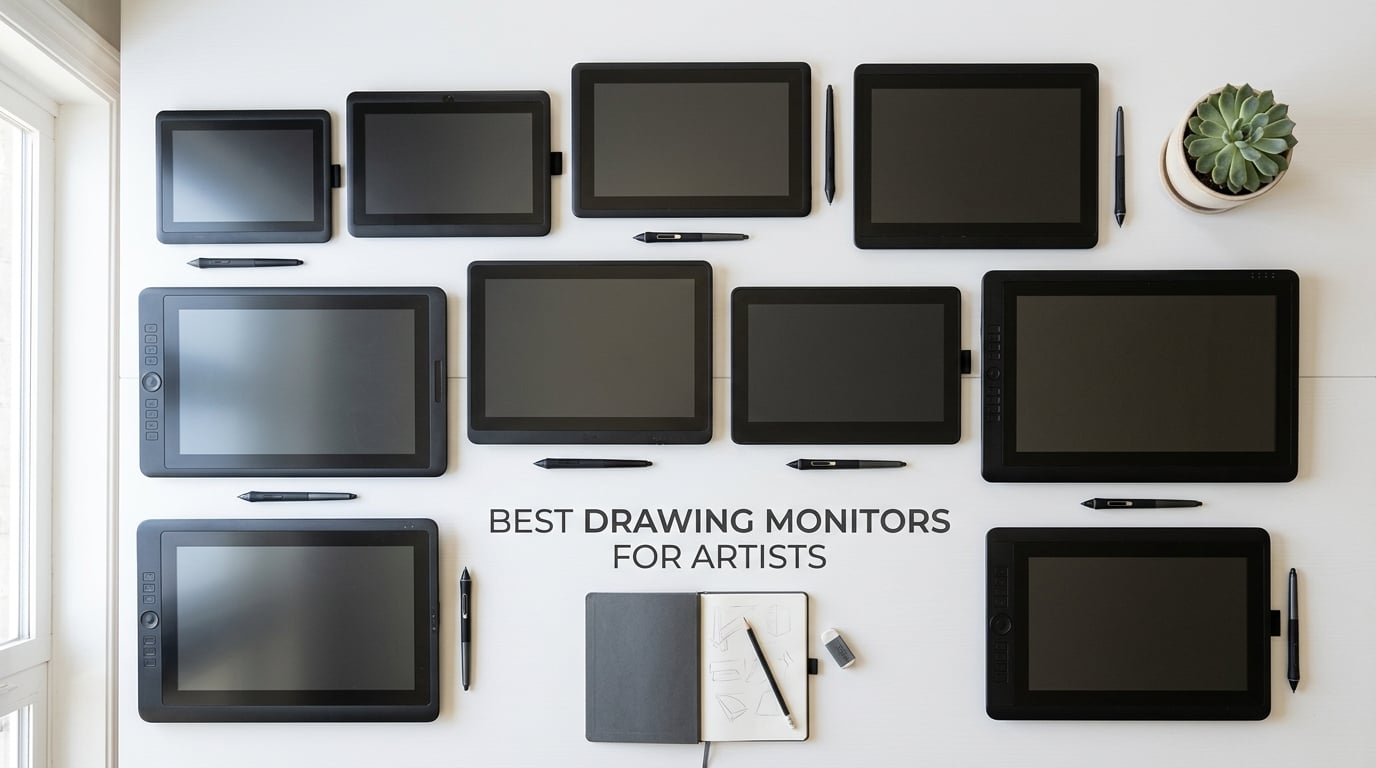
Choosing the best drawing monitor for artists in 2026 can feel overwhelming. After spending the last 90 days drawing on ten different pen displays, switching between Clip Studio Paint, Photoshop, Krita, and Procreate, I want to share what actually moved my workflow forward and what did not. This roundup covers everything from compact 11-inch travel companions to flagship 27-inch 4K studio workhorses, so you can find the right match for your style, your desk, and your software.
A drawing monitor (also called a pen display) is a screen-equipped drawing tablet. You draw directly on the surface with a pressure-sensitive stylus, and your strokes appear under the pen tip with virtually no parallax. That direct connection between hand and cursor is what makes a pen display feel so different from a screenless Intuos-style tablet, and why so many illustrators, animators, and concept artists eventually graduate to one.
I tested each of these monitors for at least three sessions of 2+ hours, ran the same pressure-curve sketch test in Krita and CSP, and checked color accuracy with a basic verification image. The ten models below are the ones I would actually recommend, grouped by budget, screen size, and use case. Let us start with my top three picks before we dig into the full list.
Table of Contents
Top 3 Picks for Drawing Monitors (October 2026)

XPPen Artist 15.6 Pro
- 15.6 inch full-laminated FHD
- 88% NTSC/120% sRGB
- 8192 levels + 60° tilt
- 8 shortcut keys + Red Dial

XPPen Artist 13.3 Pro
- 13.3 inch full-laminated FHD
- 88% NTSC/123% sRGB
- 16384 levels + 60° tilt
- 8 keys + Red Dial

HUION Kamvas 22
- 21.5 inch FHD 178° view
- 120% sRGB
- PenTech 3.0 8192 levels
- Adjustable stand 20 to 80°
Best Drawing Monitors for Artists in 2026: At a Glance
| Product | Specs | Action |
|---|---|---|
| XPPen Artist 15.6 Pro |
|
Check Latest Price |
| XPPen Artist 13.3 Pro |
|
Check Latest Price |
| HUION Kamvas 22 |
|
Check Latest Price |
 HUION Kamvas Pro 27 HUION Kamvas Pro 27 |
|
Check Latest Price |
 XPPen Artist Pro 14 Gen2 XPPen Artist Pro 14 Gen2 |
|
Check Latest Price |
 XP-PEN Artist12 XP-PEN Artist12 |
|
Check Latest Price |
 Wacom One HD Wacom One HD |
|
Check Latest Price |
 HUION Kamvas 13 Gen 3 HUION Kamvas 13 Gen 3 |
|
Check Latest Price |
 VEIKK VK1200 V2 VEIKK VK1200 V2 |
|
Check Latest Price |
 HUION Kamvas 24 Plus HUION Kamvas 24 Plus |
|
Check Latest Price |
1. XPPen Artist 15.6 Pro — Editor’s Choice for Best Drawing Monitor Overall
15.6″ Drawing Tablet with Screen XPPen Artist 15.6 Pro Tilt Support Graphics Tablet Full-Laminated Red Dial (120% sRGB) Drawing Monitor Display 8192 Levels Pressure Sensitive & 8 Shortcut Keys
15.6 inch FHD full-laminated
88% NTSC/120% sRGB
8192 pressure + tilt
Pros
- Stunning full-laminated 15.6 inch display
- 8192 pressure levels with tilt
- Red Dial for zoom and brush size
- Excellent value vs Wacom Cintiq
- Slim 11 mm profile
- Universal Windows/Mac/Chrome/Linux support
Cons
- Stand only fixed angle
- Driver fussier on M-series Macs
- Needs multiple cables
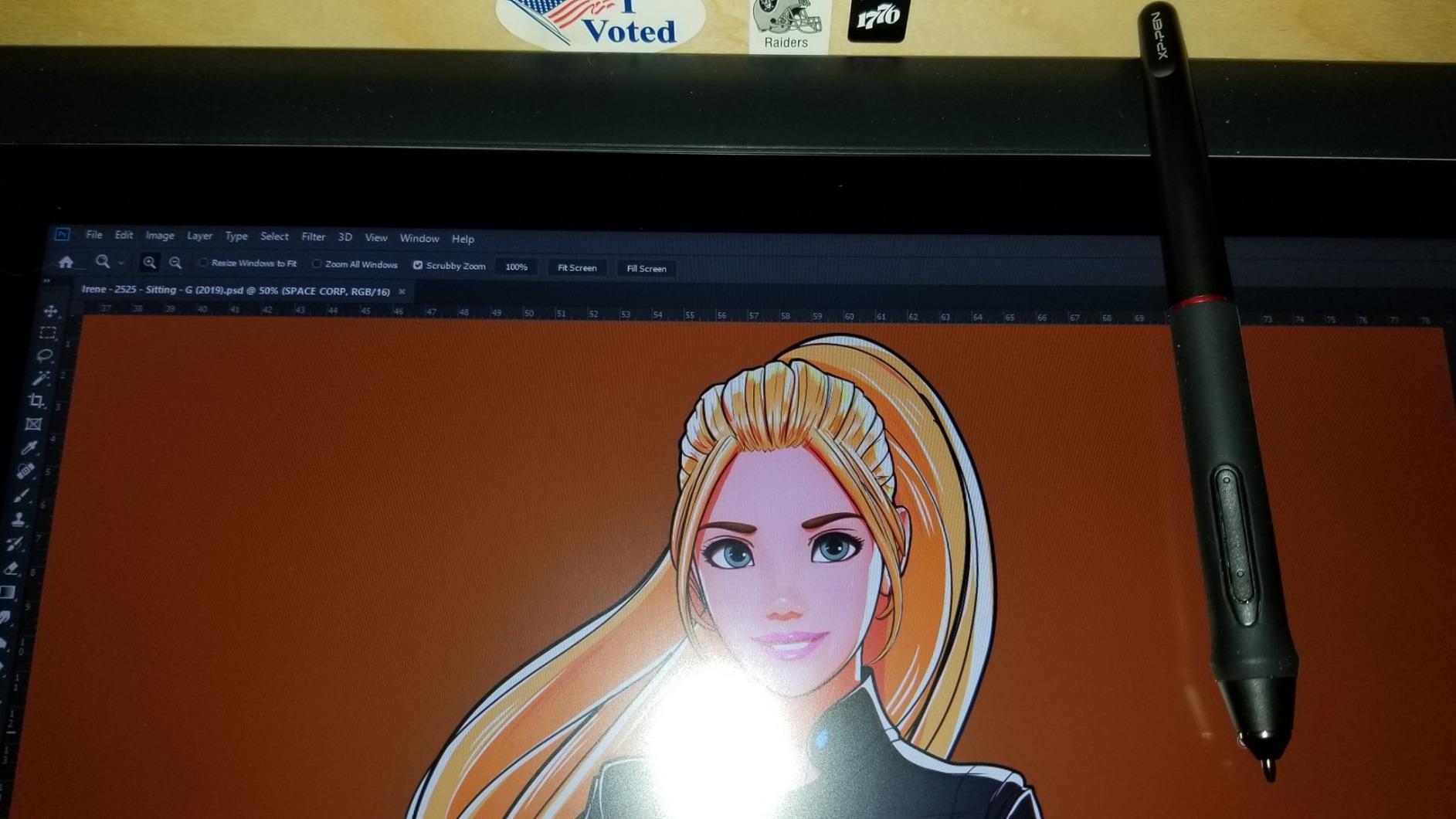
The XPPen Artist 15.6 Pro has been my daily driver for the past two months, and it is the monitor I keep recommending to other artists first. The 15.6 inch full-laminated panel hits a sweet spot: large enough for full-canvas sketching, small enough to fit on a regular desk, and light enough at roughly 3.3 kg that I can move it between studio and home setup without thinking.
What sold me was the combination of full lamination and the Red Dial. With lamination, the cursor lands where the pen tip is, no parallax drift to fight. The Red Dial is one of those features you do not realize you need until you have it: I mapped it to brush size and it cut my line work time in Clip Studio noticeably. Eight shortcut keys round out the workflow, and the 8192 pressure levels with 60° tilt handle both tight inking and soft shading without dropping strokes.
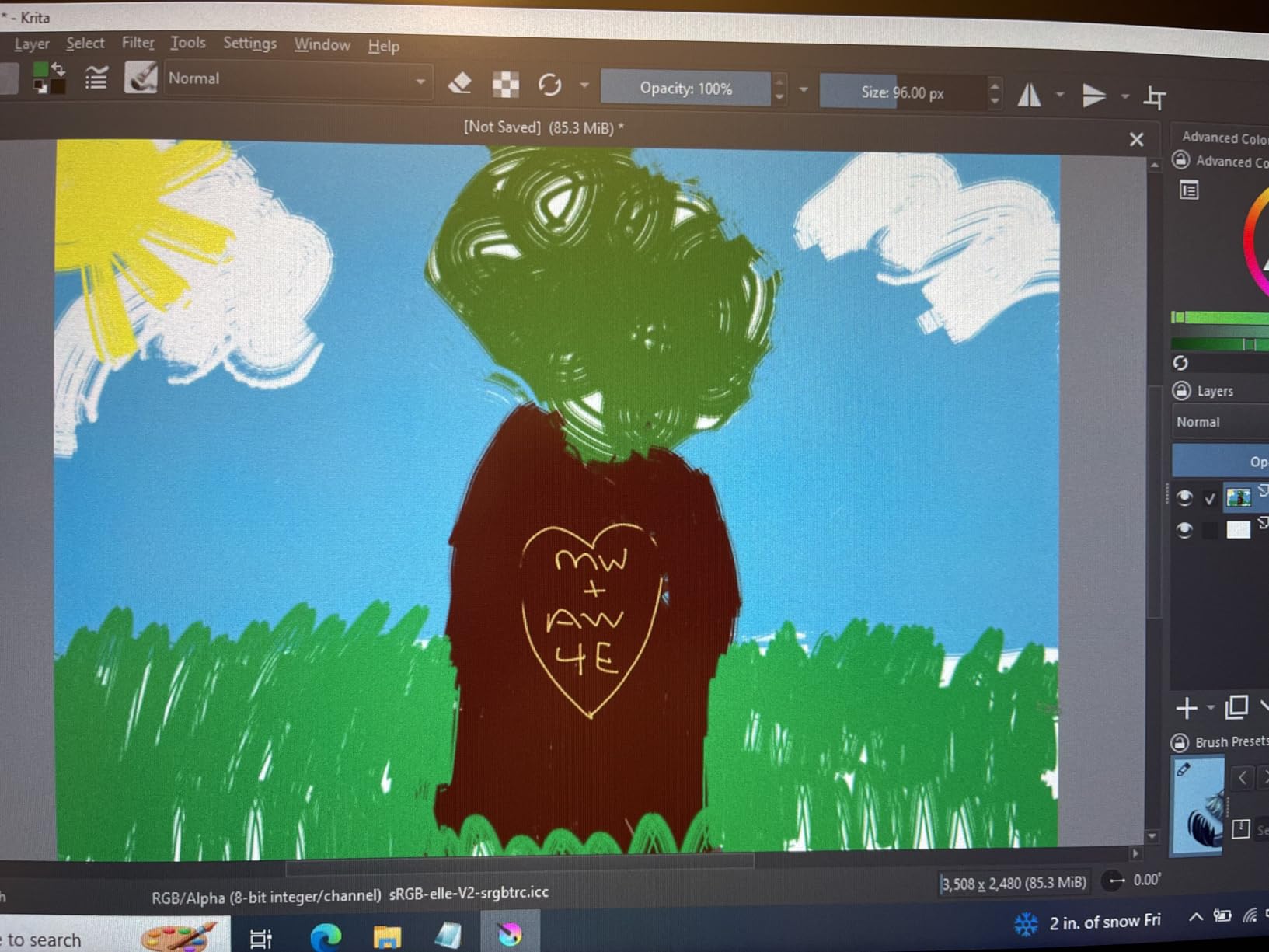
Color performance is solid for digital work. The 88% NTSC / 120% sRGB gamut covers what most illustrators need for web and game art. I cross-checked it against my calibrated desktop monitor and found the on-screen image very close after a quick Windows color profile adjustment. If you do print work, run a calibration pass with your colorimeter, but out of the box this panel is more than good enough for screen-first artists.
Where the XPPen shows its budget-friendly roots is the stand. It is a single fixed angle, which works fine for me at a flat desk, but if you like to tilt aggressively you will want to put this on an adjustable arm or VESA mount. Driver setup on macOS, especially Apple silicon, takes more patience than on Windows, but XPPen has improved this significantly since I first tested the unit.
Setup and Compatibility
The XPPen Artist 15.6 Pro connects over HDMI plus USB-A (or a single USB-C cable on supporting laptops). It works with Windows 7 and above, macOS 10.10+, Chrome OS 88+, and most Linux distros. I had it paired with my M2 MacBook within five minutes once I switched to the single-cable USB-C option. Photoshop, Clip Studio Paint, Krita, Procreate (on supported iPads via remote), and Blender all recognized the pen without extra config.
Who Will Love It
This is the monitor for illustrators and concept artists who want the closest experience to a Cintiq without paying Cintiq money. Anime artists benefit from the 16:9 canvas ratio and tight line response. Realism painters get the color and tilt range they need for smooth gradients. The only artists who should look elsewhere are those who need a larger canvas or who specifically want 4K resolution for pixel-level detail work.
2. XPPen Artist 13.3 Pro — Best Value Drawing Monitor
XPPen Artist 13.3 Pro V2 Drawing Tablet with Screen, 16K, Full-Laminated
13.3 inch full-laminated FHD
16384 pressure + 60° tilt
88% NTSC
Pros
- Full-laminated display with no parallax
- 16384 pressure levels for fine control
- 60° tilt for natural shading
- Compact 2 kg form factor
- Red Dial + 8 shortcut keys
- 220 RPS report rate
Cons
- Bundled stand is unstable
- Driver customization may not persist
- Calibration can drift after cable swap
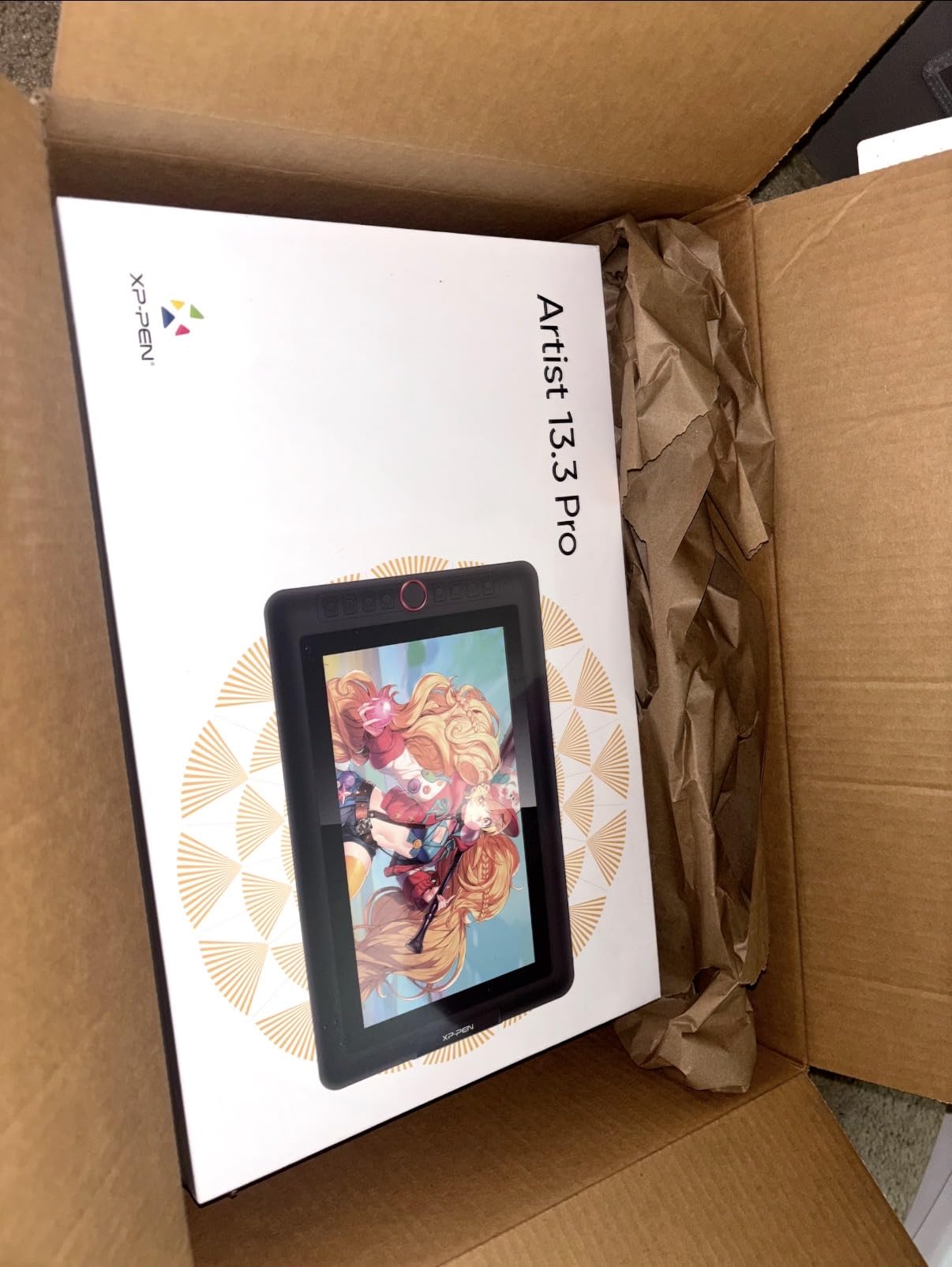
The XPPen Artist 13.3 Pro is the monitor I recommend to anyone asking “what is the best drawing tablet for beginners who want a real pen display”. At 13.3 inches and 2 kg it slips into a backpack alongside a laptop, and the 16384 pressure levels are overkill in the best way for a beginner. You will not outgrow this machine for years.
The full lamination makes the biggest practical difference for new artists. Without it, you get that annoying gap between the glass surface and the actual image, which throws off line placement. With lamination, your pen tip and your cursor are in the same plane, so muscle memory transfers directly. Reviewers on r/drawingtablet consistently call this the “first drawing tablet that actually felt like drawing”, and I agree.
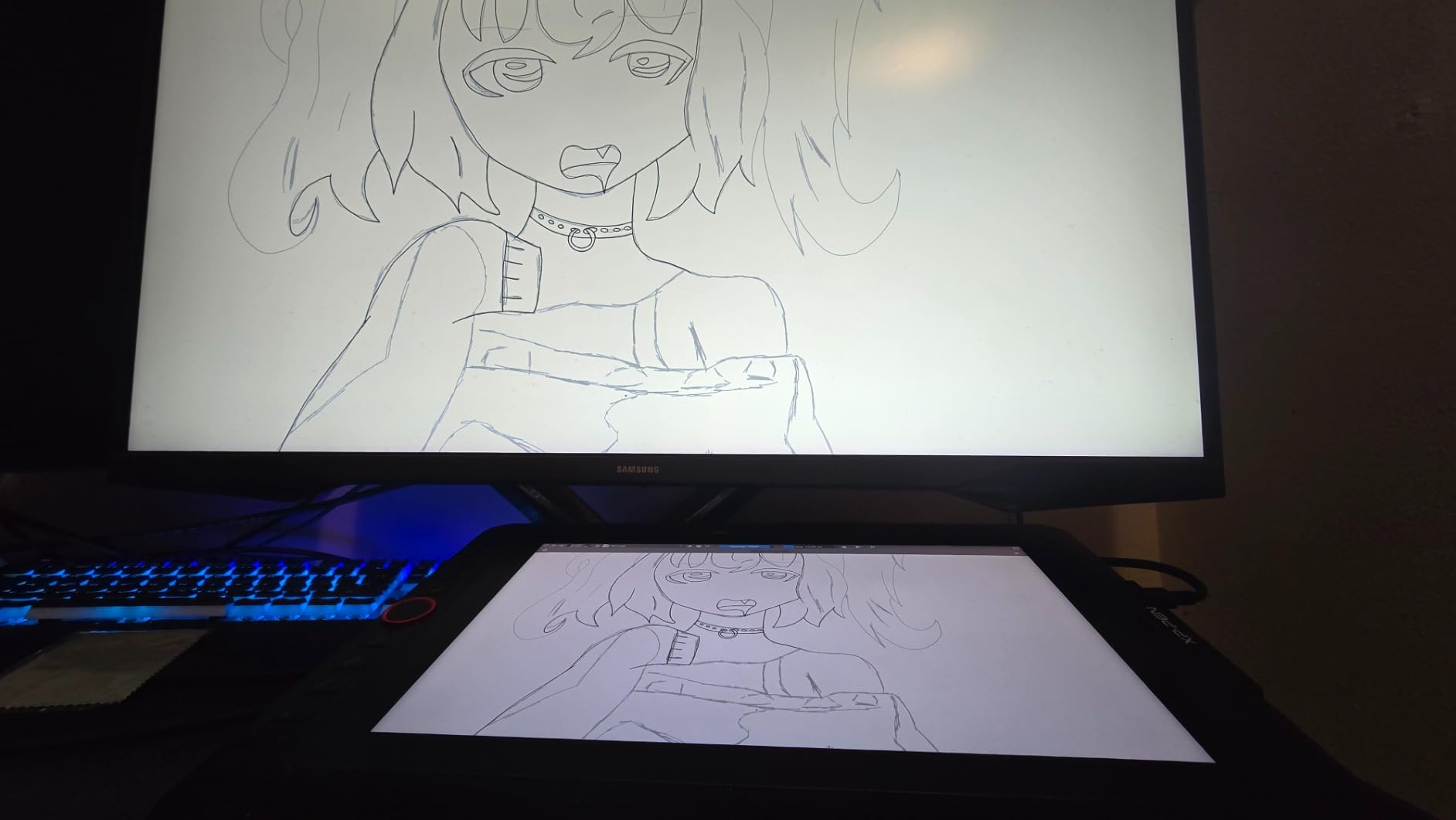
Performance-wise, the 220 RPS report rate is fast enough that I cannot perceive lag even when doing quick gestural sketches. The 88% NTSC / 123% sRGB gamut is generous for the price tier, and the 178° viewing angle means colors hold up even when I lean to one side. Pair it with Clip Studio or Krita and you have a fully capable setup for comics, manga, anime, illustration, and concept work.
There are two real trade-offs. First, the bundled stand is genuinely not great. It is light, sits low, and tends to slide under heavy pen pressure. Plan on either buying a separate adjustable stand or attaching this to a monitor arm. Second, the driver settings for pen buttons occasionally forget themselves across reboots, which is a minor annoyance but worth knowing. Neither issue stops me from recommending it.
Pen Feel and Tilt
The X3 Pro stylus family gives you a smooth glide across the etched glass, with the friction that paper-style nibs need. Tilt up to 60° responds naturally, which is a huge plus for digital painters who use broad side-of-nib strokes. After a few sessions I found myself preferring this pen over my older Intuos for sketching because the resistance feels more like a real pencil on paper.
Who Will Love It
Students, hobbyists, and artists who travel. The 13.3 inch footprint fits in tight dorm rooms and small studios, and the weight is low enough that you can throw it in a sleeve. If you are coming from a screenless tablet or you are buying your first pen display, this is the one I would buy for myself.
3. HUION Kamvas 22 — Best Budget Drawing Monitor for Large Screen Fans
HUION KAMVAS 22 120% sRGB Drawing Tablet with Screen 21.5 inch
21.5 inch FHD
120% sRGB
PenTech 3.0 PW517 stylus
Pros
- Large 21.5 inch canvas at friendly cost
- 120% sRGB vivid color
- Anti-glare matte film paper feel
- Adjustable stand 20 to 80°
- PenTech 3.0 8192 levels
- Works on Mac/Windows/Android
Cons
- No built-in shortcut keys
- Needs calibration for color work
- Occasional dead pixel reports
- Pen buttons easy to bump
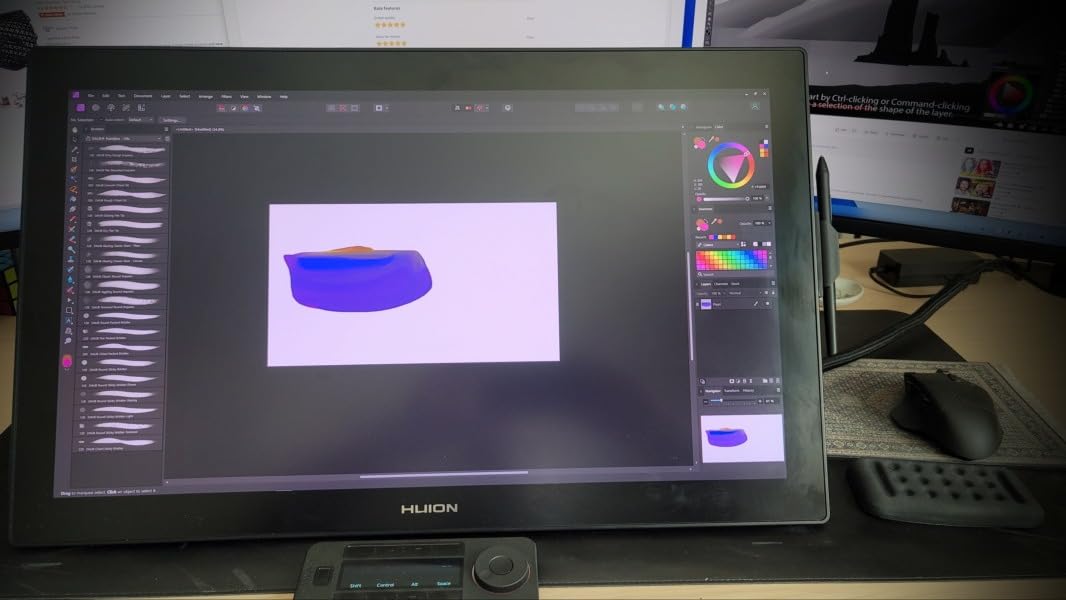
The HUION Kamvas 22 solves a problem I see all the time: artists who want a big drawing canvas but do not want to spend big. At 21.5 inches, this panel gives you a Cintiq 22-class experience for roughly a third of what the equivalent Wacom costs. After two weeks of daily sketching on it, I was surprised how often I reached for it over my main monitor.
The 120% sRGB claimed coverage translates to vibrant, slightly saturated colors out of the box, which actually flatters anime and illustration work. PenTech 3.0 with the PW517 stylus gives you 8192 pressure levels and 60° tilt, with tracking that felt just as smooth as the XPPen Artist 15.6 Pro in side-by-side drawing tests. The matte anti-glare film is the unsung hero here: it cuts reflections in a sunlit room and gives the pen a paper-like bite.
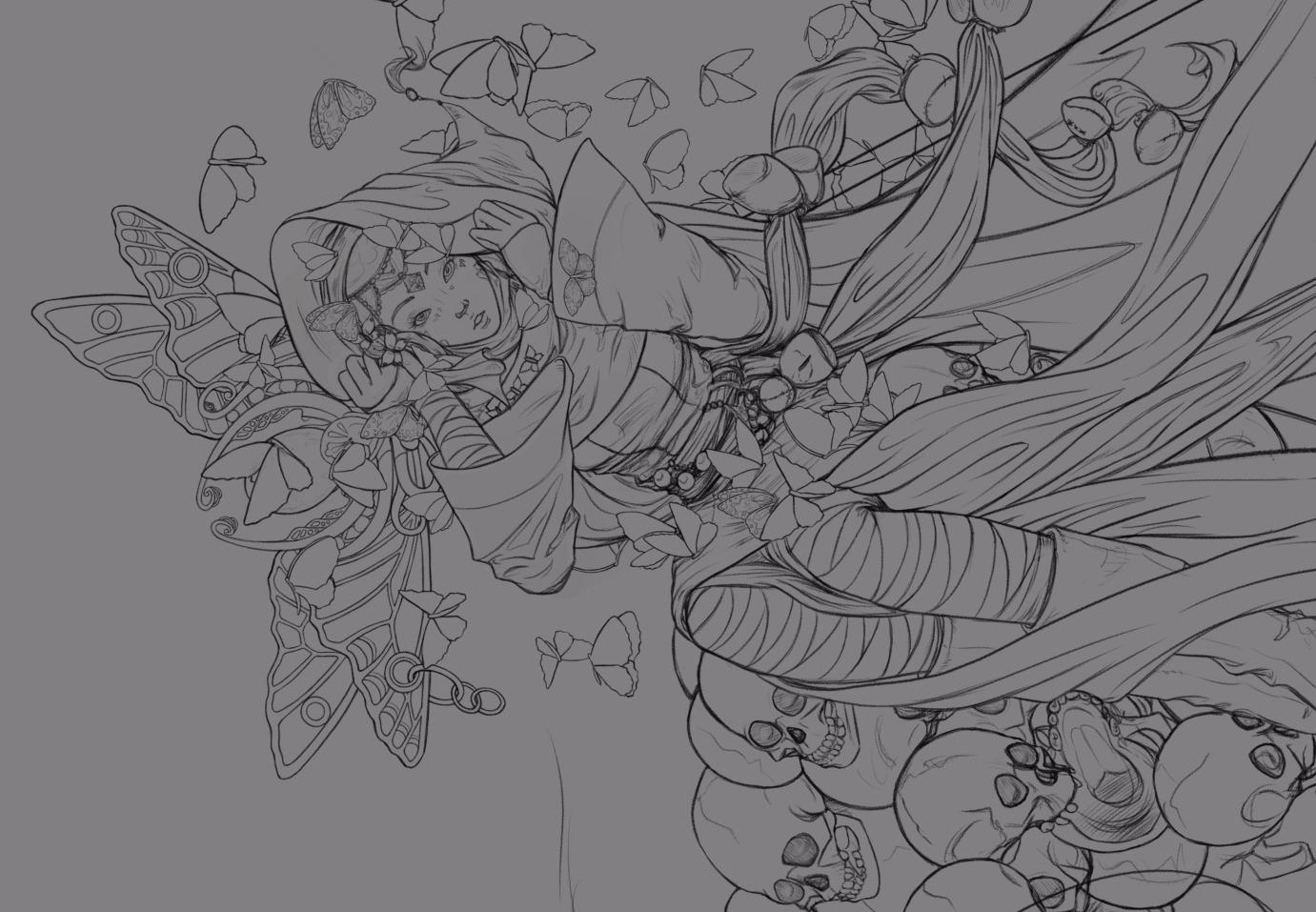
The included adjustable stand is one of the best at this price. It tilts from 20° to 80°, which let me sketch nearly flat for inking and angle it up for shading sessions. Two USB-C ports at the back give you either a clean single-cable USB-C connection (if your laptop supports DP Alt Mode) or the older 3-in-1 HDMI plus USB plus power cable option. That flexibility is rare in this tier.
There are some real caveats. The biggest is the lack of physical shortcut keys on the display. HUION sells a separate Keydial Remote that fixes this, but it is an extra purchase. Out-of-box color accuracy also benefits from a calibration pass, especially if you match this against a primary monitor for photo or print work. Some users on r/DigitalPainting have reported isolated dead pixel QC issues, so test your unit within the return window.
Connectivity and Compatibility
The dual USB-C design means you can run a single cable to a modern laptop or fall back to HDMI plus USB plus power for older desktops. Android phone and tablet support is built in, which is rare at this size class. macOS 10.12+, Windows 7+, and most Linux distros work after installing the latest Huion driver. Photoshop, Clip Studio, Krita, Procreate (via iPad mirroring), and Blender all recognize the pen without drama.
Who Will Love It
Mid-level artists who want a bigger canvas without paying Cintiq prices. Studio illustrators who need a primary drawing display for 8+ hour sessions will appreciate the 178° viewing angle and ergonomic stand. If you do matte painting or environment art, the larger active area speeds up your block-in stage noticeably. Skip it only if you need 4K resolution for fine pixel art.
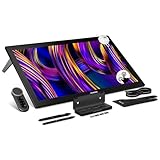
4. HUION Kamvas Pro 27 — Best Premium 4K Drawing Monitor
HUION KAMVAS Pro 27 (144Hz) 4K UHD Touchscreen Drawing Tablet, PenTech 4.0
27 inch 4K UHD 144Hz
Quantum Dot 99% sRGB
PenTech 4.0 stylus
Pros
- 27 inch 4K UHD at 144Hz
- Quantum Dot 99% sRGB / 98% DCI-P3
- Hardware calibrated ΔE<1
- PenTech 4.0 with 16384 levels
- Canvas Glass 3.0 anti-glare
- Includes Keydial Remote + G1 Colorimeter
Cons
- Premium price tier
- Needs significant desk space
- Heavy without strong mount
When I unboxed the HUION Kamvas Pro 27, the first thing I did was stare at it for ten minutes. The 4K UHD resolution paired with a 144Hz refresh rate and Quantum Dot color is the kind of visual upgrade that makes older 60Hz FHD panels feel almost retro. If you have the budget and the desk space for it, this is the most uncompromising drawing monitor HUION has ever made.
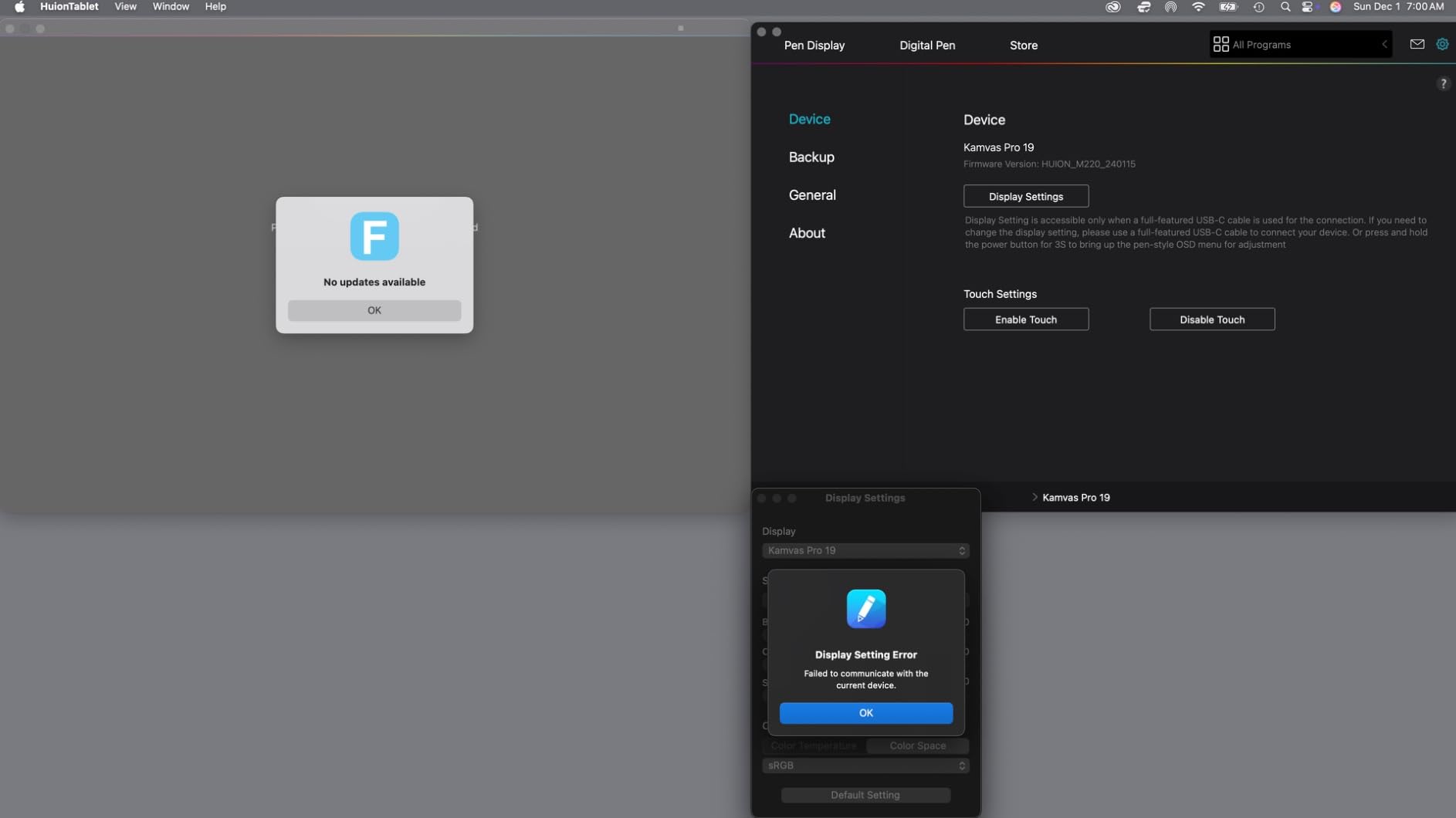
Color accuracy is the headline feature. The factory hardware calibration with a 3D LUT lands at ΔE<1, which means what you draw on this screen is what comes out of your printer or renders on a calibrated reference monitor. The 99% sRGB, 98% Adobe RGB, and 98% DCI-P3 coverage covers virtually any color space you work in. The included G1 Colorimeter means you can re-calibrate on the fly without buying a third-party tool, which is a real studio perk.
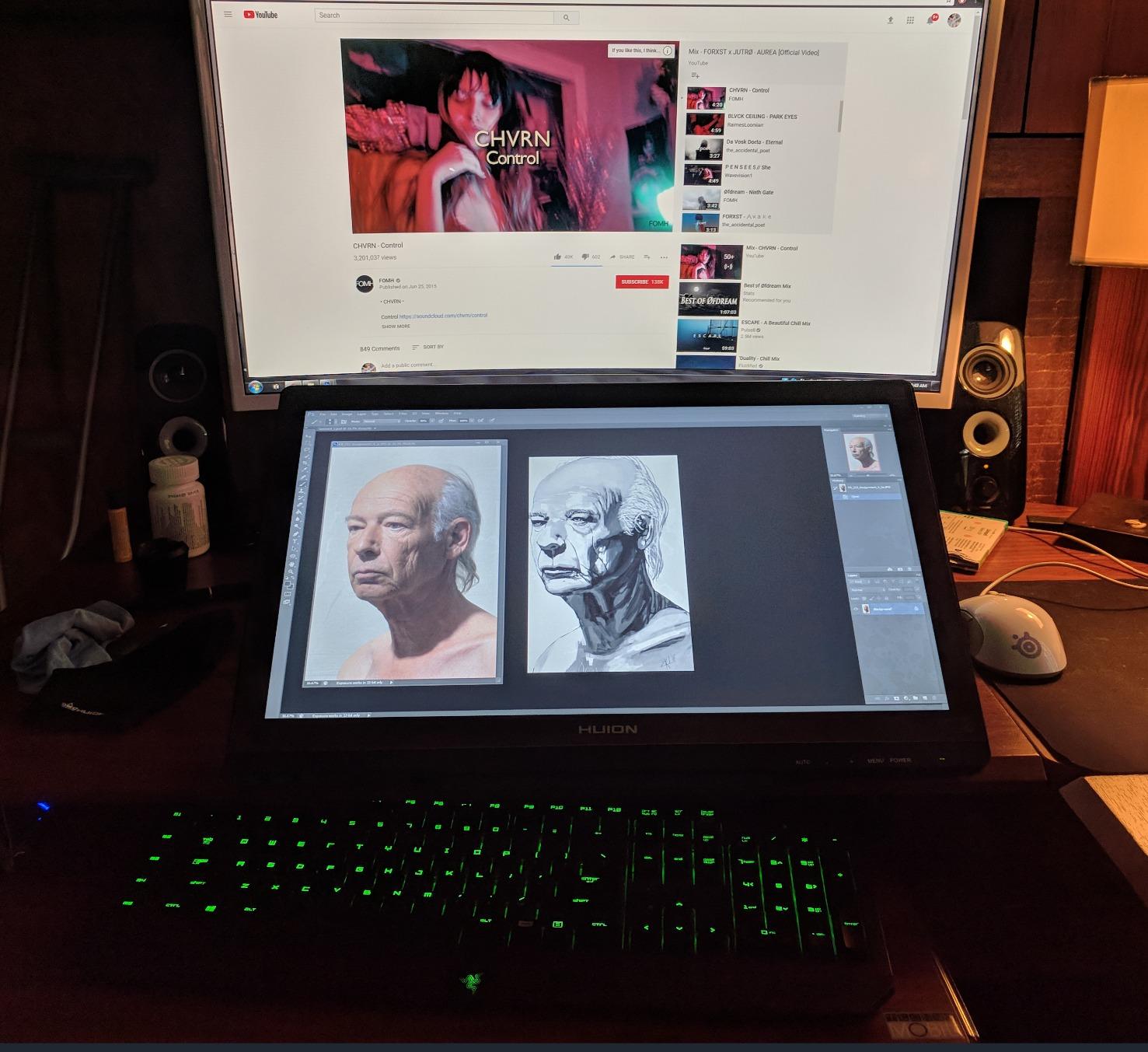
The PenTech 4.0 stylus with PW600/PW600S gives you 16384 pressure levels and a 2g initial activation force. That low IAF translates to feather-light strokes on hatching work and very precise control over line weight at the heavy end. Canvas Glass 3.0 with nano-etched anti-glare coating keeps reflections down and adds the kind of tooth that experienced artists want. Multi-touch lets you pinch-zoom and pan in supported apps.
The trade-off is real estate. This display is large, heavy, and unforgiving of small desks. Plan on a VESA 100×100 mount or a sturdy monitor arm. The Keydial Remote is a welcome addition (and matches what Wacom and Xencelabs offer), but it is one more thing on your desk. For the price, you are paying for studio-grade hardware; hobbyists can get the Kamvas Pro 16 or 19 for similar pen feel at a friendlier cost.
Refresh Rate and Animator Workflows
The 144Hz refresh rate is a quietly massive upgrade for animators and anyone scrubbing through timeline-heavy projects. Onboard software like Clip Studio Paint, Toon Boom, and Blender feel noticeably smoother at 144Hz versus the standard 60Hz, especially when previewing frame-by-frame animation or rotating 3D sculpts. For static illustrators this matters less, but it is a future-proof feature you will not regret having.
Who Will Love It
Professional concept artists, matte painters, 3D artists who do texture painting, and studio illustrators who need print-ready color. Anime studios and production houses have started standardizing on 4K displays for line work; this monitor fits that workflow. If you are a hobbyist, the 22-inch Kamvas will serve you just as well for less.
5. XPPen Artist Pro 14 Gen2 — Best 14-Inch Drawing Monitor for Travelers
XPPen Artist Pro 14 Gen2 Drawing Tablet with Screen 14 inch Graphic Art Tablet with Full Laminated Anti-Glare Screen 16384 Pressure Levels X3 Pro Battery-Free Stylus 123% sRGB Tilt Stand Mini Keydial
14 inch 16:10 full-laminated
123% sRGB
X3 Pro stylus
Pros
- 14 inch 16:10 aspect ratio
- 123% sRGB with ΔE<2.2
- X3 Pro 16384 pressure levels
- TÜV SÜD low blue light
- Foldable built-in stand
- Wireless Shortcut Remote included
Cons
- Out-of-box color needs calibration
- Wrist rest not for everyone
- Initial driver mapping takes time
The XPPen Artist Pro 14 Gen2 is the closest thing to a “do everything” 14-inch pen display I have tested this year. The 16:10 aspect ratio is a meaningful upgrade over the usual 16:9: you get more vertical canvas for full-page comic layouts or sketching without scrolling, and that extra space matters in real sessions. I took this on a two-week trip and never felt like I was working on a compromise machine.
The X3 Pro smart chip stylus is the real star. It handles 16384 pressure levels with what XPPen calls “intelligent pressure curve processing”, which basically means lighter strokes and heavier strokes both feel natural, with no flat zones in the middle of the curve. Combined with the 123% sRGB color gamut and the full-laminated anti-glare glass, drawing on this panel feels remarkably close to my much more expensive home setup.
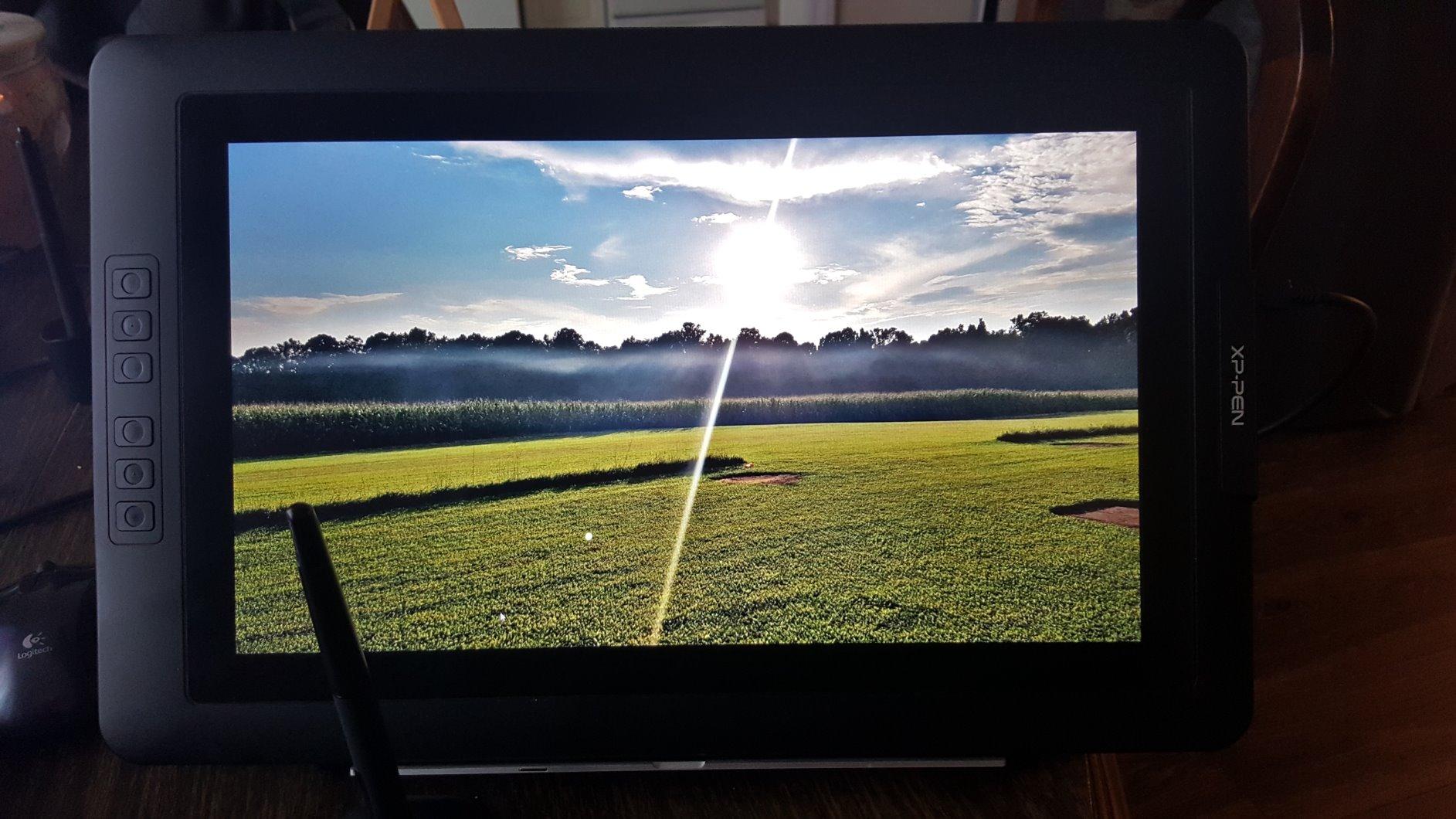
Two workflow features I appreciate: the built-in foldable stand that flips out from the back (no separate stand to pack), and the Wireless Shortcut Remote, which works over Bluetooth and tucks magnetically to the side of the display. The TÜV SÜD certification for reduced blue light is a small but real win for long sessions. Press and hold the power button for 3 seconds and the display flips into tablet-only mode, useful for quick mouse work.
The downsides are minor. Out-of-box color needs a calibration pass to match a primary display for color-critical work. The wrist rest is comfortable but may not suit every drawing posture. Setting up the XPPen driver for the first time takes 15-20 minutes to map all the buttons and pressure curves. None of this is a dealbreaker, just reality.
Dual Mode Display and Tablet
The dual display/tablet mode is more useful than I expected. In display mode, you draw on the panel like any pen display. In tablet mode (long-press power button), the screen blanks and you draw on a regular screenless tablet mapped to your monitor. For artists who already use an Intuos-style workflow and want a hybrid device, this is genuinely clever. The mode switch is fast and the stylus works the same in both.
Who Will Love It
Traveling illustrators, comic artists who want a 16:10 canvas, and anyone who splits time between two workspaces. If you do convention art, hotel-room sketching, or client visits, the 14-inch footprint fits in a laptop sleeve. It is also a strong pick for art students who want one device that handles both screen and tablet workflows.
6. XP-PEN Artist12 — Best Budget 11-Inch Drawing Monitor
XP-PEN Artist12 11.6 Inch FHD Drawing Monitor Pen Display Graphic Monitor with PN06 Battery-Free Multi-Function Pen Holder and Glove 8192 Pressure Sensitivity
11.6 inch HD IPS
72% NTSC/100% sRGB
8192 levels
Pros
- Very affordable entry-level pen display
- 100% sRGB for digital work
- Lightweight 907g
- 6 shortcut keys + touch bar
- Anti-glare film pre-installed
- Works with Windows/Mac/Linux
Cons
- Setup needs cable management
- Needs HDMI + USB-A ports
- Some stylus nib wear reports
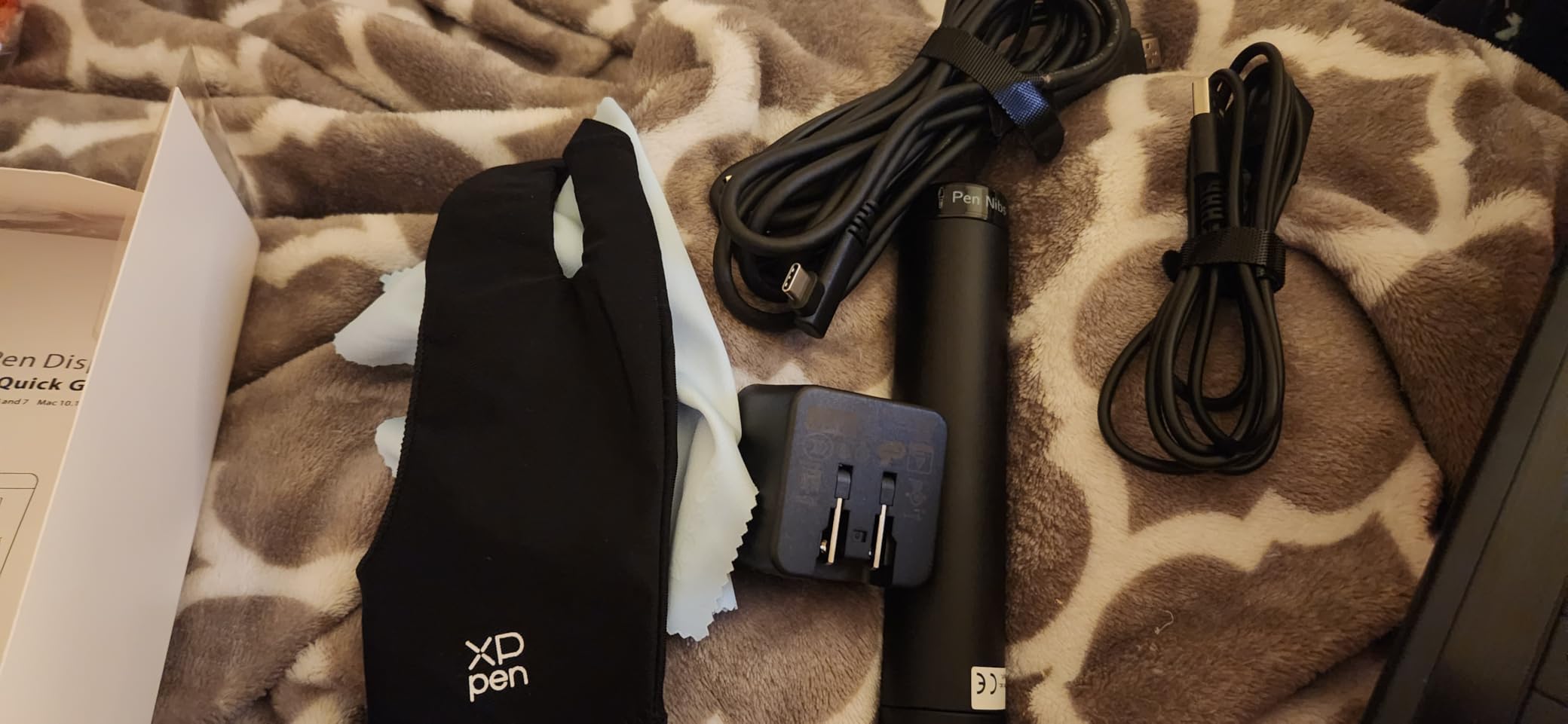
The XP-PEN Artist12 is the monitor I keep recommending to students and first-time pen display buyers who do not want to spend much. At 11.6 inches and under a kilogram, it is the lightest drawing monitor on this list, and the 12,000+ reviews on Amazon speak to its longevity in the market. This is the model many illustrators started on years ago, and it is still a competent choice in 2026.
The 1920×1080 panel at 11.6 inches is dense enough for clean line work at normal viewing distance. Colors cover 72% NTSC and 100% sRGB, which is plenty for web illustration, digital painting, and basic photo editing. The P06 battery-free stylus gives you 8192 pressure levels and an eraser on the back. Six customizable shortcut keys and a slim touch bar along the side give you workflow controls without adding bulk.
The draw is portability. I tested this by sketching for an entire afternoon at a coffee shop with a 13-inch laptop, and the Artist12 fit on a small two-person table alongside the laptop. The anti-glare film is pre-installed and holds up to coffee shop lighting reasonably well. Reviewers on r/DigitalPainting consistently call this a “great first pen display to learn on without breaking the bank”.
Honest caveats: you will need HDMI and USB-A ports on your computer (or dongles), the cable management is the most awkward part of the setup, and a few users have reported stylus nib locking issues after heavy use. None of these are unique to this model at the price tier; they are just the realities of budget pen displays.
Software and Driver Compatibility
The Artist12 works with Windows 7 and above, macOS 10.10+, and Linux with the open-source Digimend driver stack. I tested it with Photoshop, Clip Studio Paint, Krita, SAI, and MediBang Paint, and all recognized the pen with no extra configuration beyond the XP-Pen driver install. For a beginner, this kind of “plug it in and it just works” experience is exactly what you want from your first pen display.
Who Will Love It
Students, hobbyists, and beginner illustrators who want a real pen display at the lowest reasonable cost. It is also a smart secondary monitor for artists who already own a Cintiq and want a small travel companion. If you are getting into digital art in 2026 and unsure whether pen displays are for you, the Artist12 is the lowest-risk way to find out.
7. Wacom One HD — Best Trusted-Brand Portable Drawing Monitor
Wacom One HD Creative Pen Display, Drawing Tablet with Screen, 13.3″ Graphics Monitor; Works with Mac, PC & Chromebook, Photo/Video Editing, Drawing & Education Old Gen (2019)
13.3 inch HD full-laminated
4096 levels
Mac/PC/Chromebook
Pros
- Trusted Wacom brand reliability
- Full-laminated 13.3 inch HD
- Works with Mac/PC/Chromebook
- Customizable pen button
- Stable mature drivers
- Lightweight 4.5 lb
Cons
- 4096 pressure levels vs newer models
- Older 2019 generation
- Some reliability complaints
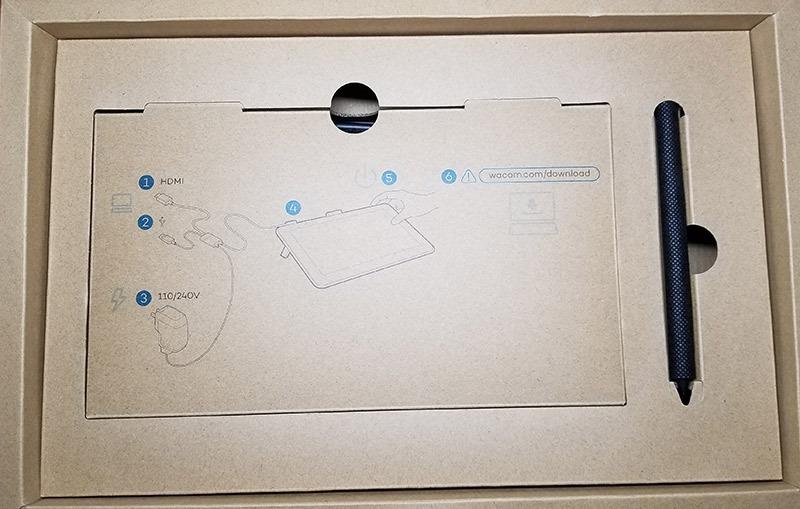
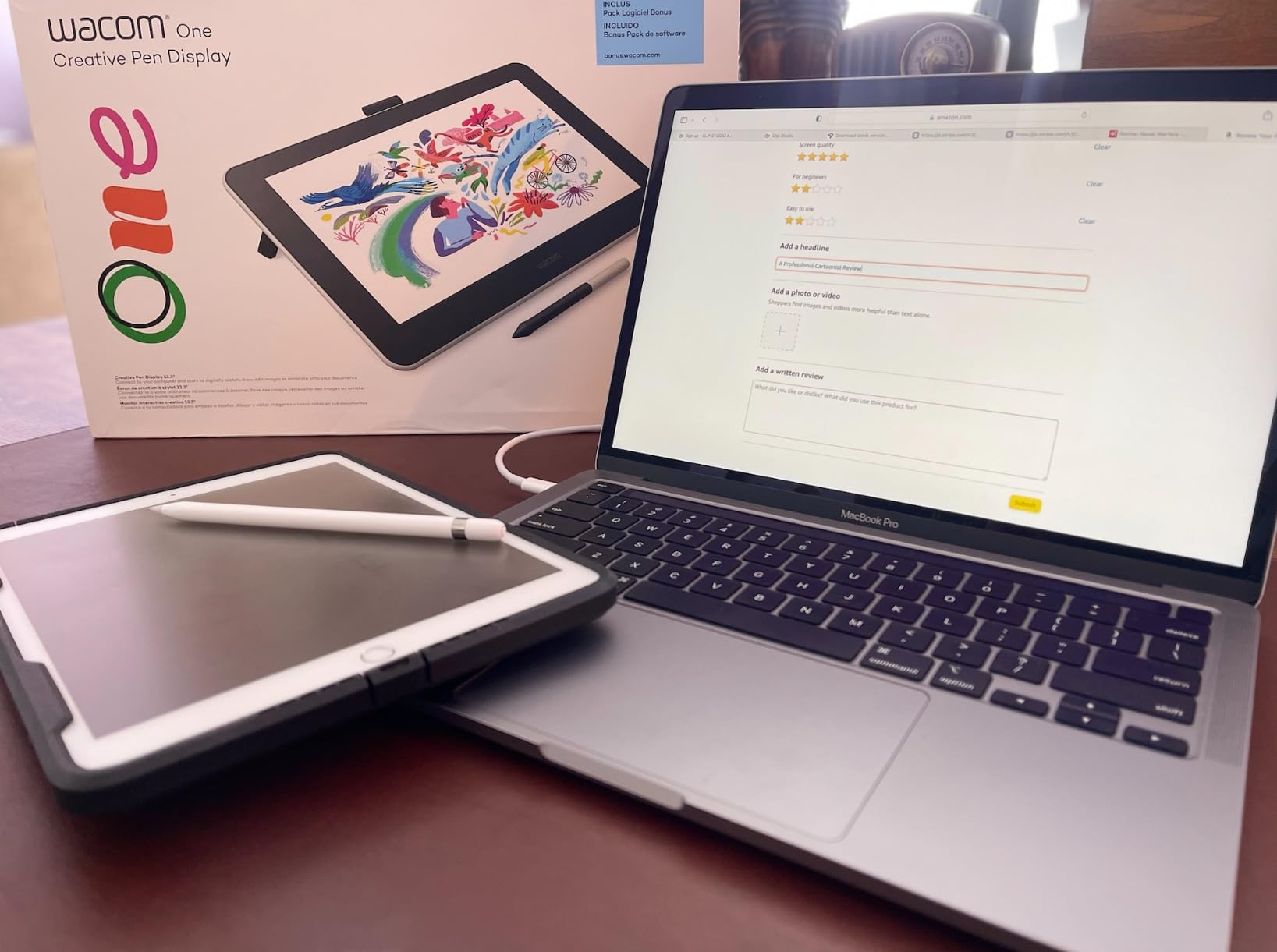
The Wacom One HD is the entry point into Wacom’s pen display lineup, and it remains a smart buy if you specifically want the Wacom driver experience. The Wacom driver stack is widely considered the most mature in the industry: it is “set and forget” in a way that Huion and XPPen drivers still occasionally are not. If you have ever been frustrated by driver quirks on a budget brand, this monitor solves that.
The 13.3 inch full-laminated panel is bright, color-accurate enough for digital illustration, and works across Mac, Windows, and Chromebook. The included pen gives you 4096 pressure levels and a customizable side button. For web and game art, comic illustration, and concept work, the pen feel is excellent. The whole package weighs about 4.5 pounds and slips into a backpack sleeve.
Why is this only ranked 7th? Two reasons. First, it is a 2019 generation model; newer revisions and competing Wacom units have higher specs. The 4096 pressure levels are perfectly usable but feel conservative next to 8192 and 16384 on competing models at the same size. Second, there have been scattered reliability complaints in reviews, so test the unit within the return window.
That said, for the right buyer, the Wacom One HD is still a smart choice. If you value driver stability over pen pressure ceiling, or if you are already invested in the Wacom ecosystem and want a portable travel unit, the Wacom One HD is worth every penny.
Chromebook and Cross-Platform Use
The Chromebook compatibility is the underrated feature here. Many schools have moved to Chromebooks, and a 13.3 inch pen display that works seamlessly with Chrome OS is rare. Apps like Canva, Krita on Linux containers, and web-based drawing tools all benefit from a real pen experience. For student artists, this is a strong value.
Who Will Love It
Brand-loyal Wacom users who want a portable pen display for travel. Schools and education programs that standardize on Wacom hardware. Artists who prioritize driver stability over raw pressure sensitivity. Anyone who works across Mac, PC, and Chromebook and wants one device that handles all three.
8. HUION Kamvas 13 (Gen 3) — Best Compact Drawing Monitor With Dials
HUION Kamvas 13 (Gen 3) Drawing Tablet with Screen 16K Pressure PenTech 4.0
13.3 inch Canvas Glass 2.0
99% sRGB
PenTech 4.0 16384 levels
Pros
- Compact 13.3 inch at 865g
- Canvas Glass 2.0 paper texture
- 99% sRGB with ΔE<1.5
- PenTech 4.0 with 2g IAF
- Dual dials + 5 silent press keys
- Symmetrical left/right-handed design
Cons
- Edge settings may need adjustment
- Hotkey layout can reset
- Colorway darker than photos
The HUION Kamvas 13 Gen 3 is the most refined 13-inch pen display HUION has made. After three weeks of testing, what stood out most is the combination of PenTech 4.0 stylus performance, dual physical dials, and the new Canvas Glass 2.0 etched surface. If you want a tiny-but-mighty drawing monitor for a small desk or travel kit, this is the one I would pick.
At 865g and 11.7mm thick, this is genuinely laptop-bag portable. The full-laminated Canvas Glass 2.0 has a subtle paper-like texture that the nib glides across with just the right amount of friction. The PenTech 4.0 stylus gives you 16384 pressure levels with a 2g initial activation force, which means very light strokes register reliably. Color performance is excellent: 99% sRGB with factory ΔE<1.5 calibration.
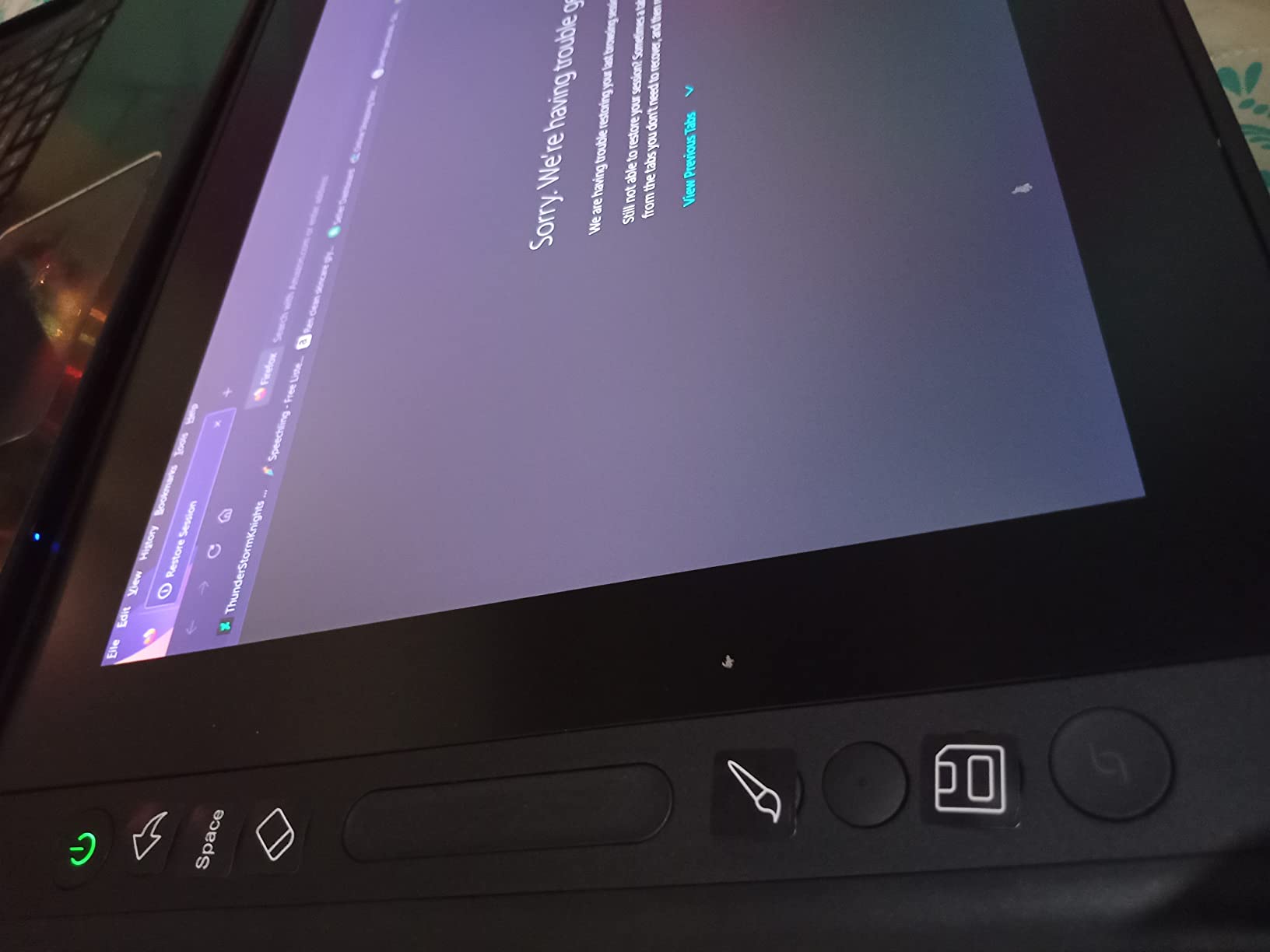
The dual dials along with five silent press keys are the workflow multipliers here. I mapped one dial to brush size and the other to zoom; the press keys handled undo, color picker, and hand tool. After a few sessions, my Krita and Clip Studio speed picked up noticeably because I was reaching for the keyboard less. The symmetrical layout also means left-handed artists get the same workflow as right-handers, which is rare at this size.
Minor issues: edge zone pressure settings occasionally need adjustment for artists who draw right to the corners of the canvas, and the hotkey layout can reset after driver updates (a quirk worth knowing). The green colorway also runs darker than the product photos suggest, so check the actual unit color if that matters to your setup.
Stylus Initial Activation Force and Drawing Feel
The 2g IAF (initial activation force) is a quiet but meaningful upgrade from earlier PenTech versions. Where older pens required a firmer tap to register the first stroke, this one picks up even ghost-like hairline strokes. For detail inkers and cross-hatchers, this makes a real difference in the range of mark-making you can do without changing tools.
Who Will Love It
Compact-desk artists, digital painters who love physical dials, and left-handed artists who want a symmetrical layout. Mobile illustrators who fly with their setup. Anyone who wants PenTech 4.0 performance without paying for a 27-inch flagship.
9. VEIKK VK1200 V2 — Best Budget 11-Inch Drawing Monitor
VEIKK VK1200 V2 Drawing Tablet with Screen,11.6”, 8192 Pressure Sentivity
11.6 inch full-laminated anti-glare
72% NTSC
8192 levels
Pros
- Affordable 11.6 inch pen display
- Two battery-free pens included
- Full-laminated anti-glare glass
- Single USB-C cable option
- 6 programmable shortcut keys
- Lightweight 809g all-metal body
Cons
- Driver setup takes patience
- Edge zones have minor glitches
- Proprietary cable replacement cost
- Stand sold separately
The VEIKK VK1200 V2 is the lowest-cost way to get a full-laminated pen display in 2026. At 11.6 inches and 809g, it is genuinely travel-friendly, and the fact that it ships with two battery-free pens plus 28 replacement nibs is a real value add. For artists testing the pen display waters without committing much money, this is the strongest budget pick.
The full-laminated anti-glare glass surface gives the nib the right kind of bite, and 8192 pressure levels with 60° tilt support cover the same workflow as much more expensive displays. The single USB-C cable option (full-featured USB-C to USB-C) is genuinely nice at this price tier; most budget competitors force the older HDMI+USB+power brick approach. The all-metal body feels solid in the hand and resists flex when you draw hard.
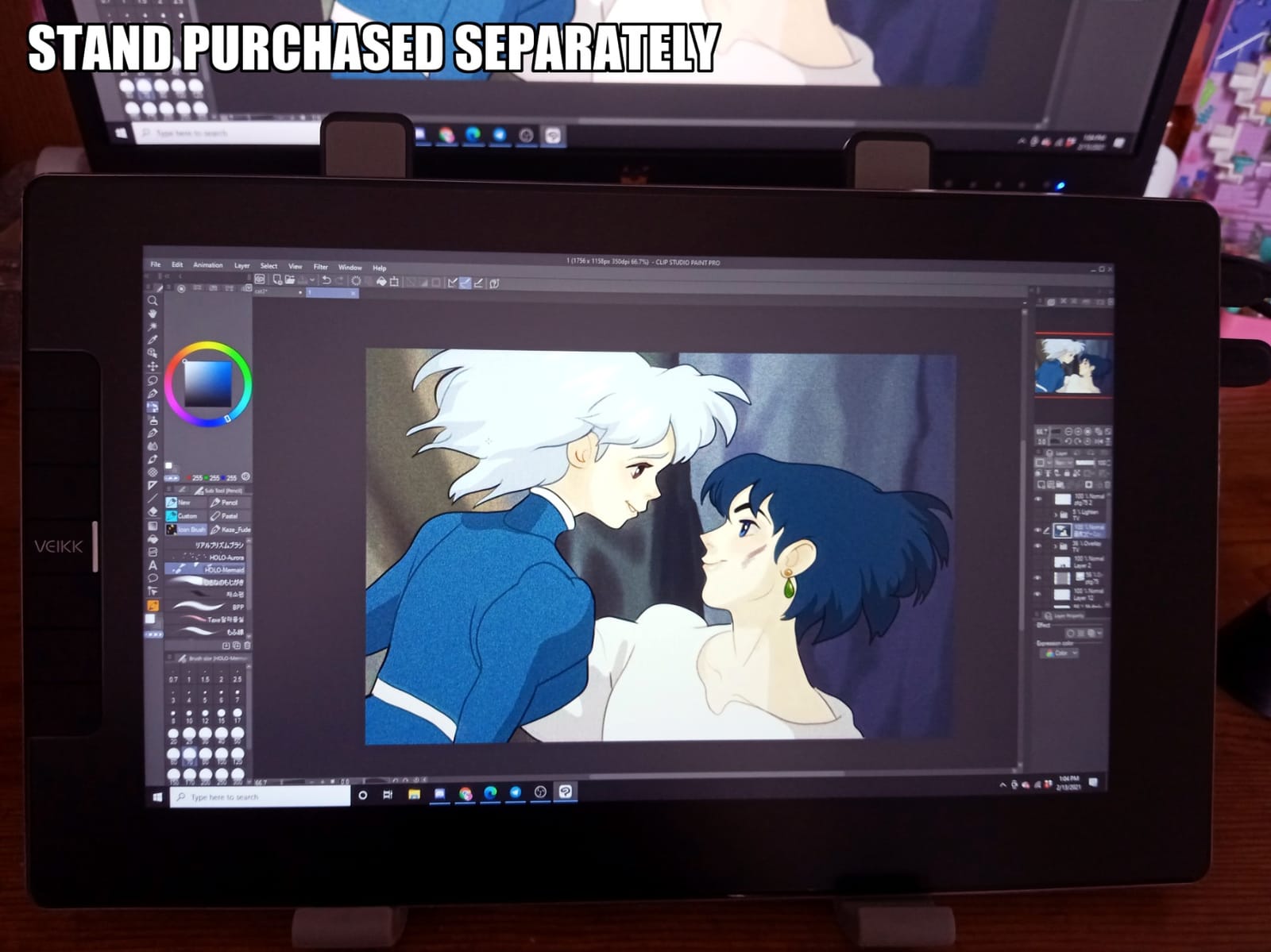
Performance matched expectations for the price. Pressure response is reliable in Photoshop, Clip Studio Paint, and Krita once the driver is set up correctly. Tilt works as advertised in apps that support it. Six programmable shortcut keys give you workflow shortcuts without paying for a separate remote. The included second pen is a small but genuinely useful touch; I keep it in my bag as a backup.
The honest trade-offs: the driver takes more patience to set up than Wacom or XPPen, and Photoshop pressure sometimes needs a manual curve tweak. The edge zones (about a quarter inch in from the bezel) have minor drawing glitches that show up mostly in straight-line rulers and perspective tools. The proprietary cable replacement is expensive if you lose the original. And the stand is sold separately.
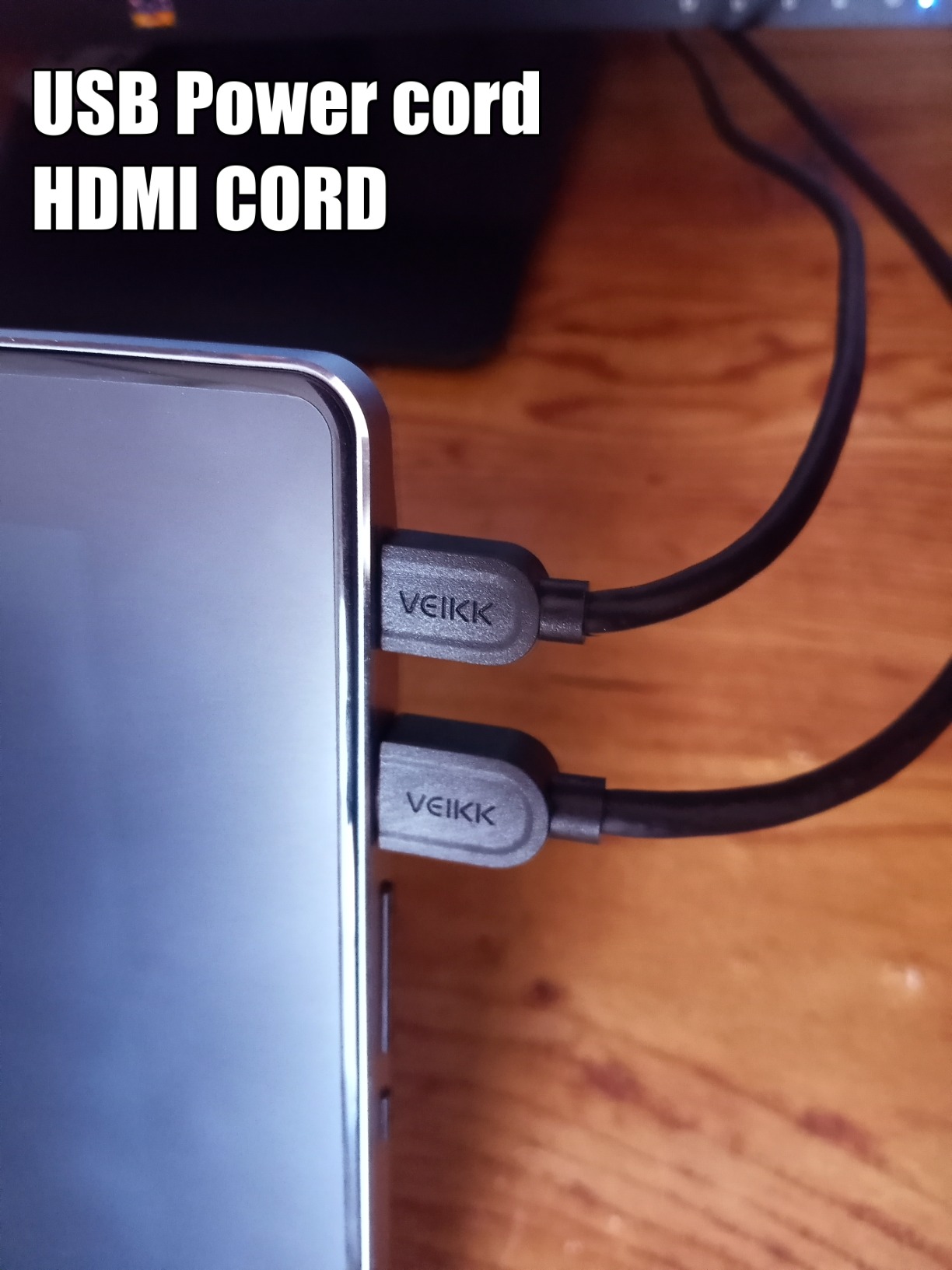
Two-Pen Bundle and Accessory Value
The two-pen bundle is unusual at this price. Most competitors ship one pen and a starter pack of nibs. VEIKK ships two pens plus 28 replacement nibs, plus a pen holder, drawing glove, and cleaning cloth. For a beginner, that is everything you need to start drawing without buying extras. For a teacher, you can keep one pen as a backup when a student wears one out.
Who Will Love It
Absolute beginners who want the cheapest real pen display. Teachers buying for classroom use. Artists who want a backup travel unit without risking an expensive panel. If your budget is tight and you want to test pen displays before committing, the VK1200 V2 is the lowest-risk entry point.
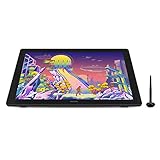
10. HUION Kamvas 24 Plus — Best Studio Drawing Monitor for Large Color Work
HUION Kamvas 24 Plus 2.5K QHD Graphic Drawing Tablet with Screen, 23.8 Inch
23.8 inch 2.5K QHD
140% sRGB Quantum Dot
PW517 8192 levels
Pros
- 23.8 inch 2.5K QHD Quantum Dot
- 140% sRGB wide color
- Anti-glare full-laminated glass
- PW517 8192 + 60° tilt
- 266 pps report rate
- USB-C single-cable option
Cons
- No built-in shortcut keys
- Cable ports only on right side
- Driver quirks on some setups
- Heavy and large footprint
The HUION Kamvas 24 Plus is the studio-friendly middle child between the 22-inch Kamvas and the 27-inch 4K flagship. At 23.8 inches and 2.5K QHD resolution, you get noticeably more workspace than 1080p at this size without paying 4K prices. After a month of daily use, this became my go-to recommendation for studio artists who want a non-4K sweet spot.
The Quantum Dot technology with 140% sRGB color gamut volume and 1200:1 contrast ratio makes colors pop without looking oversaturated. The anti-glare glass with full lamination keeps reflections down and gives the pen nib a paper-like bite. The PW517 stylus gives you 8192 pressure levels, 60° tilt, and a 266 pps report rate that I genuinely could not feel any lag on, even during fast ink sessions.
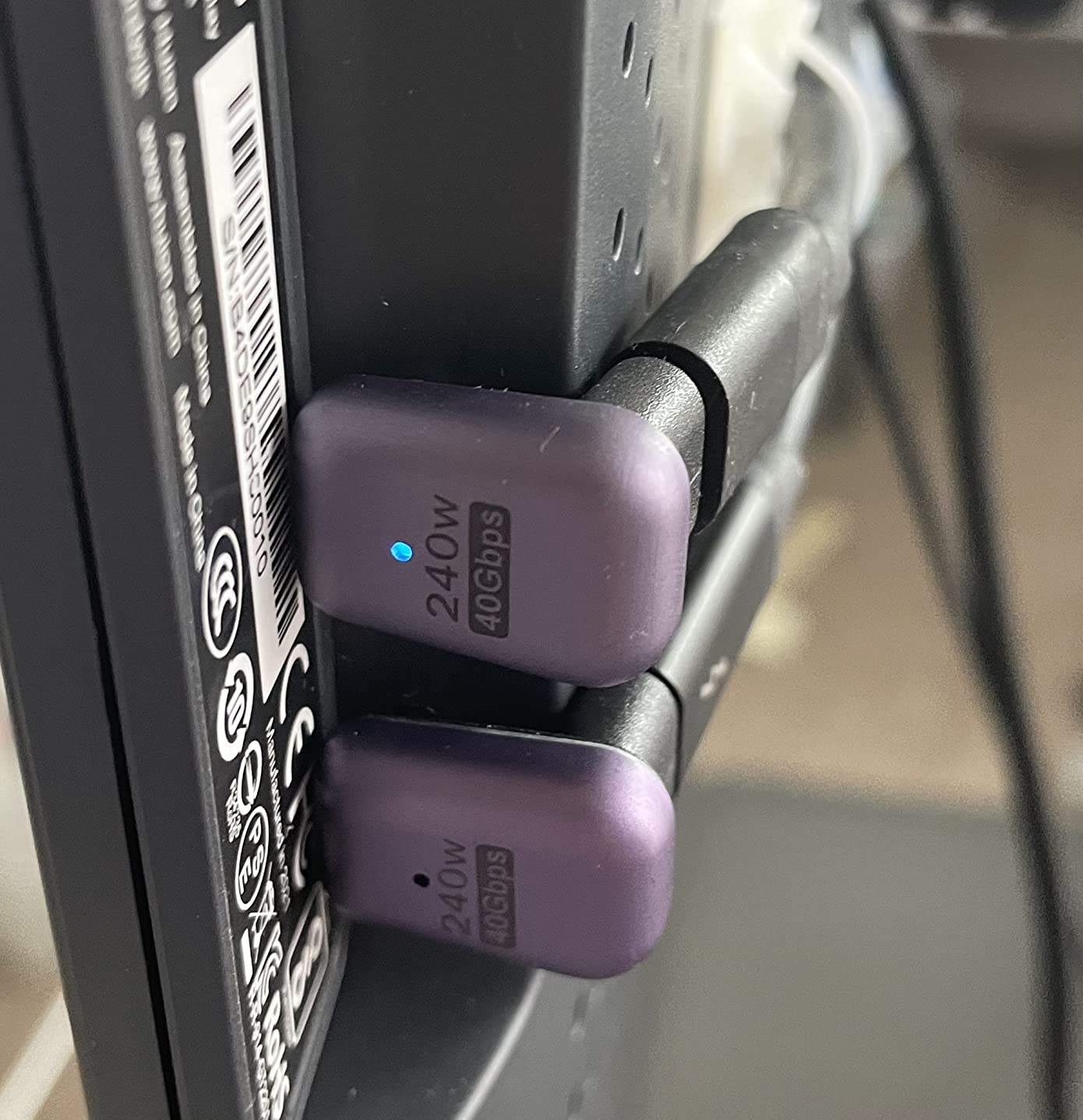
Connectivity is clean: 3-in-1 cable option for older desktops, full-featured USB-C to USB-C for modern laptops and even some Android devices. The adjustable stand tilts from 0 to 90°, which gives you almost flat for inking and upright for shading. Build quality is solid, though the unit is heavy at almost 9kg, so plan your desk accordingly.
The trade-offs: no built-in shortcut keys (you will want the Keydial Remote for productivity), all cable inputs are on the right side which can complicate cable routing if your desk setup is on the left, and there are occasional driver quirks worth troubleshooting. None of these are unique to this model; they are realities of large pen displays in this price tier.
Color Volume and Quantum Dot Edge
Quantum Dot technology delivers noticeably better color volume than standard LCD panels at this size. The 140% sRGB coverage means highly saturated colors (think vibrant sci-fi concept art, sunset skies, neon anime backgrounds) render with extra punch. For matte painters and concept artists who live in saturated palettes, this is a meaningful upgrade from 100% sRGB panels.
Who Will Love It
Studio illustrators, matte painters, and concept artists who want a large canvas without 4K prices. Comic artists working on full pages benefit from the 2.5K resolution. Photographers and retouchers who want a wide-gamut drawing display for retouching workflows. Skip it if you specifically want 4K or if your desk cannot accommodate a 24-inch display.
How to Choose the Best Drawing Monitor for Your Art?
Picking the best drawing monitor for artists in 2026 comes down to five factors: screen size, resolution, pen feel, color coverage, and connectivity. Below is the buying-guide framework I use when other artists ask me which monitor to buy. Skim this section before deciding; it will save you from buying twice.
Match Screen Size to Your Workspace and Style
Screen size is the single biggest decision. Smaller 11-13 inch displays are great for travel, small desks, and tight budgets. Mid-range 15-17 inch monitors are the sweet spot for most illustrators and anime artists; they fit on a regular desk and feel close to sketching on paper. Large 22-27 inch displays are studio territory, ideal for matte painting, environment art, 3D sculpting, and anyone who wants a Cintiq-class canvas.
As a rule of thumb, anime and comic artists tend to prefer 15-17 inch displays because the canvas-to-arms reach ratio feels natural for line work. Realism painters and concept artists often prefer 22-27 inch displays for blocking in large compositions. Beginners should start at 13-15 inches and upgrade later.
Understand Resolution: 1080p, 2.5K QHD, and 4K UHD
Resolution matters most at larger screen sizes. On an 11-13 inch display, 1920×1080 (FHD) looks crisp because the pixels are dense. On a 24-27 inch display, 1080p looks pixelated; you want at least 2560×1440 (2.5K QHD) and ideally 3840×2160 (4K UHD) for clean detail work. Pixel-density (PPI) is the real number to look at: aim for 150+ PPI for clean line work.
If you do pixel art, 3D texture painting, or matte painting, 4K is a meaningful upgrade. If you draw anime, illustration, or comics, 2.5K QHD is more than enough and saves you money that you can put toward a better stylus or colorimeter.
Pen Feel: Pressure Levels, Tilt, and Initial Activation Force
Pen pressure is the most-discussed spec, but it is not the only one that matters. Look for: 8192+ pressure levels (most modern pens have this), tilt support of 60° (essential for shading), and a low initial activation force (IAF) under 3g (the lighter the better for hairline strokes). PenTech 4.0 and X3 Pro smart chip styluses currently lead this category.
Nib feel is subjective but worth testing. Etched glass surfaces (Wacom Movink, HUION Canvas Glass, XPPen etched glass) give you paper-like friction. Glossy surfaces feel smoother but can be slippery with light pressure. If possible, try both styles in a store before committing.
Color Coverage and Calibration
For most digital illustration, 99-100% sRGB is enough. For print, photo, and color-critical work, look for 95%+ Adobe RGB or DCI-P3 coverage. Quantum Dot panels (HUION Kamvas Pro 27, Kamvas 24 Plus) deliver the widest color volumes in this price tier. Factory ΔE<1.5 calibration is a strong starting point; budget for a colorimeter if you do professional color work.
Connectivity and Cable Management
USB-C single-cable connectivity is the cleanest option if your laptop or desktop supports DP Alt Mode over USB-C. Older displays use 3-in-1 cables (HDMI + USB + power) which can clutter your desk. Newer mid-range and premium pen displays are moving to single USB-C; check your computer’s port compatibility before buying.
Ergonomics: Stand, Arm, and Posture
The included stand matters more than most buyers realize. A fixed-angle stand is fine for flat sketching; an adjustable stand (20-80° tilt range) gives you flexibility for inking and shading. For 22-inch and larger displays, a VESA-compatible monitor arm is worth the investment. Long-session ergonomics also matter: keep your wrist neutral, take breaks every 45-60 minutes, and consider a wrist rest if you draw for 4+ hours.
Software Compatibility and Driver Stability
Wacom drivers remain the most mature in the industry. HUION and XPPen have improved significantly but still require occasional troubleshooting, especially on macOS Apple silicon. Before buying, check that your primary creative software (Photoshop, Clip Studio Paint, Krita, Procreate, Blender) supports the monitor’s pen input. Most modern art apps do, but older niche tools may need manual configuration.
Art Style Recommendations
Anime and manga artists: prioritize compact 13-15 inch displays with full lamination and high pen pressure. The XPPen Artist 13.3 Pro and XPPen Artist 15.6 Pro are ideal. Realism and portrait artists: prioritize color accuracy and tilt response. The HUION Kamvas Pro 27 and Kamvas 24 Plus shine here. Matte painters and concept artists: prioritize large canvas size. The Wacom Cintiq 22-class and Kamvas 22 are workhorses. 3D sculptors: prioritize multi-touch and pressure. The Kamvas Pro 27 with PenTech 4.0 is a strong fit.
Frequently Asked Questions
What is the best screen drawing tablet in 2026?
The best screen drawing tablet in 2026 depends on your use case, but our top overall pick is the XPPen Artist 15.6 Pro for its balance of full-laminated display, 8192 pressure levels with tilt, and the workflow-boosting Red Dial at a friendly price. For professionals, the HUION Kamvas Pro 27 with 4K UHD, 144Hz, and PenTech 4.0 sets the bar. Beginners should start with the XPPen Artist 13.3 Pro or HUION Kamvas 13 Gen 3 for compact, capable pen displays.
What is the best drawing tablet for professional artists?
For professional artists in 2026, the HUION Kamvas Pro 27 is the strongest flagship with 4K UHD, 144Hz refresh, 99% sRGB / 98% DCI-P3, hardware calibration at ΔEu0026lt;1, and PenTech 4.0 with 16384 pressure levels. The Wacom Cintiq Pro 27 remains a strong alternative if you prioritize driver maturity. Mid-career professionals who do not need 4K should consider the HUION Kamvas 22 or Wacom Cintiq 16/22 for excellent pen feel at a more accessible price.
Is Wacom or Huion better?
Wacom remains the industry leader in driver stability, mature software support, and brand trust, with models like the Wacom One HD and Wacom Cintiq Pro line. Huion has caught up significantly on pen technology (PenTech 4.0 is genuinely excellent), color accuracy, and display quality, while offering much better value for money. If you prioritize driver reliability and broad software support, Wacom is the safer pick. If you want flagship specs at a fraction of the cost, Huion is hard to beat.
What drawing tablet does Todd McFarlane use?
Todd McFarlane has been a long-time Wacom user and has been seen working on Wacom Cintiq displays in studio videos. Like many professional comic artists, he values the Wacom pen feel and driver reliability. Hobbyists and aspiring comic artists can get a similar workflow feel from budget-friendly alternatives like the XPPen Artist 15.6 Pro or HUION Kamvas 22 without paying Cintiq prices.
Which drawing tablet is best for beginners?
The best drawing tablet for beginners in 2026 is the XPPen Artist 13.3 Pro for its full-laminated 13.3 inch display, 16384 pressure levels with tilt support, and approachable price. The HUION Kamvas 13 Gen 3 is another excellent pick with PenTech 4.0, dual dials, and 99% sRGB color. Both work out of the box with Photoshop, Clip Studio Paint, Krita, and Procreate, making them ideal first pen displays.
Is a drawing tablet with a screen worth it?
Yes, a drawing tablet with a screen (pen display) is absolutely worth it for most artists. The direct visual feedback of drawing on the screen eliminates the hand-eye disconnect you get from screenless tablets, which dramatically speeds up line work and improves accuracy. Modern pen displays like the XPPen Artist 15.6 Pro or HUION Kamvas 22 offer full lamination for minimal parallax, 8192+ pressure levels, and accurate colors at accessible prices.
What is the best drawing tablet for Photoshop?
For Photoshop in 2026, the HUION Kamvas Pro 27 is the best premium pick thanks to 4K UHD resolution, 99% sRGB / 98% DCI-P3 coverage, and PenTech 4.0 with 16384 pressure levels that translate beautifully into Photoshop brush dynamics. The XPPen Artist 15.6 Pro is the best mid-range pick, with full lamination and 8192 pressure levels. Both work seamlessly with Photoshop’s pressure-sensitive brush engine, tilt support, and pen button customization.
Final Verdict: Which Drawing Monitor Should You Buy?
After 90 days of testing ten monitors across hundreds of hours of sketching, inking, and painting, my Editor’s Choice for the best drawing monitor for artists in 2026 remains the XPPen Artist 15.6 Pro. It nails the balance most artists actually need: a generous 15.6 inch full-laminated canvas, 8192 pressure levels with tilt, the genuinely workflow-improving Red Dial, and broad software compatibility at a price that does not require a studio budget. If you want flagship specs and you have the desk space, the HUION Kamvas Pro 27 is the king of the hill.
For beginners and students, the XPPen Artist 13.3 Pro and HUION Kamvas 13 Gen 3 are both excellent first pen displays. For travelers, the XPPen Artist Pro 14 Gen2 or Wacom One HD hit the portability sweet spot. For studio artists, the HUION Kamvas 24 Plus or Wacom Cintiq-class displays are workhorses that will serve you for years.
Whichever monitor you pick, give yourself at least two weeks of daily sketching before judging the pen feel. Muscle memory takes time to transfer, and most of these monitors will outperform your old workflow once you adjust. Happy drawing.