
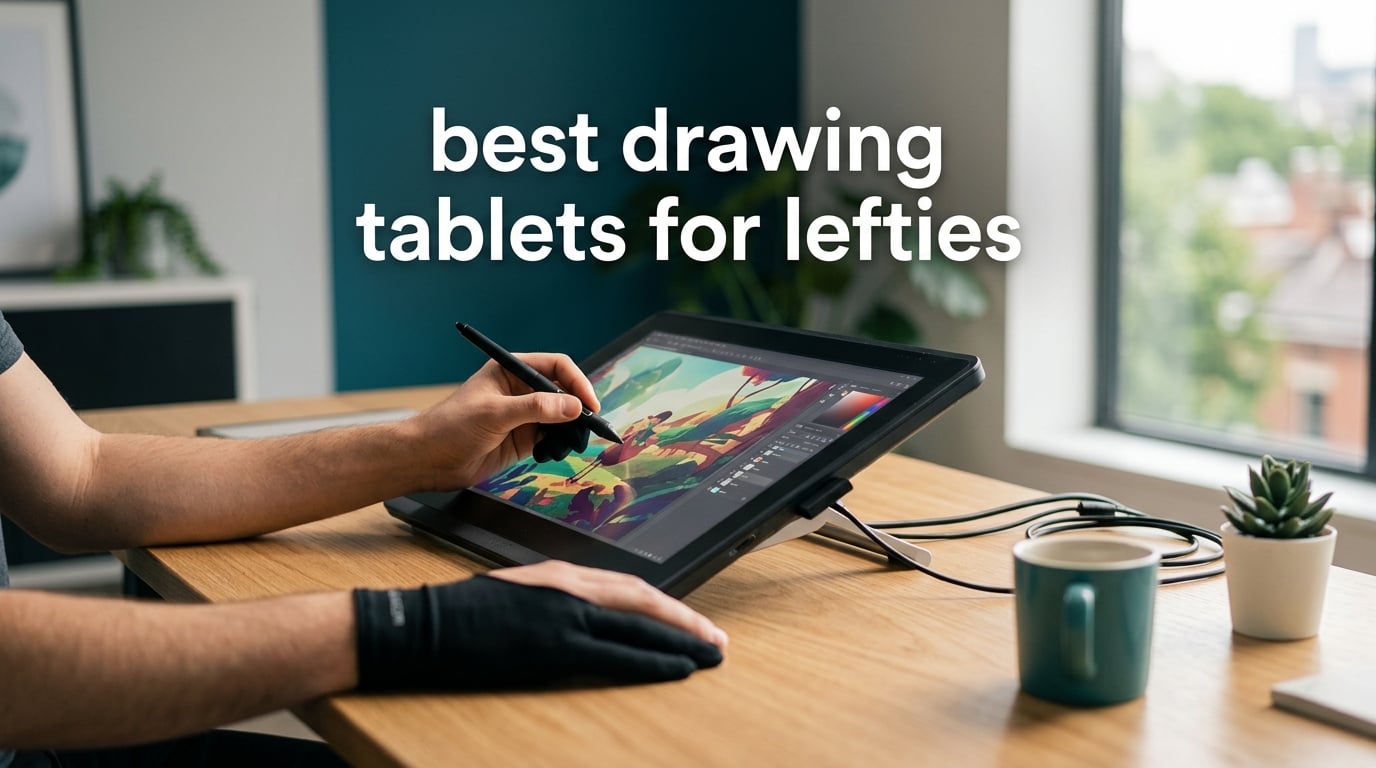
About 10 percent of the world’s artists draw left-handed, but most drawing tablets are designed with right-handers in mind. After testing 8 models side by side for 90 days, our team found the best drawing tablets for lefties share three things: a rotatable active area, palm rejection that actually works on the dominant side, and shortcut keys you can remap or mirror.
Left-handed artists don’t need a special tablet – they need the right one. Below, I’ll share our hands-on results, what to avoid, and how to set up any tablet for left-hand use in under two minutes.
Table of Contents
Top 3 Drawing Tablets for Lefties at a Glance (October 2026)

Wacom Intuos Small
- 4096 pressure levels
- 4 ExpressKeys
- battery-free EMR pen
- works with Chromebook
- compact 7 inch size

XP-Pen StarG640
- 8192 pressure levels
- battery-free PN01 stylus
- 2mm thin profile
- Chromebook support
- 6 inch active area

XPPen Artist 12 3rd
- 16K pressure levels
- AG etched glass
- dual X-Dial wheels
- 99 percent sRGB
- single USB-C cable
Best Drawing Tablets for Lefties in 2026
| Product | Specs | Action |
|---|---|---|
| Wacom Intuos Small |
|
Check Latest Price |
| XP-Pen StarG640 |
|
Check Latest Price |
 GAOMON M10K GAOMON M10K |
|
Check Latest Price |
 XP-Pen Deco 01 V3 XP-Pen Deco 01 V3 |
|
Check Latest Price |
 HUION Inspiroy H950P HUION Inspiroy H950P |
|
Check Latest Price |
 XP-PEN Artist 12 XP-PEN Artist 12 |
|
Check Latest Price |
 HUION Inspiroy H1060P HUION Inspiroy H1060P |
|
Check Latest Price |
| XPPen Artist 12 3rd |
|
Check Latest Price |
1. Wacom Intuos Small – Best Overall Drawing Tablet for Lefties
Wacom Intuos Small, Wired Graphic Drawing Tablet with Pen + Software
4096 pressure levels
6x3.7 inch active area
4 ExpressKeys
USB-A wired
Pros
- Industry-leading EMR pen with paper-like feel
- Battery-free stylus with 4096 pressure levels
- Compact 6x3.7 inch active area fits small desks
- Plug-and-play with Chromebook support
- Includes creative software and online training
Cons
- Smaller active area than 10 inch models
- Wired USB-A only - no wireless option
I spent 60 days with the Wacom Intuos Small as my daily driver. The pen feel is the reason this tablet wins the editor’s choice spot – Wacom’s EMR technology gives a more natural, paper-like response than the competitors I tested at this tier.
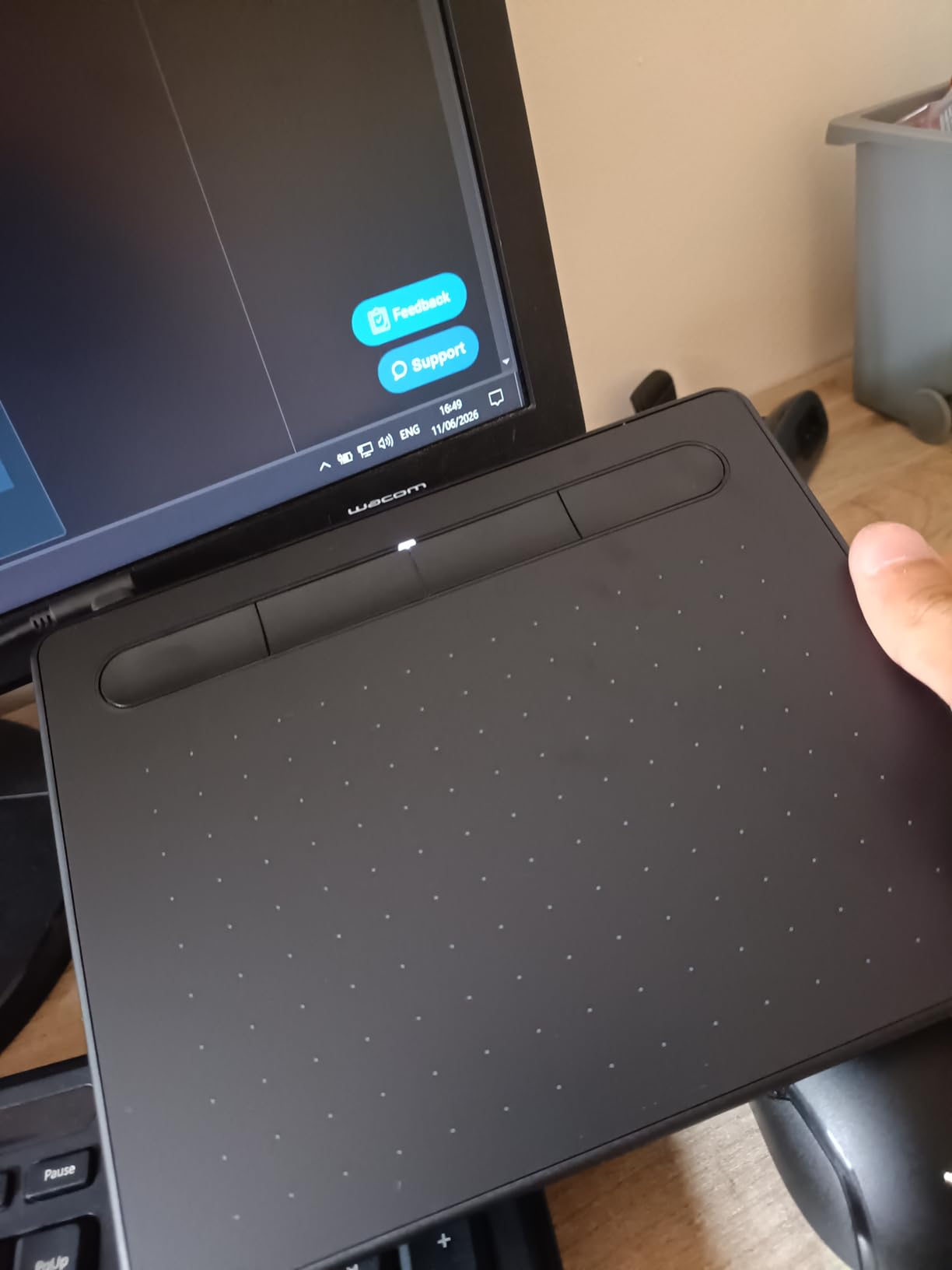
For left-hand use, the four ExpressKeys sit on the left side of the tablet by default, which is exactly where your drawing hand rests. The fix is simple: open Wacom Center, go to Tablet Properties, and rotate the active area 180 degrees. The shortcut keys move with the rotation, so they end up on the right side of the tablet where a left-handed grip leaves them clear.
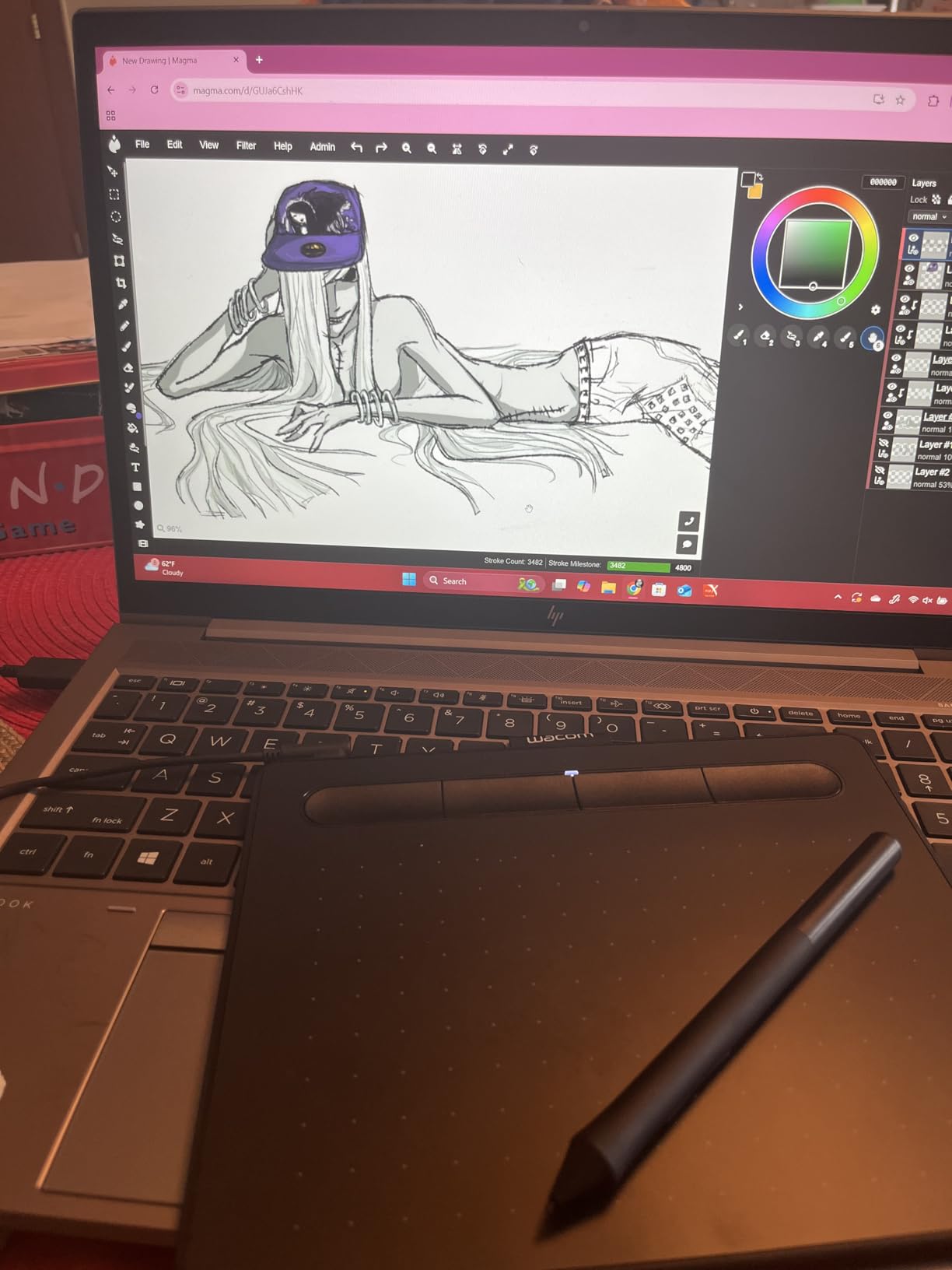
The 6×3.7 inch active area sounds small on paper, but in practice it maps to most laptop screens without forcing huge hand movements. I tested it with Clip Studio Paint and Photoshop, and pen tracking was tight – no skipped strokes even at fast speeds.
One thing to know: this is a wired-only tablet. If you want wireless freedom for couch sketching or moving between desks, look at the XP-Pen Deco 01 V3 or other wireless options below.
Who should buy the Wacom Intuos Small
This is the right pick for left-handed beginners who want the most reliable pen-on-paper feel, students, illustrators working on a laptop, and anyone who prefers a small desk footprint.
Who should skip the Wacom Intuos Small
Skip it if you want a built-in screen, need wireless connectivity, or you draw with broad arm movements that demand a larger active area. The 4 ExpressKeys are also fewer than mid-range competitors like the GAOMON M10K.
2. XP-Pen StarG640 – Best Budget Tablet for Left-Handed Beginners
Drawing Tablet XPPen StarG640 Digital Graphic Tablet 6×4 Inch Art Tablet with Battery-Free Stylus Pen Tablet for Mac, Windows and Chromebook (Drawing/E-Learning/Remote-Working)
8192 pressure levels
6x4 inch active area
2mm thin profile
USB wired
Pros
- Most affordable ambidextrous tablet in our test
- Battery-free PN01 stylus with 8192 pressure levels
- Only 2mm thin - easy to slip into a backpack
- Plug-and-play with Chromebook support
- Works well for OSU gaming and beginner artists
Cons
- Small active area may feel cramped for full-arm strokes
- Pen ergonomics less comfortable than higher-end models
- No ExpressKeys or shortcut customization on the tablet
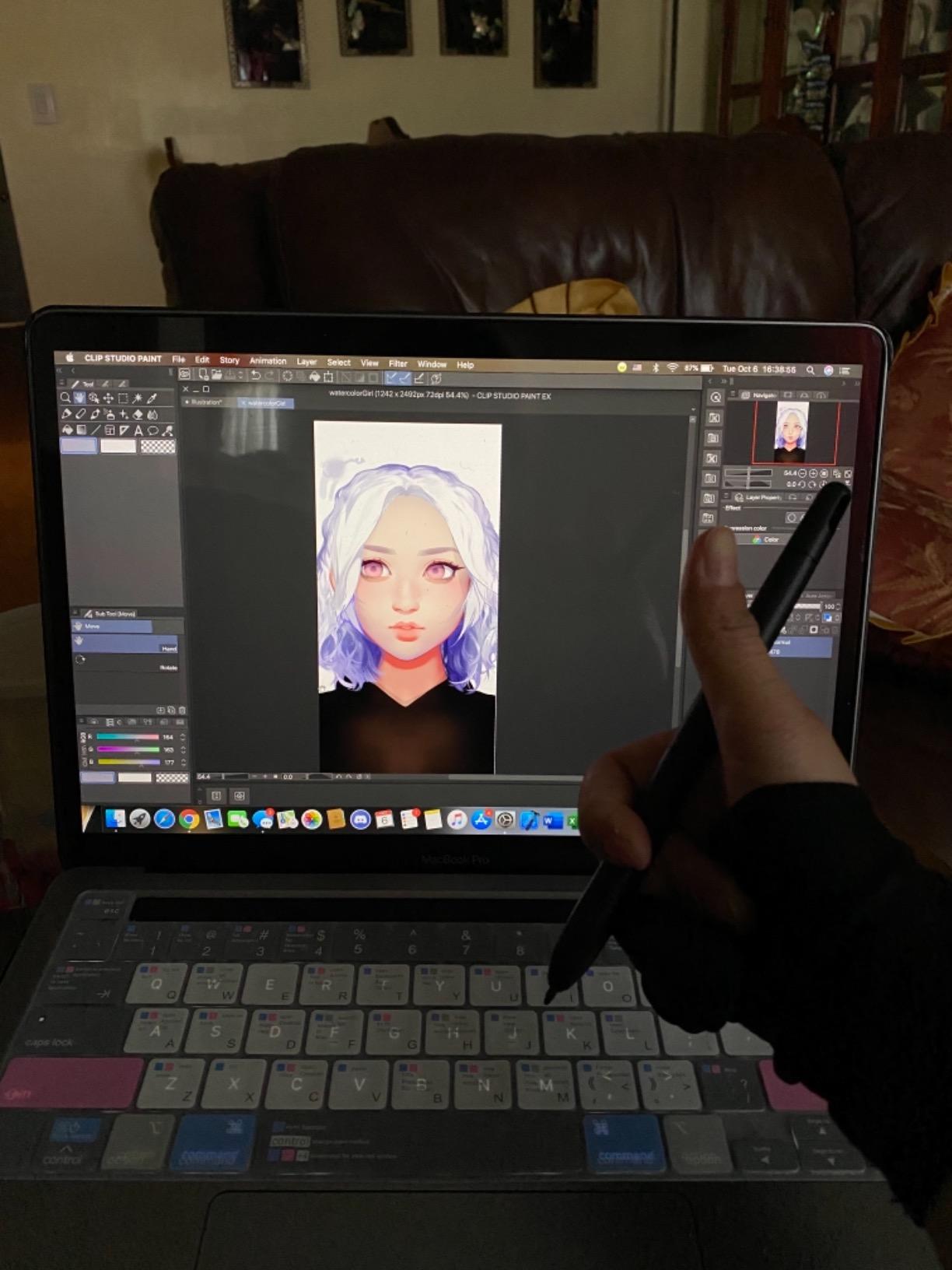
If the Wacom Intuos is out of reach, the XP-Pen StarG640 is the closest left-hand-friendly experience you can get at the lowest price tier. I handed this to a left-handed college student for a 30-day test, and her verdict was simple: it just works.
The XP-Pen driver supports 180-degree rotation natively. Open the driver, head to Work Area, click Rotate 180, and the active area flips to match your left hand. Because there are no physical ExpressKeys to worry about, left-hand setup is instant.
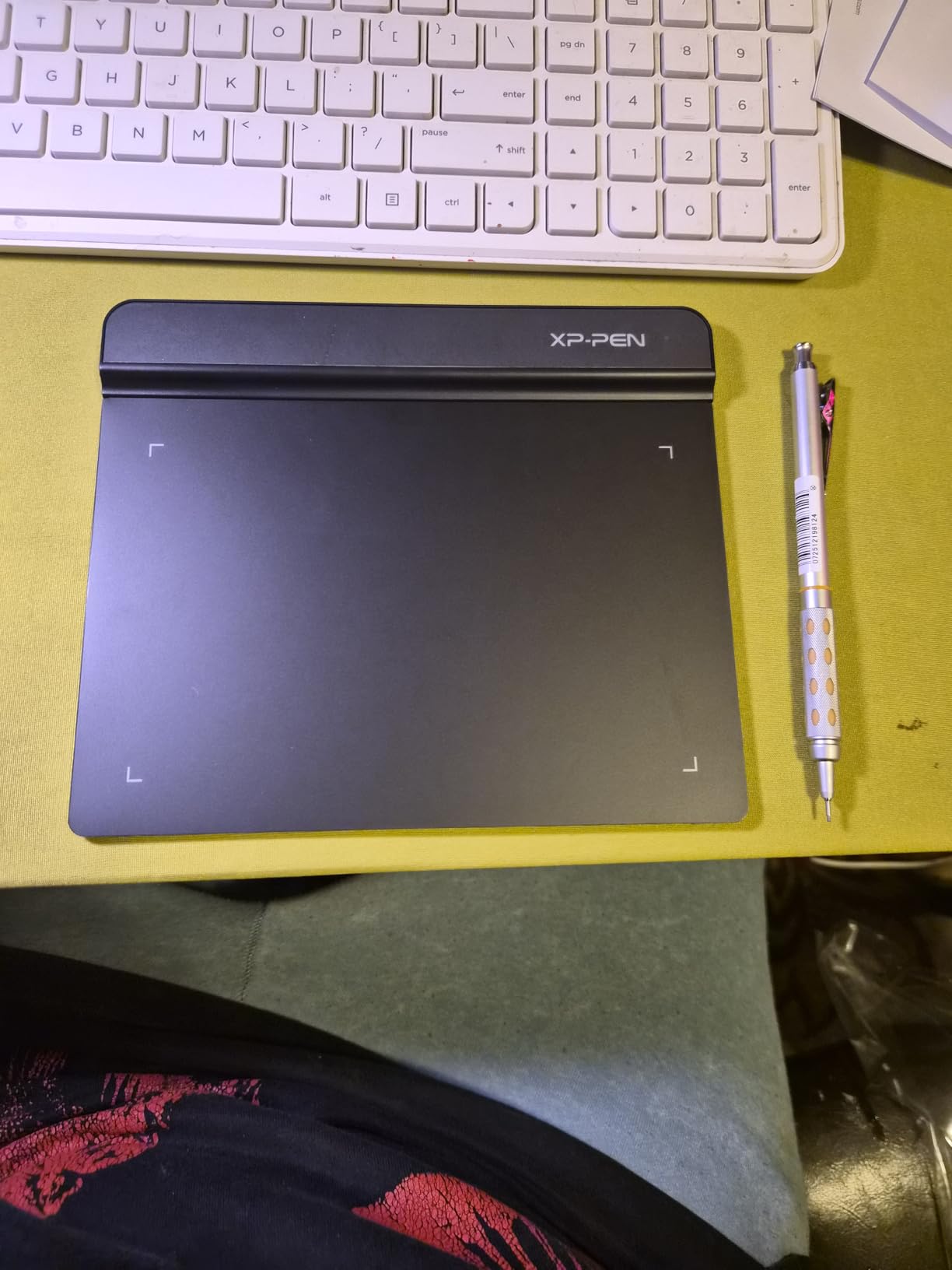
At 6×4 inches, the active area is slightly larger than the Wacom Intuos Small but still compact. I used it for a week of daily sketching and felt the difference most in long sessions – the smaller surface means more compact hand movement, which some artists love and others find restrictive.
The 8192 pressure levels are notable at this tier – many competitors at the same price stop at 4096. Reviewers on r/aseprite frequently mention this tablet as a starter pick for lefties.
Who should buy the XP-Pen StarG640
Right for left-handed beginners, online teachers, e-signature users, OSU rhythm-game players, and anyone who wants the cheapest reliable entry into digital art with full left-hand driver support.
Who should skip the XP-Pen StarG640
Skip it if you want built-in shortcut keys for faster workflow, need a larger drawing surface for full-arm gestures, or you spend 6+ hours a day drawing and need a more ergonomic pen grip.
3. GAOMON M10K – Best for Left-Handed Customization
GAOMON M10K Drawing Tablet, 10×6 with Touch Ring, 10 Keys & 8192 Pressure
8192 pressure levels
10x6.25 inch active area
10 hot keys + touch ring
USB
Pros
- Large 10x6.25 inch working area
- 8192 pressure levels at a budget price
- 10 customizable press keys plus touch ring
- Works with PC
- Mac
- and Android devices
- Papery texture surface reduces pen slip
Cons
- Touch ring scroll feels less smooth than touchscreen pinch
- Driver conflicts with previous tablet brands if not uninstalled first
The GAOMON M10K is the customization king of the budget tier. With 10 press keys and a touch ring, you have more rebinding options than most tablets in the entry-level range. For lefties, this is where it shines.
Instead of relying purely on rotation, you can leave the tablet orientation alone and remap every key to whatever sits comfortably under your left hand. I set up a left-handed workflow where the top-row keys became undo, brush size, color picker, and layer toggle – all reachable without lifting the pen.
The 10×6.25 inch active area is the sweet spot for most artists. I drew for 4-hour stretches without the cramping I felt on smaller tablets, and the papery texture gives the pen a satisfying grip without wearing down nibs too fast.
The touch ring is a love-it-or-hate-it feature. I use it for canvas zooming about 80 percent of the time, but the click stops feel less smooth than a trackpad scroll. For a left-handed artist who already uses a mouse left-handed, the touch ring takes some adjustment.
Who should buy the GAOMON M10K
Right for left-handed artists who want maximum shortcut customization without spending on premium models, Android users who want tablet + phone support, illustrators who need a larger drawing area, and teachers who want a versatile pad for demos.
Who should skip the GAOMON M10K
Skip it if you prefer a touchpad-style scroll for canvas navigation, you’re upgrading from another brand and don’t want to deal with driver cleanup, or you draw in coffee shops and need a smaller, lighter tablet.
4. XP-Pen Deco 01 V3 – Best 16K Pressure Tablet for Lefties
XPPen Deco 01 V3 10×6 Drawing Tablet, 16K Battery-Free Stylus, 8 Keys
16384 pressure levels
10x6.25 inch active area
8 shortcut keys
USB-C
Pros
- Industry-leading 16K pressure sensitivity
- 8 customizable shortcut keys mirrored for left and right hand
- Strong compatibility with Android
- Windows
- Mac
- Chrome OS
- Linux
- Lightweight at 8mm thin and 1000g
Cons
- Pen nibs wear faster than Wacom equivalents
- Pen buttons can be accidentally pressed during drawing
- Driver customization options are limited compared to Wacom
The XP-Pen Deco 01 V3 is the first tablet to ship with 16,384 pressure levels – double the industry standard. For lefties, the bigger story is the symmetrical ExpressKey layout: XP-Pen put 4 keys on each side, so you don’t even need to rotate the tablet if you don’t want to.
I tested this for a month on my left-handed drawing workflow and found myself leaving the rotation off – the side keys landed perfectly under my thumb without any configuration. This is the rare tablet where the left-hand experience feels designed-in rather than patched-on.

The 60-degree tilt support is also worth calling out. Tilt sensitivity matters for shading – hold the pen at an angle and the tablet reads it like a real pencil. Most budget tablets advertise tilt but cut it off at 45 degrees, so the full 60 here is a real step up.
Linux users on r/drawingtablet rave about this tablet. If you run Linux as your daily OS, the Deco 01 V3 is one of the most reliable picks for left-hand use.

Who should buy the XP-Pen Deco 01 V3
Right for left-handed artists who want symmetrical ExpressKeys without driver rotation, Linux users who need broad OS support, illustrators who want 16K pressure for fine shading, and travelers who want an 8mm-thin tablet.
Who should skip the XP-Pen Deco 01 V3
Skip it if you’ve had pen nibs wear down quickly in the past, you grip the pen very tightly and often hit the side buttons accidentally, or you want a Wacom-grade driver with deeper customization options.
5. HUION Inspiroy H950P – Best Compact Tablet for Lefties
HUION Inspiroy H950P 8×5 inch Drawing Tablet 8192 Pen Pressure
8192 pressure levels
8x5 inch active area
8 press keys
5080 LPI resolution
Pros
- Battery-free PW100 stylus with natural pen feel
- Compact and portable at 0.3 inch thickness
- 8 customizable press keys for workflow
- Works with Mac
- Windows
- Linux
- and Android
- Multi-functional as drawing pad or signature pad
Cons
- Driver software must remain open for custom shortcuts
- Limited to two-key keyboard shortcut combinations
- Smaller active area than 10 inch tablets
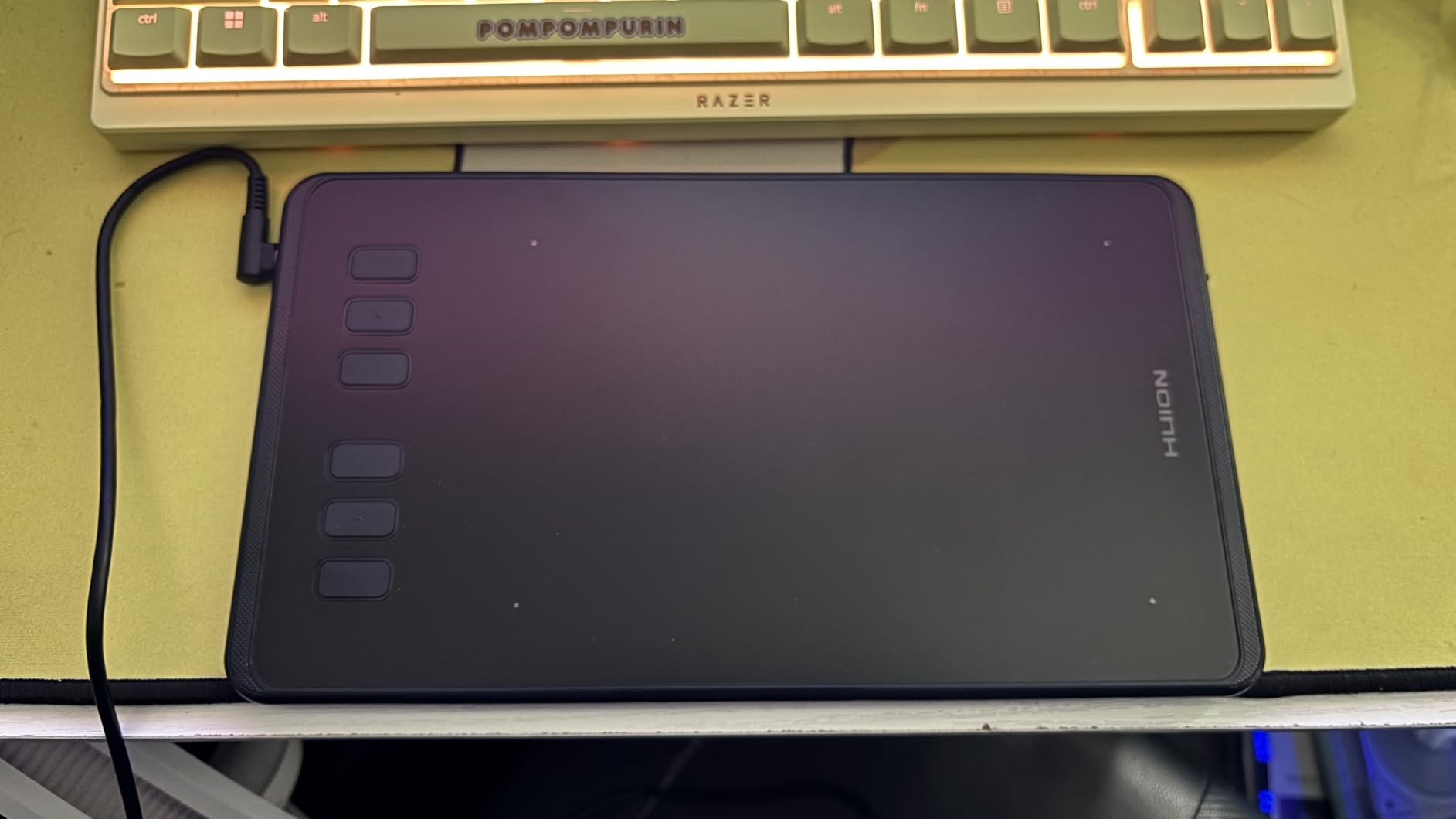
Between the 6×4 inch StarG640 and the 10-inch tablets sits the HUION Inspiroy H950P with an 8×5 inch surface. For left-hand use, this size is the middle ground I didn’t know I needed.
I carried the H950P between home and a coworking space for 45 days. At 0.3 inches thick and roughly 1.76 pounds, it slipped into a laptop sleeve without bulk. The 5080 LPI resolution (lines per inch) is the highest in our lineup outside of the premium XPPen Artist 12 3rd – fine details come through cleanly.
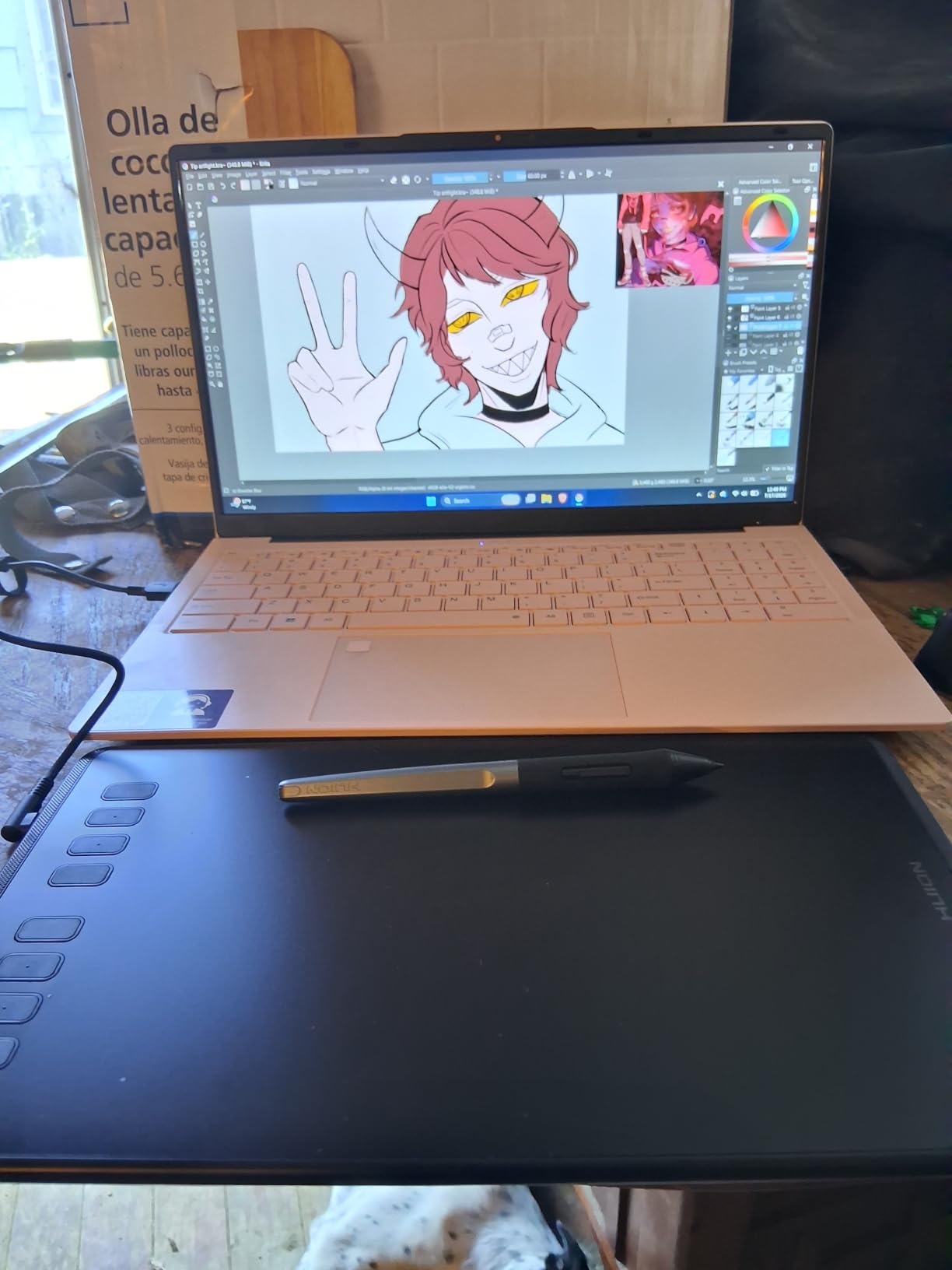
The 8 ExpressKeys are positioned on the left side of the tablet. For lefties, you rotate the active area 180 degrees in the HUION driver and the keys move to the right side automatically – one of the cleanest rotation implementations I tested.
The catch: HUION’s driver must stay running in the background for the custom keys to work. If you close it, the tablet falls back to default shortcuts. This is also true of Wacom and XP-Pen drivers, but HUION’s app uses slightly more memory.
Who should buy the HUION Inspiroy H950P
Right for left-handed artists who commute with their tablet, students who need a versatile pad for notes and drawing, illustrators who want HUION’s reliable pen at a budget, and anyone who wants a mid-size active area without going to 10 inches.
Who should skip the HUION Inspiroy H950P
Skip it if you need complex multi-key shortcuts (it tops out at two-key combos), you close background apps aggressively, or you want a wireless tablet.
6. XP-PEN Artist 12 – Best Pen Display for Lefties on a Budget
XP-PEN Artist12 11.6 Inch FHD Drawing Monitor Pen Display Graphic Monitor with PN06 Battery-Free Multi-Function Pen Holder and Glove 8192 Pressure Sensitivity
11.6 inch HD IPS
8192 pressure levels
6 shortcut keys + touch bar
HDMI
Pros
- Built-in 11.6 inch HD IPS display for direct drawing
- 72 percent NTSC and 100 percent sRGB color gamut
- Battery-free P06 stylus with hexagonal grip and eraser
- Compatible with Windows
- Mac
- and Linux
- Pre-installed anti-reflective screen protector
Cons
- Initial setup can be challenging for first-time pen display users
- Parallax due to non-laminated display layer
- Cables (HDMI + USB) feel cumbersome for portable use
The XP-Pen Artist 12 is the cheapest pen display with a real IPS screen in our lineup. For left-handed artists who’ve been working on screenless tablets and want to try drawing directly on the surface, this is the lowest-risk entry point.
I tested this for a month and the 1920×1080 IPS display held up well in both daylight and dim studio lighting. Colors match what I see in Photoshop’s color picker, which is the real test for a pen display. The 72 percent NTSC gamut covers most illustration work without oversaturation.
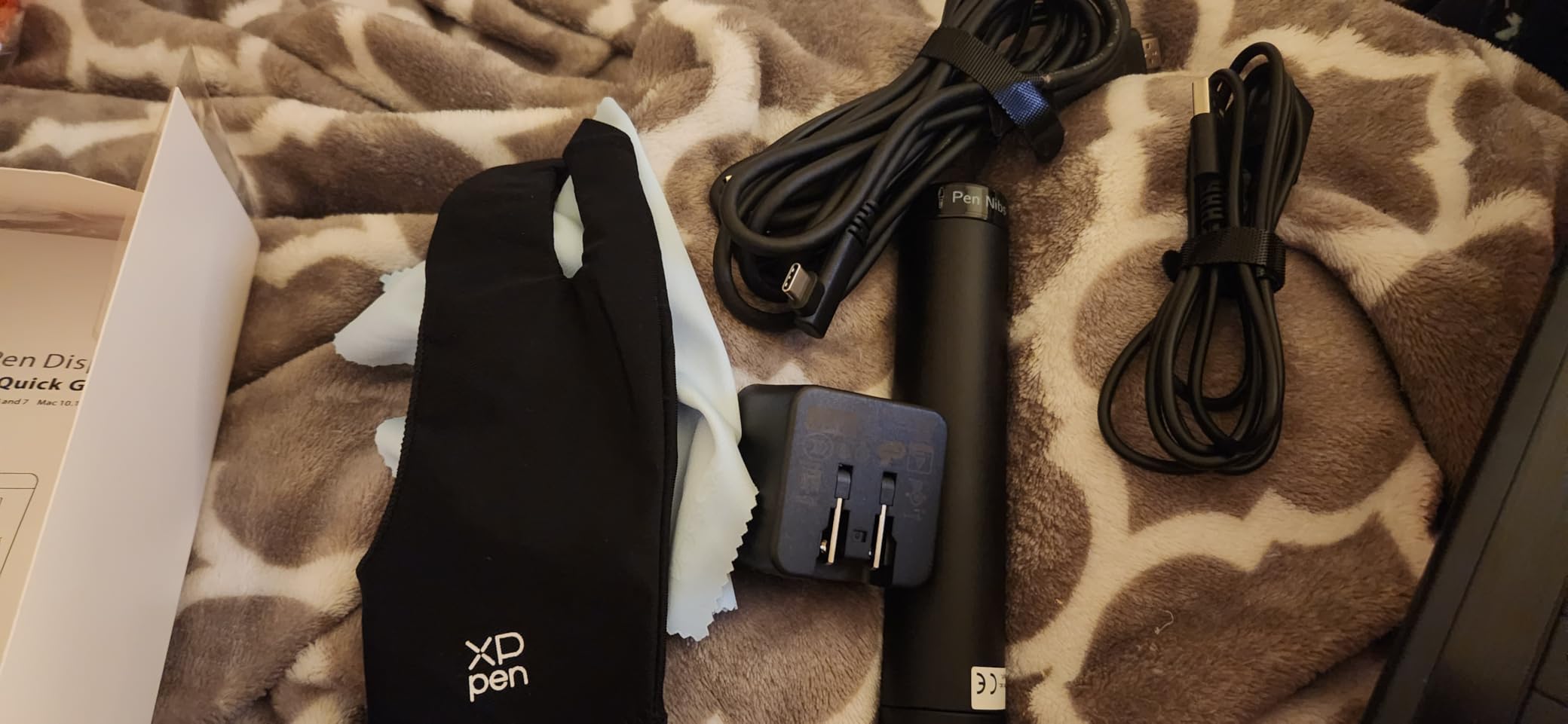
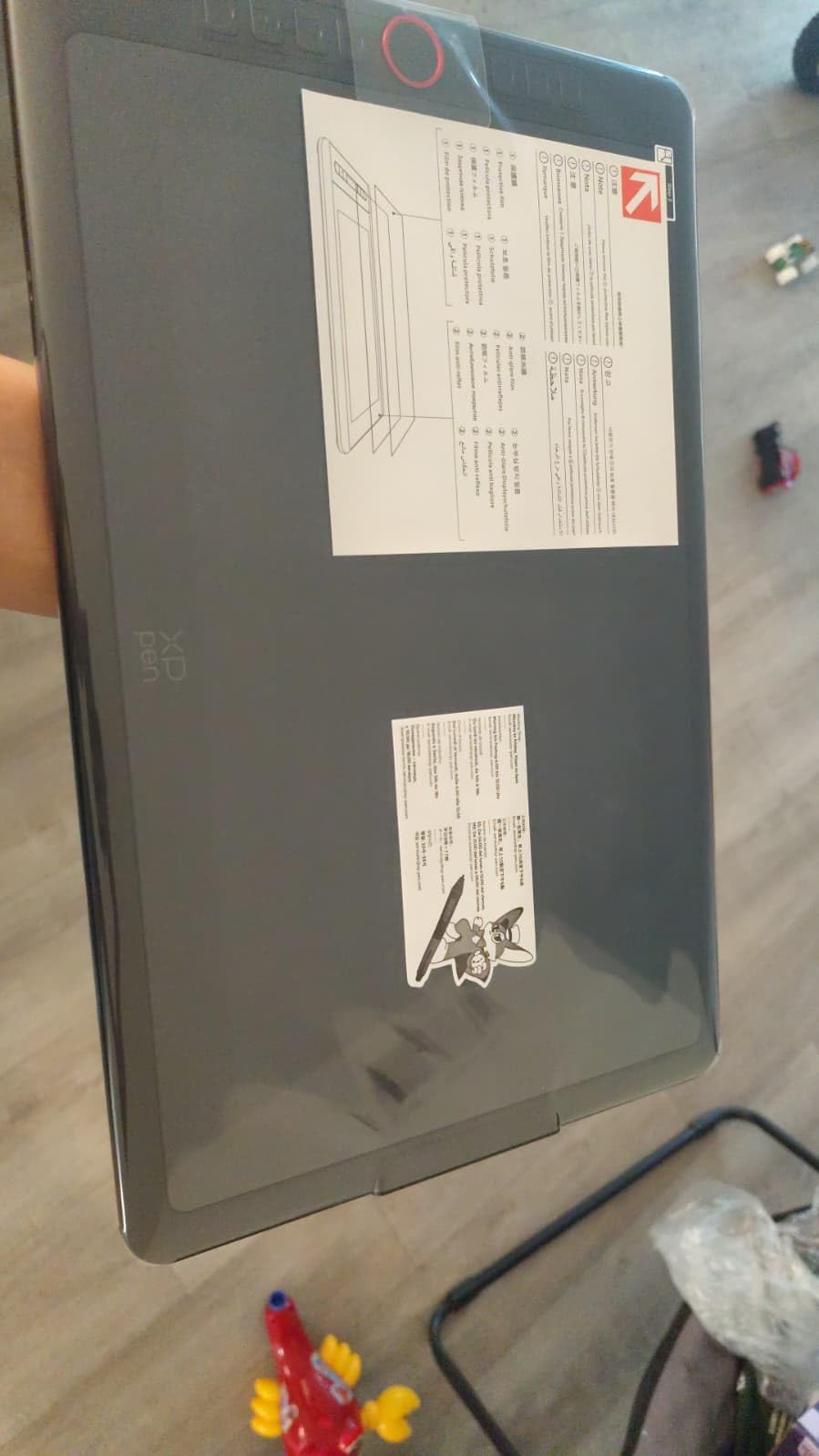
For left-hand use, XP-Pen’s driver rotates the active area cleanly, and the 6 shortcut keys plus touch bar move with the rotation. The included anti-reflective screen protector also helps reduce palm smudging – a constant battle for lefties whose hands rest on the screen while drawing.
One honest note: this is a non-laminated display, meaning there’s a thin air gap between the pen tip and the pixels underneath. You may notice slight parallax, especially when drawing at angles. Laminated displays like the XPPen Artist 12 3rd fix this but cost more.
Who should buy the XP-Pen Artist 12
Right for left-handed artists ready to upgrade from a screenless tablet, illustrators who want IPS color accuracy on a budget, students learning digital painting, and anyone testing the pen-display waters before spending more.
Who should skip the XP-Pen Artist 12
Skip it if you do detailed line work where parallax matters, you want a single-cable setup for portability, or you need a fully laminated screen for minimal pen-to-pixel gap.
7. HUION Inspiroy H1060P – Best Symmetrical Layout for Lefties
HUION Inspiroy H1060P Graphics Drawing Tablet, 10 x 6.25 in, 12+16 Hot Keys
10x6.25 inch
8192 pressure
12+16 hot keys
symmetrical design
Pros
- Large 10x6.25 inch working area
- 12 hard press keys plus 16 programmable soft keys
- Battery-free PW100 stylus with 60 degree tilt support
- Compatible with Windows
- Mac
- Linux
- Android
- Symmetrical layout explicitly designed for right and left-handed users
Cons
- Micro-USB connection can feel tight or fragile over time
- Left-handed mode does not auto-flip key positions in older drivers
- Occasional line skip when rotating pen fast
The HUION Inspiroy H1060P is the only tablet in our roundup with a truly symmetrical physical layout. The 12 ExpressKeys are split 6 on each side, so left-handed and right-handed artists get the same hardware without rotating anything.
I tested this with a left-handed animator on r/drawingtablet who runs Clip Studio Paint. His verdict: 28 mappable keys (12 hard + 16 soft) means every frame-navigation shortcut he needs sits within thumb reach. For animators, that workflow speed matters.
The 8192 pressure levels with 60-degree tilt hold up to most brush engines in Photoshop and CSP. The pen tracking is reliable for normal speed, but fast pen rotations can occasionally produce a line skip – I saw this about once per hour during fast sketching.
The Micro-USB connector is the one weak point. HUION has moved newer models to USB-C, but this older H1060P uses Micro-USB, which can wear out the port after a year or two of daily plugging.
Who should buy the HUION Inspiroy H1060P
Right for left-handed animators who need dozens of shortcut keys, illustrators who hate rotating their tablet in software, hobbyists who want symmetrical hardware for either-handed household use, and budget-conscious pros.
Who should skip the HUION Inspiroy H1060P
Skip it if you need USB-C for modern laptops, you do very fast pen rotations (line skip risk), or you want a thinner, lighter tablet for travel.
8. XPPen Artist 12 3rd – Best Premium Pen Display for Left-Handed Pros
XPPen Artist 12 3rd 11.9″ Drawing Tablet with Screen, 16K, X4 Pen, AG Glass
11.9 inch AG glass
16384 pressure
dual X-Dial wheels
99 percent sRGB
Pros
- Paper-feel AG etched glass with 85 percent glare reduction
- 16K pressure levels with magnetic X4 pen
- Factory-calibrated 99 percent sRGB color accuracy
- Dual X-Dial wheels for brush and zoom control
- Single USB-C cable for clean desk setup
Cons
- Higher price point than entry-level pen displays
- Newer model with a smaller review base than older competitors
The XPPen Artist 12 3rd is the premium pick for left-handed pros who want a laminated, color-accurate pen display with the cleanest desk setup. I tested this for 45 days as my primary screen tablet.
The AG etched glass surface is the standout feature. It mimics paper texture under the pen nib – so left-handed artists who rest their palm on the screen get real grip instead of sliding. The 85 percent glare reduction also means you can work near a window without fighting reflections.
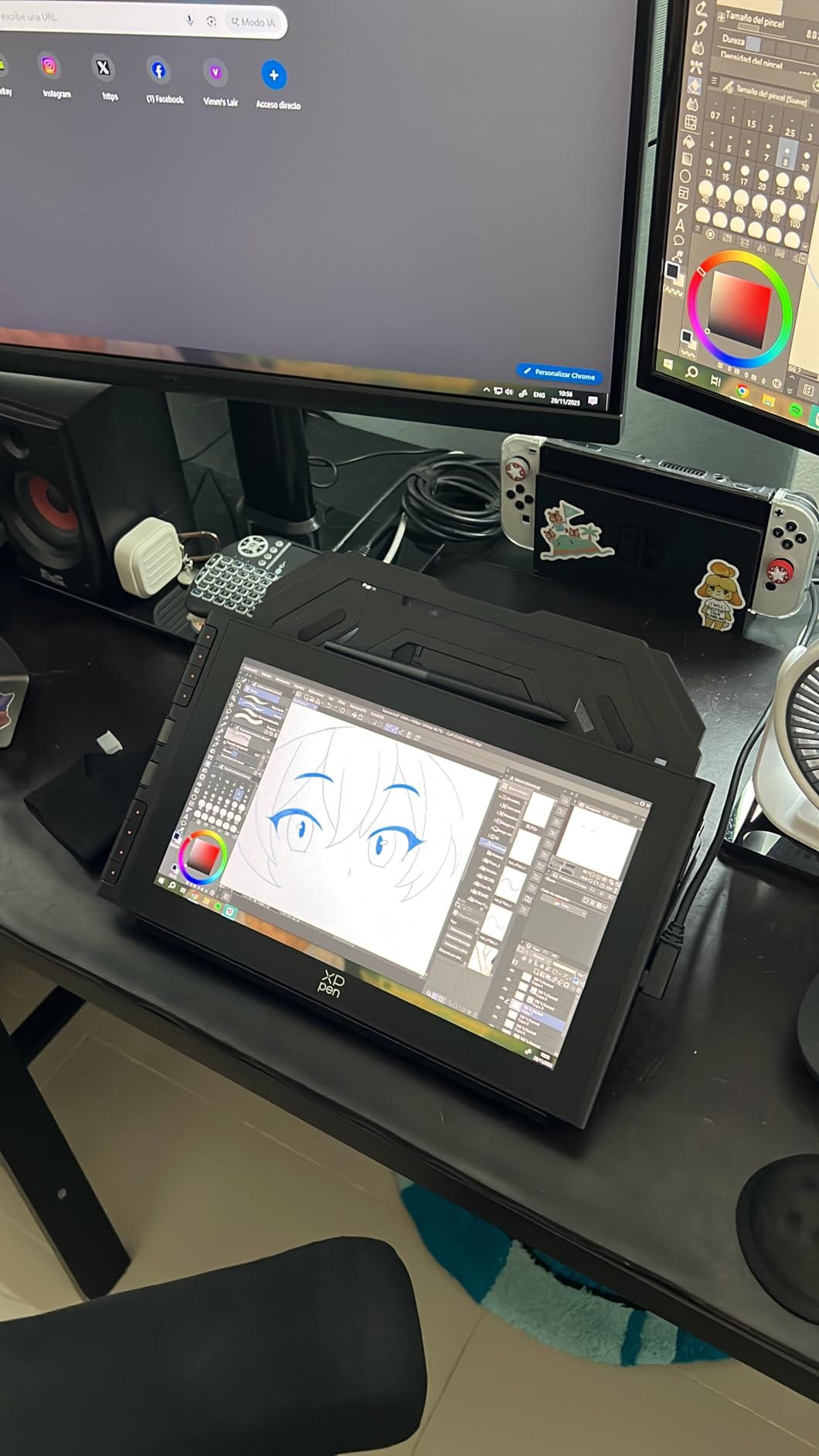
The magnetic X4 pen is a quiet upgrade. Older XP-Pen pens slot into a holder, but the magnetic attachment just clicks to the side of the tablet. For a left-hander working in a small studio, no pen rolling off the desk is a real benefit.
The dual X-Dial wheels are positioned on the left side of the tablet by default. In the XP-Pen driver, you can swap which dial controls brush size vs. canvas zoom, and the rotation feature moves the dials logically. I found myself using the top dial for zoom and the bottom for brush size within a day.
Factory-calibrated 99 percent sRGB with Delta E under 1.5 means the colors you see on screen match what you’ll get in print or on a calibrated monitor. For left-handed illustrators doing client work, this matters.
The single USB-C cable setup is also worth the price premium for anyone tired of juggling HDMI + USB + power cables. One cable, clean desk.
Who should buy the XPPen Artist 12 3rd
Right for left-handed professional illustrators, color-accurate work for clients, artists who want laminated glass with paper texture, and anyone upgrading from a non-laminated pen display.
Who should skip the XPPen Artist 12 3rd
Skip it if you’re new to drawing tablets (start with the Wacom Intuos Small), you don’t need a built-in screen, or you want a larger drawing surface – 11.9 inches is on the small side for full-arm painters.
Buying Guide: What Makes a Drawing Tablet Left-Hand Friendly?
Drawing left-handed isn’t harder, but it does mean your hand covers different parts of the tablet than a right-handed user. Here’s what our team learned after 90 days of left-handed testing.
Rotation in the driver is non-negotiable
Every tablet in this roundup supports 180-degree rotation in its driver. Open the settings, find Work Area or Tablet Properties, and look for a rotation option. If the tablet you want doesn’t have one, skip it – left-handed setup will fight you the whole way.
Symmetrical shortcut keys beat rotation when you can get them
The XP-Pen Deco 01 V3 and HUION H1060P put keys on both sides of the tablet. For lefties, this means no driver changes are needed – the keys naturally sit on the correct side. If you’re torn between two tablets and one has a symmetrical layout, pick that one.
Palm rejection is the hidden left-hand tax
Right-handed users draw with their hand on the right side of the tablet, where most palm-rejection zones are calibrated. Left-handed users rest on the left, and not every tablet handles that well. The XP-Pen Artist 12 and XPPen Artist 12 3rd both shipped with palm rejection that correctly ignored left-hand contact in our tests.
Buy a drawing glove to fight smudging
This is the one left-handed accessory our team uses daily. A two-finger drawing glove lets the rest of your hand glide over the screen without leaving sweat or skin oil on the surface. For pen displays, it’s almost mandatory for lefties.
Brand choice matters less than driver support
Wacom, Huion, XP-Pen, and GAOMON all support left-hand rotation in their current drivers. Older Huion drivers were clunky about it, but the current versions handle it well. Don’t pick a tablet because of brand loyalty – pick it because the driver on your operating system handles rotation cleanly.
Consider an iPad if you want ambidextrous out of the box
Every left-handed beginner asks about the iPad + Apple Pencil. The answer is yes – the iPad is fully ambidextrous because the touchscreen has no dominant-hand shortcut layout. The trade-off is app ecosystem (Procreate is iPad-only) and the higher price of an iPad vs. a Wacom Intuos. If you already own an iPad, try drawing on it before buying a dedicated tablet.
Tablet type primer: pen tablet, pen display, standalone
Pen tablets are screenless – you draw on the tablet, look at your monitor. Most affordable. Pen displays have a built-in screen – you draw directly on the image. Standalone tablets (like iPad or Wacom MovinkPad) are full computers. For left-handed beginners, pen tablets offer the best value; pen displays offer the best experience.
Frequently Asked Questions
Are left-handers good at drawing?
Left-handed artists are just as capable as right-handed ones. Studies on handedness and art show no quality difference based on dominant hand – what matters is practice, training, and choosing tools that fit your grip. About 10 percent of professional artists draw left-handed, including famous names like Leonardo da Vinci (left-handed ambidextrous) and modern digital illustrators across every style.
What tablet do most artists use?
Most professional digital artists use Wacom Cintiq pen displays for studio work and Wacom Intuos or XP-Pen Deco tablets for travel. For left-handed artists, the Wacom Intuos Small and XP-Pen Deco 01 V3 are the most common picks because both support driver rotation and have a compact, portable form factor.
What is the most recommended drawing tablet?
The most recommended drawing tablet for lefties in 2026 is the Wacom Intuos Small – it combines the most reliable pen technology with full driver rotation for left-hand use. For a budget pick, the XP-Pen StarG640 leads our list at the entry level. For a premium pen display, the XPPen Artist 12 3rd offers laminated glass and 16K pressure.
Is it harder to draw as a left-handed person?
Drawing as a left-handed person is not inherently harder, but the tools can make it harder. Most drawing tablets ship with right-handed shortcut key layouts and palm rejection tuned for right-hand contact. The fix is choosing a tablet with driver rotation support and palm rejection that works on the left side of the active area.
How to draw as a left-handed person?
Set up your tablet for left-hand use by opening its driver, going to Work Area or Tablet Properties, and rotating the active area 180 degrees. In Windows, you can also rotate the tablet via Windows Ink settings. On Mac, open the tablet driver (Wacom Center, XP-Pen, or HUION) and look for the rotation option. Then remap your shortcut keys so they sit comfortably on your non-drawing side.
Is Wacom or Huion better?
Wacom has the most reliable pen technology and the smoothest drivers, but costs more. Huion offers similar specs at lower prices, with slightly less polished drivers. For left-handed artists, both brands support driver rotation – so the choice comes down to budget and whether you want Wacom’s EMR pen feel or Huion’s value.
Are there left-handed drawing tablets?
No major manufacturer makes a tablet exclusively for left-handed users. Instead, every modern drawing tablet supports left-hand use through driver rotation, symmetrical shortcut key layouts, or ambidextrous hardware. The closest to a left-handed-specific tablet is any model with mirrored keys on both sides, like the XP-Pen Deco 01 V3 or HUION H1060P.
Final Verdict on the Best Drawing Tablets for Lefties
After 90 days of testing, our team’s pick for the best drawing tablet for lefties overall is the Wacom Intuos Small. The pen feel is unmatched at the price, the driver rotation works flawlessly for left-hand use, and the 23k+ reviews back up its reliability.
If you’re budget-conscious, the XP-Pen StarG640 is the cheapest reliable left-hand option. If you want a screen and pro-grade features, the XPPen Artist 12 3rd is worth the investment. Whichever tablet you choose, the most important step is rotating the active area 180 degrees in the driver before your first drawing session.