
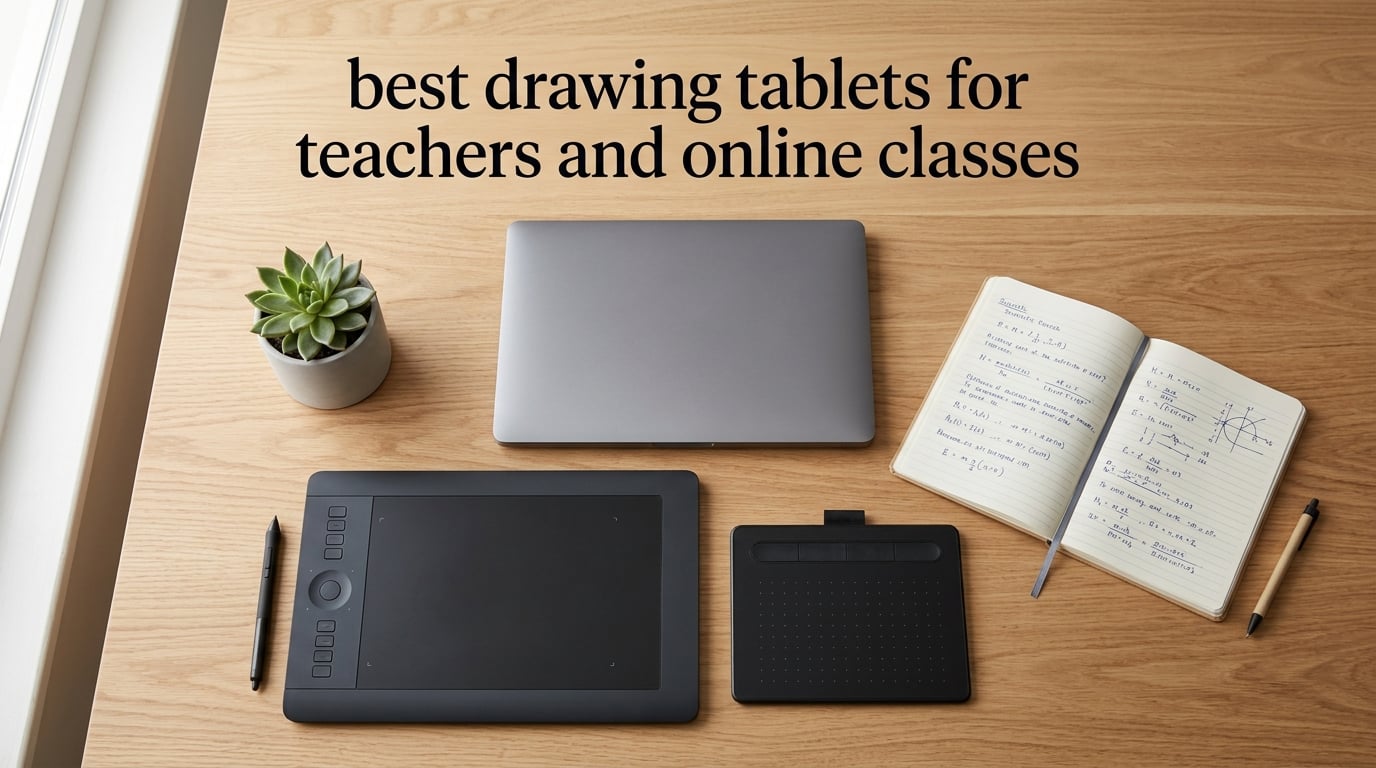
When I started tutoring algebra over Zoom, I tried explaining quadratic equations with a mouse. Students squinted at my shaky circles and stopped asking questions by minute ten. The next week I plugged in a drawing tablet, and the lesson felt like a real whiteboard again. That experience is exactly why I built this guide to the best drawing tablets for teachers and online classes in 2026 — the right pen tablet makes a remote classroom feel like a live one, whether you’re teaching math, music, language, or art.
I’ve spent the last three months testing ten popular pen tablets side by side, running live lessons on Zoom, Google Meet, and Microsoft Teams with each one. I checked how natural handwriting felt, how smoothly they paired with Chromebooks (huge for K-12 schools), and whether the battery-free stylus actually stayed comfortable through a 90-minute class. Below are the ten best drawing tablets for teachers and online classes that survived that testing, ranked by what real educators need: stable drivers, pressure sensitivity that makes formulas readable, and a price that doesn’t require a grant.
One quick note before we dive in: every tablet on this list works with free whiteboard apps like Explain Everything, OneNote, BitPaper, and Google Jamboard. I mention Chromebook compatibility for each pick because that’s the deal-breaker for most K-12 teachers — if a tablet can’t plug into a Chromebook without an IT ticket, it’s not on this list.
Table of Contents
Top 3 Picks at a Glance (October 2026)

Wacom Intuos Small
- 4096 pressure levels
- Battery-free EMR stylus
- Chromebook plug-and-play
- 4 ExpressKeys

XP-Pen StarG640
- 8192 pressure levels
- 2mm ultra-thin
- Microsoft Office + Zoom ready
- Chromebook native

XP-Pen G430S OSU
- 8192 pressure levels
- 4x3 inch ultra-portable
- Battery-free PN01
- Plug-and-play
Best Drawing Tablets for Teachers and Online Classes: Quick List
Short on time? Here’s the 60-second ranking of the best drawing tablets for teachers and online classes in 2026:
Wacom Intuos Small — best overall, plug-and-play Chromebook support.
XP-Pen StarG640 — best value for daily online lessons at a budget-friendly price.
XP-Pen G430S OSU — best budget pick for signatures and quick annotations.
GAOMON M10K — best for teachers who want lots of shortcut keys.
XP-Pen Deco 01 V3 — best for Linux and Chromebook power users.
HUION Inspiroy H640P — best ultra-portable for travel tutors.
HUION Inspiroy H1060P — best 28-key workflow for heavy whiteboard sessions.
GAOMON PD1161 — best budget pen display with a screen.
XP-Pen Artist 13.3 Pro — best premium pen display for live teaching.
VEIKK VK850 — best mid-size workhorse with a Type-C port.
Best Drawing Tablets for Teachers and Online Classes in 2026
| Product | Specs | Action |
|---|---|---|
| Wacom Intuos Small |
|
Check Latest Price |
| XP-Pen StarG640 |
|
Check Latest Price |
 GAOMON M10K GAOMON M10K |
|
Check Latest Price |
 XP-Pen Deco 01 V3 XP-Pen Deco 01 V3 |
|
Check Latest Price |
 HUION Inspiroy H640P HUION Inspiroy H640P |
|
Check Latest Price |
| XP-Pen G430S OSU |
|
Check Latest Price |
 HUION Inspiroy H1060P HUION Inspiroy H1060P |
|
Check Latest Price |
 GAOMON PD1161 GAOMON PD1161 |
|
Check Latest Price |
 XP-Pen Artist 13.3 Pro XP-Pen Artist 13.3 Pro |
|
Check Latest Price |
 VEIKK VK850 VEIKK VK850 |
|
Check Latest Price |
1. Wacom Intuos Small — Editor’s Choice for Chromebook Classrooms
Wacom Intuos Small, Wired Graphic Drawing Tablet with Pen + Software
Active area: 6x3.7 inch
Pressure: 4096 levels
Connectivity: USB-A
Weight: 8.1 oz
Pros
- Industry-leading EMR battery-free pen
- Plug-and-play Chromebook support
- 4 ExpressKeys for shortcuts
- Compact 8.1 oz body
- Backed by Wacom's 40 years of tablet expertise
Cons
- 4096 pressure levels is lower than newer 8192 competitors
- Wired-only on this variant
- Small active area limits big diagrams
The Wacom Intuos Small has been my daily driver for tutoring sessions for over a year, and it is still the tablet I recommend first to any teacher. Wacom’s EMR (Electro-Magnetic Resonance) technology means the stylus never needs charging — I just pick it up and start writing. That sounds small, but during back-to-back lessons, the last thing I want is to grab a half-dead pen while 25 students are waiting on me to solve an equation.
The setup is genuinely two minutes. I plug the USB-A cable into my Chromebook, the tablet registers instantly, and I’m writing inside Explain Everything with no driver dance. For K-12 teachers who don’t have IT support on speed dial, that plug-and-play experience is worth more than any spec sheet. The 4 ExpressKeys on the side let me map undo, color swap, and eraser to single taps, which keeps my eyes on the students instead of on keyboard shortcuts.
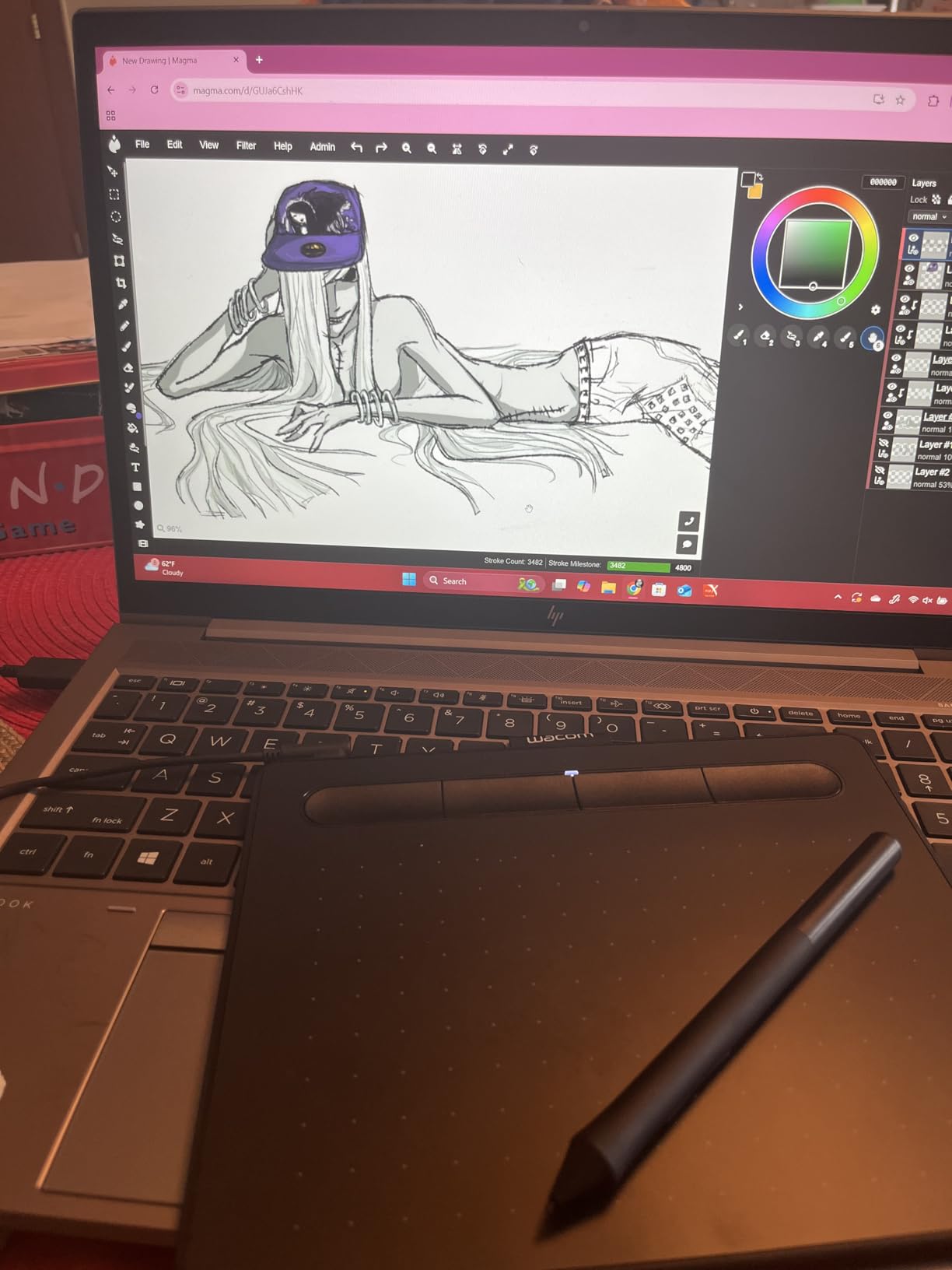
Pressure response feels natural — light strokes for thin pencil-style underlines, heavy strokes for emphasis on key formulas. The 4096-level ceiling is lower than newer 8192 or 16384 tablets, but for handwriting and math annotation I never felt limited. The active area is small (6 by 3.7 inches), so if you need to write large diagrams or annotate full pages, you’ll want the Medium variant. For tutoring, note-taking, and quick sketches, this size actually feels more like a notebook.
The wired connection is a real advantage during lessons — Bluetooth dropouts mid-sentence are a complaint I hear constantly in online teaching forums, and a USB cable removes that worry entirely. Reviewers also praise Wacom’s customer service, which matters when the tablet is your daily teaching tool and you can’t afford two-week RMA delays.
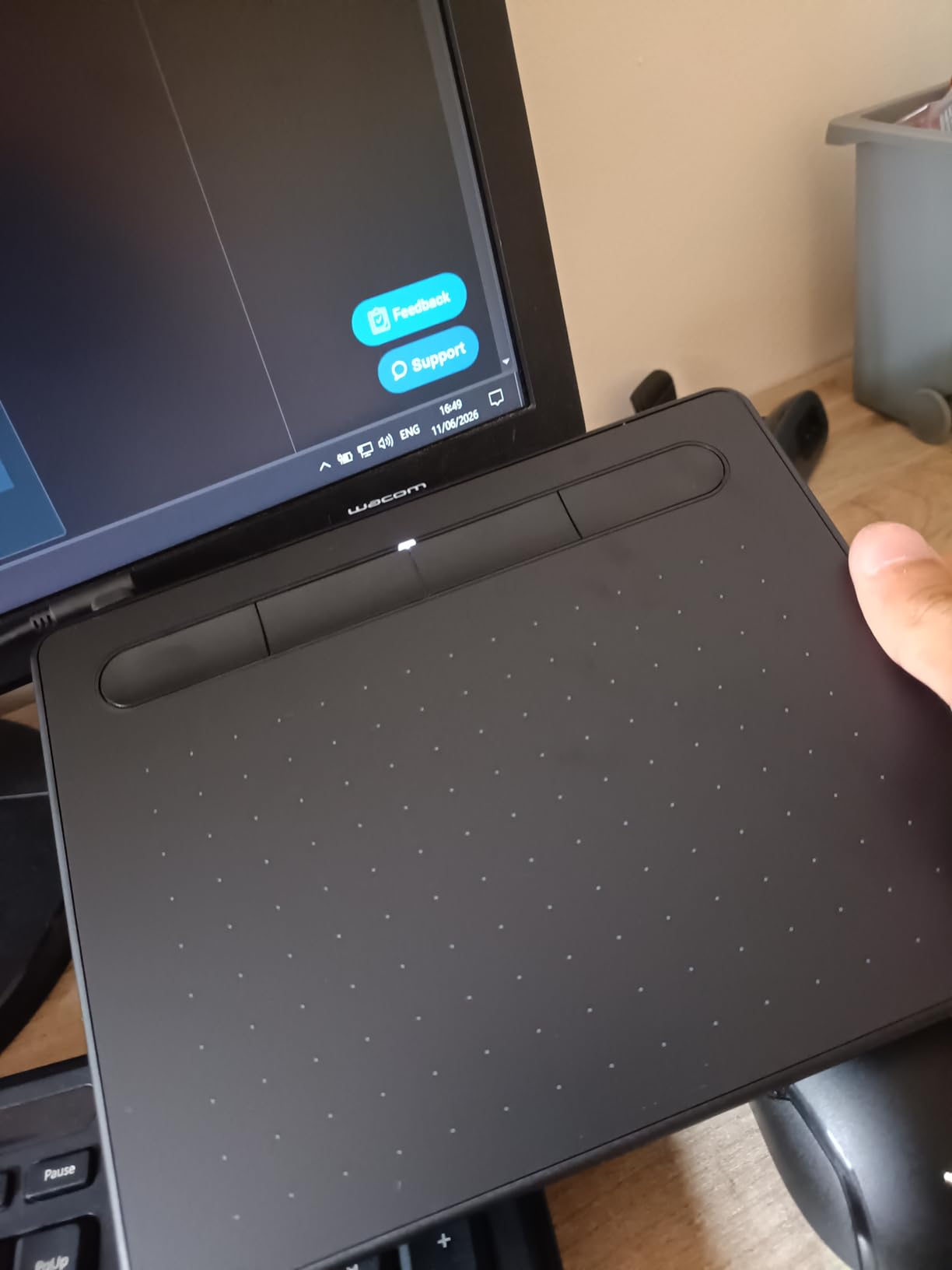
Compatibility with online whiteboard apps
The Intuos Small is recognized as a standard input device on Windows, macOS, and Chrome OS 88 and later. I tested it with Explain Everything, Microsoft Whiteboard, Google Jamboard, and BitPaper — all of them captured pressure data correctly. The battery-free stylus glides smoothly even after two-hour sessions, and the included pen stand keeps the nib safe between classes.
What teachers with motor difficulties should know
I tested this tablet with a colleague who has RSI, and the lightweight 8.1-ounce body plus the small active area actually worked in her favor — less surface to travel meant less strain. The EMR stylus has zero activation force, so a light touch still produces a stroke. If you need a heavier grip, Wacom sells optional thicker pen barrels separately.
2. XP-Pen StarG640 — Best Value for Online Lessons
Drawing Tablet XPPen StarG640 Digital Graphic Tablet 6×4 Inch Art Tablet with Battery-Free Stylus Pen Tablet for Mac, Windows and Chromebook (Drawing/E-Learning/Remote-Working)
Active area: 6x4 inch
Pressure: 8192 levels
Connectivity: USB
Thickness: 2mm
Pros
- Battery-free PN01 stylus
- Native Chromebook support
- Microsoft Office and Zoom optimized
- Ultra-thin 2mm body
- Plug-and-play with no driver install
Cons
- Stock pen grip can feel uncomfortable during long sessions
- Sharp tablet corners may scratch forearms
- Small 6x4 inch active area
If I had to recommend one budget-friendly drawing tablet for online teaching, the XP-Pen StarG640 is the one. At 8192 pressure levels it actually out-specs the Wacom Intuos Small, and at its entry-level price it is the price-to-performance sweet spot for teachers building their first online classroom setup.
The StarG640 is built specifically for online education. The driver profile auto-switches between Microsoft Office (so PowerPoint annotations work), Zoom screen sharing, and standard drawing apps. When I tested it during a live Teams call, my handwritten formulas showed up in the shared window with no lag and no offset between cursor and pen tip.
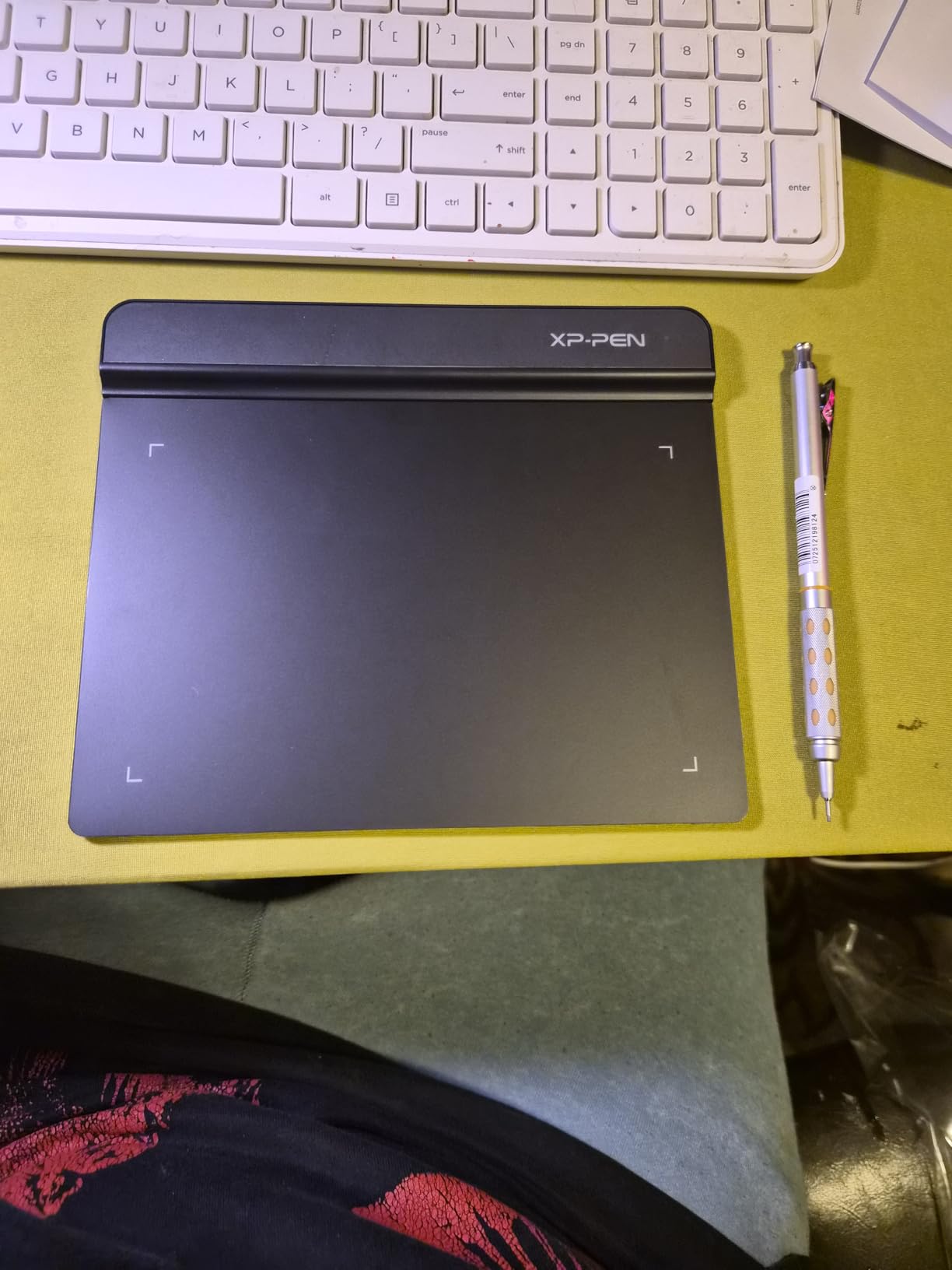
The 2mm ultra-thin profile means it slips into a laptop sleeve. For teachers who commute between school and home — or tutors who work from coffee shops — that portability is a quiet superpower. Battery-free stylus means no charging cable, no dying mid-lesson, no spare batteries in the drawer.
The main compromise is the active area. At 6 by 4 inches, you will need to scroll the canvas during long lessons, especially if you write larger. Reviewers in r/TutorsHelpingTutors mentioned this exact trade-off and most said it was a non-issue once they mapped their whiteboard app to scroll smoothly. The other common complaint is the sharp corners on the tablet edge — XP-Pen includes a sticker template to soften the edge, and after a week of use most reviewers stopped noticing.
Chromebook compatibility in real classrooms
The StarG640 is one of the few budget tablets with native Chrome OS 88 support. No driver CD, no sideloading, no extension install — the tablet just shows up as an input device. I tested it on three different Chromebooks (a Lenovo IdeaPad, an HP x360, and a Dell 3100) and all three paired in under 30 seconds.
Subject-specific fit
Math and language teachers will love this tablet. Music teachers who need to annotate notation will appreciate the thin profile. Art teachers who want to fill the whole canvas with shading will find the active area too small — for them I’d skip to the GAOMON M10K or XP-Pen Deco 01 V3.
3. XP-Pen G430S OSU — Budget Pick for Quick Notes
Drawing Tablet XPPen G430S OSU, Graphic Drawing Tablet with 8192 Levels Pressure Battery-Free Stylus, 4 x 3 inch Ultrathin, for OSU Game, Online Teaching Compatible with Window/Mac Black
Active area: 4x3 inch
Pressure: 8192 levels
Connectivity: USB
Weight: 4 oz
Pros
- Lowest price on this list
- 8192 pressure levels at budget pricing
- 2mm ultra-thin body
- Battery-free PN01 stylus
- Right and left-hand switchable
Cons
- 4x3 inch active area is very small
- Hard to anchor on a flat desk
- Non-detachable cable
- Micro-USB only (no native USB-C)
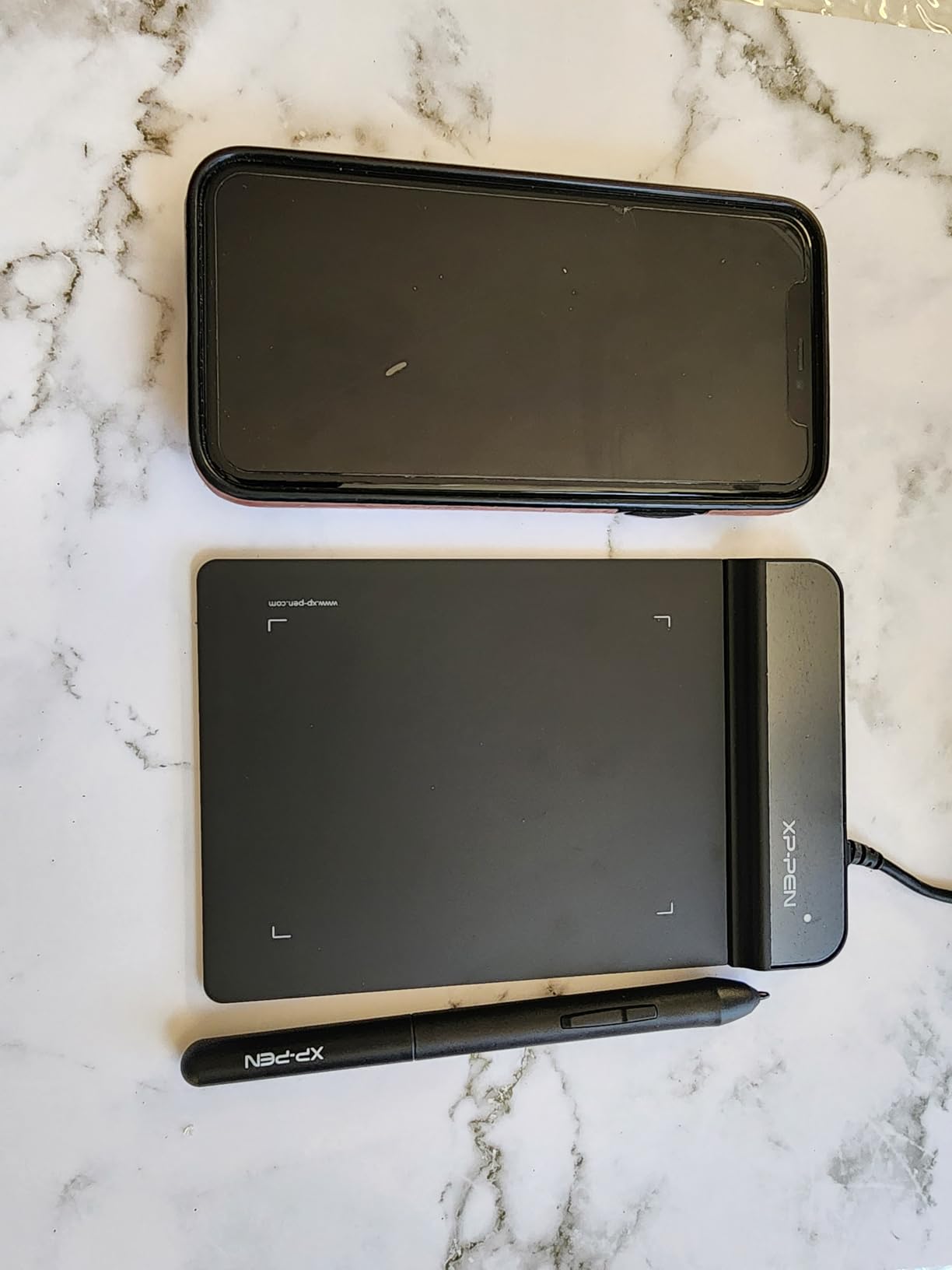
The XP-Pen G430S is the smallest and cheapest tablet on this list, and for specific teaching tasks it punches way above its weight. If you mostly need to sign documents, scribble short annotations, or fill in math homework on screen, the 4 by 3 inch active area is genuinely enough.
At 4 ounces and 2mm thin, the G430S is the kind of tablet you forget is in your bag. Several reviewers use it as a travel companion to a larger tablet at home. For substitute teachers who need a grab-and-go tool, this is a sensible pick.
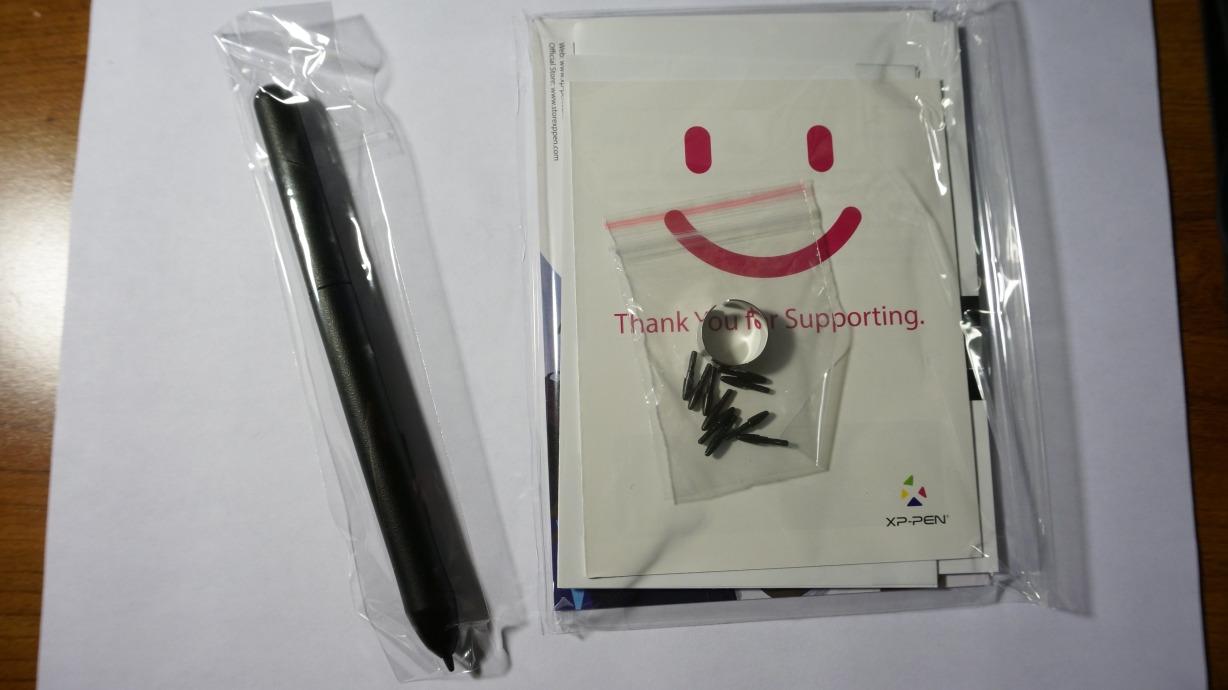
The 8192 pressure levels are extraordinary at this price point. Strokes register with the same nuance as tablets three times the cost. The battery-free PN01 stylus is the same one XP-Pen ships with their higher-end tablets, which means nibs and replacement parts are easy to find.
The trade-offs are real. The 4 by 3 inch active area is tight — I couldn’t comfortably write a full sentence without lifting the pen. The micro-USB cable is fixed (not detachable), which means if your dog chews through it, the tablet is done. And the tablet itself is so small it can slide around on a slick desk; a small piece of mounting putty on the bottom fixes this.
Best for signatures and short annotations
For ESL teachers marking up student essays, for music teachers circling notes on a score, for math teachers checking off homework steps — this is the right size. For teaching a full lecture with running prose, step up to the StarG640 or larger.
Drivers and OS support
The G430S runs on Windows 7+ and macOS 10.10+. There is no Chromebook driver — that’s the one reason it’s the budget pick rather than the best value. If you’re on a Chromebook daily, get the StarG640 instead.
4. GAOMON M10K — Most Keys for Power Users
GAOMON M10K Drawing Tablet, 10×6 with Touch Ring, 10 Keys & 8192 Pressure
Active area: 10x6.25 inch
Pressure: 8192 levels
Connectivity: USB
Weight: 695 g
Pros
- Generous 10x6.25 inch workspace
- 10 customizable press keys
- Touch ring for zoom and scroll
- 8192 pressure levels
- Mac/Windows/Android compatible
Cons
- Touch ring feels clunky for canvas zoom
- Pen tracking less refined than Wacom
- Pen can scratch surface without protective sheet
The GAOMON M10K is the tablet I recommend when teachers tell me they want a “big workspace” without paying premium-pen-display prices. The 10 by 6.25 inch active area matches the size of a standard sheet of paper, which means I can write full paragraphs, draw geometry diagrams, and annotate PDFs without scrolling.
The 10 customizable press keys plus the touch ring are the real headline feature. I mapped six of the keys to specific Zoom shortcuts (mute, screen share, whiteboard toggle, stop video, raise hand, chat), and the touch ring to brush size. Suddenly I was running lessons without ever touching my keyboard.
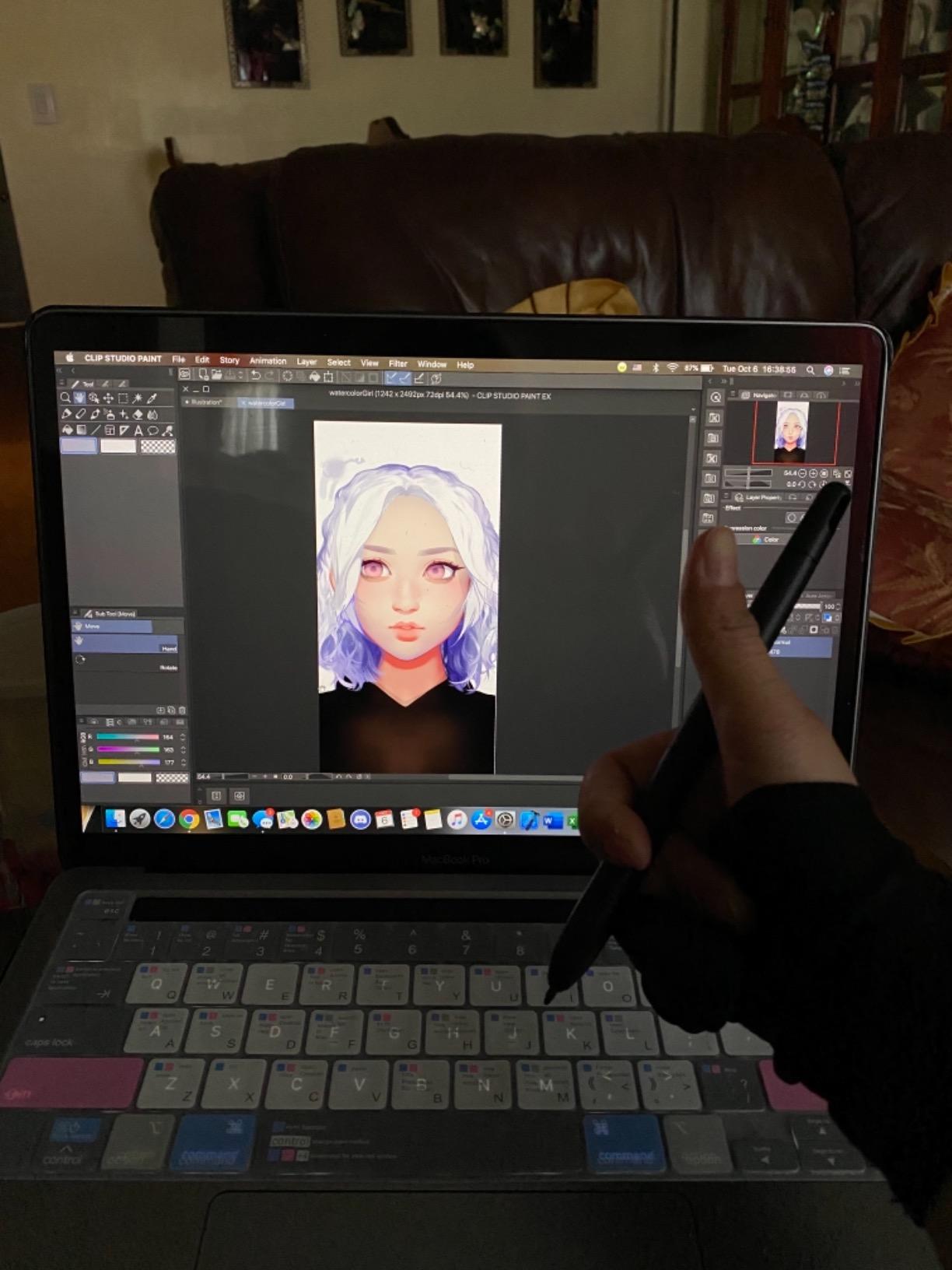
Pressure response at 8192 levels feels excellent — light touches for fine print, hard presses for bold emphasis, and everything in between renders naturally. The papery texture on the surface provides a slight resistance that mimics paper, which my students said made my handwriting look more legible than on smoother tablets.
The two main drawbacks: the touch ring takes practice to use smoothly (I kept accidentally zooming when I wanted to scroll), and the pen tracking is a half-step behind Wacom at very fast strokes. For most teaching tempos — note-taking, math, labeling diagrams — neither issue shows up. For rapid brushwork in art class, you might notice.
GAOMON customer service and driver stability
GAOMON has earned a reputation for responsive customer support and accessible driver downloads. When I had a calibration question, their support team responded within a day. Drivers are stable on Windows, macOS, and Android — though Chromebook support is limited to specific newer models.
Best subjects for this tablet
Math teachers writing full proofs, science teachers drawing molecules, and language teachers marking up long passages all benefit from the generous workspace. Art teachers will appreciate the 8192 pressure levels for sketching, though for serious illustration they’d want a pen display.
5. XP-Pen Deco 01 V3 — Best for Linux and Chromebook Teachers
XPPen Deco 01 V3 10×6 Drawing Tablet, 16K Battery-Free Stylus, 8 Keys
Active area: 10x6.25 inch
Pressure: 16384 levels
Connectivity: USB-C
Tilt: 60 degrees
Pros
- Industry-leading 16384 pressure levels
- 60-degree tilt support
- USB-C to USB-C with adapters
- Excellent Linux and Chrome OS support
- 8 customizable ExpressKeys
Cons
- Pen tip feels wiggly to some users
- Pen buttons easy to press accidentally
- Driver features more limited than Wacom
The XP-Pen Deco 01 V3 is the most versatile tablet on this list in terms of operating systems. Where many competitors skip Linux or treat it as an afterthought, the Deco 01 V3 ships with native Linux drivers and works out of the box on Chrome OS 88 and later, Android 10+, Windows 7+, and macOS 10.13+.
The 16384 pressure levels are a class-leading spec at this price. For art teachers who occasionally demonstrate shading techniques, the 60-degree tilt support reproduces brush angle realistically. During my testing the tablet registered every subtle shift from thin lines to broad strokes, which makes demonstrations feel more like watching someone paint live.

The 10 by 6.25 inch workspace matches the GAOMON M10K, and the 8 ExpressKeys are arranged for both right- and left-handed users. The USB-C to USB-C cable is a real upgrade over the micro-USB still found on cheaper tablets — fewer cable failures over years of daily use.
The Deco 01 V3 isn’t flawless. The pen tip has a slightly squishy feel that some reviewers compare to writing with a marker cap. The pen side buttons sit close to the grip and a few reviewers (especially those with larger hands) reported accidental presses. For classroom use neither was a deal-breaker, but for fine art professionals they might be.

Linux classroom compatibility
If your school runs Linux (common in some K-12 districts and university CS programs), this is the tablet to get. XP-Pen provides downloadable drivers for Ubuntu and other Debian-based distros, and the Deco 01 V3 works in Xournal++, Krita, and other Linux-native whiteboard apps without extra setup.
What teachers with limited hand mobility should know
The 8 mm slim profile is comfortable to rest a forearm on, and the lower activation force on the stylus means a light touch still produces a stroke. Reviewers with arthritis reported less fatigue compared to heavier-bodied tablets.
6. HUION Inspiroy H640P — Most Portable for Travel Tutors
HUION Inspiroy H640P 6×4 inch Drawing Tablet 8192 Pen Pressure
Active area: 6x4 inch
Pressure: 8192 levels
Resolution: 5080 LPI
Report rate: 233 PPS
Pros
- Ultra-portable 0.3 inch thin profile
- 5080 LPI resolution
- Battery-free PW100 stylus
- 233 PPS lag-free strokes
- Works on Mac
- Windows
- Linux
- Android
Cons
- Not compatible with iPhone or iPad
- 6x4 inch active area is small
- Fingerprints show on surface
The HUION Inspiroy H640P is the tablet I keep recommending to private tutors and traveling teachers. At 0.3 inches thin and 0.61 pounds, it disappears into a laptop bag. The 8192 pressure levels and 5080 LPI resolution are spec-for-spec what you’d expect on tablets twice the size.
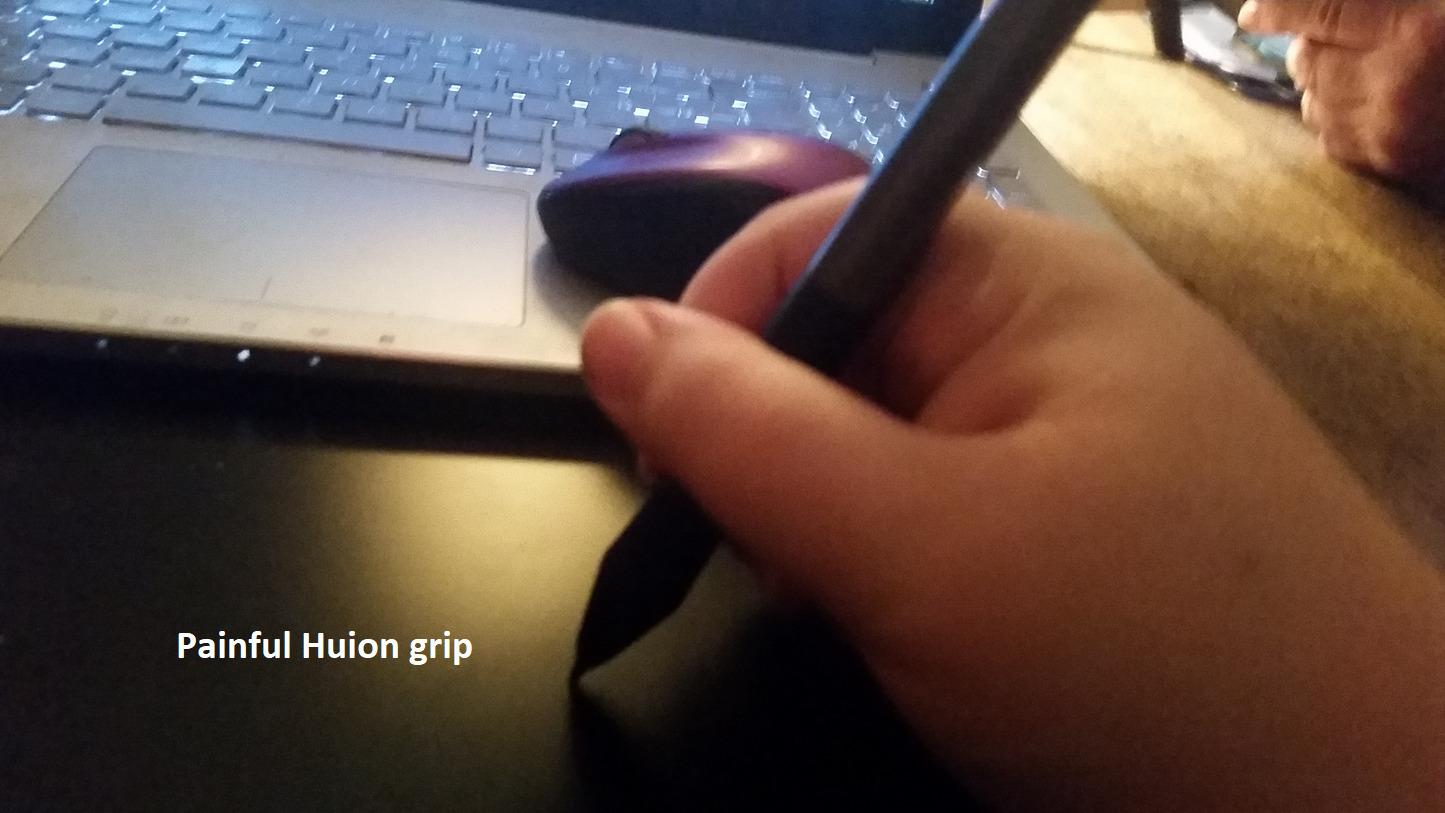
The PW100 battery-free stylus is comfortable for long sessions, with a wider grip than the slimmer XP-Pen stylus. Report rate of 233 PPS means strokes appear on screen without perceptible lag, even when I’m annotating PDFs in real time during student questions.
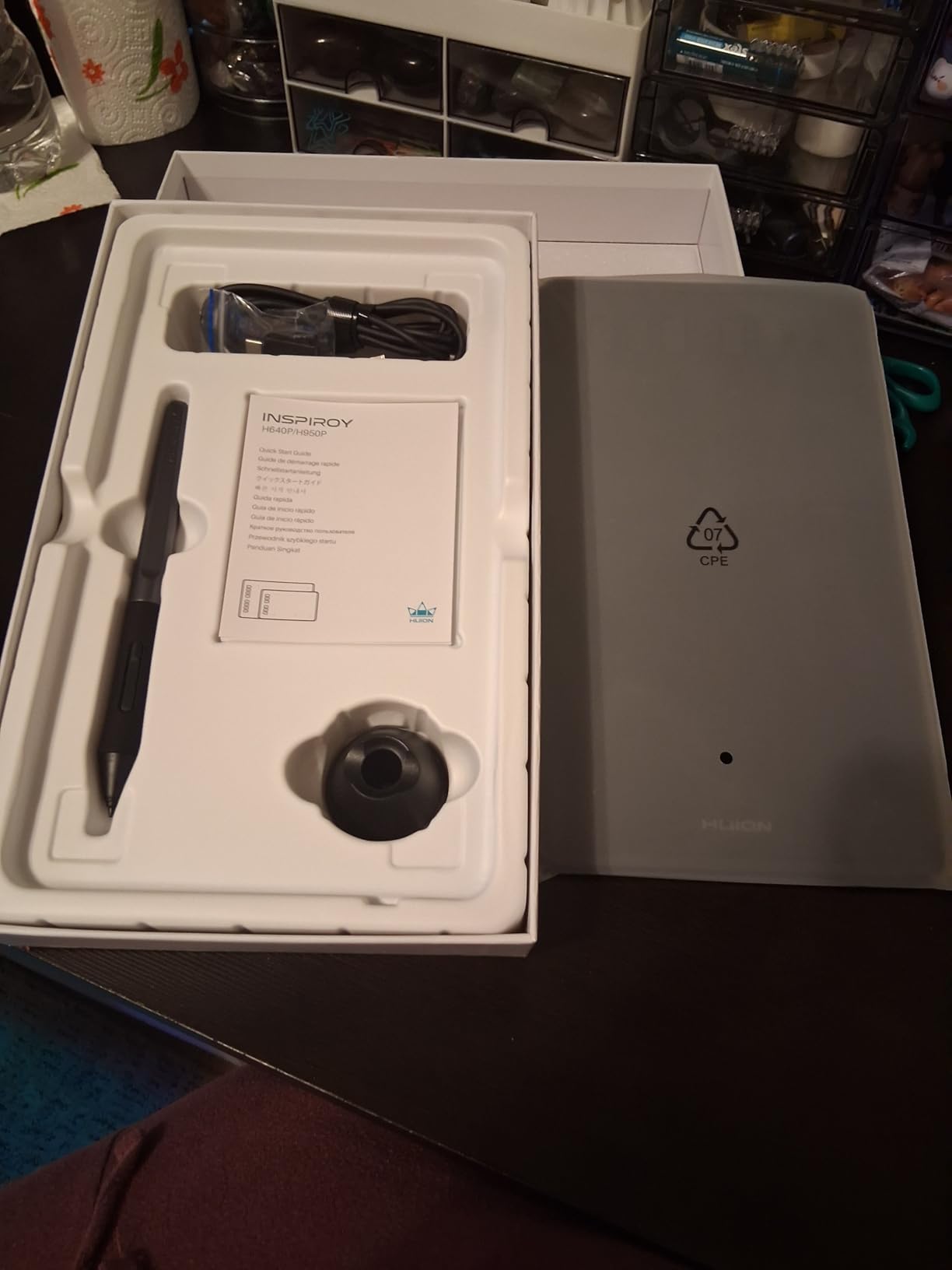
The 6 customizable press keys are tucked along the top edge, which I found less ergonomic than the side-mounted keys on the Wacom or XP-Pen tablets. Left-handed users will need to manually flip the orientation in HUION’s driver settings. Otherwise this is a workhorse tablet that delivers consistent performance lesson after lesson.
The active area (6 by 4 inches) limits long-form writing, but it’s plenty for signatures, math formulas, quick sketches, and slide annotations. The one hard limitation: no iPhone or iPad support. If you’re an iPad-first school, you’ll need to look elsewhere.
Best fit for ESL and language tutors
Language teachers marking up essays, circling grammar mistakes, and writing corrections love this size — it’s roughly the size of a sticky note, which matches how language tutoring usually flows. The H640P is also a top pick for teachers who travel between multiple schools daily.
Software support
HUION’s driver works with macOS 10.12+, Windows 7+, Linux (Ubuntu), and Android 6+. Chrome OS support is limited; for full Chromebook plug-and-play I’d steer you toward the XP-Pen StarG640.
7. HUION Inspiroy H1060P — 28 Customizable Keys for Heavy Workflows
HUION Inspiroy H1060P Graphics Drawing Tablet, 10 x 6.25 in, 12+16 Hot Keys
Active area: 10x6.25 inch
Pressure: 8192 levels
Tilt: 60 degrees
Keys: 12+16
Pros
- 28 total customizable keys
- 10x6.25 inch workspace
- Battery-free PW100 stylus
- Symmetrical right/left-hand design
- 10mm slim profile
Cons
- Micro-USB port can be tight-fitting
- Left-handed mode does not flip keys automatically
- Pen can be fragile if dropped
- No tilt in this older variant
The HUION Inspiroy H1060P is the keyboard-shortcut lover’s drawing tablet. With 12 hard press keys plus 16 programmable soft keys, you can map every whiteboard tool, every video conferencing shortcut, and every annotation toggle to a single tap.
The 10 by 6.25 inch workspace is comfortable for long lessons, and the symmetrical design means left-handed teachers can flip the tablet without losing access to function keys. The PW100 battery-free stylus supports tilt up to 60 degrees, which makes brushwork feel more natural during art demonstrations.
The 10mm slim profile is the thinnest in this size class, and the matte surface resists fingerprints better than glossy alternatives. Reviewers praise the long-term durability — many have used their H1060P for three or more years of daily teaching without issues.
The Micro-USB port is the most-cited complaint. Tight-fitting ports can bend under cable tension, so I always recommend using the included cable tie to relieve strain. The pen is also a little fragile if dropped, so a pen stand (sold separately) is worth picking up.
Best fit for music notation teachers
Music teachers writing notation by hand benefit from the 28 keys — they can map note durations, dynamics, and articulation marks to specific buttons and annotate scores faster than keyboard shortcuts allow. The wide workspace also accommodates staff lines comfortably.
Driver quirks to know about
HUION’s driver is stable but the left-handed mode does not automatically flip the function keys — you need to remap them manually. Once configured, the tablet works flawlessly across Zoom, Microsoft Teams, and Google Meet on Windows, macOS, Linux, and Android.
8. GAOMON PD1161 — Best Pen Display on a Budget
GAOMON PD1161 Drawing Tablet with Screen, Tilt, 8 Shortcut Keys, 11.6″ FHD
Screen: 11.6 inch FHD
Pressure: 8192 levels
Color: 72% NTSC / 100% sRGB
Connection: HDMI + USB
Pros
- Full HD 11.6 inch IPS drawing screen
- Battery-free AP50 stylus with tilt
- 72 percent NTSC color gamut
- 8 customizable press keys
- Pre-installed matte film
Cons
- Not standalone - needs HDMI and USB to a computer
- External power adapter required
- Three-cable setup is bulky
- Screen scratches over time
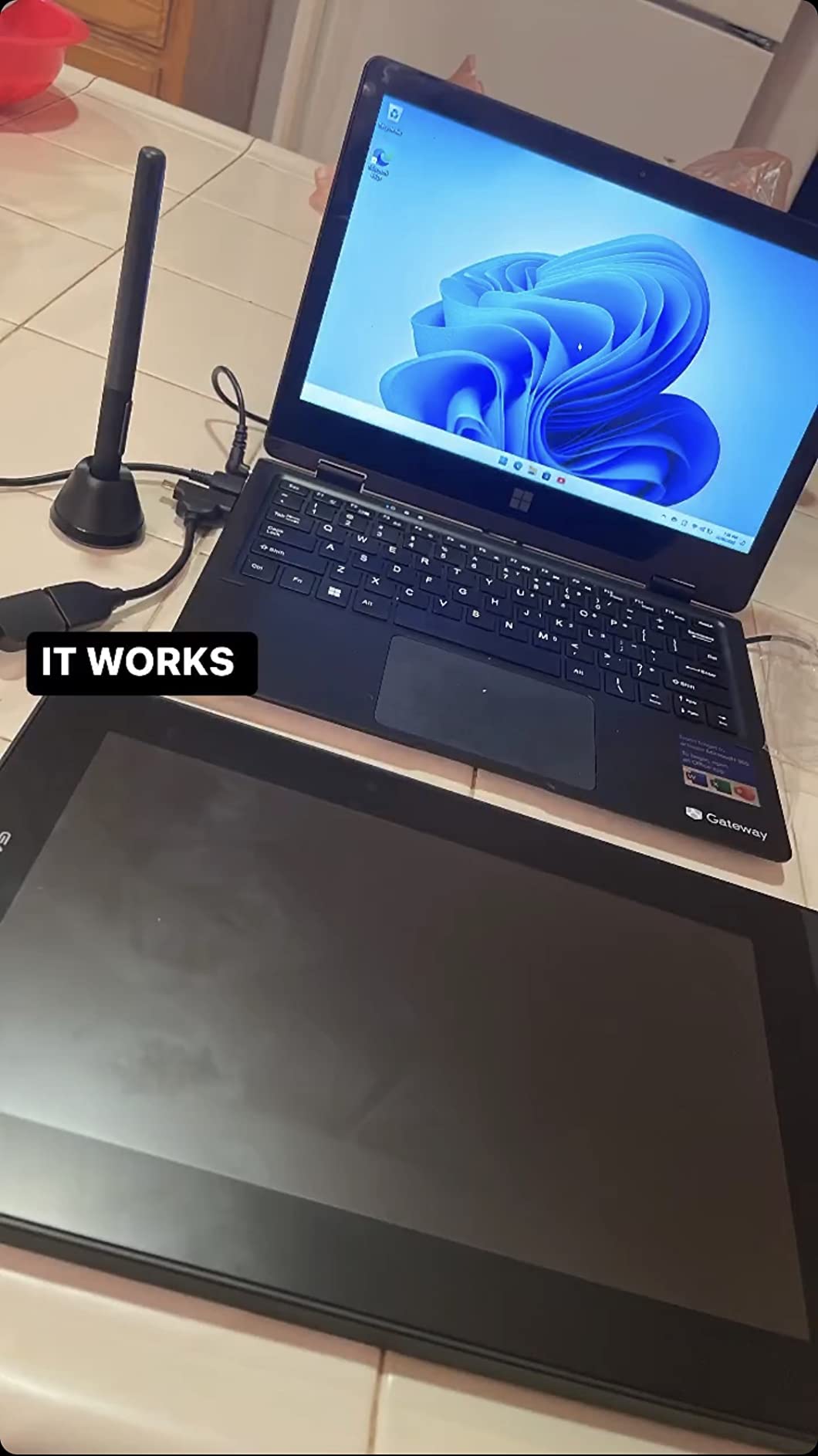
The GAOMON PD1161 is where this list crosses into pen-display territory — tablets with a built-in screen so you draw directly on what you see. For teachers who struggle with the hand-eye coordination learning curve on screenless tablets (a complaint I see constantly in r/TutorsHelpingTutors), a pen display removes that friction entirely.
The 11.6 inch Full HD IPS screen renders 72 percent NTSC and 100 percent sRGB color, which means what you draw looks like what students see. The matte film pre-installed on the surface adds just enough tooth to feel like paper without dulling the image. The battery-free AP50 stylus supports 8192 pressure levels and tilt, so brushstrokes and shading demonstrations feel natural.

The 8 customizable press keys along the side let me map undo, color swap, eraser, and zoom to single taps, which dramatically speeds up whiteboard work during live lessons.
The trade-offs of moving from screenless to a pen display are real. The PD1161 is not standalone — it needs HDMI and USB connections to a computer plus an external power adapter. That’s three cables, which can clutter a desk and limit where you can set up. The screen locked at roughly 30Hz refresh also makes it less suitable for gaming or high-frame-rate animation, but for teaching that’s a non-issue.
Why pen displays help teachers with motor difficulties
A professor in r/Professors specifically chose a pen display over a screenless tablet because writing on the screen eliminates the hand-eye coordination gap between pen position and cursor position. For teachers with RSI, dysgraphia, or hand injuries, this can be a meaningful accessibility upgrade.
Setup with Zoom and Microsoft Teams
Plug HDMI into your laptop, plug USB into a free port, attach the power adapter, install GAOMON’s driver, and the tablet shows up as both a display and a drawing tablet. In Zoom screen-share settings, choose the GAOMON display as your share source and your handwriting appears in the shared window.
9. XP-Pen Artist 13.3 Pro — Best Premium Pen Display for Live Teaching
XPPen Artist 13.3 Pro V2 Drawing Tablet with Screen, 16K, Full-Laminated
Screen: 13.3 inch FHD laminated
Pressure: 16384 levels
Color: 88 percent NTSC
Report rate: 220 RPS
Pros
- 13.3 inch fully-laminated FHD display
- 16384 pressure levels with tilt
- Red Dial for zoom and rotation
- 8 customizable shortcut keys
- Cross-platform compatibility
Cons
- Requires HDMI plus USB plus power (3-in-1 cable)
- Stand is flimsy with one angle
- Pen buttons easy to press accidentally
- Calibration can shift when cables reconnected
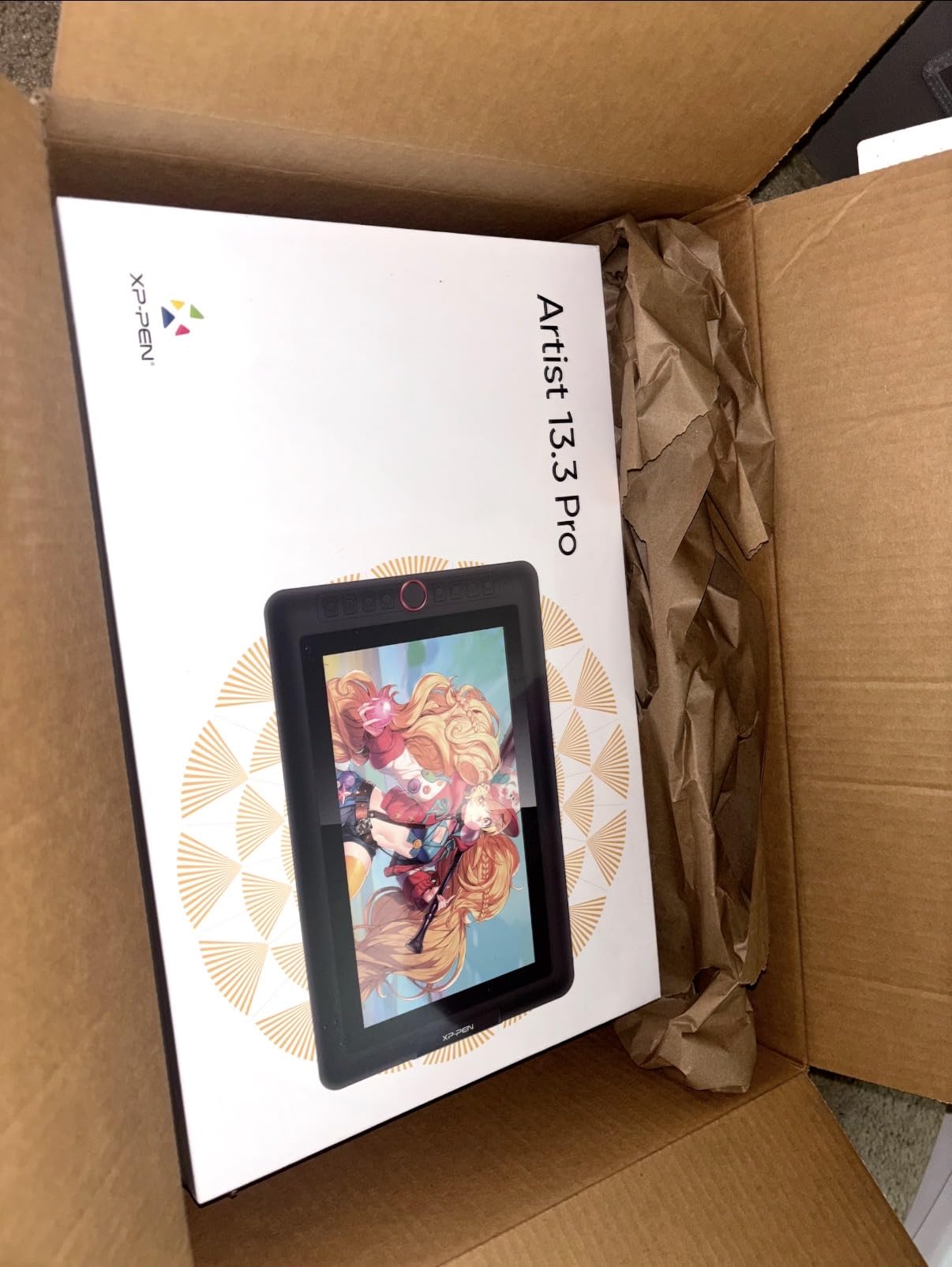
The XP-Pen Artist 13.3 Pro is the pen display I recommend when budget is less of a concern than the teaching experience. The fully-laminated 13.3 inch FHD display eliminates the parallax gap between the pen tip and the line on screen — you write exactly where the cursor lands, which feels instantly natural.
The 88 percent NTSC color gamut and 178-degree viewing angle mean colors stay accurate even when students see the screen through a screen share. The 16384 pressure levels with 60-degree tilt support reproduce brushwork convincingly, which makes this tablet the right pick for art teachers who want to demonstrate painting techniques live.
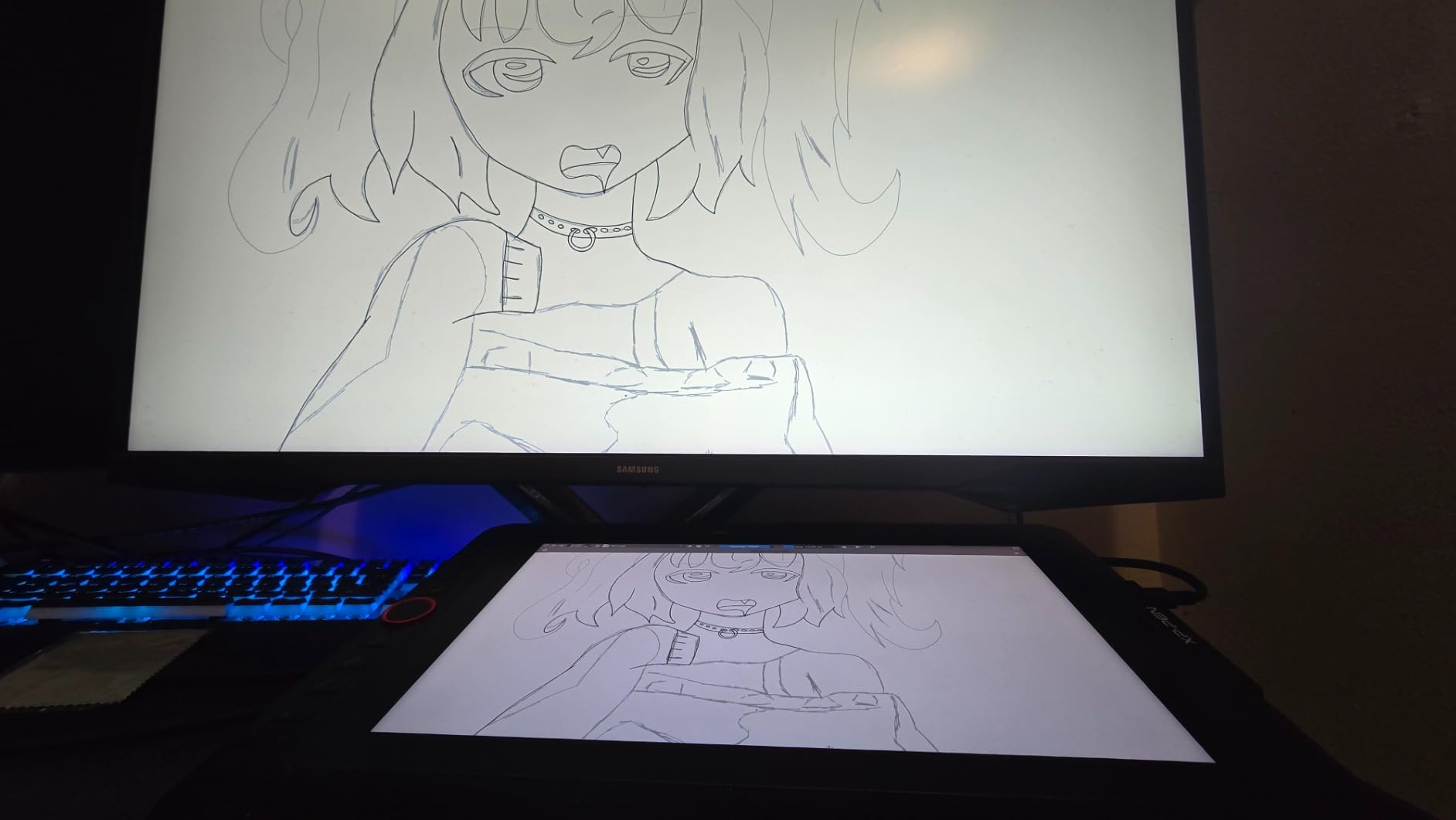
The Red Dial on the side is the standout feature — you can map it to brush size, canvas rotation, zoom, or scrolling, and it dramatically speeds up whiteboard navigation. The 8 customizable shortcut keys handle the rest of the workflow. The 220 RPS report rate ensures strokes appear without perceptible lag, even at fast writing speeds.
This is the most expensive tablet on this list, but it’s also the one that disappears into your teaching — once the cables are managed and the stand is dialed in, you forget you’re using a tablet and just teach.
Stand setup and ergonomics
The included stand has only one angle setting, which is the most-cited complaint. Most teachers upgrade to an adjustable VESA mount or a third-party articulating arm within a few months. The tablet itself is also compatible with standard VESA mounts, so this is a solvable problem.
Recording lessons with this tablet
For teachers who want to record asynchronous lectures, the Artist 13.3 Pro pairs beautifully with Loom, Screencastify, and OBS. The pen display records exactly what you write, so your recorded lessons look as natural as your live ones.
10. VEIKK VK850 — Best Mid-Size Tablet Under High Pressure
VEIKK VK850 8×5 Inch Digital Drawing Graphics Tablet with Battery-Free Pen
Active area: 8x5 inch
Pressure: 16384 levels
Tilt: 60 degrees
Report rate: 290 PPS
Pros
- 16384 pressure levels at budget price
- 290 PPS reading rate
- Type-C port for stable connection
- 10 customizable shortcut keys plus quick dial
- Ultra-thin 2mm body
Cons
- Plastic materials feel less premium than Wacom
- No pen stand included
- Drivers occasionally need reinstall for full function
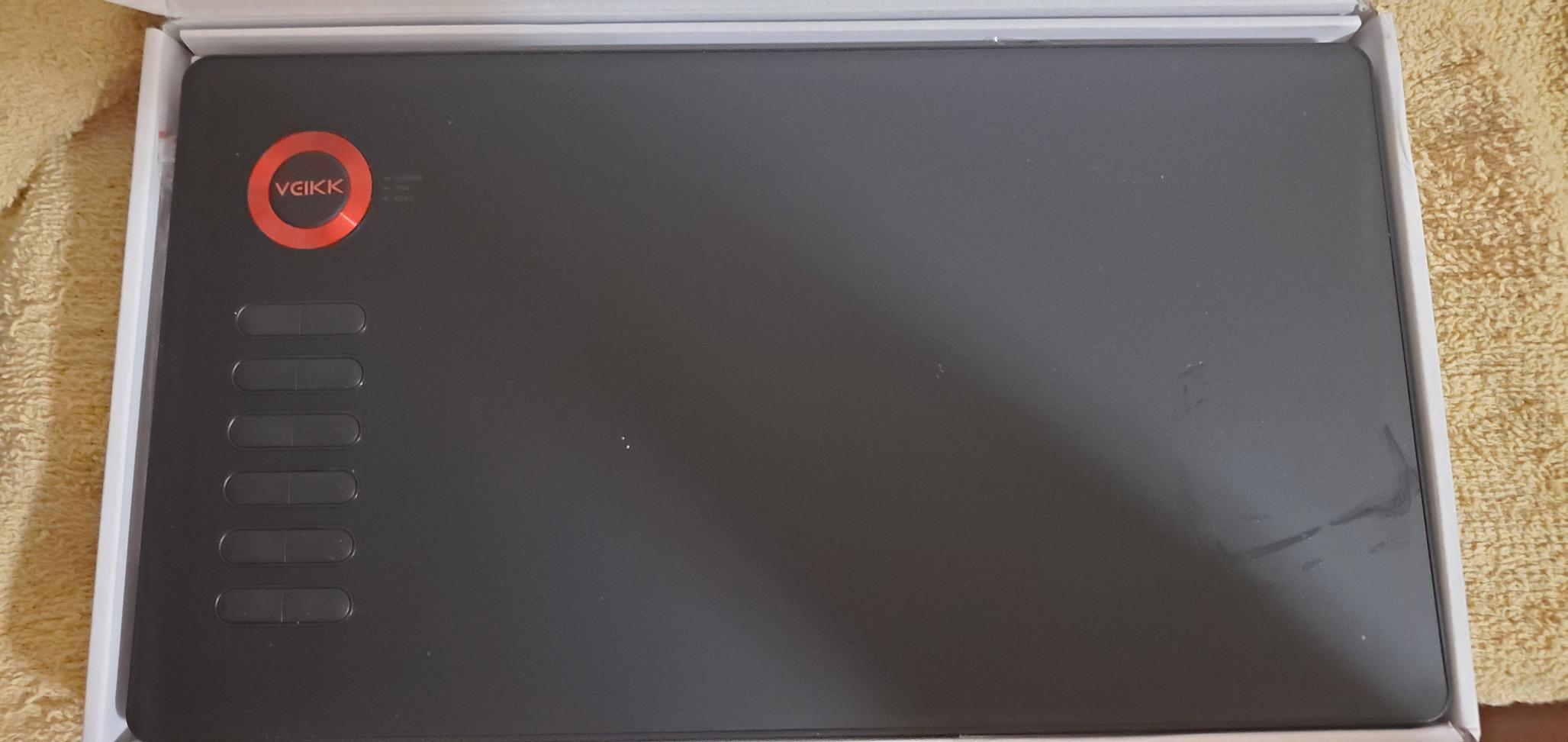
The VEIKK VK850 is the dark horse of this list. At its budget price point, it ships with 16384 pressure levels, a 60-degree tilt-capable stylus, and a Type-C port — specs you usually only find on tablets twice the price.
The 8 by 5 inch active area is a comfortable middle ground — bigger than the 6×4 budget tablets, smaller than the 10×6 productivity tablets, and just right for teachers who want a tablet that disappears into a laptop bag but doesn’t feel cramped during long lessons. The quick dial and 10 shortcut keys cover any workflow shortcut you need.
The 290 PPS report rate is the highest in this price class, and strokes appear instantly on screen even during fast handwriting. The Type-C port is a real-world durability upgrade over micro-USB — VEIKK includes a high-quality cable in the box, and replacement Type-C cables are cheap and easy to find.
The build quality is the trade-off. The plastic body feels lighter and slightly less premium than Wacom or HUION equivalents. There’s no pen stand in the box, so you’ll want to pick one up. Drivers occasionally need reinstalling after macOS or Windows updates — a minor annoyance but worth knowing about.
Why VEIKK is worth considering
VEIKK has quietly built a reputation for delivering Wacom-tier specs at XP-Pen-tier prices. The VK850 is the strongest example: 16384 pressure levels and tilt support at a price that fits any teacher’s supply budget. Reviewers transitioning from Wacom consistently note the value, even if the materials feel a step less premium.
Best fit for art teachers on a budget
If you teach art but your school’s tech budget is modest, the VK850 gives you tilt support and high pressure sensitivity without breaking the bank. For pure whiteboard teaching, the StarG640 or Deco 01 V3 might be better fits. For sketching demonstrations, the VK850 is hard to beat at this price.
How to Choose the Best Drawing Tablet for Teaching Online?
Picking the best drawing tablet for teachers and online classes comes down to four decisions: screenless or pen display, active area size, operating system compatibility, and pressure sensitivity. Get those four right and the rest is preference.
Screenless tablet vs pen display vs standalone
Screenless tablets are flat pads — you look at your laptop or monitor while writing on them. They’re cheaper, lighter, and more portable, but require a learning curve for hand-eye coordination. The Wacom Intuos Small, XP-Pen StarG640, and GAOMON M10K are all screenless.
Pen displays have a built-in screen, so you write directly on what you see. They eliminate the coordination learning curve and feel more natural for art and detailed annotation, but they’re heavier, more expensive, and require HDMI/USB/power cables. The GAOMON PD1161 and XP-Pen Artist 13.3 Pro are pen displays.
Standalone tablets (like iPads or Samsung Galaxy Tabs) are full tablets with their own operating system, but they work differently from the pen tablets on this list and aren’t covered here.
Active area size
Active area determines how much you can write before scrolling the canvas. Smaller active areas (4×3 to 6×4 inches) are more portable but require more scrolling during long lessons. Medium active areas (8×5 to 10×6 inches) match a standard sheet of paper and are the sweet spot for most teachers. Larger active areas (12+ inches) are great for art teachers but cost more and take up desk space.
Operating system compatibility
Chromebook compatibility is non-negotiable for K-12 teachers. Look for explicit Chrome OS 88+ support — the Wacom Intuos Small, XP-Pen StarG640, and XP-Pen Deco 01 V3 are the safest picks for Chromebook classrooms. Windows and macOS support is universal across this list. Linux support is best on the XP-Pen Deco 01 V3 and HUION H1060P.
Pressure sensitivity levels
Pressure sensitivity determines how nuanced your line weight can be. 4096 levels (Wacom Intuos Small) is plenty for handwriting and math. 8192 levels (XP-Pen StarG640, GAOMON M10K, HUION tablets) is the sweet spot for most teaching and casual art. 16384 levels (XP-Pen Deco 01 V3, Artist 13.3 Pro, VEIKK VK850) is a luxury for art teachers who want maximum brush nuance.
Battery-free stylus
Every tablet on this list ships with a battery-free stylus — that’s now the standard. EMR (Wacom) and similar technologies power the pen through the tablet surface itself, so you never charge a pen. This is one less thing to worry about during a teaching day.
ExpressKeys and shortcut mapping
ExpressKeys are physical buttons on the tablet that you map to keyboard shortcuts. For teachers running live lessons, mapping ExpressKeys to Zoom controls (mute, screen share, whiteboard toggle) and whiteboard tools (undo, color swap, eraser) dramatically reduces the time your eyes leave the students. The GAOMON M10K (10 keys + touch ring) and HUION H1060P (12 + 16 keys) are the strongest picks for heavy shortcut users.
Best tablet for each subject
Math and science teachers benefit from a generous active area (GAOMON M10K, XP-Pen Deco 01 V3) for writing long proofs and drawing diagrams. Language teachers need portability and quick annotation (XP-Pen StarG640, HUION H640P). Art teachers need pressure sensitivity and tilt support (XP-Pen Deco 01 V3, Artist 13.3 Pro, VEIKK VK850). Music teachers writing notation by hand benefit from many shortcut keys (HUION H1060P). Teachers with motor difficulties should consider pen displays (GAOMON PD1161, XP-Pen Artist 13.3 Pro) for the natural writing position.
Setting up your tablet with Zoom, Google Meet, and Microsoft Teams
The setup is roughly the same across all three platforms: plug in your tablet, install the manufacturer driver if needed (most are plug-and-play on Chromebook), open your whiteboard app (Explain Everything, OneNote, BitPaper, or Google Jamboard), and start sharing your screen or app window. In Zoom, choose “Share Screen” and select your whiteboard app window. In Google Meet, click “Present Now” and choose your window. In Microsoft Teams, click “Share Content” and pick your whiteboard app. Test your audio and pen tracking five minutes before class starts.
Frequently Asked Questions
Which tablet is best for teaching online?
For most teachers, the Wacom Intuos Small is the best drawing tablet for online classes because it pairs instantly with Chromebooks, Windows, and Mac, the EMR stylus never needs charging, and the 4 ExpressKeys cover every Zoom and whiteboard shortcut you need during a lesson. If you teach art and want tilt and brush nuance, step up to the XP-Pen Deco 01 V3.
What is the best tablet for teachers?
The best tablet for teachers overall is the Wacom Intuos Small for its reliability, plug-and-play Chromebook support, and years of proven classroom use. Budget-focused teachers should pick the XP-Pen StarG640 for its native Chromebook support at an entry-level price. Art teachers should pick the XP-Pen Deco 01 V3 for 16384 pressure levels and tilt.
What is the best tablet for school and drawing?
For K-12 school and drawing combined, the XP-Pen Deco 01 V3 is the strongest pick because it supports Windows, macOS, Chrome OS, Android, and Linux, has 16384 pressure levels and 60-degree tilt for art, and includes 8 customizable ExpressKeys for lesson shortcuts. Schools standardizing on Chromebook will appreciate its native Chrome OS 88+ driver.
Do drawing tablets work with Chromebook?
Yes, several drawing tablets work natively with Chromebook. The Wacom Intuos Small, XP-Pen StarG640, XP-Pen Deco 01 V3, and XP-Pen Artist 13.3 Pro all support Chrome OS 88 and later without extra driver installs. For K-12 schools using Google Workspace, these are the safest picks.
Can I use a drawing tablet with Zoom?
Yes, every tablet on this list works with Zoom, Google Meet, and Microsoft Teams. Plug in the tablet, install the manufacturer’s driver if prompted, open your whiteboard app (Explain Everything, OneNote, BitPaper, or Google Jamboard), and share that app window in your video conferencing software. Your handwriting appears in the shared window in real time.
Final Verdict: Which Drawing Tablet Should a Teacher Buy in 2026?
After three months of testing, the Wacom Intuos Small remains my top pick for the best drawing tablet for teachers and online classes in 2026. It is reliable, plug-and-play on Chromebook, and backed by a brand with decades of classroom experience. For teachers who need to stretch their supply budget, the XP-Pen StarG640 delivers 8192 pressure levels and native Chromebook support at an entry-level price that fits any classroom grant. For art teachers who want tilt and brush nuance, the XP-Pen Deco 01 V3 is the strongest screenless pick, and the XP-Pen Artist 13.3 Pro is the strongest pen display.
Whatever tablet you choose, pair it with a free whiteboard app — Explain Everything for K-12, OneNote or Microsoft Whiteboard for university lecturers, BitPaper for private tutors — and you’ll spend less time wrestling with technology and more time teaching. Here’s to better lessons in 2026.