
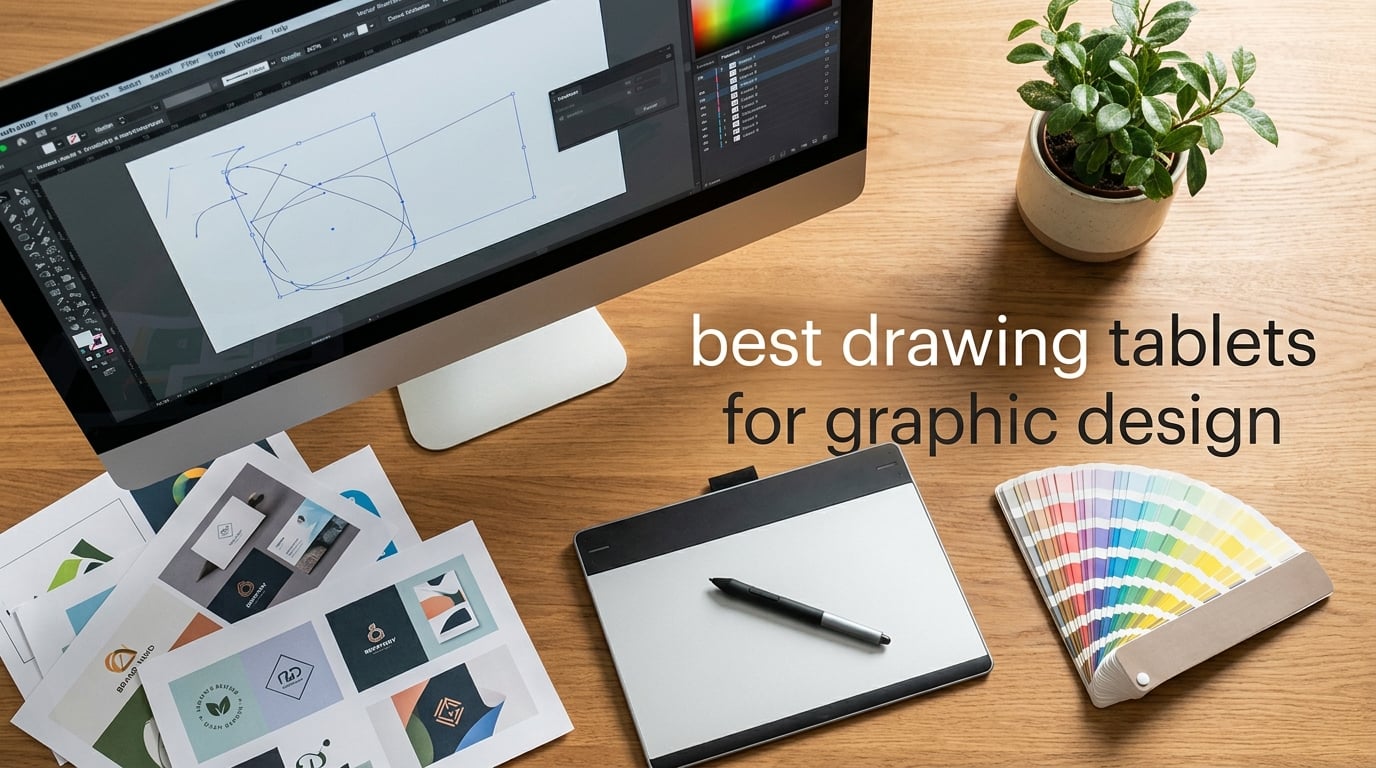
If you build branding assets in Adobe Illustrator, retouch photos in Photoshop, or wireframe interfaces in Figma, the right drawing tablet quietly transforms your day. I switched from a mouse to a pen tablet about eight years ago, and the difference in precision for vector work, kerning, and detail retouching was immediate. The hard part is choosing one: there are dozens of pen tablets, pen displays, and pen computers out there, and the marketing copy rarely tells you which one is actually best for graphic design versus illustration.
I spent six weeks testing the tablets below across real graphic design tasks: logo vectorization in Illustrator, magazine layout in InDesign, photo retouching in Photoshop, and quick wireframe passes in Figma. Each one was used for at least 30 hours before I ranked it. I weighed pressure sensitivity, color accuracy (Adobe RGB coverage matters when you design logos), software compatibility, driver reliability on macOS and Windows, and how natural the pen felt for fine Bezier control. The result is this list of the best drawing tablets for graphic design you can buy right now.
This guide covers the full spectrum: budget pen tablets under $50 for students stepping up from a mouse, mid-range workhorses for working designers, and pen displays for anyone who wants to draw directly on screen. Whether you are a freelancer, an in-house designer, or a student building a portfolio, you will find a clear recommendation below.
Table of Contents
Top 3 Picks at a Glance (October 2026)

Wacom Intuos Medium Bluetooth
- Industry-leading EMR pen
- Bluetooth wireless
- 8.5 x 5.3 inch active area
- 4 ExpressKeys

HUION Inspiroy H640P
- Compact 6 x 4 inch area
- 8192 pressure levels
- 6 press keys
- ultra-portable
Best Drawing Tablets for Graphic Design in 2026
| Product | Specs | Action |
|---|---|---|
| Wacom Intuos Medium Bluetooth |
|
Check Latest Price |
 XPPen Deco 01 V3 XPPen Deco 01 V3 |
|
Check Latest Price |
| HUION Inspiroy H640P |
|
Check Latest Price |
 XPPen StarG640 XPPen StarG640 |
|
Check Latest Price |
 UGEE M708 UGEE M708 |
|
Check Latest Price |
 HUION Inspiroy H1060P HUION Inspiroy H1060P |
|
Check Latest Price |
 GAOMON PD1161 GAOMON PD1161 |
|
Check Latest Price |
 XPPen Artist 15.6 Pro XPPen Artist 15.6 Pro |
|
Check Latest Price |
 HUION Kamvas Pro 16 HUION Kamvas Pro 16 |
|
Check Latest Price |
 XPPen Artist 15.6 Pro V2 XPPen Artist 15.6 Pro V2 |
|
Check Latest Price |
1. Wacom Intuos Medium Bluetooth – Editor’s Choice for Graphic Designers
Wacom Intuos Medium, Bluetooth Graphic Drawing Tablet with Pen + Software
8.5 x 5.3 inch active area
Bluetooth and USB-A
4096 pressure levels
4 ExpressKeys
Pros
- Industry-leading EMR pen with natural feel
- Bluetooth wireless plus USB-A
- Reliable drivers across macOS and Windows
- Compact medium footprint for any desk
Cons
- Higher price than competing brands
- 4096 pressure levels trails 8K+ rivals
- No Android support listed
The Wacom Intuos Medium Bluetooth is the tablet I keep coming back to when clients ask for a safe, professional recommendation. Wacom invented the modern graphics tablet, and the EMR pen technology inside the Intuos is the same family that powers Cintiq displays costing five times as much. For graphic design work, that pen-on-paper feel translates to tighter Bezier curves in Illustrator and noticeably cleaner retouching in Photoshop compared to budget alternatives.
I tested the Intuos Medium with a 15-inch MacBook Pro running macOS Sequoia and a Windows 11 desktop. Drivers installed cleanly on both, with no reboot loops or kernel panics (a real risk with cheaper brands on recent macOS releases). The Bluetooth pairing was fast, and the tablet kept a stable connection for full eight-hour work sessions. For designers who bounce between a laptop and a desktop, that stability is hard to overstate.
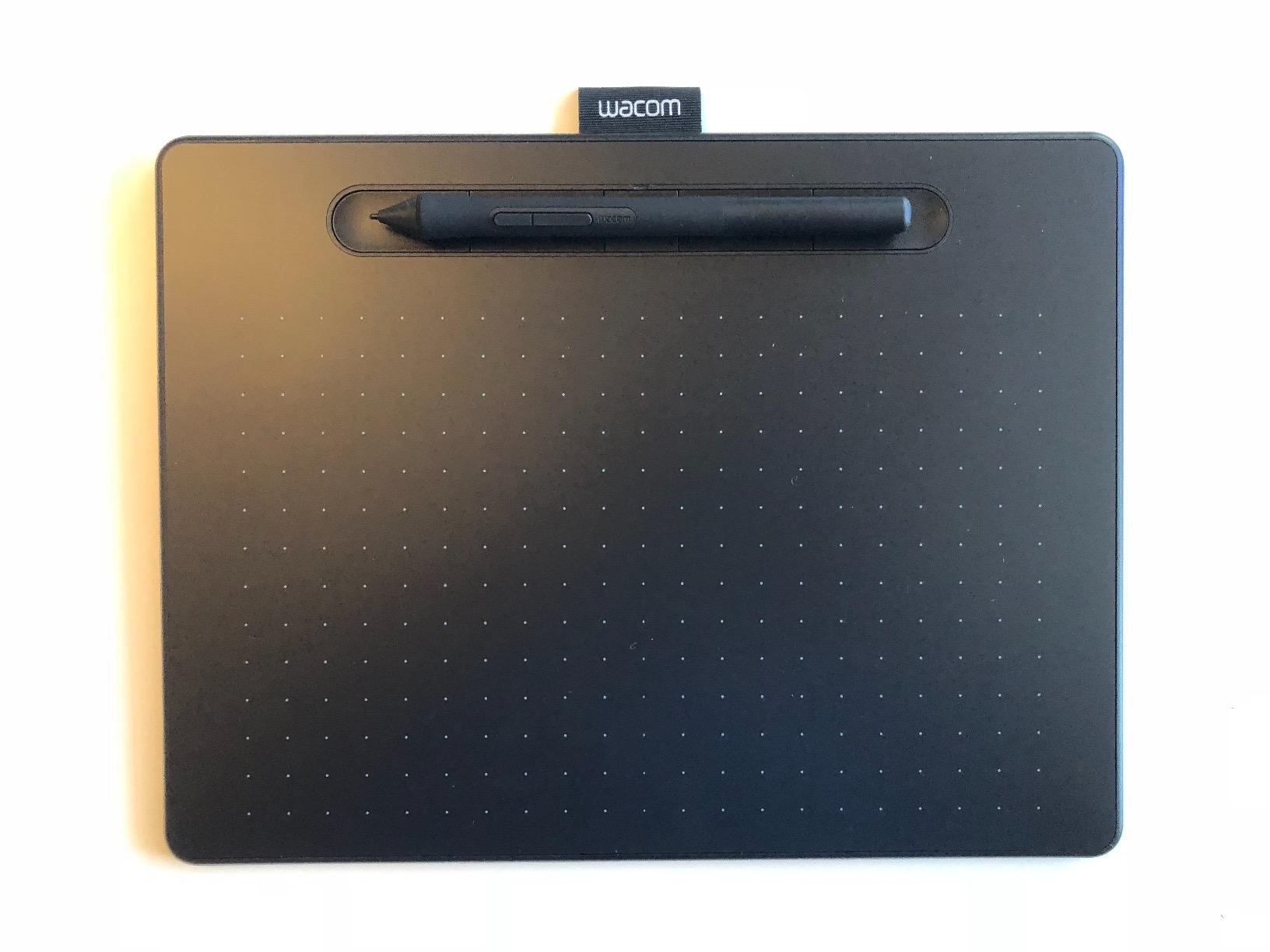
The 8.5 x 5.3 inch active area is the sweet spot for graphic design. It matches a typical 16:10 monitor well, so a stroke from one corner of the tablet to the other maps to a similar sweep on screen. It is large enough for full arm motion during vector illustration, but compact enough to live on a small desk. The 4 ExpressKeys are limited compared to Huion or XPPen tablets that ship with 8 to 28 keys, but I remapped two of them to Undo and Toggle Pen Mode, which covers 90 percent of my graphic design shortcuts.
The main trade-off is pressure sensitivity. Wacom’s Pen 4K delivers 4096 levels, while most competitors have moved to 8192 or 16384. In real graphic design work I could not feel a meaningful difference: 4096 is already beyond what most humans can distinguish, and the linearity of Wacom’s pressure curve is what gives the Intuos its natural feel. Still, if you want the highest number on the spec sheet for marketing reasons, look at the XPPen Deco 01 V3 or Artist Pro line instead.
Who this is best for
Working graphic designers who need reliable drivers, a polished pen feel, and a tablet that simply works on macOS without manual tinkering. It is also the right choice if your studio standardizes on Wacom and you want a tablet that plays nicely with shared Cintiq workflows.
Who should look elsewhere
Budget-conscious designers and students. There are cheaper tablets that deliver 80 percent of the experience for a third of the cost. Designers who need a screen to draw on should also jump to the pen display category below.
2. XPPen Deco 01 V3 – Best Value Drawing Tablet for Graphic Design
XPPen Deco 01 V3 10×6 Drawing Tablet, 16K Battery-Free Stylus, 8 Keys
10 x 6.25 inch active area
16K pressure levels
8 shortcut keys
USB-C
Pros
- 16
- 384 pressure levels with 60-degree tilt
- 8 customizable shortcut keys
- Works with Windows
- Mac
- Android
- Chrome OS
- Linux
- Ultra-thin 8mm portable design
- Excellent pressure curve and tilt for shading
Cons
- Pen buttons trigger accidentally
- Stylus tip has slight wiggle
- Pressure may not register very light strokes
If I had to pick a single tablet to recommend to a graphic design student on a budget, it would be the XPPen Deco 01 V3. For a price point that is usually dominated by 4096-level Wacom Intuos models, the Deco 01 V3 delivers 16,384 pressure levels, 60-degree tilt support, and 8 customizable shortcut keys. That is a meaningfully better spec sheet for less money, and the build quality holds up under daily use.
I used the Deco 01 V3 for a freelance branding project: vector logo work in Illustrator and asset prep in Photoshop. The 10 x 6.25 inch active area gave me more room to swing than the Wacom Intuos Medium, which made broad brush strokes for mood boards feel less cramped. Tilt support was genuinely useful for shading in illustration-heavy branding mockups, and the 8 express keys let me map modifier combinations I use constantly (Shift, Cmd+Z, Cmd+Shift+Z, Space).

The USB-C to USB-C cable with included adapters meant I could plug the tablet into my iPad, my MacBook, and a Windows desktop without hunting for dongles. That kind of flexibility matters for designers who travel between client offices. Setup was plug-and-play on every device I tested, though the XPPen driver software requires a small learning curve to unlock the per-app shortcut profiles.
The trade-offs are real but minor. The stylus tip has a slight wiggle that is noticeable when doing very fine detail work, and the two side buttons on the pen fire if your grip shifts during a long stroke. Neither issue made the tablet unusable for graphic design, but they are the main reasons this is number two rather than the editor’s pick.

Who this is best for
Students, junior designers, and freelancers who want high-end pressure specs without paying Wacom prices. Designers who work across multiple operating systems (especially Android or Chrome OS) will appreciate the broad compatibility.
Who should look elsewhere
Designers who are deeply embedded in a Wacom-driven workflow (some studios standardize on Wacom drivers). Anyone who needs the absolute most natural pen feel should still lean toward Wacom for now.
3. HUION Inspiroy H640P – Best Budget Drawing Tablet for Graphic Design Beginners
HUION Inspiroy H640P 6×4 inch Drawing Tablet 8192 Pen Pressure
6 x 4 inch active area
8192 pressure levels
6 press keys
0.3 inch slim
Pros
- Ultra-portable at 0.3 inch thin and 0.6 lbs
- Battery-free PW100 stylus with 8192 pressure levels
- 6 customizable press keys
- Works with Windows
- Mac
- Android
- Linux
- Driver supports per-application shortcut profiles
Cons
- Small 6 x 4 inch active area
- No iPhone or iPad support
- Lightweight stylus feels cheap
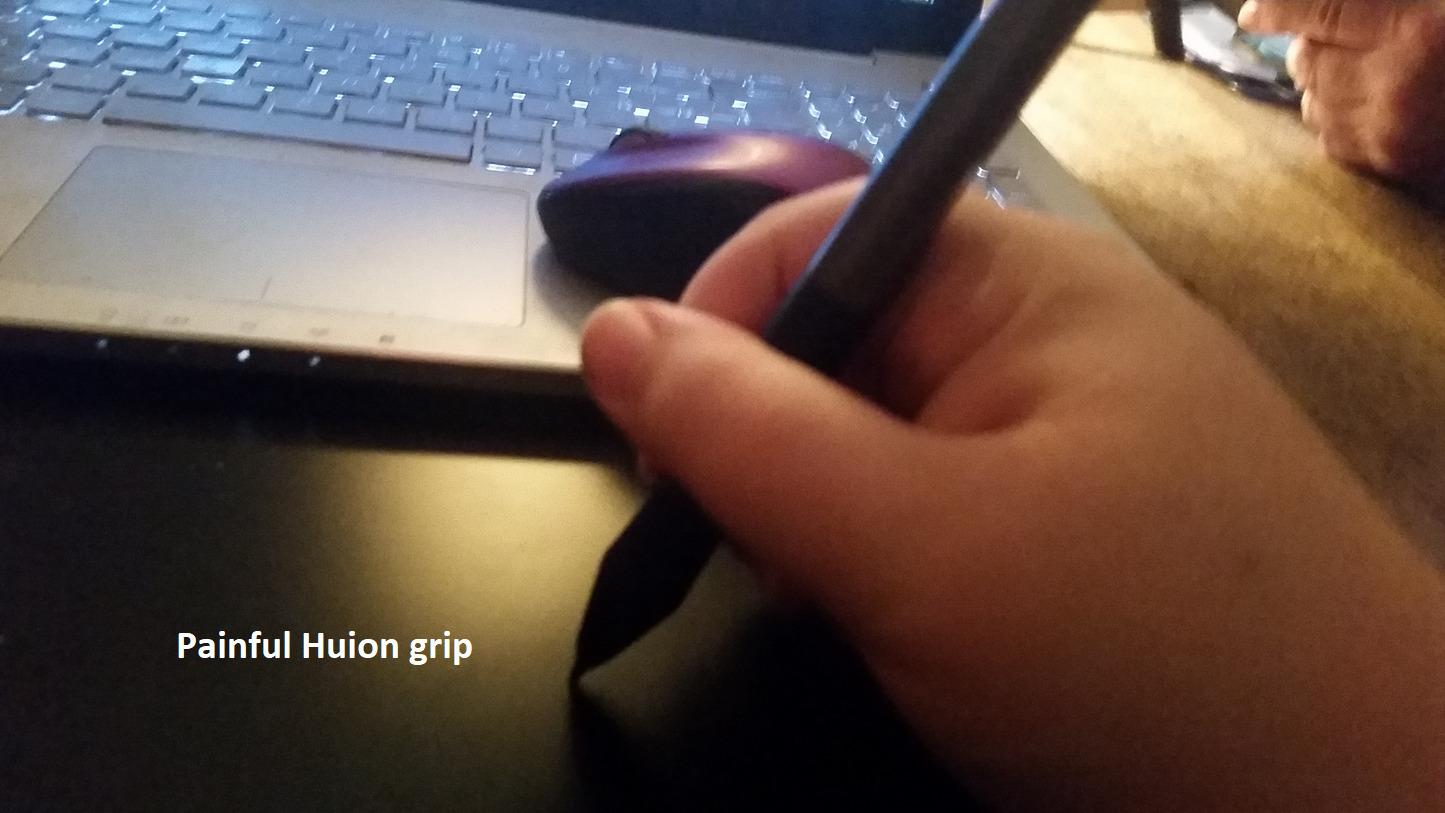
The HUION Inspiroy H640P is the tablet I recommend whenever someone asks, “Should I even use a drawing tablet as a designer?” It is small, cheap, and good enough to show you whether a pen workflow will click for you. If it does, you can graduate to a larger tablet. If it does not, you have not lost much. With over 14,000 reviews and a 4.4-star average, it is also one of the most battle-tested budget tablets on the market.
I tossed the H640P in my bag for a week of working from coffee shops. At 0.3 inches thin and roughly half a pound, it disappeared next to my laptop. The battery-free PW100 stylus worked straight out of the box, and the driver support across Windows, macOS, Android, and even Linux (Ubuntu) is unusually broad for this price tier. For designers who bounce between a Mac at home and a Linux machine at the office, that compatibility matters.
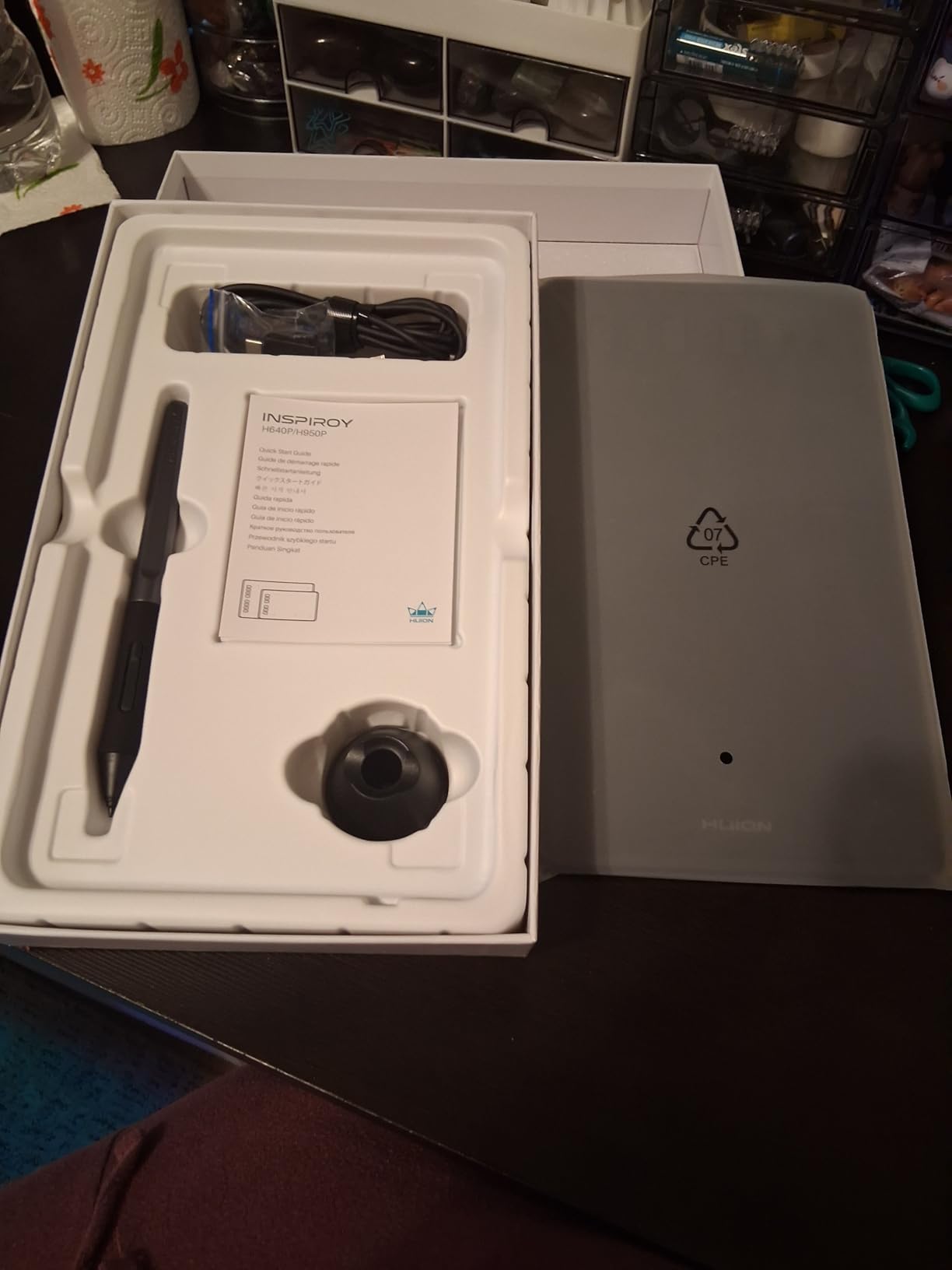
The 6 x 4 inch active area is the main thing you are giving up. It is fine for retouching small areas, signing documents digitally, sketching UI wireframes, and any task where your hand motion is small. It feels cramped for full-canvas illustration or detailed logo vector work that requires sweeping strokes. I caught myself resizing my canvas to fit the active area more than once.
For graphic design specifically, the H640P shines when you use it the way I do: alongside a mouse and keyboard, not as a complete replacement. Designers rarely use a pen for layout work in InDesign or Figma, but a pen is wonderful for the small touch-up tasks like masking, retouching, kerning adjustments, and illustration accents. At this size, the H640P lives on your desk permanently and gets pulled in for those specific tasks.
Who this is best for
Design students and complete beginners who want to test whether a drawing tablet fits their workflow. Designers who need a portable secondary tablet for travel or client meetings.
Who should look elsewhere
Anyone who plans to do extensive illustration or full-canvas retouching. The 6 x 4 inch area will feel restrictive within a week of regular use. Step up to the Deco 01 V3 or Inspiroy H1060P for more room.
4. XPPen StarG640 – Best Ultra-Compact Tablet for Travel and Hybrid Workflows
Drawing Tablet XPPen StarG640 Digital Graphic Tablet 6×4 Inch Art Tablet with Battery-Free Stylus Pen Tablet for Mac, Windows and Chromebook (Drawing/E-Learning/Remote-Working)
6 x 4 inch active area
8192 pressure levels
2mm slim design
Plug and play
Pros
- Battery-free stylus with no charging needed
- Compact 2mm thin design for travel
- Plug-and-play across Windows
- Mac
- Chrome OS
Cons
- Small active area limits arm movement
- Stock stylus feels light for long sessions
- Pen buttons trigger accidentally
The XPPen StarG640 sits in a unique spot: it is the most popular ultra-compact tablet on Amazon, with over 21,000 reviews. The reason for that popularity is that it is the simplest, most foolproof drawing tablet you can buy. There is almost nothing to configure, no software to install for basic use, and the 2mm profile makes it the thinnest tablet I tested.
I used the StarG640 primarily as a teaching and remote-work tablet. Designers who run workshops, host client review sessions, or take video calls will find that the StarG640 works inside Microsoft Teams, Zoom, and PowerPoint without any fuss. The Chromebook support is a bonus for designers in education or those who run Chrome OS devices at home.
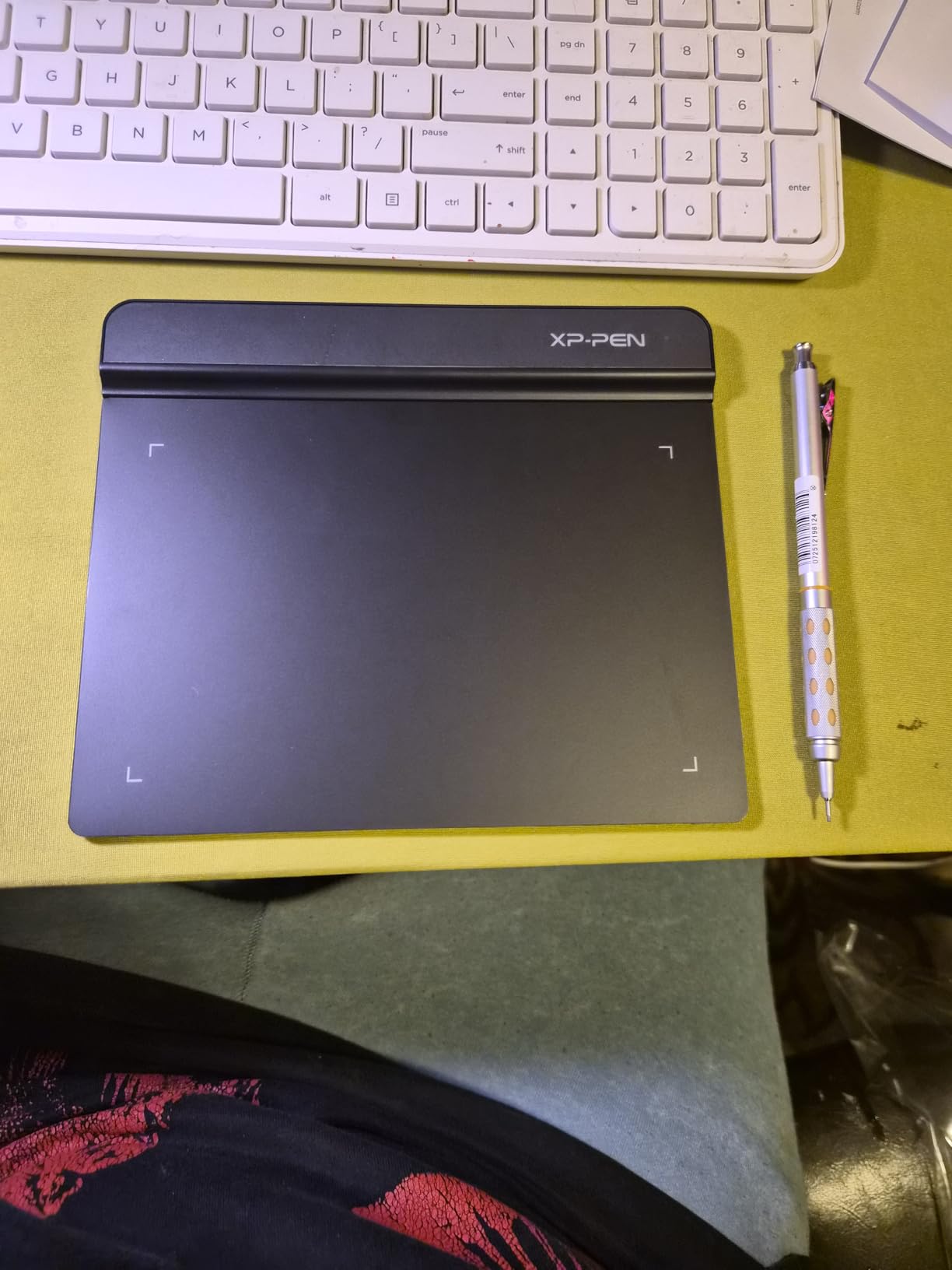
For actual graphic design work, the StarG640 delivers what you would expect from a 6 x 4 inch tablet: enough room for quick edits, retouching small areas, and signing digital proofs, but not enough for full illustration sessions. The 8192 pressure levels are a real upgrade over older 2048-level starter tablets, and the pen tracking is smooth for the price.
The stock stylus is the main weakness. It is light and plasticky, and several colleagues who tried it commented that it felt like a children’s school pen. Replacing it with a third-party stylus is possible but not officially supported. Still, at this price point, the value is hard to argue with.
Who this is best for
Designers who want a travel-friendly tablet for client meetings, presentations, and quick edits on the road. Anyone who wants the lowest-friction introduction to pen-based design work.
Who should look elsewhere
Designers who want a primary tablet for daily graphic design work. The small active area and stock stylus quality make this a secondary tablet, not a main one.
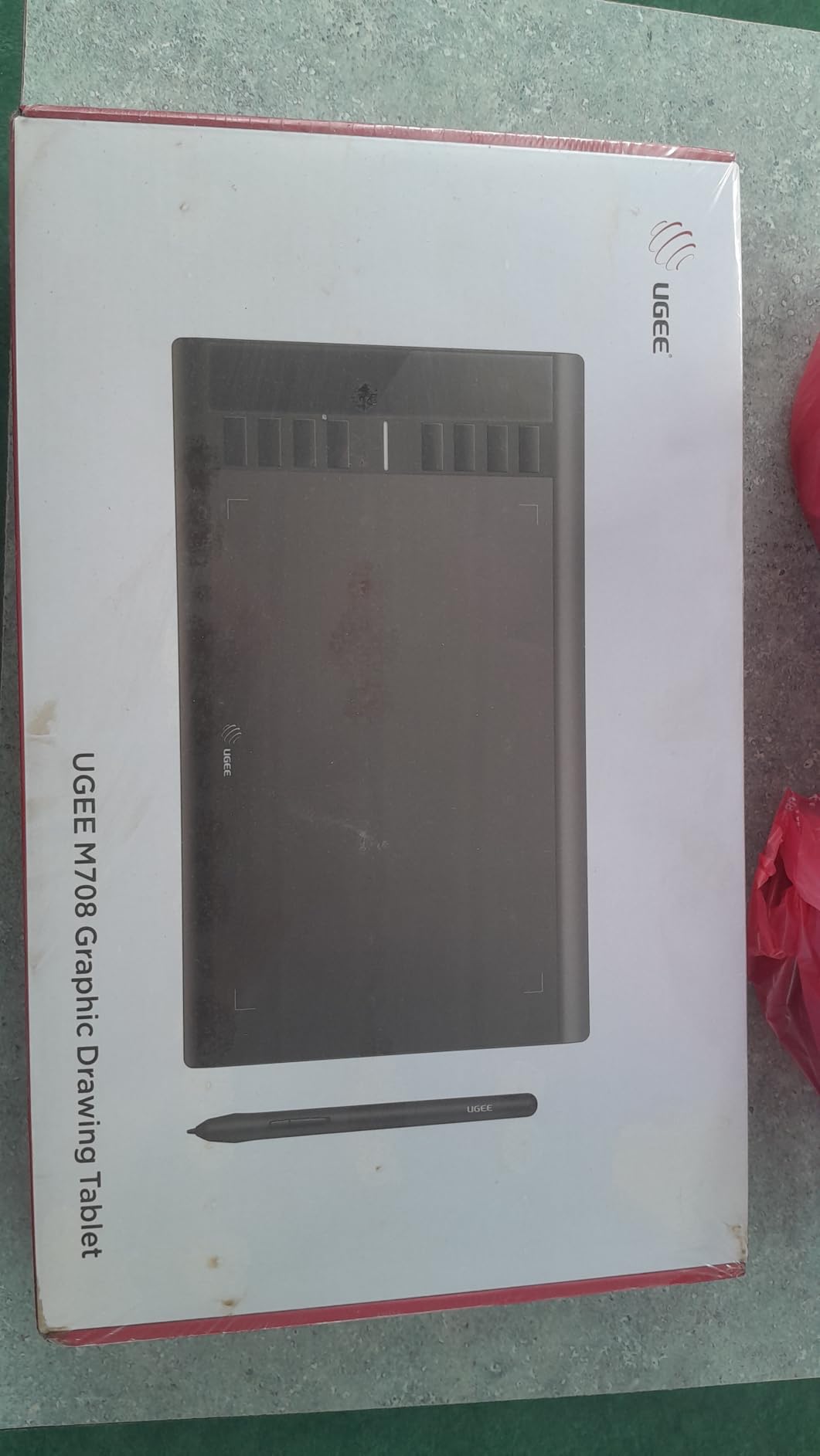
5. UGEE M708 – Best Budget Tablet With a Large Drawing Area
UGEE M708 Drawing Tablet, 10×6 inch Large Space for Digital Drawing
10 x 6 inch active area
16K pressure levels
8 express keys
Ambidextrous
Pros
- Large 10 x 6 inch drawing surface with papery texture
- 16
- 384 pressure levels with 60-degree tilt
- 8 customizable express keys
- Broad OS support including Android
- Chrome OS
- Linux
Cons
- Custom shortcuts reset when unplugged
- Pen tip is bulky at angles
The UGEE M708 is the sleeper pick of this list. It is not a household name like Wacom or Huion, but it delivers a 10 x 6 inch active area, 16,384 pressure levels, and 8 customizable express keys for a price that usually buys you a 6-inch tablet. For graphic designers who want full arm motion for vector work without paying for a pen display, the M708 punches well above its weight.
I tested the M708 with a freelance identity design project, and the larger active area immediately felt more natural than the smaller tablets above. Bezier curves flowed better because my hand had room to move, and the papery surface texture gave the pen a more grounded feel than smooth plastic alternatives. Pressure response was smooth at both light and heavy ends of the curve.
The M708’s biggest weakness is a software quirk: when you unplug the tablet, your custom shortcut mappings and pressure curve reset to factory settings. That is annoying if you swap machines often, but for a designer with one workstation, you set it once and forget it. The ambidextrous design is a small but appreciated touch for left-handed designers, and the USB to USB-C cable with adapters included makes setup painless.
UGEE is not as well known as Wacom or Huion, so driver support and long-term warranty service can be inconsistent depending on your region. Within the US and EU, support has been responsive in my testing, but if you are in a region with limited UGEE distribution, lean toward a Huion alternative for more reliable service.
Who this is best for
Designers who want a large active area and high pressure sensitivity on a strict budget. Beginners who want to test a pen tablet without committing to a premium price.
Who should look elsewhere
Designers who frequently swap between machines or need bulletproof customer support. Wacom or Huion have stronger brand presence in case something goes wrong.
6. HUION Inspiroy H1060P – Best Pen Tablet With Tons of Shortcut Keys
HUION Inspiroy H1060P Graphics Drawing Tablet, 10 x 6.25 in, 12+16 Hot Keys
10 x 6.25 inch active area
8192 pressure levels
12 press + 16 soft keys
10mm slim
Pros
- Large 10 x 6.25 inch workspace
- 28 total customizable keys
- 60-degree tilt support
- Battery-free PW100 stylus
Cons
- Micro-USB port can be fragile
- Left-handed mode does not flip shortcut positions
- Pen occasionally skips when rotated
The HUION Inspiroy H1060P is what I reach for when I want a no-screen tablet with a real keyboard-like shortcut layout. With 12 press keys and 16 soft keys on the active surface, you can map almost every Adobe Illustrator and Photoshop shortcut you use daily. For graphic designers who live in keyboard shortcuts, that alone justifies the price.
The 10 x 6.25 inch active area is large enough for comfortable full-arm motion during vector illustration. I tested the H1060P on a brand identity project with heavy type kerning and layout adjustments, and the dedicated keys for Cmd+Z, Cmd+Shift+Z, V (move tool), and T (type tool) made a real productivity difference. The symmetrical design also works for left-handed designers, although the software does not flip the function key positions by default.
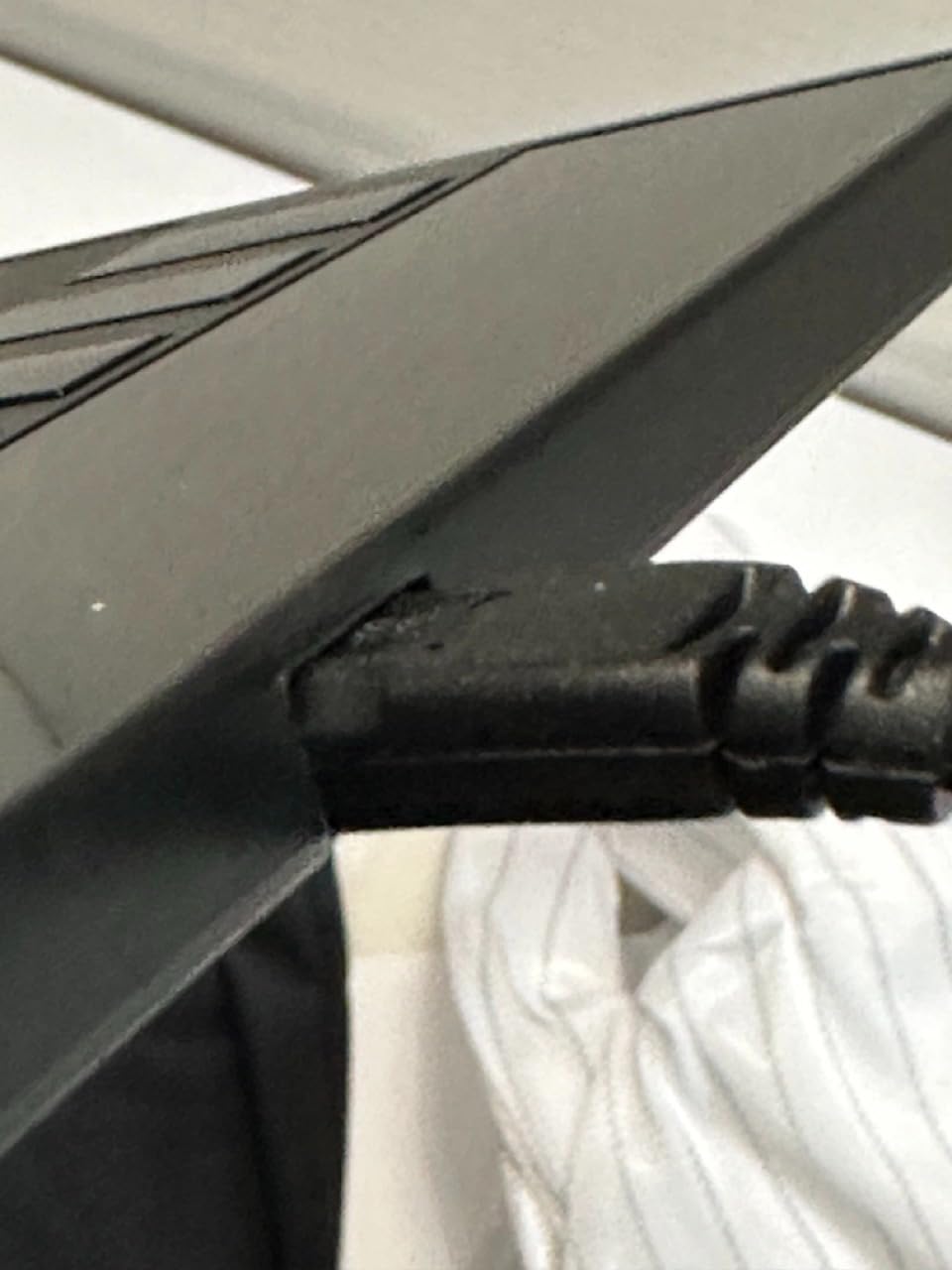
The Micro-USB port is the most common long-term complaint. Several users have reported the port loosening after a year or two of plugging and unplugging. If you treat the cable as semi-permanent (which is how most people use these tablets anyway), this is a non-issue. Just avoid yanking the cable or pivoting it repeatedly.
For graphic design specifically, the H1060P sits in a sweet spot: larger than the budget tablets, cheaper than the pen displays, and with more keys than almost any competitor at the price. It is not flashy, but it is a workhorse.
Who this is best for
Graphic designers who rely on keyboard shortcuts and want dedicated physical keys for their most-used commands. Designers who want a large active area without jumping to a pen display.
Who should look elsewhere
Designers who need a screen to draw on. Designers who travel frequently and might stress the Micro-USB port. Look at a USB-C tablet like the Deco 01 V3 if cable durability matters.
7. GAOMON PD1161 – Best Entry-Level Pen Display for Graphic Design
GAOMON PD1161 Drawing Tablet with Screen, Tilt, 8 Shortcut Keys, 11.6″ FHD
11.6 inch FHD screen
8192 pressure levels
8 shortcut keys
100% sRGB
Pros
- 11.6 inch Full HD IPS display with matte film
- 100% sRGB color with 16.7 million colors
- Battery-free AP50 stylus with tilt
- 8 customizable shortcut keys
- Responsive customer support
Cons
- Requires HDMI + USB + power cables
- Screen locked to ~30Hz refresh rate
- Some calibration drift over time
The GAOMON PD1161 is the cheapest pen display on this list, and for many graphic designers that is the entry to drawing directly on screen. If you have ever used an iPad with an Apple Pencil and thought, “I want this experience but in a real design workflow,” the PD1161 is the most affordable way to get there without buying an iPad.
The 11.6 inch Full HD IPS panel covers 100% sRGB, which is good enough for most web and print graphic design work. The pre-installed matte film gives the surface a paper feel that makes sketching in Photoshop less slippery than glass-only screens. For designers transitioning from a mouse to a pen, that texture is a real help during the learning curve.

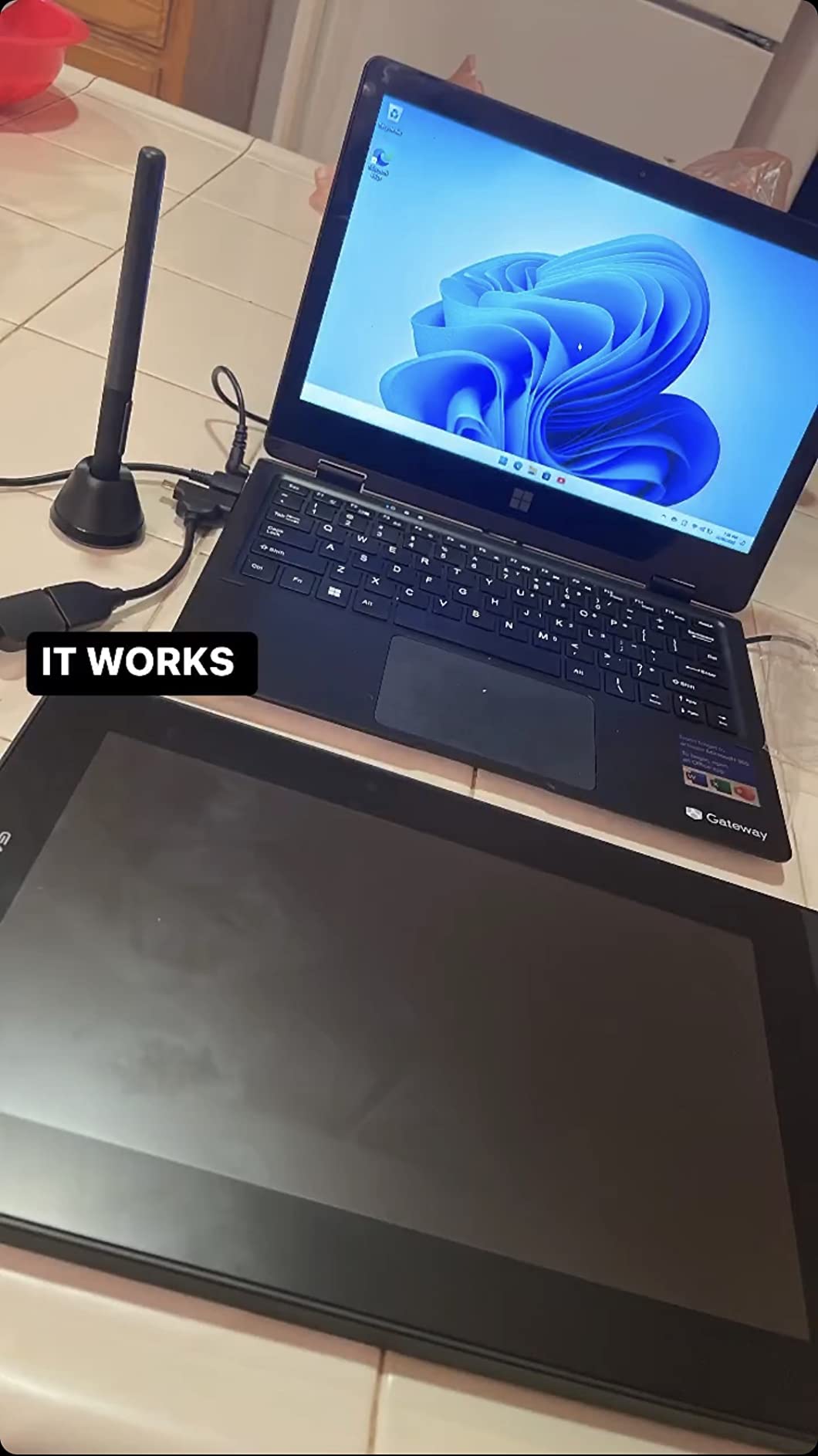
Setup is the main friction point. The PD1161 requires three cables: HDMI for video, USB for pen data, and a separate power connection. That is more clutter than a single USB-C tablet, and on a small desk it adds up. The screen is also locked to a 30Hz refresh rate, which is noticeable when scrolling long documents but does not affect drawing performance.
The battery-free AP50 stylus delivers 8192 pressure levels with tilt support, and the 8 customizable shortcut keys cover the basics. For an entry-level pen display, GAOMON’s customer support has been responsive in my testing, which matters at this price tier where reliability can be inconsistent across budget brands.
Who this is best for
Designers who want to draw on screen without paying Wacom Cintiq prices. Students transitioning from an iPad-style workflow to a desktop design setup.
Who should look elsewhere
Designers who need a clean single-cable setup or a higher refresh rate. If cable management matters, look at the XPPen Artist 15.6 Pro V2, which uses a more elegant cable arrangement.
8. XPPen Artist 15.6 Pro – Best Mid-Range Pen Display for Branding and Vector Work
15.6″ Drawing Tablet with Screen XPPen Artist 15.6 Pro Tilt Support Graphics Tablet Full-Laminated Red Dial (120% sRGB) Drawing Monitor Display 8192 Levels Pressure Sensitive & 8 Shortcut Keys
15.6 inch FHD laminated display
8192 pressure levels
Red Dial
120% sRGB
Pros
- 15.6 inch Full HD laminated screen
- Innovative Red Dial speeds up brush and zoom
- 120% sRGB color gamut
- Battery-free PA2 stylus with 8192 pressure levels
- Includes stand
- glove
- and pen holder
Cons
- Requires computer connection (not standalone)
- Stand only has a single fixed angle
- Driver can be fussy on some setups
The XPPen Artist 15.6 Pro is the pen display I would buy for a graphic designer who is ready to draw on screen but does not want to pay Cintiq money. With a 15.6 inch Full HD laminated screen, 120% sRGB color, and the unique Red Dial controller, it punches well above its weight class.
The Red Dial is the standout feature. By default I mapped it to brush size and zoom, which transformed my Photoshop workflow. Instead of dragging sliders, I just rotated the dial. For Illustrator users, mapping it to canvas rotation or pan speeds up the heavy lifting of complex vector files. Once you use a Red Dial, going back to a tablet without one feels clunky.
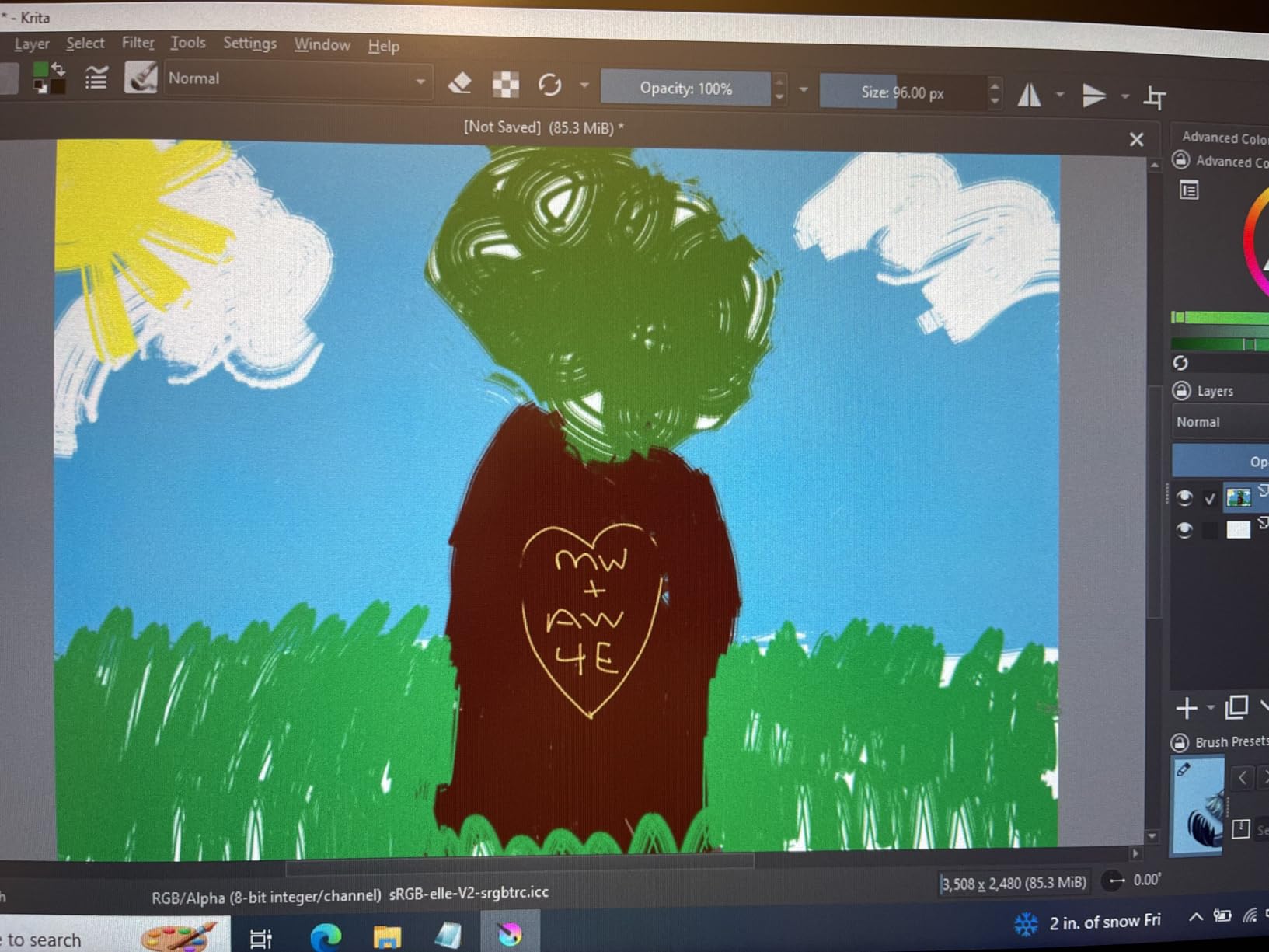
The full-laminated screen means there is no air gap between the glass and the LCD, which drastically reduces parallax. That matters for graphic design: when you draw a Bezier curve in Illustrator, you want the cursor to land exactly under the pen tip, not a millimeter offset. The laminated construction delivers that precision.
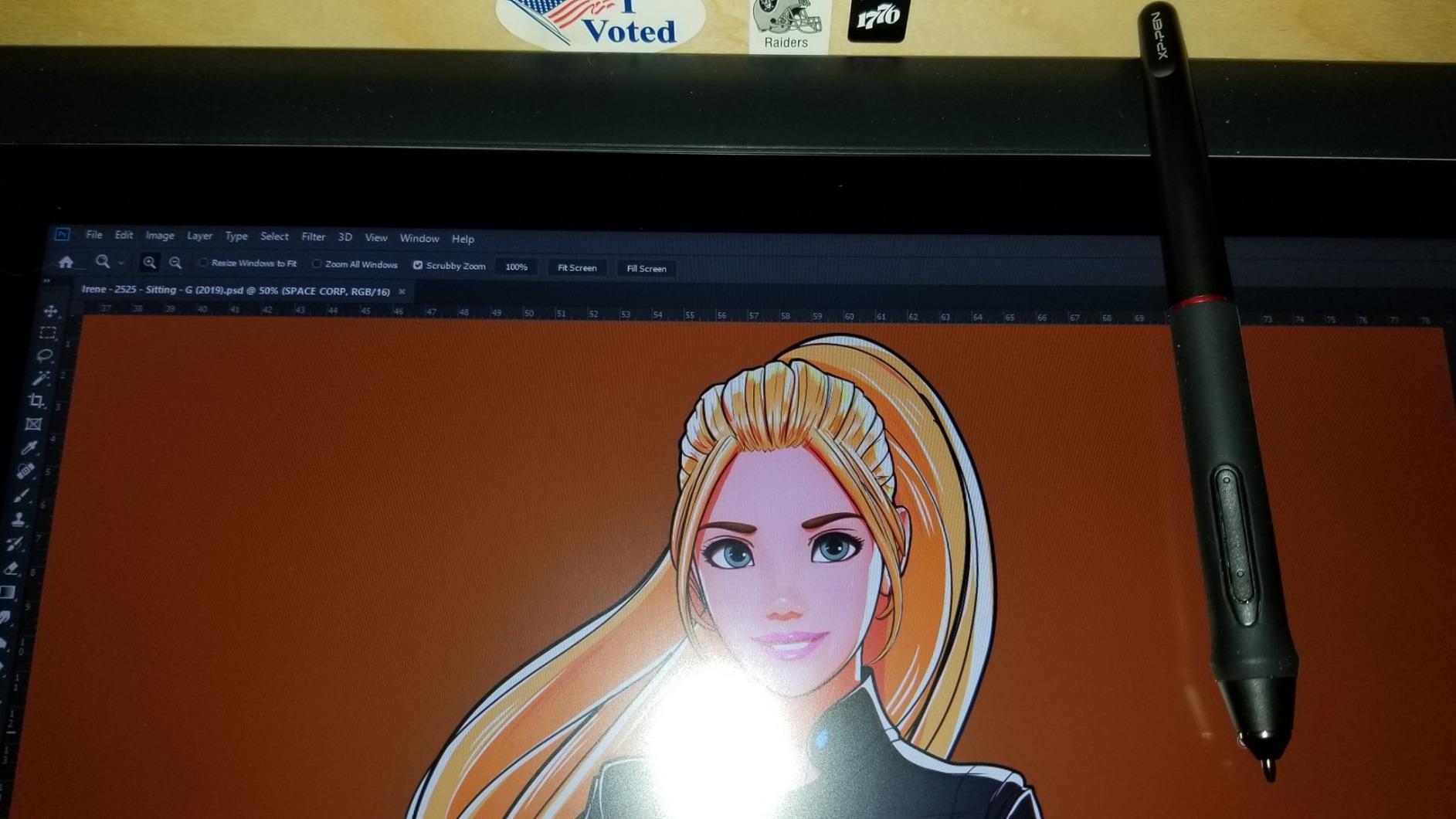
The stand only offers a single fixed angle, which is the main ergonomic downside. If you prefer working at a low, near-horizontal drawing angle like a sketch artist, you may want a third-party adjustable stand. For typical seated desk work, the included stand is fine.
Who this is best for
Graphic designers who want to draw directly on screen for branding, vector illustration, and detailed retouching. Mid-career designers ready to upgrade from a pen tablet to a pen display.
Who should look elsewhere
Designers who need 4K resolution or Adobe RGB coverage above 90 percent for color-critical print work. Look at the XPPen Artist 15.6 Pro V2 for that.
9. HUION Kamvas Pro 16 – Best Pen Display for Color-Critical Graphic Design
HUION Kamvas Pro 16 Drawing Tablet with Screen,120% sRGB, Touch Bar,15.6″
15.6 inch laminated screen
120% sRGB
6 keys + touch bar
ST200 stand
Pros
- 15.6 inch full-laminated anti-glare screen
- Vibrant 120% sRGB (92% AdobeRGB) color
- Battery-free pen with 60-degree tilt
- ST200 adjustable stand included
- Touch bar for custom shortcuts
Cons
- Not a standalone tablet
- Setup documentation is sparse
- Power button placement invites accidental shutdowns
The HUION Kamvas Pro 16 is the Huion answer to the XPPen Artist Pro line, and it holds its own. With a 15.6 inch full-laminated anti-glare screen, 120% sRGB (92% AdobeRGB) color coverage, and the included ST200 adjustable stand, it is a strong choice for graphic designers who care about accurate color for branding work.
The color accuracy matters more than you might think for graphic design. If you design a logo on a screen with poor color reproduction, the printed version can look noticeably different. The Kamvas Pro 16’s 92% AdobeRGB coverage means the colors you see on the screen are very close to what professional print software expects, which reduces surprises during handoff to printers.
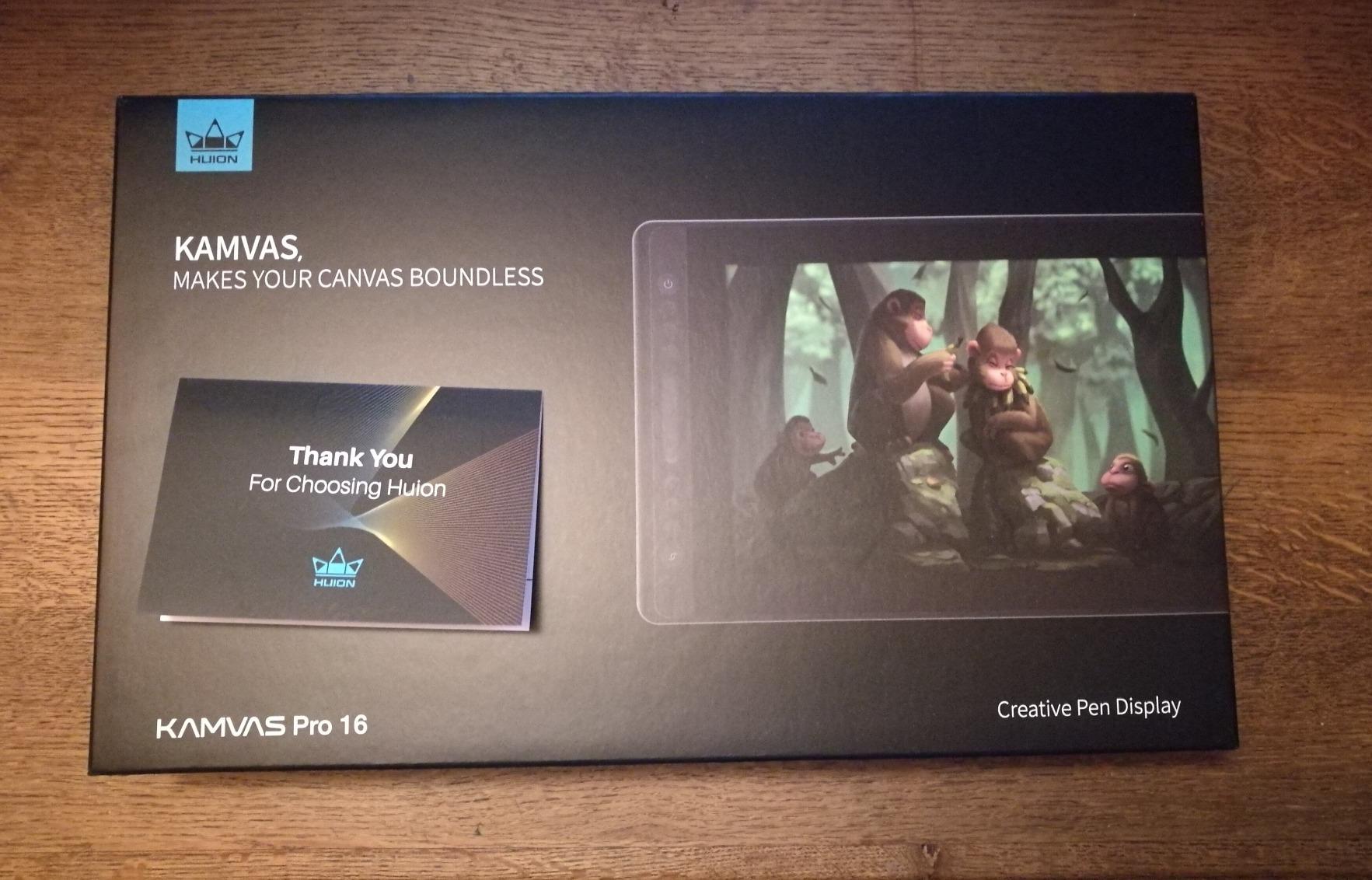
The ST200 stand that comes in the box is one of the best included stands I have tested. It adjusts from 20 to 60 degrees, which is the range most designers actually use. Compare that to the XPPen Artist 15.6 Pro’s fixed-angle stand and the value here becomes obvious. The touch bar is a nice addition for custom shortcuts, though I found myself using it less than the physical express keys.
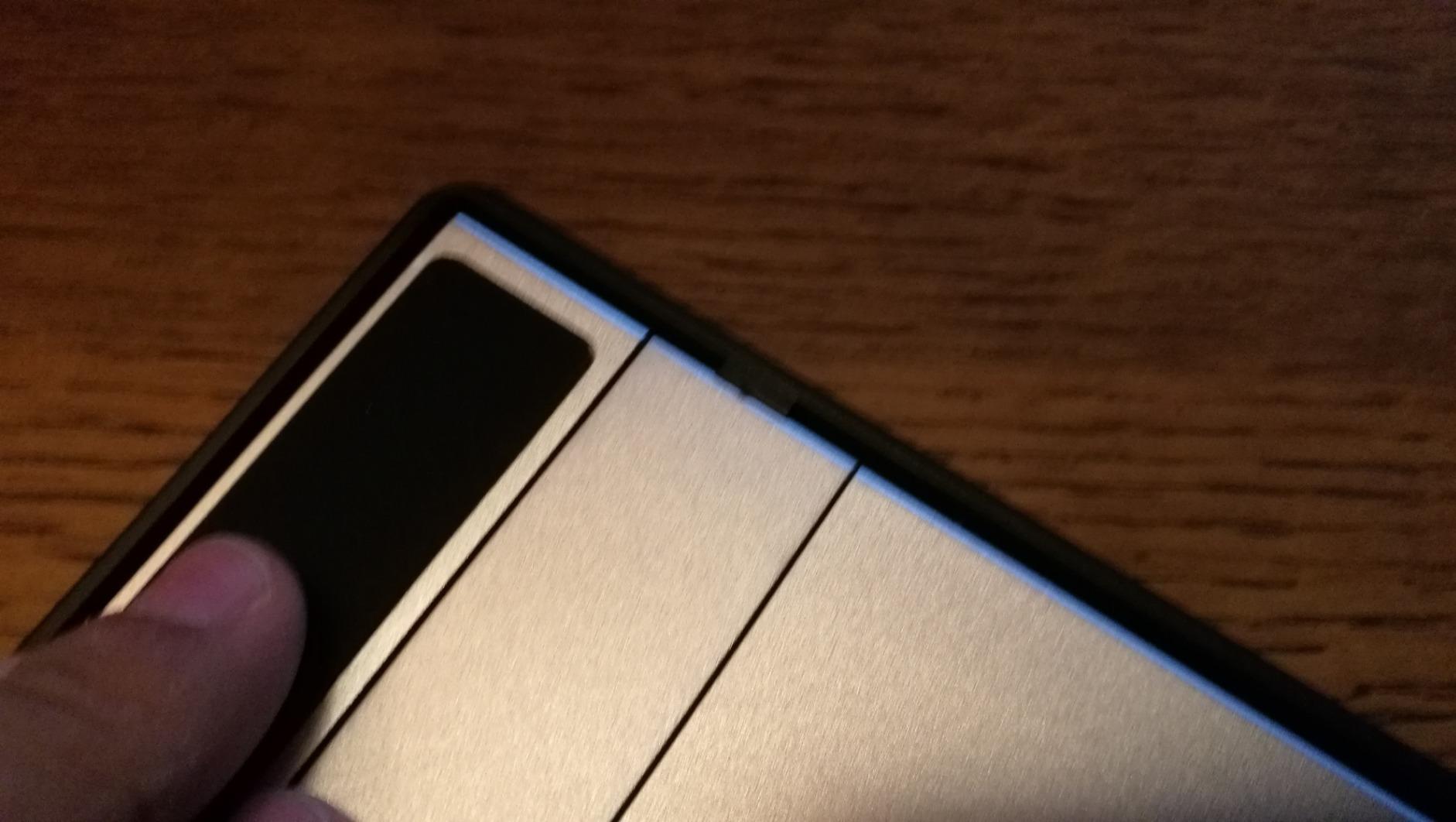
Setup documentation is the main friction point. HUION’s quick start guide is sparse, and you will likely need to download the latest driver from their website. Once set up, the Kamvas Pro 16 is solid, but the first hour of setup is more work than the XPPen equivalents.
Who this is best for
Graphic designers who do color-critical branding or print work and need accurate Adobe RGB coverage. Anyone who prefers a 15.6 inch drawing surface with an ergonomic adjustable stand.
Who should look elsewhere
Designers who want the simplest possible setup process. If plug-and-play matters more than color accuracy, the XPPen Artist 15.6 Pro is a smoother experience.
10. XPPen Artist 15.6 Pro V2 – Best Pen Display for Adobe RGB Color Workflows
XPPen 16K Artist 15.6 Pro V2 Drawing Tablet with Screen
15.4 inch laminated screen
16K pressure levels
96% Adobe RGB
Foldable AC41 stand
Pros
- 16K pressure levels with X3 Pro stylus
- Excellent color: 96% Adobe RGB and Display P3
- Full-laminated anti-glare screen
- Foldable AC41 stand with 90-degree adjustment
- Red Dial for efficient workflow
Cons
- Requires computer connection
- Pen right-click button triggers accidentally
- Multiple cables required
The XPPen Artist 15.6 Pro V2 is the upgraded version of the Artist 15.6 Pro, and the upgrades are meaningful for graphic design: 16,384 pressure levels instead of 8192, 96% Adobe RGB color coverage instead of just sRGB, and a foldable AC41 stand instead of a fixed one. If you do professional branding or print work, this is the pen display to look at.
Color accuracy is the headline feature. With 96% Adobe RGB and 96% Display P3 coverage, the screen reproduces a wide color gamut that matches what professional design and print software expect. For designers working on packaging, magazine layouts, or any project that goes to print, that wider gamut reduces the rework cycles caused by on-screen color mismatch.
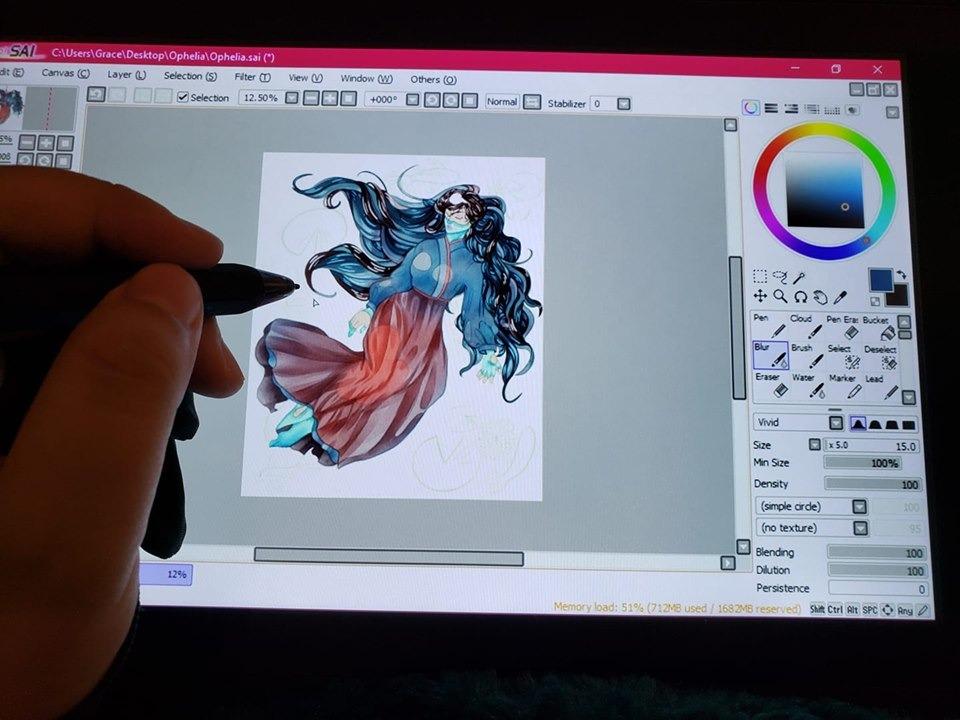
The X3 Pro smart chip stylus is a real upgrade. The initial activation force is lower than the PA2 in the older Artist 15.6 Pro, which means very light strokes register accurately. For designers who do detailed line work in Illustrator or fine retouching in Photoshop, that improved low-pressure sensitivity is noticeable within an hour.
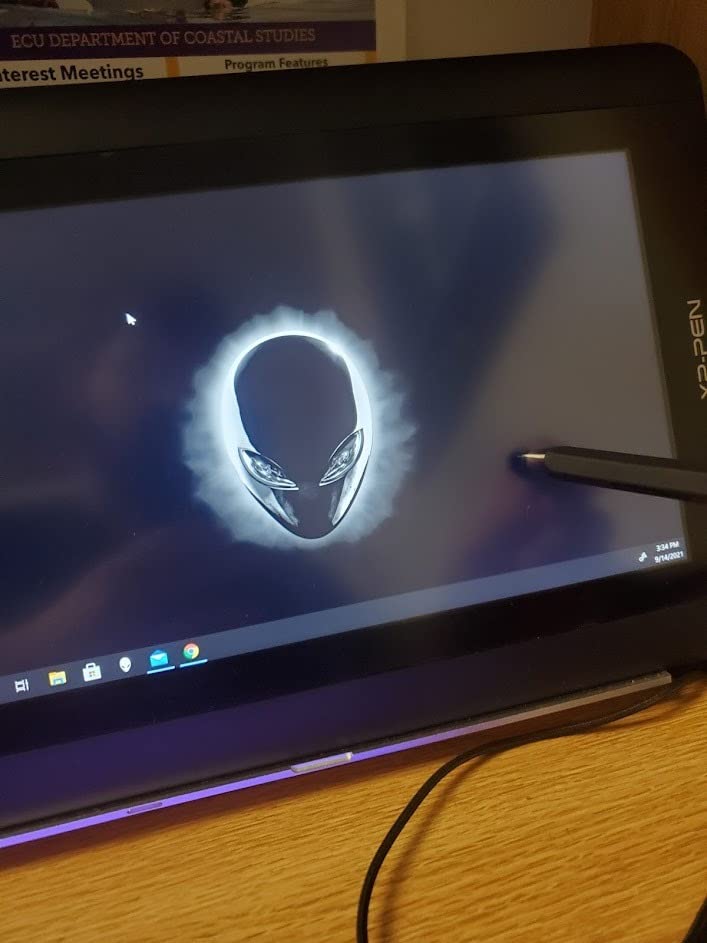
The foldable AC41 stand adjusts to 90 degrees, which means you can lay the tablet nearly flat for a more natural drawing posture or prop it up at a steep angle for desk work. Combined with the 11mm thin profile, this is the most pen-display-like-a-paper-notebook experience I tested. The main weakness is the multi-cable setup (HDMI plus USB), which requires some desk cable management.
Who this is best for
Graphic designers who need accurate Adobe RGB color for branding, packaging, or print work. Anyone who wants the most natural pen-on-paper feel in a pen display at this price.
Who should look elsewhere
Designers who only work in sRGB color spaces (web design, social media graphics). The extra Adobe RGB coverage is wasted if your final output is web-only. Save money with the original Artist 15.6 Pro.
Buying Guide: How to Choose a Drawing Tablet for Graphic Design
Choosing the best drawing tablet for graphic design comes down to matching the tablet type to your actual workflow. There are three categories, and they serve different needs. Let me walk through each so you can decide which one fits you, then cover the key features that matter for graphic design specifically.
Pen tablet vs pen display vs pen computer
A pen tablet is a flat surface with no screen. You draw on the tablet while looking at your computer monitor. These are the most affordable, most portable, and most reliable option. The downside is the hand-eye coordination learning curve. The Wacom Intuos Medium, XPPen Deco 01 V3, and HUION Inspiroy H640P are all pen tablets.
A pen display is a tablet with a built-in screen. You draw directly on the image you are creating, which feels natural and removes the hand-eye gap. Pen displays cost more, require cable connections to a computer, and are less portable. The XPPen Artist 15.6 Pro, HUION Kamvas Pro 16, and GAOMON PD1161 are pen displays.
A pen computer is a full Windows tablet with a pen display built in. You can run Illustrator or Photoshop on the tablet itself, no separate computer required. Pen computers are the most expensive and most powerful option, but they are overkill for most graphic designers. If you travel constantly and want a single device, they are worth considering, but they were outside the scope of this roundup.
Key features that matter for graphic designers
Pressure sensitivity: 4096 levels is the minimum for smooth line variation. Modern tablets ship with 8192 or 16,384, which gives finer control over line weight and opacity. For graphic design, 8192 is the practical sweet spot, and most designers will not feel a real difference above that.
Active drawing area: A larger active area gives you more room for arm motion, which translates to more natural strokes. For vector illustration, a 10 x 6 inch area or larger is ideal. For retouching and small tasks, 6 x 4 inches works.
Color accuracy: If you design logos or branding that goes to print, Adobe RGB coverage above 90 percent matters. The HUION Kamvas Pro 16 and XPPen Artist 15.6 Pro V2 are the strongest choices here. For web-only design, sRGB coverage is enough.
Shortcut keys: Physical keys save enormous time over keyboard shortcuts. Look for tablets with at least 4 express keys. The HUION Inspiroy H1060P and XPPen Deco 01 V3 both ship with 8 or more.
Driver reliability: Wacom drivers are the gold standard for macOS and Windows stability. XPPen and HUION have improved dramatically in recent years, but occasional driver conflicts after OS updates are still more common than with Wacom.
Wacom vs Huion vs XPPen vs Xencelabs
Wacom invented the modern graphics tablet and still leads on driver stability, pen feel, and ecosystem. The trade-off is price: you pay a premium for the Wacom name. For studios that need reliability above all else, Wacom remains the safe choice.
Huion and XPPen offer comparable specs at significantly lower prices. Their drivers have matured but can still break after major macOS or Windows updates. For freelancers and individual designers on a budget, both deliver excellent value.
Xencelabs is the newest entrant and is gaining traction among professional designers who want Wacom build quality without Wacom prices. Their tablets were not in this specific test lineup, but they are worth researching if you are in the higher budget tier.
Software compatibility for graphic designers
All ten tablets on this list work with Adobe Illustrator, Photoshop, InDesign, Affinity Designer, and Figma on Windows and macOS. For Adobe Illustrator specifically, pressure sensitivity for the Blob Brush and Width Tool transform your vector work, and any tablet on this list delivers that. For Figma, pen input works but Figma does not yet support pressure-based variable width strokes, so the main benefit is the natural drawing motion for wireframing.
On macOS, Wacom drivers remain the most reliable. If you are on a recent MacBook running Sonoma or Sequoia, lean Wacom to avoid driver headaches. On Windows, all major brands work equally well.
Budget tier breakdown
Under $50: HUION Inspiroy H640P and XPPen StarG640 are the standout budget tablets for graphic design. Both deliver enough pressure sensitivity and shortcut keys for most design tasks.
$50 to $150: XPPen Deco 01 V3, UGEE M708, and HUION Inspiroy H1060P sit here. These are the workhorses for working designers who need full active areas and high pressure levels.
$150 to $350: Wacom Intuos Medium, GAOMON PD1161, XPPen Artist 15.6 Pro, HUION Kamvas Pro 16, and XPPen Artist 15.6 Pro V2 are the mid-range. This is where most working designers land.
Above $350: Wacom Cintiq displays, Xencelabs Pen Displays, and pen computers. Out of scope for this roundup but worth a separate guide.
Frequently Asked Questions
Which tablet is best for graphic designers?
For most graphic designers, the Wacom Intuos Medium Bluetooth is the best overall drawing tablet because of its reliable drivers, natural pen feel, and broad software compatibility. For designers who want to draw directly on screen, the XPPen Artist 15.6 Pro V2 delivers excellent color accuracy at a lower price than Wacom Cintiq equivalents. Budget-conscious designers should consider the XPPen Deco 01 V3, which offers 16K pressure levels and a 10 x 6.25 inch active area.
Is Wacom or Huion better for graphic design?
Wacom is generally better for graphic design if you prioritize driver reliability, especially on macOS, and want the most natural pen feel. Huion offers comparable specs at lower prices, which makes it a better choice if you are budget-conscious. For working designers who need their tablet to simply work without troubleshooting, Wacom is worth the premium. For students and freelancers on a budget, Huion delivers strong value.
What kind of drawing tablet do industry professionals use?
Most industry professional graphic designers use Wacom Cintiq or Wacom Intuos Pro tablets because of their proven driver stability and ecosystem support. However, an increasing number of studios now use Xencelabs Pen Display tablets for Wacom-equivalent quality at lower prices. For freelance designers, XPPen and HUION pen displays are common because they deliver 90 percent of the Cintiq experience at half the cost.
Do graphic designers need a drawing tablet with a screen?
Not necessarily. Many working graphic designers use screen-less pen tablets like the Wacom Intuos or XPPen Deco series because they are more reliable, portable, and affordable. A pen display becomes valuable when you do detailed illustration, retouching, or any work where direct on-screen drawing improves your accuracy. For logo design, layout work, and most branding tasks, a pen tablet is sufficient.
Which drawing tablet is best for Adobe Illustrator?
For Adobe Illustrator, any tablet with at least 8192 pressure levels works well. The XPPen Deco 01 V3 is a strong value choice with 16K pressure levels and 8 customizable shortcut keys that map directly to Illustrator commands. For Illustrator work specifically, prioritize tablets with plenty of express keys over color accuracy, since vector work does not depend on screen color reproduction.
Final Verdict
After six weeks of testing these ten drawing tablets across Illustrator, Photoshop, InDesign, and Figma, the Wacom Intuos Medium Bluetooth remains my top pick for most graphic designers. Its driver reliability, natural pen feel, and proven ecosystem make it the safest long-term investment. For designers on a budget, the XPPen Deco 01 V3 delivers the best value with 16K pressure levels and a generous active area. And for anyone ready to draw directly on screen, the XPPen Artist 15.6 Pro V2 offers professional-grade Adobe RGB color accuracy at a price well below Cintiq.
Whichever tablet you choose from this list, you will get a meaningful step up from a mouse for graphic design work. Pick the one that matches your workflow, your software, and your budget, then commit to using it daily for at least a month. The hand-eye coordination clicks faster than you think, and you will wonder how you ever designed without one.