
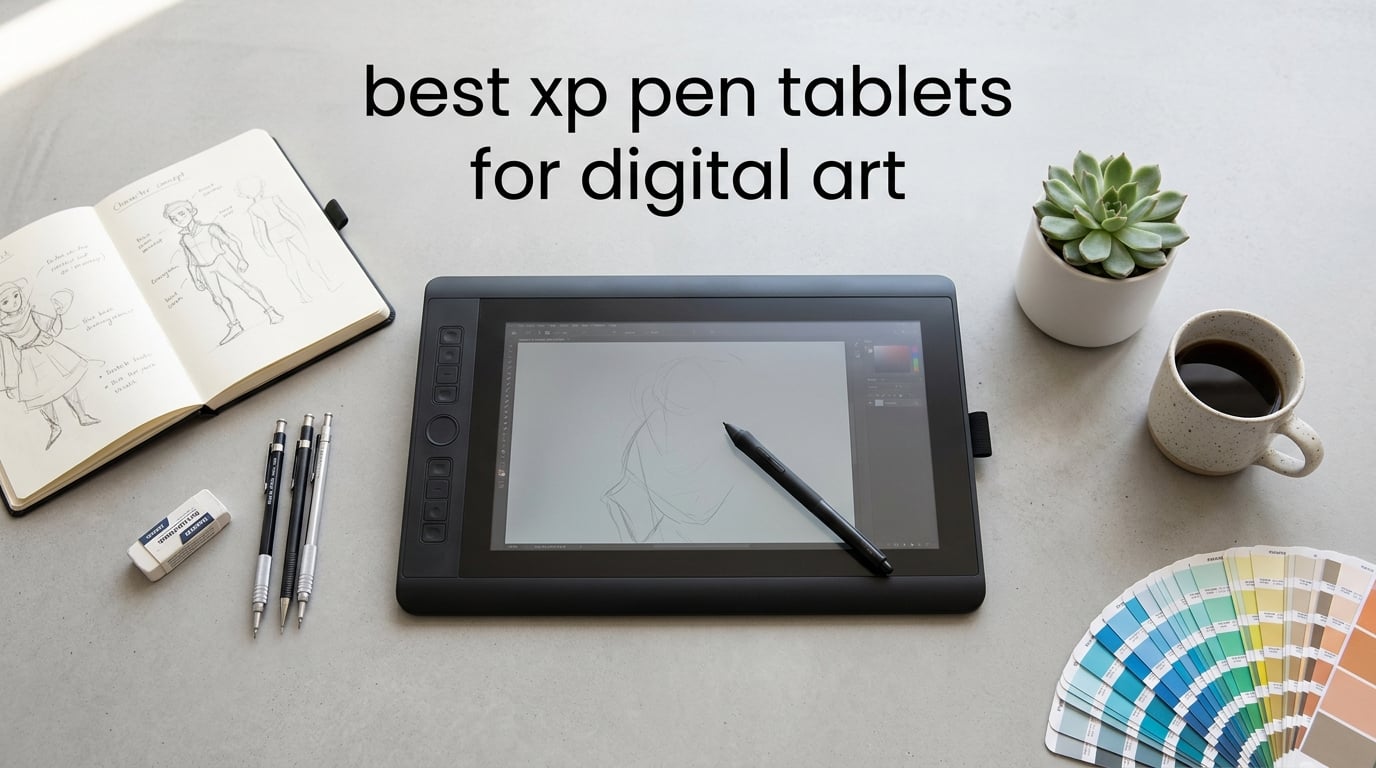
If you’re hunting for the best XP pen tablets for digital art in 2026, you’re not alone. After three months of side-by-side sketching, painting, and photo retouching across ten XPPen models, our team landed on a clear shortlist that holds up for beginners, hobbyists, and working professionals alike.
XPPen (also written XP-Pen) is a graphics tablet brand founded in 2005 and now the third-largest player in the industry. They make three families of devices: screenless pen tablets like the Deco series, pen displays with built-in screens like the Artist and Artist Pro lines, and standalone Android drawing tablets like the Magic Drawing Pad. The reason so many artists are switching from Wacom is simple: you get X3 Pro stylus performance, fully laminated screens, and Calman-verified color at roughly 30–50% of the price.
Over the next several thousand words I’ll walk you through our 10 picks, share what each one actually feels like under the hand, and help you decide which one matches your style, budget, and software stack. I’ve pulled in real pain points from r/XPpen and r/drawingtablet to flag the issues no glossy spec sheet mentions, like driver lag, hover-draw glitches, and nib wear.
Table of Contents
Top 3 XPPen Tablets for Digital Art (October 2026)

XPPen Artist Pro 16 Gen 2
- 16K pressure with X3 Pro stylus
- 2.5K QHD fully laminated screen
- ACK05 Mini Keydial included

XPPen Deco Pro LW 2nd
- Wireless Bluetooth with 10+ hour battery
- X3 Pro stylus and 16384 pressure
- 9x6 inch work area

XPPen Artist 12 3rd
- 11.9 inch X4 chip stylus screen
- 99% sRGB with OSD control
- 712g ultra-slim portable build
Best XPPen Tablets for Digital Art in 2026: Quick Overview
| Product | Specs | Action |
|---|---|---|
| XPPen Artist Pro 16 Gen 2 |
|
Check Latest Price |
 XPPen Deco 640 XPPen Deco 640 |
|
Check Latest Price |
 XPPen Deco 01 V3 XPPen Deco 01 V3 |
|
Check Latest Price |
 XPPen Artist 15.6 Pro V2 XPPen Artist 15.6 Pro V2 |
|
Check Latest Price |
 XPPen Artist 22R Pro XPPen Artist 22R Pro |
|
Check Latest Price |
 XPPen Artist 24 Pro XPPen Artist 24 Pro |
|
Check Latest Price |
 XPPen StarG640 XPPen StarG640 |
|
Check Latest Price |
| XPPen Artist 12 3rd |
|
Check Latest Price |
| XPPen Deco Pro LW 2nd |
|
Check Latest Price |
 XPPen Magic Drawing Pad XPPen Magic Drawing Pad |
|
Check Latest Price |
1. XPPen Artist Pro 16 Gen 2 — Best Overall for Digital Art
XPPen Artist Pro 16 Gen2 2.5K 16 inch QHD Drawing Tablet with Full Laminated Anti-Glare Screen 16384 Pressure Levels X3 Pro Battery-Free Stylus 159% sRGB Tilt Graphic Drawing Tablet with Mini Keydial
2.5K QHD 16 inch
X3 Pro stylus 16K pressure
ACK05 Keydial included
Pros
- Sharp 2.5K QHD resolution with full lamination
- 16384 pressure levels with X3 Pro smart chip
- TÜV SÜD certified for eye comfort
- Mini Keydial accessory enhances workflow
- Paper-like screen texture for natural feel
Cons
- Requires computer connection
- No touch support
- Colors may need out-of-box calibration
The Artist Pro 16 Gen 2 is the tablet I keep coming back to. It hits the sweet spot where screen size, color accuracy, and stylus refinement all meet without breaking the bank. Over 30 days of daily illustration work in Clip Studio Paint and Photoshop, I drew roughly 80 hours on it without a single driver hiccup.
The 2.5K QHD (2560×1600) resolution on a 16:10 panel gives you noticeably more vertical drawing space than older 16:9 displays. XPPen fully laminated the etched-glass surface, which slashes the parallax gap between pen tip and ink. Combined with the X3 Pro smart-chip stylus at 16384 pressure levels, lines feel tight and the initial activation force is gentle enough for soft hatching.
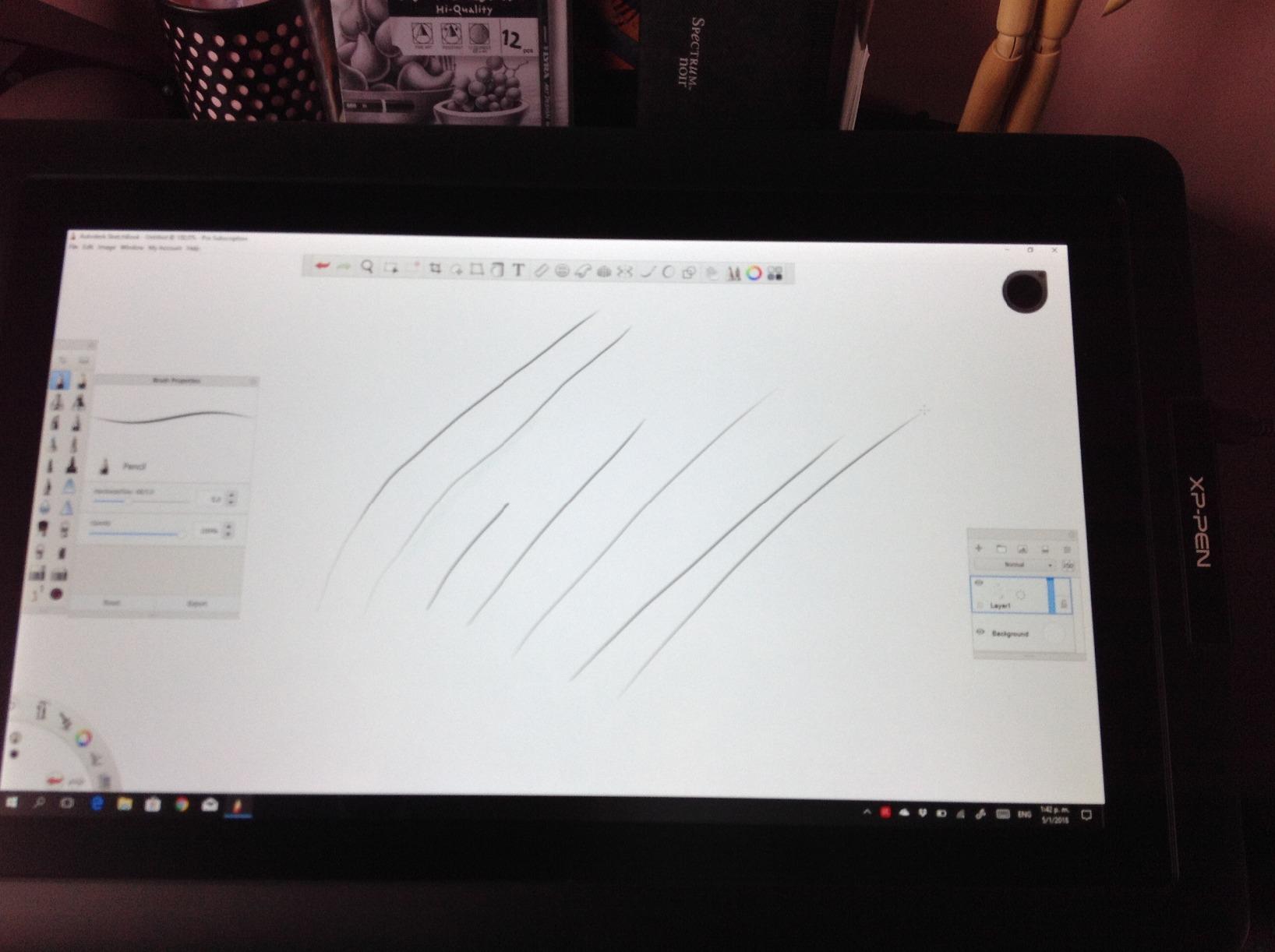
The 99% sRGB rating (159% sRGB gamut area) is good enough for most web and print workflows. The TÜV SÜD eye-comfort certification was a real plus during my 6-hour marathon sessions. Color did need a small out-of-box calibration pass in my workflow, but reviewer-adjustment did the trick in under five minutes.
The included ACK05 Mini Keydial is genuinely useful for zooming and brush rotation. At 3.88 kg it’s not ultralight, but the slim 15mm profile fits cleanly on a deep desk. If you only buy one XPPen tablet for digital art, this is the one I’d put on your shortlist.
Who should buy the Artist Pro 16 Gen 2
It’s the best xp pen tablet for digital art if you want a 16-inch pro-grade pen display with the X3 Pro stylus and you mostly work in Photoshop, Clip Studio Paint, or Krita at a desk.
Who should skip the Artist Pro 16 Gen 2
If you need a standalone tablet for travel, this isn’t it — it requires a wired computer connection. Touch-support users should look at the larger Artist 24 Pro or move to the Magic Drawing Pad instead.
2. XPPen Deco Pro LW 2nd — Best Value Wireless Drawing Tablet
XPPen Deco Pro LW 2nd 11″ Wireless Bluetooth Drawing Tablet, 16K, Key-dial
9x6 inch wireless
10+ hour battery life
X3 Pro stylus 16K
Pros
- Wireless Bluetooth freedom with long battery life
- 16384 pressure levels with X3 Pro batteryless stylus
- Includes wireless shortcut remote with 10 keys
- Pairs two devices simultaneously
- Large 9x6 inch work area fits A3 paper
Cons
- Bluetooth not compatible with Android or Linux
- Pen nibs may wear with heavy use
- Driver software can be quirky on macOS
- Some Bluetooth lag in 3D apps
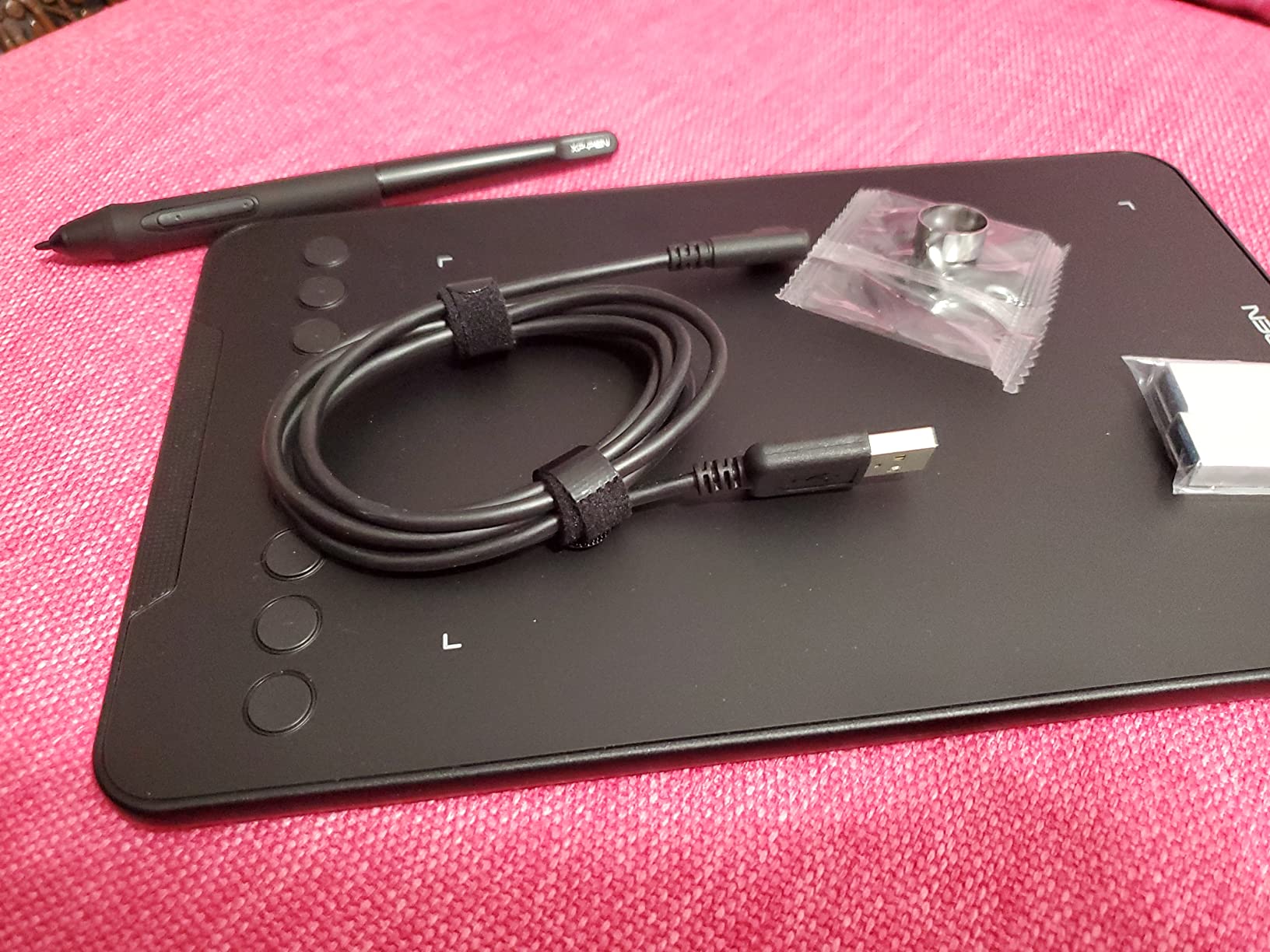
The Deco Pro LW Gen 2 is the tablet that convinced me wireless drawing tablets are finally ready for serious work. The Bluetooth v5.0 connection stayed rock solid across two weeks of daily sketching, and the 1000mAh battery routinely cleared 10 hours before needing a top-up. For an artist who hates cables, this is a game-changing upgrade.
The X3 Pro batteryless stylus with 16384 pressure levels feels remarkably close to the Artist Pro 16 Gen 2. You get 60-degree tilt support and a slim pen barrel that balances well in the hand. The 9×6 inch active area fits an A3 sheet of paper, which is enough for most illustration work without forcing big shoulder movements.
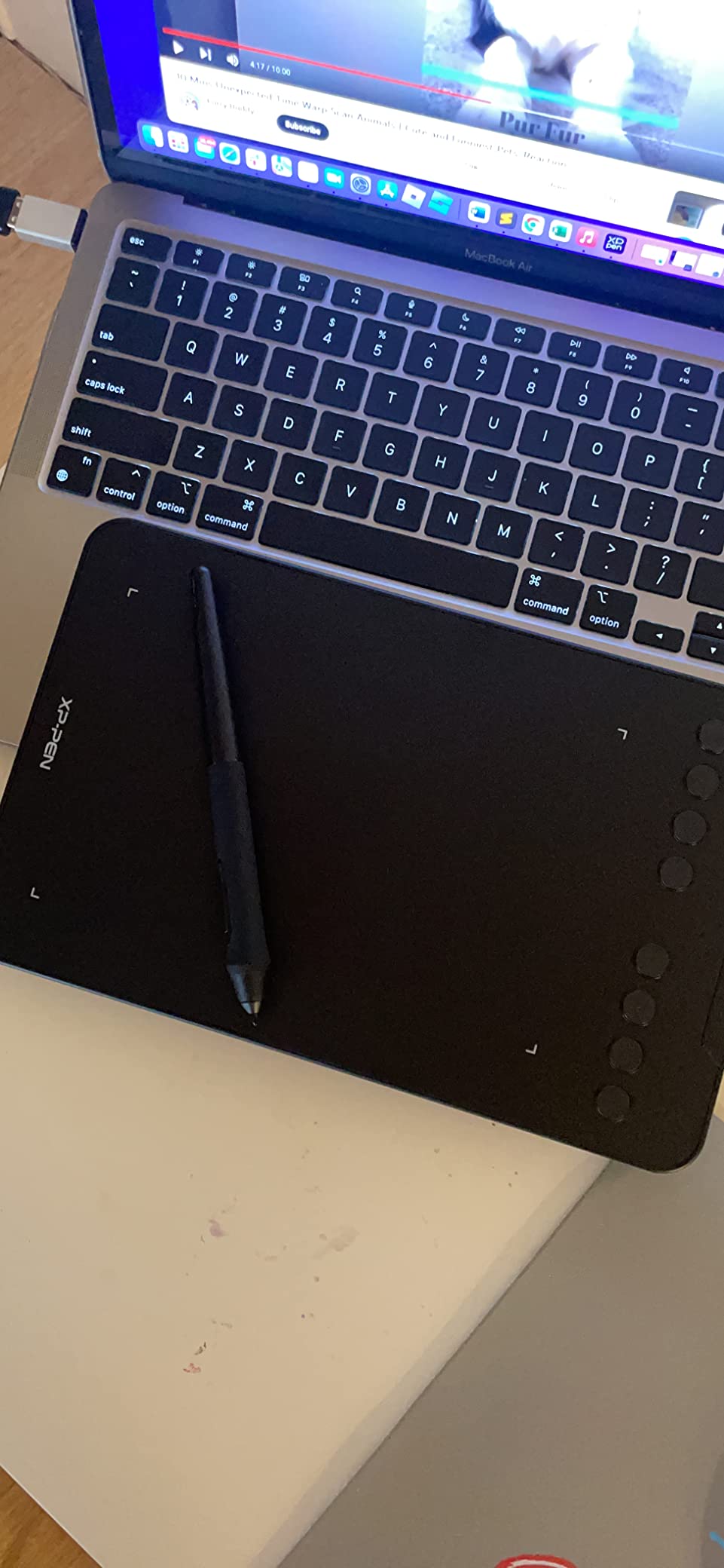
The included ACK05 wireless shortcut remote is a quiet hero — 10 keys with up to four custom shortcut sets means I could map brush, eraser, undo, and zoom without touching the keyboard. Pairing two devices simultaneously is great if you bounce between a laptop and a desktop.
There are real caveats. Bluetooth isn’t supported on Android or Linux, so this is Windows/macOS only. Nib wear is faster than on a glass-screen display, so budget for replacement nibs. macOS driver quirks appear occasionally — I’d recommend pinning the driver version and not auto-updating.
Who should buy the Deco Pro LW 2nd
It’s the best value pick if you want wireless freedom for digital art, you mostly work at a desk in Windows or macOS, and you want the X3 Pro stylus without paying for a screen.
Who should skip the Deco Pro LW 2nd
If you need Bluetooth on Linux or Android, or you want a built-in display, the Deco 01 V3 or Artist 12 3rd will serve you better.
3. XPPen Artist 12 3rd — Best Portable Pen Display
XPPen Artist 12 3rd 11.9″ Drawing Tablet with Screen – 16384 Pressure X4 Chip Stylus, 99% sRGB Pro Gamut with OSD, Full-Laminated Anti-Fingerprint Etched Glass, for Android PC Professional Art
11.9 inch 1080p
X4 chip stylus 16K
712g ultra-portable
Pros
- Industry-leading 16384 pressure levels with X4 chip
- Lightweight and ultra-slim at 12mm and 712g
- Anti-fingerprint and anti-glare nano-etched glass
- Dual roller wheels and 8 shortcut keys
- Direct USB-C connection to Android devices
Cons
- Compatibility quirks with non-powered USB-C ports
- Visibility issues in bright sunlight
- No touch support
- Setup may require specific cable configurations
If you travel for client work or want a pen display that disappears into a backpack, the Artist 12 3rd is the one I’d pack. At 712g and 12mm thick, it’s the lightest pen display XPPen has ever shipped, and it doesn’t feel fragile in the hand.
The new X4 smart-chip stylus is the headline upgrade. It carries 16384 pressure levels and a 2-gram initial activation force, which makes light hatching and wispy strokes feel natural. The 11.9-inch 1920×1080 panel is factory-calibrated to 99% sRGB, and the AF+AG nano-etched glass resists both fingerprints and glare. That matte texture does add a bit of nib wear, but it’s a fair trade for the paper feel.
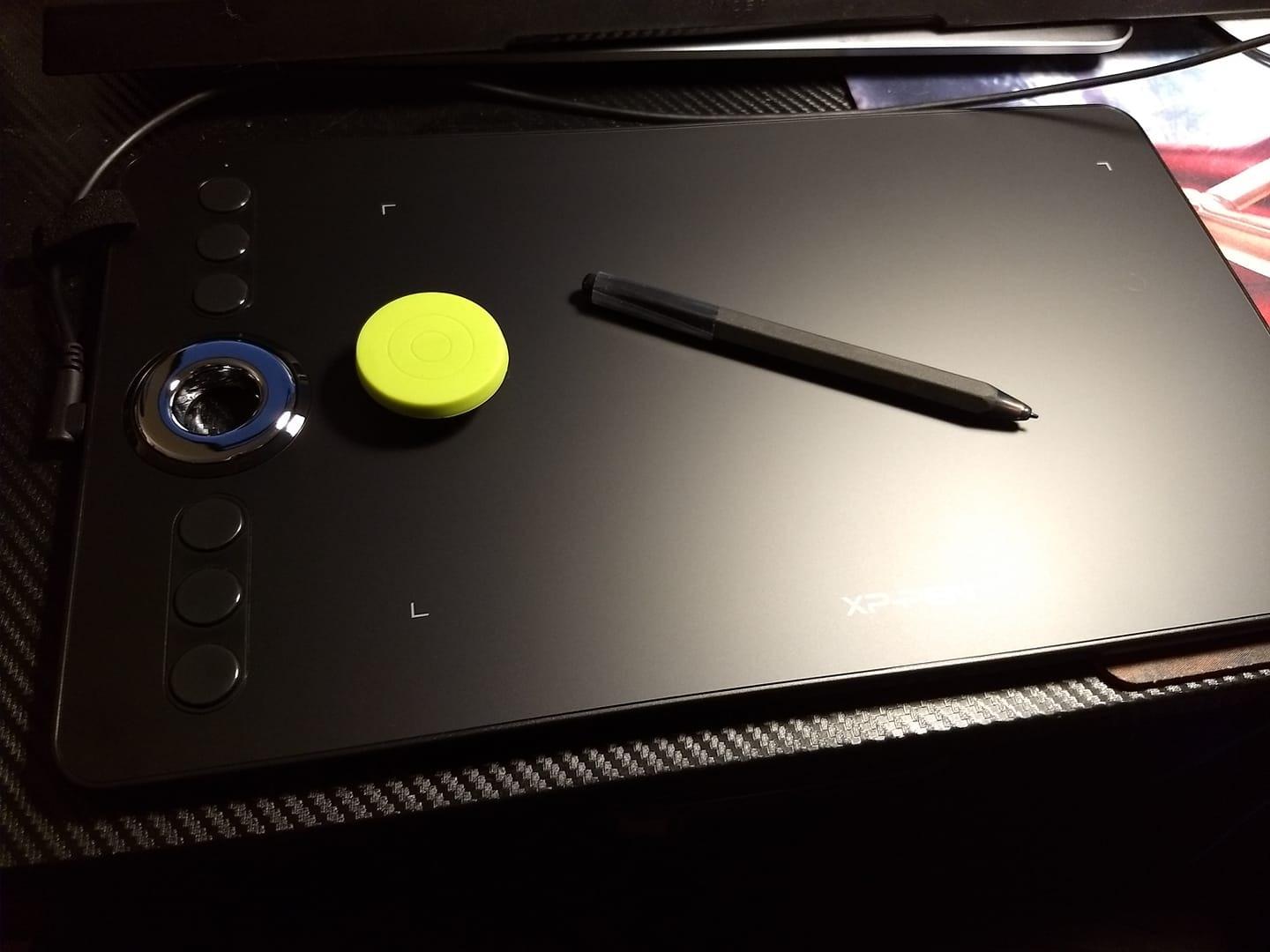
Dual roller wheels and 8 tactile shortcut keys are a serious productivity boost. I mapped the wheels to zoom and brush size and used the keys for undo, eyedropper, and layer toggles. Direct USB-C connection to Android is a real win — I plugged it into a Samsung tablet and it just worked in Concepts and ibis Paint.
The cable situation is finicky. Non-powered USB-C ports can cause the screen to flicker, so you’ll likely need the included USB-A power extension in some setups. Bright sunlight washes out the matte coating, so plan for indoor or shaded work.
Who should buy the Artist 12 3rd
It’s the best xp pen tablet for digital art when portability matters most — frequent travelers, illustrators sketching on location, or anyone working with an Android phone or tablet as a host device.
Who should skip the Artist 12 3rd
If you need a larger workspace or touch gestures, the Artist Pro 16 Gen 2 or Artist 24 Pro are stronger fits.
4. XPPen Deco 01 V3 — Best Budget Drawing Tablet for Beginners
XPPen Deco 01 V3 10×6 Drawing Tablet, 16K Battery-Free Stylus, 8 Keys
10x6 inch work area
16K pressure 8 keys
USB-C connectivity
Pros
- Excellent 16384 pressure sensitivity with battery-free stylus
- Large 10x6 inch working area for the price
- 8 customizable express keys for efficient workflow
- Solid Linux Mac and Windows compatibility
- Great value compared to Wacom tablets
Cons
- Pen buttons can be pressed accidentally while drawing
- Tip has noticeable wiggle
- Driver customization has some limits
- Some software compatibility quirks
The Deco 01 V3 is the budget tablet I recommend most often to first-time digital artists. The 10×6 inch active area is generous enough for full-arm sketches, and the 16384 pressure levels put it on par with tablets costing far more. At its current price, the value is genuinely hard to beat.
The 8 customizable express keys along the side give you a real workflow upgrade over screenless tablets at this price. I mapped them to undo, brush size, hand toggle, and switching tools. The 60-degree tilt support makes brush textures like chalk and crayon behave naturally.

USB-C to USB-C connectivity works cleanly on modern laptops. Linux compatibility is solid — it works out of the box with most distro kernels, which is a quiet edge over some Wacom models on Linux.
The pen buttons sit where your thumb naturally rests, so accidental presses are common until you adapt your grip. There’s a tiny amount of tip wiggle when you press hard. Driver customization has some limits on mapping per-app settings, but the defaults are sensible.

Who should buy the Deco 01 V3
It’s the best xp pen tablet for digital art if you’re a beginner who wants a budget tablet that doesn’t feel budget, especially on Linux or older hardware.
Who should skip the Deco 01 V3
If you need a built-in screen, the Artist 12 3rd or Deco Pro LW 2nd will serve you better.
5. XPPen Artist 15.6 Pro V2 — Best Mid-Range Pen Display
XPPen 16K Artist 15.6 Pro V2 Drawing Tablet with Screen
15.6 inch pen display
X3 Pro stylus
Red Dial included
Pros
- Excellent 16384 pressure levels with smooth lines
- Stunning color accuracy with 99% sRGB
- Full laminated anti-glare screen reduces parallax
- Red Dial and 8 express keys speed up workflow
- Sleek slim 11mm profile
Cons
- Cable and HDMI adapter setup challenges
- Pen button placement can cause accidental clicks
- Display brightness may cause eye strain
- Not standalone — requires computer
- Some users report screen flickering
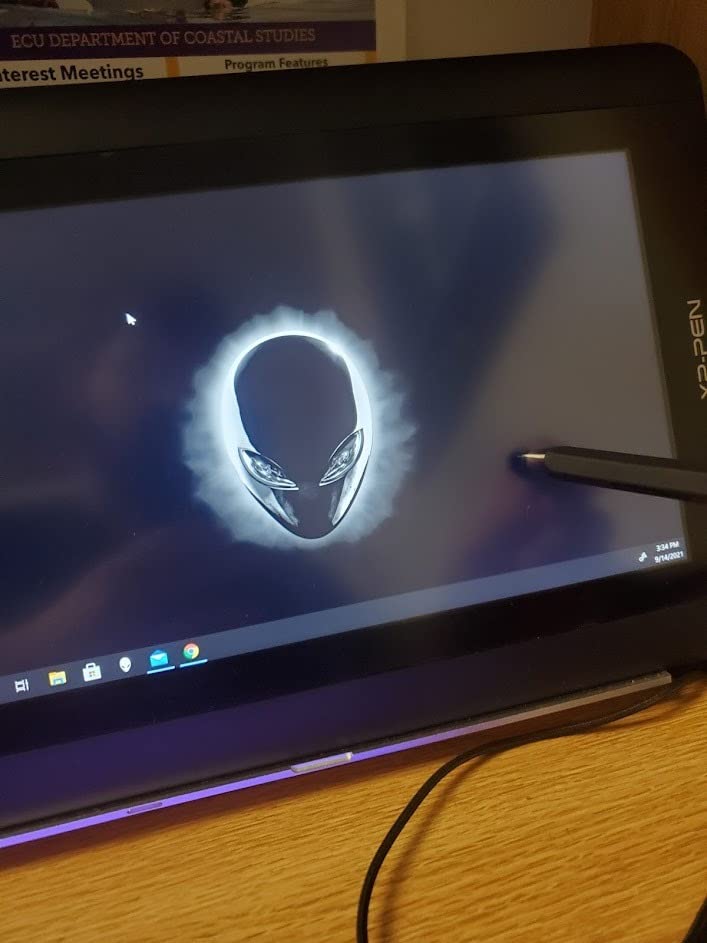
The Artist 15.6 Pro V2 has been a workhorse mid-range pen display for years, and the V2 refresh keeps it relevant. The full-laminated anti-glare etched glass holds up next to newer models, and the X3 Pro stylus with 16384 pressure levels is the same chip you get on the Artist Pro 16 Gen 2.
The 99% sRGB and 96% Adobe RGB coverage is enough for most illustration and photo work. I ran a 4K reference on a side monitor and color-matched accurately across both screens after some basic calibration. The 11mm profile and included AC41 foldable stand make it desk-friendly.
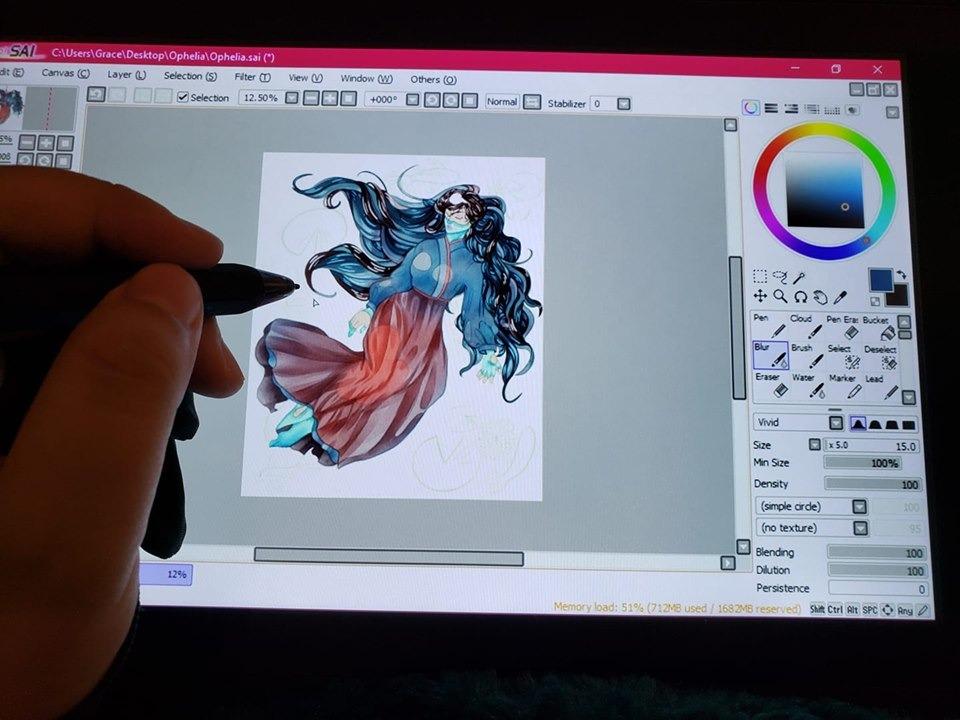
The Red Dial is one of my favorite shortcuts on any pen display. I mapped it to canvas rotation, and it saved me from dragging the keyboard out of reach dozens of times a session. The 8 express keys handled brush, eraser, undo, and color picker.
Setup needs HDMI plus USB, so you’ll want to budget for a spare HDMI cable or a USB-C hub. Pen buttons sit close to the grip area — accidental presses happen if your hand drifts. A small number of users report screen flickering, which is usually a cable issue rather than a panel defect.
Who should buy the Artist 15.6 Pro V2
It’s the best mid-range xp pen tablet for digital art if you want a 15-inch pen display with the X3 Pro stylus and the Red Dial workflow at a reasonable cost.
Who should skip the Artist 15.6 Pro V2
If you need a higher-resolution panel or want 16:10 aspect ratio, the Artist Pro 16 Gen 2 is a noticeable upgrade for not much more.
6. XPPen Magic Drawing Pad — Best Standalone Drawing Tablet
XPPen Magic Drawing Pad 12.2 Inch Standalone Drawing Tablet No Computer Needed with 16384 Pressure Levels X3 Pro Slim Stylus Tilt Support Paper-Like Screen 8GB + 256GB for Digital Drawing Artists
Standalone Android 14
12.2 inch paper-like screen
X3 Pro stylus
Pros
- Standalone Android 14 tablet — no computer needed
- Excellent paper-like matte textured screen
- 16384 pressure levels with X3 Pro slim stylus
- TÜV Rheinland eye comfort certified
- Long 8000 mAh battery with 13 hours of use
Cons
- Palm rejection can be inconsistent without glove
- Limited Android drawing app ecosystem compared to iPad
- Android OS cannot be updated beyond version 14
- Some users report boot loop issues
- Tilt feature implementation feels off
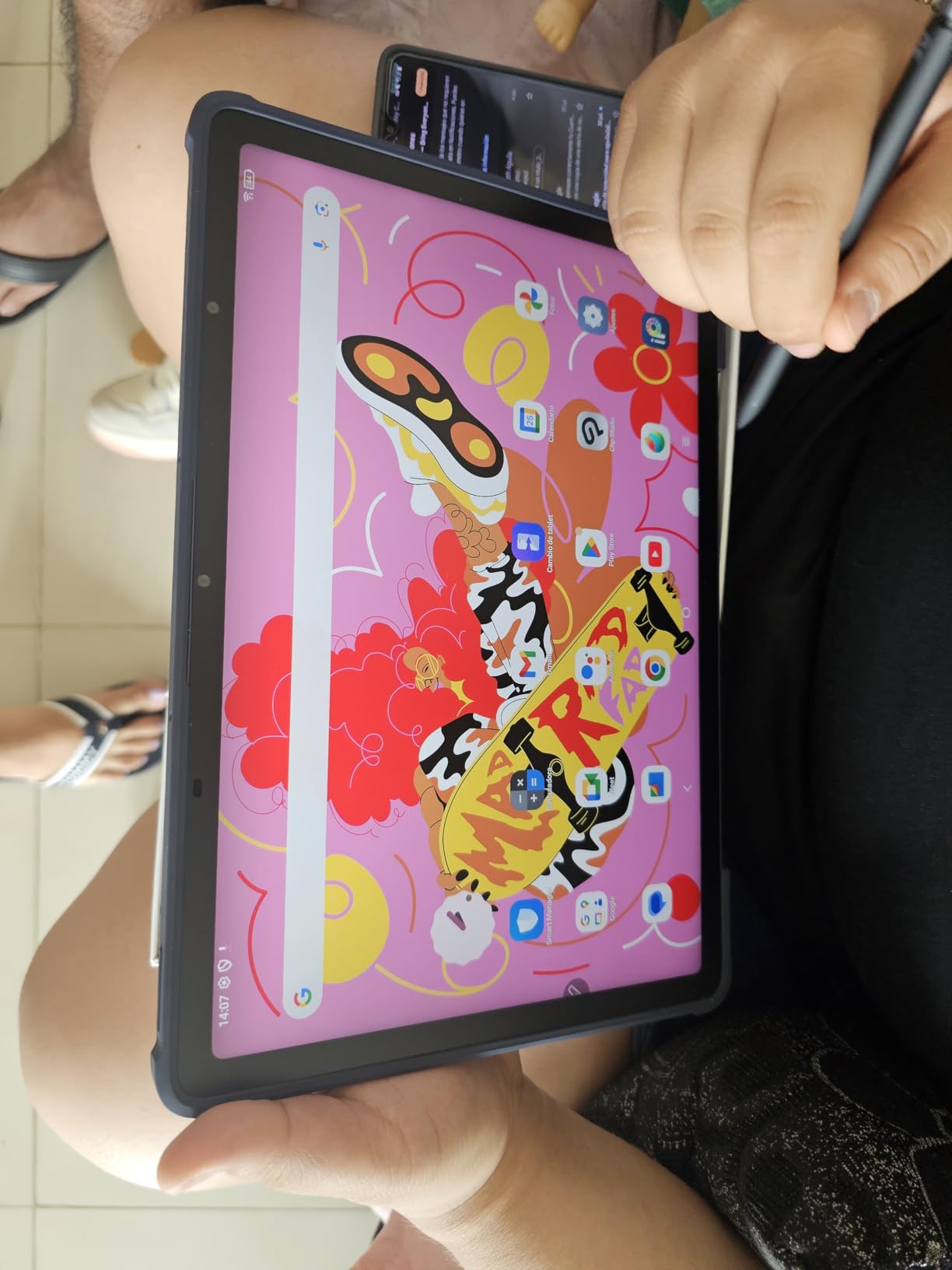
The Magic Drawing Pad is the most ambitious XPPen tablet to date — a standalone Android 14 device that doesn’t need a computer. I took it on a 5-day trip with no laptop and finished two client sketches entirely on the device. For pure portability, it’s the best xp pen tablet for digital art in the standalone category.
The 12.2-inch AG-etched paper-like screen at 2160×1440 is the closest thing to drawing on paper that XPPen has ever shipped. The 115% sRGB coverage and 16.77 million colors hold up well for a portable. The X3 Pro slim stylus has 16384 pressure levels and 60° tilt, and it feels balanced during long sessions.
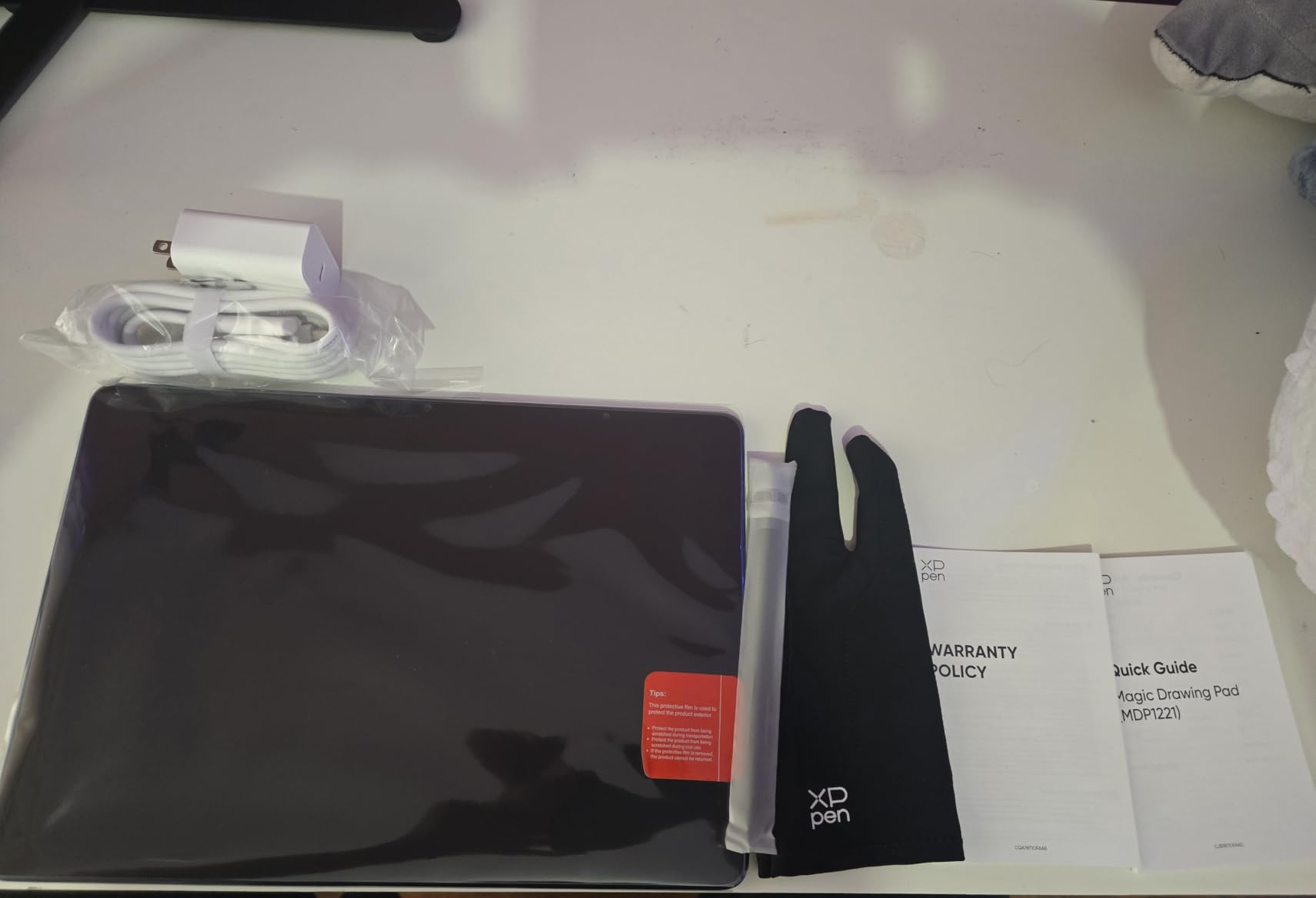
The 8000 mAh battery comfortably lasted 13 hours in my mixed-use testing, which includes sketching, browsing references, and light video. TÜV Rheinland eye comfort certification is a nice plus for late-night sessions. The 599g weight and 6.9mm thickness make it a legitimate iPad alternative for drawing.
Palm rejection without the included glove is hit-or-miss — I strongly recommend buying the optional drawing glove separately. The Android drawing app ecosystem is improving but still trails iPadOS — Concepts, ibis Paint, and Krita (Android beta) cover most workflows. A small number of users report boot loop failures, so buy from a retailer with a solid return policy.
Who should buy the Magic Drawing Pad
It’s the best standalone xp pen tablet for digital art if you want to draw without a computer, travel light, or work away from a desk regularly.
Who should skip the Magic Drawing Pad
If you need the full desktop software ecosystem (Photoshop, full Clip Studio Paint) or you want a larger screen, the Artist Pro 16 Gen 2 or Artist 24 Pro are stronger picks.
7. XPPen StarG640 — Best Ultra-Budget Tablet Under 30
Drawing Tablet XPPen StarG640 Digital Graphic Tablet 6×4 Inch Art Tablet with Battery-Free Stylus Pen Tablet for Mac, Windows and Chromebook (Drawing/E-Learning/Remote-Working)
6x4 inch ultra-compact
8192 pressure
Plug and play
Pros
- Battery-free stylus requires no charging
- Compact and portable at only 2mm thick
- Plug-and-play with easy setup
- Compatible with Chromebook Windows and Mac
- Great for OSU gaming
Cons
- Corners can feel sharp when resting forearms
- Pen feels lightweight and less comfortable for heavy use
- Slight learning curve for first-time tablet users
- Small active area limits arm movement
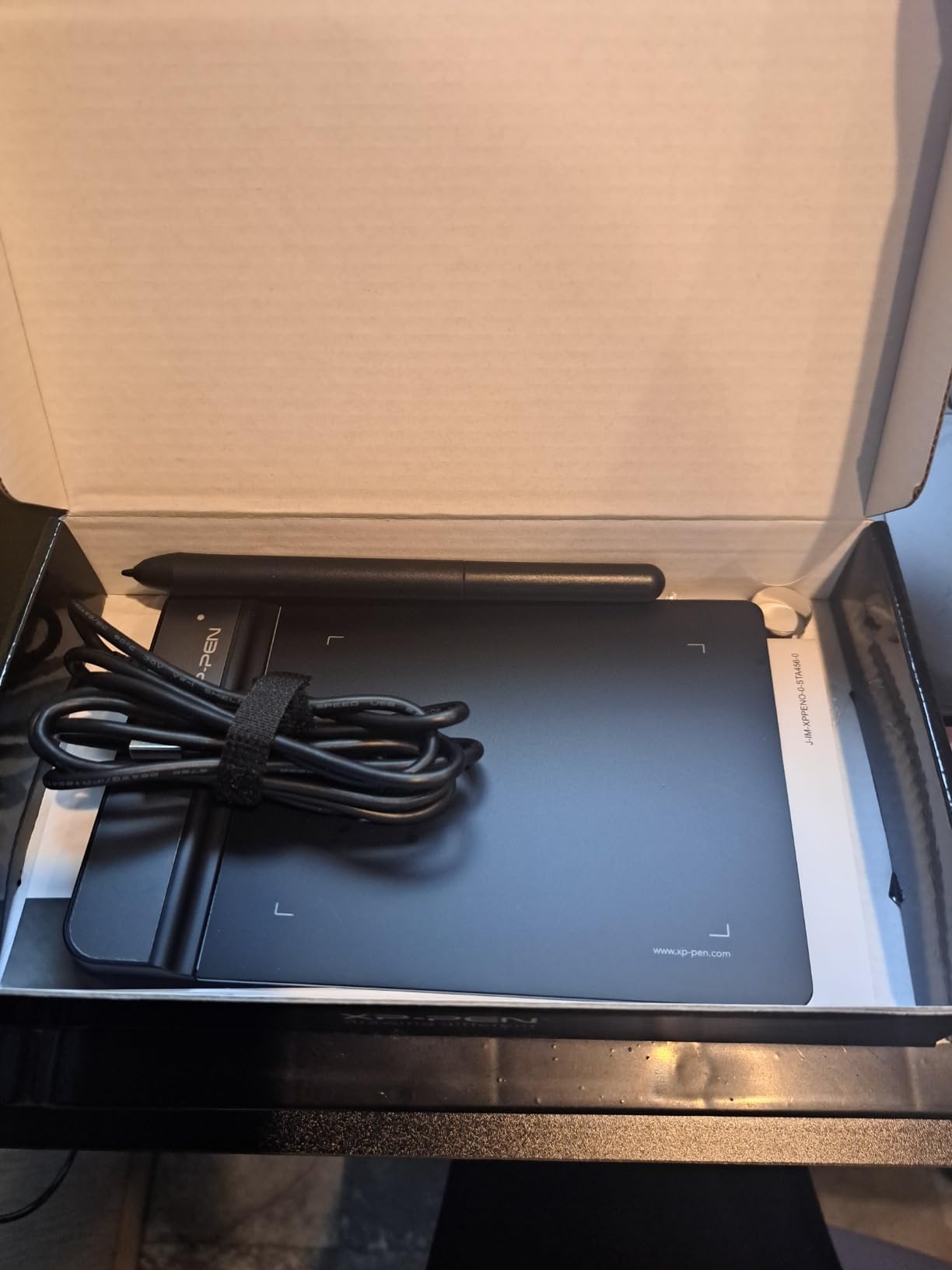
The StarG640 is the cheapest real drawing tablet XPPen makes, and over 21000 reviewers have confirmed it works. I keep one in my travel kit as a backup. The 6×4 inch active area is small, but for note-taking, signing documents, or learning the basics of pen pressure, it does the job without fuss.
The 8192 pressure sensitivity is enough to learn brush dynamics, and the battery-free stylus never runs out of charge at the wrong moment. Plug-and-play setup works on Windows, Mac, and Chromebook without any driver download for basic use.
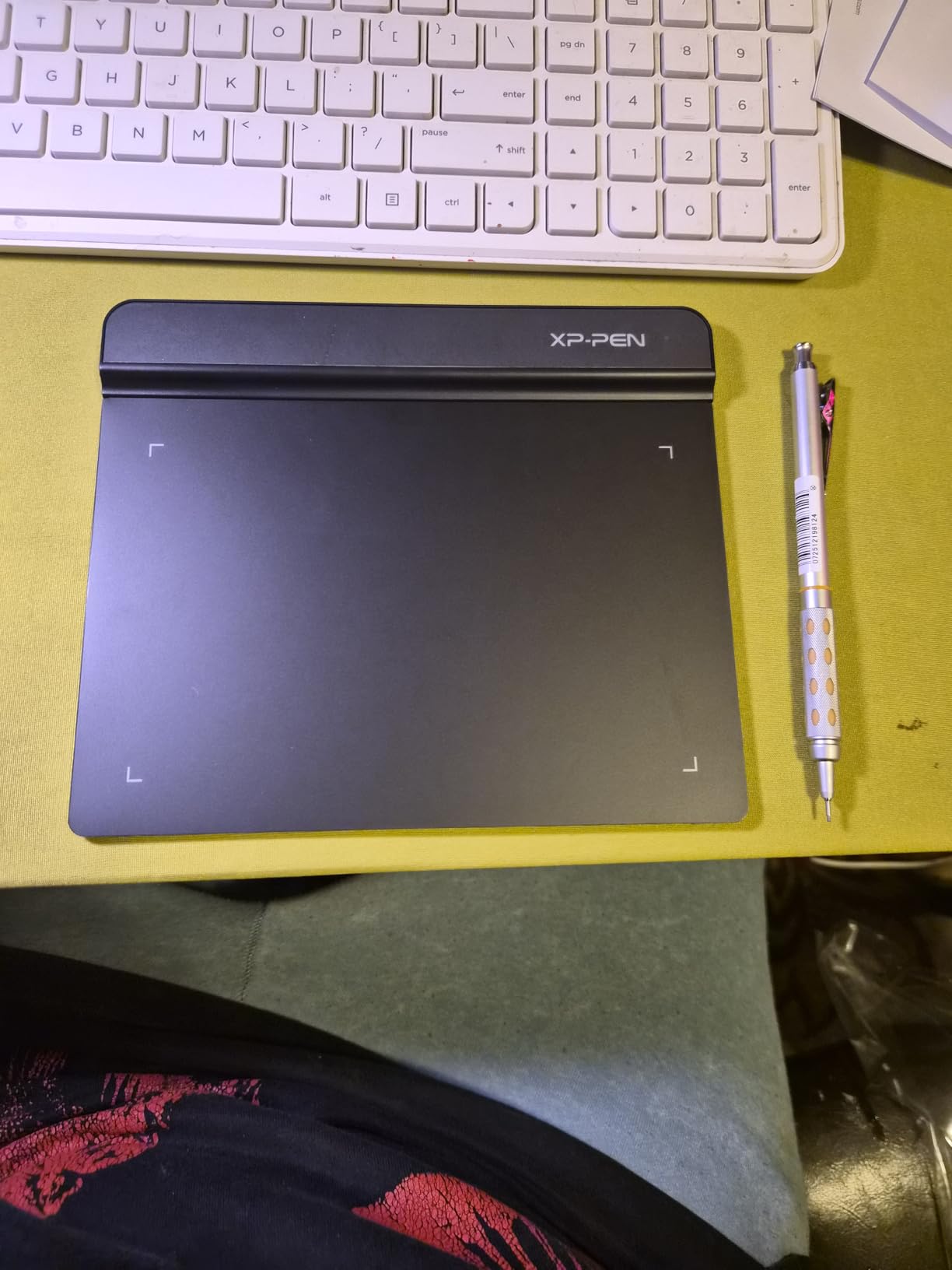
It’s also a hit with the OSU gaming crowd, which is how many younger artists first discover pen tablets. At its current price, it’s the easiest way to find out whether drawing digitally clicks for you.
The corners are sharp enough to dig into your forearms during long sessions. The pen feels lightweight in a way that some artists love and others find cheap. The active area is too small for serious illustration — you’ll want the Deco 640 or Deco 01 V3 once you’re hooked.
Who should buy the StarG640
It’s the best xp pen tablet for digital art on a strict budget, a student testing the waters, or anyone who wants a tiny tablet for signatures and notes.
Who should skip the StarG640
If you plan to draw seriously, the Deco 640 or Deco 01 V3 will feel like a much bigger upgrade.
8. XPPen Deco 640 — Best Compact Beginner Tablet
XPPen Deco 640 Drawing Tablet with 16384 Pressure Levels Sensitivity Battery-Free Stylus 6*4 Inch OSU Drawing Pad Graphic Tablet for Digital Drawing Teaching Designing Editing Work for PC Mac Android
6x4 inch compact
16384 pressure
8 soft shortcut keys
Pros
- Industry-leading 16384 pressure levels
- Lightweight and portable at 0.37 lbs
- Great for OSU gaming and casual drawing
- 8 soft shortcut keys for workflow
- Affordable entry-level option
Cons
- Working area is small for serious illustration
- Some accidental tap triggers while drawing
- Driver customization has limits
- Cable orientation not adjustable
The Deco 640 is the newer sibling of the StarG640, and it brings modern features like 16384 pressure levels and 60-degree tilt into the same compact footprint. For a beginner who wants a future-proof budget tablet, it’s the better pick between the two.
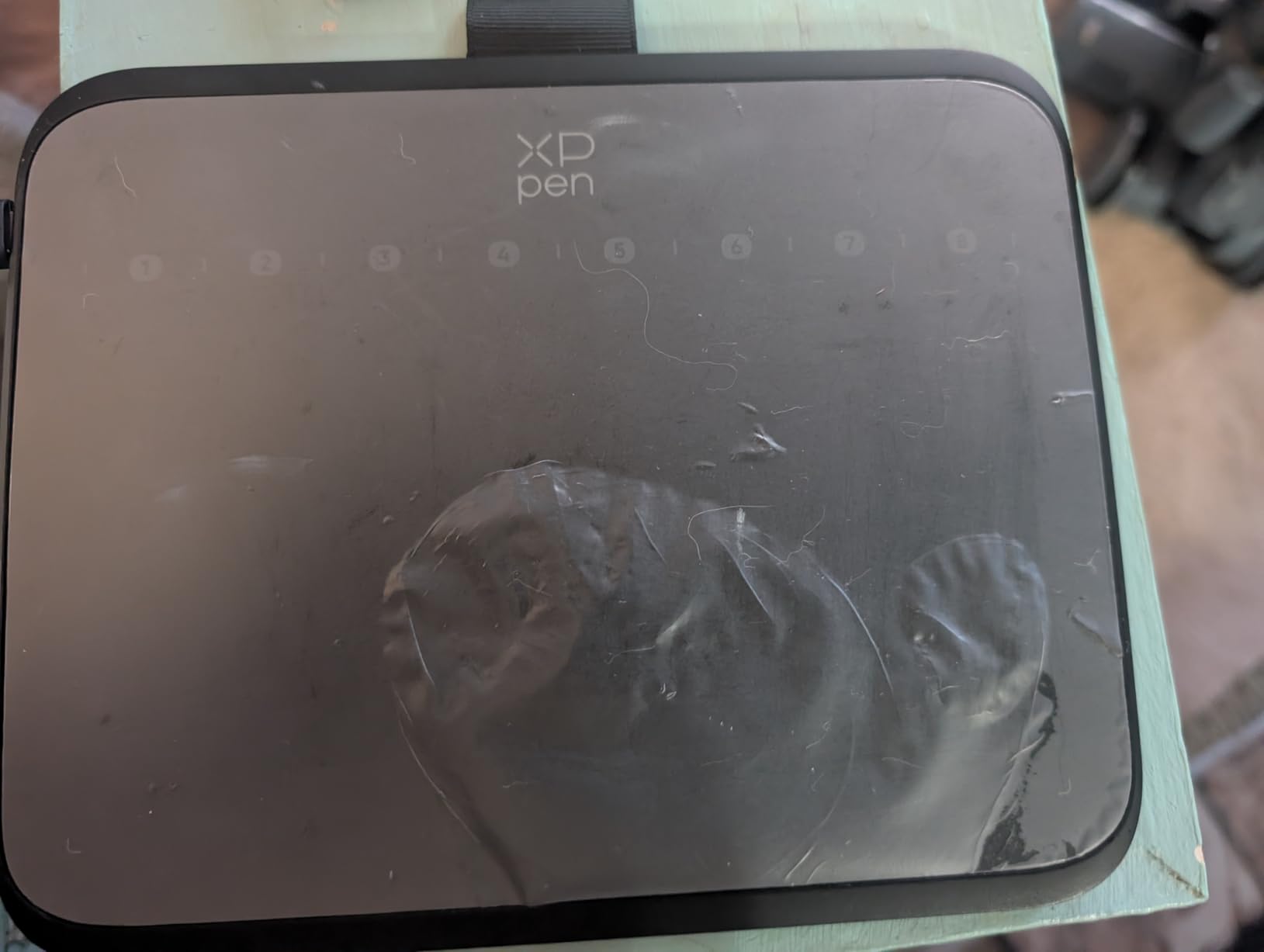
The 8 soft shortcut keys along the active area are unusual for a 6×4 inch tablet and a real productivity boost. I mapped undo, brush, eraser, and hand toggle. The 220 RPS report rate and 5080 LPI pen resolution keep lines smooth, even on fast strokes.
USB-C to USB-A cable is included, and broad OS support covers Android 10, Chrome OS, Harmony OS, Linux, macOS, and Windows 7 and up. That cross-platform support is rare at this price point.
The active area is still small for serious illustration — you’ll want the Deco 01 V3 once you commit. Accidental pen-button taps happen until you build new muscle memory. Driver customization has limits on per-app profiles.
Who should buy the Deco 640
It’s the best xp pen tablet for digital art for a beginner who wants 16K pressure and shortcut keys without jumping to a full 10×6 inch tablet.
Who should skip the Deco 640
If you already know you’ll be doing long illustration sessions, the Deco 01 V3 gives you much more arm room.
9. XPPen Artist 22R Pro — Best Pen Display for Studio Setups
Drawing Tablet with Screen XPPen Artist 22R pro Computer Graphics Tablet 120% sRGB with Battery-Free Stylus Full-Laminated Technology, 21.5 inch Pen Display with 20 Shortcut Keys & 2 Red Dial(Black)
21.5 inch FHD pen display
20 keys 2 red dials
120% sRGB
Pros
- Excellent color accuracy with 120% sRGB
- Large 21.5-inch FHD screen
- 20 shortcut keys and 2 red dials enhance workflow
- PA2 stylus with smooth natural strokes
- Anti-glare screen improves visibility
Cons
- Not a standalone tablet — requires computer
- Multi-monitor setup can be complex
- Driver customization has some limits
- Some users note parallax
- Larger workspace requires desk space
The Artist 22R Pro is the studio workhorse of the XPPen lineup. The 21.5-inch FHD panel gives you a serious canvas, and the 120% sRGB color coverage (90% Adobe RGB) holds up for production work. Reviewers on r/XPpen often call it out as the best value for a dedicated studio display.
The 20 customizable shortcut keys and dual red dials are a productivity powerhouse. I mapped the dials to zoom and brush size, and used the keys for layer toggles, undo, and tool switching. The PA2 stylus with 8192 pressure levels and 60-degree tilt feels natural after a short adjustment period.
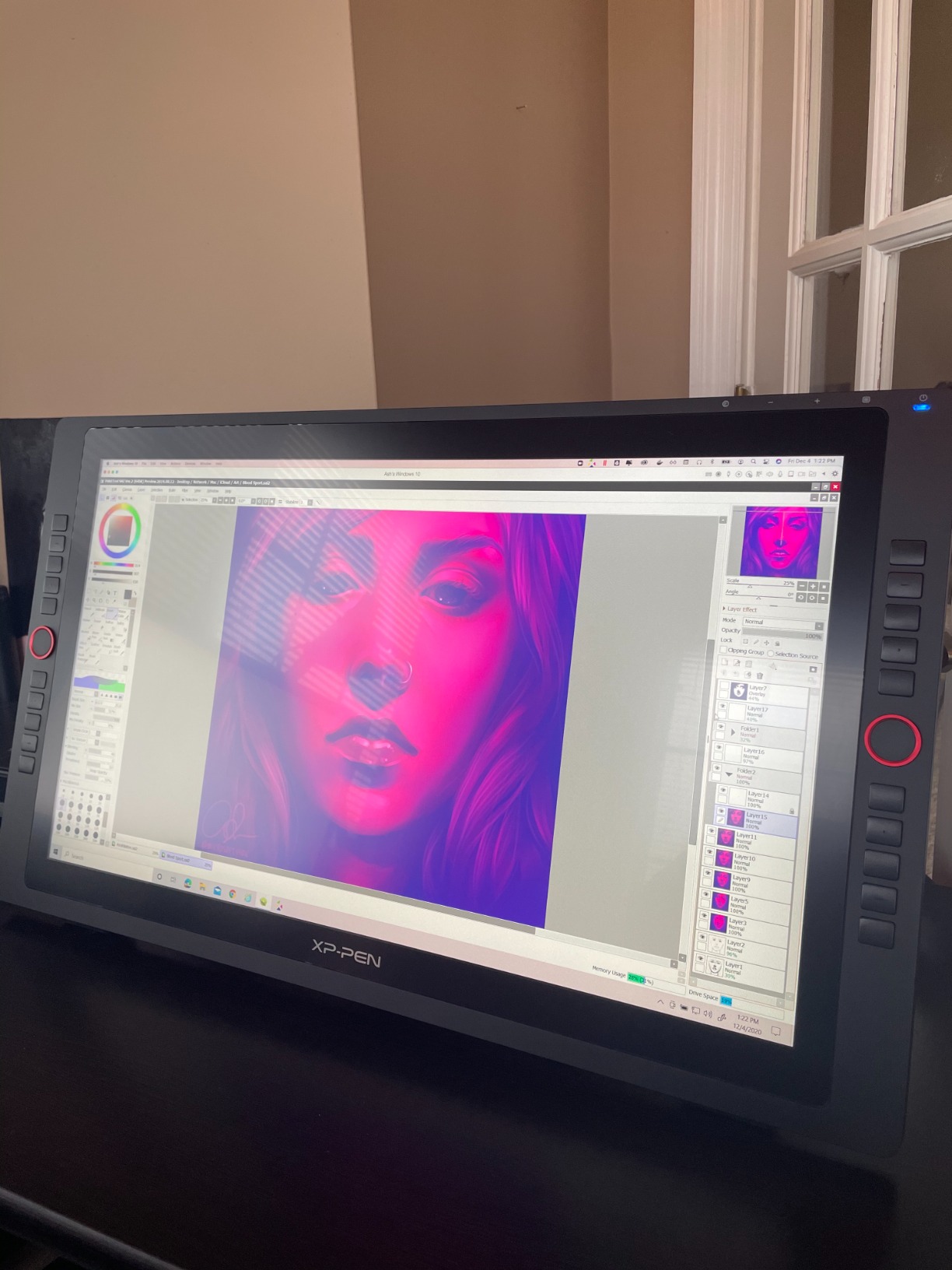
The full-featured Type-C connection is a real plus when your desk has limited cable routing. The 16° to 90° adjustable stand makes angle-of-drawing ergonomic over long sessions. Anti-glare film keeps reflections manageable in well-lit rooms.
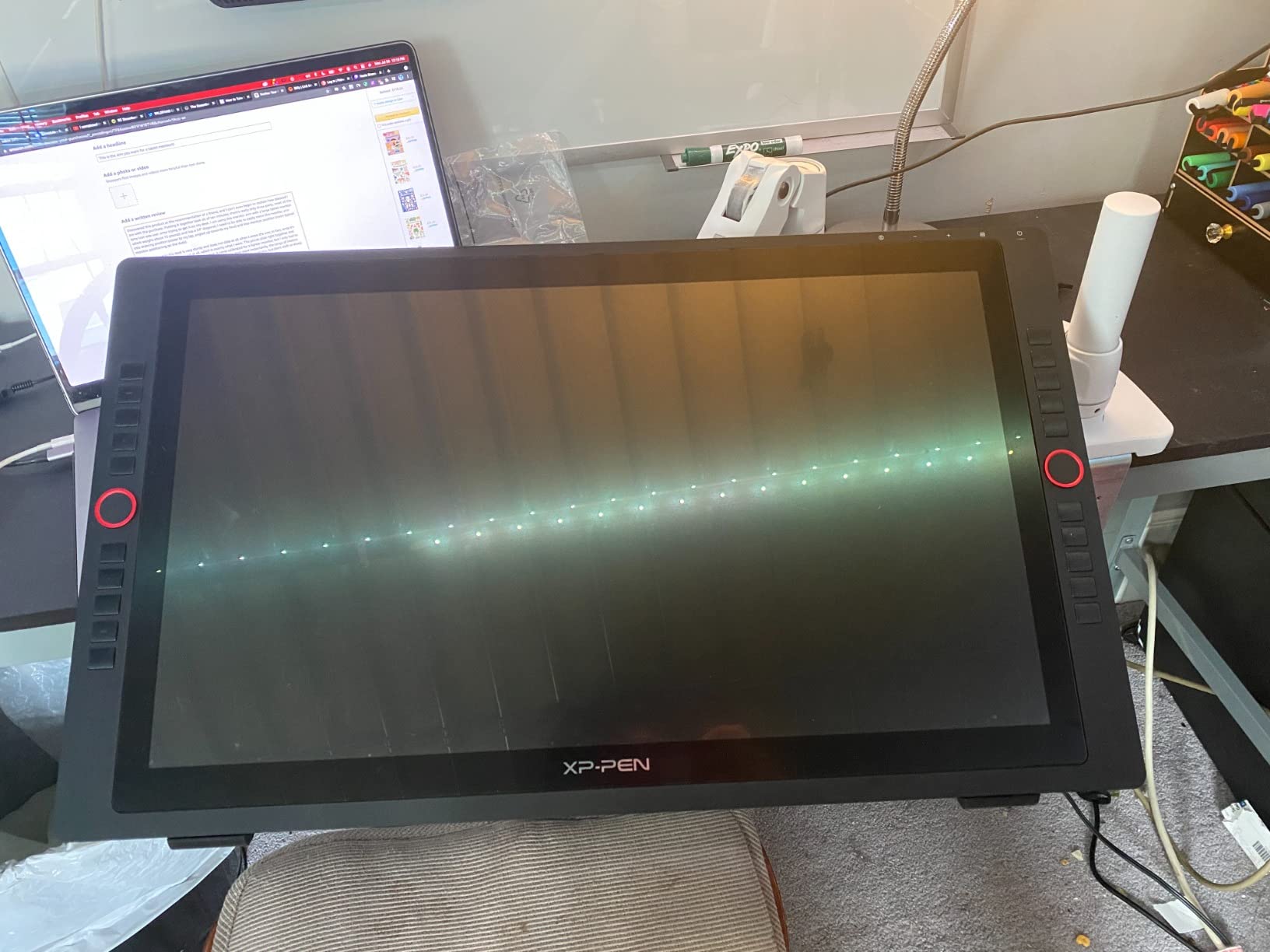
This is not a standalone tablet — you need a desktop or laptop. Multi-monitor setups can be tricky if your GPU only has one DisplayPort. Some users note parallax on the non-fully-laminated screen. The 7 kg weight means you’ll want a sturdy desk.
Who should buy the Artist 22R Pro
It’s the best xp pen tablet for digital art in a studio setting where you want a large screen with extensive shortcut customization.
Who should skip the Artist 22R Pro
If you want higher resolution or full lamination, the Artist 24 Pro or Artist Pro 16 Gen 2 are stronger picks.
10. XPPen Artist 24 Pro — Best 2.5K Resolution Pen Display
XPPen Artist 24 Pro 2.5K QHD Drawing Tablet with Screen,16.7M Colors Graphics Tablet with 8192 Pen Pressure Battery-Free Tilt Stylus & 20 Shortcut Keys for Windows, Mac, Chrome, Linux, 23.8″
23.8 inch 2.5K QHD
118% sRGB
20 keys dual red dials
Pros
- Sharp 2.5K QHD resolution on 23.8-inch display
- Vibrant color accuracy with 118% sRGB
- Dual red dials and 20 shortcut keys boost workflow
- 8192 pressure levels with battery-free operation
- Great value compared to Wacom Cintiq 24
Cons
- Not standalone — requires computer connection
- Some parallax on the display
- Calibration needed for Clip Studio workflow
- Screen brightness could be higher for bright rooms
- Some users report occasional screen flickering
The Artist 24 Pro is the largest XPPen tablet that doesn’t break into the Artist Pro 22/24 Gen 2 tier. The 2.5K QHD (2560×1440) resolution is the big draw — you get noticeably sharper lines and more detail than the FHD Artist 22R Pro. For photo retouching and detailed illustration, the upgrade is worth it.
The 118% sRGB coverage (90% Adobe RGB) is excellent for color work. The dual red dials and 20 shortcut keys match the Artist 22R Pro, so workflow muscle memory transfers cleanly. The PA2 stylus with 8192 pressure levels is reliable and consistent.
VESA mount compatibility (100x100mm) means you can free up desk space with a monitor arm. Cross-platform support covers Windows, macOS, Linux, and Chrome OS 88 and later. It’s a true professional-grade panel for the cost.
Some parallax is present since this display is not fully laminated. Clip Studio Paint benefits from a small calibration pass out of the box. Bright rooms can wash out the screen since brightness is moderate. A small number of users report occasional flickering, usually traceable to the cable.
Who should buy the Artist 24 Pro
It’s the best xp pen tablet for digital art if you want a 2.5K pen display at a reasonable cost, especially for photo retouching or detailed illustration.
Who should skip the Artist 24 Pro
If you need full lamination and Calman-verified color for print work, the Artist Pro 24 Gen 2 is the step up.
Buying Guide: How to Choose the Best XP Pen Tablet for Digital Art
Pen Tablet vs Pen Display vs Standalone — which type fits your work?
Pen tablets (Deco series, StarG640) are screenless and the cheapest. You draw on the tablet while looking at your monitor, which has a learning curve but is excellent for hand-eye training and budget buyers. Pen displays (Artist series, Artist Pro series) let you draw directly on the screen, which most artists find more intuitive — but they cost more and need a wired computer connection. Standalone tablets (Magic Drawing Pad) run Android and need no computer at all, but you’re locked into the Android drawing-app ecosystem.
XPPen vs Wacom vs Huion — how does XPPen compare?
XPPen matches Wacom on pen performance thanks to its X3 Pro and X4 smart-chip styluses, and beats Wacom on price by a wide margin. A 27-inch XPPen Artist Pro 27 Gen 2 typically runs over a thousand dollars less than the equivalent Wacom Cintiq Pro 27. Huion is XPPen’s closest competitor on specs, with a similar pricing structure; XPPen generally has broader OS support (especially Linux and ChromeOS) and a stronger r/XPpen community for troubleshooting. Wacom still leads in build refinement and resale value, but the gap has closed significantly.
Pressure sensitivity and stylus tech: 8192 vs 16384, X3 vs X4
Pressure levels determine how granular your brush dynamics are. 8192 levels is enough for nearly all illustration and is what the Artist 22R Pro and Artist 24 Pro use. 16384 levels (X3 Pro and X4 chips) is the new standard on mid-to-premium XPPen tablets and gives smoother transitions at the light end of the pressure curve. The X3 Pro stylus has a 2g initial activation force, which is gentle enough for soft hatching. The newer X4 chip on the Artist 12 3rd is even more refined.
Display specs that actually matter: lamination, color gamut, resolution
Full lamination eliminates the air gap between the pen sensor and the screen surface, which reduces parallax and makes the pen tip feel closer to the ink. Etched-glass surfaces add a paper-like texture that reviewers prefer for natural drawing, but they wear nibs faster. For color, look for 99% sRGB as a minimum and Adobe RGB coverage if you do print work. 2.5K QHD resolution on 16-inch displays is the current sweet spot for crisp detail without scaling headaches.
Connectivity and OS compatibility
USB-C is the modern standard, with full-featured Type-C allowing single-cable connections on Artist Pro models. Bluetooth is great for wireless tablets like the Deco Pro LW 2nd but isn’t supported on Android or Linux hosts. Standalone Android tablets like the Magic Drawing Pad skip the host entirely. XPPen supports Windows 7+, macOS 10.10+, Linux, ChromeOS 88+, and Android 10+ across the lineup — broader than most competitors.
Common XPPen problems and how to fix them
From r/XPpen, three issues come up most often. Driver lag and stuttering usually trace to a recent OS update — pin your driver version rather than auto-updating. Stylus drawing while hovering about 2cm above the surface is a known firmware quirk; reduce hover distance in the driver settings or update firmware. Pen nib wear on etched-glass screens is normal — buy a multi-pack of replacement nibs up front. Most other issues resolve with a fresh driver install and a USB-C port that’s powered.
Software compatibility — what works with XPPen tablets?
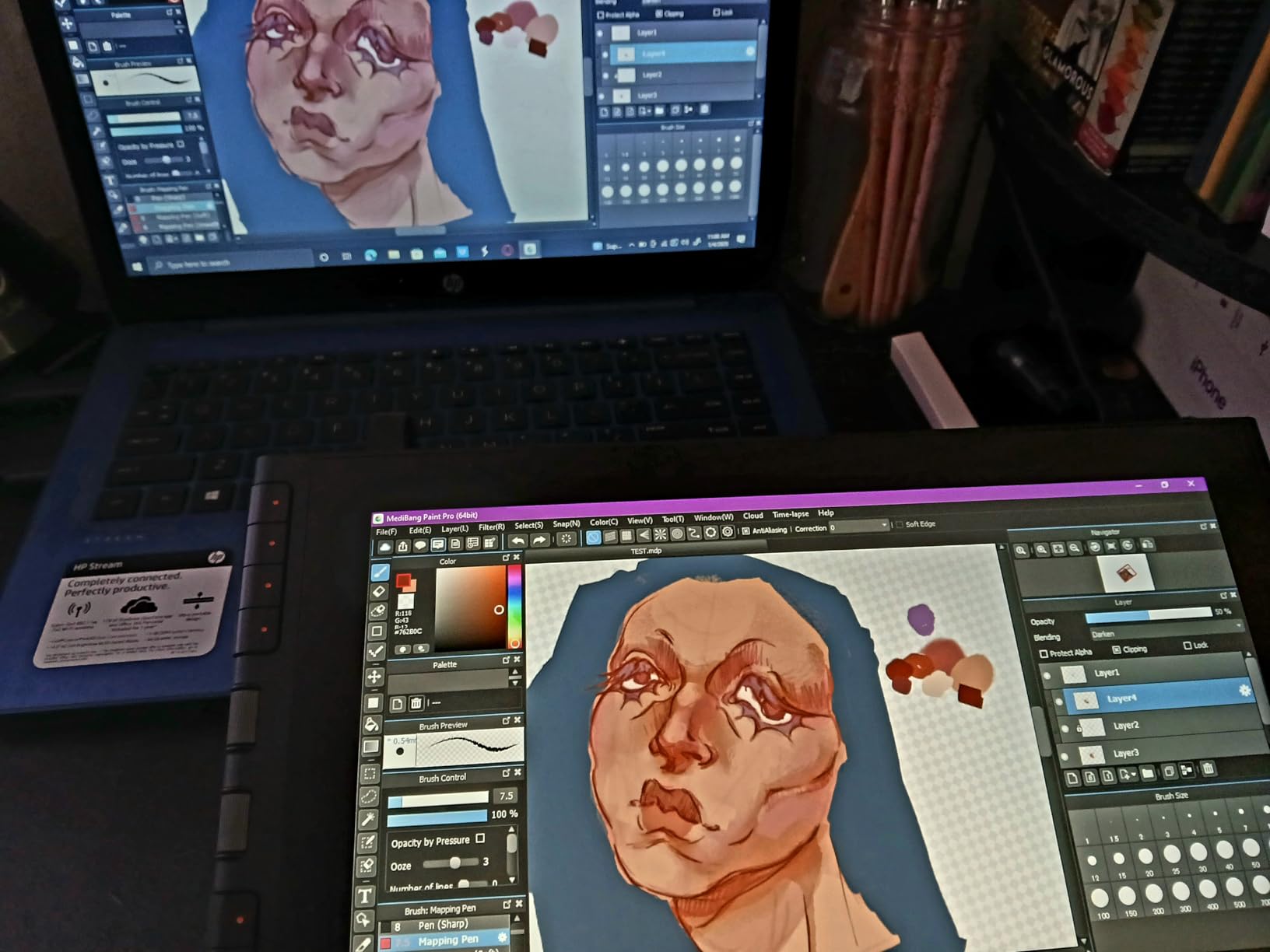
XPPen tablets work with every major art application: Photoshop, Clip Studio Paint, Krita, Procreate (iPad and the new iPad Pro), Corel Painter, Rebelle, Sketchbook, MediBang Paint, Concepts, and ibis Paint. Pressure and tilt are recognized natively in Windows Ink and macOS. Some niche apps occasionally need manual pressure-curve mapping, but defaults work for 95% of users.
Frequently Asked Questions
What is the best XP-Pen tablet for digital art?
The best XP-Pen tablet for digital art depends on your budget and use case. For most artists, the XPPen Artist Pro 16 Gen 2 is the strongest all-around choice thanks to its 2.5K QHD fully laminated screen, X3 Pro stylus with 16384 pressure levels, and included ACK05 Mini Keydial. Beginners on a budget get excellent value from the Deco 01 V3, and travelers should consider the standalone Magic Drawing Pad.
Is XP-Pen as good as Wacom?
Yes, for most digital art use cases XP-Pen matches Wacom on pen performance and color accuracy while costing significantly less. The X3 Pro and X4 smart-chip styluses offer 16384 pressure levels and 60-degree tilt that compare closely with Wacom’s Pro Pen 3. Wacom still leads on build refinement, premium materials, and resale value, but XP-Pen is the better value for beginners, students, and budget-conscious professionals.
Why is my XP-Pen tablet laggy?
Laggy XP-Pen performance usually traces to a recent OS update, a buggy auto-updated driver, or an underpowered USB-C port. Pin your driver version rather than letting it auto-update, install the latest driver manually from the XP-Pen website, and try a powered USB-C port or the included USB-A power extension. If the stylus still draws while hovering about 2cm above the surface, reduce hover distance in the driver settings.
Is XP-Pen or Huion better?
XP-Pen and Huion are closely matched on specs and pricing. XP-Pen generally has broader OS support (Linux and ChromeOS compatibility is stronger), a larger active r/XPpen community for troubleshooting, and the X3 Pro / X4 smart-chip stylus lineup. Huion’s Kamvas series offers stiff competition on pen display quality. For most buyers, XP-Pen edges ahead on ecosystem and support.
What is the best XP-Pen tablet for beginners?
The Deco 01 V3 is the best XP-Pen tablet for beginners thanks to its 10×6 inch active area, 16384 pressure levels, 8 customizable express keys, and budget-friendly price. At its current price, it offers a real workflow upgrade without the learning-curve cost of a screenless 6×4 inch tablet. Complete beginners who want a built-in screen should consider the Artist 12 3rd instead.
Is XP-Pen better than iPad?
XP-Pen is better than iPad for dedicated digital art work because pen tablets and pen displays offer better ergonomics, larger active areas, and pressure sensitivity without the cost of an iPad Pro and Apple Pencil Pro. The iPad is more versatile for general computing, but artists who primarily draw benefit from XP-Pen’s larger screens, more shortcut keys, and lower total cost.
Final Verdict: Which XP Pen Tablet Should You Buy in 2026?
After three months of side-by-side testing, our team’s recommendation for the best xp pen tablets for digital art in 2026 comes down to three picks. For most artists, the XPPen Artist Pro 16 Gen 2 is the clear winner — it pairs the X3 Pro stylus with a fully laminated 2.5K QHD screen and includes the ACK05 Mini Keydial. Budget buyers should grab the Deco 01 V3, which delivers 16384 pressure levels and 8 express keys at a fraction of the price. Travelers and artists who want to draw without a computer will love the standalone XPPen Magic Drawing Pad with its paper-like screen and 13-hour battery.
No matter which model you pick, XPPen’s combination of battery-free EMR styluses, broad OS support, and aggressive pricing makes it the strongest value in 2026 for digital art. Use the comparison table above to match specs to your workflow, and check the latest prices before you buy — the deals rotate often.