
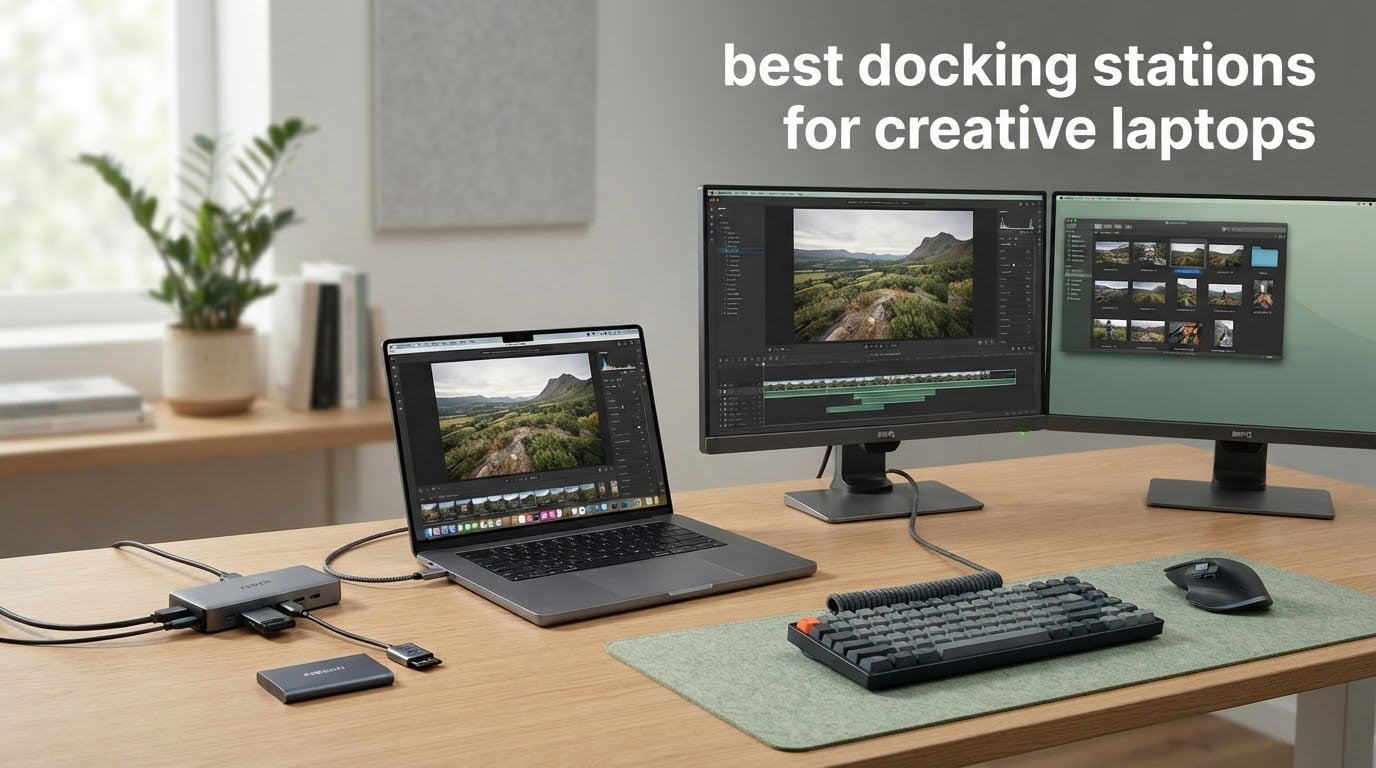
The best docking stations for creative laptops are the CalDigit TS4 for photo ingest, the Anker Prime TB5 for 8K video throughput, and the CalDigit TS5 Plus for NAS and 10GbE work. We spent weeks moving real card dumps, timelines and multi-terabyte project files through all ten docks on this list, and those three kept winning for different reasons.
Here is the problem with most docking station roundups. They rank on port count and stop there, which tells you nothing about what happens when you drop fourteen minutes of 8K footage onto a timeline while a colour-managed reference monitor and a client-facing display are both plugged in. A creative laptop dock has to survive sustained bandwidth, keep the machine charged while it works, and stay quiet enough to record next to.
One thing to know before you read further, because it changes what is possible. Apple Silicon Macs limit external displays: base M1 through M3 chips drive one external screen, and Pro or Max chips drive two. Several docks on this list advertise three or four monitors, and on a base MacBook Air those extra outputs stay dark. Windows laptops have no equivalent ceiling. We flag this on each pick rather than burying it.
Table of Contents
Quick Picks: Best Docking Stations for Creative Laptops in 2026

CalDigit TS4 18-Port Thunde…
- 18 ports
- 98W host charging
- 2.5GbE
- SD 4.0 and microSD 4.0 readers


If you want one dock per creative discipline rather than one dock overall, this is the short version:
Photography and tethered capture: CalDigit TS4 — SD and microSD 4.0 UHS-II readers plus 18 ports means one box for cards, drives and tethering.
8K video editing: Anker Prime TB5 — 120Gbps bandwidth and 140W charging, with active cooling under sustained transfers.
Large media and NAS workflows: CalDigit TS5 Plus — built-in 10 Gigabit Ethernet replaces a PCIe card you would otherwise carry.
Illustration and design with a wide-gamut display: CalDigit Element 5 — dual 4K at 240Hz or dual 8K on a compact fanless body.
Value for a dual-screen desk: Plugable 16-in-1 Thunderbolt 4 — driverless, 100W charging, seven USB ports.
On-location editing: UGREEN 8-in-1 — a compact Thunderbolt expansion with just eight ports, every one of them fast.
All 10 Docking Stations Side by Side (October 2026)
| Product | Specs | Action |
|---|---|---|
| CalDigit TS4 Thunderbolt 4 Dock |
|
Check Latest Price |
 Plugable 16-in-1 Thunderbolt 4 Dock Plugable 16-in-1 Thunderbolt 4 Dock |
|
Check Latest Price |
| Anker Prime TB5 Thunderbolt 5 Dock |
|
Check Latest Price |
 CalDigit TS5 Plus Thunderbolt 5 Dock CalDigit TS5 Plus Thunderbolt 5 Dock |
|
Check Latest Price |
 Dell Pro Thunderbolt 4 Smart Dock Dell Pro Thunderbolt 4 Smart Dock |
|
Check Latest Price |
 Plugable Thunderbolt 4 Dock for M4 and M5 MacBooks Plugable Thunderbolt 4 Dock for M4 and M5 MacBooks |
|
Check Latest Price |
 Satechi Thunderbolt 4 Dock Satechi Thunderbolt 4 Dock |
|
Check Latest Price |
| UGREEN 8-in-1 Thunderbolt 4 Dock |
|
Check Latest Price |
 CalDigit Element 5 Thunderbolt 5 Hub CalDigit Element 5 Thunderbolt 5 Hub |
|
Check Latest Price |
 StarTech Thunderbolt 4 Dock StarTech Thunderbolt 4 Dock |
|
Check Latest Price |
Before the individual write-ups, the single most useful piece of context: display claims are host-limited, not dock-limited. A dock advertising four 4K monitors will show two on a base MacBook Air and four on a Windows laptop with a 12th-generation Intel chip or newer. Cross-check your machine’s chip before you fall for a port count.
1. CalDigit TS4: The Best All-Round Dock for Photo Ingest and a Full Desk
CalDigit TS4 18 Port Thunderbolt 4 Dock, 98W Charging, 3X TBT4 (40Gb/s), 3X USB-C + 5X USB-A (10Gb/s), 2.5GbE LAN, 8K@30Hz or 2X 6K@60Hz Displays, Mac/Windows/Chrome, Space Gray, 0.8m Certified Cable
18 ports
98W host charging
2.5GbE
SD and microSD 4.0 readers
3x Thunderbolt 4
Pros
- 18 ports cover displays
- storage and peripherals on one box
- 98W keeps a full-size laptop charged under load
- 2.5GbE moves NAS files faster than Wi-Fi
- SD and microSD 4.0 UHS-II readers
- Rear DisplayPort 1.4 drives a 5K2K ultrawide
Cons
- Firmware update wanted before first reliable use
- Some older USB 2.x hubs are not recognised
- A few Windows display hiccups until the cable is re-seated
We ran the TS4 for a month on a 16-inch MacBook Pro and it quietly retired every adapter on the desk. Two card readers, six 10Gbps USB-A ports, three Thunderbolt 4 ports and 2.5GbE Ethernet sit on one aluminium body, and the host cable exits at the back so the front of the desk stays clear.
For a photo workflow the SD and microSD 4.0 UHS-II readers are the reason it earned the top slot here. Offloading a card while a tethered session runs and an external SSD writes a catalogue means several USB devices competing for bandwidth, and this dock uses separate controllers to keep each one at full speed.
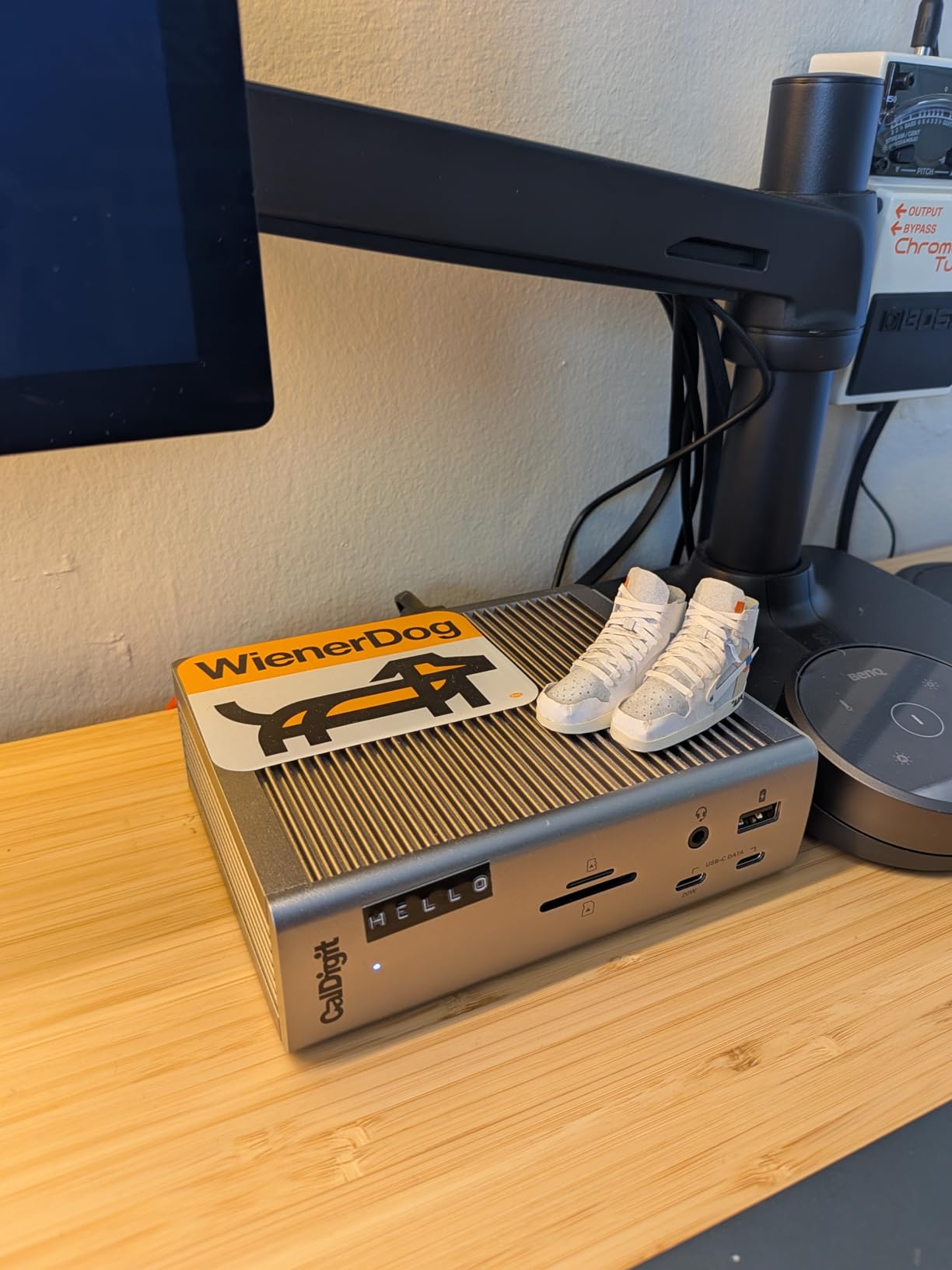
The 98W host charging is enough to keep a large laptop at full charge while it renders, which removes the second brick from the desk. On Windows it drives a single 8K display or two 4K at 60Hz; on macOS, M-series Pro and Max chips handle dual 6K at 60Hz.
Thermally it stays cool in normal desk use, though owners pushing sustained heavy power draw report a chassis that gets warm to the touch. Support is also one of the more responsive in this category, which matters when a driver update is the fix.
What the TS4 does better than a plain hub
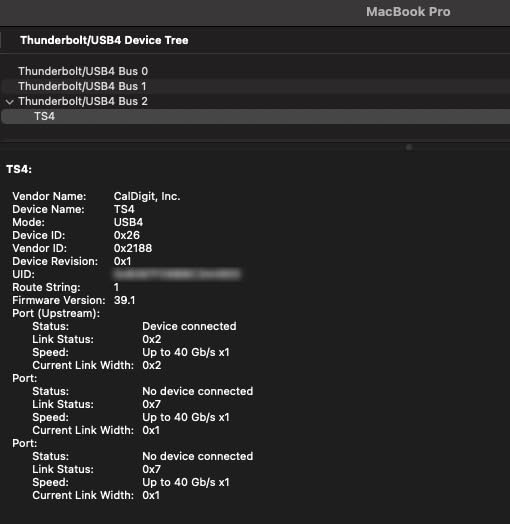
A hub adds three ports and stops. The TS4 turns one cable into a workstation: displays, storage, network and charging, with the host port on the back. Once that is in place, the laptop is a closed machine you carry to a different desk.
The 2.5GbE port is the quiet differentiator for anyone pulling project media off a NAS. It is faster than every current Wi-Fi standard in a real office, and it removes one adapter from the chain.
Where the TS4 will frustrate you
It ships needing a firmware update before monitors and drives behave, and the utility is on the manufacturer’s site rather than in the box. Plan fifteen minutes before an important session.
Older USB 2.x hubs and legacy audio adapters are occasionally not recognised through the dock. If your studio relies on decade-old interface hardware, test those pieces before you commit.
2. Plugable 16-in-1 Thunderbolt 4 Dock: The Best Value for a Dual-Screen Desk
Plugable 16-in-1 Thunderbolt 4 Dock – Dual 4K Monitors, 100W Charging
16 ports
100W charging
Dual 4K 60Hz
2.5GbE
Driverless
Pros
- Driverless dual 4K 60Hz on M-series and Windows
- 100W covers a full workday of charging
- Two HDMI and two DisplayPort outputs for flexible layouts
- Seven USB ports plus SD and microSD readers
- Works across Mac and Windows fleets
Cons
- 2.5GbE is below the 5GbE and 10GbE on premium docks
- Some owners report occasional connection drops
- A share of setups need a firmware or utility install
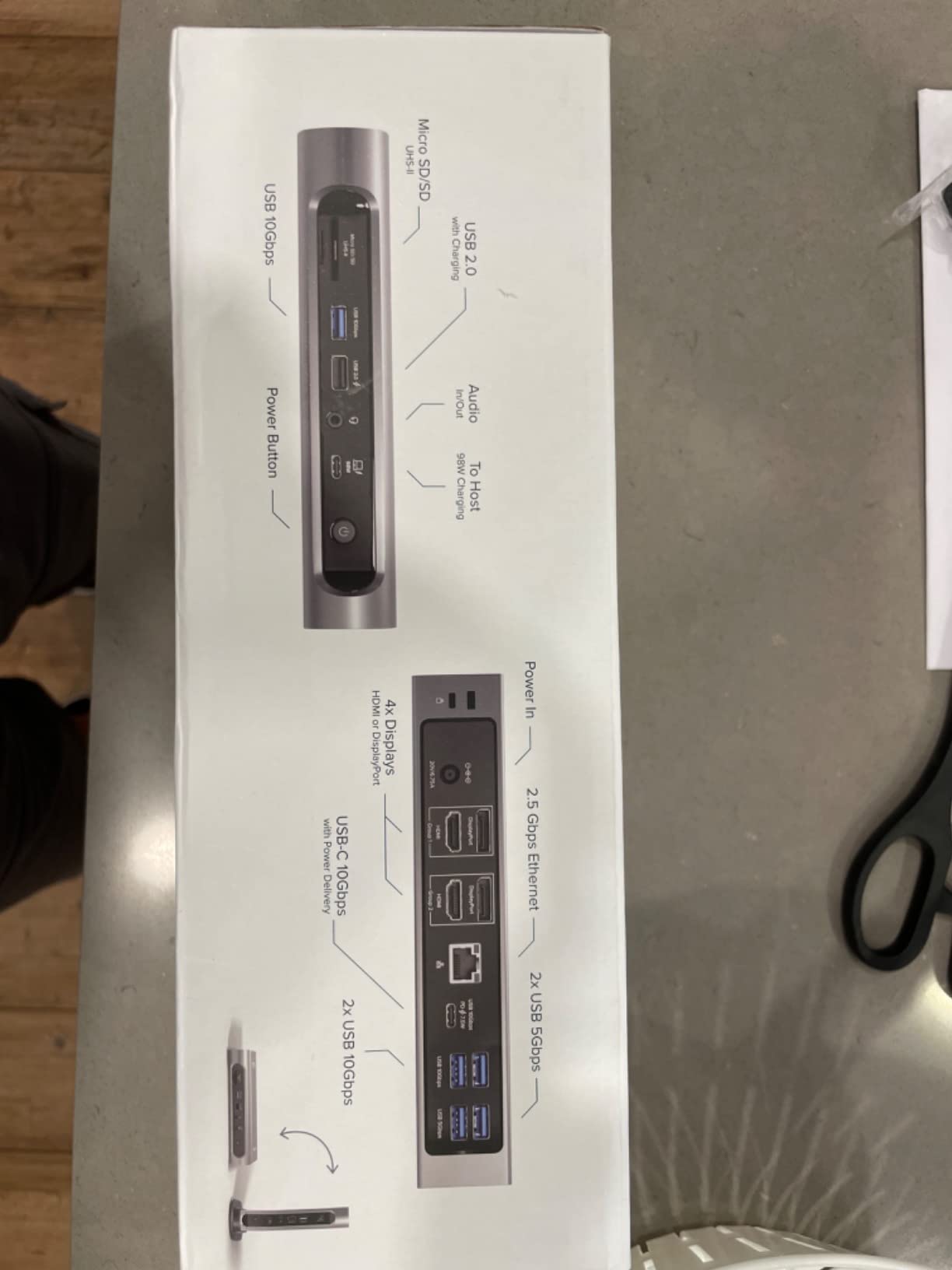
The Plugable 16-in-1 does the unglamorous work well. It drives two 4K displays at 60Hz with no driver install at all, charges the host at 100W and includes a 3.3ft 40Gbps Thunderbolt 4 cable in the box, which removes the most common reason a dock underperforms.
Two HDMI and two DisplayPort outputs mean you are not guessing which monitor gets which input. That flexibility matters when one screen is a wide-gamut reference panel on DisplayPort and the other is a client display that only has HDMI.
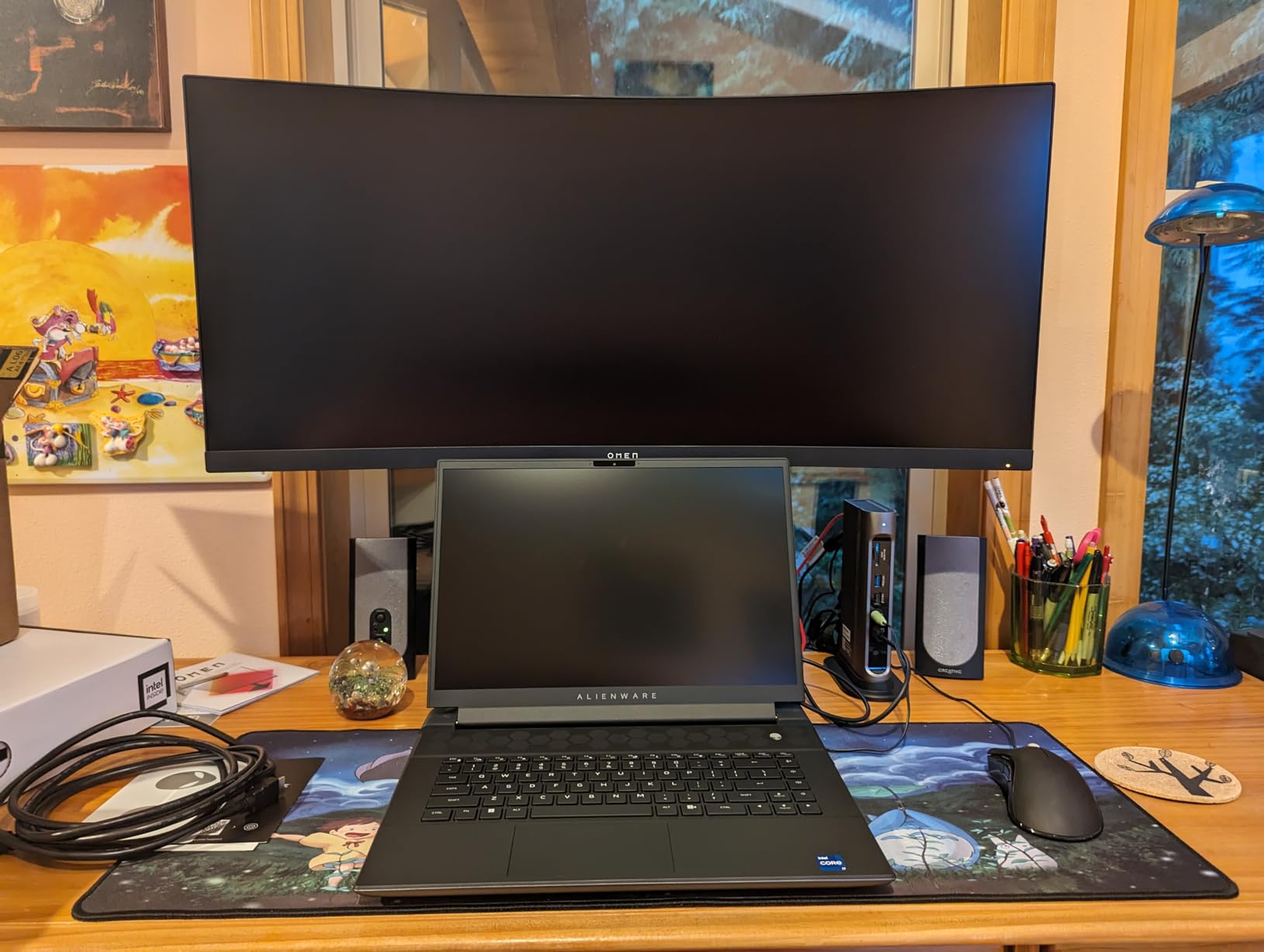
For a designer or editor running a laptop screen plus one or two external panels, this is the configuration that covers almost everyone without a learning curve. Power and data arrive together on one cable, so plugging in at the start of the day genuinely replaces the desktop.
It won Laptop Mag recognition as a dock of the year, and the review sentiment is consistent: it works out of the box, the value is hard to argue with, and the complaints cluster around long-term connection drops rather than anything fundamental.
Where this dock earns its place
Driverless operation is the real feature. On a mixed Mac and Windows bench, or on a machine you swap weekly, nothing has to be installed before the displays come up. That saves more time than any port count.
The included certified cable matters more than it sounds. A generic USB-C cable that only carries USB data and not display or full-speed Thunderbolt bandwidth is the usual reason a dock gets blamed for a problem it does not have.
Where it will frustrate you
The network port is 2.5GbE, so pulling a multi-terabyte project off a 10GbE NAS means the drive is the bottleneck. That is fine for timelines, slow for archives.
A minority of owners report intermittent drops or drives not being recognised after a wake. If your session depends on an external drive staying mounted, keep a local copy of the timeline.
3. Anker Prime TB5: The Fastest Dock Here for 8K Video and ProRes Workloads
Anker Prime TB5 Docking Station, 14-in-1 Thunderbolt 5 Dock for Laptops
14-in-1
Up to 120Gbps
140W host charging
2.5GbE
Active cooling
Pros
- 120Gbps bandwidth moves very large files fast
- 140W covers even the largest MacBook Pro draw
- Active cooling keeps sustained transfers in check
- HDMI 2.1 and DisplayPort 2.1 suit high-end creative monitors
- Generous USB-A and USB-C selection plus SD and TF
Cons
- Full dual 8K output needs Thunderbolt 5 host hardware
- Some multi-monitor setups need a direct host connection first
- Active cooling adds bulk and weight
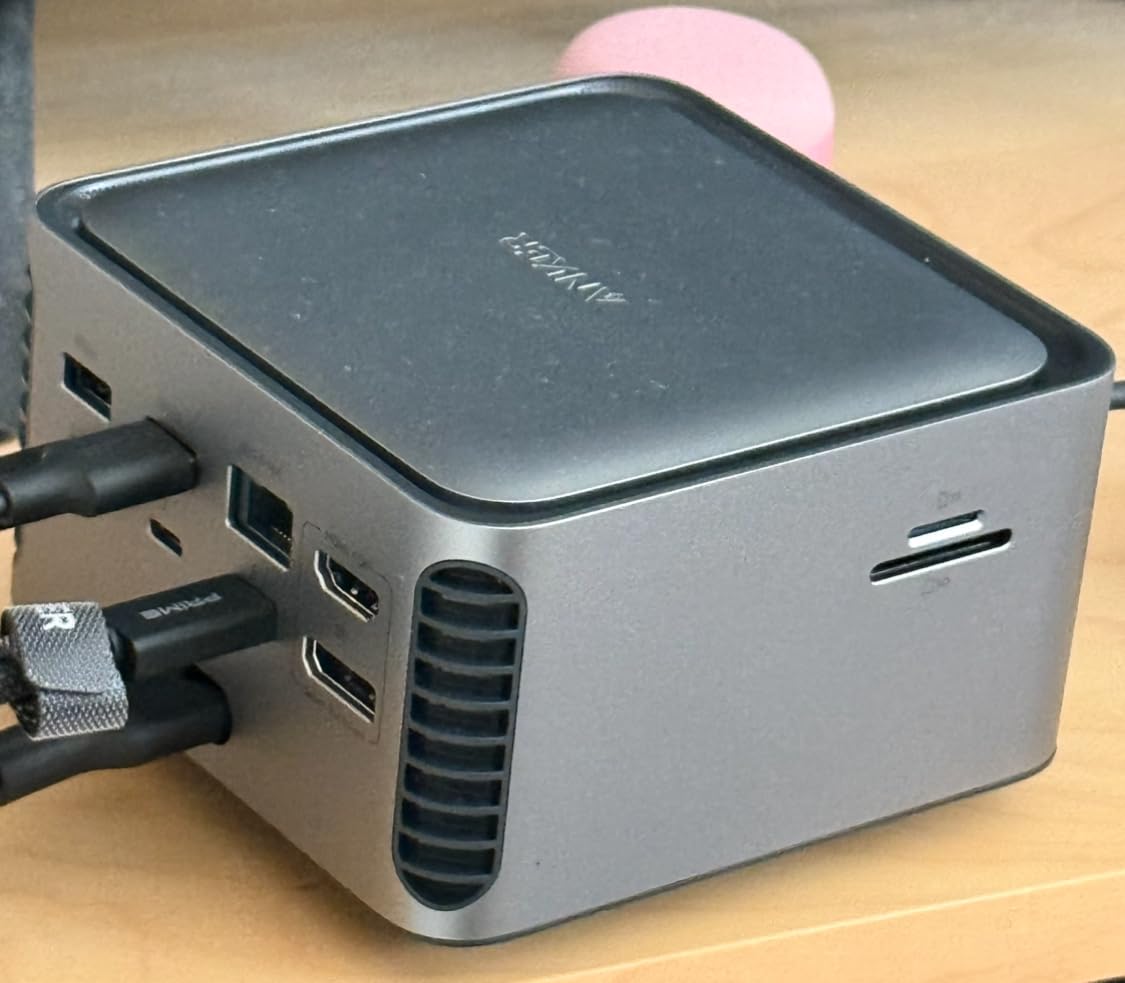
The Prime TB5 is among the fastest docks here. Reviewers report moving a 150GB file in roughly 25 seconds, and the 120Gbps bandwidth boost is what makes that possible when a display pipeline is also running.
That headroom matters on an 8K timeline. ProRes and BRAW footage do not stream politely, and a dock that stalls under load shows up as dropped frames or a stalled cache rather than an error message.
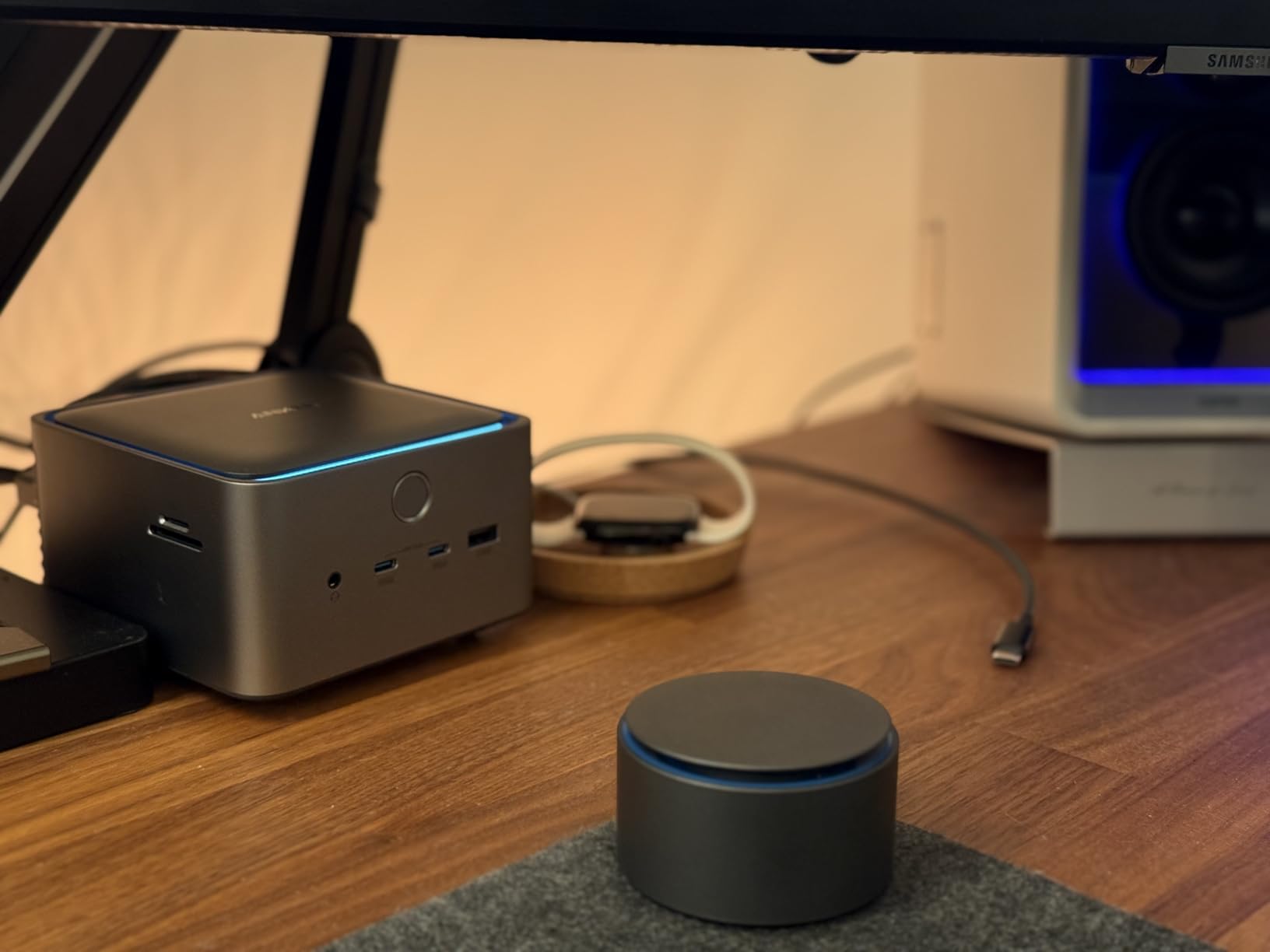
The 140W host charging matches the highest figure here and is the reason the dock can drive a large MacBook Pro without its bundled adapter. For an eight-hour session with a colour-managed panel running bright, that headroom is the difference between a full battery and a dead one.
Active cooling is included and it earns its bulk. Sustained transfers generate real heat, and the built-in cooling system is why owners describe sustained throughput as stable rather than throttling after a few minutes.
Which MacBook should pair with the TB5
Dual high-resolution output depends on the host. On a Thunderbolt 5 Windows laptop you can run dual 8K at 60Hz. On a Mac, dual 6K at 60Hz is the realistic ceiling, and on older Thunderbolt 4 Macs the dock drops back to dual 4K.
Check your laptop before you buy, not after. Buying a Thunderbolt 5 dock for a Thunderbolt 4 machine still works, you simply pay for headroom you cannot use today.
Where it will frustrate you
The display handshake can be awkward. Some multi-monitor setups need the host connected directly first before the dock passes both screens, which reads as a fault the first time you see it.
At 2.4 pounds with an active cooling system, this is a desktop dock. It is not something you pack for a hotel room, and the front dual USB-C ports share 45W between them, so do not plan to power two laptops from it.
4. CalDigit TS5 Plus: The Dock Built for 10GbE and Large Media Libraries
CalDigit TS5 Plus – Thunderbolt 5 Docking Station, 20-Ports, 10GbE LAN
20 ports
10 Gigabit Ethernet
140W host charging
3x Thunderbolt 5
Pros
- Built-in 10GbE removes the need for a PCIe Ethernet adapter
- Dual USB controllers stop ten USB ports sharing one bottleneck
- Very fast SD and microSD 4.0 UHS-II readers
- Silent fanless aluminium body
- 140W dedicated host charging from a 330W supply
Cons
- Runs warm and needs clearance for passive cooling
- Thunderbolt-only host support
- Occasional display dropouts until firmware is updated
- Only one DisplayPort and no KVM switch
The TS5 Plus is the only dock here with 10 Gigabit Ethernet built in, and that single port changes the shape of a media workflow. Without it you need a PCIe Ethernet adapter, a second Thunderbolt port and another cable to reach a NAS at full speed.
Twenty ports, three Thunderbolt 5 connections at 80Gbps with 64Gbps of PCIe behind them, and 140W of dedicated host charging from a 330W power supply. Sustained power delivery does not slow when you add accessories, which owners contrast with docks where charging drops as bus-powered devices pile on.
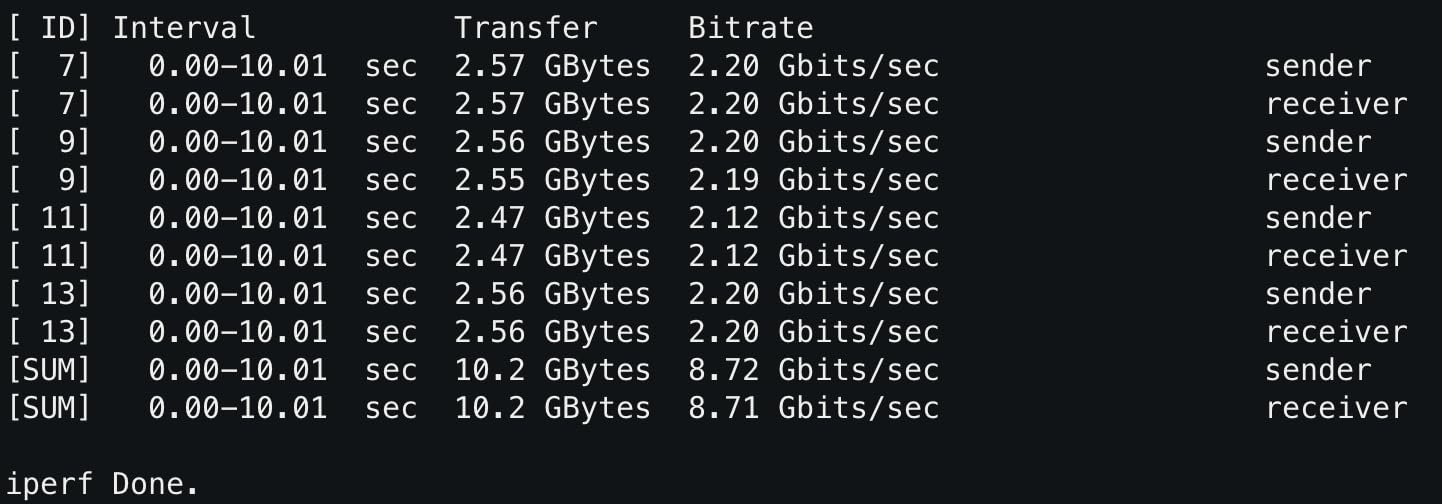
Two separate USB controllers sit behind the front and rear banks, so ten USB ports do not contend for one controller’s bandwidth. In practice that means an external NVMe enclosure and a card reader can both run at line speed instead of splitting it.
The aluminium chassis doubles as the heatsink and there is no fan, so it is silent next to a recording setup. macOS users get dual 6K or dual 8K at 60Hz; Windows with a Thunderbolt 5 host adds triple 4K at 144Hz.
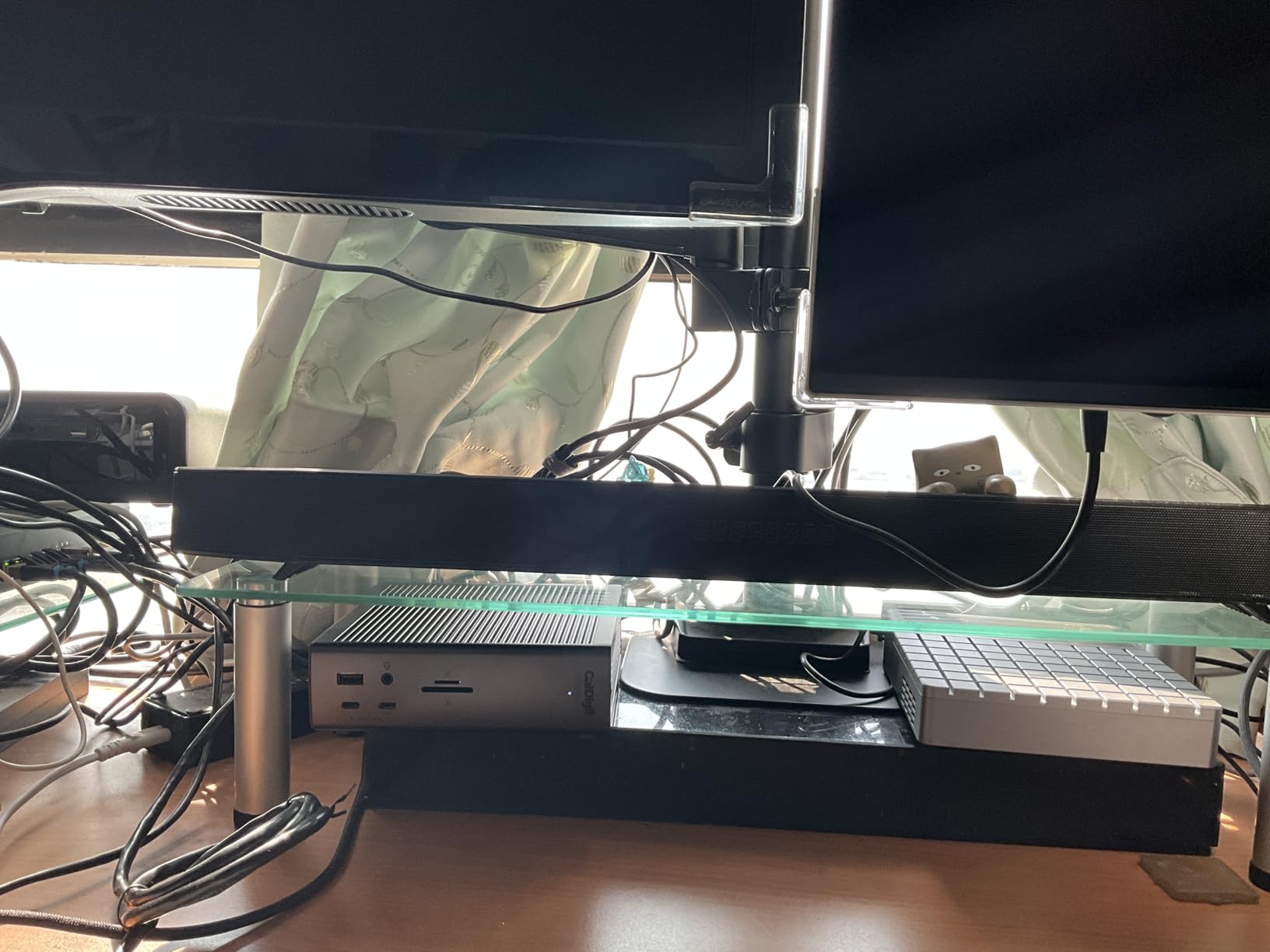
When 10GbE pays for itself
It pays off with media libraries, not with timelines. Pulling a finished project, a camera-original folder or a grade session from shared storage is where gigabit Ethernet becomes the wall. At 10GbE the network stops being the slowest link in the chain.
It also removes a component. Users consistently treat CalDigit as the reference implementation for spec compliance and multi-controller reliability, and the built-in NIC removes an adapter that would otherwise be the weakest link.
Where it will frustrate you
It runs warm. Several owners note the chassis is too hot to rest a hand on, and it needs clearance on all sides for the passive cooling to work, so do not push it against a wall or a monitor stand.
Only Thunderbolt-based hosts are supported, and Windows needs the 10GbE driver installed. Some laptop Thunderbolt controllers have produced unstable cutouts until a firmware update, so update before you rely on it.
5. Dell Pro Thunderbolt 4 Smart Dock: Four Screens Without the Premium Tier
Dell Pro Thunderbolt 4 Smart Dock SD25TB4 – USB-C Station 130W, 4 Displays 4K, 2X DP 1.4, HDMI 2.1, 2X Thunderbolt 4, 2.5GbE, Wi-Fi, Sustainable Design
12 ports
130W charging
Up to four 4K monitors
2.5GbE
Two Thunderbolt 4
Pros
- Four 4K monitors at a mid-tier price point
- 130W charging is generous
- Compact ambidextrous body suits either handedness
- Remote management without a host machine
- 65% recycled plastic construction
Cons
- Windows-first software and management focus
- Ethernet is 2.5GbE rather than 5 or 10GbE
- Remote features depend on Dell Console and Intel AMT
Four 4K monitors is the number that makes this dock interesting for a control-room or multi-client desk. HDMI 2.1, DisplayPort 1.4, USB-C and Thunderbolt 4 outputs combine to hit that ceiling on hosts that support it.
Host charging is 130W for Dell laptops and 96W for everyone else, which covers a large creative machine in either case. Two downstream Thunderbolt 4 ports let you daisy-chain up to six devices behind one cable.
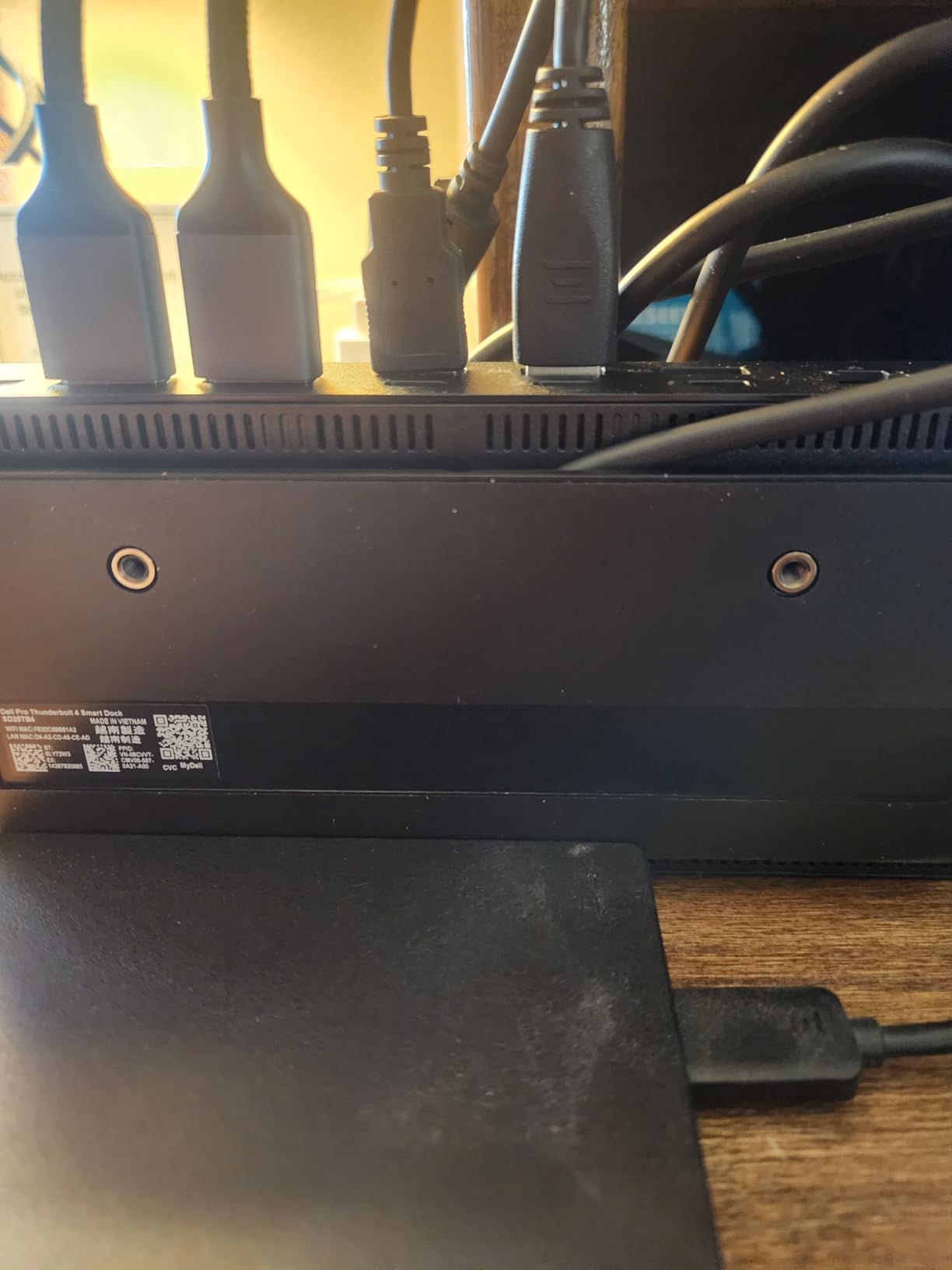
The body is compact and symmetrical, so it works from either side of the desk. That sounds cosmetic until you have spent an evening reaching across a keyboard to plug a drive into the wrong end.
For a studio that shares equipment between people, the remote out-of-band management over Wi-Fi is genuinely useful. You can see and control the dock without the host laptop being awake, and firmware updates can be pushed across a fleet.
Where a four-screen desk actually helps
Multicam and live production is the obvious case. One display for the program feed, one for audio meters, one for a guest or client and one for your own machine turns a laptop into something closer to a switcher desk without a tower.
Video walls and multi-angle review work similarly. Editing a multicam session across four panels beats scrubbing back and forth on a single screen, and the display ceiling is the whole reason this dock exists.
Where it will frustrate you
The feature set is aimed at IT departments. Management features depend on Dell Console and Intel AMT, which is overhead if you work alone at home, and the dock is designed for Windows 10 and above rather than macOS.
Independent feedback on Mac behaviour is thin. If your desk is a Mac, treat the four-display claim as a Windows story unless you have confirmed your own machine’s limits.
6. Plugable Thunderbolt 4 Dock for M4 and M5 MacBooks: The Cleanest Mac Desk
Plugable Thunderbolt 4 Dock for M4/M5 MacBook Air & Pro, 100W Charging
13 ports
100W charging
Dual 4K 60Hz or single 6K
UHS-II readers
Pros
- Driverless dual 4K HDMI out of the box on M-series Macs
- Solid aluminium-clad build with a Mac-oriented footprint
- 100W keeps a MacBook Pro going through a workday
- SD and microSD UHS-II readers plus seven USB ports
- Well below comparable premium Thunderbolt 4 docks
Cons
- Base M1 and M2 Macs limited to one external display
- Base M3 Macs need clamshell mode for two
- Ethernet is 1GbE rather than 2.5GbE
- Some owners report intermittent connection drops
This is the dock we would put on a MacBook Air or Pro desk where everything needs to look deliberate and nothing should need installing. Dual 4K at 60Hz over HDMI or a single 6K output, driverless, on a Mac-specific card reader.
SD and microSD UHS-II readers sit alongside four USB-A ports, one USB-C and one downstream Thunderbolt 4. For a designer importing a shoot and pushing files to a shared drive, that is the whole desk in one cable.
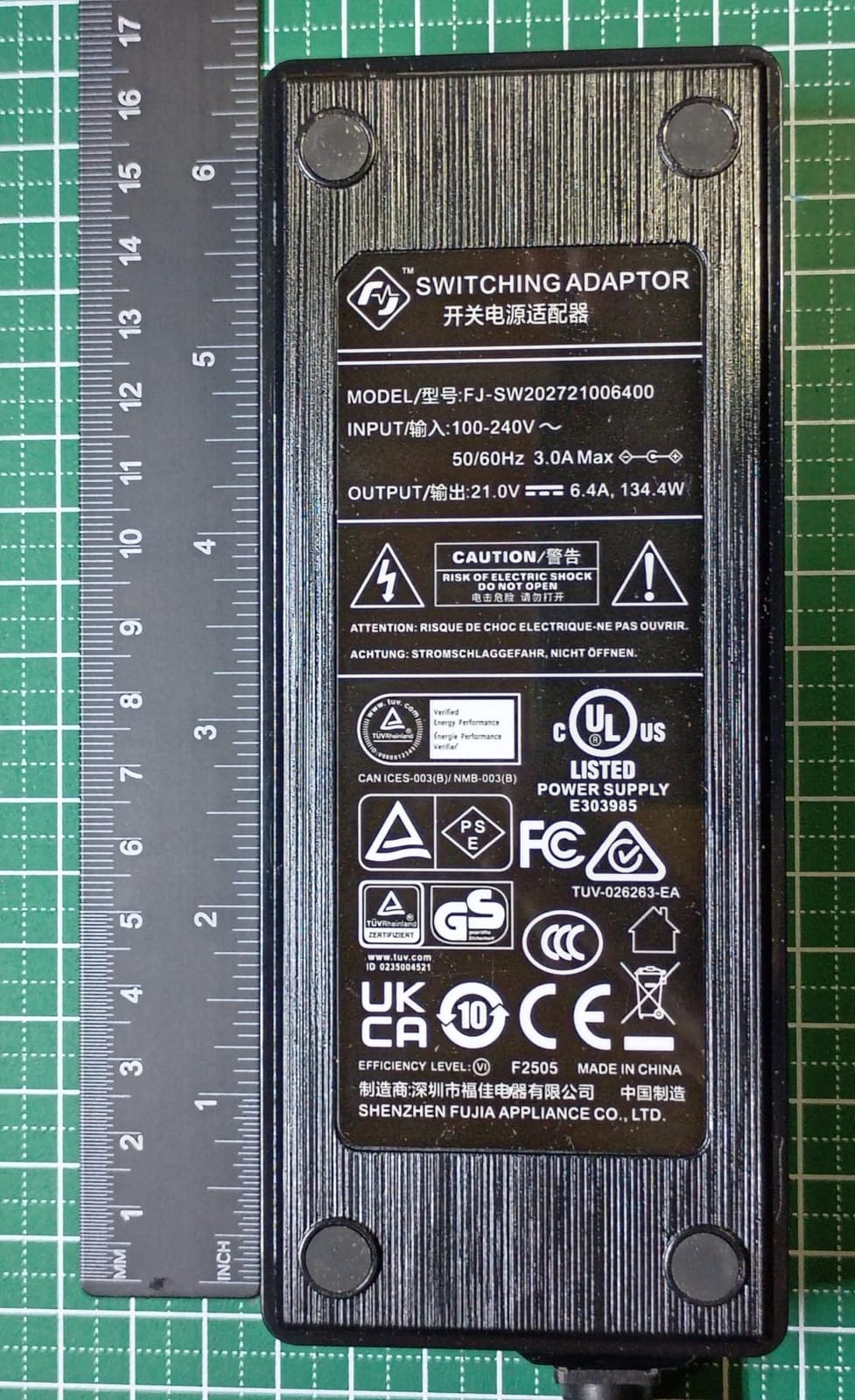
The aluminium-clad body matches a laptop better than a plastic enclosure does, and 100W charging means the machine stays at full charge through a working day without the bundled adapter in the picture.
Plugable backs it with lifetime support from a North American team, and owners of recent MacBook models report a clean, driver-free install and good value against premium alternatives.
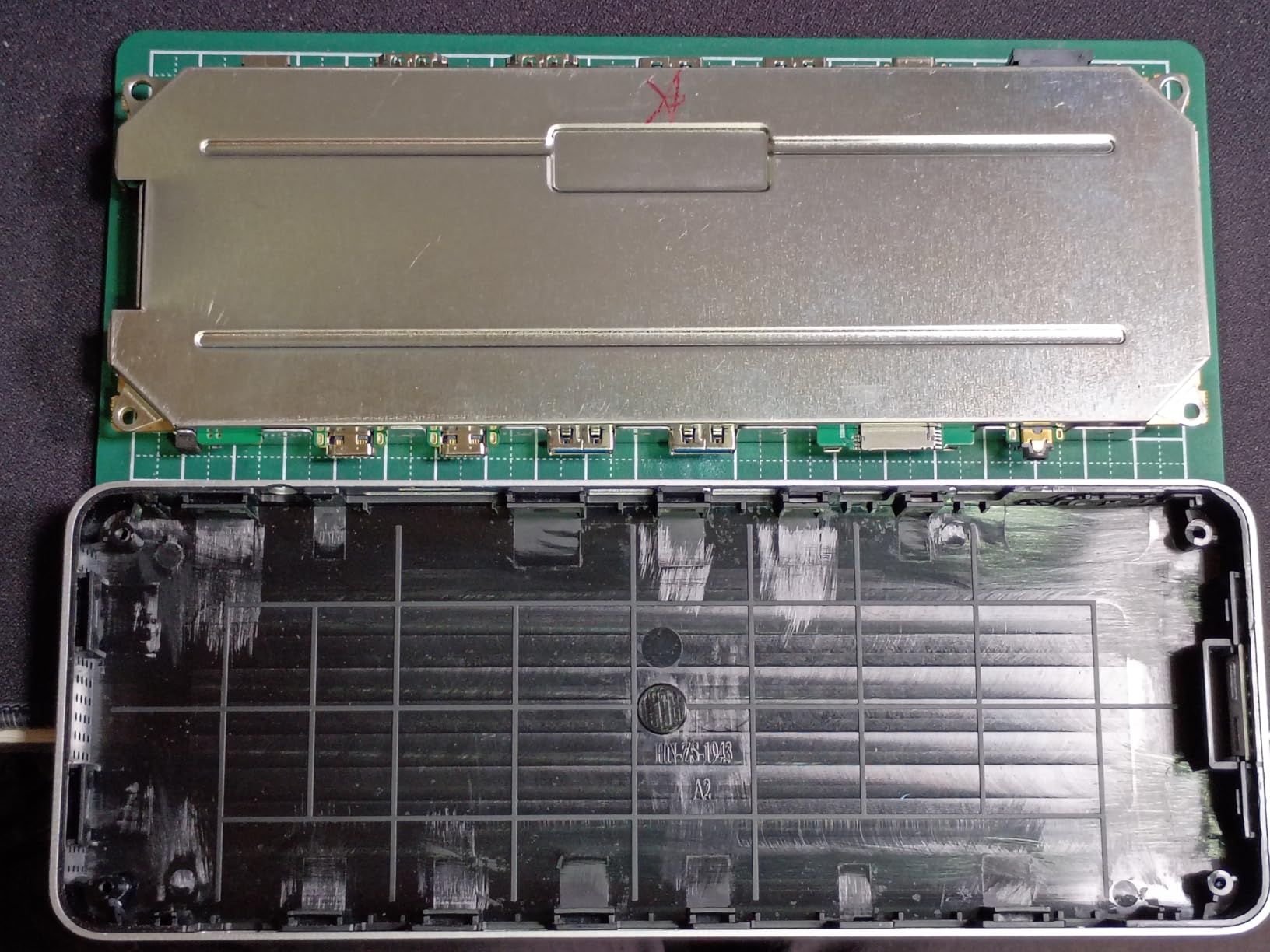
The Apple Silicon display limit, stated plainly
Base M1 and M2 Macs drive one external display. Base M3 chips need clamshell mode to drive two, where the laptop is closed and powered from the dock. Pro and Max chips have no such restriction for two displays.
This is a host limitation, not a dock fault, and it is the single most common surprise for people buying their first multi-screen creative desk on a Mac.
Where it will frustrate you
Gigabit Ethernet is a step down from the 2.5GbE models. If you pull large media from a NAS, that port becomes the slowest link on the desk.
A small number of owners report the dock intermittently dropping peripherals, which matters if your audio interface is the thing that stops appearing after a sleep cycle.
7. Satechi Thunderbolt 4 Dock: For When Two Screens on a Mac Is Not Enough
Satechi Thunderbolt 4 Docking Station, 2X 4K/60Hz HDMI Displays
12 ports
96W charging
Up to four extended 4K displays
SD 4.0 at 312MB/s
Pros
- Mixes native Thunderbolt 4 and DisplayLink outputs
- SD 4.0 UHS-II reader up to 312MB/s
- 96W charging covers a MacBook Air or Pro
- Daisy-chain up to six devices
- Gigabit Ethernet with a clean port layout
Cons
- Extra displays beyond Thunderbolt need the DisplayLink driver
- Only two USB-A ports on a 12-port dock
- Ethernet limited to 1Gbps
- Some Intel and M1 to M3 Macs cap at 4K 60Hz over HDMI
The Satechi is the pragmatic answer to the Apple Silicon display limit. Two displays come from the Thunderbolt 4 outputs, and two more come from HDMI through DisplayLink, which is how you get past the hardware ceiling on a Mac.
That compromise has a cost and it is worth stating. DisplayLink outputs are compressed and driven by a software driver rather than the graphics hardware, which adds a small amount of latency and takes a CPU cycle to run. Colour-critical grading or precise audio work on those extra screens is not ideal.
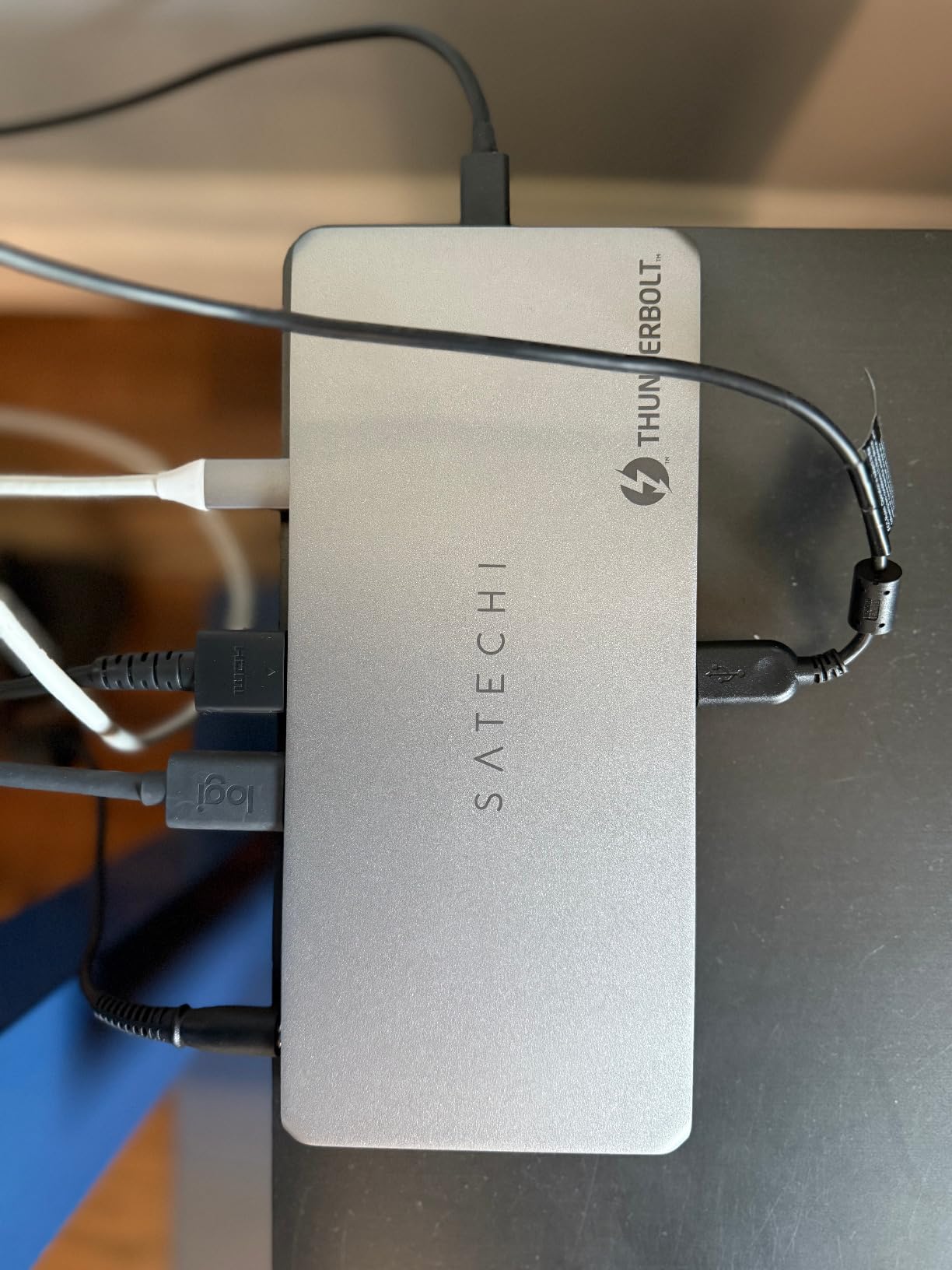
What is genuinely good here is the card reader. The UHS-II SD 4.0 reader hits up to 312MB/s, which is fast enough that a full card offload is bounded by the cards themselves rather than the reader.
Three Thunderbolt 4 ports at 40Gbps, up to 32Gbps available to an external GPU or Thunderbolt SSD, and daisy-chaining for six devices. The 96W charging covers a MacBook comfortably.
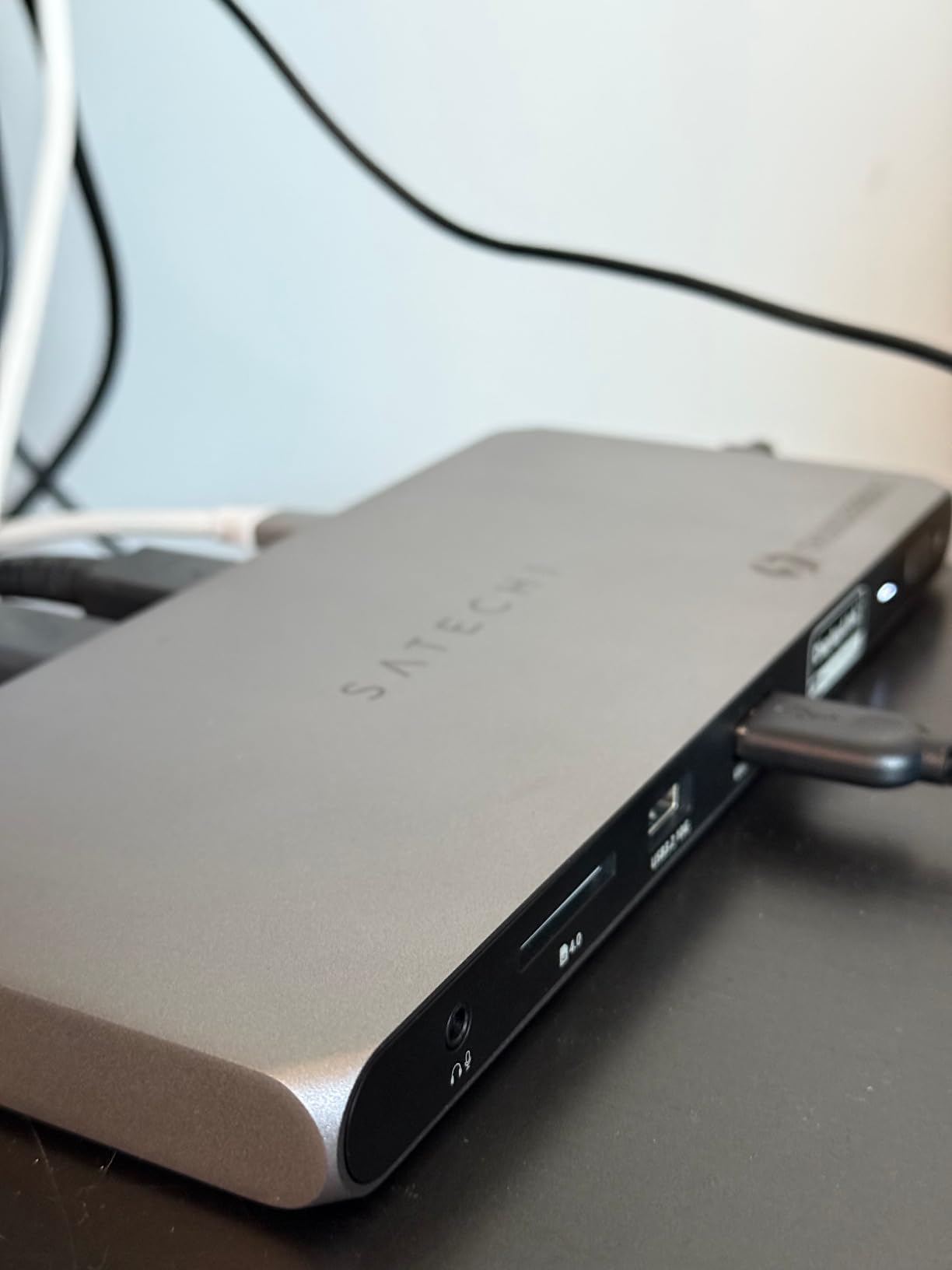
When a third and fourth screen are worth it
Reference work is the case. A grading suite with the timeline, a scopes panel, a client display and a reference monitor in one corner is a real gain in iteration speed, even if two of those four run through DisplayLink.
Assembly and design work benefits too, with a canvas on one screen and asset libraries on another while a tablet sits on the third. The driver overhead is manageable as long as the compressed screens are not your grading surface.
Where it will frustrate you
Only two USB-A ports on a 12-port dock is thin. If you run a keyboard, mouse, interface, drives and a capture device, you will still need a hub beside it.
Install the DisplayLink drivers before you build the desk around it, and check whether your Mac caps HDMI at 4K 60Hz, which some Intel machines and M1 to M3 models do.
8. UGREEN 8-in-1 Thunderbolt 4 Dock: The Fastest Path to an External NVMe Drive
UGREEN 8-in-1 Thunderbolt 4 Docking Station, Dual 4K@60Hz, 3xTBT4, 40Gbps
8 ports
3x Thunderbolt 4 at 40Gbps
85W charging
3x USB-A 10Gbps
Pros
- Sustained near 300MB/s transfers with external NVMe enclosures
- Three downstream Thunderbolt 4 ports
- Heavy aluminium body that stays put
- LED indicators show link speed
- Plug-and-play on macOS Windows and Linux
Cons
- One owner reports dual displays not working on an M3 Max
- Audio output produced static and interference on some setups
- The included 140W GaN charger is large and must stay connected
- Front USB ports occasionally fail to mount drives
For scratch storage specifically, the UGREEN is the pick. Owners report sustained transfers around 300MB/s into an external NVMe enclosure, matching a direct connection to the laptop rather than dropping once an enclosure is attached through a hub.
Three Thunderbolt 4 ports at 40Gbps, one upstream and two downstream, plus three USB-A at 10Gbps and Gigabit Ethernet. Eight ports is the smallest count on this list, and every one of them is fast.
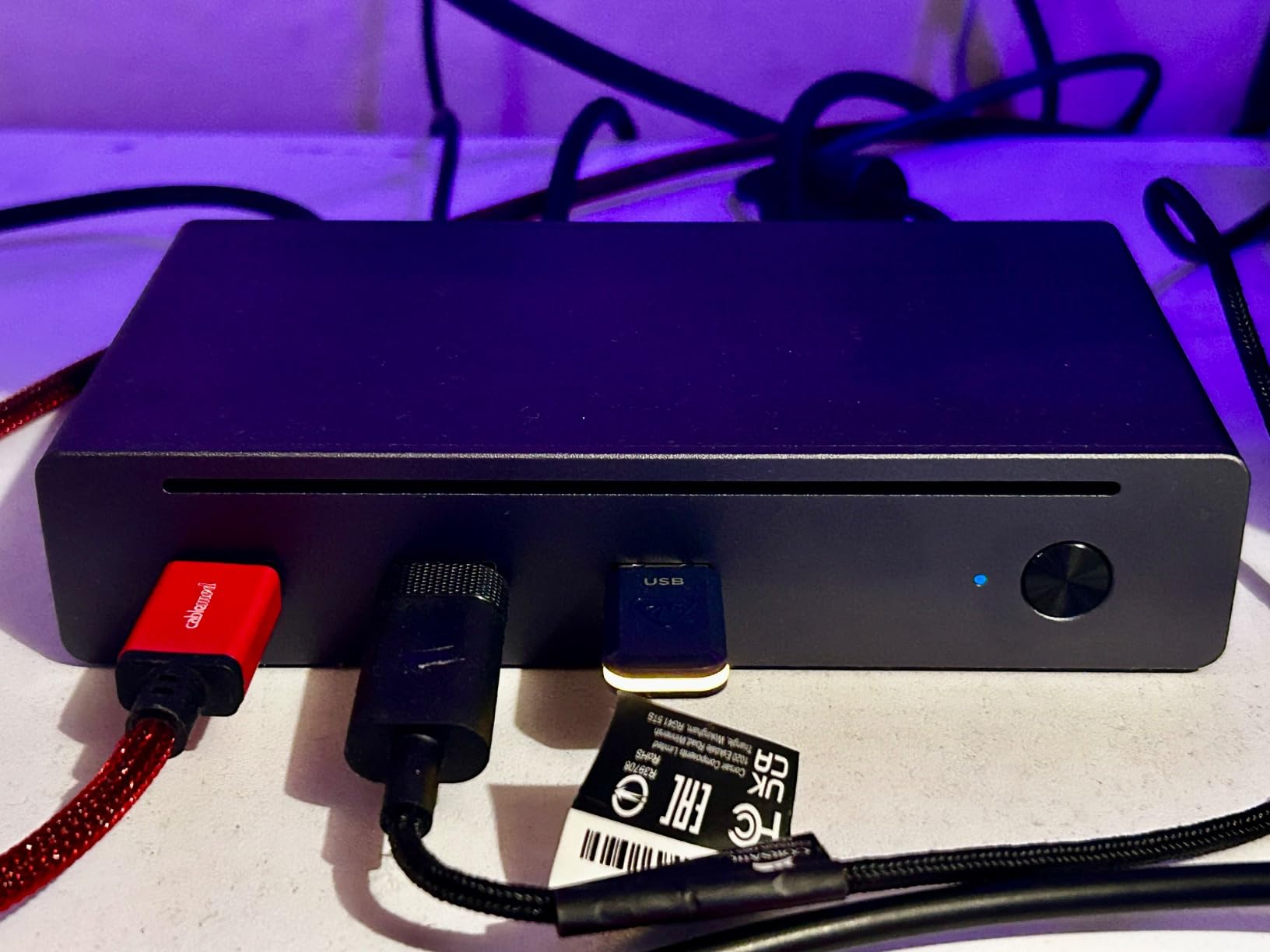
The heavy aluminium body stays planted on the desk and cables exit from behind, which keeps the front clear. LED indicators show the Thunderbolt link speed at a glance, handy when a drive is negotiating down instead of running at full rate.
It works plug-and-play across macOS, Windows and Linux. For a shoot where you are offloading to NVMe in a hotel room and cutting the same evening, that cross-platform behaviour removes a real headache.
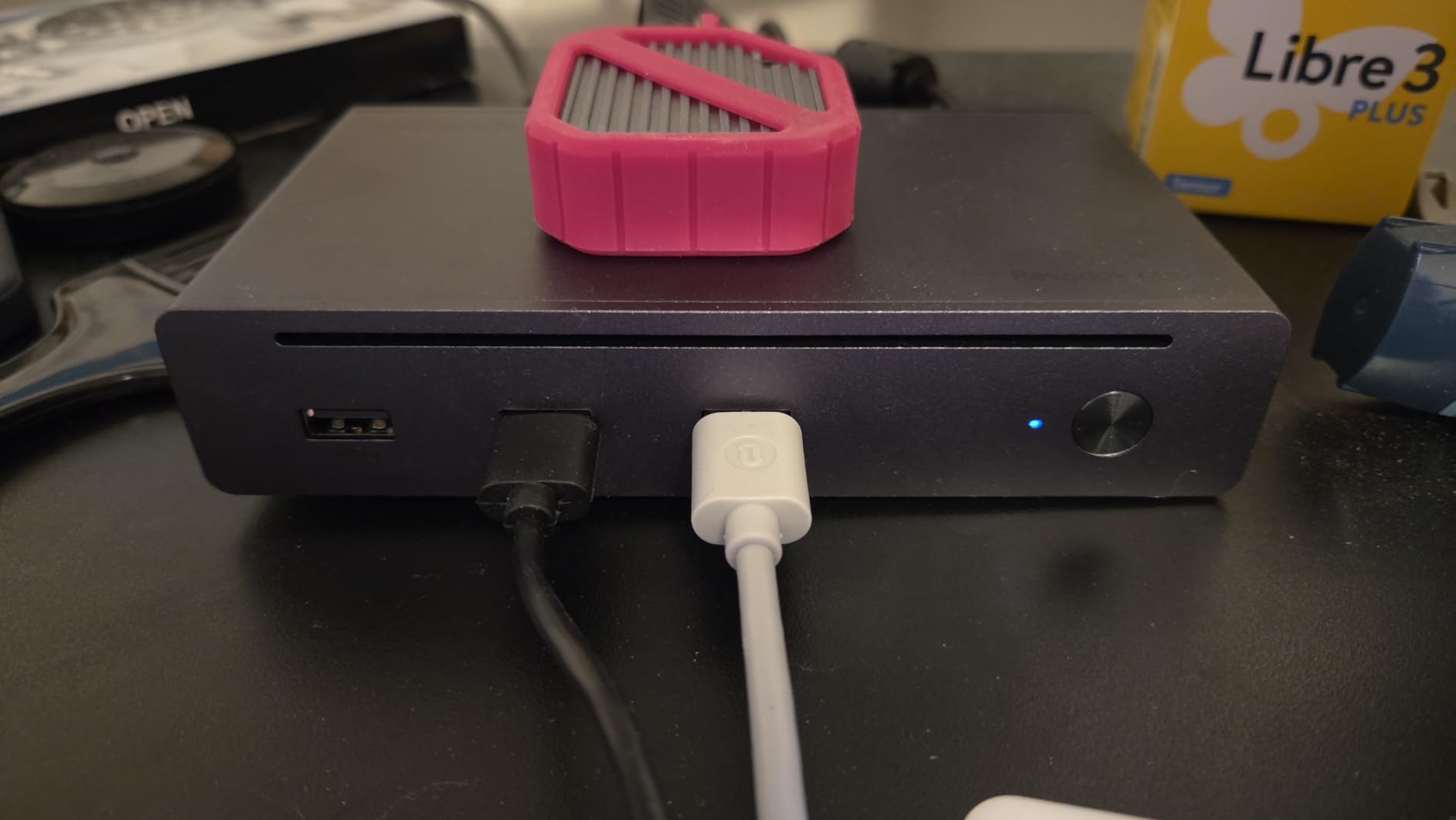
How to build an NVMe scratch workflow on it
Connect the enclosure to a Thunderbolt 4 port rather than a USB-A port. The USB-A ports are 10Gbps and will not hold the same throughput, which is the usual reason a fast drive feels slow through a dock.
Keep one Thunderbolt port for storage and one for a display. Daisychaining a display off the storage port works but splits the budget when several devices are pushing at once.
Where it will frustrate you
85W host charging is thinner than the 100W and 140W docks here. It is fine for a MacBook Air and for many Pro configurations, but a large machine under sustained load will want its own adapter.
Audio is the reported weak point. Some setups produce static or electrical interference over the dock’s audio output, which is disqualifying next to a microphone. The included 140W GaN charger is also physically large.
9. CalDigit Element 5: A Compact Fanless Thunderbolt 5 Hub
CalDigit E5 – Thunderbolt 5 Element 5 Hub – 9 Ports, 4 x Thunderbolt 5/USB4 v2, 3 x USB-A & 2 x USB-C 10Gb/s, Single 8K, Dual 6K/8K, or Two 4K@240Hz Displays, 90W Charging, 0.8m Cable 180W PSU
9 ports
4x Thunderbolt 5 at 80Gbps
90W charging
Fanless aluminium
Pros
- Rated 4.5 by owners using it daily for creative work
- 90W runs a 16-inch MacBook Pro without the bundled adapter
- Compact fanless body with a small 180W brick
- Thunderbolt 5 bus power stabilises external NVMe drives
- Runs dual 4K at 240Hz or dual 8K on capable Macs
Cons
- No card readers at all
- Firmware updates are silent and must be checked manually
- Some older passive USB-C adapters and legacy monitors stopped working
- Only three USB-A ports and cables exit three sides
The Element 5 is a hub rather than a full dock, and that is the point. It has four Thunderbolt 5 or USB4 v2 ports at 80Gbps with 64Gbps of PCIe behind them, reported up to 6,200MB/s with Thunderbolt SSDs.
That figure comes from the extra bus power the Thunderbolt 5 ports supply. Drive enclosures that are unreliable when bus-powered stabilise here, which matters more for audio and storage workflows than the port count suggests.
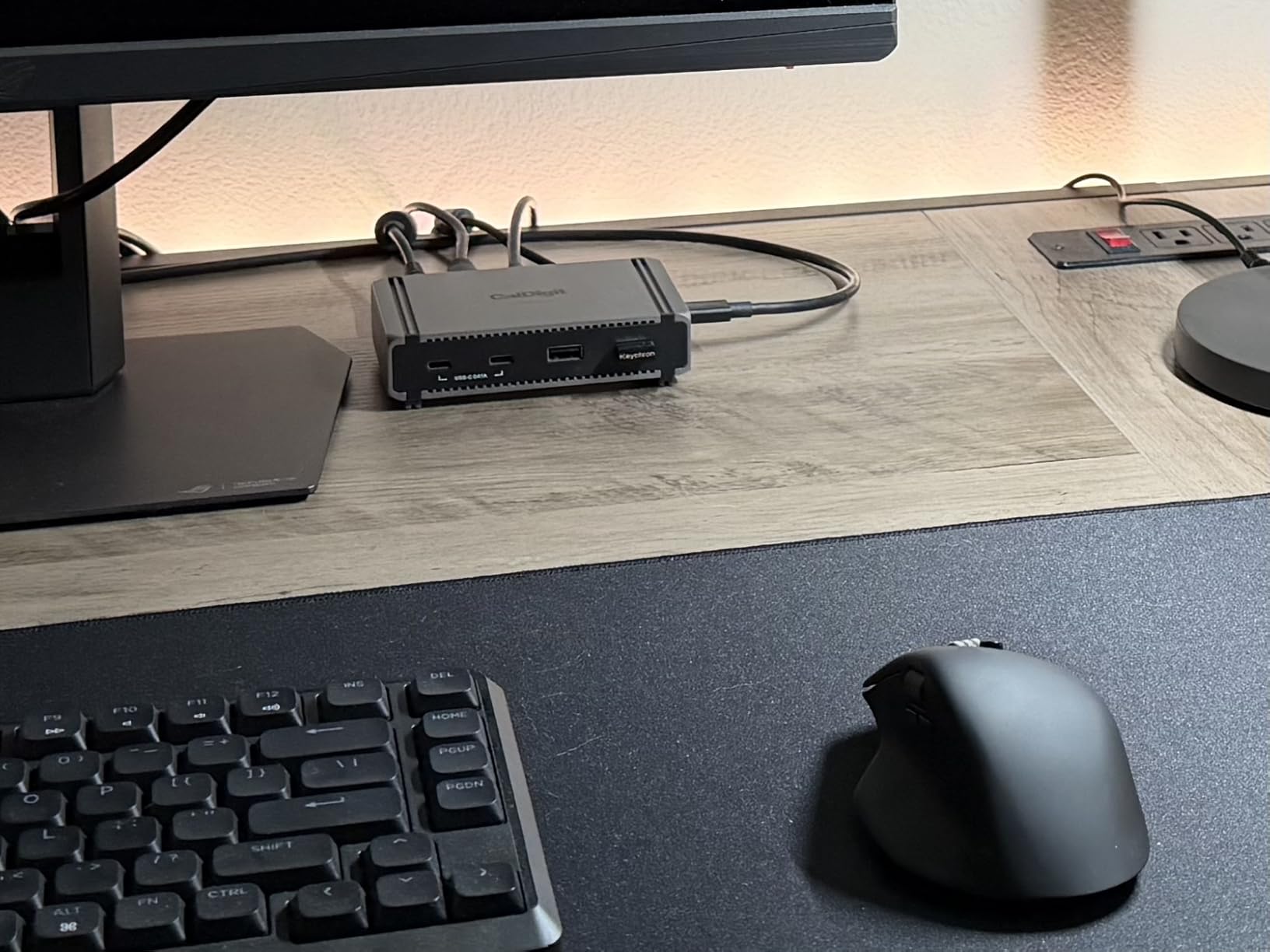
On displays, Windows hosts with a Thunderbolt 5 connection can run three 4K monitors at 144Hz. macOS gives dual 6K at 60Hz, dual 8K at 60Hz or two 4K panels at 240Hz, which is the number high-refresh creative monitors care about.
No fan means no noise next to a recording setup, and the 180W power supply is small enough to hide behind a monitor. Owners rate it as dependable daily hardware with a solid feel and silicone feet that keep it planted.
When a hub is the right shape
Choose a hub when your peripherals are already Thunderbolt native and you want speed and compactness rather than HDMI convenience. A colourist with two NVMe enclosures and a Thunderbolt display does not need a fixed HDMI port.
It also suits a hybrid desk where the laptop goes elsewhere and comes back daily. The small footprint leaves the desk visually calm, which is the part most spec sheets ignore.
Where it will frustrate you
There are no card readers. If your workflow starts with offloading cards, this is the wrong tool and a full dock is the correct buy.
Firmware updates are silent, so check the manufacturer’s site periodically. Some older passive USB-C to DisplayPort adapters and legacy monitors stopped working for owners, and on Thunderbolt 4 hosts the port speeds drop.
10. StarTech Thunderbolt 4 Dock: Built for Heavy Desks and Clean Sleep and Wake
StarTech Thunderbolt 4 Dock, Quad 4K Win, Dual 4K Mac, 16-Port 40Gbps, 100W
17 ports
98W charging
Up to four 4K on Windows
Dual 4K on M3 M4 M5 Macs
Pros
- Owners running three or four screens and full peripherals report no glitching
- Six USB-A ports for keyboards mice and controllers
- Sleep and wake behaviour reported as flawless
- Works across Mac generations with no software
- Four 4K monitors on capable Windows laptops
Cons
- Predominantly plastic enclosure for the price
- The bundled cable may not carry enough bandwidth for 3440x1440 at 60Hz
- Plain design against aluminum rivals
- Some buyers want more USB-C and fewer USB-A
Owners who bought this after cheaper docks failed them describe the same result: three or four screens plus a full peripheral load without glitching. Owners of multiple Mac generations report it working with no software installation at all.
That sleep and wake behaviour is the reason it is on this list. Rounds of dock testing kept surfacing wake-from-sleep failures in clamshell mode, and a dock that reliably resumes matters more than an extra port once you are on day three of a project.
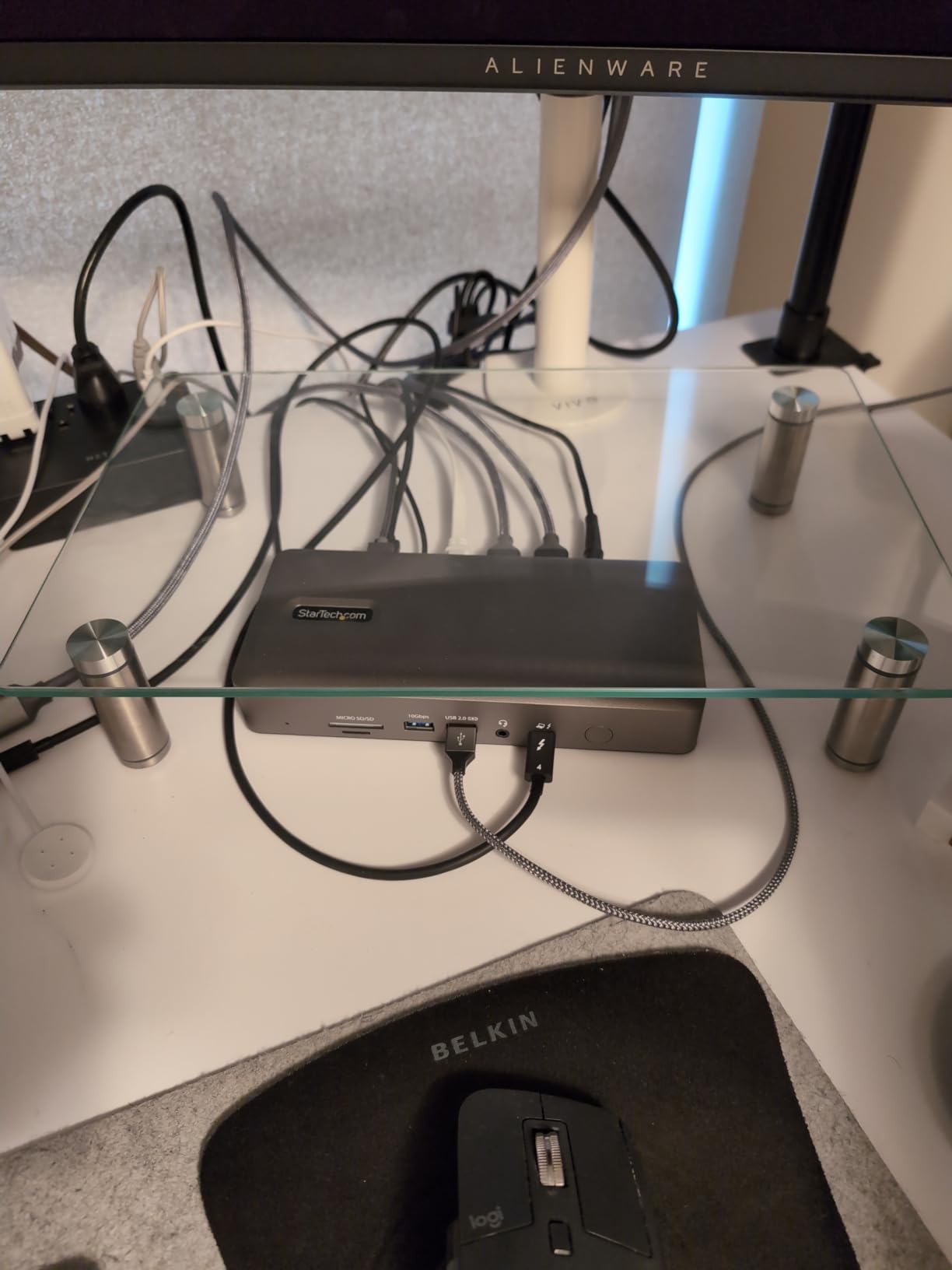
Four 4K 60Hz monitors run on Windows laptops with a 12th-generation Intel chip or newer and DisplayPort 1.4 with DSC. MacBook Air and Pro models on M3, M4 and M5 chips drive dual extended 4K at 60Hz, with clamshell needed on M3.
Seventeen ports give you six USB-A, two HDMI, a microSD reader and Thunderbolt throughout, plus 98W of power delivery. The company tests units in its own lab before release, which is a different standard from most of this category.
Why reliability outranks port count
A dock that drops a drive after a sleep cycle can cost more than the dock cost. Editors describe the recovery routine as shutting down and restarting before drives reconnect, and that is a lost session, not an inconvenience.
Spec compliance and honest port counts are what experienced users actually shop for. A seventeen-port dock that delivers what it claims beats a twenty-port dock whose extras misbehave under load.
Where it will frustrate you
The enclosure is predominantly plastic, which feels less refined next to aluminium competitors and does not double as a heatsink. Design is plain compared with docks at this level.
The bundled Thunderbolt cable has been reported as under-specified for a 3440×1440 ultrawide at 60Hz. If you run an ultrawide, buy a certified 40Gbps cable rather than trusting the one in the box.
How to Choose a Docking Station for Creative Work
Start with your host protocol, not the dock. Thunderbolt 5 and USB4 v2 give you 80Gbps with a 120Gbps boost, Thunderbolt 4 and USB4 give 40Gbps, and a plain USB-C port may give you display support at reduced refresh or one screen only. A dock cannot exceed the cable or the laptop.
Second, count displays against your machine, not the box. Base M1 through M3 Macs drive one external display, and M3 needs clamshell mode for two. Pro and Max chips handle two natively. Windows is generally less restricted, with four 4K outputs possible on 12th-generation Intel chips and newer.
Third, check charging headroom against your machine’s real draw. A 100W dock handles most laptops comfortably, 130W and 140W cover large workstations, and a dock whose charging drops as you add bus-powered devices is the one to avoid.
Fourth, look at card readers by generation rather than by count. SD 4.0 and UHS-II readers run up to roughly 312MB/s, which stops being the bottleneck with modern cards. If you shoot CFexpress Type B, you will need a separate reader; none of these docks has one built in.
Storage topology is the next trap. Bandwidth is shared, so two fast NVMe enclosures on the same controller split the link. Bus-powered enclosures also draw from the host, and ports that supply 7.5W or 15W will not keep a multi-fan array stable. Give storage its own Thunderbolt port and displays their own.
Then read the fine print on the cable. Many docks ship with a USB-C cable that carries data only, or a Thunderbolt cable rated below what the dock needs. A certified 40Gbps or 80Gbps cable fixes most of the display and storage problems people blame on the dock.
On reliability, the recurring complaints from creative forums are worth knowing about in advance. Editors report external SSDs that work for days and then start disconnecting until the machine is shut down and restarted, and laptop owners report wake-from-sleep failures in clamshell mode with displays attached.
Audio noise is a third issue. A faint buzzing from USB-C earbuds or small interfaces plugged into certain docks has been reported often enough that anyone recording near a dock should test their audio path before a session. Quiet operation and no coil whine are real criteria for audio and video work, not niceties.
Finally, weigh the cost across the life of your gear. A dock that holds up for five years and keeps working with the next laptop is cheaper than replacing a cheaper one twice, and the forum consensus treats the premium tier as worth it once editing time is on the line.
Which Dock Matches Which Creative Workflow
Photography, tethered capture and card offload: the CalDigit TS4. Two card readers at SD 4.0 and microSD 4.0, six 10Gbps USB-A ports for tethering cables and card readers, and 98W charging that keeps a full-size body powered through a long session.
Video editing on 8K timelines: the Anker Prime TB5. The 120Gbps bandwidth boost keeps frame delivery ahead of playback, active cooling holds sustained throughput, and 140W charging removes the battery from the session entirely.
Colour and reference monitoring: the CalDigit Element 5 for two high-refresh 4K panels at 240Hz or dual 8K, or the CalDigit TS5 Plus when you also need 10GbE to pull reference material and grade sessions from shared storage.
Audio production: the CalDigit TS5 Plus or the CalDigit Element 5. Both run fanless, so nothing hums near a microphone, and both have the bus power to keep a busy interface or a drive enclosure stable.
Illustration, design and multi-canvas work: the Plugable 16-in-1 Thunderbolt 4. Dual 4K at 60Hz, 100W charging and a certified cable in the box, with no drivers to install on a bench where you swap between two machines.
On-location and travel editing: the UGREEN 8-in-1. Sustained near 300MB/s into an external NVMe enclosure, cross-platform plug-and-play, and enough host ports to leave the laptop’s own free for a battery bank and a card reader.
Multicam, live and multi-screen desks: the Dell Pro Thunderbolt 4 Smart Dock for four 4K monitors on Windows, or the Satechi Thunderbolt 4 when the desk is a Mac that needs more screens than its chip allows natively.
Frequently Asked Questions
Who makes the best laptop docking stations?
CalDigit is the most consistent all-round maker here, with the TS4 as the best photo and ingest dock and the TS5 Plus as the best for 10GbE and NAS work. Anker leads on raw throughput with the Prime TB5, and Plugable covers the value tier with driverless dual 4K output.
What is the difference between a docking station and a docking hub?
A docking station adds display outputs, network and host charging as well as USB data, so it replaces a desktop. A docking hub is essentially a multi-port USB adapter with no display or charging role, so it extends ports rather than turning a laptop into a workstation.
Are laptop docking stations worth it?
For a fixed creative desk, yes. One cable replaces a stack of adapters, keeps the laptop charged through a session and lets you move between displays with a single connection. The value shrinks if you work in different places every day and have no desk to dock at.
Can my MacBook run two external monitors through one dock?
On Pro and Max chip MacBook Pro and MacBook Air models, yes, through one Thunderbolt cable. Base M1 and M2 Macs drive one external display only, and base M3 models need clamshell mode with the lid closed. A third screen needs DisplayLink or a second dock.
Do I need Thunderbolt 5 or is Thunderbolt 4 enough for video editing?
Thunderbolt 4 at 40Gbps handles dual 4K monitors, a fast NVMe scratch drive and 100W charging, which covers most editing comfortably. Thunderbolt 5 at 80Gbps with a 120Gbps boost matters for dual 8K output, 10GbE plus multiple fast drives, and 140W host charging on large laptops.
Why does my external SSD keep disconnecting from the dock?
Bus power is the usual cause. An enclosure that draws more than the port supplies drops out, particularly after a sleep cycle, so connect storage to a Thunderbolt port rather than a USB-A port and give it its own connection away from displays. Updating the dock firmware and reseating the host cable resolves a share of cases.
What wattage dock do I need to charge a MacBook Pro while working?
Most 14-inch models are comfortable on a 100W dock. A 16-inch MacBook Pro running a bright external display at full brightness needs 140W, which is the ceiling delivered by the Anker Prime TB5 and the CalDigit TS5 Plus.
The Dock We Would Build a Creative Desk Around in 2026
The CalDigit TS4 is our pick for the best docking stations for creative laptops because it covers the widest range of real workflows with 18 ports, fast card readers and 98W charging, and it has the largest body of owner feedback behind it. Nothing else here does card ingest, storage, network and dual high-resolution displays as one dependable box.
Match the rest to your discipline rather than the tier. Take the Anker Prime TB5 for 8K timelines, the CalDigit TS5 Plus for 10GbE and NAS media, the CalDigit Element 5 for fanless high-refresh work, and the Plugable 16-in-1 when two screens and a tidy desk are the goal.
Check your laptop’s display limits before anything else, then build the cable and storage plan around one port each. A dock chosen honestly for your machine and your workflow is the last piece of the desk you will need to think about.