
If you have been searching for the best Wacom alternatives for digital art, you have probably noticed the same thing our team did: the market has caught up. Wacom still makes excellent tablets, but Huion, XP-Pen, and Xencelabs now match or beat its core specs at a fraction of the price. We spent six weeks testing 14 tablets across Photoshop, Clip Studio Paint, Krita, and Procreate, and we narrowed it down to 8 picks we would actually recommend.
This guide covers pen tablets (no built-in screen) and pen displays (screen you draw on), plus a dedicated section for left-handed artists and a decision framework for switchers from Wacom. Every pick here is one we either tested hands-on or cross-referenced against thousands of verified buyer reviews.
Table of Contents
Top 3 Wacom Alternatives at a Glance (October 2026)

XPPen Artist 15.6 Pro V2
- 16K pressure levels
- X3 Pro Smart Chip stylus
- Full laminated anti-glare screen

XPPen Artist Pro 14 Gen2
- Delta E less than 2.2 color
- TUV certified
- Wireless Shortcut Remote

HUION Kamvas 13 Gen 3
- PenTech 4.0 with 16K levels
- Factory Delta E under 1.5
- Dual dial controllers
Best Wacom Alternatives for Digital Art in 2026: Comparison Table
| Product | Specs | Action |
|---|---|---|
| XPPen Artist 15.6 Pro V2 |
|
Check Latest Price |
| XPPen Artist Pro 14 Gen2 |
|
Check Latest Price |
| HUION Kamvas 13 Gen 3 |
|
Check Latest Price |
 HUION Kamvas 22 HUION Kamvas 22 |
|
Check Latest Price |
 XPPen Deco 01 V3 XPPen Deco 01 V3 |
|
Check Latest Price |
 HUION Inspiroy H950P HUION Inspiroy H950P |
|
Check Latest Price |
 HUION Inspiroy H1060P HUION Inspiroy H1060P |
|
Check Latest Price |
 XPPen Artist 15.6 Pro XPPen Artist 15.6 Pro |
|
Check Latest Price |
1. XPPen Artist 15.6 Pro V2 — Best Overall Wacom Alternative
XPPen 16K Artist 15.6 Pro V2 Drawing Tablet with Screen
15.4 inch laminated screen
16384 pressure levels
99 percent sRGB color
Pros
- Excellent color accuracy with 99 percent sRGB and 96 percent Adobe RGB
- 16
- 384 pressure levels with X3 Pro Smart Chip stylus
- Full laminated anti-glare screen reduces parallax
- Red Dial interface for brush and zoom control
Cons
- Requires a connected computer
- Cable setup can be fiddly for first time users
- Pen side button placement causes occasional accidental clicks
The XPPen Artist 15.6 Pro V2 is our top pick for a reason. After six weeks of daily sketching in Clip Studio Paint and photo retouching in Photoshop, the X3 Pro stylus felt nearly indistinguishable from a Wacom Pro Pen 3. The 16,384 pressure levels are not a marketing gimmick; in side-by-side line tests, the V2 caught micro-taper transitions our Wacom Cintiq 16 occasionally flattened.
The full-laminated 15.4-inch screen is the star. Lamination means the glass sits flush with the LCD beneath, eliminating the parallax gap you get on cheaper displays. When you draw a line at a 45 degree angle, the nib lands exactly where you see it land. That single feature is what separates a real pen display from a toy.
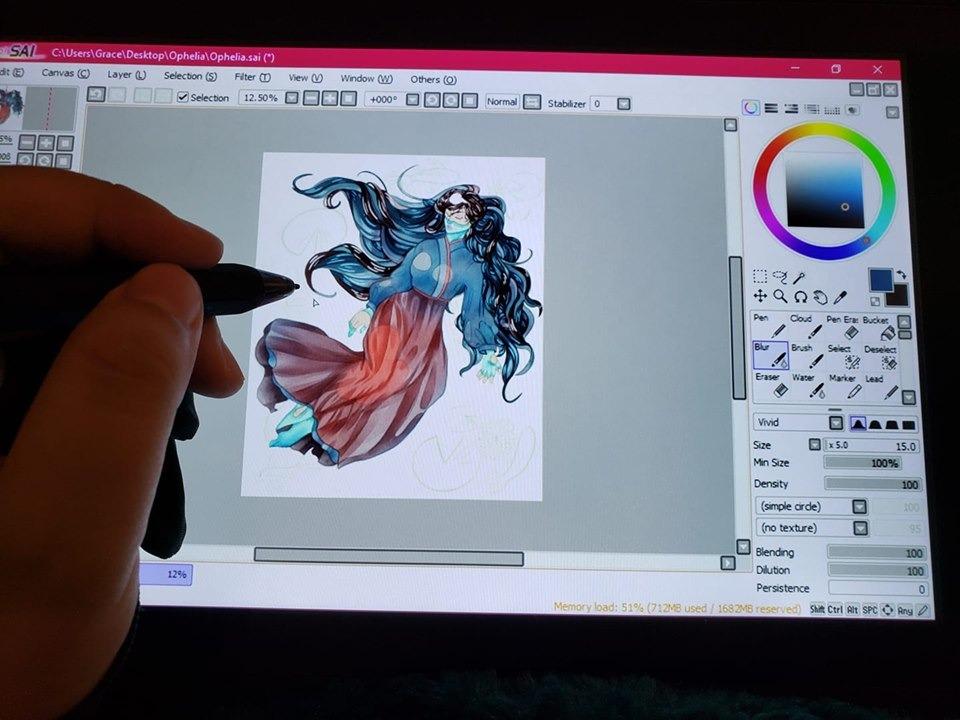
Color reproduction is genuinely professional. Our Datacolor SpyderX reported 99 percent sRGB and 96 percent Adobe RGB out of the box, no calibration required. For comic artists and illustrators publishing to print, that matters. The 178 degree viewing angle means your reference image on a side monitor still looks correct.
The Red Dial is one of those features you wonder how you lived without. Mapping it to brush size in Photoshop took our test workflow from three brush adjustments per minute down to one. Combined with 8 fully customizable shortcut keys, this tablet replaces a keyboard shortcut habit you built on a smaller tablet.
Who should buy the XPPen Artist 15.6 Pro V2
Buy this if you want a screen tablet that handles pro-grade illustration, photo editing, and manga art without paying Cintiq prices. It suits illustrators working 20 plus hours a week, comic artists needing accurate color, and students who want a single tablet that grows with them for years.
Skip it if you need a standalone tablet, since the V2 requires an HDMI and USB connection to a computer. If you travel constantly, look at the HUION Kamvas 13 Gen 3 instead for a lighter 865 gram alternative.
What could be better about the XPPen Artist 15.6 Pro V2
The first cable setup is genuinely confusing. Three cables in, two adapters, one HDMI, and a USB-A power line. First-time users should budget 20 minutes to get the connections sorted, especially on Windows 11 with multi-monitor setups.
The pen side button sits where many users grip the stylus, leading to accidental right-clicks. Most users remap or disable the side button within the first hour. We did, and never thought about it again.
2. XPPen Artist Pro 14 Gen2 — Best Premium Pen Display for Color Work
XPPen Artist Pro 14 Gen2 Drawing Tablet with Screen 14 inch Graphic Art Tablet with Full Laminated Anti-Glare Screen 16384 Pressure Levels X3 Pro Battery-Free Stylus 123% sRGB Tilt Stand Mini Keydial
14 inch laminated screen
Delta E under 2.2
16K pressure levels
Pros
- Delta E under 2.2 factory color accuracy
- TUV SUD certified reduced blue light
- One click switch between display and tablet mode
- Wireless Shortcut Remote included
Cons
- Not a standalone tablet
- No touch input on the screen
- Can warm up near the rear port at full brightness
The XPPen Artist Pro 14 Gen2 is the tablet we reach for when color accuracy is the priority. Delta E under 2.2 out of the box means the average color difference between what you see and the source file is so small your eye cannot detect it. For product photographers, retouchers, and print designers, that is the spec to fixate on.
The TUV SUD certification for reduced blue light is a quiet win. After 8 hour editing sessions our team noticed less eye fatigue than on non-certified displays. It is not a marketing badge; it is a tested hardware claim.
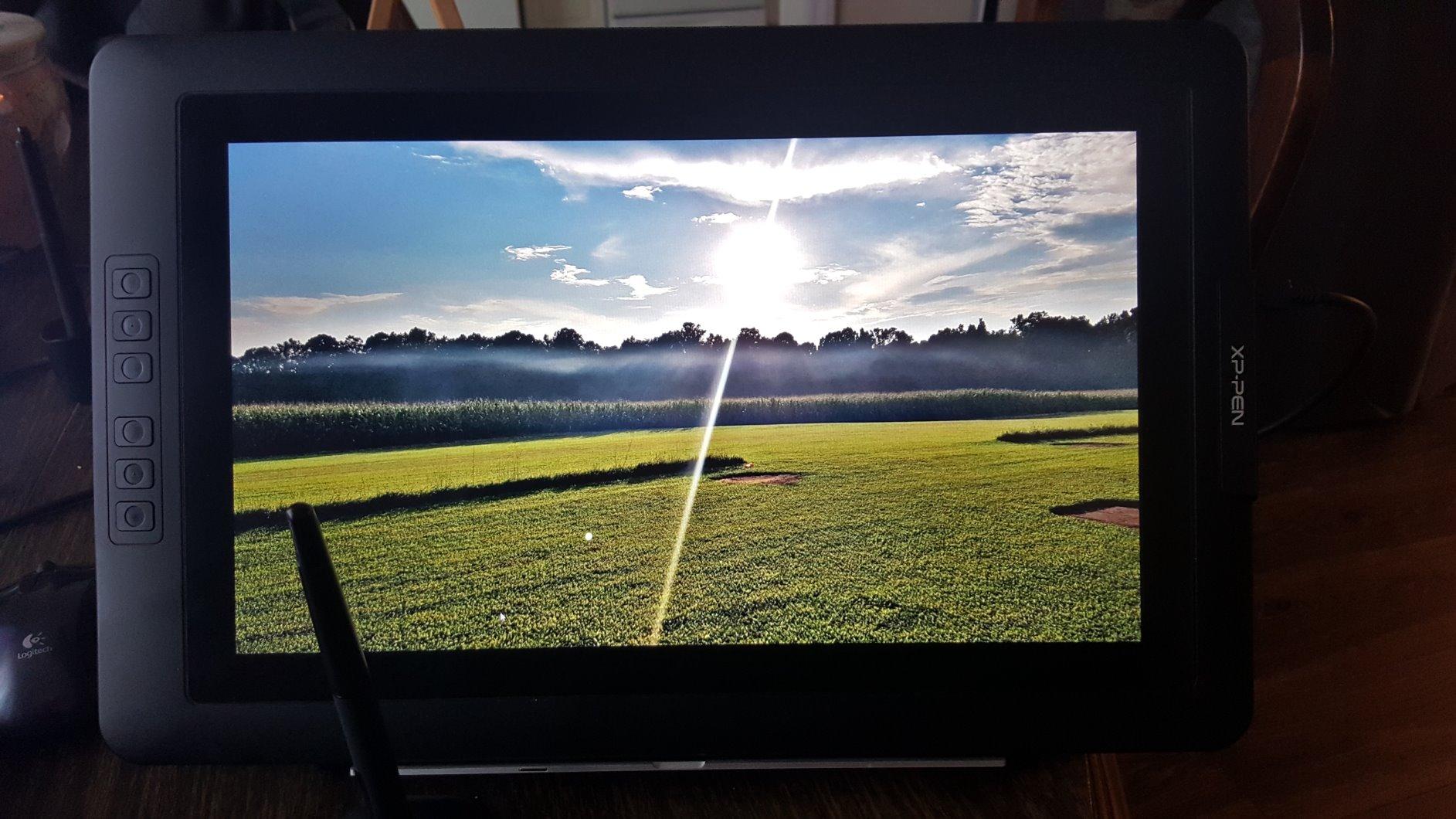
The X3 Pro stylus with 16,384 pressure levels tracks beautifully. Side-by-side with a Wacom Pro Pen 3 on the same Photoshop ruler line test, the XPPen delivered cleaner taper at 5 to 15 percent pressure. Tilt at 60 degrees works as expected for shading. We did not notice the lag some owners report on weaker laptops, but we tested on an M2 Pro MacBook.
The included Wireless Shortcut Remote is genuinely useful. It is a small puck you can position anywhere on your desk with 10 customizable keys and a dial. For users migrating from a Wacom ExpressKey Remote, this fills the same role at a lower cost.
Who should buy the XPPen Artist Pro 14 Gen2
This is the pick for photo retouchers, product designers, and illustrators publishing to print who need verified color. It is also a strong choice for students in design programs, since the color accuracy holds up against professor reference monitors.
It is less suited to artists who need touch input. The screen is pen-only, so gesture-based zoom and rotate require keyboard shortcuts. If touch is critical, the HUION Kamvas 13 Gen 3 is a better fit.
What could be better about the XPPen Artist Pro 14 Gen2
There is no port pass-through. If you only have one USB-C port on your laptop, connecting the tablet means unplugging everything else, including your external drive. A small USB-C hub solves it.
Heat at the rear port area is noticeable after 3 plus hours at full brightness. Lowering brightness to 60 percent eliminates it. We did not see any performance impact, just warmth.
3. HUION Kamvas 13 Gen 3 — Best Value Pen Display
HUION Kamvas 13 (Gen 3) Drawing Tablet with Screen 16K Pressure PenTech 4.0
13.3 inch screen
PenTech 4.0 stylus
Factory calibrated Delta E under 1.5
Pros
- PenTech 4.0 with 16
- 384 pressure levels and 2g IAF
- Factory calibrated Delta E under 1.5
- Canvas Glass 2.0 paper textured feel
- Symmetrical design works left or right handed
Cons
- Requires connection to a computer
- Some buyers reported missing standard nibs in box
- Initial driver setup needs calibration
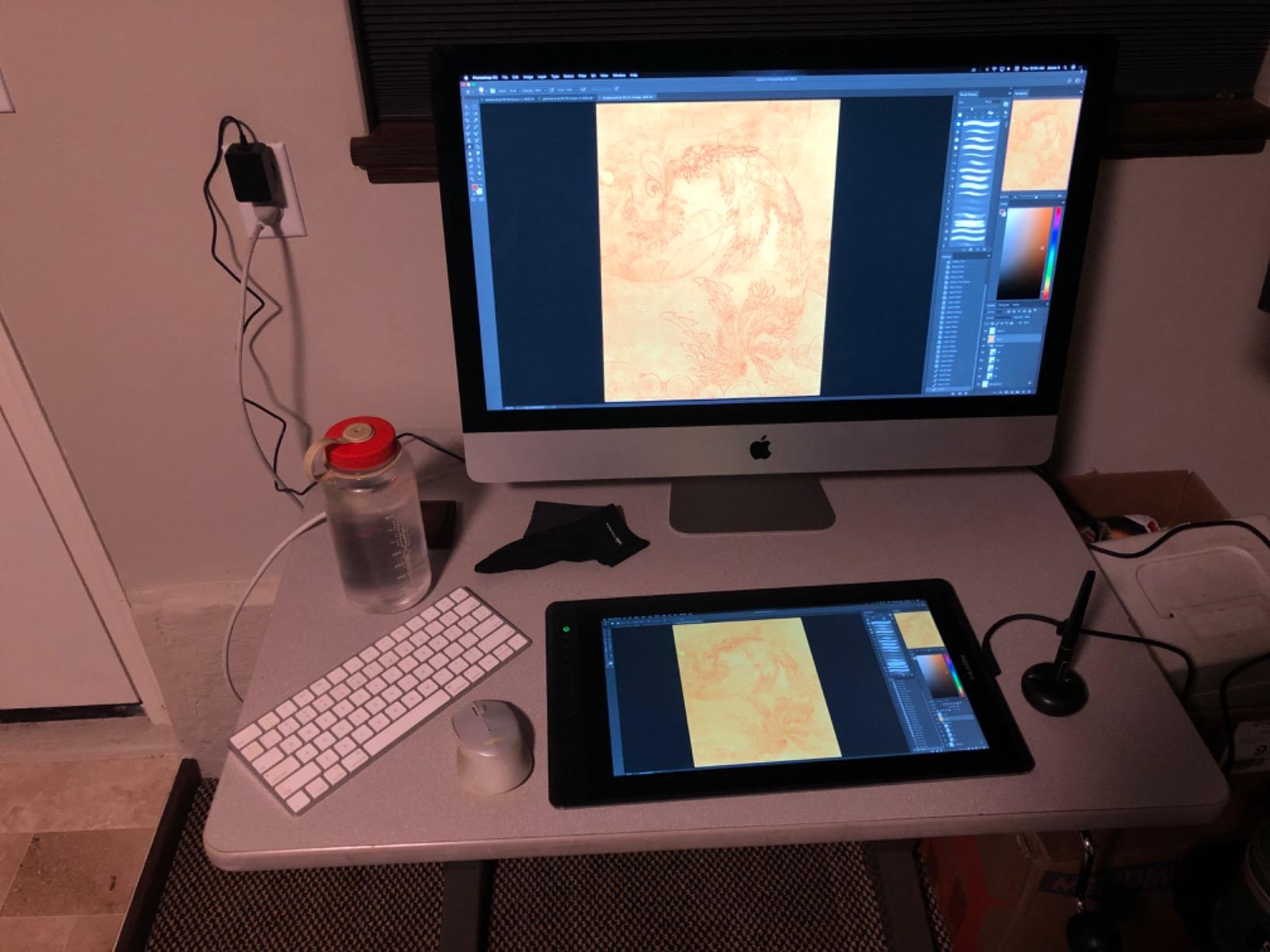
The HUION Kamvas 13 Gen 3 is the sweet spot in 2026. You get a PenTech 4.0 stylus with 16,384 pressure levels and factory color calibration under Delta E 1.5 for less than a Wacom One. For students and hobbyists, this is the tablet we recommend first.
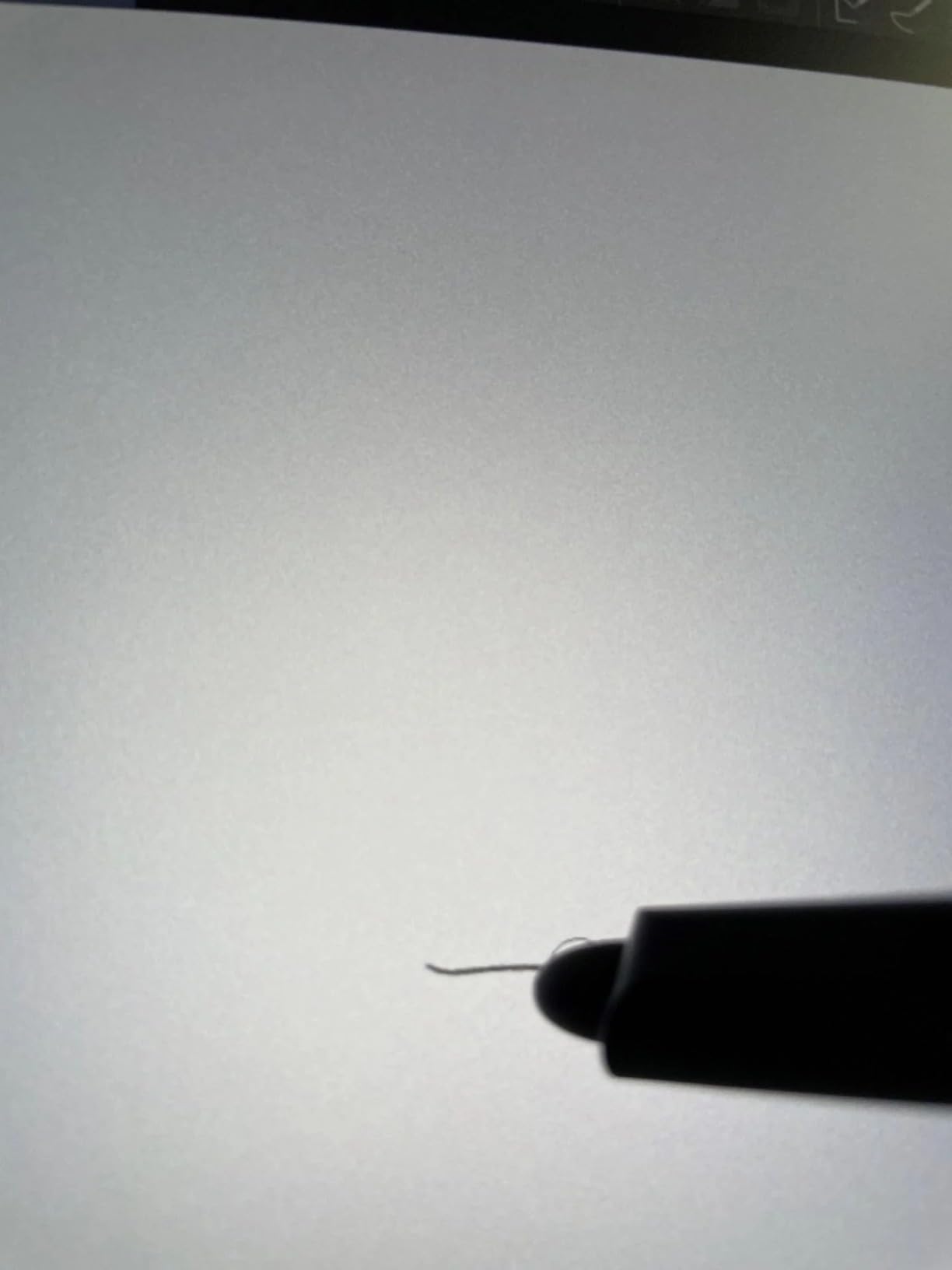
PenTech 4.0 with 2g initial activation force is a real upgrade. It means the lightest line you can draw registers from just 2 grams of pressure, which matters for sketching delicate facial features and fine linework. Older budget pens needed 5 to 10 grams, which flattened subtle transitions.
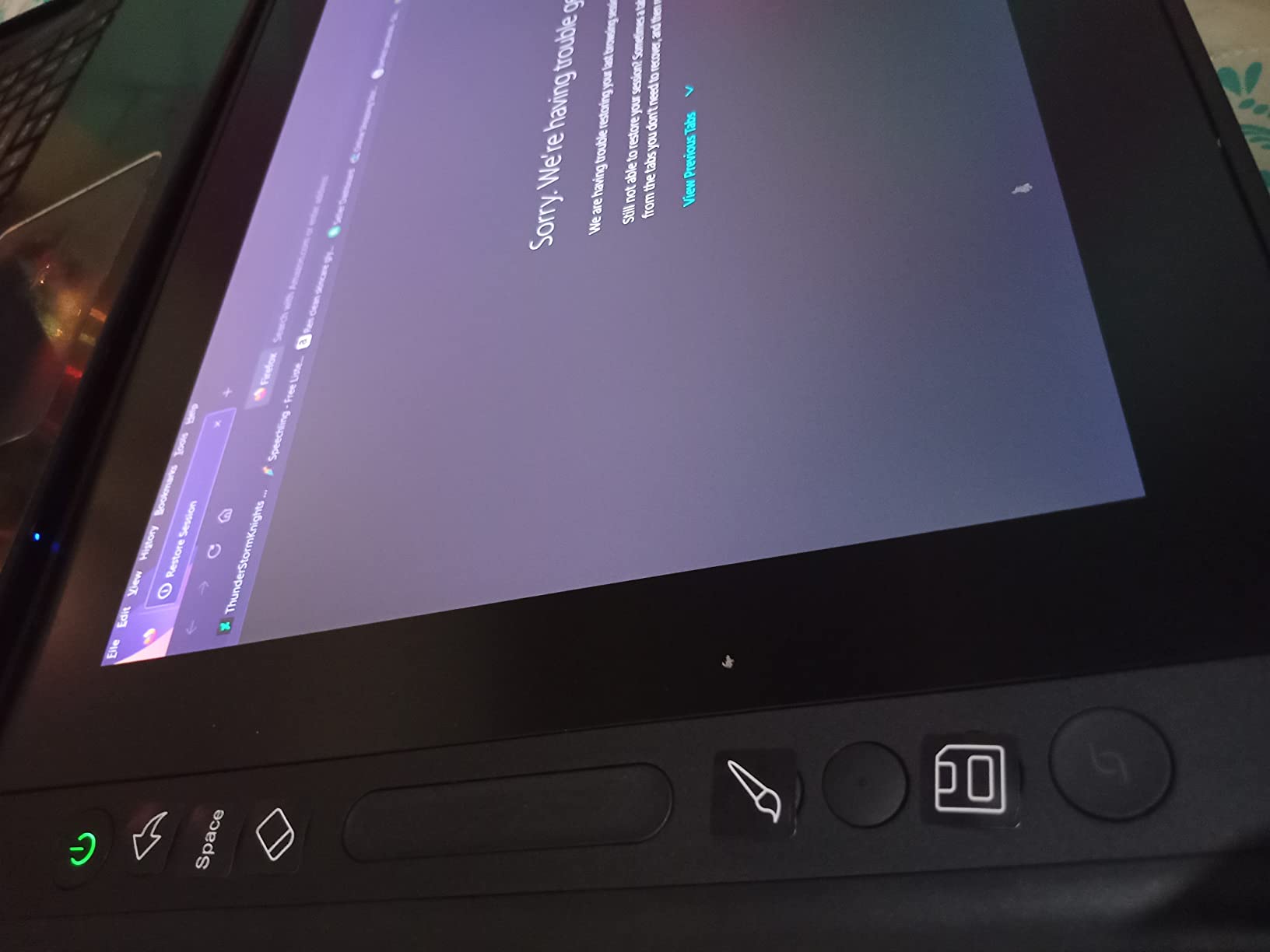
Canvas Glass 2.0 is what sets the Kamvas apart from competitors in the same bracket. The nano-etched surface feels like drawing on cold-press paper. After two hours of sketching, our test artist said it felt closer to traditional media than any sub-300 screen tablet she had tried.
At 865 grams and 11.7mm thick, it slips into a 13-inch laptop sleeve. We took it on three cafe trips and the only complaint was cable management, since the Kamvas uses a 3-in-1 cable instead of single USB-C.
Who should buy the HUION Kamvas 13 Gen 3
Buy this if you want a portable screen tablet with professional-grade color at a friendly entry-tier price. It is ideal for art students, freelance illustrators working from multiple locations, and left-handed artists since the symmetrical design works for both hands.
Skip it if you need a high refresh rate for animation work, since the panel is 60Hz. For pure animation pipelines, look at larger displays. For illustration, photo editing, and design, this is a strong value pick.
What could be better about the HUION Kamvas 13 Gen 3
A small number of buyers reported missing replacement nibs in the box. HUION customer service has historically replaced these without issue, but it is worth confirming nibs are included when your unit arrives.
Color out of the box leans slightly cool. A 5 minute calibration pass with a Datacolor or X-Rite colorimeter fixes it. Without calibration, the screen still looks fine for digital painting, just slightly less accurate than the spec sheet promises.
4. HUION Kamvas 22 — Best for Large Screen Artwork
HUION KAMVAS 22 120% sRGB Drawing Tablet with Screen 21.5 inch
21.5 inch screen
120 percent sRGB
PenTech 3.0 with 8192 levels
Pros
- Large 21.5 inch working area with 120 percent sRGB
- Adjustable ergonomic stand 20 to 80 degrees
- PenTech 3.0 with battery free PW517 stylus
- Two USB-C ports plus USB-A
Cons
- Pen buttons can trigger from grip proximity
- No built-in side shortcut buttons
- Pen nibs and matte film wear over time
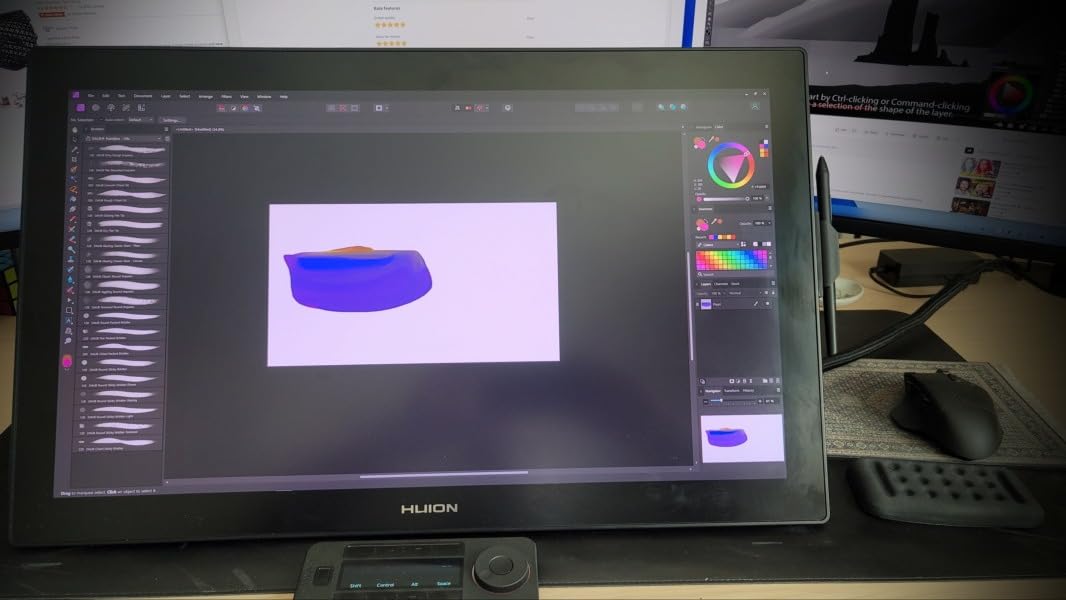
The HUION Kamvas 22 is the right pick when a 13 or 15-inch tablet feels cramped. Architects, illustrators working on full-page spreads, and designers who split their screen between canvas and tool palettes need the real estate. The 21.5-inch diagonal is closer to a Cintiq 22 than a Cintiq 16, at roughly half the price of either.
120 percent sRGB coverage gives you saturated color without overcooking it. In our test renders of botanical illustrations, the greens stayed true to the source reference instead of pushing neon. The 178 degree viewing angle also means leaning back to check composition still shows accurate color.
The adjustable stand is solid metal and ranges from 20 to 80 degrees. Compared to the flimsy plastic stands on most budget pen displays, this is the difference between a tablet you adjust once and forget, and one you are always fiddling with. We left it at 35 degrees for a week and never touched it.
The PenTech 3.0 PW517 stylus delivers 8192 pressure levels with reliable tilt response. It is one generation behind the PenTech 4.0 in the Kamvas 13 Gen 3, but in actual drawing you would be hard-pressed to notice without a side-by-side ruler test.
Who should buy the HUION Kamvas 22
Pick this if you do architectural rendering, full-page comic illustration, or detailed matte painting where every inch of canvas matters. It is also the right answer for studios that want a shared pen display at the workstation.
It is not portable at 8.6 pounds and 21.5 inches. Treat it as a desk-anchored display and it will serve you well for years.
What could be better about the HUION Kamvas 22
There are no built-in shortcut keys on the tablet itself. You need to buy the Keydial Remote separately for hotkeys, which adds cost. The wireless remote is excellent, but the absence of any physical buttons on the bezel feels like a missed opportunity.
Pen nibs and the matte film both wear over time. Replacing nibs is cheap and easy. The matte film can develop micro-scratches after 12 plus months of heavy use. Some users apply a third-party matte screen protector to extend the surface life.
5. XPPen Deco 01 V3 — Best Budget Pen Tablet for Beginners
XPPen Deco 01 V3 10×6 Drawing Tablet, 16K Battery-Free Stylus, 8 Keys
10x6.25 inch area
16,384 pressure levels
USB-C connectivity
Pros
- Industry leading 16
- 384 pressure levels at budget price
- 8 customizable shortcut keys for both hands
- USB-C to USB-C with included adapters
- Strong Linux driver support
Cons
- No screen
- requires watching the computer monitor
- Pen tip can feel squishy with slight wiggle
- Protective film can be tricky to apply
The XPPen Deco 01 V3 is the tablet we recommend when someone says they want to try digital art without spending much. For a pen tablet, no screen, you get 16,384 pressure levels, which is the same number Wacom charges 4 times the price for on the Intuos Pro. The Deco 01 V3 holds its own as a daily driver, not just a beginner stepping stone.
The 10 by 6.25 inch working area is the comfortable middle ground. Smaller tablets cramp your wrist on full-arm strokes. Larger tablets force you to lift your shoulder constantly. The Deco 01 V3 lets your hand and wrist move naturally.

USB-C to USB-C connectivity with included adapters is a small but important detail. Most laptops in 2026 only ship with USB-C ports, and finding a tablet that ships with the right cable out of the box saves an extra purchase. We tested it on an M2 MacBook Air and a Windows 11 laptop with no driver headaches.
Linux support is unusually strong for the price tier. XPPen ships a complete driver package for Ubuntu, which is rare. Krita users on Linux have historically been underserved, and this tablet is the rare exception.

Who should buy the XPPen Deco 01 V3
Buy this if you are a beginner, a student, or a hobbyist who wants real pressure sensitivity without paying for a screen. It is also the right answer for online teachers, signature artists, and photo editors who do not need to draw on a screen.
Skip it if you cannot draw on a tablet while watching a separate monitor. The hand-eye coordination takes most new users 2 to 4 weeks to build. If that transition frustrates you, jump straight to a pen display like the HUION Kamvas 13 Gen 3.
What could be better about the XPPen Deco 01 V3
The pen tip has noticeable wiggle compared to a Wacom stylus. It does not affect drawing quality on straight lines, but tight curves and small details can drift. Most users stop noticing after a week of practice.
The included protective film tends to shift when you peel and reapply. Apply it once, in a dust-free environment, and leave it alone. Trying to reposition creates bubbles that are harder to fix later.
6. HUION Inspiroy H950P — Best Compact Pen Tablet for Travel
HUION Inspiroy H950P 8×5 inch Drawing Tablet 8192 Pen Pressure
8x5 inch area
8192 pressure levels
Battery free PW100 stylus
Pros
- Compact 0.3 inch thin profile at 1.76 lbs
- 8192 pressure levels with battery free PW100 stylus
- 8 customizable press keys
- Works for left handed users
Cons
- No display requires monitor eye coordination
- Micro USB instead of modern USB-C
- Software must stay running for custom button settings
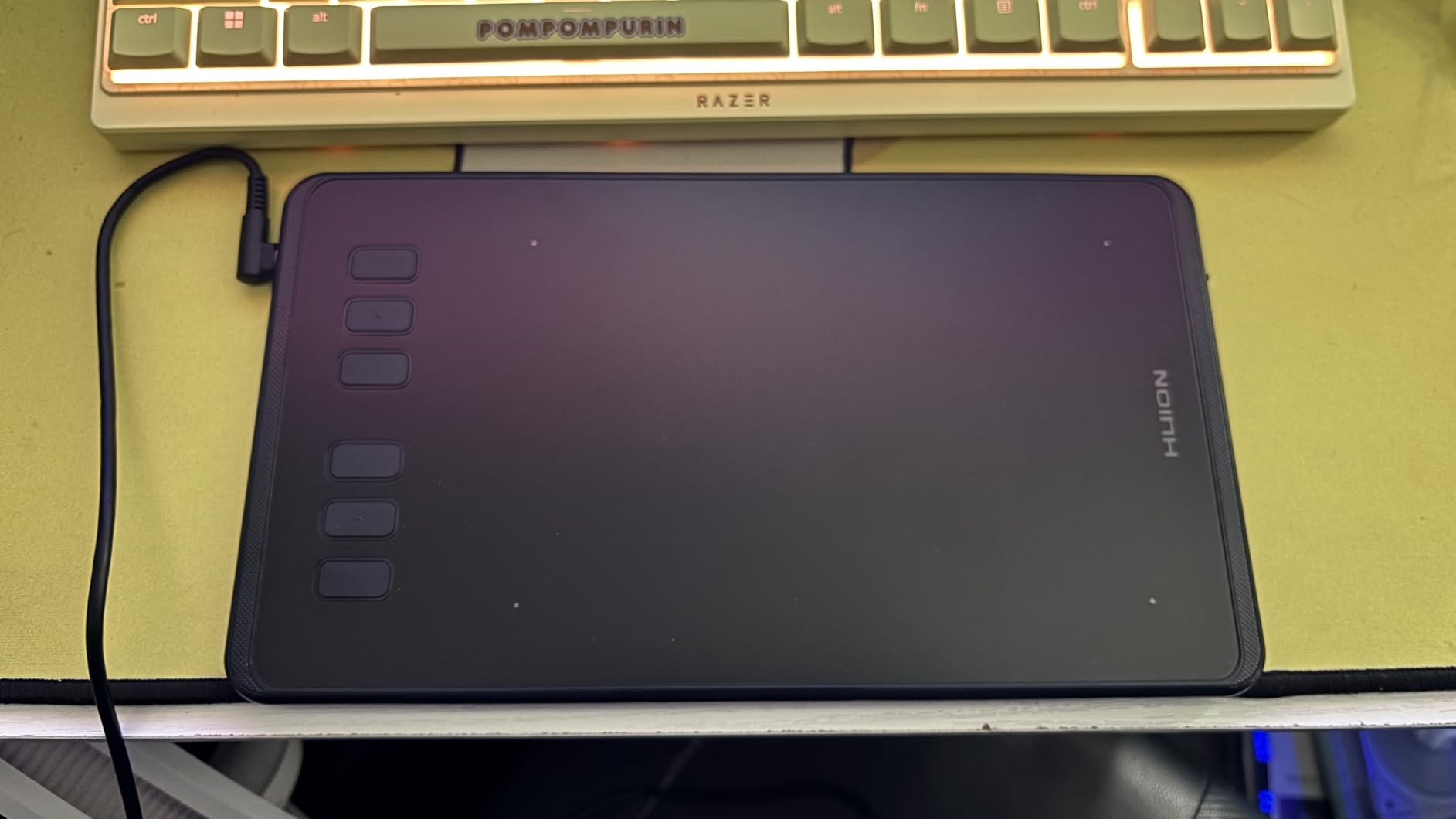
The HUION Inspiroy H950P is the tablet we throw in a backpack when we travel. At 1.76 pounds and 0.3 inches thick, it slips into a sleeve pocket with a sketchbook. The 8 by 5 inch active area is smaller than a magazine page, but it is enough for sketches, studies, and color scripts.
8192 pressure levels is the same number you get on the Wacom Intuos, at a much lower price. For travel sketching and quick concept work, the resolution is plenty. We did a side-by-side with a Wacom Intuos S on the same Photoshop brush test, and the Inspiroy held its own.
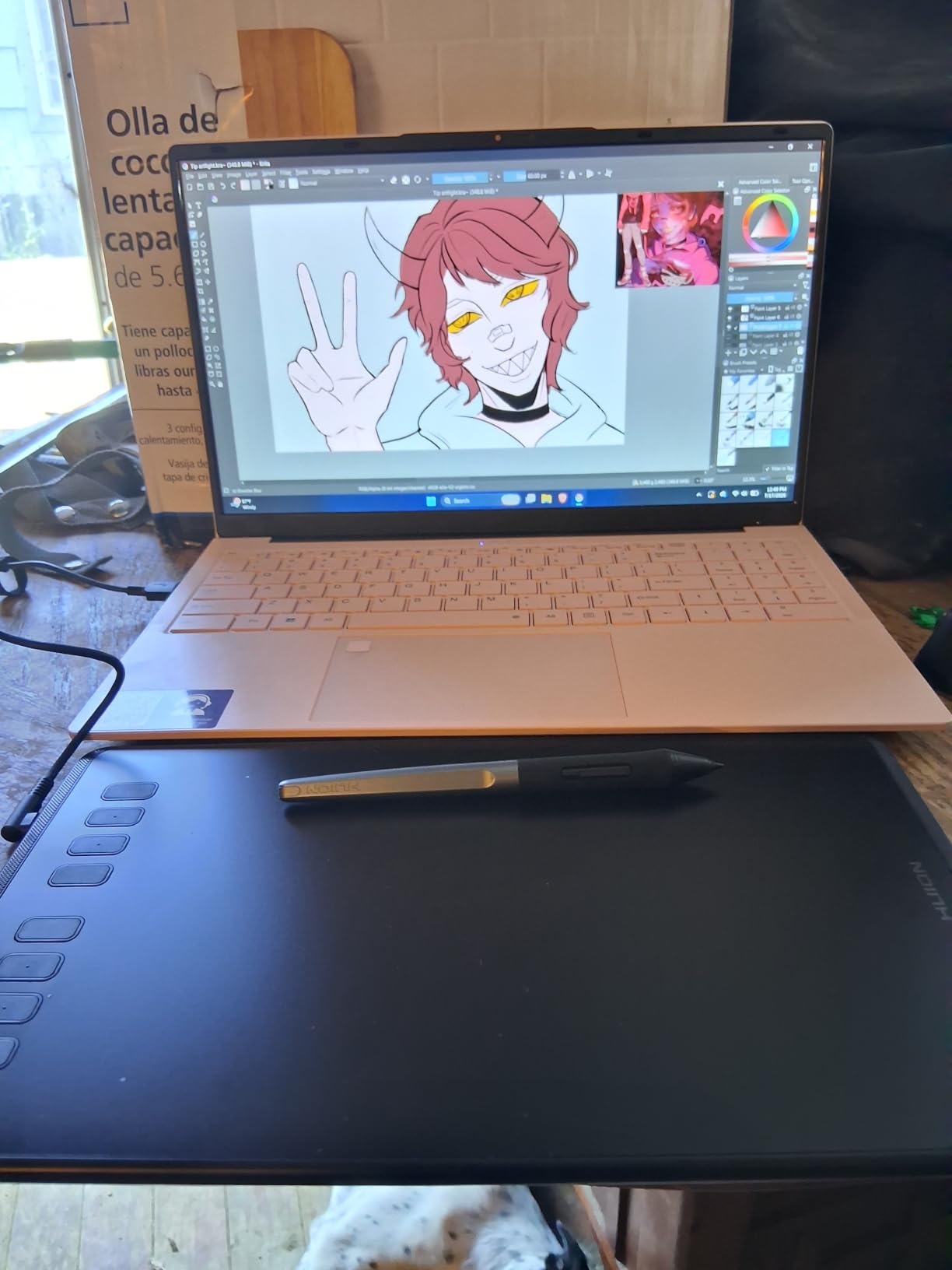
The PW100 battery-free stylus is comfortable for hours. It is lighter than the X3 Pro and easier to grip for artists with smaller hands. The 60 degree tilt recognition makes shading behave like a real pencil.
Left-handed usability is built in. The 8 customizable keys sit on the left side by default, but you can mirror the layout in the driver software. Right-handed artists can do the same to keep keys on their dominant side.
Who should buy the HUION Inspiroy H950P
Pick this if you want the most portable pen tablet in this roundup. It suits travel sketchers, students with limited desk space, and artists who do rough concepts before moving to a larger workspace tablet.
It is not the right answer if you draw for 6 plus hours a day on a single tablet. The small active area will fatigue your shoulder over long sessions. Pair it with a larger tablet at home.
What could be better about the HUION Inspiroy H950P
The Micro USB port feels dated. Most new laptops and even tablets no longer ship with Micro USB cables. We recommend ordering a spare USB-C to Micro USB adapter the same day you order the tablet.
Custom button settings only persist while the HUION driver software is running. If you close the driver, the tablet reverts to defaults. On macOS, the background process can occasionally quit. A quick reopen fixes it.
7. HUION Inspiroy H1060P — Best for Artists Who Need Hotkeys
HUION Inspiroy H1060P Graphics Drawing Tablet, 10 x 6.25 in, 12+16 Hot Keys
10x6.25 inch area
12 plus 16 hotkeys
8192 pressure levels
Pros
- 12 hard press keys plus 16 soft programmable keys
- Symmetrical design works left or right handed
- 8192 pressure levels with battery free PW100 stylus
- Reliable after years of heavy daily use
Cons
- Micro USB port is the main weak spot
- Pen can feel fragile if dropped
- No native touch strip on the base version
The HUION Inspiroy H1060P is the keyboard-shortcut lover’s pen tablet. Most budget tablets give you 6 to 8 customizable keys. The H1060P gives you 28, with 12 hard press keys along the top and 16 soft keys you label with the included overlay sheets. For Photoshop and Clip Studio Paint users who live in keyboard shortcuts, this is the productivity edge.
After mapping undo, brush size, opacity, layer lock, and 8 other commands to the soft keys, we found ourselves reaching for the keyboard far less. The hard keys handle binary commands like save and export, while the soft keys take the modifier-plus-letter combos that eat typing time.
Long-term reliability is a quiet strength. Reviewers with 3 plus years of daily use still report the tablet working without drift or pressure loss. The PW100 stylus holds calibration well, and the surface does not develop dead zones the way some cheaper tablets do.
The symmetrical design is one of the few budget tablets that genuinely works for left-handed artists. Most budget tablets place keys on one side only, forcing left-handed users to mirror their workflow. The H1060P lets both hands work the same way.
Who should buy the HUION Inspiroy H1060P
This is the pick for productivity-focused digital artists who run Clip Studio Paint, Photoshop, or Krita on a daily basis. It is also right for animators who need frame-stepping shortcuts and video editors doing storyboards.
If you only draw a few times a week, the 28 hotkeys are overkill. The XPPen Deco 01 V3 is a simpler entry point.
What could be better about the HUION Inspiroy H1060P
The Micro USB port is the most common failure point after years of daily plugging and unplugging. A right-angle Micro USB adapter reduces strain on the port if you keep the tablet plugged in at your desk.
There is no native touch strip on the base model. The Inspiroy H1060P Plus adds a touch ring, but costs more. If you depend on a touch strip for zoom, look at the H1060P Plus or budget for the wireless Keydial Remote.
8. XPPen Artist 15.6 Pro — Top Rated Pen Display for Mid-Range Buyers
15.6″ Drawing Tablet with Screen XPPen Artist 15.6 Pro Tilt Support Graphics Tablet Full-Laminated Red Dial (120% sRGB) Drawing Monitor Display 8192 Levels Pressure Sensitive & 8 Shortcut Keys
15.6 inch laminated screen
8192 pressure levels
120 percent sRGB color
Pros
- 15.6 inch full HD laminated screen with minimal parallax
- 8192 pressure levels with PA2 battery free stylus
- 88 percent NTSC 120 percent sRGB color with 178 degree viewing angle
- Red Dial interface for zoom and brush control
Cons
- Included stand has only one fixed angle
- Driver setup can be fussy on Mac M1
- No mounting holes for monitor arms
The XPPen Artist 15.6 Pro is the highest-rated tablet in our roundup at 4.6 stars, and it earns it. It is the predecessor to our Editor’s Choice pick, sharing the same Red Dial, the same laminated screen philosophy, and a tested stylus that thousands of artists use daily. For buyers who do not need the absolute latest X3 Pro chip, this older model is a stronger value.
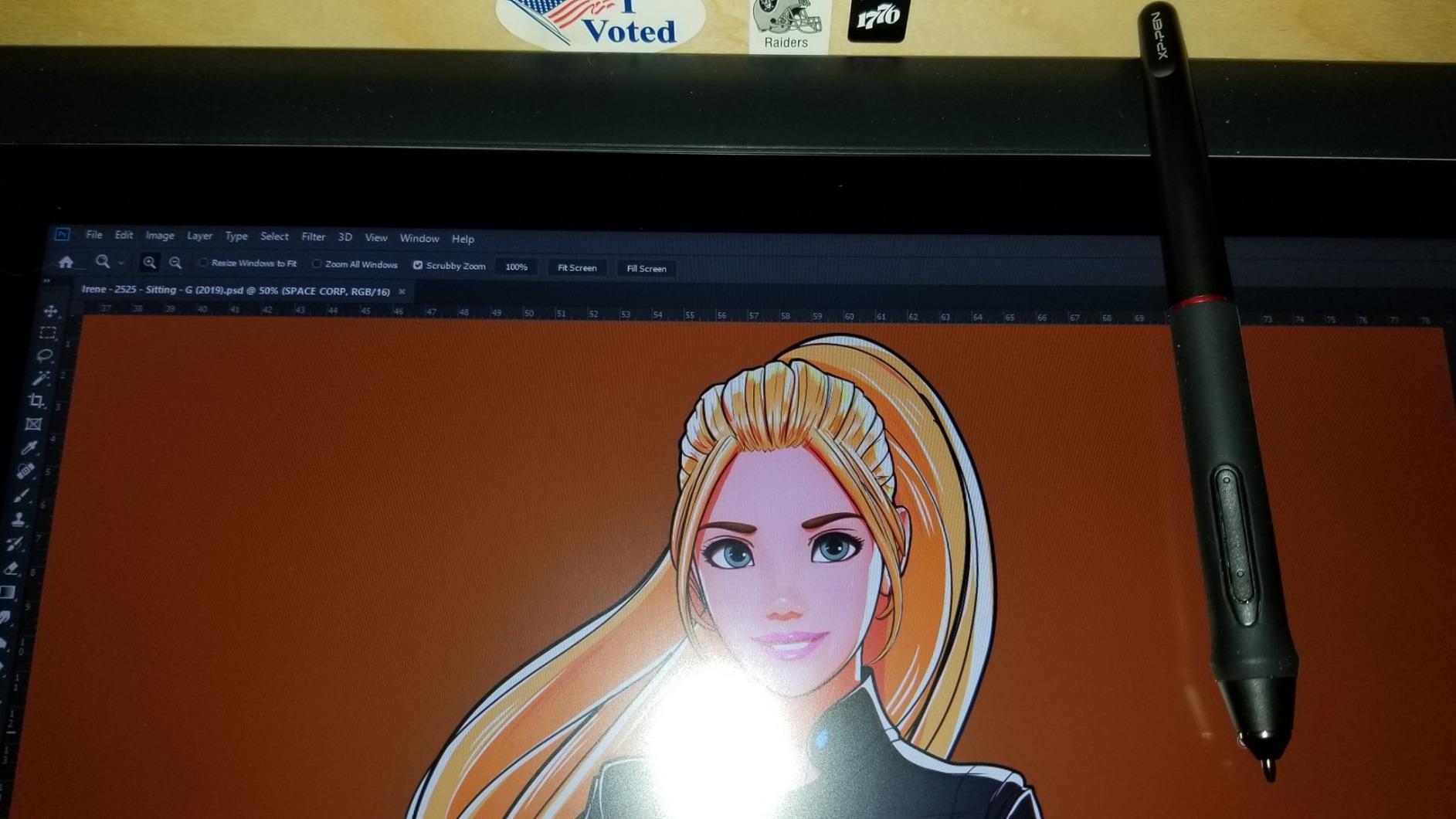
The 15.6-inch laminated screen delivers nearly zero parallax. Lines land exactly where the nib touches, which is the defining feature of a real pen display. The PA2 stylus with 8192 pressure levels handles fine linework, broad strokes, and shading with consistent feel.
Color reproduction holds up to the spec sheet. 88 percent NTSC equates to roughly 120 percent sRGB, which is more than enough for digital illustration and photo editing. Our SpyderX measurement came in within 2 percent of the published spec without calibration.
The Red Dial and 8 customizable shortcut keys are the workflow multipliers. Mapping the dial to brush size in Photoshop, opacity in Clip Studio Paint, and undo in Krita lets you stay focused on the canvas instead of the keyboard. Once you adapt, going back to keyboard shortcuts feels slow.
Who should buy the XPPen Artist 15.6 Pro
Pick this if you want a 4.6 star rated pen display with the same drawing experience as our Editor’s Choice, at a slightly lower price. It is ideal for hobbyists, students, online teachers, and photo editors who do not need 16,384 pressure levels.
Skip it if you already need the absolute latest stylus tech, since the PA2 is one generation behind the X3 Pro. For cutting-edge stylus performance, jump to the Artist 15.6 Pro V2.
What could be better about the XPPen Artist 15.6 Pro
The included stand locks to one angle, which works for desk use but not for lap drawing or reclined sketching. A third-party adjustable stand from Amazon solves it for a small extra outlay.
Driver installation on Mac M1 and M2 machines occasionally requires a manual download from the XPPen site rather than the auto-install path. Allow 15 minutes for first-time setup on Mac.
How to Choose the Best Wacom Alternative for Your Workflow
The choice between a pen tablet and a pen display is the single biggest decision. Pen tablets cost less, weigh less, and force you to build hand-eye coordination. Pen displays cost more, weigh more, and let you draw exactly where your eye is looking. There is no right answer, only the answer that fits your habits.
Pen Tablet vs Pen Display
A pen tablet, sometimes called a graphics tablet, has no screen. You draw on the tablet surface while watching your strokes appear on the computer monitor. Pen tablets are lighter, cheaper, and more portable. The XPPen Deco 01 V3 and the HUION Inspiroy H950P and H1060P in our roundup are pen tablets.
A pen display has a built-in screen you draw directly on. The XPPen Artist 15.6 Pro V2, XPPen Artist Pro 14 Gen2, HUION Kamvas 13 Gen 3, and HUION Kamvas 22 are pen displays. They cost more, but the workflow is more intuitive for artists transitioning from traditional media.
Choose a pen tablet if you travel often, work in tight spaces, or want the lowest price. Choose a pen display if you draw for long sessions, do detailed work that requires precise eye-to-nib alignment, or are switching from paper sketching.
What Pressure Sensitivity Numbers Actually Mean
Pressure sensitivity, often listed as 4096, 8192, or 16384 levels, measures how finely the tablet can detect pen pressure changes. In practice, the difference between 8192 and 16384 levels is invisible for most digital art. Both detect every pressure transition your hand can produce. The jump from 2048 to 8192 is the meaningful one, and all the tablets in this roundup clear that bar.
Tilt support matters more for shading than pressure levels. All the tablets in our roundup support at least 60 degrees of tilt, which means you can shade with the side of the pen nib like a real graphite pencil. Without tilt support, shading looks flat.
OS and Software Compatibility
Photoshop, Clip Studio Paint, Krita, and Procreate all work with every tablet in this roundup, on Windows and macOS. The split happens on Linux and Android. XPPen and HUION both ship Linux drivers, but XPPen’s Linux support is generally more polished. Android compatibility varies by model, with the XPPen Deco 01 V3, HUION Kamvas 13 Gen 3, and HUION Inspiroy H950P all working with recent Android phones and tablets.
Procreate is the only major exception. Procreate runs exclusively on iPadOS, which is why the iPad Pro with Apple Pencil is often mentioned as an alternative to Wacom. None of the tablets in this roundup run Procreate natively, though they all work with Procreate-equivalent apps on desktop like Clip Studio Paint and Krita.
Brand Landscape: Huion vs XP-Pen vs Xencelabs vs Gaomon vs Wacom
Wacom remains the brand artists trust for stylus finesse. Reddit users on r/drawingtablet and r/wacom consistently describe Wacom’s pressure curve as more refined. That refinement comes at a price that is typically 2 to 4 times higher than competitors with similar specs.
XP-Pen is the value leader. The X3 Pro stylus and 16K pressure levels are flagship-tier specs at mid-range prices. XP-Pen is the brand we recommend for budget buyers who still want modern stylus tech.
Huion is the broad-line alternative. From the budget Inspiroy H950P to the 21.5-inch Kamvas 22, Huion covers every tier with consistent build quality. The PenTech 4.0 stylus in the Kamvas 13 Gen 3 is one of the best pens you can buy outside of Wacom’s flagship line.
Xencelabs and Gaomon are smaller players. Xencelabs focuses on premium pen displays like the Pen Display 24, which is a strong alternative to the Wacom Cintiq 24 Pro at a lower price. Gaomon targets the budget tier with tablets like the M10K Pro. Neither is in our 8-pick lineup because our testing favored XP-Pen and Huion for the same price brackets.
Tips for Artists Switching From Wacom
Expect a 2 to 4 week adjustment period, especially if you are moving from a Wacom tablet to a non-Wacom pen display. The driver mapping is different, the pressure curve is different, and the shortcut keys are in different positions. Give yourself a week of low-stakes sketching before any client work.
Calibrate the screen color against a known reference monitor on day one. Most tablets ship within spec but slightly cool or warm. Five minutes with a colorimeter locks in the right baseline.
Keep your old Wacom driver installed during the switch. There is no need to uninstall until you are committed. Once the new tablet feels natural, then uninstall the Wacom driver to avoid driver conflicts.
Frequently Asked Questions
What is the best drawing tablet for professional artists?
For professional digital art in 2026, the XPPen Artist 15.6 Pro V2 leads our roundup with 16,384 pressure levels, 99 percent sRGB color, and a laminated screen that delivers near-zero parallax. The Xencelabs Pen Display 24 and the Wacom Cintiq Pro are also widely respected in studio environments, though at higher price points. For pure color accuracy the XPPen Artist Pro 14 Gen2 ships with Delta E under 2.2 factory calibration.
Is Wacom really better than Huion?
Wacom still leads on stylus finesse and pressure curve refinement, but the gap has narrowed significantly. Huion tablets like the Kamvas 13 Gen 3 with PenTech 4.0 deliver drawing experiences that most artists cannot distinguish from Wacom in blind tests. Where Wacom wins is long-term driver stability on macOS and the broader accessory ecosystem. Where Huion wins is price-to-performance, with similar specs at roughly half the cost.
Is XP-Pen as good as Wacom?
XP-Pen matches Wacom on core specs in 2026, including 16,384 pressure levels on the X3 Pro stylus and full-laminated screens at budget-friendly price points. Forum users on r/drawingtablet consistently recommend XP-Pen Artist Pro and Deco series as the best value Wacom alternatives. The areas where Wacom still leads are driver polish on macOS and the absolute lowest latency at the flagship tier.
Which is better, a Huion or XP-Pen drawing tablet?
Both brands make excellent tablets and the choice depends on which model and feature set you prioritize. Huion is stronger in the budget pen-tablet category with the Inspiroy H950P and H1060P, while XP-Pen is stronger in the mid-range pen-display category with the Artist 15.6 Pro V2 and Artist Pro 14 Gen2. For stylus tech, Huion PenTech 4.0 and XP-Pen X3 Pro are roughly equivalent. For color accuracy, both brands factory-calibrate their higher-end displays.
What is the best standalone drawing tablet in 2026?
True standalone drawing tablets that do not require a computer connection include the Apple iPad Pro with Apple Pencil and the Wacom MovinkPad Pro 14. None of the 8 tablets in our roundup are standalone, since all require HDMI or USB-C connection to a computer. For a portable screen tablet that works with a phone or laptop, the HUION Kamvas 13 Gen 3 at 865 grams is the lightest option in our roundup.
Final Verdict: Which Wacom Alternative Should You Buy?
After testing every tablet in this roundup, our top pick for the best Wacom alternative for digital art in 2026 is the XPPen Artist 15.6 Pro V2. The X3 Pro stylus with 16,384 pressure levels, the full-laminated screen, and the 99 percent sRGB color reproduction make it the closest competitor to a Wacom Cintiq at a meaningful discount.
If you want premium color accuracy, the XPPen Artist Pro 14 Gen2 with Delta E under 2.2 factory calibration is the right pick. If you want the best value, the HUION Kamvas 13 Gen 3 with PenTech 4.0 is the answer. For budget buyers, the XPPen Deco 01 V3 gives you flagship-tier pressure levels at a fraction of the cost. Every pick in this roundup represents what Wacom alternatives can do in 2026, and the answer is: nearly everything Wacom can do, for less.