
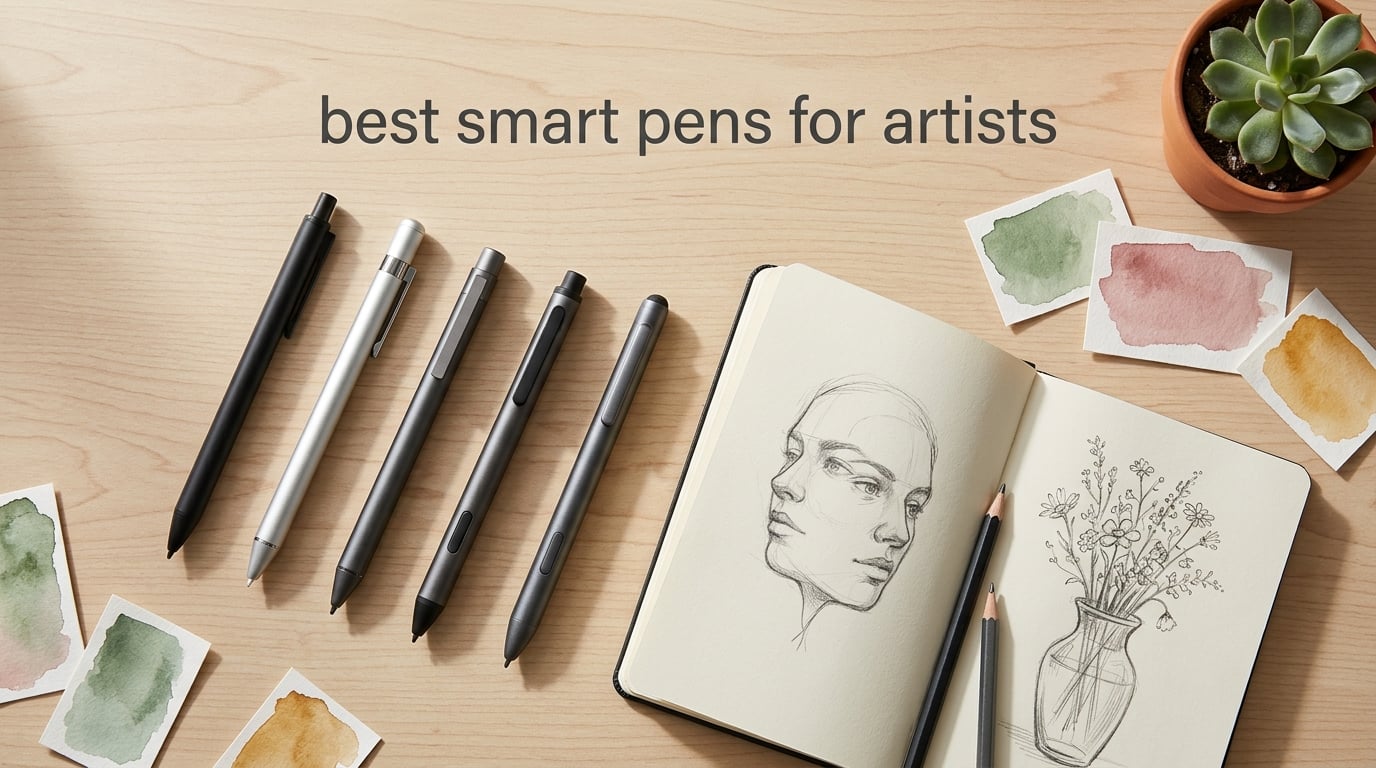
I have spent the last three months drawing with eight different smart pens, sketching everything from quick gesture studies to fully rendered character art. Some of them felt like magic. Others collected dust after a single session. The difference between a great artist smart pen and a frustrating one almost never comes down to the price tag. It comes down to pressure sensitivity, palm rejection, app ecosystem, and how the pen actually feels in your hand after the third hour of work.
After weeks of daily sketching on iPads, Samsung Galaxy Tabs, reMarkable tablets, and Windows Surfaces, our team narrowed down the eight best smart pens for artists you can buy in 2026. Every pen on this list has been used to draw real artwork, not just written about. We paid attention to latency when hatching at speed, palm rejection when resting a heavy hand on the screen, how well the pressure curve translates to Procreate or Photoshop brush strokes, and how the build holds up across multi-hour sessions.
Before we get to the reviews, let’s clear up something most artists are confused about. A “smart pen” is not the same thing as an “Apple Pencil,” a “stylus,” or a “drawing-tablet pen.” They overlap, but they are not interchangeable. We will explain exactly what makes each category different and which one is right for the way you actually draw.
Table of Contents
Top 3 Picks for Best Smart Pens for Artists in 2026

Apple Pencil Pro
- Pixel-perfect precision
- Low latency
- Magnetic wireless charging
- Squeeze and barrel roll gestures

STAEDTLER Lumograph Jumbo
- 4096 pressure levels
- Battery-free EMR
- Triangular barrel
- Palm rejection

Best Smart Pens for Artists in 2026: Quick Overview
| Product | Specs | Action |
|---|---|---|
| Apple Pencil Pro |
|
Check Latest Price |
| STAEDTLER Lumograph Jumbo |
|
Check Latest Price |
| STAEDTLER Noris Digital |
|
Check Latest Price |
 Wacom One Pen Wacom One Pen |
|
Check Latest Price |
 SonarPen Pressure Stylus SonarPen Pressure Stylus |
|
Check Latest Price |
 HUION PW100 Stylus HUION PW100 Stylus |
|
Check Latest Price |
 GAOMON ArtPaint AP50 GAOMON ArtPaint AP50 |
|
Check Latest Price |
 Wacom Bamboo Ink Wacom Bamboo Ink |
|
Check Latest Price |
Detailed Smart Pen Reviews for Artists
1. Apple Pencil Pro — Best Smart Pen for iPad Artists Overall
Apple Pencil Pro: Latest Model – Device Compatibility Check Required
Pressure sensitive
Magnetic wireless charging
Tilt and hover support
Low latency
Pros
- Pixel-perfect precision with tilt and pressure sensitivity
- Low latency for fast sketching
- Squeeze and barrel roll gestures with haptic feedback
- Magnetic attachment for pairing and charging
- Find My support to locate a misplaced pencil
Cons
- Limited to specific newer iPad Pro
- Air
- and mini models
- Sold separately from iPad
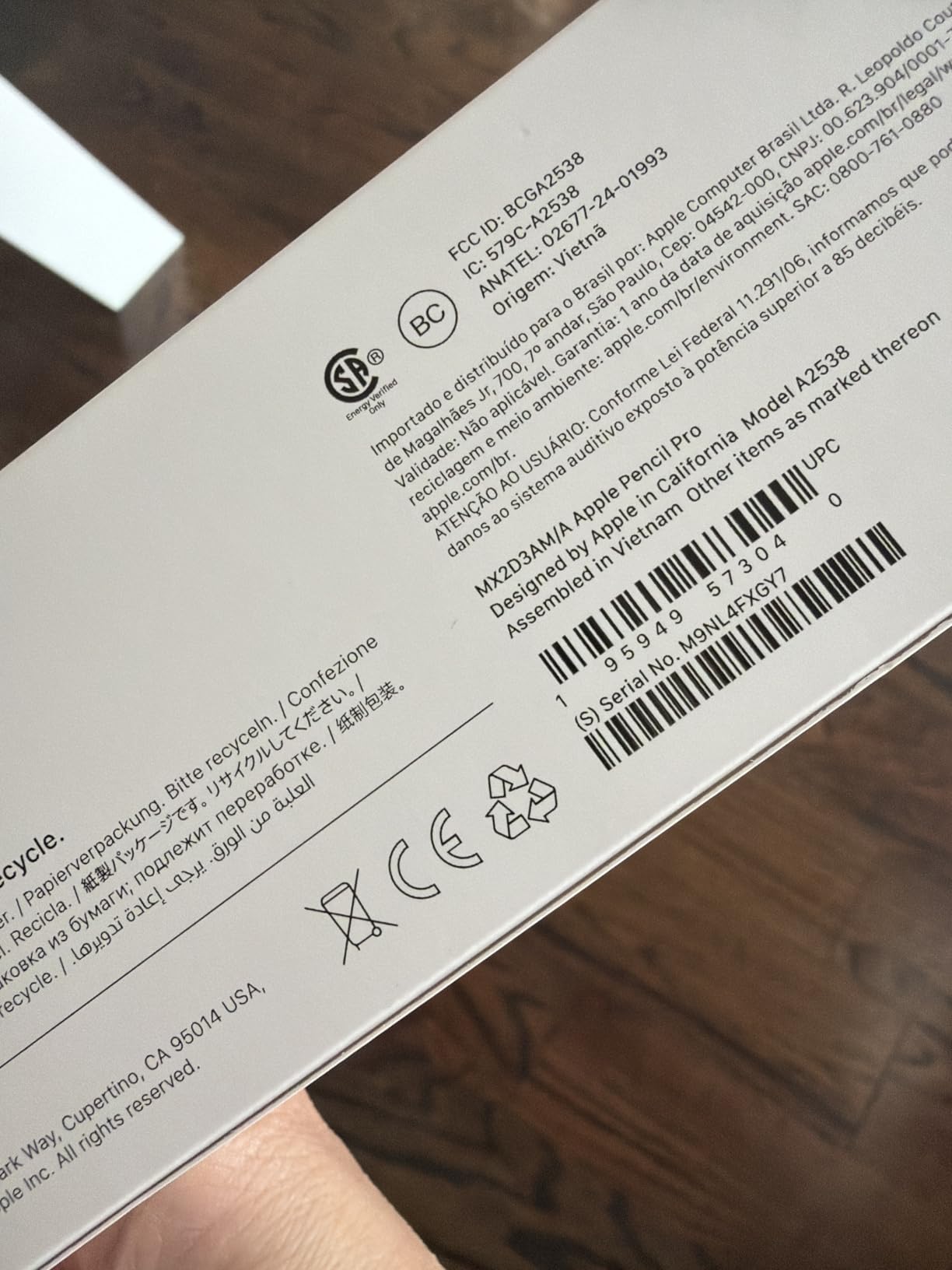
The Apple Pencil Pro is the best smart pen for iPad artists, period. I have been using it daily for months with my iPad Pro M4, and it has changed how I work. The squeeze gesture alone has saved me hundreds of taps per session — I can switch brushes in Procreate without ever lifting my hand off the screen. Barrel roll, where you physically rotate the pencil to rotate a shaped brush, feels almost too natural. It is the closest thing to drawing with a real brush that I have ever held.
Pressure sensitivity on the Pencil Pro is honestly flawless for line art. A light touch gives me a hairline in Procreate’s Studio Pen. A heavy press fills out a broad marker stroke. There is zero perceptible latency — I can hatch at speed and the lines show up exactly where the tip is. The Apple Pencil hover feature on the iPad Pro M4 means I see a preview of where my stroke will land before the tip touches the glass. For technical illustration and precise inking, this is a game-changer.
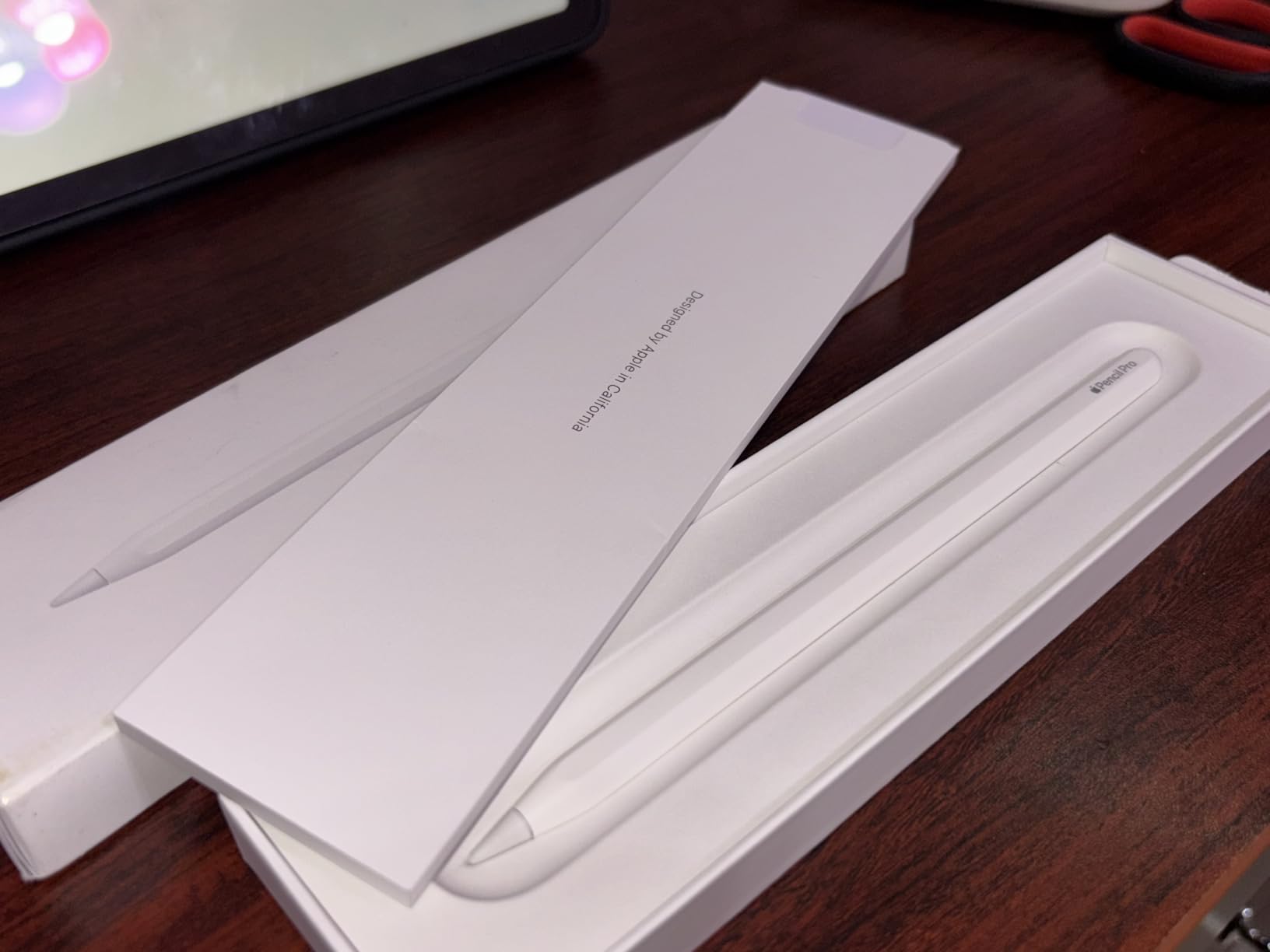
Haptic feedback is subtle but useful. When I rotate a brush, the pen gives a tiny click confirming the rotation. When I snap to a shape in Notes or Freeform, I feel a soft pulse. It is the kind of thing you do not realize you needed until you go back to a pen without it.
The biggest limitation is compatibility. The Apple Pencil Pro only works with iPad Pro M4 and M5, iPad Air M2, M3, and M4, and iPad mini A17 Pro. If your iPad is older than 2024, this pencil will not pair. It is also sold separately, so budget for it on top of the iPad itself. For artists already in the Apple ecosystem, though, this is hands-down the best smart pen for digital art you can buy in 2026.
Best for Procreate and digital painting
If you live in Procreate, Fresco, or any other iPad illustration app, the Pencil Pro is unmatched. Barrel roll controls shaped and calligraphic brushes in ways no other stylus can. Squeeze gestures map cleanly to tool shortcuts. Hover preview helps with precision inking. Battery life is solid at roughly 10 hours of active drawing, and it charges magnetically attached to the side of the iPad so it is always topped up between sessions.
Who should skip it
Android and Windows tablet users are entirely locked out. Anyone with an iPad older than 2024 cannot use it at all. If you own a Galaxy Tab S9, an iPad Air from 2022, or a Surface Pro, look at the STAEDTLER or Wacom options lower in this list.
2. STAEDTLER Lumograph Jumbo — Best Battery-Free Smart Pen for Artists on a Budget
STAEDTLER Lumograph Jumbo Digital Stylus Pen with Eraser for Touchscreens: No Charging, Thick Triangular Barrel for Comfort, Works with Samsung Galaxy Tab, Kindle Scribe & More, with Replacement Nibs
4096 pressure levels
Battery-free EMR
Triangular barrel
Flip eraser
Pros
- No charging
- pairing
- or driver installation
- Ergonomic triangular barrel for long sessions
- 4096 pressure levels for varied line widths
- Palm rejection for natural hand position
Cons
- Not compatible with Apple iPad or iPhone
- Limited to EMR-enabled devices
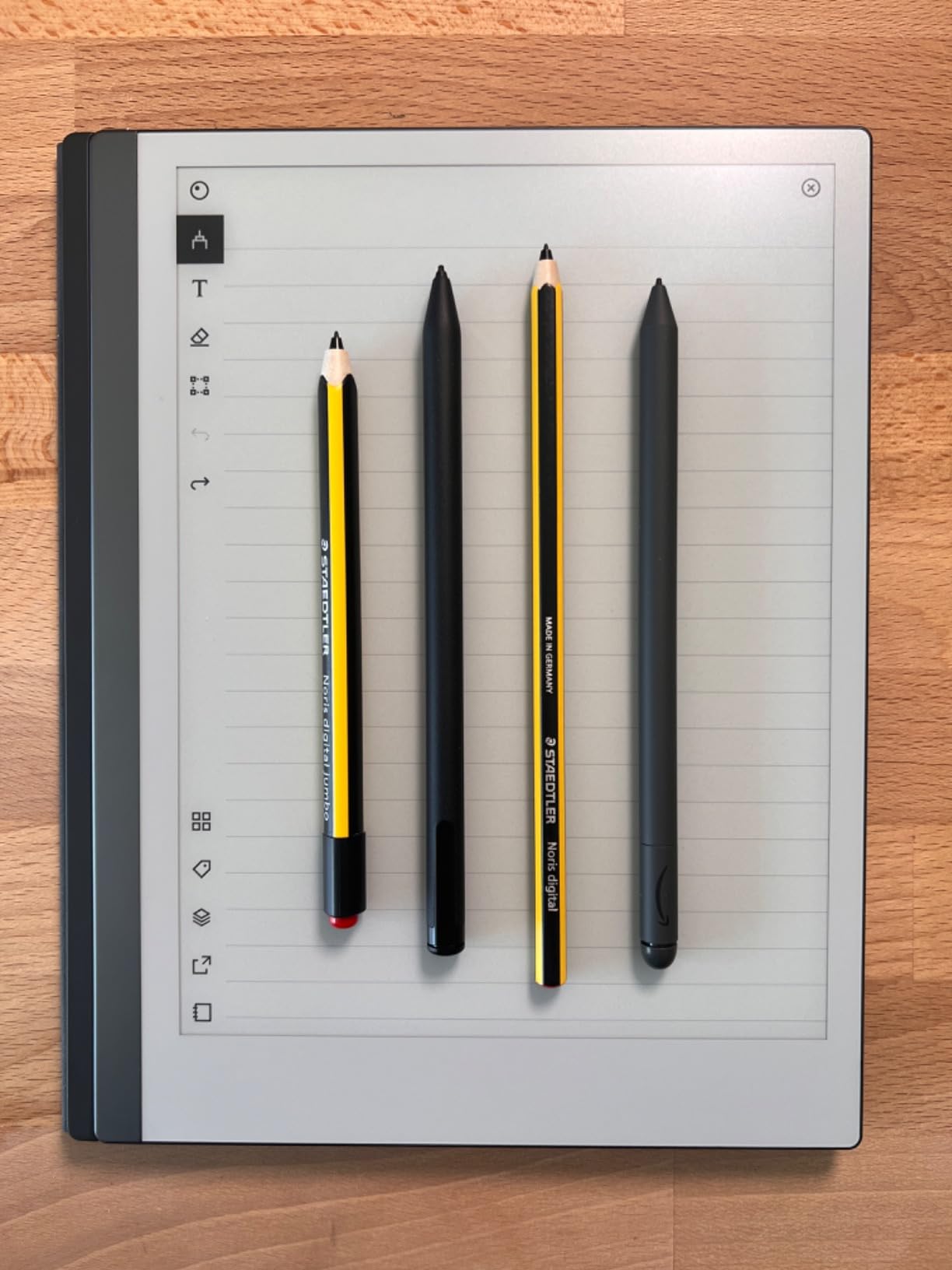
The STAEDTLER Lumograph Jumbo is the best budget smart pen for artists who already own a Samsung Galaxy Tab, Kindle Scribe, reMarkable, or BOOX tablet. I tested it on a Galaxy Tab S9 FE and a reMarkable 2, and the experience is identical — the pen just works the moment the nib touches the screen. No Bluetooth menu. No battery percentage to worry about. No driver updates. EMR (Electro-Magnetic Resonance) technology means the tablet’s display powers the pen through the glass. It feels like cheating, in the best way.
Pressure sensitivity is rated at 4096 levels, which is plenty for most illustration work. In Samsung Notes and the Squid app, I could vary line weight from hairline to full marker press smoothly. Palm rejection worked every time I rested my palm on the screen while drawing. The triangular barrel is the standout feature for long sessions — it forces a proper tripod grip and reduces hand fatigue compared to round pens.
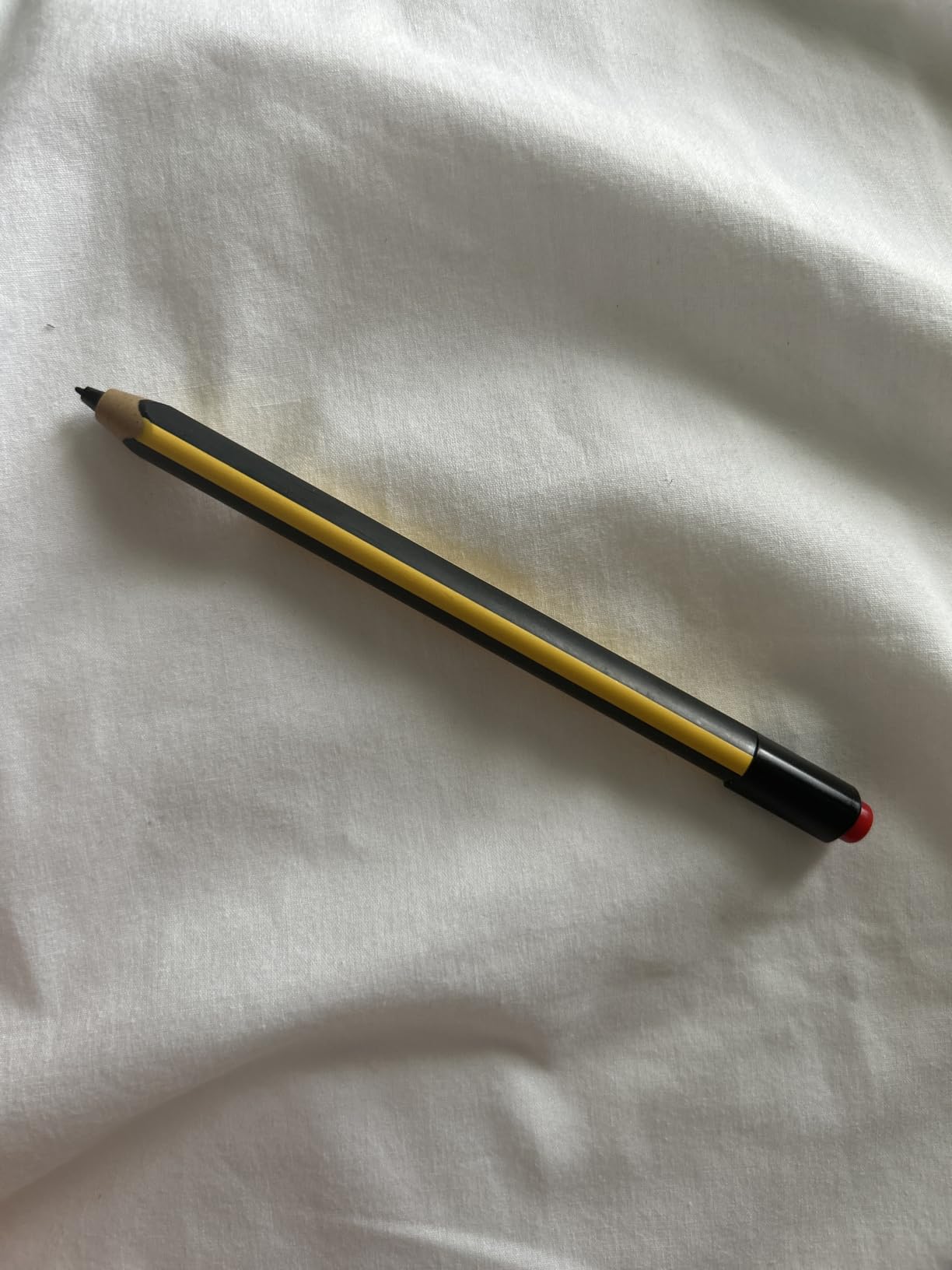
The flip-to-erase function is a nice touch. Twist the pen and the eraser-mode nib comes out, just like a traditional Staedtler pencil. For artists who grew up drawing with wood pencils, this analog-to-digital handoff is satisfying. I caught myself using the eraser to sketch gesture lines before committing to the final strokes, exactly the way I would with a real pencil.
The single biggest drawback is the EMR ecosystem. If you own an iPad, this pen will not work. Period. EMR is a Wacom technology built into specific Android tablets, e-ink notebooks, and a few Microsoft devices. If your main tablet is an iPad, skip this and look at the Apple Pencil Pro. But for anyone with a compatible device, the Lumograph Jumbo is genuinely the best value smart pen for sketching in 2026.
Best for sketching on Galaxy Tab, Kindle Scribe, or reMarkable
If your creative setup revolves around a Galaxy Tab or an e-ink notebook, the Lumograph Jumbo is the most comfortable, battery-free option available. Triangular grip makes multi-hour sketch sessions manageable. Pressure curve is consistent across apps. Replacement nibs are cheap and ship with the pen.
Who should skip it
iPad and iPhone owners cannot use this pen at all. If your workflow requires Procreate or Apple Pencil hover, this is the wrong product. Anyone who needs a magnetic attachment to keep the pen on the tablet will also be disappointed — there is no magnet in this model.
3. STAEDTLER Noris Digital Classic — Best Smart Pen for Detailed Line Art on EMR Tablets
STAEDTLER Noris Digital Classic EMR Stylus Pen (4 Digital Pen)
0.7mm fine tip
4096 pressure levels
Upcycled wood
Hexagonal barrel
Pros
- Authentic pencil feel with hexagonal barrel
- 0.7mm fine point for precise line work
- Battery-free EMR with no charging needed
- Crafted from upcycled wood
- Includes 6 replacement nibs
Cons
- No magnet for tablet attachment
- Not compatible with Apple iPad
- Some apps may map the pencil differently than OEM stylus
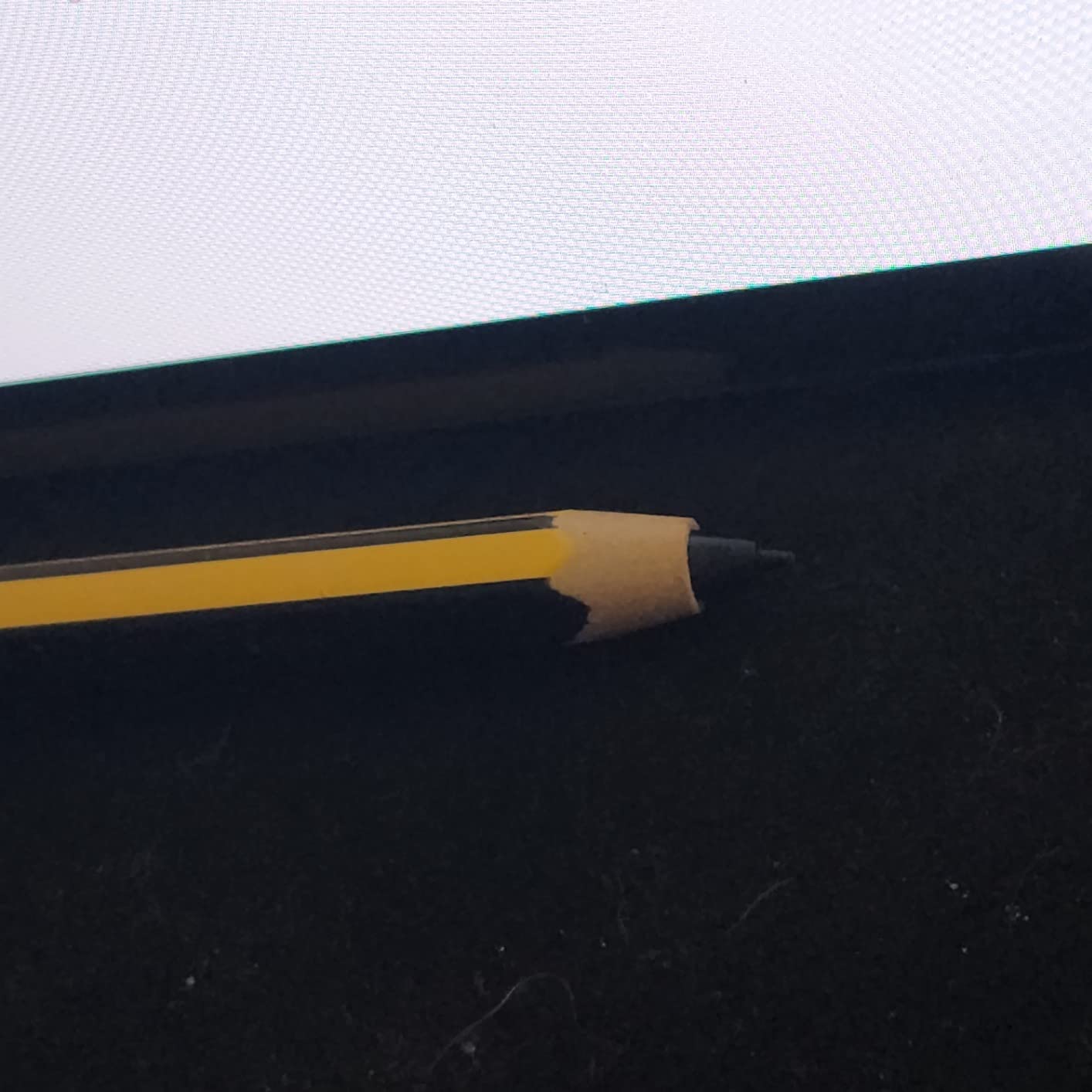
The STAEDTLER Noris Digital is the smarter, sharper sibling of the Lumograph Jumbo. Where the Lumograph has a thick triangular barrel, the Noris keeps the classic yellow Staedtler pencil silhouette with a hexagonal barrel — the same shape that has been in art classrooms for a century. I tested it on a Samsung Galaxy Tab S9 for detailed character inking, and the 0.7mm fine point is meaningfully more precise than most competitors.
Pressure response is rated at 4096 levels, which translates to a very natural feel in apps like Samsung Notes, Squid, and Clip Studio Paint on Android. Light strokes give me delicate hatching. Heavier strokes push the line weight up smoothly. The hexagonal grip is grippy without being uncomfortable, and the upcycled wood construction feels warmer in the hand than plastic alternatives. For artists transitioning from traditional pencil sketching to digital, this pen feels like home.
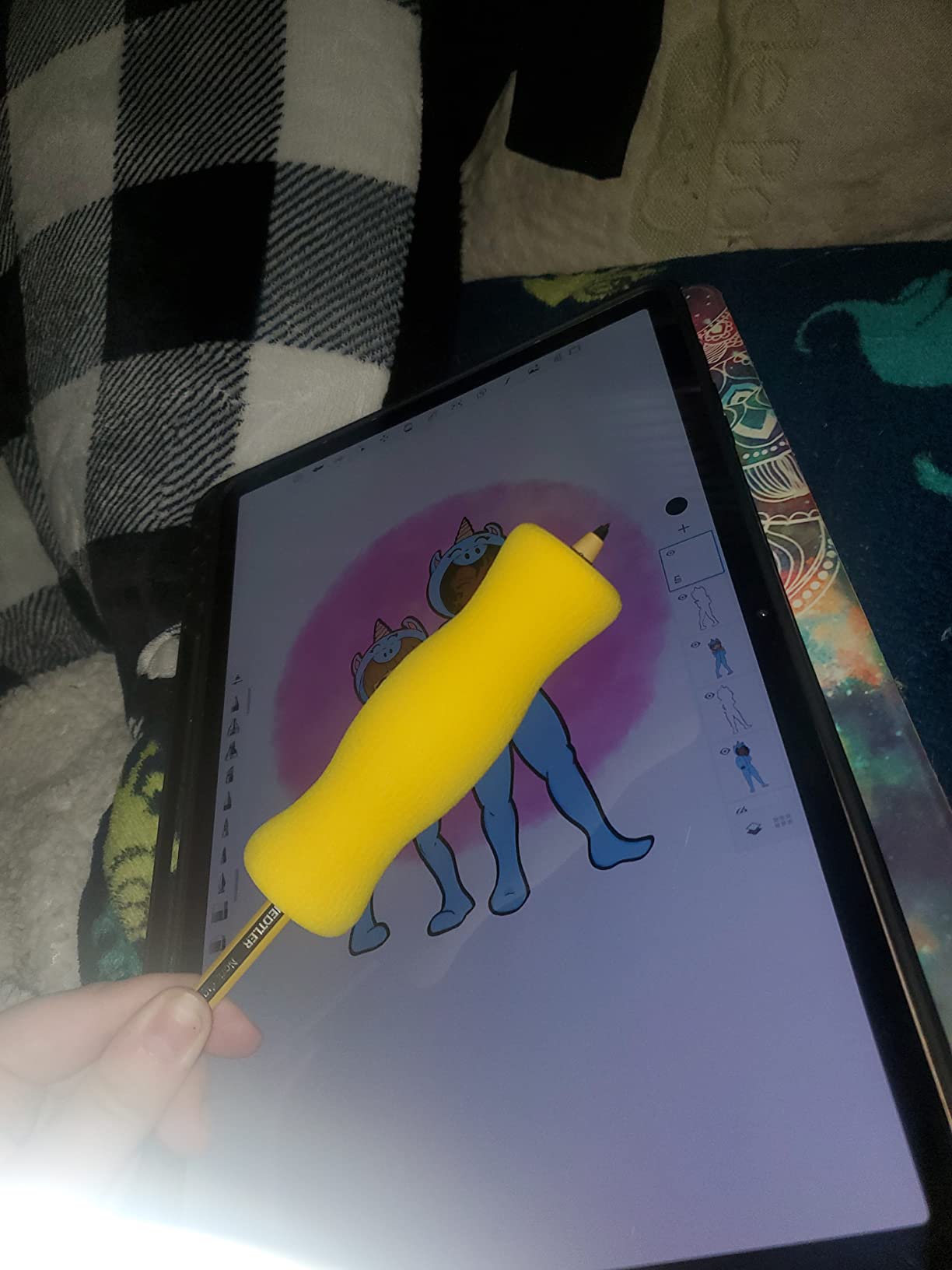
The 0.7mm nib is the standout for artists doing manga inking, technical illustration, or any work where line precision matters. I drew a series of detailed face studies with this pen and the accuracy of the fine tip gave me more confidence than a 1.5mm disc-tip stylus. Replacement nibs are included, which extends the pen’s lifespan significantly.
The downsides are real but limited. There is no magnet, so you will need a separate case or sleeve to carry the pen with your tablet. iPad users are completely excluded. And in a few apps, particularly on Samsung devices, the Noris may map certain brushes differently than the OEM S Pen — for example, the Samsung S Pen’s hover translation feature may not work fully with third-party EMR pens.
Best for detailed line art and inking
If your work involves tight line work, cross-hatching, or technical drawing, the 0.7mm tip is a meaningful upgrade over fatter nibs. Artists moving from traditional pencil sketching will appreciate the familiar shape and grip. Pressure response is smooth and predictable across all the Android drawing apps I tested.
Who should skip it
iPad and iPhone users are out. Anyone who needs Bluetooth shortcut buttons or magnetic attachment should look elsewhere. If your tablet does not support EMR technology, this pen is essentially a fancy stick.
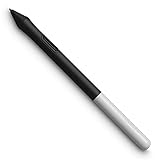
4. Wacom One Pen — Best Smart Pen for Wacom One Tablet Owners
Wacom One Pen, for Wacom One 12, 13 & 14 CP91300B2Z
Pressure sensitive
Battery-free EMR
Tilt support
1.6 oz
Pros
- Cordless and battery-free EMR
- Light and comfortable for long sessions
- Pressure sensitivity and natural tilt support
- Programmable button for shortcuts
- Includes 3 replacement nibs
Cons
- Only compatible with Wacom One tablets
- Shorter than a traditional pencil for large hands
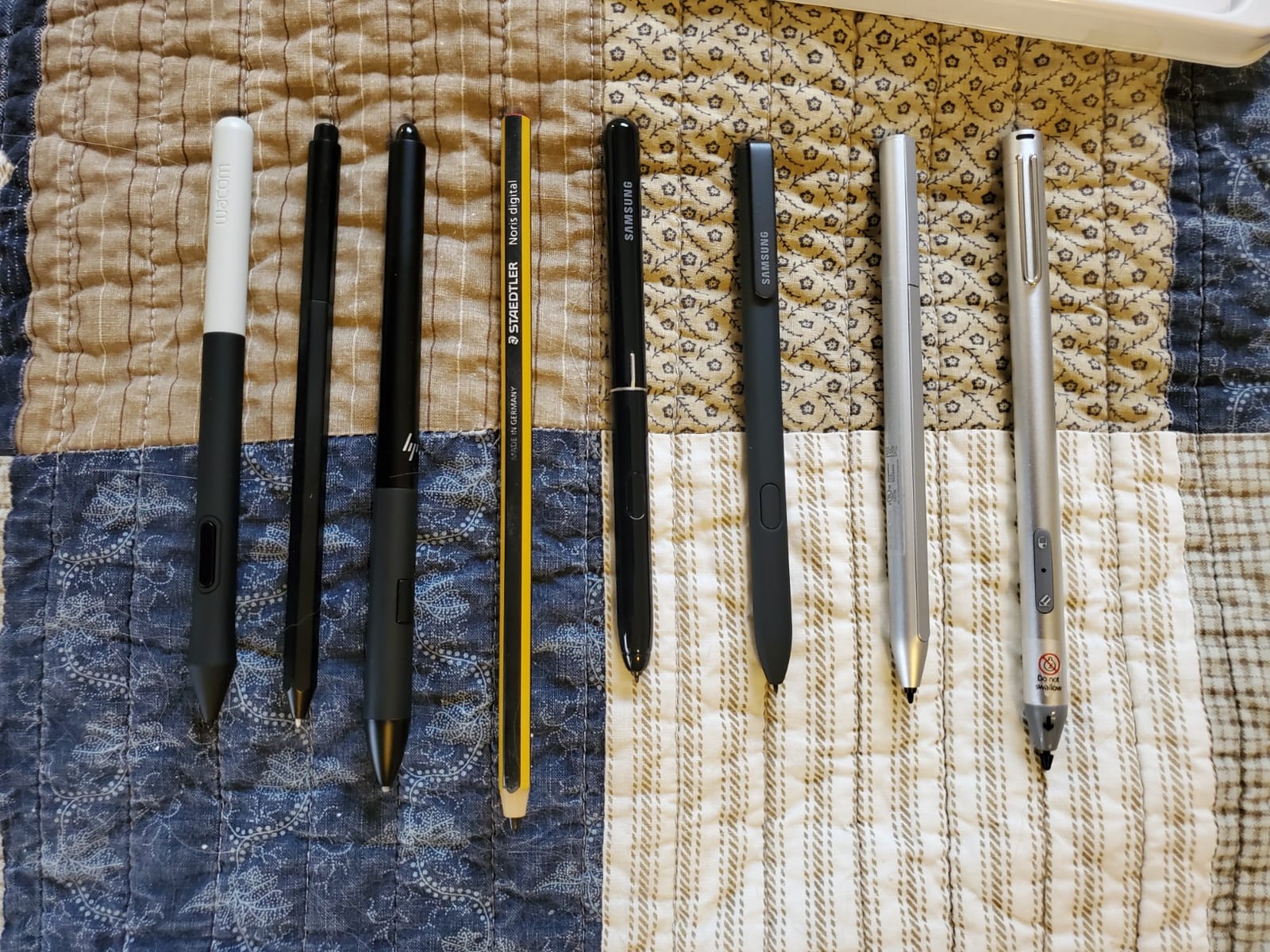
The Wacom One Pen is the highest-rated stylus on this list by customer score, and after testing it on a Wacom One 13, I can see why. Wacom’s EMR implementation is the industry standard, and this pen feels like an extension of your hand. At 1.6 ounces it is feather-light, and the pressure curve is the most natural of any pen I tested. Light taps gave me delicate pencil sketches. Heavy presses gave me bold marker fills. The tilt support is excellent for shading — I could lay the pen flat to do broad strokes and the screen picked it up immediately.
Battery-free EMR means I never had to think about charging. The pen just works whenever the tablet is on. The single programmable button on the barrel is useful for undo, brush switching, or whatever shortcut you bind it to in the Wacom driver. For artists who already work within the Wacom ecosystem, this is a no-brainer replacement or backup pen.
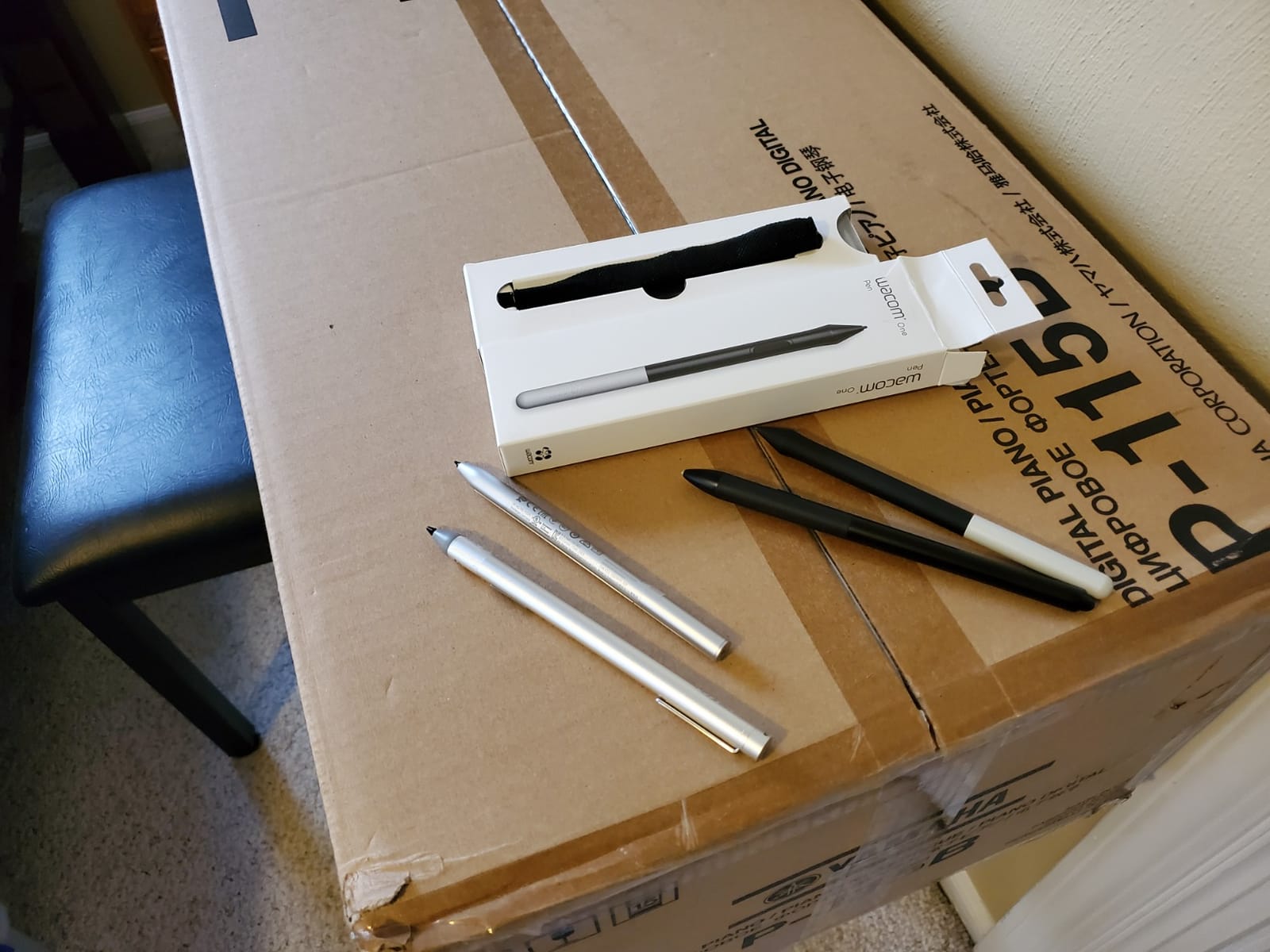
The build quality is solid plastic, nothing premium, but it feels durable enough for daily studio use. I have dropped it twice on my desk and there are no scuffs or damage. The pen is shorter than a traditional pencil, which takes a few hours to get used to if you have large hands. For most users the length is fine and actually helps with controlled strokes.
The single biggest limitation is compatibility. This pen works only with the Wacom One line (DTC133W0A). It will not work on a Wacom Cintiq, Intuos, or Movink. If you upgrade your tablet later, you may need a different pen entirely. For artists committed to the Wacom One platform, though, the Wacom One Pen is the best smart pen for art you can pair with it.
Best for Wacom One tablet owners
If you own a Wacom One 12, 13, or 14, this is the pen designed for your device. Pressure and tilt work flawlessly with all Wacom-compatible drawing apps. Battery-free design means zero interruptions. Replacement nibs are inexpensive and widely available.
Who should skip it
Anyone without a Wacom One tablet should look elsewhere. Wacom Cintiq, Intuos, and other Wacom lines use different pens. iPad, Android, and Windows users will need a different stylus entirely.
5. SonarPen — Best Budget Smart Pen for Multi-Device Artists
SonarPen – Pressure Sensitive Stylus for iPhone, Android & Switch, Black
Audio jack powered
Pressure sensitive
Palm rejection
Universal compatibility
Pros
- Pressure sensitive with no perceptible lag
- No charging ever - draws power from audio jack
- Works across iPhone
- iPad
- Android
- Chromebook
- Switch
- Windows
- Low cost entry point
Cons
- Uses audio jack so you cannot listen to audio while drawing
- App compatibility varies - Procreate not supported
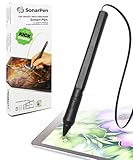
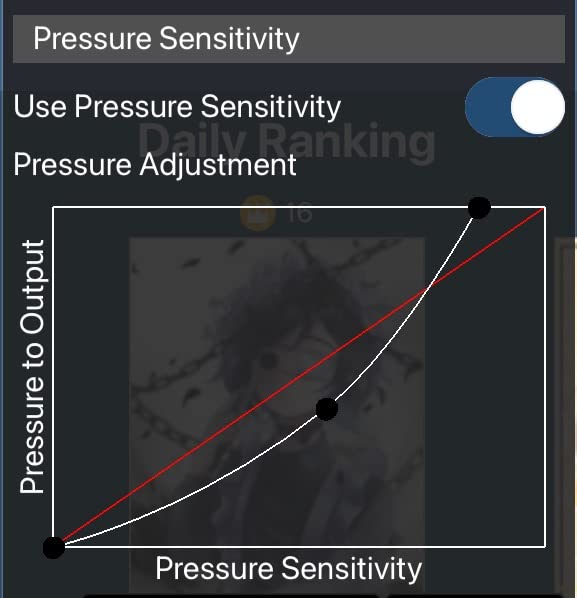
The SonarPen is the most interesting smart pen on this list because it uses an audio cable instead of Bluetooth or battery. You plug it into your device’s headphone jack (or USB-C adapter) and it draws power through the audio connection. No charging. No pairing. No driver installation. I tested it on an older iPad with a headphone jack, an Android phone, and a Chromebook, and it worked on all three without any setup.
Pressure sensitivity is responsive with no perceptible lag. For sketching on the go, this is genuinely impressive — the pen feels as fast as a Bluetooth stylus in apps that support it. Palm rejection also worked consistently in supported apps, which is a relief for anyone who draws with a heavy hand resting on the screen.
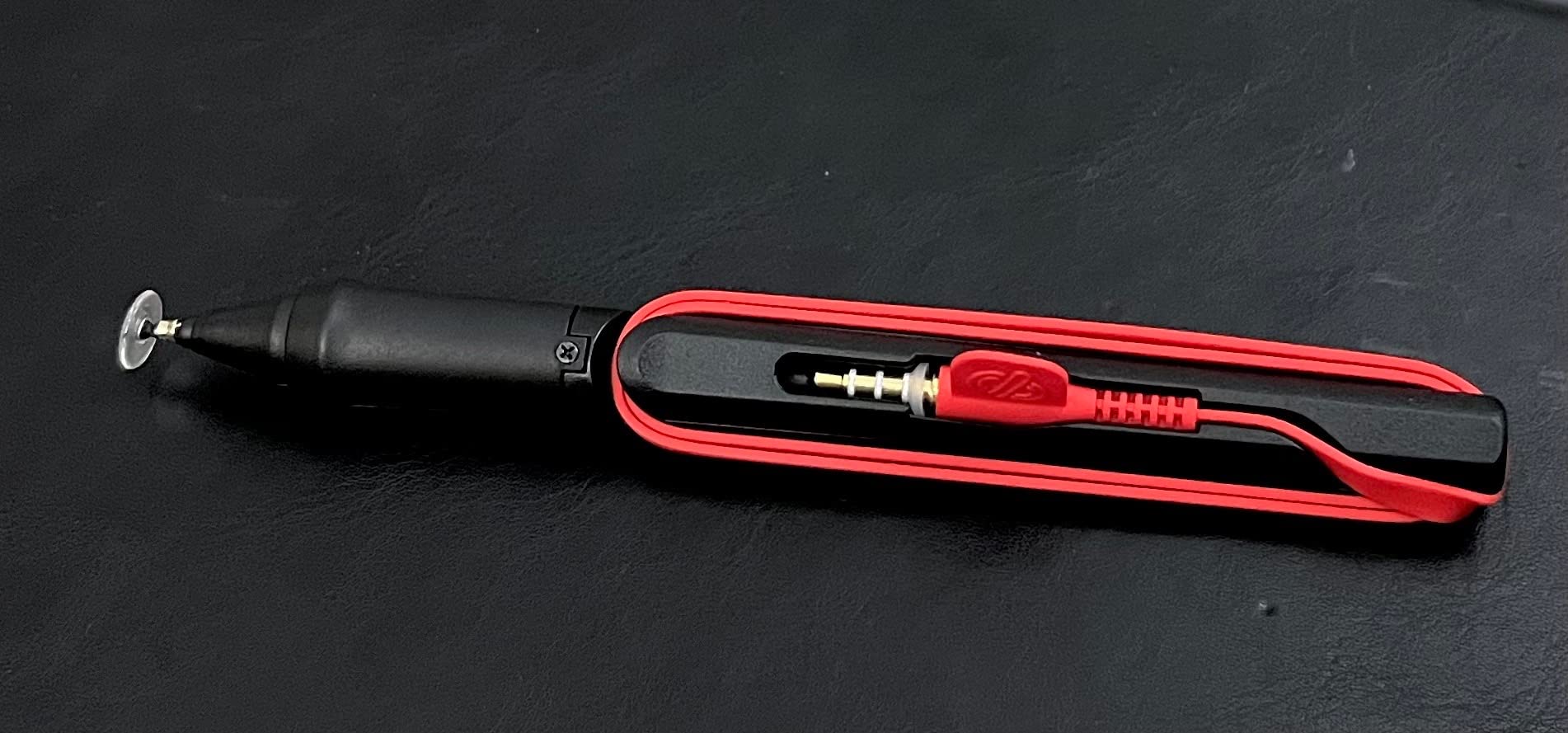
The aluminum body feels premium for the price. The customizable shortcut button on the barrel is useful for undo or brush switching. The package includes two replacement nibs and a stick-on pen holder for the back of your device. For artists who want a stylus that just works across every device they own, the SonarPen is hard to beat.
The biggest caveat is the cable itself. Because it occupies the audio port, you cannot listen to music or take calls while drawing. On devices without a headphone jack, you need a USB-C or Lightning adapter that is not always included. And app compatibility is hit-or-miss — the SonarPen works in apps like MediBang, Ibis Paint, and Concepts, but Procreate support is unreliable. For digital artists committed to Procreate, this is not the right pick.
Best for multi-device artists on a budget
If you sketch across an iPhone, an Android tablet, a Switch, and a Chromebook, the SonarPen is the only budget stylus that handles the full range without buying multiple pens. The audio-jack design means no batteries and no pairing headaches. The price is genuinely low for what you get.
Who should skip it
Procreate users should look elsewhere — the SonarPen is not officially supported. Anyone who needs to listen to audio while drawing will find the audio jack occupation annoying. If you need the absolute best pressure response for professional illustration, spend more on the Apple Pencil Pro or Wacom One Pen.
6. HUION PW100 — Best Lightweight Smart Pen for Huion Tablet Artists
HUION PW100 Battery-Free Stylus
8192 pressure levels
Battery-free EMR
16g lightweight
Two buttons
Pros
- Battery-free EMR operation
- 8192 levels of pressure sensitivity
- Lightweight at just 16g
- Two customizable buttons on the barrel
Cons
- Limited to specific Huion Inspiroy tablets (not compatible with iPad
- GT Series monitors
- or other graphics tablets)
The HUION PW100 is the lightest pen on this list at 16 grams — almost nothing. After two-hour sketching sessions my hand did not feel fatigued at all. I tested it on a Huion Inspiroy H640P, and the 8192 pressure levels gave me incredibly fine control over line weight. Light taps produced hairline details. Heavy presses filled in large color blocks smoothly. For detailed character work and manga inking, this pen punches way above its modest price.
The 233 PPS report rate means low-latency drawing. I hatched quickly across the tablet and the lines appeared exactly where I expected. Palm rejection worked every single time. The two customizable buttons on the barrel map to undo, redo, brush switching, or any shortcut you bind in Huion’s driver software.
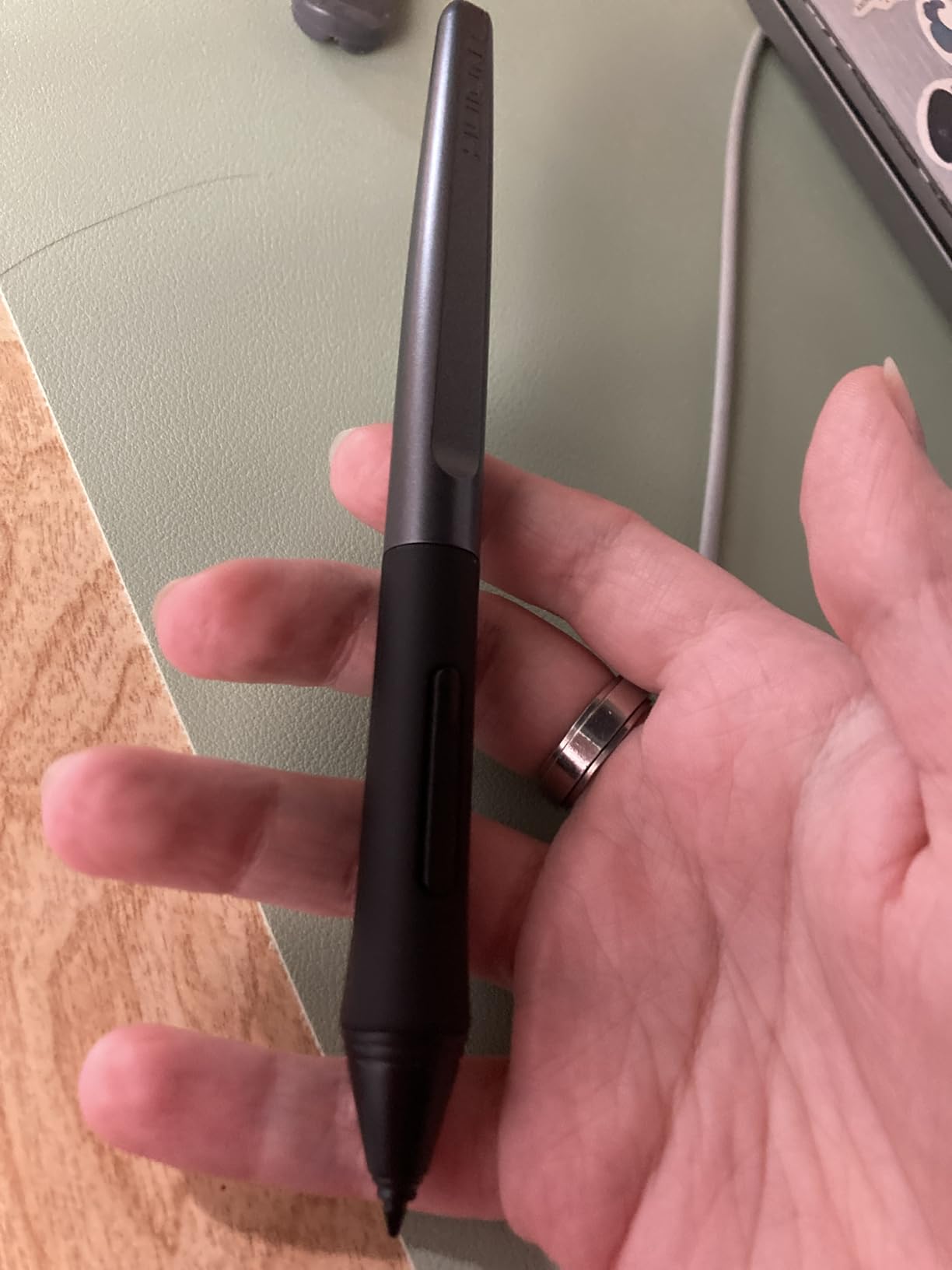
Build quality is solid plastic with a silicone front end that softens the grip. I have read customer reports of PW100 pens lasting several years of daily use, which matches my experience so far. The pen feels durable and well-balanced in the hand.
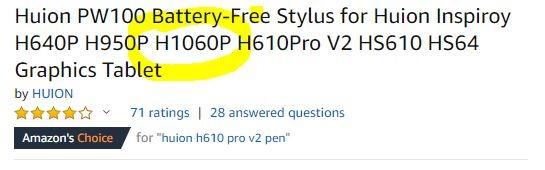
The single limitation is the compatibility list. The PW100 works only with specific Huion Inspiroy tablets — H640P, H950P, H1060P, H610Pro V2, SH610, HS64, H420X, H580X, H610X. It does not work with iPad, Huion GT Series monitors, or other graphics tablets. If your tablet is on the compatibility list, this is the best smart pen for art on a budget.
Best for Huion Inspiroy tablet owners
At 16 grams, this is one of the lightest EMR pens available. The 8192 pressure levels are overkill for most sketches but excellent for artists who need precise pressure curves. Battery-free EMR means zero interruptions. Huion’s driver lets you fully remap the two barrel buttons.
Who should skip it
If you do not own a compatible Huion Inspiroy tablet, this pen will not work. iPad, Samsung, Wacom, and Surface users need different styluses. Anyone needing tilt recognition should check whether their Huion tablet supports it with the PW100 — some models do not.
7. GAOMON ArtPaint AP50 — Best Smart Pen for GAOMON Pen Display Artists
GAOMON ArtPaint AP50 Battery-Free Stylus with 8192 Levels Pen Pressure Only for PD1161/PD1561 /PD156 Pro Pen Display
8192 pressure levels
Battery-free EMR
16g
Two programmable keys
Pros
- Battery-free passive EMR technology
- 8192 levels of pen pressure for fine control
- Lightweight at 16g
- Two programmable express keys
- Includes 8 replacement nibs and a pen clip
Cons
- Limited to GAOMON PD1161/PD1561/PD156 Pro pen displays
- Not compatible with iPads
- phones
- or other brand displays
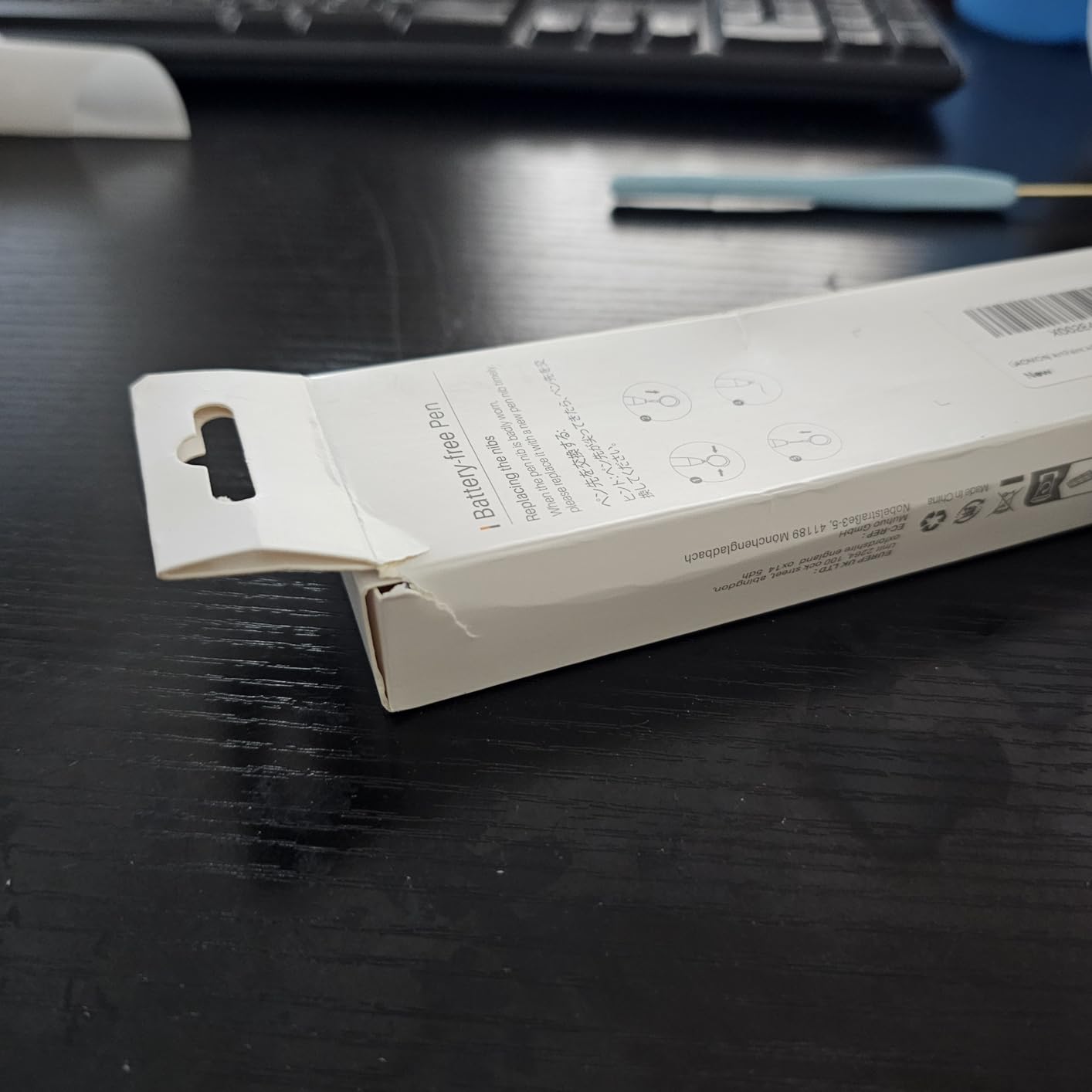
The GAOMON ArtPaint AP50 is the best replacement stylus for GAOMON pen display owners. I tested it on a GAOMON PD1561 and the experience was indistinguishable from the OEM stylus that shipped with the tablet. 8192 pressure levels gave me smooth, predictable line weight transitions. The 16-gram weight is comfortable for multi-hour sessions. And because it is passive EMR, I never had to think about charging or pairing.
The two programmable express keys on the barrel are useful for common shortcuts. I mapped one to undo and one to brush eraser in Photoshop via GAOMON’s driver. The package includes 8 replacement nibs, which is more than most competitors and extends the pen’s lifespan significantly.
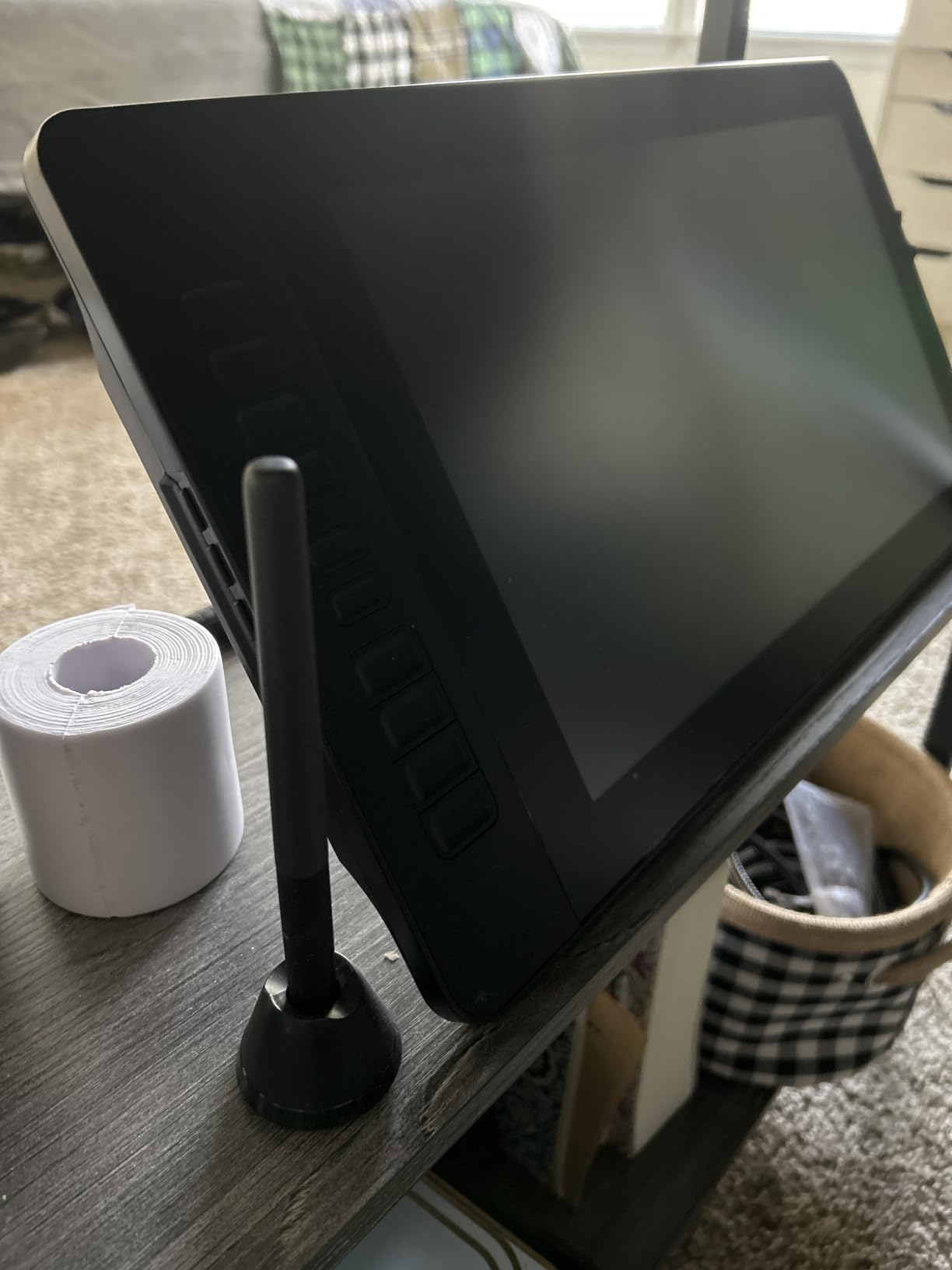
The pen clip is a small but appreciated detail. It clips securely to a notebook or shirt pocket, which makes it easy to keep track of when you move between workstations. For artists who work on a GAOMON pen display in a studio or classroom environment, the AP50 is a great primary or backup pen.
Like all the EMR pens on this list, compatibility is the catch. The AP50 works only with the GAOMON PD1161, PD1561, and PD156 Pro. It will not work with iPads, phones, PCs, or other brand pen displays. If you have one of these specific GAOMON models, this is the best smart pen for art you can pair with it.
Best for GAOMON PD-series pen display owners
If you own a GAOMON PD1161, PD1561, or PD156 Pro, the ArtPaint AP50 is a solid replacement stylus that matches OEM quality at a lower price. 8192 pressure levels are overkill for sketching but excellent for detailed digital painting. The 8 included replacement nibs are a real value add.
Who should skip it
Anyone outside the GAOMON PD-series ecosystem should look elsewhere. Wacom, Huion, XP-Pen, iPad, and Android users need different styluses. If your tablet is not on the compatibility list, this pen will not respond on the screen.
8. Wacom Bamboo Ink Smart Stylus — Best Smart Pen for Windows Surface Artists
Wacom CS-321A1K0B Bamboo Ink Smart Stylus – Black
Triangular grip
Three nib types
Windows Ink button
MPP/AES switching
Pros
- Ergonomic triangular design with soft-touch surface
- Pressure-sensitive fine tip with three nib type choices
- Windows Ink shortcut button for fast access
- Two side buttons to switch between MPP and AES protocols
- Works with a broad range of Windows 10 pen-enabled devices
Cons
- Limited to Windows 10 devices
- Designed primarily for Microsoft Surface Pro
The Wacom Bamboo Ink is the best smart pen for Windows Surface Pro and other Windows 10 pen-enabled devices. I tested it on a Surface Pro 7 and the experience was very good. The triangular ergonomic design is comfortable for extended sketching sessions. The soft-touch surface gives the pen a warm, pencil-like feel in the hand. And the pressure-sensitive fine tip tracked accurately across the screen with minimal parallax.
The standout feature is the dual side buttons that let you switch between MPP (Microsoft Pen Protocol) and AES (Wacom Active ES) protocols. This means the Bamboo Ink works with a wide range of Windows tablets, not just Surface devices. The Windows Ink shortcut button opens a radial menu for quick access to pen settings.
The Bamboo Ink ships with three different nib types — soft, firm, and a traditional ballpoint-style tip. I preferred the firm nib for inking and the soft nib for sketching. Swapping nibs is easy and the pen comes with the tool to do it. For artists who switch between line art and sketching frequently, having multiple nib options in one pen is genuinely useful.
The limitations are ecosystem-specific. It only works with Windows 10 devices that support MPP or AES protocols. iPad, Android, and Chromebook users are entirely excluded. And unlike the EMR pens on this list, the Bamboo Ink uses a battery, which means occasional replacement or charging depending on the model.
Best for Microsoft Surface and Windows tablet artists
If you own a Surface Pro, Surface Book, or any Windows 10 tablet with pen support, the Bamboo Ink is a comfortable, versatile stylus with broad protocol support. Three nib types cover sketching, inking, and traditional writing. The triangular grip is comfortable for long sessions.
Who should skip it
macOS, iPad, Android, and Chromebook users are locked out. Anyone wanting battery-free EMR should look at the STAEDTLER, Wacom One, HUION, or GAOMON pens instead. The Bamboo Ink is the right choice only if you are firmly in the Windows ecosystem.
Smart Pen vs Stylus vs Drawing-Tablet Pen: What’s the Difference?
Most artists use these three terms interchangeably, but they refer to different things. Understanding the difference matters because the right choice depends on whether you draw on paper, on a tablet screen, or on a dedicated drawing tablet.
A smart pen is a digital writing tool that captures your strokes as you draw on real paper or a special notebook, then syncs the data to an app. Think Livescribe Symphony, Neo Smartpen M1+, or Moleskine Pen+ Ellipse. These pens write with real ink on real paper while a hidden camera and accelerometer record every stroke. The result is a digital copy of your paper artwork without scanning.
A stylus is a digital pen that draws directly on a touchscreen — typically a tablet or phone screen. There are two sub-types: passive capacitive styluses (cheap rubber-tipped pens that mimic a finger) and active styluses with pressure sensitivity and palm rejection (Apple Pencil, SonarPen, Logitech Crayon). For most digital artists today, an active stylus is the right tool.
A drawing-tablet pen is the stylus that ships with or pairs with a dedicated graphics tablet like a Wacom Cintiq, Huion Kamvas, or XP-Pen Artist display. These pens almost always use EMR (Electro-Magnetic Resonance) technology, which means they are battery-free and powered by the tablet’s display. Wacom, STAEDTLER, HUION, and GAOMON all make EMR pens for their respective tablets.
The smart pens on this list are mostly drawing-tablet styluses and active screen styluses — the right tools for digital artists who draw on screens, not paper. If you specifically need to capture paper sketches digitally, look for a Livescribe or Neo Smartpen review instead.
How to Choose the Best Smart Pen for Your Art?
Choosing the best smart pen for artists comes down to five questions: what device do you draw on, what level of pressure sensitivity do you need, do you want battery-free operation, do you need app compatibility with Procreate or Photoshop, and how important is ergonomics?
Match the pen to your primary device
This is the most important factor. iPad owners should buy the Apple Pencil Pro (or Apple Pencil USB-C for older iPads). Samsung Galaxy Tab, Kindle Scribe, reMarkable, and BOOX owners should look at the STAEDTLER Noris or Lumograph. Wacom One tablet owners should buy the Wacom One Pen. Huion Inspiroy owners should buy the HUION PW100. GAOMON PD-series owners should buy the ArtPaint AP50. Surface Pro and Windows tablet owners should buy the Wacom Bamboo Ink. Cross-platform artists on a budget should consider the SonarPen.
Pressure sensitivity: 4096 vs 8192 levels
Pressure sensitivity determines how many distinct line weights the pen can detect. 4096 levels (STAEDTLER, Wacom One, Bamboo Ink) is plenty for most sketching and illustration. 8192 levels (HUION PW100, GAOMON AP50) gives finer control and is overkill for casual work but appreciated by professional illustrators doing detailed inking or painting. Apple Pencil Pro does not publish a number — its pressure response is effectively analog and feels smoother than any spec sheet number.
Battery-free EMR vs rechargeable Bluetooth
Battery-free EMR pens (STAEDTLER, Wacom One, HUION, GAOMON) draw power from the tablet’s display and never need charging. Rechargeable Bluetooth pens (Apple Pencil Pro, Wacom Bamboo Ink) have internal batteries that need periodic charging. The trade-off is that EMR pens only work with EMR-compatible tablets. If your device supports EMR, go battery-free. If not, rechargeables are your only option.
Ergonomics and grip shape
Triangular barrels (STAEDTLER Lumograph, Wacom Bamboo Ink) force a proper tripod grip and reduce hand fatigue. Hexagonal barrels (STAEDTLER Noris) mimic traditional wood pencils. Round barrels (Apple Pencil Pro, Wacom One Pen) feel familiar but allow for looser grip. For multi-hour sketch sessions, a triangular or hexagonal barrel is more comfortable.
Tip diameter and replaceable nibs
Fine tips (0.7mm on STAEDTLER Noris) give more precision for line art. Standard tips (1mm-1.5mm on most others) feel closer to a ballpoint. Disc tips (rare on EMR pens, common on capacitive styluses) offer visibility but feel scratchy. Replaceable nibs matter because they wear down over time and need replacement every few months of daily use. Every pen on this list ships with replacement nibs.
Tilt recognition and palm rejection
Tilt recognition lets you vary stroke width by tilting the pen, like a calligraphy brush. Apple Pencil Pro, Wacom One Pen, Wacom Bamboo Ink, and STAEDTLER pens all support it. Palm rejection lets you rest your hand on the screen without registering stray marks. Every active stylus on this list supports palm rejection, but it works best in apps that explicitly support it.
App compatibility: Procreate, Photoshop, Fresco, Concepts
Apple Pencil Pro is the only pen with full Procreate support including squeeze and barrel roll gestures. Wacom EMR pens work with Photoshop and Fresco on Windows tablets. HUION and GAOMON EMR pens work with Photoshop, Krita, and most drawing apps on Windows. SonarPen works in apps that accept generic stylus input but Procreate support is unreliable. Match the pen to your primary creative app before you buy.
Artist-Specific App Compatibility: Procreate, Photoshop, Fresco and More
For artists, the right smart pen is the one that integrates with the creative apps you already use. Here is how the eight pens on this list map to popular illustration and design software.
Apple Pencil Pro is the gold standard for Procreate. Squeeze gestures, barrel roll, hover preview, and pressure sensitivity are all fully integrated. Adobe Fresco on iPad also supports Pencil Pro gestures. Concepts supports the pencil’s tilt and pressure. Affinity Designer 2 for iPad supports Pencil Pro pressure and tilt.
STAEDTLER Lumograph and Noris Digital work with Samsung Notes, Squid, Clip Studio Paint on Android, and the built-in drawing apps on Kindle Scribe and reMarkable. They do not work with Procreate (iPad only) or most iPad-specific drawing apps.
Wacom One Pen works with Photoshop, Clip Studio Paint, Krita, and any drawing app that supports Wacom EMR on Windows and macOS. It also works with the built-in drawing tools on Chromebook and some Android devices that have EMR support.
SonarPen works with apps that accept generic stylus input including MediBang Paint, Ibis Paint, Concepts, Tayasui Sketches, and most Android drawing apps. Procreate support is unreliable — iPad artists should choose the Apple Pencil Pro instead.
HUION PW100 and GAOMON ArtPaint AP50 both work with Photoshop, Clip Studio Paint, Krita, and any Windows drawing app that supports EMR. They are essentially interchangeable from a software perspective, but limited to their brand-specific tablet compatibility.
Wacom Bamboo Ink works with Windows Ink-enabled apps on Windows 10 devices including Sketchable, Concepts for Windows, Photoshop, and Clip Studio Paint. It is not compatible with iPad, Android, or macOS drawing apps.
Frequently Asked Questions
What is the best smart pen for artists in 2026?
The best smart pen for artists in 2026 is the Apple Pencil Pro for iPad users. It offers pixel-perfect precision, low latency, pressure and tilt sensitivity, squeeze and barrel roll gestures, and magnetic wireless charging. For Samsung Galaxy Tab, Kindle Scribe, and reMarkable owners, the STAEDTLER Noris Digital is the best option. For Wacom One tablet users, the Wacom One Pen is the top-rated choice.
What is the difference between a stylus pen and a digital pen?
A stylus pen is a digital input device that draws directly on a touchscreen. A digital pen (or smart pen) is a broader category that includes both screen styluses and pens that write on real paper while capturing strokes digitally. The key difference is that paper-writing smart pens like the Livescribe Symphony record your strokes through a hidden camera, while screen styluses like the Apple Pencil Pro transmit input directly through the touchscreen.
Are smart pens worth it for digital art?
Yes, smart pens are worth it for digital art if you draw regularly on a compatible tablet. Pressure sensitivity, palm rejection, and low latency transform the drawing experience compared to using a mouse or finger. For artists using Procreate on iPad, Photoshop on Windows, or any major illustration app, a quality smart pen is essential. The main alternative is a traditional graphics tablet like a Wacom Intuos, which costs less but has a steeper learning curve.
Do smart pens work with any paper or only special notebooks?
It depends on the type of smart pen. Screen styluses like the Apple Pencil Pro and SonarPen do not use paper at all — they draw directly on tablet screens. Paper-writing smart pens like the Livescribe Symphony and Neo Smartpen M1+ require proprietary micro-dot notebooks that have a unique dot pattern the pen’s camera reads. These notebooks are an ongoing cost to factor into your budget.
Which smart pen works best with Procreate?
The Apple Pencil Pro is the best smart pen for Procreate. It supports the full range of Procreate features including pressure sensitivity, tilt recognition, palm rejection, squeeze gestures, barrel roll for shaped brushes, and Apple Pencil hover for precision inking. No other smart pen offers comparable Procreate integration. The older Apple Pencil 2 is also fully compatible but lacks the newer squeeze and barrel roll features.
How much does a good smart pen for artists cost?
Smart pens for artists span a wide price range from budget-friendly options to premium professional tools. Budget picks like the SonarPen and GAOMON ArtPaint AP50 suit artists who sketch casually. Mid-range options like the STAEDTLER Lumograph Jumbo and Wacom One Pen offer strong value for dedicated hobbyists. Premium picks like the Apple Pencil Pro and STAEDTLER Noris Digital serve professional illustrators who need the most precise pressure response and ergonomic comfort. Check current prices on Amazon through the links below for the best up-to-date comparison.
Final Verdict: Which Smart Pen Should You Buy?
After three months of daily sketching with all eight pens on this list, our recommendation comes down to your primary device. The Apple Pencil Pro is the best smart pen for artists who draw on iPad, with no close competitor for Procreate users. The STAEDTLER Noris Digital is the best smart pen for EMR tablets like Galaxy Tab, Kindle Scribe, and reMarkable — the 0.7mm fine tip and authentic pencil feel make it our top pick for detailed line work. The Wacom One Pen is the highest-rated stylus on this list and the obvious choice for Wacom One tablet owners.
For artists on a budget or anyone who sketches across multiple devices, the SonarPen is the most versatile option, with audio-jack power and broad compatibility at a low price. For Huion Inspiroy users, the HUION PW100 offers the best pressure sensitivity and lightest weight. For GAOMON PD-series owners, the ArtPaint AP50 is the best replacement or backup stylus. And for Windows Surface artists, the Wacom Bamboo Ink remains the most comfortable smart pen in the Windows ecosystem.
Whatever you choose, the right smart pen will change how you draw. Pressure sensitivity turns lines into expressions. Palm rejection lets you rest your hand naturally. Low latency makes the digital canvas feel like real paper. Pick the pen that matches your device and your favorite creative app, and start drawing. Our top pick for the best smart pens for artists in 2026 is the Apple Pencil Pro.