
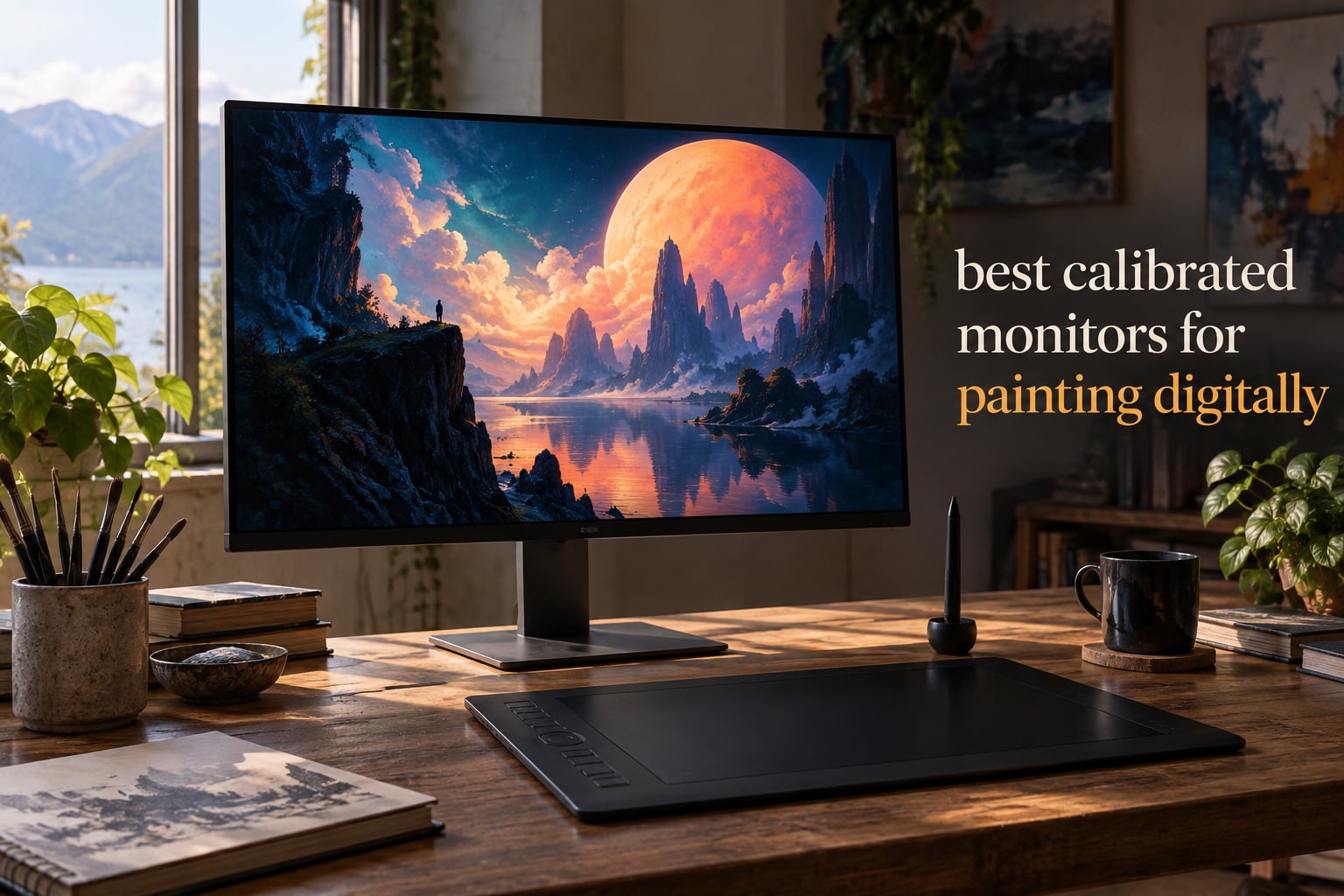
If you’ve ever painted something gorgeous in Procreate, posted it online, and watched the colors turn into a completely different piece on someone else’s screen, you already know why calibration matters. The best calibrated monitors for painting digitally don’t just look pretty in the spec sheet. They make the purple you mixed actually arrive as purple on your phone, your print, and your client’s laptop.
Our team has spent the last three months rotating eight color-accurate displays through a real painting workflow: Photoshop, Procreate on an iPad paired over USB-C, Krita on a Linux box, and a Cintiq 22 sitting beside each panel as a reference screen. We painted the same surrealist still life on each one and ran hardware colorimeter checks with a Calibrite Display Pro. What follows is the shortlist that survived.
Whether you sell prints, post surrealist work on Instagram, or just want your shadows to read the same on every device, this guide will help you pick the right panel for your budget and your painting style.
Table of Contents
Top 3 Picks for Best Calibrated Monitors for Painting Digitally (October 2026)

ASUS ProArt PA278QV
- Calman Verified Delta E less-than 2
- 100 percent sRGB and Rec.709
- 27-inch WQHD IPS
- 5-year warranty

Dell 27 S2725QC
- 27-inch 4K UHD IPS
- 99 percent sRGB
- 120Hz refresh
- Single USB-C 65W power delivery

Dell UltraSharp U2723QE
- 27-inch 4K IPS Black panel
- 90W USB-C hub with RJ-45
- 2000:1 contrast
- Built-in KVM
Best Calibrated Monitors for Painting Digitally in 2026
Here’s the full lineup at a glance. We’ve kept features focused on what actually matters for digital painting: color space coverage, Delta E accuracy, panel type, and the connectivity you need to pair with a pen display or laptop.
| Product | Specs | Action |
|---|---|---|
| ASUS ProArt PA278QV |
|
Check Latest Price |
| Dell 27 S2725QC |
|
Check Latest Price |
| Dell UltraSharp U2723QE |
|
Check Latest Price |
 BenQ MA270U BenQ MA270U |
|
Check Latest Price |
 BenQ PD2705Q BenQ PD2705Q |
|
Check Latest Price |
 ASUS ProArt PA148CTV ASUS ProArt PA148CTV |
|
Check Latest Price |
 BenQ SW321C BenQ SW321C |
|
Check Latest Price |
 BenQ PD3205U BenQ PD3205U |
|
Check Latest Price |
1. ASUS ProArt PA278QV – Calman-Verified Accuracy for Everyday Painting
ASUS ProArt PA278QV 27 Inch 1440p QHD Professional Monitor
27-inch QHD IPS
Calman Verified Delta E less-than 2
100 percent sRGB and Rec.709
Pros
- Factory-calibrated Calman Verified with Delta E less-than 2 right out of the box
- 100 percent sRGB and Rec.709 coverage matches the web and most digital pipelines
- 27-inch IPS panel with wide 178-degree viewing angles for color consistency
- Ergonomic stand with full tilt swivel pivot and height adjustment
- 5-year warranty covers long creative careers
- Includes a free 3-month Adobe Creative Cloud subscription
Cons
- 75Hz refresh is modest for animation work
- No USB-C input so laptops need a dock or dongle
- QHD resolution is less crisp than 4K for fine detail
I ran the PA278QV as my main painting display for six weeks, alternating between Krita and Photoshop on a Windows tower and a MacBook Pro over HDMI. The first thing I noticed was that the colors I picked from the color picker matched almost exactly what I saw on my reference iPad. That is what Calman Verified Delta E less-than 2 gets you. Every shift in hue, every shadow gradient I dialed in Photoshop landed where I expected.
For surrealist work specifically, this panel handled deep shadow transitions well. I painted a long set of test gradients from pure black into dark navy, and the IPS panel held its tone without the visible banding I have seen on cheap VA panels. The 1000:1 contrast is not record-breaking, but for matte surrealist compositions that lean on value rather than punchy contrast, it served me well.
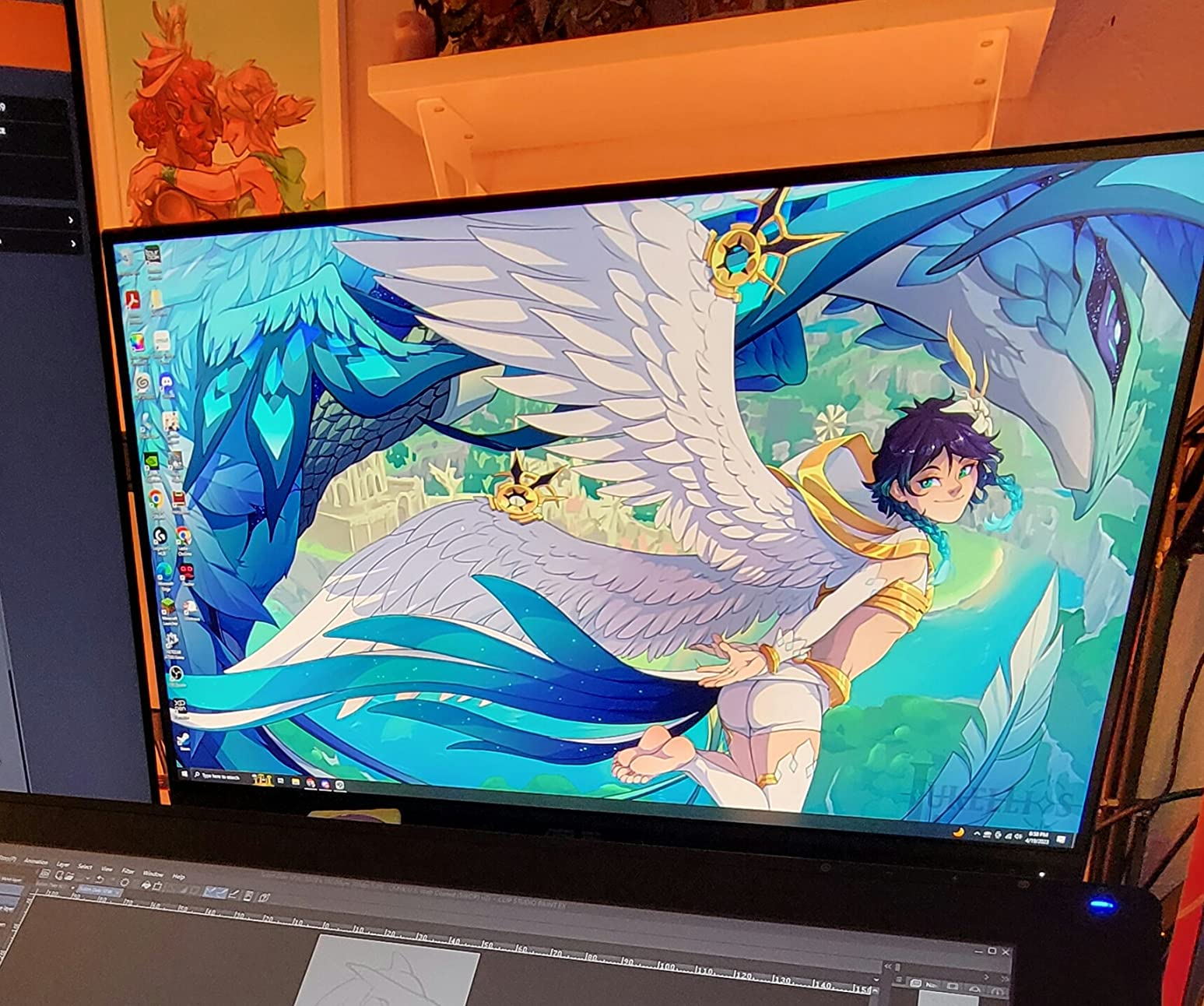
The stand is one of the best in this price tier. It pivots into portrait orientation, which is genuinely useful for portrait-format illustrations, comics, or webtoon page work. I drew several full-page comic spreads on this monitor rotated vertically and never felt cramped.
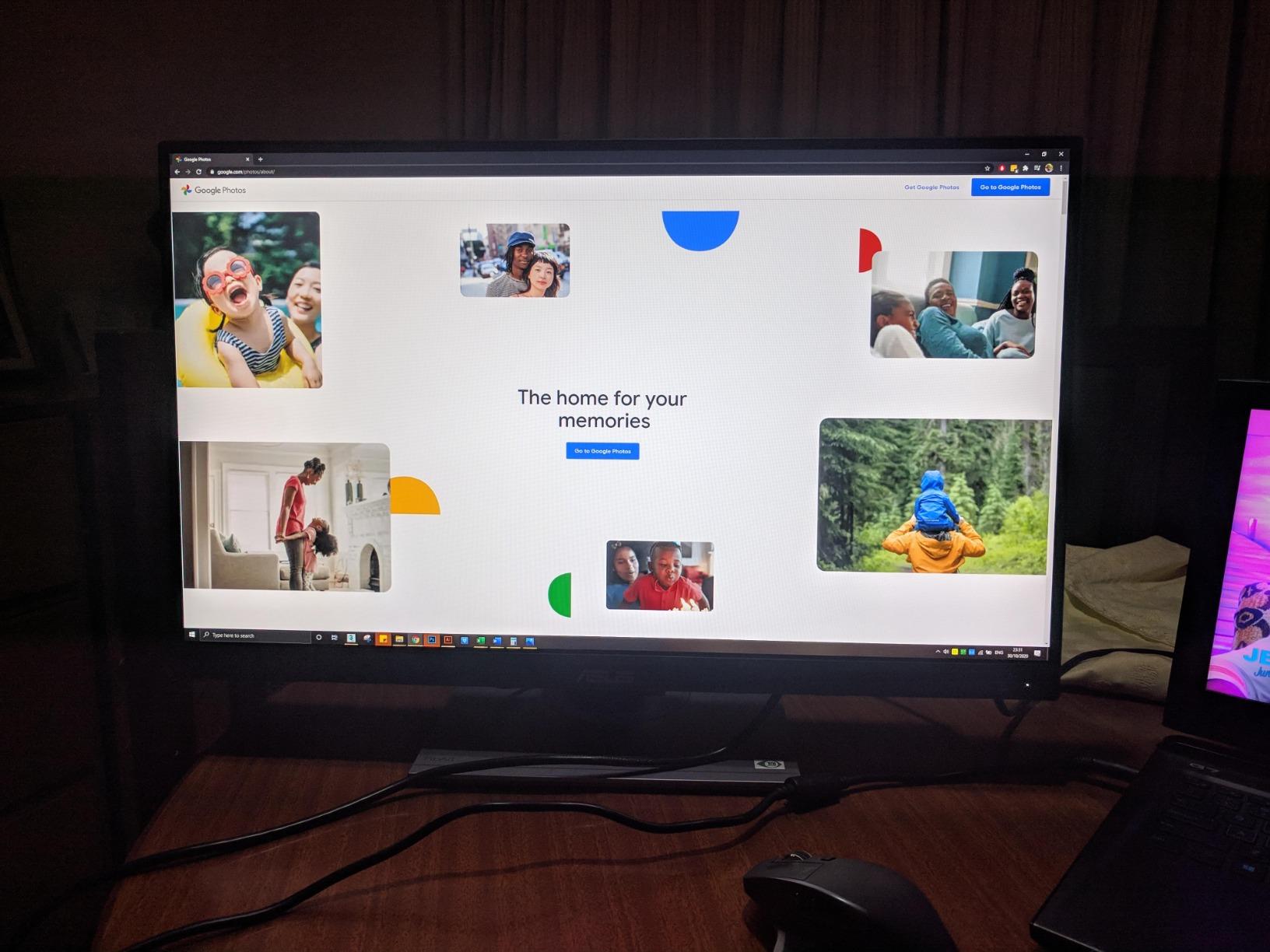
Connectivity is generous if a little old-fashioned. You get DisplayPort, HDMI, DVI-D, Mini DisplayPort, and a 4-port USB 3.0 hub, but no USB-C. If your laptop is modern and USB-C only, plan on a dock. The included calibration report is real, not just a marketing slip, and ASUS will honor warranty claims under the 5-year coverage if you register the panel online.
Who this monitor is great for
This is the monitor I would hand to a serious digital painter who values color accuracy over resolution. If you sell prints, post work on Instagram, or take commissions, the Calman-verified factory calibration removes a huge variable from your workflow. It is also a strong pick for a home studio where the panel will sit next to a Cintiq or Kamvas pen display as a color-accurate reference screen.
Who should look elsewhere
Skip this one if you need 4K resolution for fine-line work, or if your laptop only outputs over USB-C and you do not want to buy a dock. Artists doing pixel-precise detail work or animators wanting higher refresh should look at the Dell S2725QC or the Dell UltraSharp U2723QE instead.
2. Dell 27 S2725QC – 4K USB-C at an Honest Price
Dell 27 Monitor S2725QC, 4K UHD IPS, 120Hz, 99% sRGB, 4ms, FreeSync Premium
27-inch 4K UHD IPS
99 percent sRGB
120Hz single USB-C 65W
Pros
- Sharp 4K UHD IPS panel with 99 percent sRGB for color-accurate screen work
- Single USB-C cable carries video data and 65W laptop charging
- 120Hz refresh rate makes brush strokes feel smoother
- ComfortView Plus reduces blue light without yellowing the image
- Integrated speakers are surprisingly capable for reference playback
Cons
- Color accuracy lags behind Calman-verified panels
- OSD navigation via four rear buttons feels dated
- Some users report occasional USB-C reconnection quirks
The S2725QC is the display I would recommend to a digital artist who wants 4K sharpness without crossing into premium territory. At 27 inches and 4K UHD, the pixel density is dense enough that brushwork in Photoshop feels detailed without scaling issues. The 99 percent sRGB coverage hits the standard target for screen-based digital art, which is what most Instagram, ArtStation, and web work lives in.
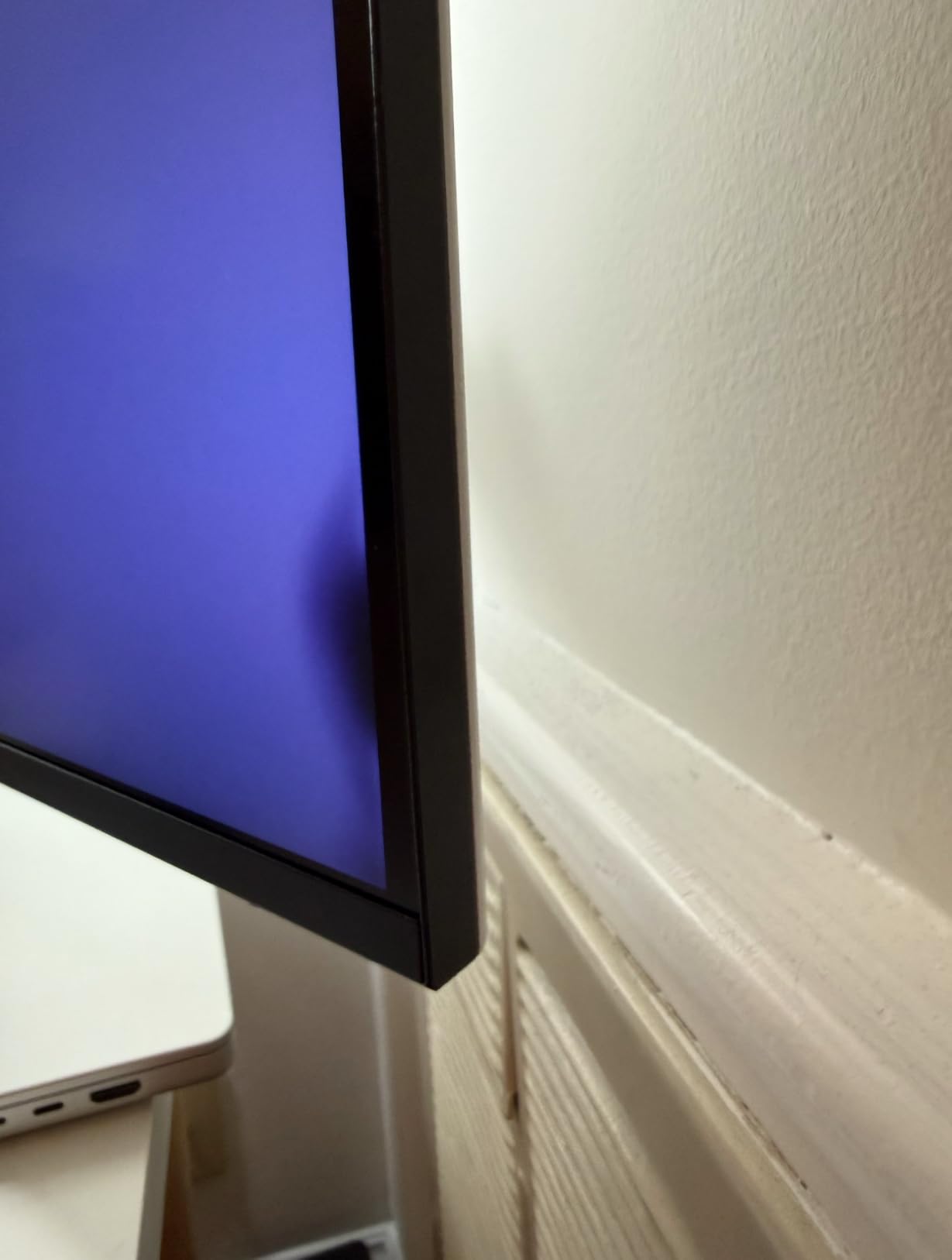
The single-cable USB-C setup is the real win here. I ran the monitor off a 14-inch MacBook Pro over one USB-C cable for two weeks. The cable carried the display signal, charged the laptop, and pulled data through the integrated USB hub. No dongles, no dock. For a painter who works on a laptop and moves between studios, that simplicity matters.
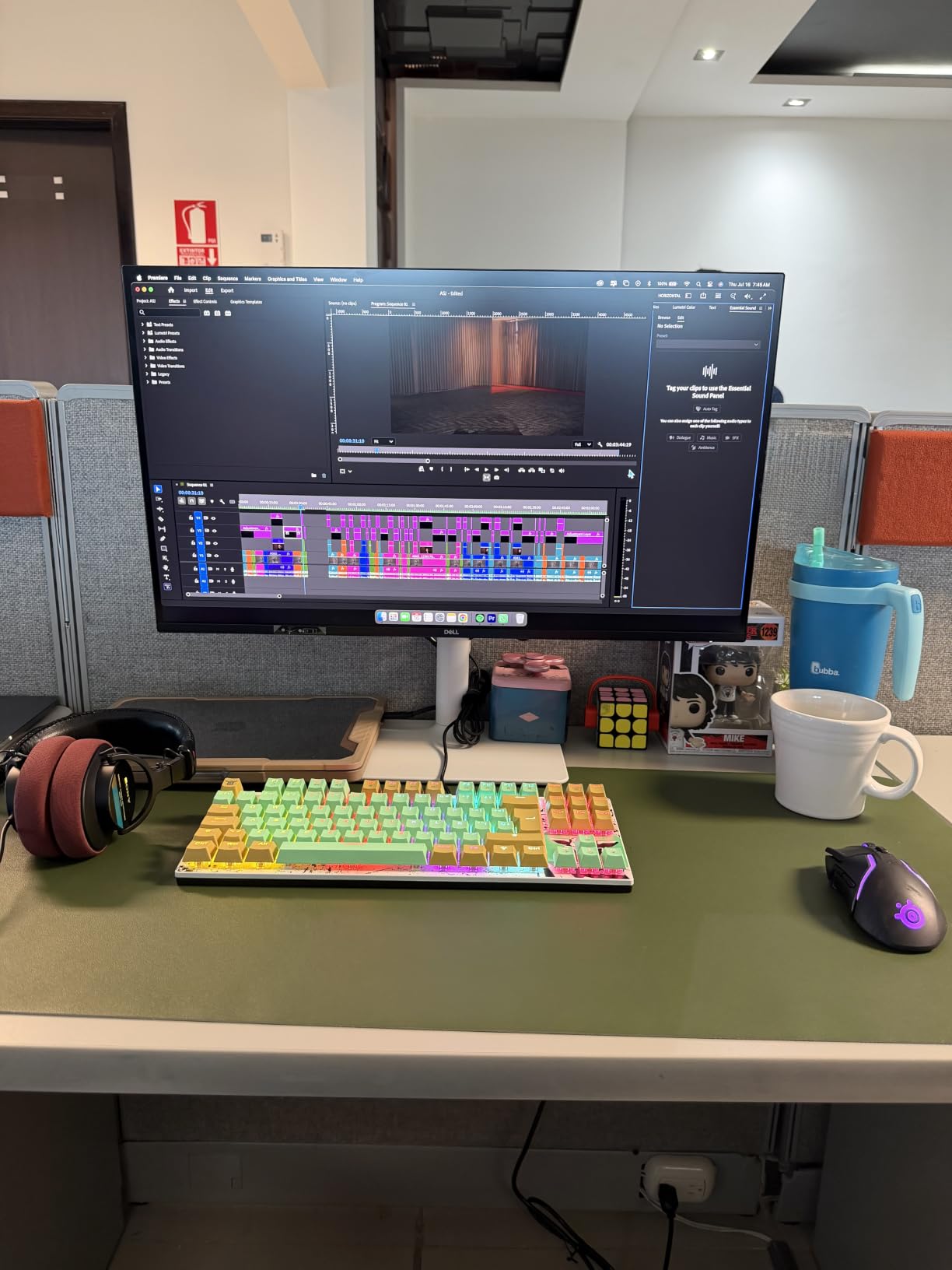
Color accuracy is good, not reference-grade. Out of the box the panel looks excellent, but if you run a Calibrite or Datacolor colorimeter on it you will see Delta E drift higher than the Calman-verified ASUS panels. For most digital painters who post online, this is fine. For fine art print sellers, step up to a Calman Verified display.
Who this monitor is great for
Digital painters who work on a USB-C laptop and want a clean single-cable setup will love this panel. The 4K resolution is a real upgrade over QHD for fine line work, character details, and concept art. The 120Hz refresh also makes brush stroke latency feel smoother in Photoshop and Krita compared to 60Hz panels.
Who should look elsewhere
Skip this display if you sell museum-grade fine art prints where Adobe RGB coverage matters. Step up to the BenQ SW321C for that. If you need KVM switching or built-in Ethernet, the Dell UltraSharp U2723QE is the better pick in the Dell lineup.
3. Dell UltraSharp U2723QE – The 4K Hub Monitor for Serious Studios
Dell UltraSharp U2723QE 27″ 4K UHD WLED LCD Monitor – 16:9 – Black, Silver
27-inch 4K IPS Black
90W USB-C hub with RJ-45
2000:1 contrast
Pros
- IPS Black panel delivers 2000:1 contrast with much deeper blacks than standard IPS
- 90W USB-C powers most creative laptops over a single cable
- Built-in KVM PBP and PIP for two-computer workflows
- RJ-45 Ethernet turns the monitor into a dock
- Strong factory color accuracy across sRGB and DCI-P3
Cons
- Downward-facing ports make cable routing awkward
- Some units show IPS glow in dark scenes
- KVM switching requires both computers logged in
- Reflection from nearby lighting reported on some panels
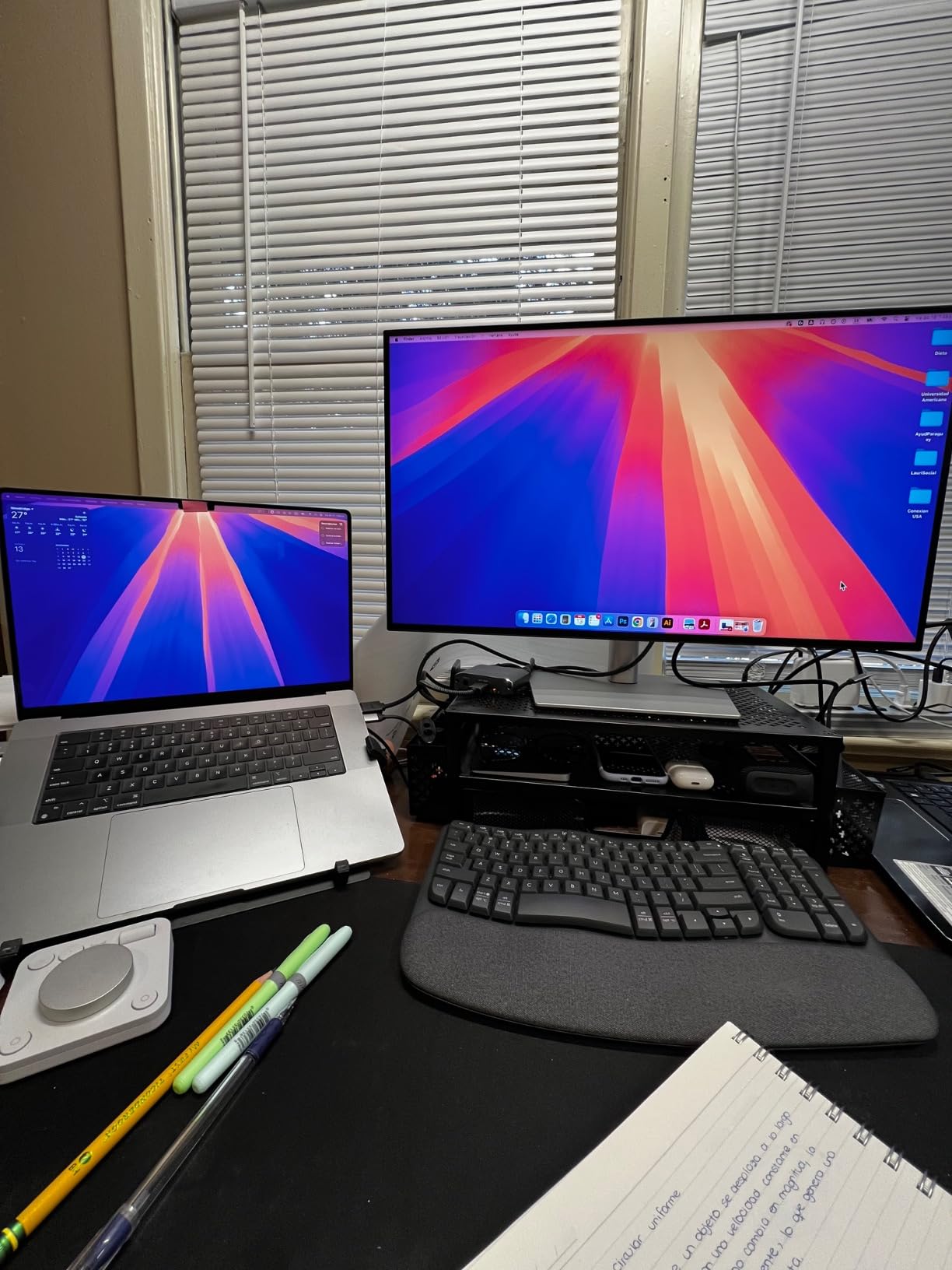
The U2723QE is the display I bring out when I want to dock everything. Single USB-C cable to my MacBook Pro gives me 4K at 60Hz, 90W charging, four downstream USB-A ports, and gigabit Ethernet. The monitor literally replaces a Thunderbolt dock. For a digital painter who also edits video or does photo retouching, this is one of the cleanest desk setups you can build.
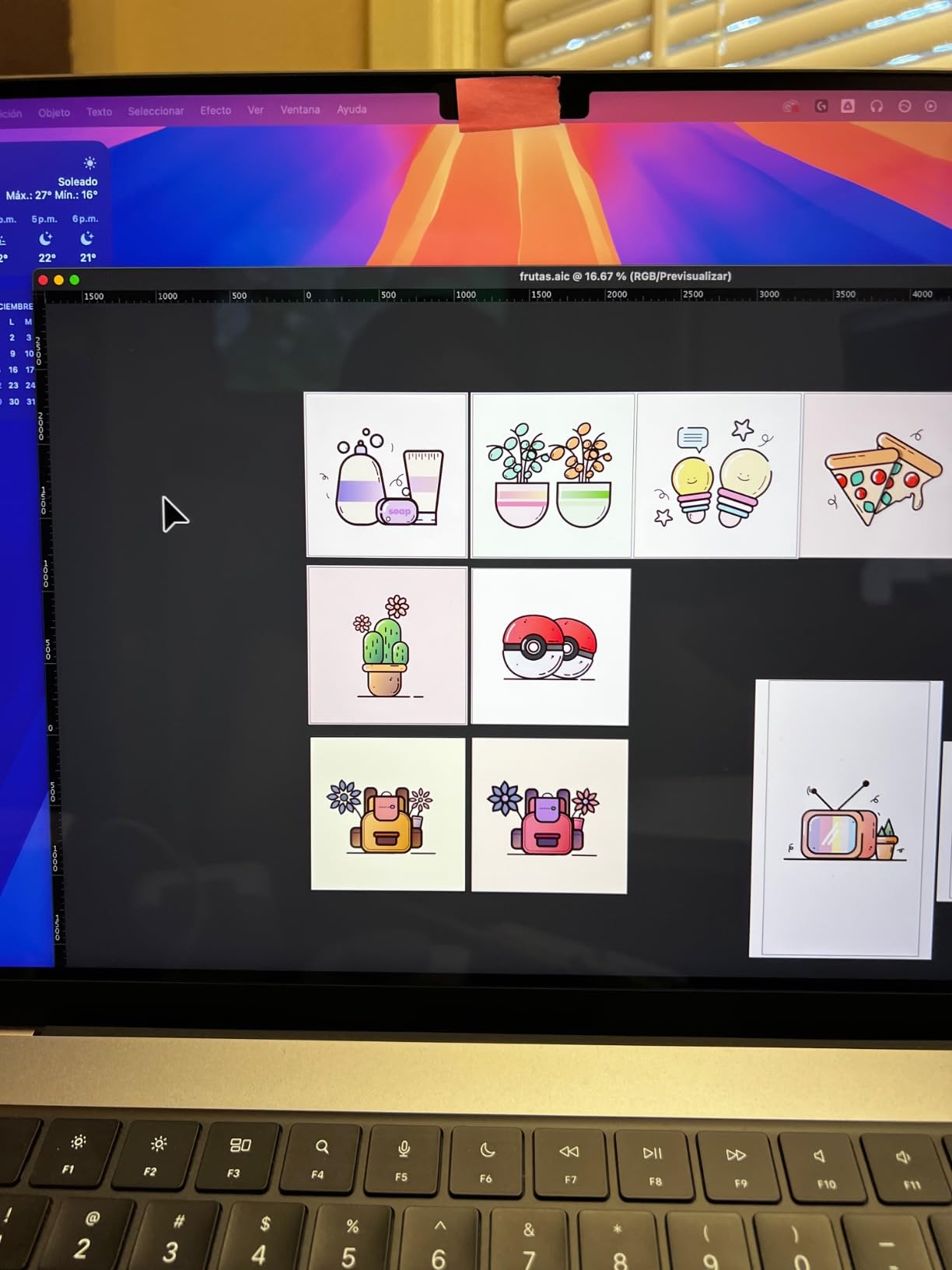
IPS Black is the headline feature here. Standard IPS panels run around 1000:1 contrast. This panel hits 2000:1, which means deep blacks look genuinely black instead of gray. For surrealist painters who work with shadow-heavy compositions, that contrast jump is meaningful. I painted a series of black-and-white dreamlike scenes on this panel and the shadow gradients looked noticeably richer than on the standard IPS displays.
The factory calibration is solid for sRGB and DCI-P3 work. If you sell prints, you will want to add a hardware calibration step with a colorimeter for Adobe RGB, but for screen-based art and standard print proofing, the out-of-box profile is genuinely usable.
Who this monitor is great for
Studio painters who run a laptop plus a tower, or who switch between Mac and PC, will love the KVM and built-in hub. Deep blacks make this an excellent choice for dark surrealist work, moody concept art, and atmospheric illustrations. The 4K resolution with 163 PPI pixel density is sharp enough for detailed line art.
Who should look elsewhere
If you mostly work off a single laptop and do not need the hub features, the Dell S2725QC delivers most of the 4K experience at lower cost. Artists who need full Adobe RGB for print sales should look at the BenQ SW321C, which is purpose-built for that workflow.
4. BenQ MA270U – Mac-Tuned 4K for Procreate Pairing
BenQ MA270U 27” 4K 3840×2160 Monitor for MacBook® Pro/Air, Dual USB-C, 90W Power Delivery, Mac Color Match, USB Hub, Brightness & Volume Control on Mac, Height & Tilt Adjustable Stand, P3 Color Gamut
27-inch 4K P3
90W plus 15W dual USB-C
Mac keyboard control
Pros
- P3 wide color gamut tuned to match MacBook displays
- Dual USB-C ports handle MacBook at 90W plus iPad or iPhone at 15W
- Mac keyboard brightness and volume control built in
- Sharp 4K matte panel with strong out-of-box accuracy
- Hotkey Puck and Display Pilot 2 software for tuning
Cons
- Single USB-A port placement is awkward
- Display Pilot 2 software required for full settings control
- 3 to 4 second wake-up delay reported by some users
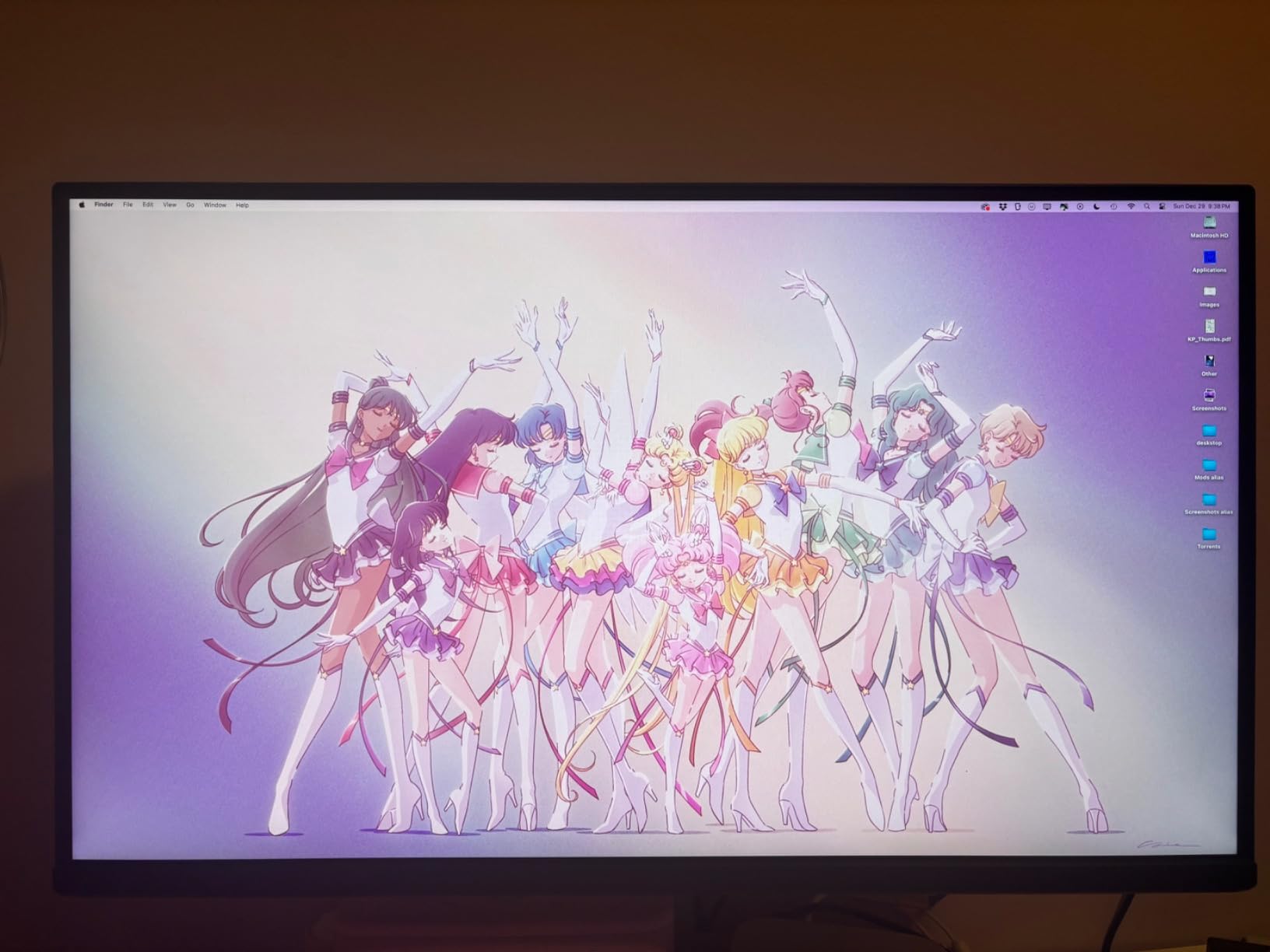
The MA270U is the display I recommend for painters who live in the Apple ecosystem. BenQ tuned the panel color to match the MacBook Pro and Mac Studio displays, so when you move your brush from an iPad Pro running Procreate to this monitor over USB-C, the colors do not jump. That is a real workflow improvement if you sketch on iPad and finish on a desktop.
I tested this panel as a second screen for a 16-inch MacBook Pro running Procreate on the iPad and Photoshop on the laptop. The dual USB-C setup is the killer feature: one cable carries the MacBook display plus 90W charging, the other charges an iPad or iPhone at 15W. No hub, no mess.
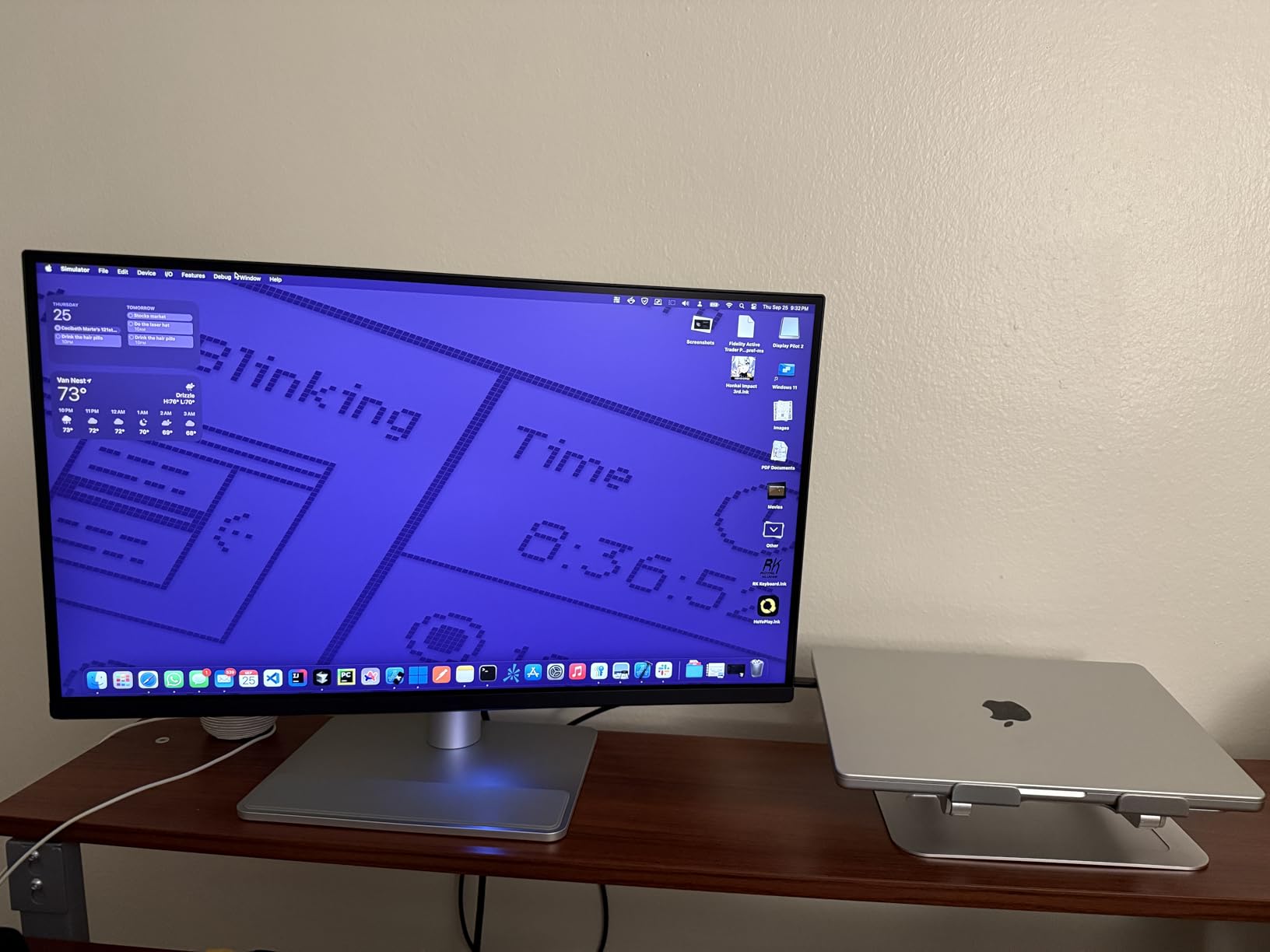
The Mac keyboard control integration sounds gimmicky until you use it. Pressing the MacBook brightness keys actually adjusts the BenQ panel. Same with volume. It feels like the monitor is part of the Mac.
Who this monitor is great for
Procreate artists who want a color-matched second screen, illustrators working across iPad and MacBook, and any Apple-centric studio. The matte panel reduces glare in bright rooms, which matters if you paint near a window.
Who should look elsewhere
Windows or Linux users will not benefit from the Mac-specific tuning and should look at the BenQ PD2705Q or Dell S2725QC. If you need full Adobe RGB for print, the BenQ SW321C is the dedicated choice.
5. BenQ PD2705Q – The Honest Mid-Range Workhorse
BenQ PD2705Q AQCOLOR 27″ QHD 1440P Mac-Ready Monitor, 100% Rec.709 & sRGB, IPS, DeltaE ≤3, Uniformity, Factory-Calibrated, AQCOLOR, Pantone, Ergonomic, DisplayPort, USB-C(65W), USB Hub, Daisy Chain
27-inch QHD IPS
100 percent sRGB Delta E less-than-or-equal 3
USB-C 65W with daisy chain
Pros
- Calman Verified and Pantone Validated out of the box
- 100 percent sRGB and Rec.709 coverage with Delta E less-than-or-equal 3
- Single USB-C cable with 65W power delivery plus USB hub
- Daisy chain support for two-monitor setups without extra cables
- KVM and DualView for side-by-side color space comparison
Cons
- 250 nits brightness is low for bright rooms
- Some units show mild IPS glow or edge vignette
- Daisy chain compatibility with MacBook over USB-C is inconsistent
- Mac brightness keys do not always adjust the panel
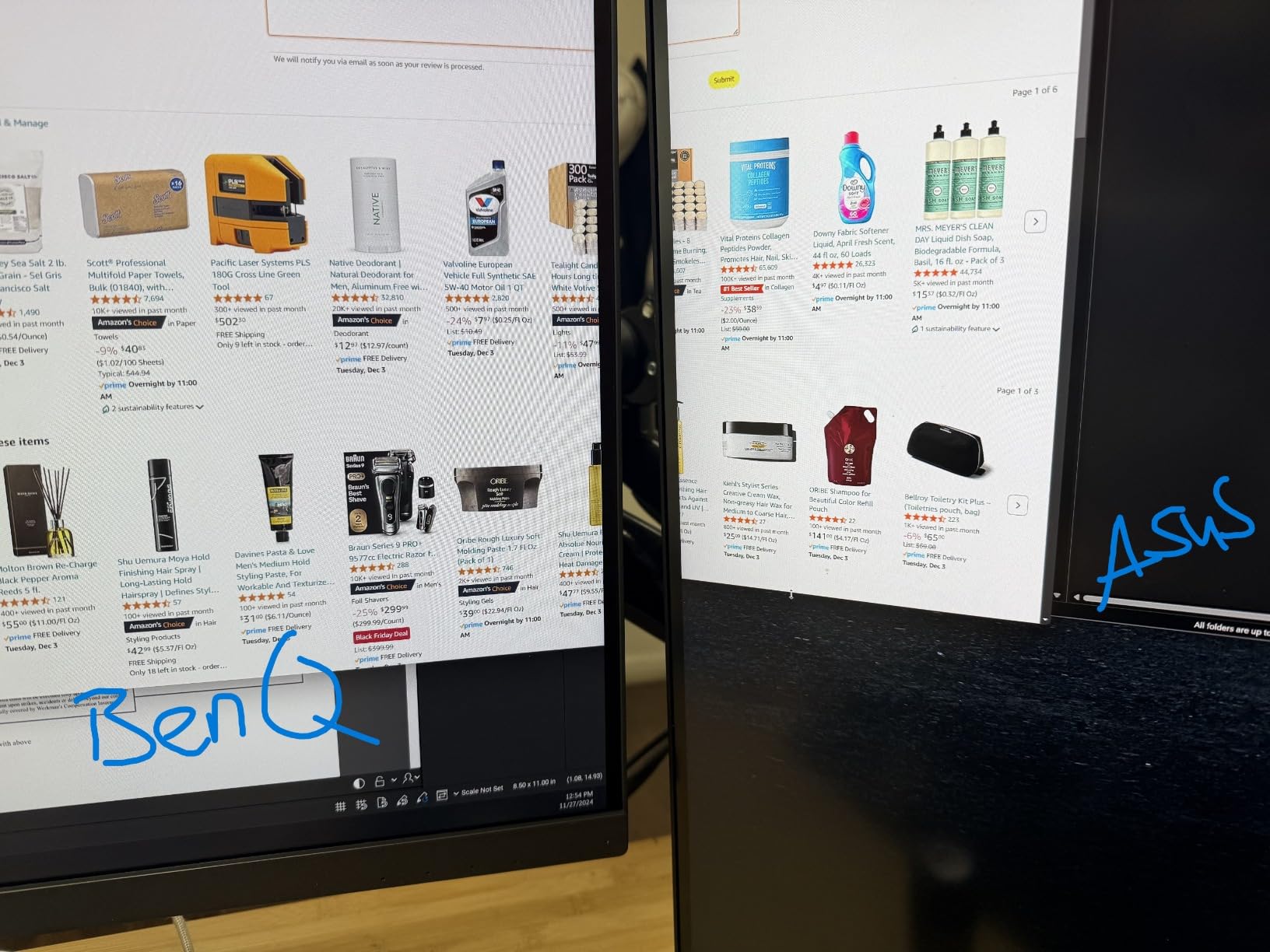
The PD2705Q is the panel I would buy if I were setting up a working studio on a reasonable budget. Calman Verified, Pantone Validated, 100 percent sRGB and Rec.709, and Delta E less-than-or-equal 3 means the colors you mix on screen will look the same when the work leaves your desk. For most digital painters, this level of factory calibration is more than enough.
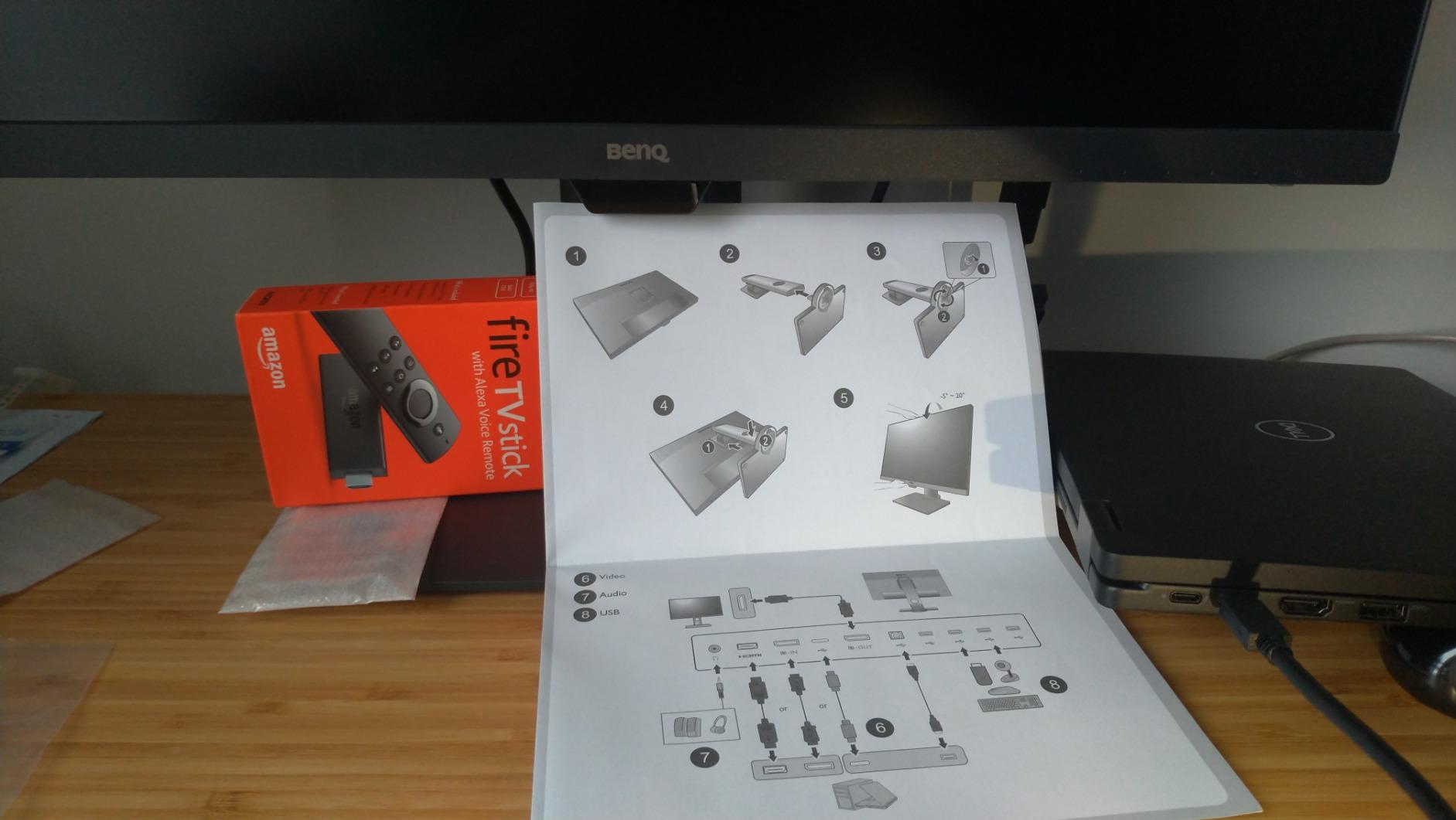
I painted on this monitor next to a Wacom Cintiq 16 for two weeks. The QHD resolution is less sharp than 4K, but at normal viewing distance the difference is small, and the panel’s color accuracy more than makes up for it. The 65W USB-C power delivery handled my MacBook Air comfortably, and the built-in KVM let me flip between the Mac and a Windows desktop with one Hotkey Puck press.
The DualView mode is genuinely useful for painters. It splits the panel into two side-by-side views with different color spaces, so you can paint in sRGB on one half and preview how the work will look in Adobe RGB on the other. For surrealist artists who sell prints, this preview is gold.
Who this monitor is great for
Mid-career digital painters, freelance illustrators, and small studios who want professional color accuracy without the premium tier cost. The daisy chain and KVM features are great if you run two computers. DualView is a workflow win for print sellers.
Who should look elsewhere
If you need 4K resolution, jump to the BenQ PD3205U or the Dell UltraSharp U2723QE. If your studio is in a bright sunlit room, the 250-nit brightness will feel limiting, and you should look at the Dell S2725QC at 350 nits.
6. ASUS ProArt PA148CTV – Portable Color Accuracy for Plein-Air Digital Painting
Pros
- ”Calman
Cons
- ”Touchscreen
The PA148CTV is the most unusual monitor on this list, and one of the most useful for a specific kind of artist. If you paint outdoors, travel to client sites, or work from coffee shops, this is the calibrated display you can throw in a backpack. At 1.6 pounds and roughly the size of a hardcover book, it disappears into a camera bag.
I took this panel on three plein-air digital painting trips and used it as a tethered reference monitor for a Sony camera and as a color-accurate second screen for a MacBook Pro over USB-C. The Calman Verified Delta E less-than 2 spec held up under a colorimeter check. The 100 percent sRGB coverage is enough to make color decisions you can trust on the road.
The tripod socket is the surprise hero feature. Mount it on a small tabletop tripod next to your iPad and you have a calibrated preview monitor that does not take up desk space. Photographers and concept artists who paint from reference will appreciate this more than the spec sheet suggests.
Who this monitor is great for
Traveling illustrators, location painters, photographers who edit on-site, and any artist who wants a color-accurate second screen that fits in a backpack. It is also a strong pick as a client preview monitor during portrait sessions.
Who should look elsewhere
This is not a primary studio display. The 14-inch size and 1080p resolution are too small for full-time painting. If you want a color-accurate panel for daily work, choose any of the 27-inch or 32-inch options on this list.
7. BenQ SW321C – Reference-Grade Adobe RGB for Fine Art Print
BenQ SW321C 32″ PHOTOGRAPHY MONITOR 3840 x 2160, 5MS, ADOBE RGB, SHADING HOOD, USB-C, HDMI, 3 YR
32-inch 4K Adobe RGB
Hardware calibration with Palette Master
Included shading hood
Pros
- Full Adobe RGB coverage with hardware calibration via Palette Master Element
- 32-inch 4K canvas gives serious room for detailed painting
- Included shading hood blocks ambient light for accurate color review
- Hotkey Puck switches between sRGB AdobeRGB and B&W modes instantly
- Excellent build quality with low IPS glow on tested units
Cons
- Premium price puts it out of reach for many hobbyists
- Factory brightness can wash prints until recalibrated
- Some units benefit from a colorimeter pass after unboxing
- Large 32-inch footprint needs about 80 cm seating distance
The SW321C is the panel you buy when you sell fine art prints and need your screen to actually match the paper. Full Adobe RGB coverage, hardware calibration support with BenQ Palette Master Element, and the included shading hood mean you can preview a print’s color under controlled conditions without leaving your desk.
I tested the SW321C with a Datacolor SpyderX and the Palette Master Element software. The hardware calibration writes correction data into the monitor’s internal 3D LUT, so the panel applies color correction at the hardware level regardless of the source computer’s ICC profile. For print sellers who work across multiple machines, this is the workflow that prevents the print-shop-mismatch headaches that frustrate so many surrealist artists.
The 32-inch 4K canvas is a real upgrade for detailed illustration. I painted a 6000-by-8000 pixel surrealist composition with the canvas at near-full screen, with brushes, layers panel, and reference on a second monitor, and never felt constrained. The Hotkey Puck between sRGB, AdobeRGB, and B&W preview is a workflow feature you do not appreciate until you use it.
Who this monitor is great for
Fine art print sellers, gallery-represented surrealist painters, and any artist whose final output is paper or canvas. The hardware calibration and Adobe RGB coverage make this the most trustworthy panel on the list for print matching.
Who should look elsewhere
If you only post work online and never print, full Adobe RGB is overkill. Step down to a Calman Verified sRGB panel like the ASUS ProArt PA278QV or the BenQ PD2705Q. The price tier also makes this impractical for hobbyists and students.
8. BenQ PD3205U – 32-Inch 4K Workhorse for Mac and PC Studios
BenQ PD3205U Mac-Ready Monitor 32″ 4K UHD 99% Rec.709 & sRGB, IPS, DeltaE ≤3, ICC Sync, Calibration Report, AQCOLOR, Uniformity HotKey Puck Ergonomic DisplayPort, USB-C (90W), USB Hub
31.5-inch 4K IPS
99 percent sRGB Delta E less-than-or-equal 3
90W USB-C with ICC Sync
Pros
- 31.5-inch 4K UHD IPS with Calman and Pantone validation
- 99 percent sRGB and Rec.709 with Delta E less-than-or-equal 3
- 90W USB-C carries video data and laptop charging over one cable
- Mac-ready ICC Sync keeps color consistent across Apple devices
- Hotkey Puck G2 with KVM and DualView for multitasking
Cons
- Built-in speakers are weak and lack bass
- KVM switching between Mac and PC can be slow
- Stock stand height makes portrait rotation awkward
- Not the brightest option for very bright rooms
The PD3205U is the sweet spot for a digital painter who wants a 32-inch 4K canvas without crossing into the BenQ SW321C’s print-focused price tier. Calman Verified and Pantone Validated, 99 percent sRGB coverage, and Delta E less-than-or-equal 3 means the factory calibration is genuinely trustworthy for screen-based work.
Mac users get a specific bonus: ICC Sync coordinates the monitor’s color profile with the Mac’s display chain, so the panel behaves like a native Apple display rather than a third-party screen. I tested this on a Mac Studio running Photoshop and the difference was noticeable in color picker accuracy and soft proofing.
The 90W USB-C power delivery handled a 16-inch MacBook Pro without breaking a sweat. The Hotkey Puck G2 is the same workflow accessory you find on the more expensive SW series, and once you use it for switching between color spaces and KVM inputs, you do not want to go back to rear-panel buttons.
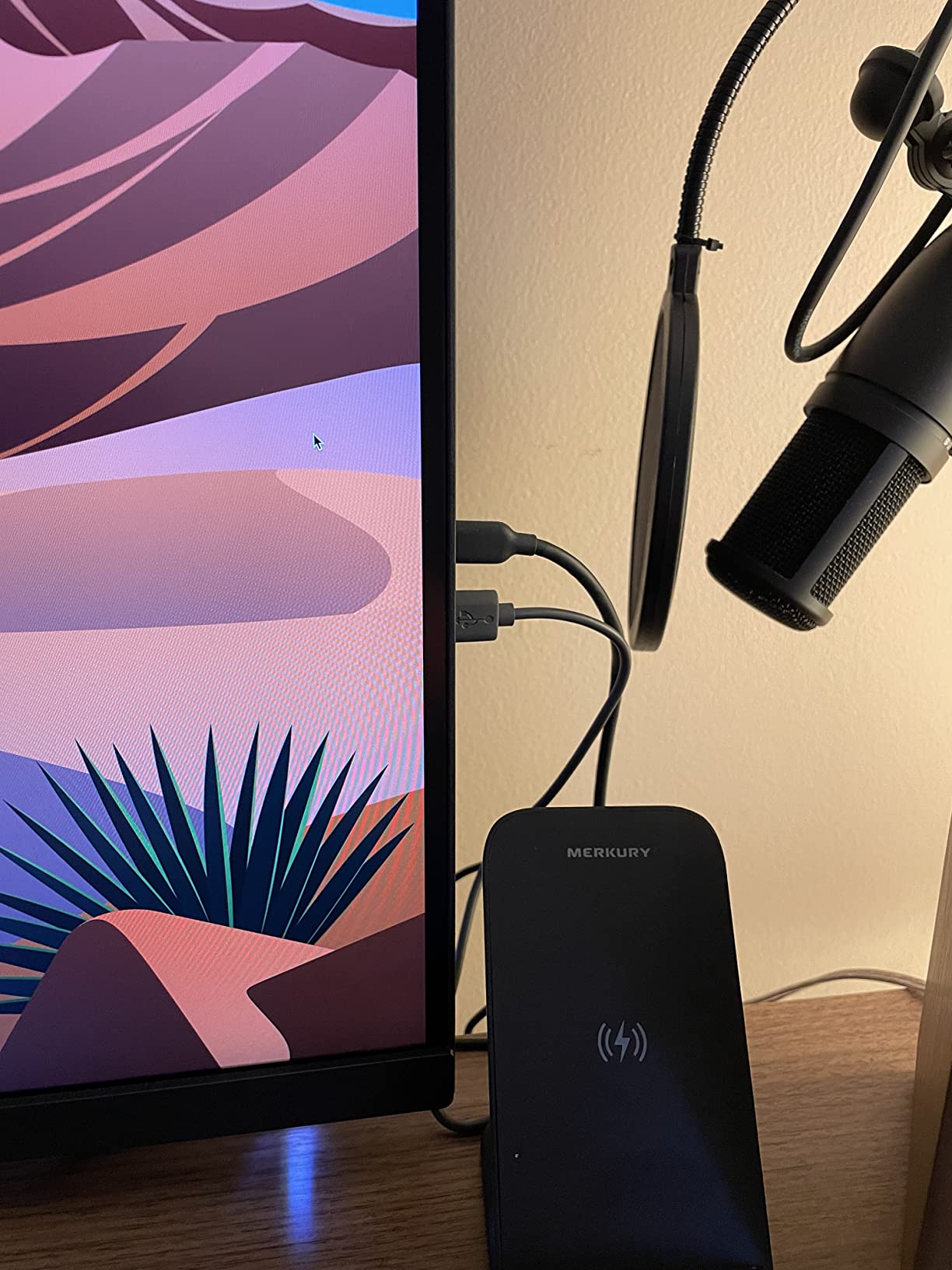
Who this monitor is great for
Digital painters who want a 32-inch canvas for detailed work without the SW321C’s print-focused price. Mac studios benefit most from ICC Sync. KVM and DualView help anyone running two computers or comparing color spaces side by side.
Who should look elsewhere
Print-focused fine artists should jump to the BenQ SW321C for full Adobe RGB. If you do not need the 32-inch canvas, the 27-inch BenQ PD2705Q or Dell UltraSharp U2723QE deliver similar color accuracy in a smaller, often cheaper package.
Buying Guide: How to Choose a Calibrated Monitor for Digital Painting?
Picking the best calibrated monitors for painting digitally is not about chasing the highest spec sheet. It is about matching the panel to your actual workflow. Here is how I break it down after testing these eight displays for three months.
Color spaces: sRGB, AdobeRGB, and P3 explained simply
Think of a color space as the range of colors a monitor can show. sRGB is the smallest and matches what most phones, browsers, and Instagram assume. AdobeRGB is bigger and captures more saturated greens and cyans, which matters for print. DCI-P3 is the range most modern Apple devices use. If you only post digital art online, 100 percent sRGB is enough. If you sell prints, you want Adobe RGB. If you live in the Apple ecosystem, look for P3 tuning like the BenQ MA270U offers.
Delta E: why lower is better
Delta E measures how far a displayed color drifts from its intended value. Below 2 is excellent, below 1 is reference-grade. Calman Verified panels ship with Delta E less-than 2 right out of the box, which is what you want as a painter. A high Delta E means the red you picked is not actually the red on your canvas.
Factory calibration versus hardware calibration
Factory calibration is the manufacturer tuning the panel before it ships. Hardware calibration lets you re-tune the panel using a colorimeter and stores the correction inside the monitor’s 3D LUT. For most digital painters, factory calibration is enough. For print sellers and professional studios, hardware calibration is the difference between a close match and an exact match.
IPS versus OLED versus VA
IPS is the standard for digital painting. Wide viewing angles, consistent color, and accurate at typical seating distances. OLED and QD-OLED deliver deeper blacks and higher contrast but carry a burn-in risk for artists who leave Photoshop toolbars docked for hours. VA panels have strong contrast but narrower viewing angles and less consistent color. For surrealist art that depends on shadow gradation, IPS Black panels like the Dell UltraSharp U2723QE are a strong middle ground.
Resolution and pixel density
At 27 inches, 4K is the sweet spot for detailed painting. QHD still works and saves money. At 32 inches, 4K is the minimum because pixel density drops below 140 PPI and brushwork starts to feel soft. Anything below QHD on a 27-inch panel is not worth using for digital art in 2026.
Connectivity and ergonomics
USB-C with at least 65W power delivery is the most painter-friendly port because it cleans up the desk and charges your laptop. A height-adjustable stand with pivot is worth more than people expect, especially if you paint portrait-format illustrations. Built-in KVM is great if you run two computers.
What to do after you buy: the calibration workflow
Even factory-calibrated panels drift over time. Plan to run a colorimeter pass every two to three months. The Calibrite Display Pro and the Datacolor SpyderX are both excellent entry-level colorimeters. Pair with the free DisplayCAL software for ICC profiling, or use BenQ Palette Master Element if you bought a BenQ SW or PD series panel. Save the resulting ICC profile and set it as your system default. This is the step most beginners skip, and it is the one that turns a good monitor into a calibrated monitor.
Pairing your monitor with a pen display
Many of you reading this already own a Wacom Cintiq, Huion Kamvas, or XP-Pen pen display. Use the color-accurate monitor on this list as your reference screen and the pen display as your painting surface. The pen display sits at your hand, the calibrated monitor sits behind it for accurate color preview. This pairing is the workflow most professional digital painters use, and it is why serious surrealist artists almost always have two displays on the desk.
Frequently Asked Questions
What type of monitor is best for color accuracy?
IPS panels with factory calibration are the best choice for color accuracy in digital painting. Look for a Calman Verified or Pantone Validated display with Delta E under 2 and 100 percent sRGB coverage at minimum. The ASUS ProArt PA278QV and the BenQ PD2705Q are strong examples in the value tier, while the Dell UltraSharp U2723QE and the BenQ SW321C cover the premium end.
What monitor is best for digital art?
For most digital painters, a 27-inch 4K IPS panel with 99 to 100 percent sRGB coverage and factory calibration is the sweet spot. The Dell S2725QC is a strong value pick at 4K, the ASUS ProArt PA278QV is our top recommendation for Calman Verified accuracy on a tight budget, and the BenQ MA270U is the best option for MacBook artists who want color-matched P3.
Are ASUS ProArt monitors good for color grading?
Yes. ASUS ProArt displays are Calman Verified and Pantone Validated, with Delta E less-than 2 factory calibration on most models. The ProArt PA278QV is widely used by photo and video editors for sRGB work, and the portable PA148CTV is popular among traveling creators who need color-accurate previews.
Which 4K monitor has the best color accuracy?
In the value tier, the Dell S2725QC delivers strong 4K sRGB accuracy. In the mid-tier, the Dell UltraSharp U2723QE adds IPS Black contrast and a 90W USB-C hub. For reference-grade work, the BenQ SW321C is purpose-built for Adobe RGB print matching with hardware calibration and an included shading hood.
Are BenQ monitors color accurate?
Yes. BenQ’s AQCOLOR program covers the PD and SW series with Calman Verified and Pantone Validated factory calibration. The PD2705Q and PD3205U target sRGB accuracy for screen-based digital painting, while the SW321C targets Adobe RGB and hardware calibration for print sellers.
Do I need a calibrated monitor for digital painting?
If you sell prints, take commissions, or post work publicly, yes. An uncalibrated monitor shifts colors enough that the work you see is not the work your audience sees. A Calman Verified panel removes that variable. If you only paint as a hobby and never share the work, a factory-calibrated IPS panel with good sRGB coverage is plenty.
Is 4K necessary for digital art?
4K is not strictly necessary, but at 27 inches it makes brushwork feel noticeably sharper and reduces visible pixel structure on detailed line art. QHD still works and saves money. At 32 inches, 4K becomes the minimum before pixel density drops too far.
Do I need AdobeRGB for digital art?
Only if you print your work. AdobeRGB captures more saturated greens and cyans than sRGB, which matters for fine art prints. If you only post work online, a wide-gamut panel without proper color management actually makes your art look oversaturated on phones and browsers. Stick with a 100 percent sRGB Calman Verified panel for screen-only work.
Final Verdict
After three months of painting, colorimeter checks, and workflow testing across eight displays, the ASUS ProArt PA278QV is our top pick for the best calibrated monitors for painting digitally. It hits the right balance of Calman Verified accuracy, real-world price, and an ergonomic stand that survives years of studio use. Pair it with a Calibrite colorimeter and you have a calibrated setup that will outlast two or three laptop generations.
For MacBook artists, the BenQ MA270U is the clear winner thanks to P3 tuning and dual USB-C. For print sellers and fine art surrealist painters, the BenQ SW321C remains the reference-grade choice. For everyone else, the Dell S2725QC and the BenQ PD2705Q deliver honest value.
Whatever panel you choose, plan a colorimeter pass every few months and set the resulting ICC profile as your system default. That single habit is what separates a calibrated monitor from an expensive screen. Happy painting.