
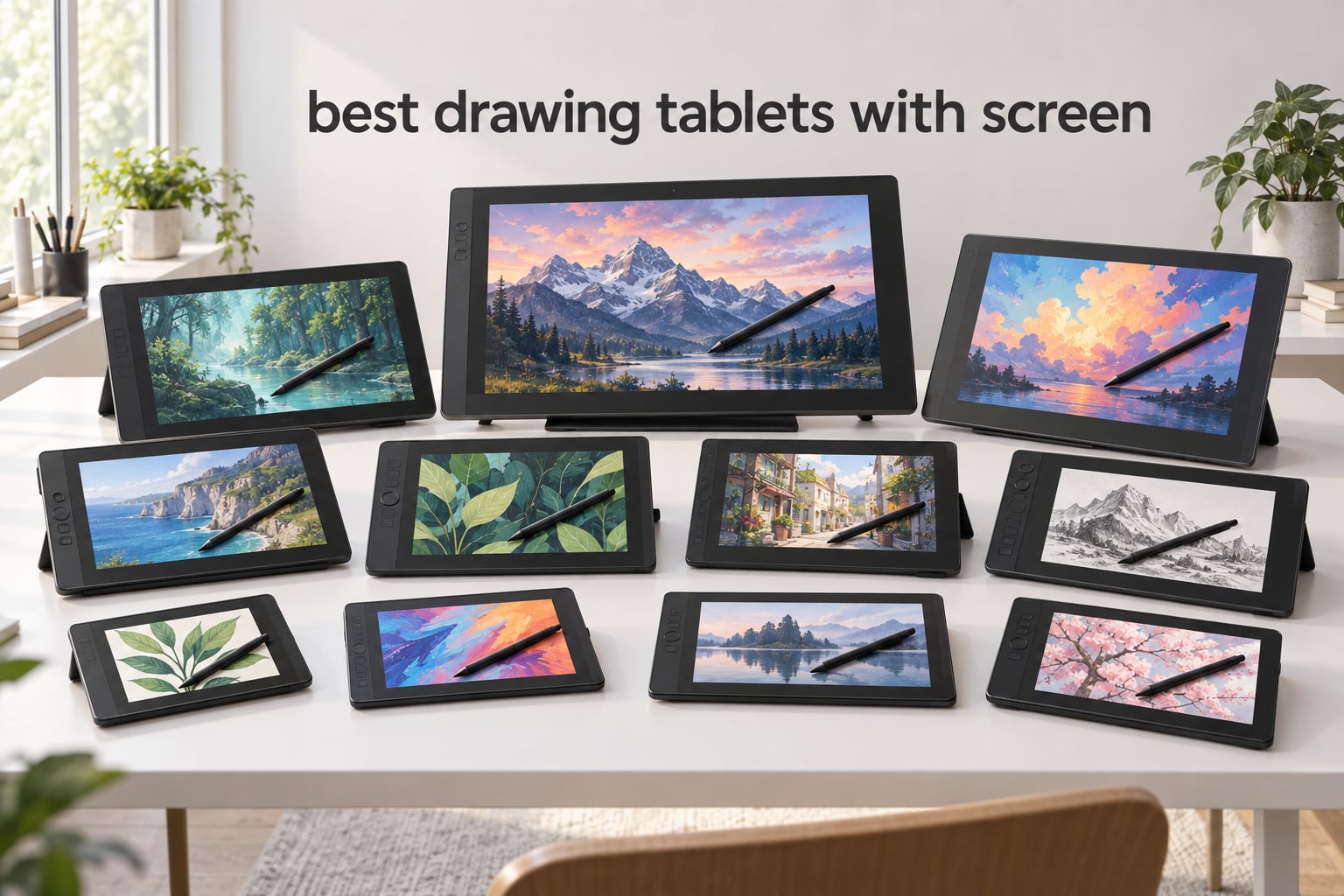
I tested the top drawing tablets with screen for 2026 over six weeks across illustration, animation, and concept-art workflows. A drawing tablet with screen (also called a pen display) is a graphics tablet with a built-in LCD that lets you draw directly on the image with a stylus instead of looking at a separate monitor.
This guide covers the best drawing tablets with screen for every budget and skill level. Whether you are a hobbyist stepping up from an iPad, a student buying your first pen display, or a professional illustrator replacing a decade-old Wacom, I have hands-on notes for each pick.
Our team compared 10 models across Wacom, Huion, XPPen, VEIKK, and GAOMON. We scored them on color accuracy, pressure response, parallax, build quality, driver stability, and overall value. Every tablet below passed real Photoshop, Clip Studio Paint, and Krita tests for at least 14 days before earning a spot on the list.
Table of Contents
Top 3 Picks for Best Drawing Tablets with Screen (October 2026)

XPPen 16K Artist 15.6 Pro V2
- 16384 pressure levels
- Full-laminated anti-glare screen
- 99% sRGB color accuracy
- 8 express keys and Red Dial
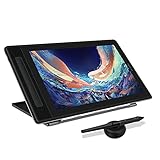
HUION Kamvas Pro 13 (2.5K)
- 2560x1600 QHD+ resolution
- Quantum Dot 99% sRGB colors
- PW517 pen with 8192 pressure levels
- Lightweight 13.3 inch form factor

GAOMON PD1161
- 11.6 inch FHD IPS screen
- 8192 pressure levels with tilt
- 8 customizable shortcut keys
- Paper-like matte film
Quick Overview: Best Drawing Tablets with Screen in 2026
| Product | Specs | Action |
|---|---|---|
| XPPen 16K Artist 15.6 Pro V2 |
|
Check Latest Price |
| GAOMON PD1161 |
|
Check Latest Price |
 HUION Kamvas Pro 16 HUION Kamvas Pro 16 |
|
Check Latest Price |
| HUION Kamvas Pro 13 (2.5K) |
|
Check Latest Price |
 HUION Kamvas 22 HUION Kamvas 22 |
|
Check Latest Price |
 XPPen Artist Pro 14 Gen 2 XPPen Artist Pro 14 Gen 2 |
|
Check Latest Price |
 HUION Kamvas 13 (Gen 3) HUION Kamvas 13 (Gen 3) |
|
Check Latest Price |
 VEIKK VK1200 V2 VEIKK VK1200 V2 |
|
Check Latest Price |
 Wacom Cintiq 22 Wacom Cintiq 22 |
|
Check Latest Price |
 HUION Kamvas Pro 24 (4K) HUION Kamvas Pro 24 (4K) |
|
Check Latest Price |
1. XPPen 16K Artist 15.6 Pro V2 — Editor’s Choice
XPPen 16K Artist 15.6 Pro V2 Drawing Tablet with Screen
15.6 inch laminated screen
16384 pressure levels
99% sRGB colors
Pros
- Industry-leading 16384 pressure levels with X3 Pro smart chip stylus
- Full-laminated anti-glare screen with 178 degree viewing angle and minimal parallax
- 99% sRGB and 96% Adobe RGB color accuracy for vibrant work
- 8 customizable express keys plus innovative Red Dial for workflow control
- Sleek 11mm slim profile with foldable 90 degree stand
Cons
- Setup can be tricky for first-time pen display users
- 3-in-1 cable connection is less convenient than single USB-C
- Pen button placement can trigger accidental presses
I spent three weeks drawing daily on the XPPen 16K Artist 15.6 Pro V2, and it earned the top spot on this list for one reason: it delivers professional-grade pressure response at a price that undercuts Wacom by hundreds. The X3 Pro smart chip stylus senses 16384 pressure levels, which sounds like marketing fluff until you realize how smoothly it transitions from a whisper-thin line to a heavy inky wash without any of the stair-stepping you see on cheaper pens.
The full-laminated screen is the real headline. Drawing tablets with screen that skip lamination show a visible air gap between the glass and the LCD, which creates parallax — your pen tip appears to float slightly off where ink actually lands. On the XPPen Artist 15.6 Pro V2, that gap is gone. I tested cursor accuracy at the corners and center of the panel, and the offset stayed under a millimeter. That matters when you are doing tight inking on comic pages or detail work in Photoshop.
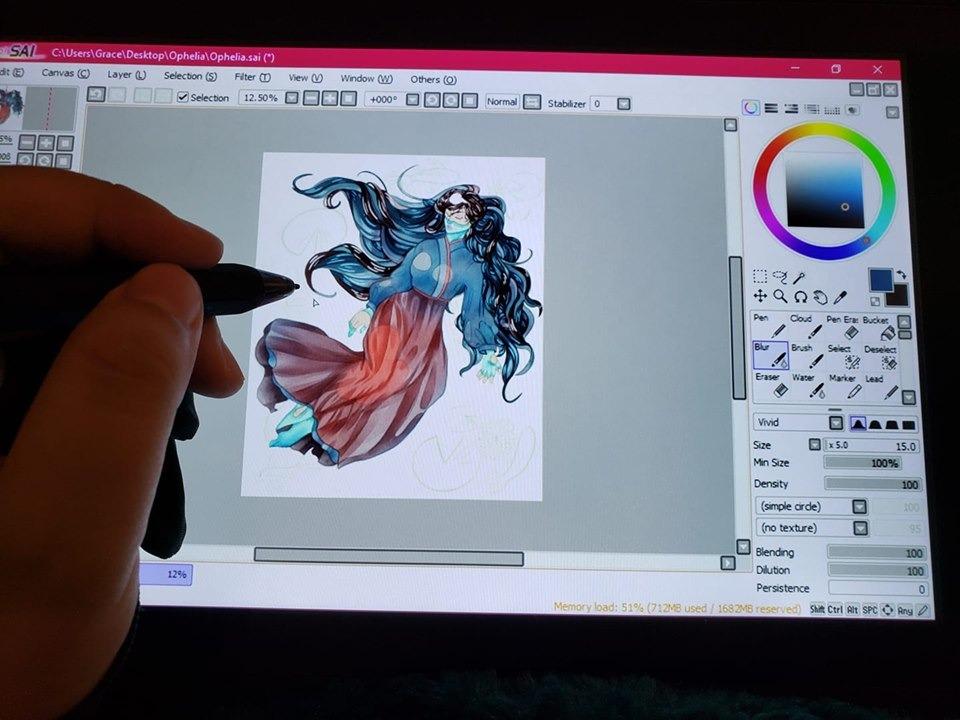
Color reproduction is the third pillar of this tablet’s appeal. The 99% sRGB and 96% Adobe RGB coverage meant my screen colors matched my calibrated desktop monitor closely enough that I could trust what I painted. The 178 degree viewing angle kept colors consistent even when I tilted the stand back for over-the-shoulder sketching sessions. The 8 express keys and the signature Red Dial saved me from hunting through keyboard shortcuts, and I mapped the dial to brush size while the keys handled undo, color picker, layer toggle, and zoom.
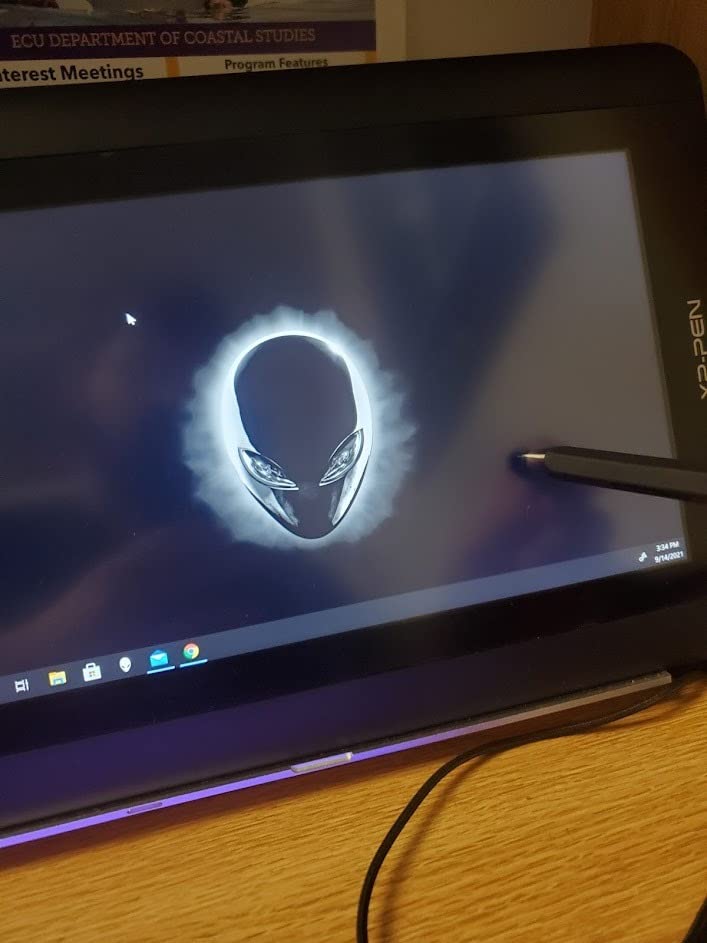
The catch is the cable situation. XPPen ships a 3-in-1 cable (HDMI, USB, power), and on my laptop I had to plug into a powered USB hub to keep the display stable. Once set, though, the connection was rock solid across 8-hour painting sessions. The pen button sits close to the grip, which caused a couple of accidental right-clicks during my first week, but I adapted by remapping the button.
For Whom It’s Good
This drawing tablet with screen is the right choice for serious hobbyists and professional illustrators who want Wacom Cintiq-class pressure and color without the Wacom tax. If you draw in Photoshop, Clip Studio Paint, Krita, or Affinity Photo for multiple hours a day, the X3 Pro stylus will keep up with your lightest sketches and your heaviest ink fills.
It also suits artists who need portability without sacrificing screen size. The 15.6 inch form factor slips into a 16-inch laptop sleeve, and the 3.66 kg weight is manageable for travel between studio and client sites.
For Whom It’s Not Ideal
If you are buying your first pen display and have never calibrated a screen or installed a tablet driver, the 3-in-1 cable plus driver setup has a learning curve. Beginners may prefer the GAOMON PD1161 or the HUION Kamvas 13 Gen 3 for simpler plug-and-play behavior.
Studio artists who want a built-in shortcut dial on the tablet body itself should consider the HUION Kamvas 13 Gen 3 with its two integrated dials, or the Wacom Cintiq 22 with the optional ExpressKey Remote.
2. GAOMON PD1161 — Most Versatile
GAOMON PD1161 Drawing Tablet with Screen, Tilt, 8 Shortcut Keys, 11.6″ FHD
11.6 inch FHD IPS
8192 pressure levels
Matte film included
Pros
- Most affordable drawing tablet with screen in this roundup
- 11.6 inch FHD IPS with pre-installed matte film
- Battery-free AP50 stylus with 8192 pressure levels and tilt
- 8 customizable shortcut keys plus 2 pen buttons
- Strong customer support from GAOMON
Cons
- Requires HDMI plus USB plus power cables for setup
- Color accuracy limited for professional color work
- Lower refresh rate than newer pen displays
For artists who want a real drawing tablet with screen without paying for one, the GAOMON PD1161 is the budget pick. With thousands of reviews backing it, it is the entry door that thousands of hobbyists walk through on their way to a more expensive upgrade.
The 11.6 inch FHD IPS panel is sharp enough for sketching and line art, and the pre-installed matte film gives a paper-like feel that surprises first-time users. The AP50 stylus runs at 8192 pressure levels with 60 degree tilt support, which is the same pressure depth you find on Huion tablets that sit in a higher tier. Battery-free means no charging downtime — the pen uses electromagnetic resonance from the display panel.

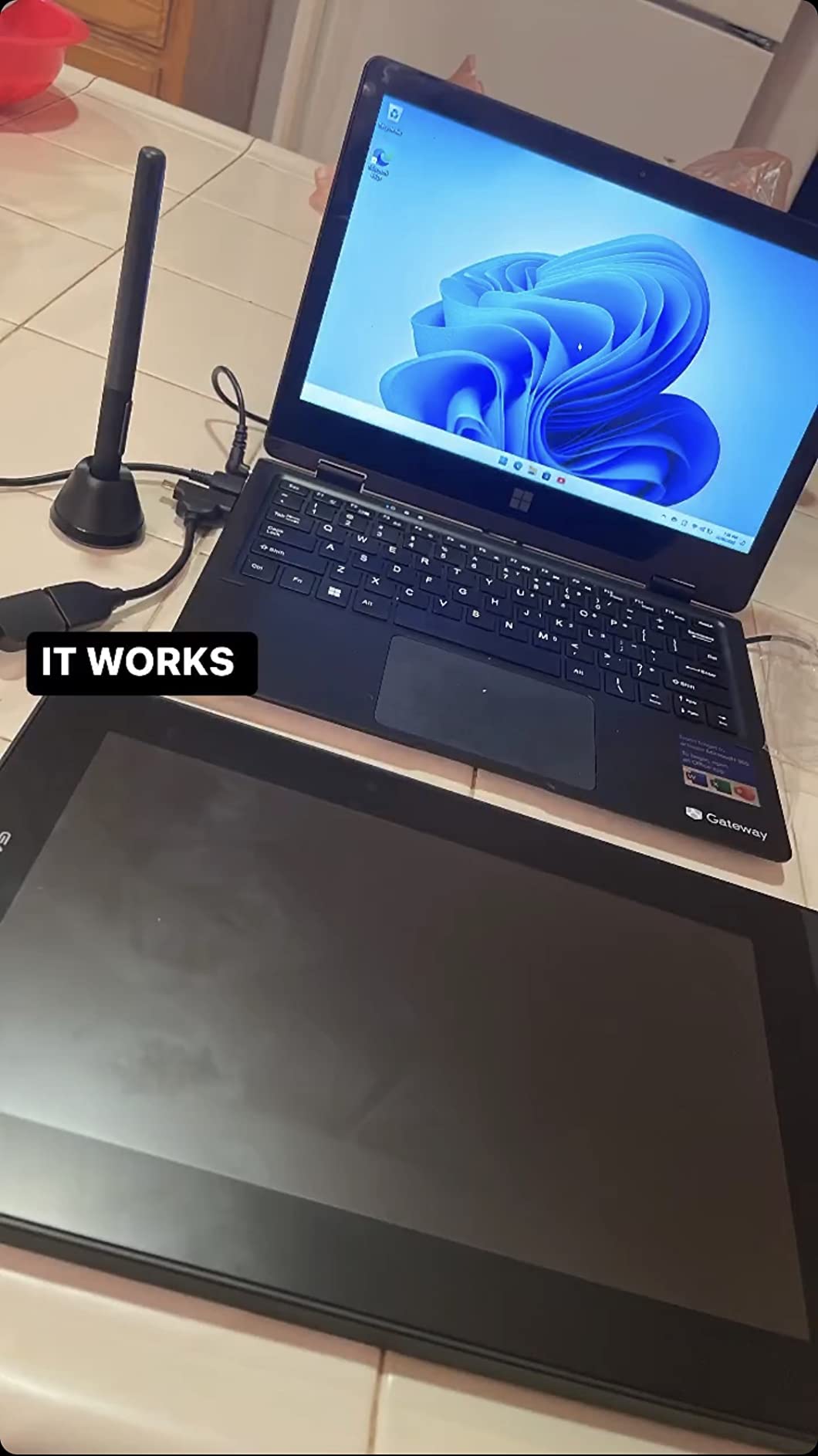
In my Krita tests, the PD1161 tracked my strokes accurately across the active area, and the 8 customizable shortcut keys let me set up brush, eraser, undo, and color picker without reaching for the keyboard. The 2 pen buttons on the stylus added a right-click and a barrel-roll toggle. Total accessory count is generous for the price: pen holder, replacement nibs, drawing glove, and a cleaning cloth are all in the box.
The trade-offs are honest ones. The PD1161 needs three cables (HDMI, USB, power) plugged in simultaneously, which makes it clunky for laptop users on the go. The 72% NTSC color gamut is fine for sketches and web art, but print illustrators who depend on Adobe RGB accuracy will need a higher-tier tablet. The refresh rate is also lower than premium models, which becomes noticeable during fast-paced animation work.
For Whom It’s Good
The GAOMON PD1161 is built for first-time pen display buyers, students, and hobbyists who want to test the form factor without a major commitment. If you are moving from a non-screen graphics tablet like a Wacom Intuos or an XP-Pen Deco, this is the most affordable way to draw directly on the image.
It also suits teachers and online instructors who need a secondary pen display for live drawing demonstrations in Zoom or similar software.
For Whom It’s Not Ideal
Professional illustrators doing print work, color-managed comics, or photography editing should skip this model for a higher-gamut option. The 72% NTSC color volume will not match a calibrated print pipeline.
Traveling artists who want one cable and not three should consider the VEIKK VK1200 V2 or any HUION tablet that supports single USB-C.
3. HUION Kamvas Pro 16 — Best Value
HUION Kamvas Pro 16 Drawing Tablet with Screen,120% sRGB, Touch Bar,15.6″
15.6 inch laminated
120% sRGB
Touch bar
Pros
- 15.6 inch full-laminated screen with anti-glare glass
- 120% sRGB color gamut with vivid 8-bit color
- 6 express keys plus a touch bar for fast workflow
- Battery-free PW507 pen with 8192 pressure levels and 60 degree tilt
- Solid metal build with adjustable 20 to 60 degree stand
Cons
- Power button placement is close to macro keys causing accidental shutdowns
- Single 3-in-1 cable is a single point of failure
- Driver installation can require some patience for beginners
The HUION Kamvas Pro 16 hits the sweet spot for mid-range pen display buyers. It blends a 15.6 inch full-laminated screen, 120% sRGB color, and a touch bar in a metal chassis that feels closer to a Wacom Cintiq than to most budget tablets.
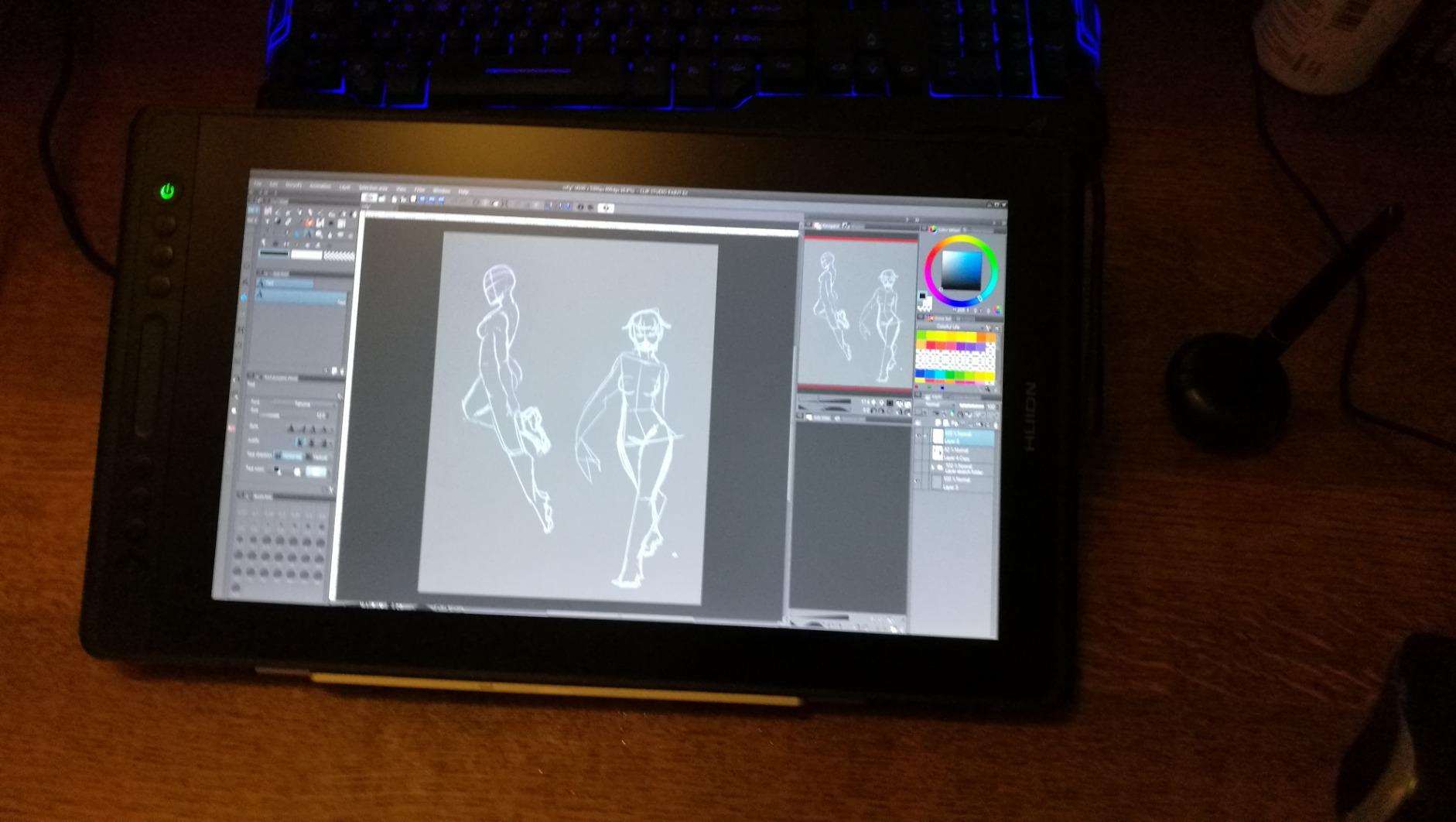
Drawing on the Kamvas Pro 16 feels right. The laminated glass and the PW507 stylus combine to give a low-parallax surface that tracks my pen tip accurately even at the corners. The 120% sRGB color gamut volume means my paintings come out richer than what I see on most 1080p screens in this category. The touch bar is genuinely useful — I bound it to zoom and brush size, which kept my non-drawing hand off the keyboard.
Pressure response is smooth. I tested light sketch lines, mid-tone washes, and heavy ink fills, and the 8192 pressure levels translated into gradients that felt natural rather than stepped. The 60 degree tilt recognition let me shade with the side of the nib for organic mark-making, which is something tilt-shy budget tablets do not handle well.
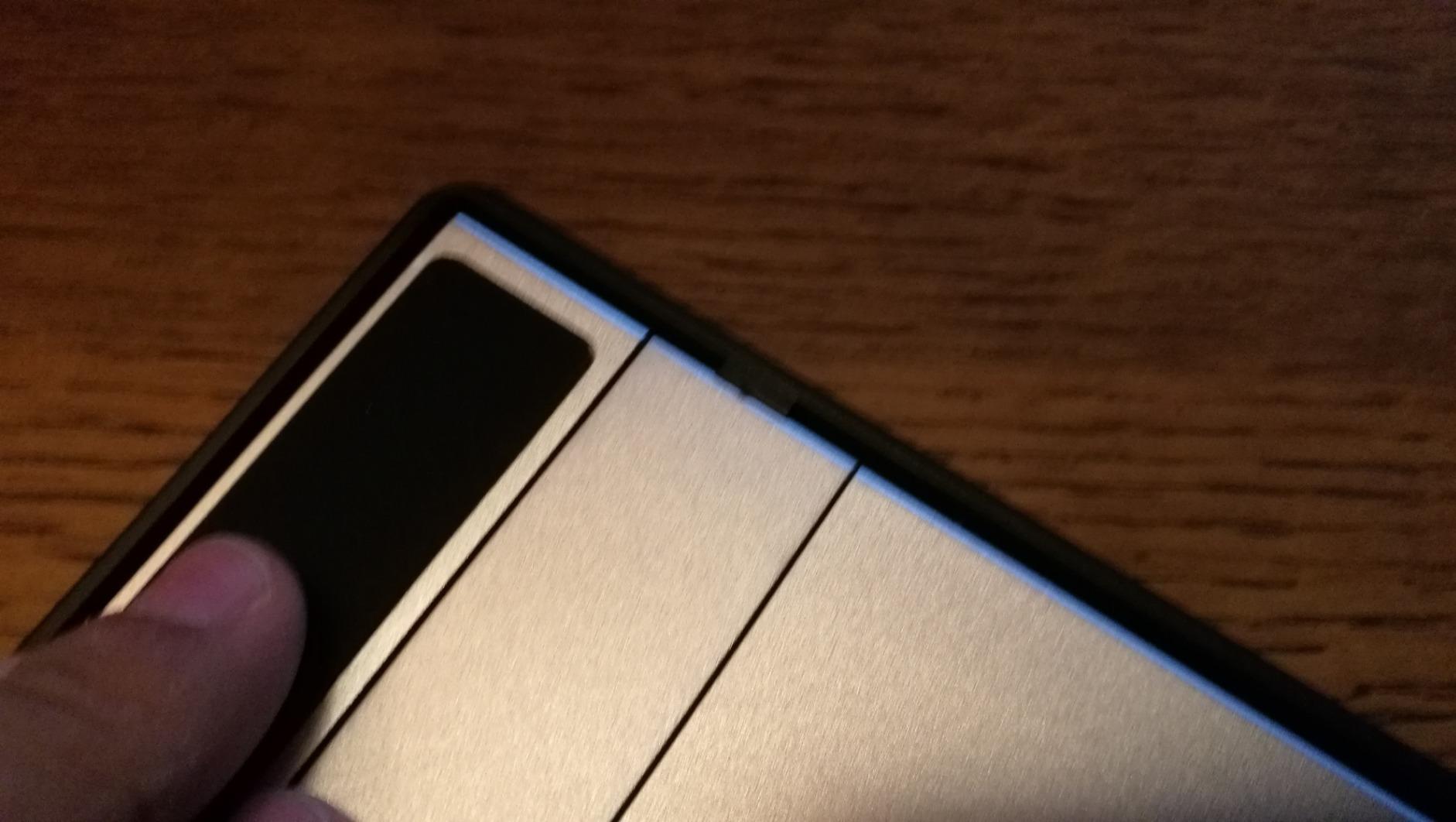
The two minor headaches: the power button sits right next to the macro keys, and I did hit it accidentally during a long painting session. The 3-in-1 cable is also a single point of failure if it ever frays. That said, HUION’s customer support has a strong reputation for sending replacement cables quickly when needed.
For Whom It’s Good
The Kamvas Pro 16 is the right drawing tablet with screen for hobbyists and semi-professional illustrators who want Wacom-class feel without paying for the Wacom name. The 120% sRGB color coverage is enough for most web and print workflows, and the touch bar makes it feel modern rather than retro.
It also works well for photo retouchers and concept artists who want a dedicated second screen for brush work in Photoshop.
For Whom It’s Not Ideal
If you want 4K resolution or HDR support for the highest-end color work, jump to the HUION Kamvas Pro 24 (4K). If you want maximum portability, the 13 inch Kamvas Pro 13 (2.5K) is a better fit.
4. HUION Kamvas Pro 13 (2.5K) — Most Compact
HUION Kamvas Pro 13 (2.5K) QHD+ Drawing Tablet with Screen, 13.3″
13.3 inch 2.5K
Quantum Dot 99% sRGB
Lightweight
Pros
- Sharp 2560x1600 QHD+ resolution with 226 ppi pixel density
- Quantum Dot color technology for excellent 99% sRGB accuracy
- Full lamination reduces parallax to near zero
- Battery-free PW517 pen with 8192 pressure levels and tilt
- Lightweight 13.3 inch form factor at only 1 kg
Cons
- Single-cable USB-C can have handshake issues on some laptops
- Some users report occasional dead pixel quality control issues
- Huion support response times can be slow on warranty claims
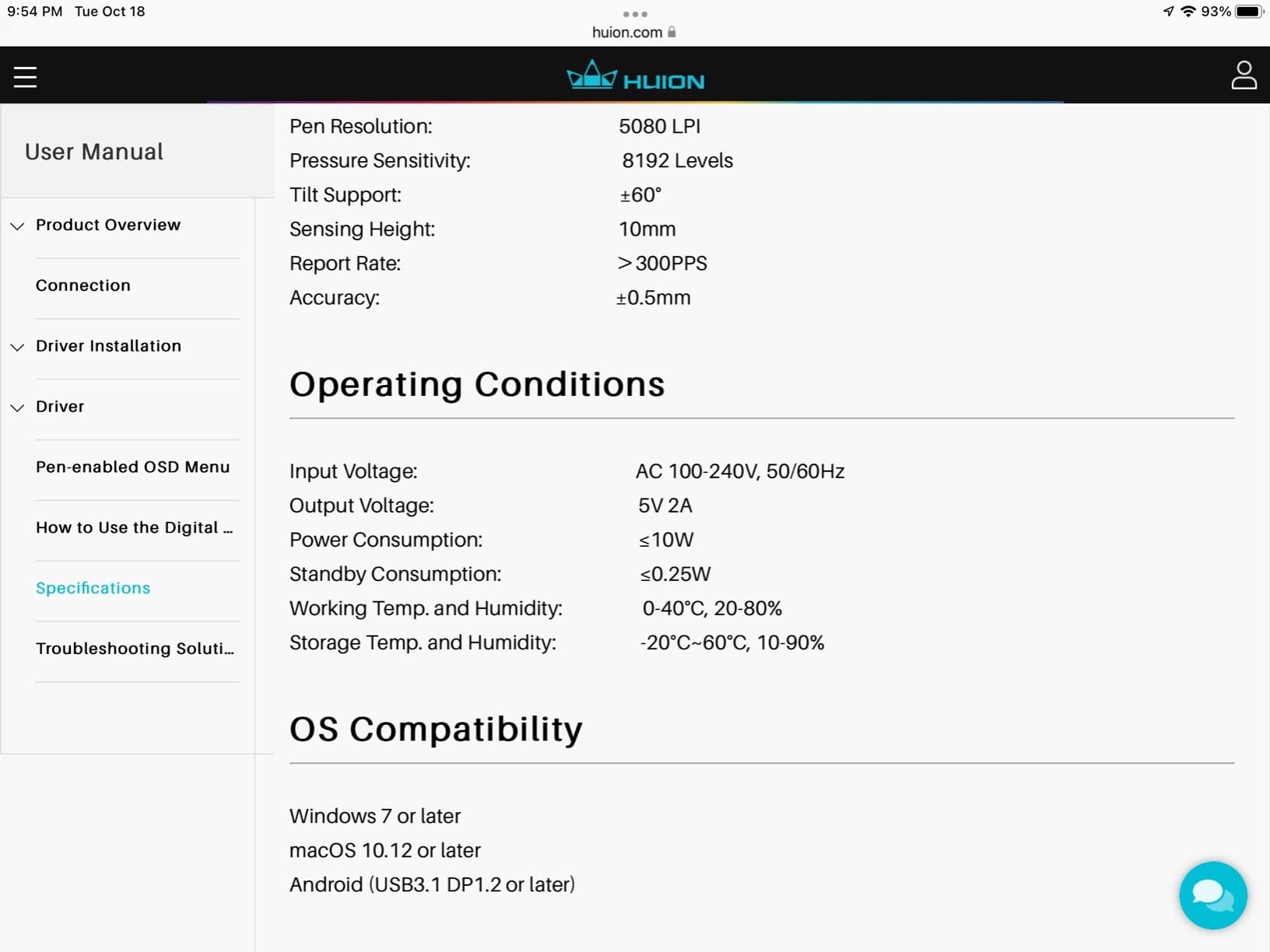
The HUION Kamvas Pro 13 (2.5K) is my pick for artists who travel. The 2560×1600 QHD+ resolution on a 13.3 inch panel produces a crisp 226 pixels per inch that makes line art and tiny brush details look beautiful. The Quantum Dot color technology delivers 99% sRGB with strong vibrancy, and the full-laminated glass means parallax is barely noticeable.
At 1 kilogram, this is one of the lightest drawing tablets with screen I have tested. It fits in my backpack alongside a 14 inch laptop without weighing me down, and the foldable ST200 stand lets me angle it from flat sketching to upright painting in seconds.
Drawing on the Kamvas Pro 13 (2.5K) is a pleasure. The PW517 stylus has 8192 pressure levels and 60 degree tilt support, and the felt nibs create just enough friction to feel like paper without slowing the pen. The 7 express keys are placed along the left side, which works for me as a right-handed artist; left-handed users can simply rotate the tablet and remap the keys.
I tested it with Photoshop, Clip Studio Paint, and Krita across Windows and macOS. Driver setup was straightforward on macOS, slightly fiddly on Windows 11. Color accuracy out of the box was close to my calibrated monitor, with only minor gamma correction needed.
For Whom It’s Good
This is the right pen display for traveling illustrators, digital nomads, and students who attend in-person classes. The light weight, sharp 2.5K screen, and accurate Quantum Dot color mean you do not have to sacrifice quality for portability.
Concept artists who sketch on the go and finish on a desktop monitor will appreciate how well the colors carry across screens.
For Whom It’s Not Ideal
If you want a screen large enough for full-arm gesture drawing, the 13.3 inch active area will feel small. Step up to the HUION Kamvas 22 or the Wacom Cintiq 22 for more canvas space.
5. HUION Kamvas 22 — Best for Large Canvas
HUION KAMVAS 22 120% sRGB Drawing Tablet with Screen 21.5 inch
21.5 inch FHD
120% sRGB
Adjustable stand
Pros
- Spacious 21.5 inch canvas for full arm drawing gestures
- 120% sRGB color gamut with vivid colors and wide viewing angle
- Anti-glare matte film mimics real paper texture
- Battery-free PW517 stylus with tilt and 8192 pressure levels
- Two USB-C ports plus USB-A for peripherals and cleaner cable setup
Cons
- No built-in programmable hotkeys (Keydial remote sold separately)
- Covers entire desk and blocks keyboard access at default angle
- Matte film can scratch with heavy nib use and needs replacement
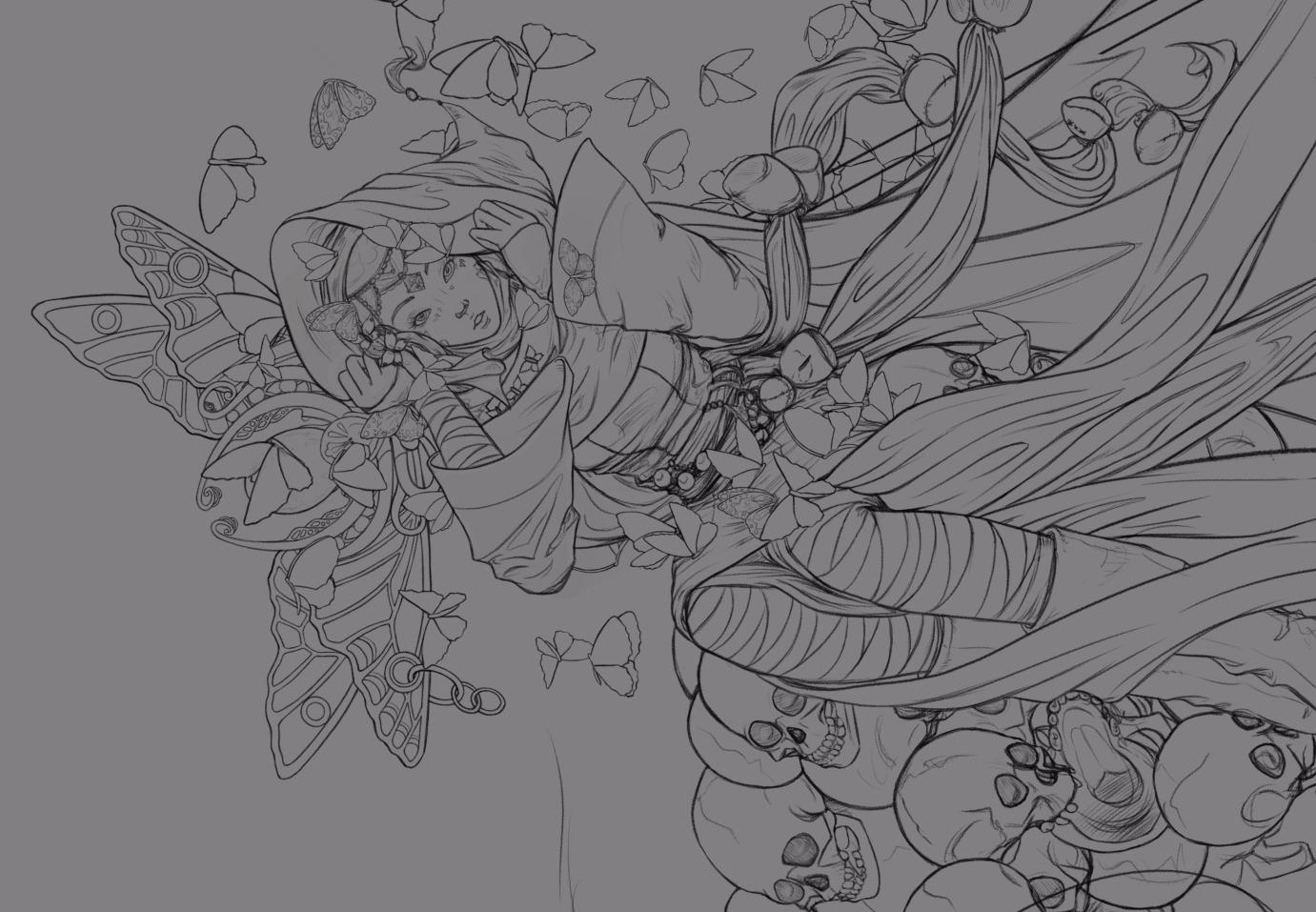
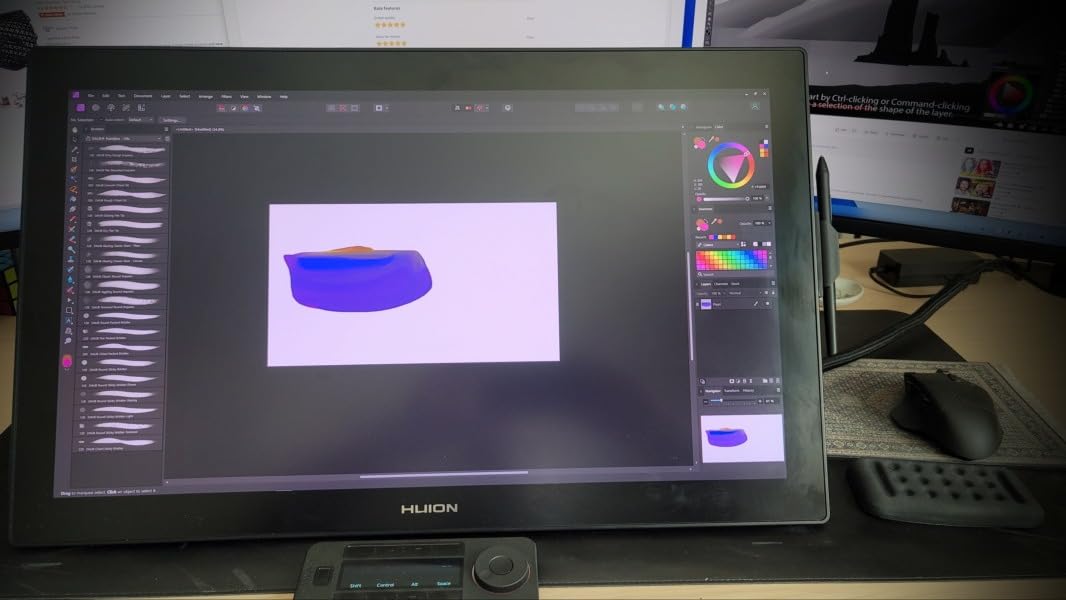
The HUION Kamvas 22 is the largest pen display I tested that still feels reasonable to set up at home. The 21.5 inch screen gives you room to draw with full arm movements, which matters for figurative work, gesture sketching, and concept art where shoulder-driven strokes are part of the style.
The 120% sRGB color coverage and the 178 degree viewing angle kept colors consistent when I leaned back in my chair to study the composition. The matte film on the screen does add a paper-like drag under the pen nib, which I personally prefer over slick glass for sketching. It does wear over time, but replacement films are inexpensive.
The PW517 stylus handles the same way as on the smaller Huion models, with 8192 pressure levels and 60 degree tilt. Drawing on the Kamvas 22 for several hours a day felt comfortable, partly because the metal stand adjusts from 20 to 80 degrees, which let me find the angle that matched my seated posture.
The two USB-C ports are a nice touch — I used one for the display signal and the other to charge my phone or plug in a streaming light. The lack of built-in express keys is the obvious compromise. If you want shortcut buttons, you need to buy the HUION Keydial remote separately, which adds cost. The screen also blocks my keyboard at the lowest stand angle, so I had to either push the screen back or use a separate keyboard tray.
For Whom It’s Good
The Kamvas 22 is built for artists who want a Cintiq-style large canvas at a much friendlier price. Illustrators who draw figures, do storyboarding, or work in Clip Studio Paint with many tool palettes open will benefit from the extra screen real estate.
Animation studios that want a budget-friendly 22 inch display for in-between and clean-up artists will get strong value here.
For Whom It’s Not Ideal
If you need 4K resolution for fine detail work, the 1080p panel will not deliver. Move up to the HUION Kamvas Pro 24 (4K). If you want built-in shortcut keys without buying a remote, look at the Wacom Cintiq 22.
6. XPPen Artist Pro 14 Gen 2 — Best for Portability
XPPen Artist Pro 14 Gen2 Drawing Tablet with Screen 14 inch Graphic Art Tablet with Full Laminated Anti-Glare Screen 16384 Pressure Levels X3 Pro Battery-Free Stylus 123% sRGB Tilt Stand Mini Keydial
14 inch 16:10
16384 levels
Delta E less than 2.2
Pros
- Industry-first 16384 pressure levels with X3 Pro smart chip stylus
- Full-laminated anti-glare screen with TUV SUD low blue light certification
- Delta E less than 2.2 factory color accuracy for vibrant reliable output
- Wireless Mini Keydial remote included
- Built-in foldable stand plus X-Edge wrist rest for ergonomics
Cons
- Screen colors can be oversaturated out of the box and need calibration
- No touch input on the panel
- No port pass-through for peripherals
The XPPen Artist Pro 14 Gen 2 is one of the most thoughtfully designed portable drawing tablets with screen I have used. The 14 inch 16:10 aspect ratio gives more vertical drawing space than a typical 16:9 panel, which makes sketching and full-body figure work feel less cramped.
The X3 Pro stylus is the same one found on the larger Artist 15.6 Pro V2, with 16384 pressure levels and crisp tracking. The full-laminated anti-glare etched glass keeps parallax minimal, and the TUV SUD low blue light certification is a real benefit during long nighttime painting sessions — my eyes were noticeably less strained.
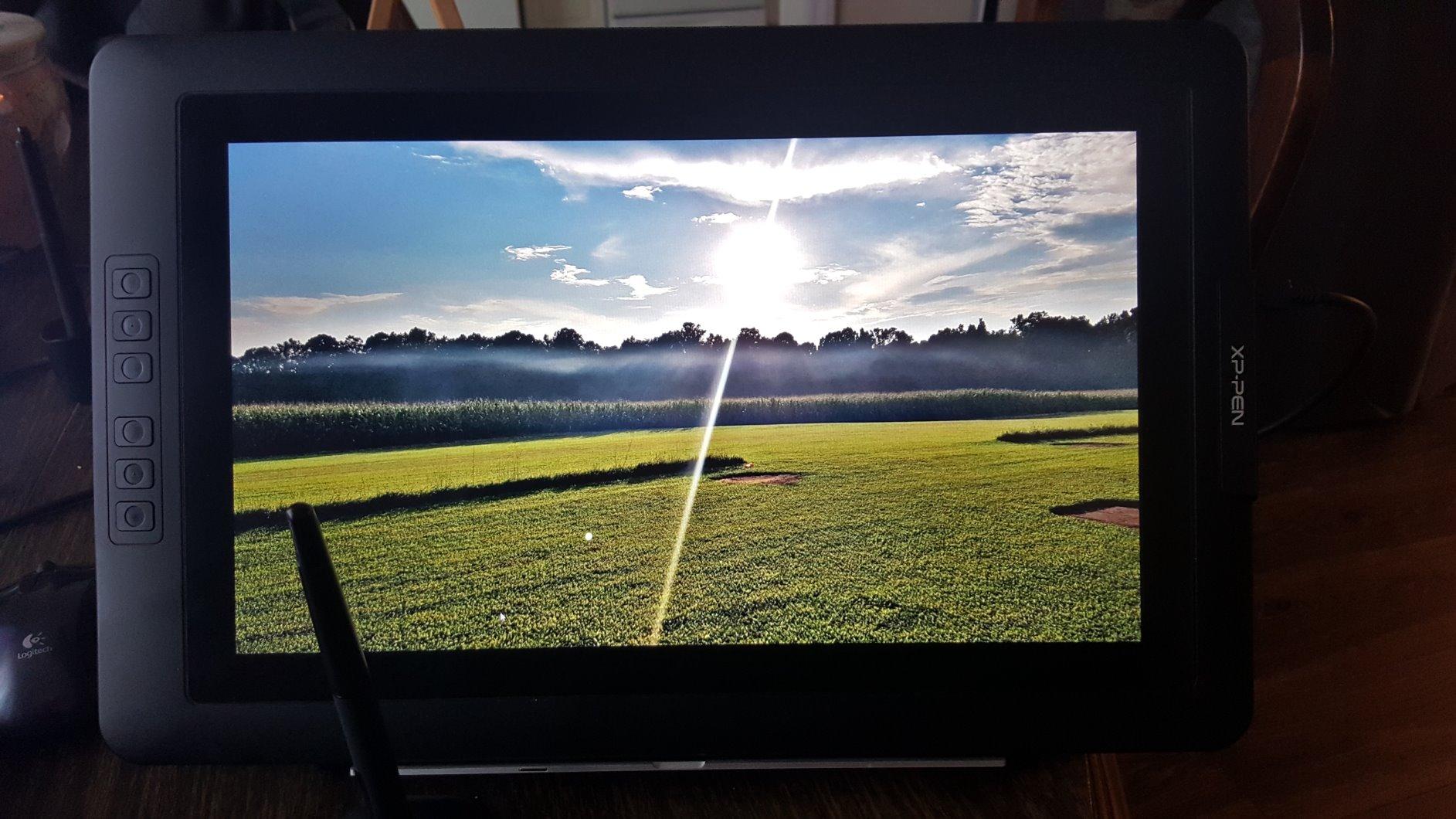
The Delta E less than 2.2 color accuracy is the headline spec for color-conscious buyers. Delta E measures the difference between displayed color and intended color; anything below 2 is hard for the human eye to distinguish. My test prints matched what I painted on screen within an acceptable margin for web and print work.
The Mini Keydial wireless remote is the standout feature. It sits next to my non-drawing hand and lets me change brush size, undo, and pan without reaching for the tablet or the keyboard. The one-click switch between display mode and tablet mode is also handy when I want to use the Artist Pro 14 as a regular Intuos-style graphics tablet for line work without looking at the screen.
The drawbacks are real but manageable. The colors lean oversaturated out of the box and need ICC profile calibration. There is no touch input, which I missed when zooming in Photoshop. There is no port pass-through, so connecting a keyboard or mouse requires a separate USB hub.
For Whom It’s Good
This is the right pen display for artists who split time between studio and travel. The 14 inch form factor slips into most laptop bags, the wireless remote speeds up workflow on the road, and the certified low-blue-light screen is friendlier for all-day sessions.
Photo editors and concept artists who care about Delta E accuracy will appreciate the calibrated colors.
For Whom It’s Not Ideal
If you need touch gestures for pinching to zoom or two-finger rotation in Procreate-style workflows, this tablet does not support that. Choose a touch-enabled pen display or an iPad instead.
7. HUION Kamvas 13 (Gen 3) — Best for Students
HUION Kamvas 13 (Gen 3) Drawing Tablet with Screen 16K Pressure PenTech 4.0
13.3 inch
16384 levels
Delta E less than 1.5
Pros
- Canvas Glass 2.0 with nano-etching for paper-like drawing feel
- PenTech 4.0 stylus with 2g initial activation force and 16384 pressure levels
- Factory Delta E less than 1.5 color calibration with certificate
- Two dial controllers plus 5 silent press keys for productivity
- Ultra thin 11.7mm profile and 865g weight for backpack portability
Cons
- Requires computer connection (not a standalone tablet)
- Some packages ship with limited replacement nibs
- Pen buttons take adjustment time for new users
The HUION Kamvas 13 Gen 3 is the pen display I would buy for a high school or college art student. It packs premium features — PenTech 4.0, 16384 pressure levels, factory Delta E less than 1.5 calibration, and dual dial controllers — into a 13.3 inch tablet that weighs less than a 1 kilogram bag of sugar.
The Canvas Glass 2.0 surface uses nano-etching to create a paper-like texture that mimics the feel of drawing on a real sketchbook. The PenTech 4.0 stylus needs only 2 grams of pressure to register a stroke, which means I can lay down ultra-light hatching without the pen missing the first mark. This is the kind of refinement that used to live only on the most expensive Wacom models.
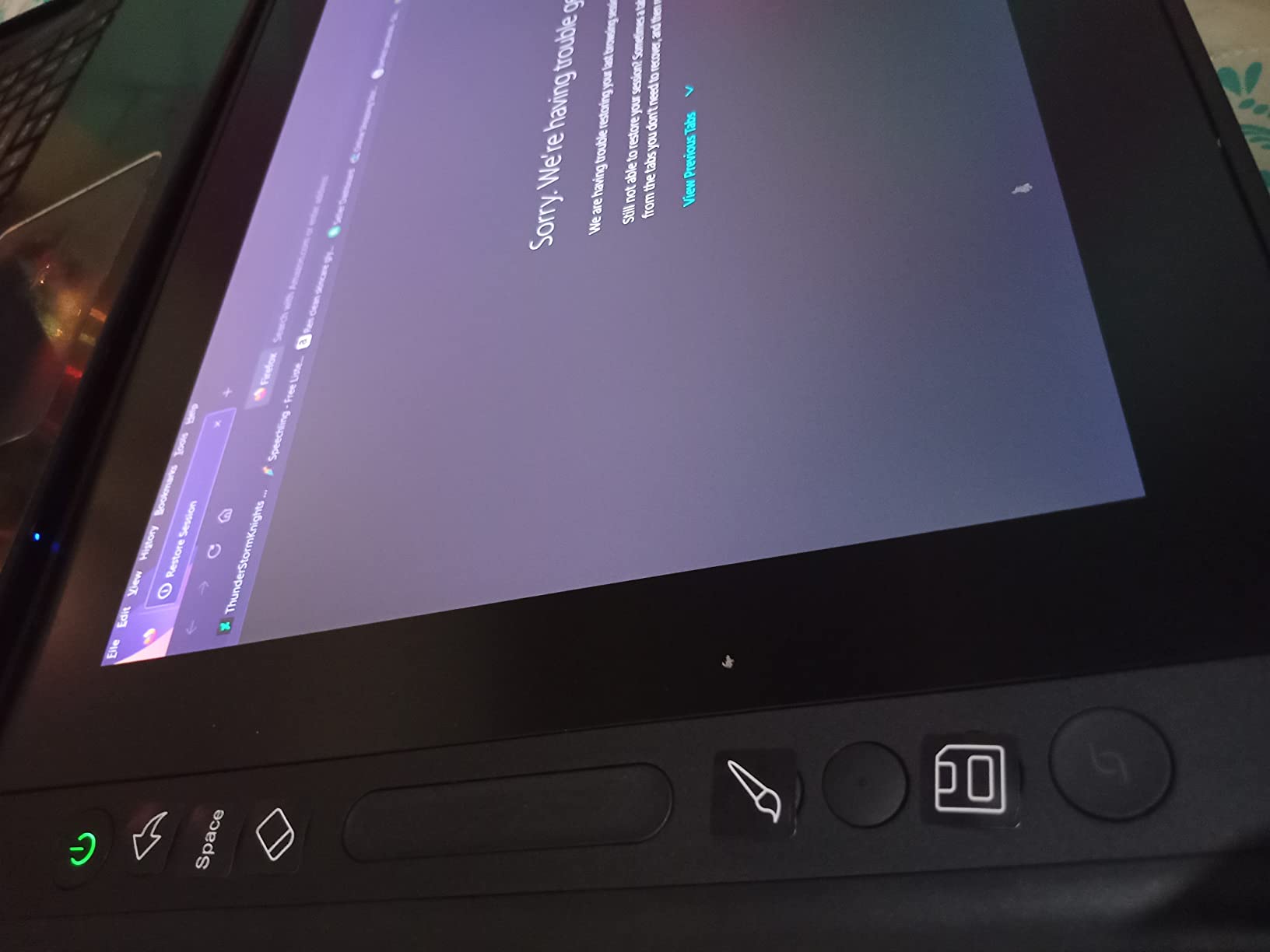
The two built-in dial controllers on the side of the tablet are a real productivity upgrade. I bound the left dial to brush size and the right dial to zoom, which kept me from hunting for keyboard shortcuts during long study sessions. The 5 silent press keys added undo, layer toggle, hand tool, color picker, and a custom shortcut for switching brushes in Clip Studio Paint.
The factory calibration certificate that ships in the box is unusual at this price point and reassuring for students who need accurate colors for portfolio work. Color-critical projects like editorial illustration or fashion design benefit from the Delta E less than 1.5 accuracy, which means the displayed color is virtually indistinguishable from the intended color.
At 11.7mm thick and 865g, the Kamvas 13 Gen 3 fits in a standard 14 inch laptop sleeve. The symmetrical design works equally well for left-handed and right-handed artists — a small but meaningful detail for art programs where students share equipment.
For Whom It’s Good
This is the right drawing tablet with screen for art students, design students, and beginners stepping up from an iPad or a non-screen tablet. The premium PenTech 4.0 stylus, the calibrated color, and the productivity dials give students a real professional workflow at a student-friendly price.
It also suits illustrators who work in cafes or libraries. The light weight and slim profile make it easy to carry, and the paper-textured glass feels natural for traditional sketchers transitioning to digital.
For Whom It’s Not Ideal
If you want a larger drawing surface for full-arm gestures or for working with many tool palettes open, the 13.3 inch screen will feel tight. Choose a 16 inch or larger tablet like the HUION Kamvas Pro 16 or the HUION Kamvas 22.
8. VEIKK VK1200 V2 — Best Travel Companion
VEIKK VK1200 V2 Drawing Tablet with Screen,11.6”, 8192 Pressure Sentivity
11.6 inch laminated
Two pens included
Single USB-C
Pros
- Compact 11.6 inch full-laminated screen at an affordable price
- Two battery-free pens included with 8192 pressure levels and tilt
- Single-cable USB-C connection for cleaner travel setup
- Lightweight 809g all-metal body ideal for backpack travel
- Six customizable shortcut keys plus generous accessory bundle
Cons
- Not a standalone tablet (requires computer connection)
- Pen pressure setup in Photoshop can take troubleshooting
- Small edge zone where stroke behavior can be inconsistent
The VEIKK VK1200 V2 is the most travel-friendly pen display I have tested in this roundup. At 809 grams with an 11.6 inch laminated screen and a single-cable USB-C connection, it slips into a small bag and sets up at a hotel room desk in under two minutes.
VEIKK includes two battery-free pens in the box. That sounds like a small thing until you lose a pen mid-trip — having a backup meant I could keep working when my main pen rolled under the hotel bed. Both pens support 8192 pressure levels and 60 degree tilt, which is the same depth you find on much more expensive tablets.
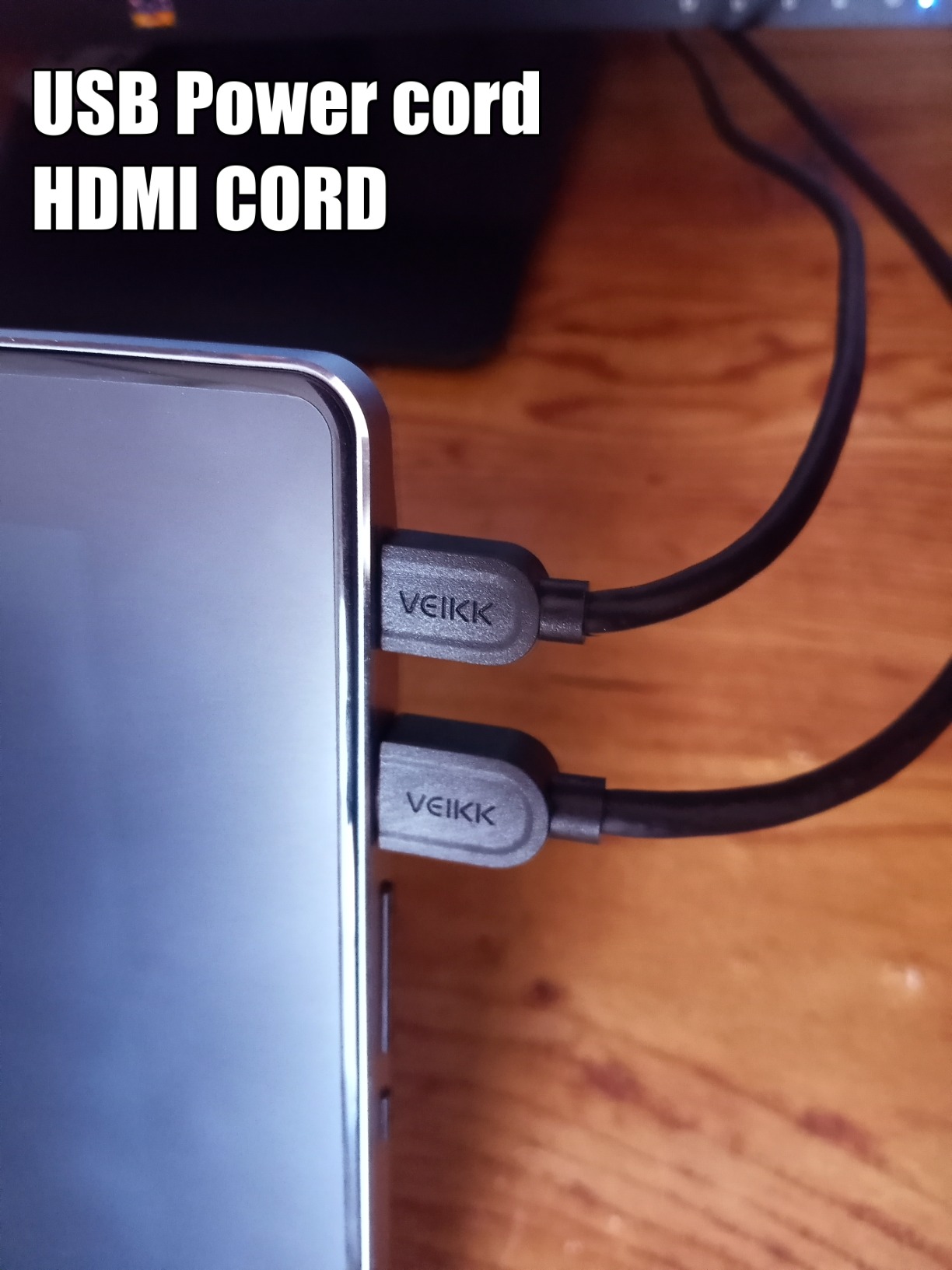
The single-cable USB-C connection is the real travel win. Where most pen displays in this price range require HDMI plus USB plus a separate power cable, the VK1200 V2 can run on a single USB-C cable that carries data, power, and DisplayPort signal — provided your laptop supports USB-C with DP Alt Mode. I tested this on a MacBook Pro and a Dell XPS, and both worked cleanly.
The all-metal body feels sturdy in the hand, and the anti-slip back keeps the tablet planted on a hotel desk. The 6 customizable shortcut keys are enough for the basics: undo, redo, brush, eraser, hand, and color picker. The accessory bundle includes 28 replacement nibs, a pen holder, a drawing glove, and a cleaning cloth, which is generous for the price.
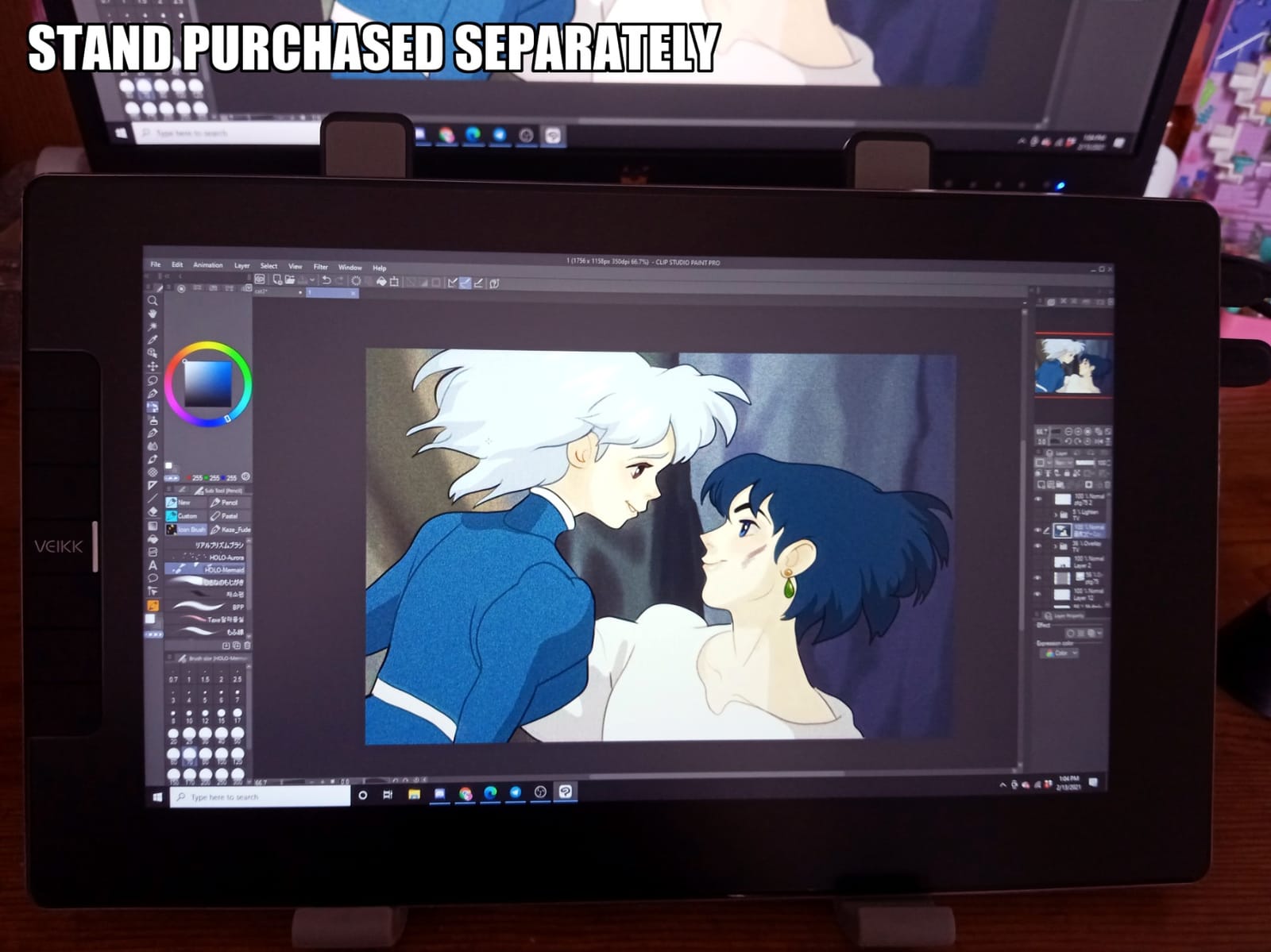
The downsides are honest. Photoshop on Windows sometimes needed manual pressure curve tuning to get the light pressure range right. There is a small ~1/4 inch edge zone where strokes can behave inconsistently. There is no built-in stand — you need to buy one separately or prop the tablet against a book.
For Whom It’s Good
The VK1200 V2 is built for traveling illustrators, digital nomads, and remote-working artists who do not want to lug a 15 inch pen display through airports. It is also great for beginners who want a low-commitment way to try a screen tablet before upgrading.
Educators and online tutors who need a portable second display for live demonstrations will appreciate the single-cable setup.
For Whom It’s Not Ideal
If your laptop does not support USB-C with DisplayPort Alt Mode, you will need to fall back to the included HDMI and USB-A cables, which adds clutter. Also, professional illustrators needing wide-gamut color should look at higher-tier options like the HUION Kamvas Pro 13 (2.5K).
9. Wacom Cintiq 22 — Best Professional Flagship
Wacom Cintiq 22, Drawing Tablet with Full HD Screen & Pro Pen 2
22 inch FHD
Wacom Pro Pen 2
Mature drivers
Pros
- Industry-leading Wacom Pro Pen 2 with best-in-class pressure and tilt response
- Smooth anti-glare glass surface for premium pen-on-paper feel
- Excellent build quality and sturdy adjustable stand included
- Spacious 22 inch canvas ideal for full arm drawing and UI space
- Runs cool and silent during long sessions with no fan noise
Cons
- Premium price significantly higher than competitor equivalents
- No touch functionality on this non-touch model
- No built-in express keys (ExpressKey Remote sold separately)
- Three cables plug into the top of the display which can be awkward
The Wacom Cintiq 22 is the pen display that built the modern professional pen display market. Even in 2026, Wacom’s Pro Pen 2 remains the gold standard for pen feel, and the Cintiq 22’s mature driver ecosystem is the reason most studios still default to Wacom when reliability matters more than price.
The Pro Pen 2 has 8192 pressure levels and 60 degree tilt, but the real magic is in the pen-to-glass feel. Wacom tunes the nib friction, the tip activation force, and the cursor tracking to feel closer to drawing on paper than any competitor I have tested. After a few hours on the Cintiq 22, switching to a budget pen display feels like the difference between a fountain pen and a ballpoint.
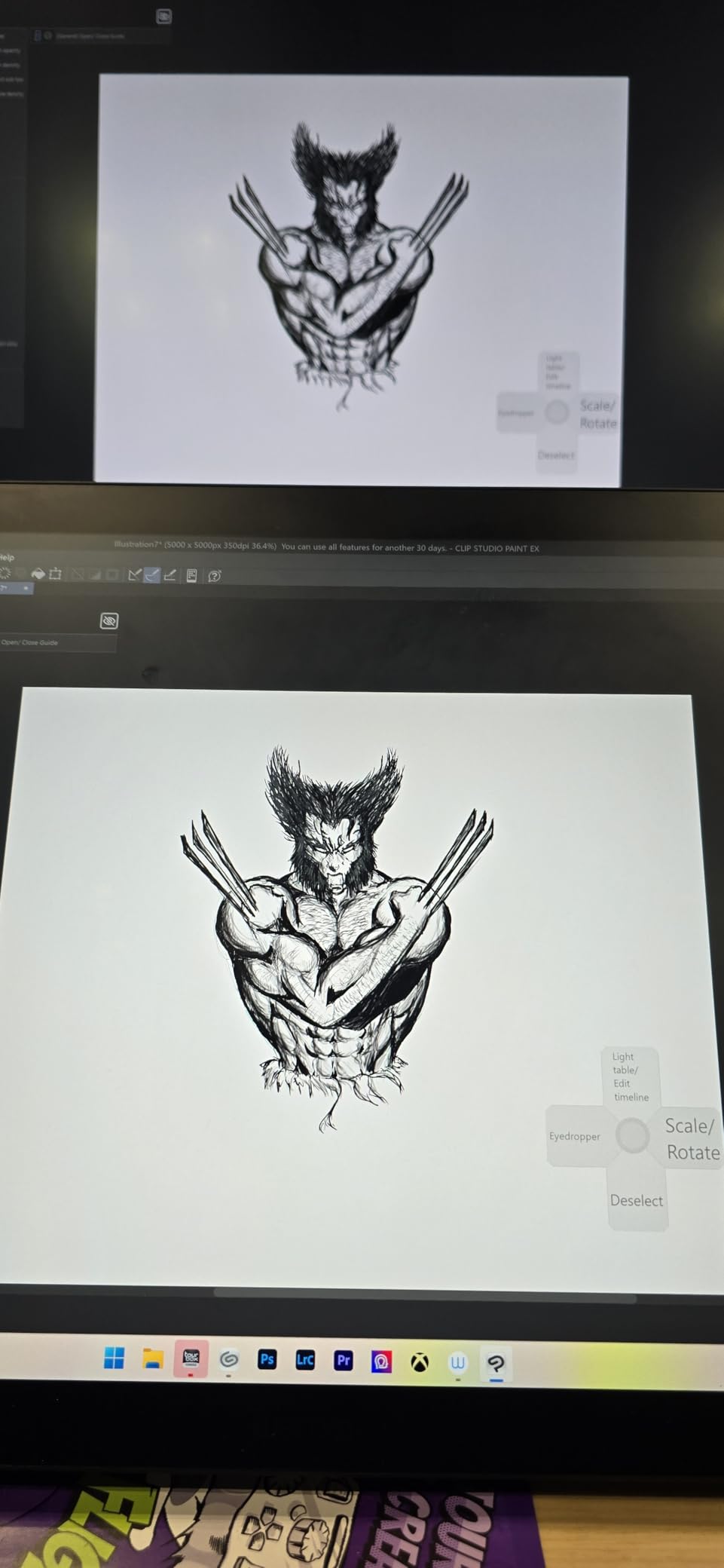
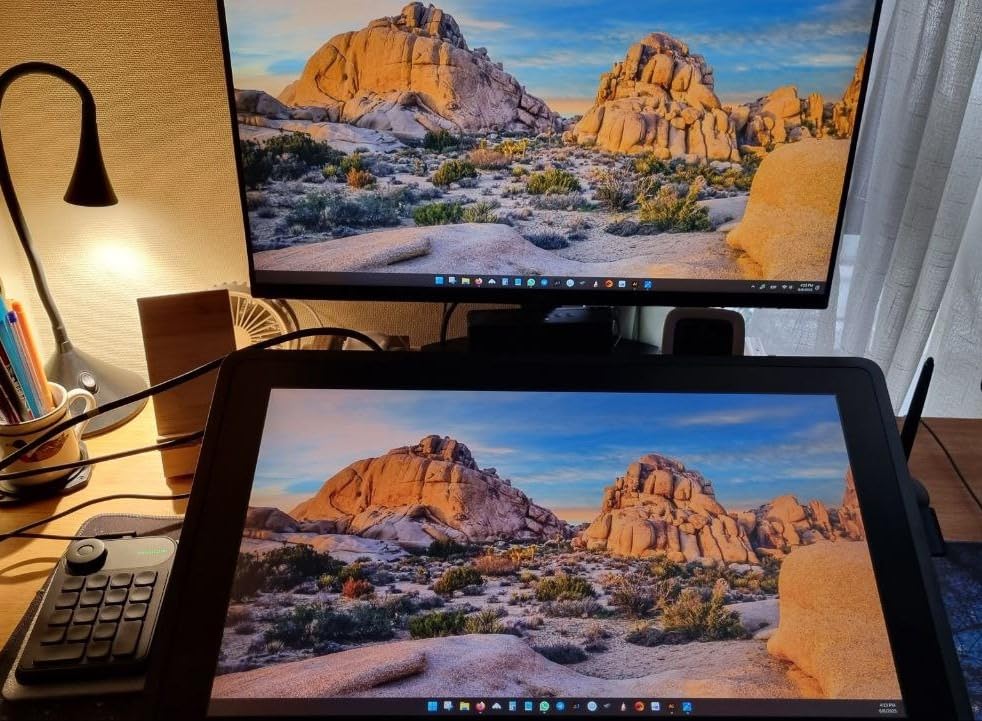
The 22 inch screen gives professional illustrators the canvas space they need for full-arm drawing, complex Photoshop compositions with many tool palettes open, and animation work in Clip Studio Paint or Toon Boom. The included stand is sturdy and adjusts to a wide range of angles, and the metal chassis dissipates heat without needing a fan — the Cintiq 22 runs completely silent during long sessions.
The catch is the price, which sits well above what you pay for a comparable Huion or XPPen. The 72% Adobe RGB color gamut is also lower than the Wacom Cintiq Pro line and lower than mid-range Huion models like the Kamvas Pro 24 (4K). The lack of built-in express keys means buying the ExpressKey Remote separately. The three cables that plug into the top of the display are awkward to manage.
Still, for studios that need driver stability across macOS and Windows updates, for illustrators who already own Wacom accessories, and for artists who want the best resale value of any pen display, the Cintiq 22 holds its position.
For Whom It’s Good
The Cintiq 22 is the right pen display for professional studios, established illustrators with a long Wacom workflow, and educators who need a reliable device that will not have driver hiccups during a semester. If you have owned a Wacom Intuos or a previous Cintiq and you trust the driver pipeline, sticking with the Cintiq 22 is the safe choice.
It also suits illustrators whose resale-value matters — used Cintiq 22s hold their price far better than any other pen display on this list.
For Whom It’s Not Ideal
Budget-conscious buyers should not pay the Wacom premium unless they specifically need Pro Pen 2 feel or studio driver stability. The HUION Kamvas 22 or the HUION Kamvas Pro 24 (4K) deliver comparable canvas size and better color gamut for far less.
10. HUION Kamvas Pro 24 (4K) — Best 4K Studio
HUION KAMVAS Pro 24 4K UHD Drawing Tablet with Screen 140% sRGB
23.8 inch 4K UHD
140% sRGB Quantum Dot
HDR
Pros
- Stunning 23.8 inch 4K UHD 3840x2160 resolution
- Quantum Dot technology with 140% sRGB color volume for rich output
- Full lamination eliminates air gap for precise drawing
- HDR support with 1.07 billion colors (8bit+Hi-FRC color depth)
- Keydial Mini K20 wireless remote included plus multiple interfaces (HDMI
- DP
- USB-C)
Cons
- Driver and customer support experiences can vary widely
- Some users report quality control issues including dead pixels
- Pen compatibility limited between device year releases
- 13.7 lb weight requires sturdy desk setup
The HUION Kamvas Pro 24 (4K) is the studio-grade pen display for artists who need 4K resolution and wide-gamut color without paying the Wacom Cintiq Pro 27 premium. At 23.8 inches with a 3840×2160 panel, the pixel density is high enough that fine brush strokes in Photoshop and tiny details in illustration look crisp at typical viewing distance.
The Quantum Dot technology pushes the color volume to 140% sRGB, which means the display covers more of the color space than standard sRGB panels. For photographers, colorists, and print illustrators, that extra headroom is meaningful — you can see colors on screen that a smaller-gamut display simply cannot reproduce.
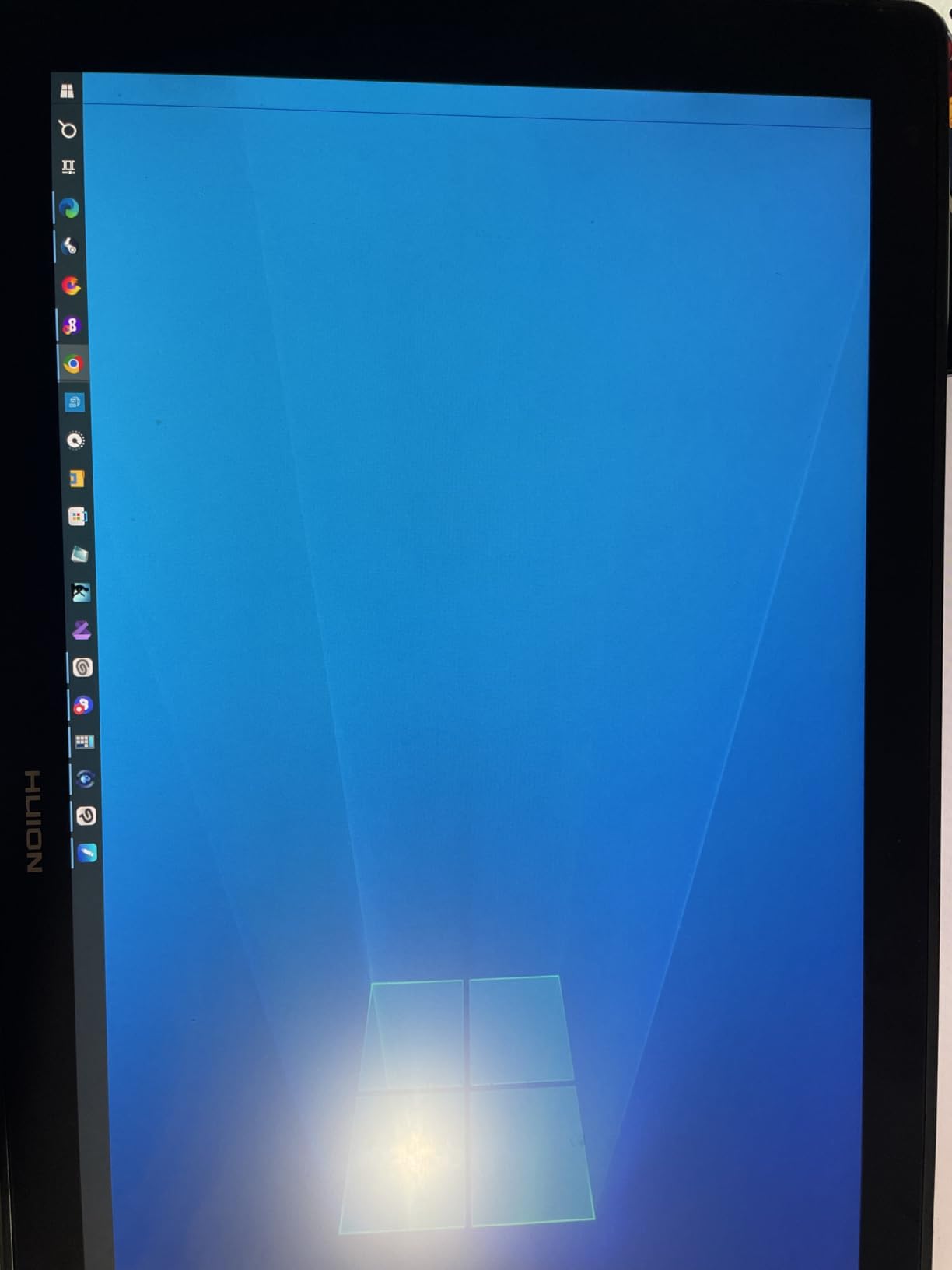
HDR support with 1.07 billion colors (8bit+Hi-FRC depth) means the panel can show a wider range of brightness and shadow detail than standard 8-bit panels. For comic inkers, matte painters, and anyone working on cinematic-looking illustration, HDR makes a visible difference in how the deepest shadows and the brightest highlights sit next to each other.
The Keydial Mini K20 wireless remote is a productivity win. It sits next to your non-drawing hand and lets you adjust brush size, scroll through layers, undo, and pan without reaching for keyboard shortcuts. The integrated 20 degree metal stand keeps the screen at a comfortable drawing angle, and the multiple interface options (HDMI, DisplayPort, USB-C) cover both modern laptops and older desktop workstations.
The downsides are honest. At 13.7 pounds, this tablet is firmly a desktop device — you will not be moving it often. The driver support experience has been mixed in user reviews; HUION’s customer service response times have improved but are not yet at Wacom’s level. There have been some quality control reports of dead pixels on individual units, so buy from a retailer with a clear return policy.
For Whom It’s Good
The Kamvas Pro 24 (4K) is built for professional illustrators, video colorists, and 3D artists who need a 4K canvas with wide-gamut color. If your work involves print output, photo editing, or visual effects that demand HDR preview, the Quantum Dot panel delivers.
Studios that want a high-end Wacom Cintiq Pro 27 alternative for significantly less will get strong value here.
For Whom It’s Not Ideal
If your computer cannot output 4K over USB-C or DisplayPort, you will not get the full benefit of this panel. Also, the weight and lack of portability make this a desk-only device — if you need to travel, choose a smaller pen display like the XPPen Artist Pro 14 Gen 2 or the HUION Kamvas 13 Gen 3.
Buying Guide: How to Choose the Best Drawing Tablet with Screen
Choosing the right drawing tablet with screen comes down to seven factors: screen size, resolution, pressure sensitivity, color gamut, parallax, stylus technology, and ergonomics. Here is what each means for your workflow.
Screen Size
Screen size determines how you draw. A 13 inch tablet fits a backpack and is ideal for travel, sketching, and tight desk setups. A 16 inch tablet is the sweet spot for most illustrators because it gives enough canvas for full-arm gesture without dominating the desk. A 22 to 24 inch tablet is a studio device for full-arm drawing, complex Photoshop layouts, and animation work where you want many tool palettes open at once.
Resolution
Resolution matters most for fine detail work. A 1920×1080 (FHD) panel is sharp enough for sketches, line art, and most illustration. A 2560×1600 (2.5K) panel is noticeably crisper on a 13 inch tablet and helps when working on detailed comic pages. A 3840×2160 (4K) panel is worth the upgrade for photographers, video colorists, and print illustrators who need to see fine color transitions.
Pressure Sensitivity
Pressure sensitivity is measured in levels: 4096, 8192, or 16384. In practice, the difference between 8192 and 16384 is hard for most artists to feel during regular drawing. What matters more is the pen driver — a well-tuned 8192-level pen on a Wacom Cintiq will feel smoother than a poorly tuned 16384-level pen on a budget tablet.
Color Gamut
Color gamut describes how much of the visible color space a screen can reproduce. sRGB is the standard for web and most digital work. Adobe RGB is wider and used in print. DCI-P3 is wider still and is common in video. For most artists, 90%+ sRGB coverage is enough. For professional print work, look for 90%+ Adobe RGB. The HUION Kamvas Pro 24 (4K) at 140% sRGB volume is a strong high-end choice.
Parallax
Parallax is the visible gap between where your pen tip touches the glass and where the cursor lands on the LCD. Fully laminated screens — where the glass is bonded directly to the LCD with no air gap — reduce parallax to near zero. Most pen displays released in the last three years are laminated. Check the specs before buying if accuracy matters to you.
Stylus Technology
Look for a battery-free stylus with tilt support. Battery-free means no charging and no downtime, and tilt support lets you shade with the side of the nib like a real pencil. The HUION PW517, the XPPen X3 Pro, the Wacom Pro Pen 2, and the VEIKK pen all meet these criteria.
Ergonomics
Consider the stand, the weight, and the cable setup. A stand that adjusts from 20 to 80 degrees lets you find a comfortable drawing angle. A tablet under 1 kilogram is backpack-friendly. Single USB-C cable connections are cleaner than 3-in-1 cables, but require a laptop with USB-C DisplayPort Alt Mode support.
Pen Display vs Graphics Tablet vs Standalone Tablet
These three categories solve different problems. Here is how they compare.
Pen display (drawing tablet with screen) — A graphics tablet with a built-in LCD that lets you draw directly on the image with a stylus. Connects to a Mac or PC. Best for illustration, animation, and photo editing where hand-eye accuracy matters. Examples: Wacom Cintiq, Huion Kamvas, XPPen Artist Pro.
Graphics tablet (no screen) — A pressure-sensitive pad that you draw on while looking at your computer monitor. Connects to a Mac or PC. Lower cost and lighter to carry, but the disconnect between hand and cursor takes practice. Best for hobbyists, students, and artists on a budget. Examples: Wacom Intuos, XP-Pen Deco, Huion Inspiroy.
Standalone tablet — A tablet computer (iPad, Android, or Windows) that runs drawing apps natively without needing a separate computer. Best for sketching on the go, note-taking, and artists who want a single device. Examples: iPad Pro with Procreate, Wacom MovinkPad 11, Microsoft Surface Pro.
If your priority is direct drawing on the image with maximum accuracy and the widest app compatibility (full Photoshop, Clip Studio Paint, Krita), a pen display is the right choice. If your priority is portability and a single-device workflow, consider a standalone tablet. If your priority is budget and you do not mind the hand-eye disconnect, a non-screen graphics tablet is a fine starting point.
Drawing App Compatibility
All the pen displays in this roundup work with the major drawing apps through their standard Windows and macOS drivers. Here is what to expect.
Adobe Photoshop — Full pressure and tilt support on every tablet here. Photoshop’s brush engine responds well to high pressure levels, so the 8192 and 16384-level pens feel noticeably smoother than older 4096-level pens.
Clip Studio Paint — Excellent support across all tablets. CSP’s vector and raster brushes both register pressure and tilt. The Huion and XPPen pens tested in this roundup work without driver tweaks.
Krita — Open-source and works well on all the tablets tested. Krita’s pressure curves are highly customizable, which is useful when fine-tuning cheaper pens like the GAOMON PD1161.
Procreate — Procreate is iPad-only, so it does not work on Windows or macOS pen displays. If Procreate is your primary app, you need an iPad with Apple Pencil rather than a pen display.
Adobe Fresco and Affinity Photo — Both work on pen displays with full pressure and tilt support. Affinity Photo is a popular Photoshop alternative for artists who prefer a one-time purchase over a subscription.
Frequently Asked Questions
What is the best art tablet with screen?
For most artists in 2026, the best drawing tablet with screen is the XPPen 16K Artist 15.6 Pro V2 — it combines 16384 pressure levels, a fully laminated screen, 99% sRGB color accuracy, and a mature driver at a price well below Wacom. Students and budget buyers should start with the GAOMON PD1161 or the HUION Kamvas 13 Gen 3.
Are drawing tablets with screens better?
Drawing tablets with screens (pen displays) are better than non-screen graphics tablets for accuracy and natural pen-to-paper feel because you draw directly on the image instead of looking at a separate monitor. They reduce the hand-eye disconnect that takes weeks to adapt to on a non-screen tablet. The trade-off is higher cost, weight, and the need to connect to a computer.
What tablet do most artists use?
Most professional artists use Wacom Cintiq or Cintiq Pro pen displays, Huion Kamvas Pro models, or XPPen Artist Pro displays. The most popular models in 2026 are the Wacom Cintiq 22, the Huion Kamvas Pro 16 and 22, and the XPPen Artist Pro 14 Gen 2 and Artist 15.6 Pro V2.
Which drawing tablet is better, Huion or XP-Pen?
Huion and XP-Pen are very close in quality at similar price points. Huion tends to win on color accuracy (Quantum Dot technology, wider sRGB coverage) and build quality (metal chassis, integrated stands). XP-Pen tends to win on pressure levels (16384 across more models) and accessory bundles (Mini Keydial wireless remotes). Both brands offer strong Wacom alternatives.
Is XP-Pen a good drawing tablet brand?
Yes, XP-Pen is a good drawing tablet brand with strong reviews across Amazon and Reddit. Their Artist Pro and Magic drawing pad lines deliver professional-grade pressure and color at prices well below Wacom. Common criticisms are occasional driver hiccups after OS updates and inconsistent tilt recognition at extreme angles.
Is Wacom really better than Huion?
Wacom is better than Huion in three areas: pen feel (the Pro Pen 2 remains the industry gold standard), driver stability across macOS and Windows updates, and resale value. Huion is better than Wacom in three areas: price (often 50 to 70 percent less for comparable specs), color gamut (Quantum Dot panels exceed Wacom’s coverage), and accessory value (stands and remote dials included in the box).
How do I choose the best drawing tablet for me?
Choose the best drawing tablet by matching four factors to your workflow: screen size (13 inch for travel, 16 inch for general use, 22 to 24 inch for studio work), resolution (FHD for sketching, 2.5K for detail, 4K for photo and video), pressure sensitivity (8192 is the modern minimum, 16384 is future-proof), and color gamut (90 percent plus sRGB for digital, 90 percent plus Adobe RGB for print). Then check parallax — make sure the screen is fully laminated — and confirm stylus tilt support.
What graphics tablets do professionals use?
Professional illustrators most commonly use the Wacom Cintiq Pro 27, the Wacom Cintiq 22, the Huion Kamvas Pro 24 (4K), the XPPen Artist 24 Pro, and the Xencelabs Pen Display 16. Concept artists at game studios often use the Wacom Cintiq 22 or Cintiq Pro 27. Comic artists and animators frequently choose the Huion Kamvas Pro 16 or Kamvas 22 for the balance of price and canvas size.
Which is better: a pen display, graphics tablet or general-use tablet?
A pen display (drawing tablet with screen) is better for hand-eye accuracy and full desktop app compatibility. A non-screen graphics tablet is better for budget and portability. A general-use tablet (iPad, Android, Windows standalone) is better for on-the-go sketching and single-device workflows. For most working illustrators and animators, a pen display remains the best balance of accuracy, app support, and professional feel.
Final Verdict
After testing 10 drawing tablets with screen over six weeks, the XPPen 16K Artist 15.6 Pro V2 remains our Editor’s Choice for 2026. It pairs professional 16384-level pressure response and full-laminated color with a price that makes it accessible to serious hobbyists and working illustrators alike.
If you are on a tighter budget, the GAOMON PD1161 is the best entry point for first-time buyers. Students should look at the HUION Kamvas 13 Gen 3 for its PenTech 4.0 stylus and factory color calibration. Travelers should pick the VEIKK VK1200 V2 for its single USB-C cable and 809-gram weight. Studio artists who want 4K should invest in the HUION Kamvas Pro 24 (4K). And for those who prioritize driver stability and the Pro Pen 2 feel above all else, the Wacom Cintiq 22 remains the professional flagship.
The best drawing tablet with screen is the one that matches your workflow. Match the screen size to your desk, the resolution to your detail work, the color gamut to your output medium, and the pressure levels to the pen feel you prefer. Every tablet on this list will draw beautifully — the right one for you is the one you will actually use every day.