
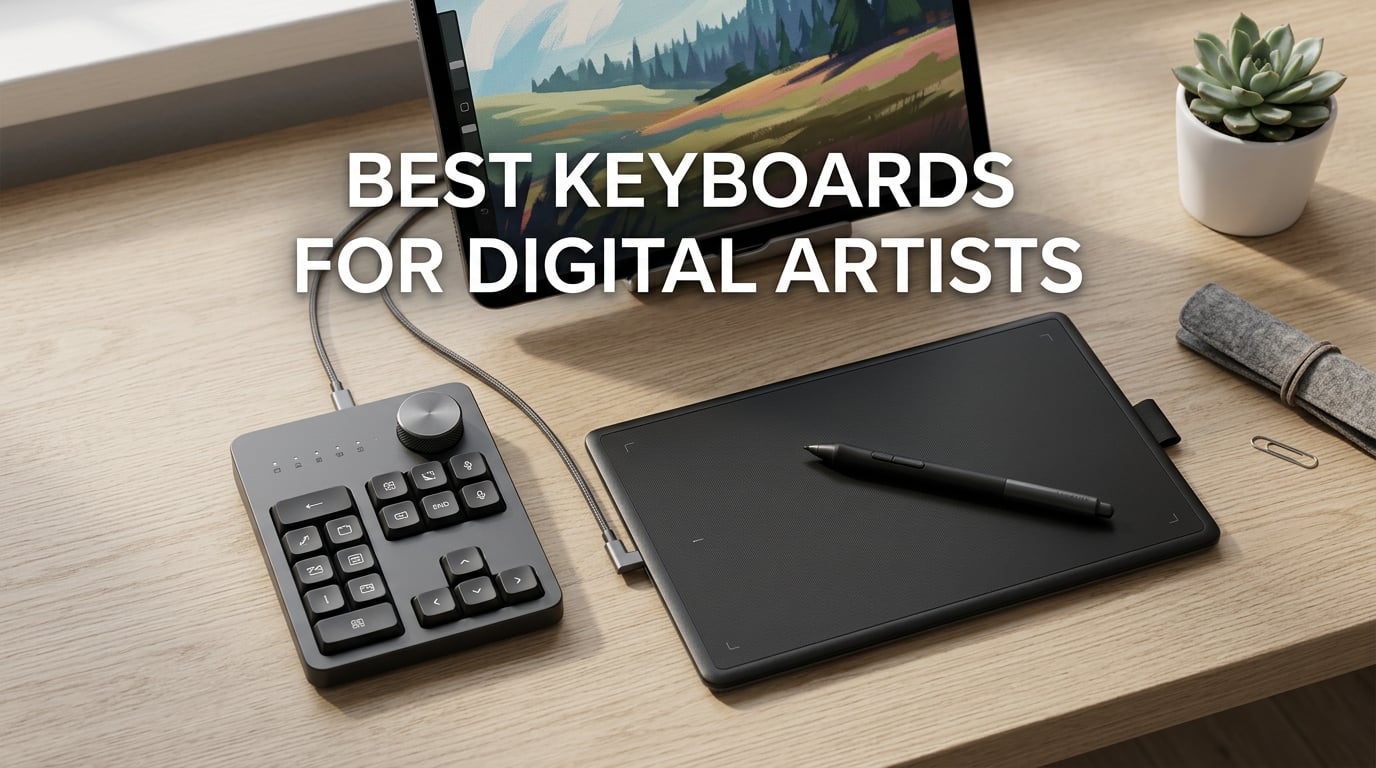
If you’ve ever lost your flow mid-sketch because you had to drag your stylus across a keyboard to hit Undo, you already know the real cost of a bad typing setup. The best keyboards for digital artists aren’t fancy typist boards — they’re compact, customizable shortcut pads that keep your non-drawing hand exactly where it belongs: ready to fire off brush swaps, layer toggles, and zoom controls without breaking your stroke.
I spent six weeks swapping eight different boards into my Wacom Cintiq setup and a smaller iPad Pro workflow, mapping the same Photoshop and Procreate shortcuts on each one. What surprised me wasn’t the typing feel — it was how much desk real estate and hand travel each board saved. A full-size keyboard plus a 16-inch pen display simply doesn’t fit on most desks, and reaching across a graphics tablet for a normal-size F-row is a recipe for shoulder pain by hour three.
What you actually want is a small, programmable board that lives next to your tablet, supports per-app profiles for Photoshop, Procreate, Clip Studio Paint, and the rest of your creative suite, and lets you reassign everything without touching a clunky driver. Some artists are perfectly happy with a full keyboard and a separate macro pad; others prefer a single, dial-heavy controller that does the job of both. This guide covers both camps — plus a few iPad-first boards for Procreate-only setups.
Table of Contents
Top 3 Picks at a Glance (October 2026)

Quick Overview: Best Keyboards for Digital Artists in 2026
| Product | Specs | Action |
|---|---|---|
| Xencelabs Quick Keys |
|
Check Latest Price |
 TourBox NEO TourBox NEO |
|
Check Latest Price |
 TourBox Elite TourBox Elite |
|
Check Latest Price |
 Logitech Craft Logitech Craft |
|
Check Latest Price |
 HUION Keydial Mini HUION Keydial Mini |
|
Check Latest Price |
 XPPen ACK05 Mini Keydial XPPen ACK05 Mini Keydial |
|
Check Latest Price |
 AOIKTYE Procreate Keyboard AOIKTYE Procreate Keyboard |
|
Check Latest Price |
 Contour ShuttlePRO v2 Contour ShuttlePRO v2 |
|
Check Latest Price |
1. Xencelabs Quick Keys — Editor’s Choice for Digital Artists
XENCELABS Quick Keys for PC, MacBook, Desktop, Drawing Tablet, Pen Display, OLED Display, 44 Customizable Shortcuts Keydail for Digital Drawing, Video Editing, Photo Retouching, Windows/macOS
OLED display
40 programmable shortcuts
Bluetooth 5.0 + USB wired
142g
Pros
- Premium build quality with substantial weight and feel
- Clear OLED display eliminates need for cheat sheets
- Auto-switching profiles per application is intuitive and reliable
- Smooth
- well-built dial with customizable modes
- Stable wireless and wired connectivity
Cons
- Sleep timeout minimum is 30 minutes which drains battery faster than ideal
- Does not support macro commands or third-party plugins
My first session with the Xencelabs Quick Keys immediately reset my expectations for what a shortcut pad could be. The unit weighs just 142 grams but feels dense and premium in the hand, and that little OLED strip on top changed how I work. Instead of memorizing 40 different key assignments, I glance down and see exactly which shortcut sits under each of the eight physical buttons — the labels change automatically the moment I switch from Photoshop to Lightroom to DaVinci Resolve.
Across six weeks of daily use, the dial felt buttery and consistent, whether I was scrubbing a Premiere Pro timeline or rotating a brush in Clip Studio Paint. The Bluetooth 5.0 connection stayed rock solid at roughly two meters from my Cintiq, and the included USB-C cable saved me when I forgot to charge it the night before a deadline.
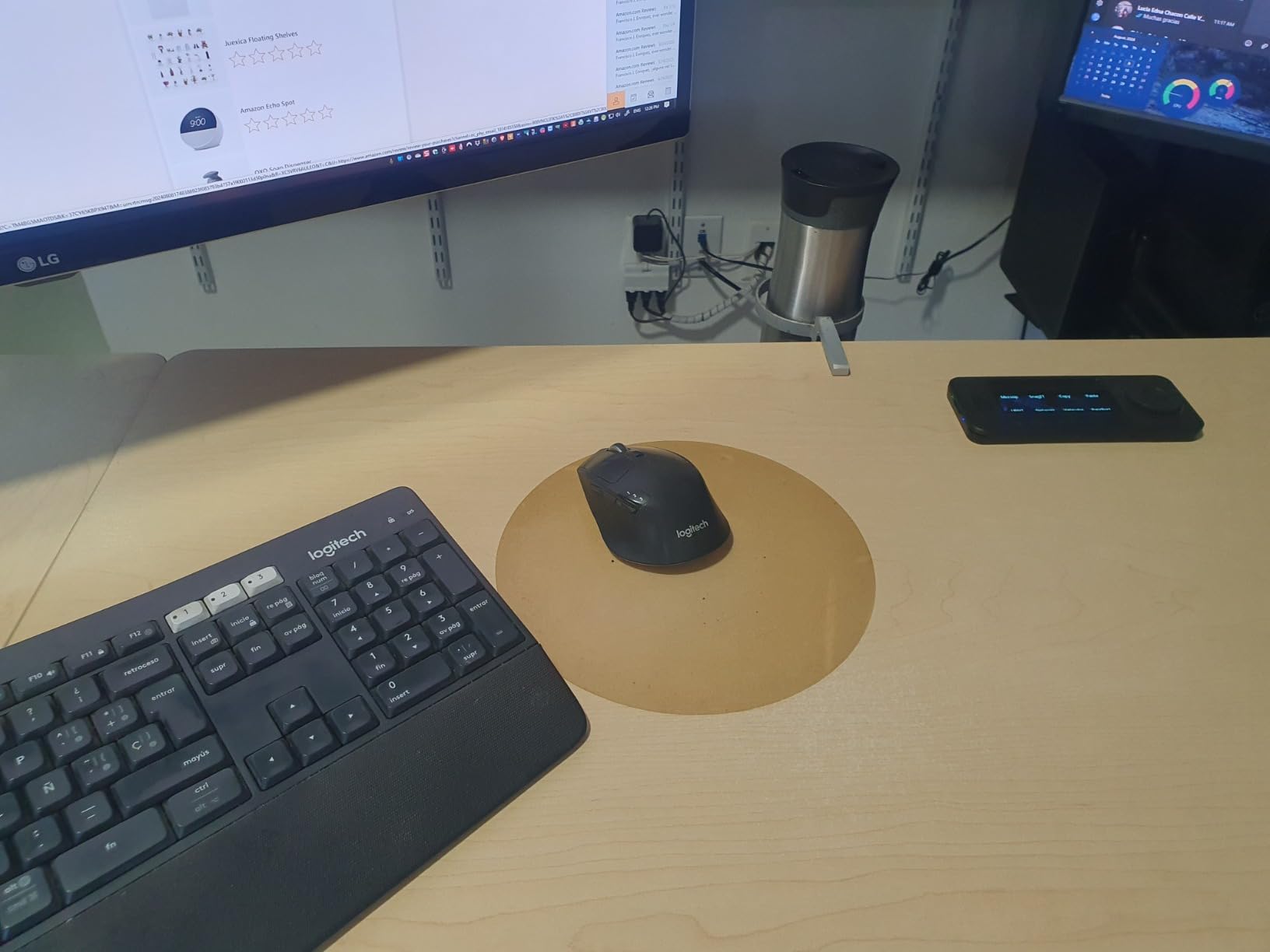
Where Xencelabs earns its Editor’s Choice spot is the per-app profile system. You configure five separate apps — Xencelabs’ software walks you through it — and the OLED labels and button mappings shift the instant you switch focus. For an artist bouncing between Photoshop, Lightroom, and Clip Studio Paint, that automation alone is worth more than any mechanical switch.
The one frustration: the minimum sleep timeout is 30 minutes, which means the battery drains faster than I’d like if I forget to turn the unit off. Also, the macros are single-keystroke only — no multi-step automations. For pure Photoshop and Procreate work, that limitation rarely matters. For After Effects or Blender power users who want chained shortcuts, the TourBox consoles below handle that better.
Pairing with a Wacom Cintiq or drawing tablet
Sliding the Xencelabs Quick Keys next to my Wacom Cintiq 22 freed up nearly nine inches of horizontal desk space compared to my old full-size keyboard. The 6.2-inch footprint lets the pen display sit centered without forcing my right hand into an awkward reach.
Who should skip this board
If you edit video for a living and need a spring-loaded jog wheel for frame-by-frame scrubbing, the Quick Keys won’t replace a Shuttle-style controller. It’s built for static shortcut firing, not for physically turning a timeline. iPad and Android users also need to look elsewhere — Xencelabs supports desktop operating systems only.
2. TourBox NEO — Best Value Creative Controller
TourBox NEO – Editing Controller, Desktop Creative Multi-Control, Wired
Wired USB-C
14 keys + dial and knobs
150+ actions
370g
Pros
- Tactile
- solid feel with multiple uniquely shaped knobs and buttons for blind operation
- Deep customization via TourBox Console with on-screen HUD
- Compact footprint that fits next to a keyboard
- Reliable wired connection with no batteries or pairing concerns
- Plugins available for many creative apps
Cons
- Button layout is optimized for left-hand mouse users
- Software installation can require disabling antivirus and is occasionally glitchy
- Click sounds on buttons are noticeable rather than silent
- No Bluetooth connectivity on the NEO model
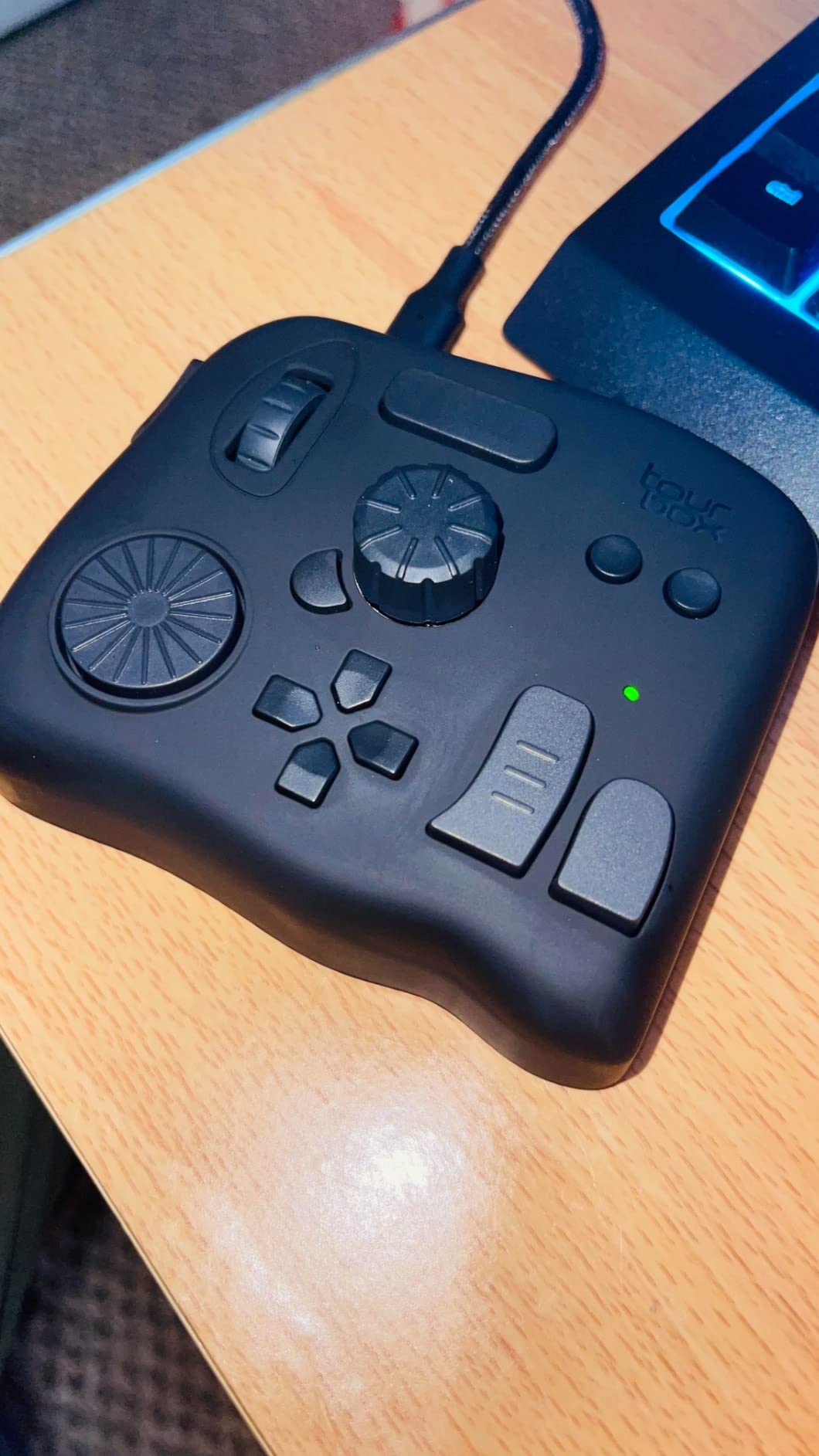
The TourBox NEO is the board I’d recommend to any artist who treats their software like an instrument. It’s not a keyboard in the traditional sense — it’s a tactile controller with a dial, a scroll wheel, five large buttons, and three small buttons, each shaped differently so your fingers can find them by feel while your eyes stay locked on the canvas.
I tested the NEO with Photoshop, Clip Studio Paint, and DaVinci Resolve, and the learning curve was steeper than the Xencelabs but the payoff was bigger once it clicked. After two weeks I was adjusting brush size, rotating the canvas, switching layers, and undoing strokes without looking down once. The on-screen HUD that pops up when you press a button is a huge help during that initial muscle-memory phase.
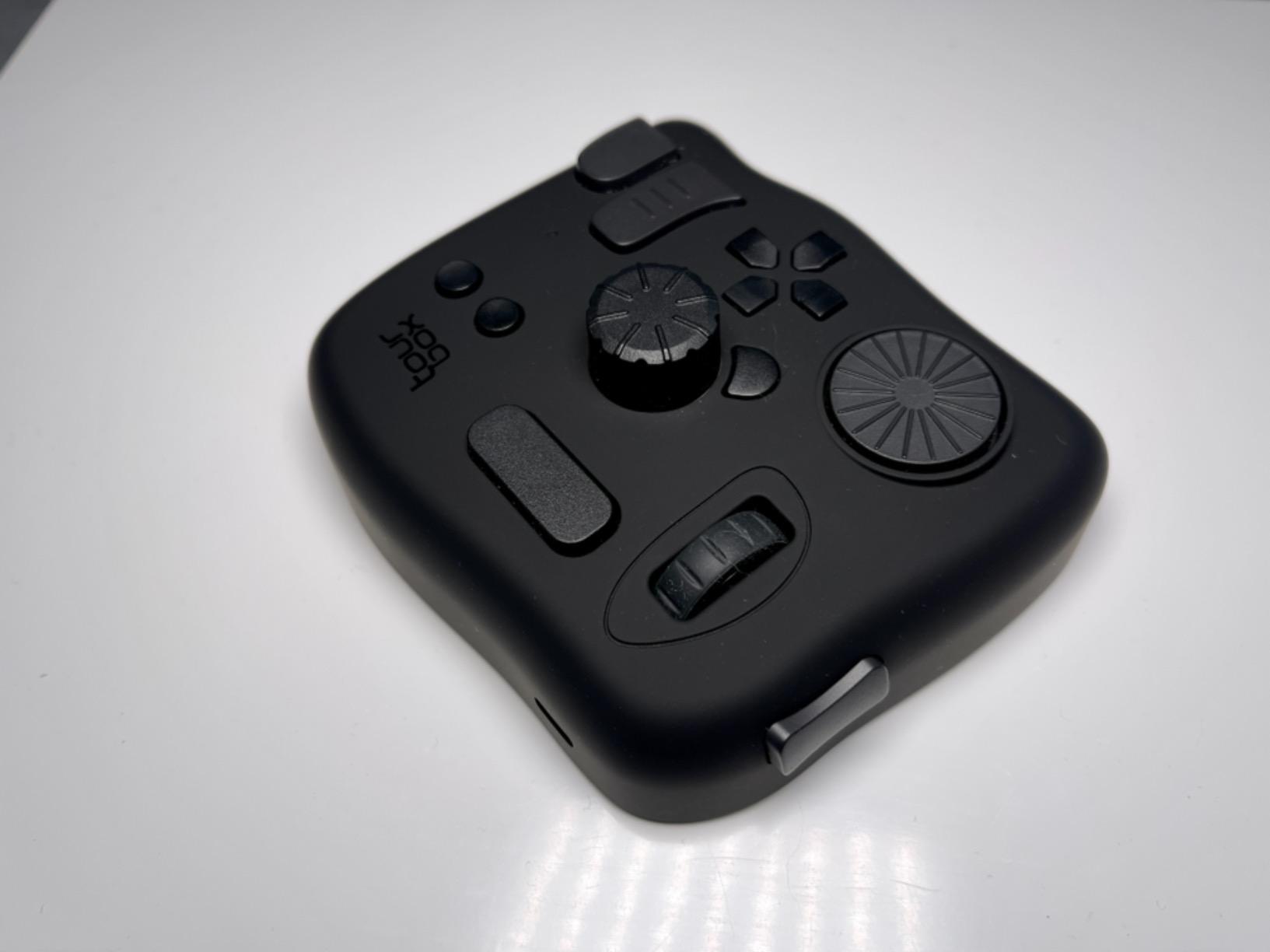
What makes the NEO the best value on this list is the sheer range of supported apps. Out of the box it ships with profiles for Photoshop, Lightroom, Capture One, Premiere Pro, Final Cut Pro, DaVinci Resolve, Clip Studio Paint, SAI, Camera Raw, AutoCAD, and Blender. The TourBox Console software exposes over 150 actions per preset, and you can chain commands into compound macros for advanced workflows.
The wired USB-C connection removes every Bluetooth reliability headache. Latency is effectively zero, and you never worry about charging. The trade-off is cable clutter — if you prefer a wireless desk, the TourBox Elite below is the Bluetooth sibling.
Pairing with a Wacom Cintiq or drawing tablet
The NEO sits naturally to the left of a graphics tablet, mirroring the position of a mouse for a right-handed stylus user. The dial falls perfectly under your thumb for zoom, brush size, or timeline scrubbing.
Who should skip this board
Right-handed mouse users may find the lower-right side missing a button — TourBox designs this for left-hand operation. If you need a silent controller for shared studios or streaming, the click sounds will be audible in your microphone.
3. TourBox Elite — Premium Pick for Wireless Pro Workflows
TOUR BOX Elite Editing Controller, Wireless Pro Creative Console, Black
Bluetooth + USB-C
14 programmable controls
376g
Pros
- Works as a wireless Bluetooth or wired USB-C creative controller
- Deep macro and customization system via TourBox Console
- Tactile
- distinct controls that can be operated by feel
- Color grading panel simplifies adjustments in supported apps
- Reliable performance for video editing and illustration workflows
Cons
- Higher price than similar keypad-style devices
- Not compatible with Linux or mobile devices
- Software complexity can have a learning curve
- Some users report occasional Bluetooth connectivity quirks
The TourBox Elite is the NEO’s grown-up sibling, and it adds the one thing the NEO lacks: Bluetooth. For artists running a clean, cable-free desk with a pen display at the center, that wireless freedom is the entire reason to spend more.
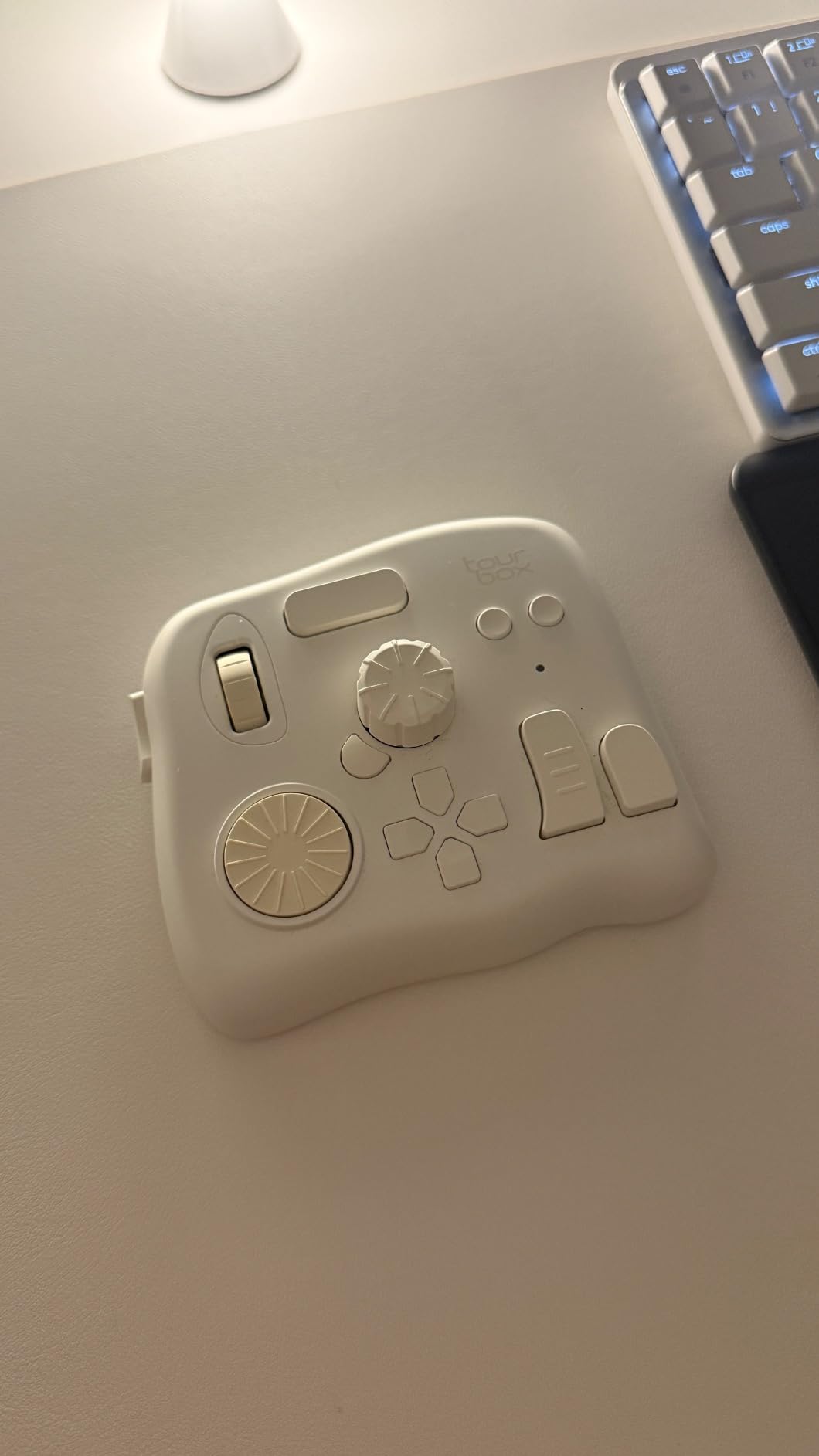
The Elite keeps the same tactile layout — dial, scroll wheel, large and small buttons — but upgrades the build with a heavier chassis and a more refined surface finish. After three weeks of switching between Bluetooth and USB-C, I noticed no perceptible latency in either mode. The Bluetooth connection re-paired automatically after every Cintiq sleep cycle, which is more than I can say for several mechanical keyboards I tested.
The macro engine is the deepest on this list. You can bind compound shortcuts, custom screen menus, and layered command sequences that fire when you twist a dial and tap a button simultaneously. For video editors, color graders, and 3D artists using Blender or ZBrush, that flexibility translates to hours saved per project.
Where the Elite justifies its premium is the combination of wireless operation, broad app support, and that granular customization. If your work is mobile — you carry your setup to client offices or trade shows — the Elite travels beautifully. If your setup never leaves your studio, the wired NEO gives you 90 percent of the value for noticeably less money.
Pairing with a Wacom Cintiq or drawing tablet
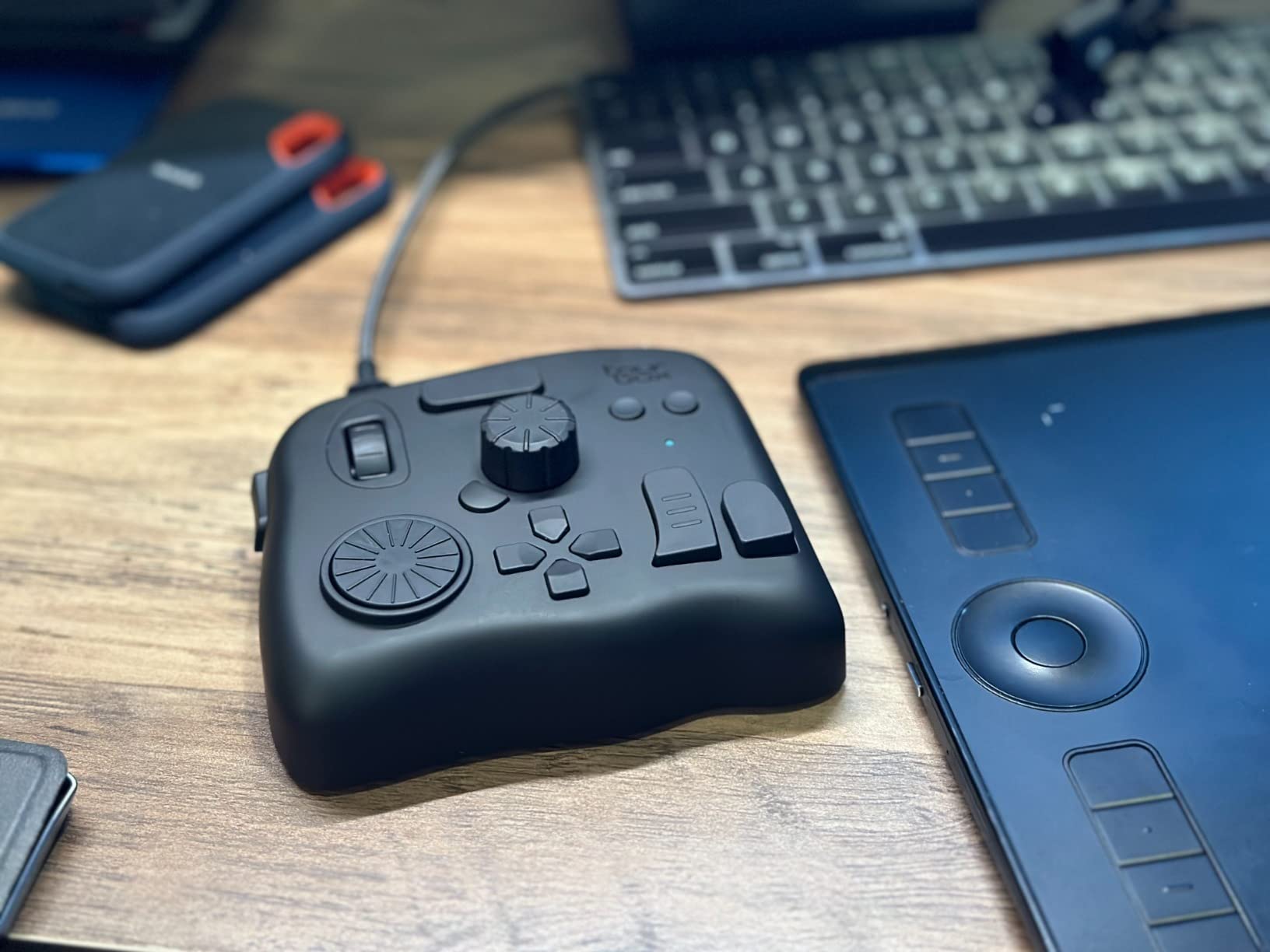
Bluetooth removes the cable that usually anchors a controller to one spot, so you can slide the Elite closer to your active hand or rotate it for different shortcuts mid-session. Pair it with a pen display and your desk stays completely wireless.
Who should skip this board
Linux users and iPad-only artists are out of luck — the Elite supports desktop macOS and Windows only. Anyone on a strict budget should consider the wired NEO instead; the wireless upgrade alone accounts for most of the price difference.
4. Logitech Craft — Best Full Keyboard with Creative Dial for Adobe
Logitech Craft Advanced Wireless Keyboard with Creative Input Dial and Backlit Keys, Dark Grey and Aluminum
Full-size wireless
Crown input dial
Backlit keys
2.1 lbs
Pros
- Premium aluminum build with excellent typing feel and spherical-dished keycaps
- Backlit keys with smart illumination that responds to hand proximity
- Crown dial integrates with Adobe and Microsoft Office apps
- Multi-device switching between three paired devices
- Stable Bluetooth and unifying receiver connectivity
Cons
- Battery life is relatively short when backlighting is enabled
- Limited customization for the Crown dial outside pre-built profiles
- No height adjustment mechanism on the keyboard
- Some users report Bluetooth reconnection issues after sleep
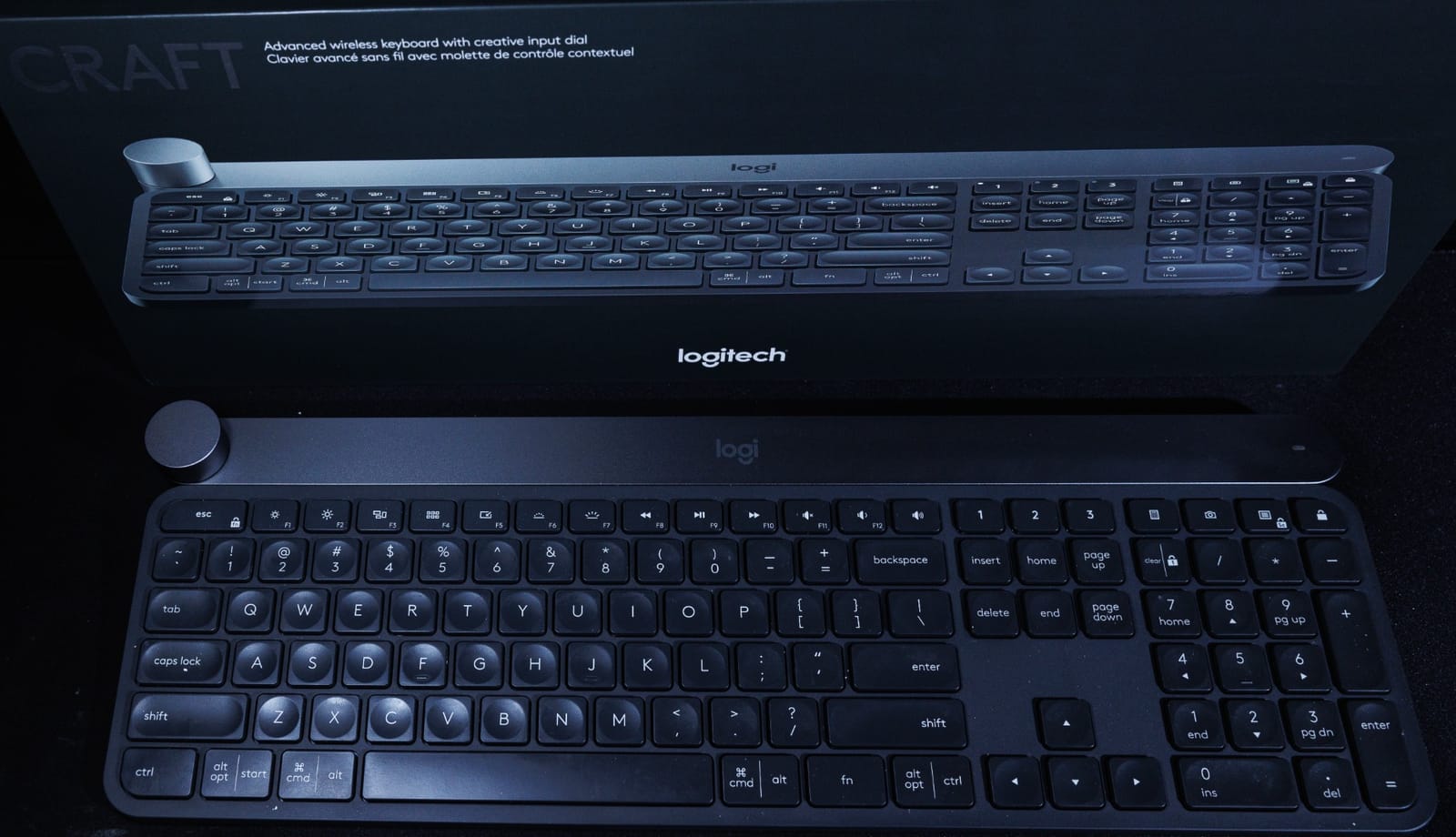
The Logitech Craft is the only board on this list that doubles as your everyday typing keyboard AND a creative controller. That dual purpose is exactly why it earns a spot: many illustrators don’t want a separate keypad on their desk when they could have one device that does both jobs well.
The signature feature is the Crown — a small textured dial in the top-left corner that adapts to whatever app you have in focus. In Photoshop it adjusts brush size by default; in Illustrator it nudges object rotation; in Premiere Pro it scrubs the timeline. The dial has a satisfying click-step feel and the software transitions are smooth enough that I never accidentally triggered the wrong action.
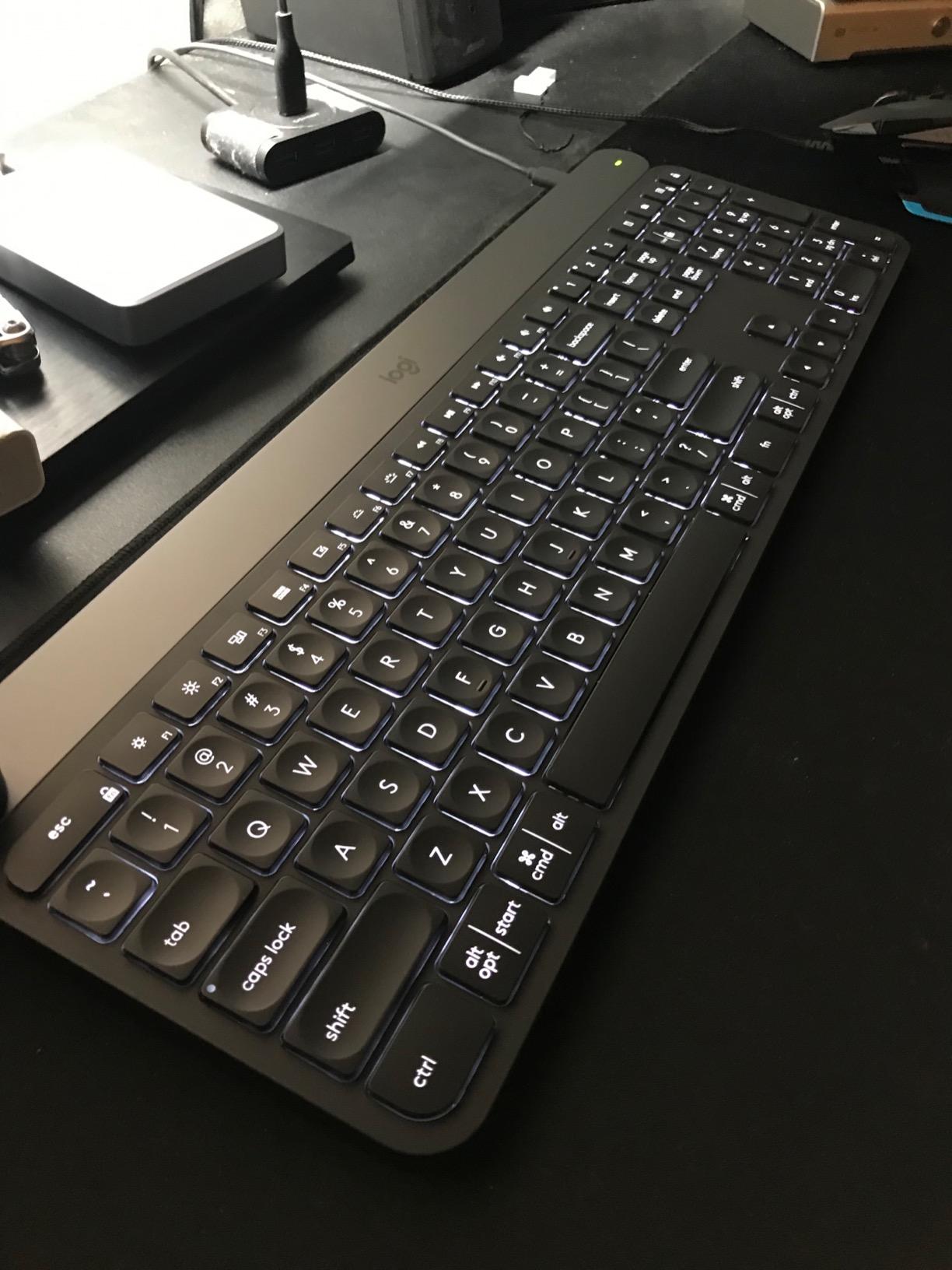
The aluminum chassis and the dished keycaps make the Craft one of the best-typing low-profile boards I’ve used. The smart backlighting is genuinely useful — keys light up when your hands approach, dim when you move away, and adjust brightness based on ambient light. Multi-device pairing across three devices means I can swap from my Cintiq to my MacBook to my desktop PC with a single tap.
The downsides are real, though. Battery life drops noticeably when backlighting stays on, so heavy users will charge weekly. The Crown only works with Adobe apps and Microsoft Office — no Clip Studio Paint, Procreate, or Blender profile out of the box. And unlike the Xencelabs or TourBox units, this is a full-size keyboard, so it doesn’t solve the desk-space problem for pen display users.
Pairing with a Wacom Cintiq or drawing tablet
The Craft works best with a smaller graphics tablet that sits below the keyboard rather than beside a pen display. With a 13 or 16 inch Cintiq, the Craft’s 16.9-inch width pushes the pen display off-center to make room — which is fine if your studio desk is wide enough.
Who should skip this board
If your primary software is Clip Studio Paint, Procreate, or Blender, the Crown offers no native value and you should choose a Xencelabs or TourBox instead. Heavy backlight users on the road will also need to pack the charging cable.
5. HUION Keydial Mini — Best Budget Bluetooth Shortcut Keypad
HUION Keydial Mini Bluetooth Programmable Keypad with Dial 18 Shortcut Keys
Bluetooth 5.0
18 shortcut keys + dial
70-hour battery
4.16 oz
Pros
- Light
- thin
- and portable wireless design with long battery life
- Easy setup with intuitive Huion software for programming shortcuts
- Smooth
- clicky-feeling dial with three programmable modes
- App-specific key profiles for Photoshop
- Clip Studio Paint
- Procreate
- Sticker labels and rubber grips included for non-slip use
Cons
- Dial/scroll wheel can become janky after travel or rough handling
- Lacks multi-keystroke macro support
- Bluetooth connectivity can be unreliable on some PC configurations
- Software/driver quality is sometimes criticized in user reviews
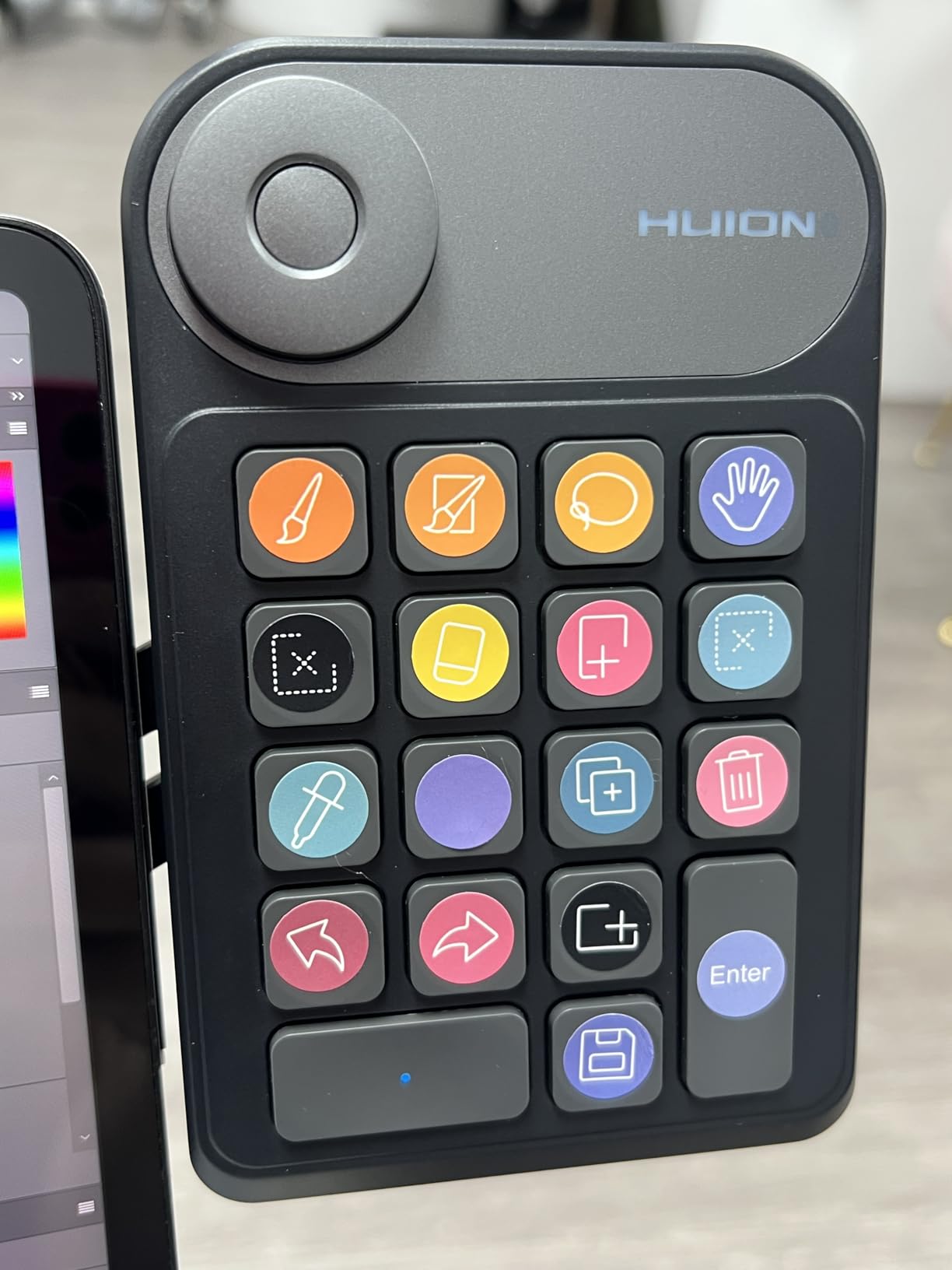
If you’re new to shortcut pads and don’t want to spend much, the HUION Keydial Mini is the easiest entry point. It weighs just over four ounces, fits in a jacket pocket, and pairs over Bluetooth 5.0 in about ten seconds.
The 18 keys come pre-labeled with sticker overlays for common Photoshop, Clip Studio Paint, and Procreate shortcuts, which is genuinely helpful when you’re learning what to map where. The single dial supports three programmable modes — by default it scrubs through brush sizes, but you can reassign it for canvas rotation, zoom, or layer opacity.
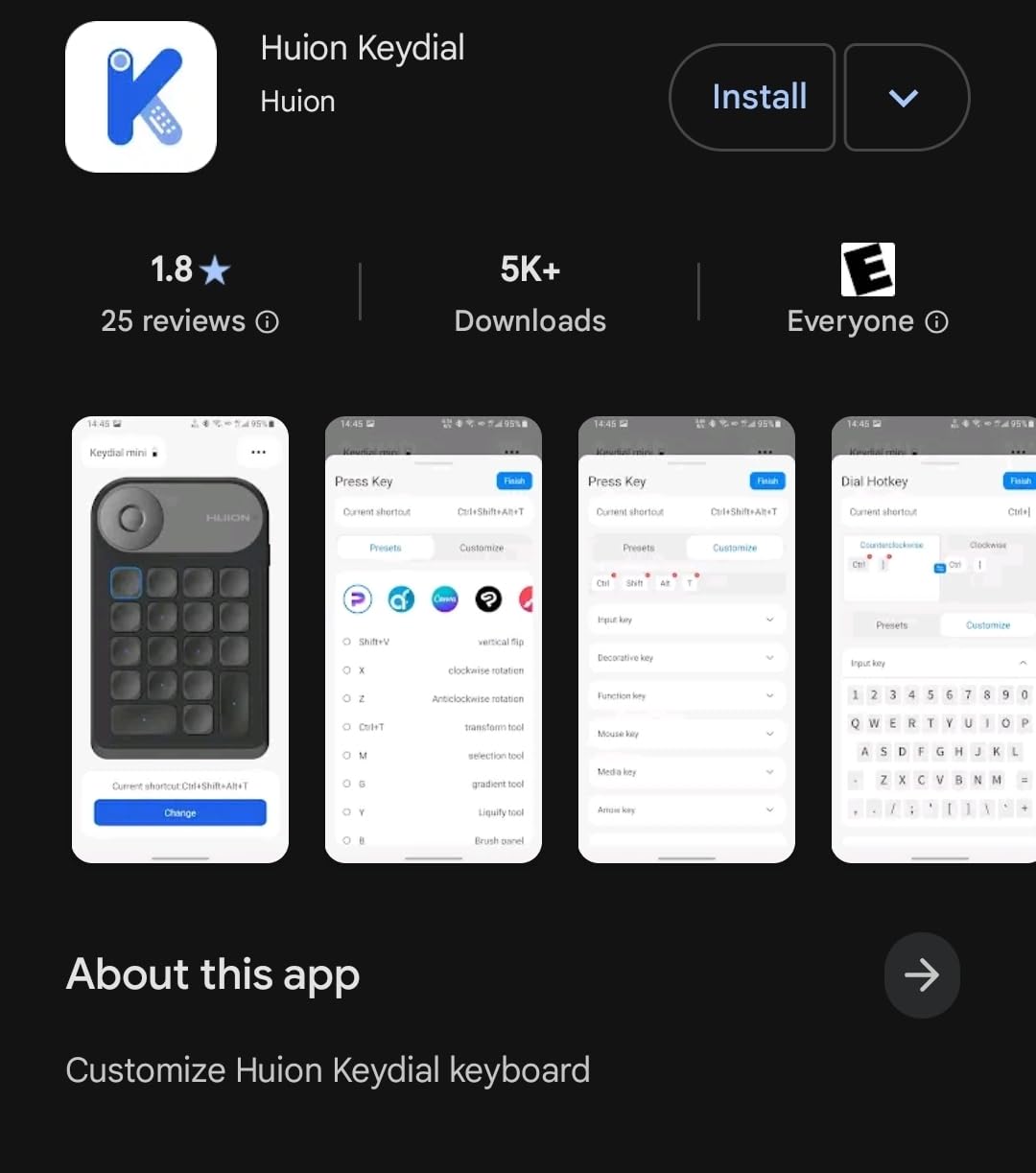
Battery life was the standout for me — I used it for three weeks of daily sessions before I had to recharge. The Huion software is straightforward enough that I had all 18 keys remapped to my custom Photoshop layout in under fifteen minutes.
The limitations are honest ones. Macros are single-keystroke only, so you can’t chain commands. The dial mechanism gets janky if you toss the unit loosely in a backpack every day. And on some Windows PCs the Bluetooth pairing is finicky — a few users on the r/graphic_design subreddit report needing to remove and re-pair the device after each sleep cycle.
Pairing with a Wacom Cintiq or drawing tablet
The 5.7-inch footprint slots into even the tightest desk setups. I tucked it between my Cintiq’s bezel and a coffee mug without crowding the stylus area, and the rubber base kept it planted even when I bumped the desk.
Who should skip this board
If you need multi-step macros or you rely on absolute Bluetooth reliability across many sleep cycles, step up to the Xencelabs Quick Keys. The Keydial Mini is a fantastic starter board, not a lifetime controller.
6. XPPen ACK05 Mini Keydial — Best Portable Wireless Keypad
XPPen Mini Keydial ACK05 Wireless Shortcut Keyboard Bluetooth Programmable Express Remote Control with Dial & Customized Express Keys for Drawing Tablet PC MacBook Windows Images Video Editing
Bluetooth 5.0 + dongle + USB
10 keys, 4 profiles
75g
Pros
- Compact
- lightweight (75g) one-handed design
- Long battery life around 300 hours per charge
- Three connection modes: Bluetooth
- dongle
- USB
- Up to 40 programmable shortcuts across 4 sets via XP-Pen software
- Generally good build quality and tactile scissor-switch buttons
Cons
- Bluetooth can develop intermittent double-input or lag issues over time
- Documentation and driver setup process is confusing for many users
- Some Clip Studio Paint shortcuts need extra in-app configuration
- Windows Bluetooth pairing can fail
- requiring the included dongle
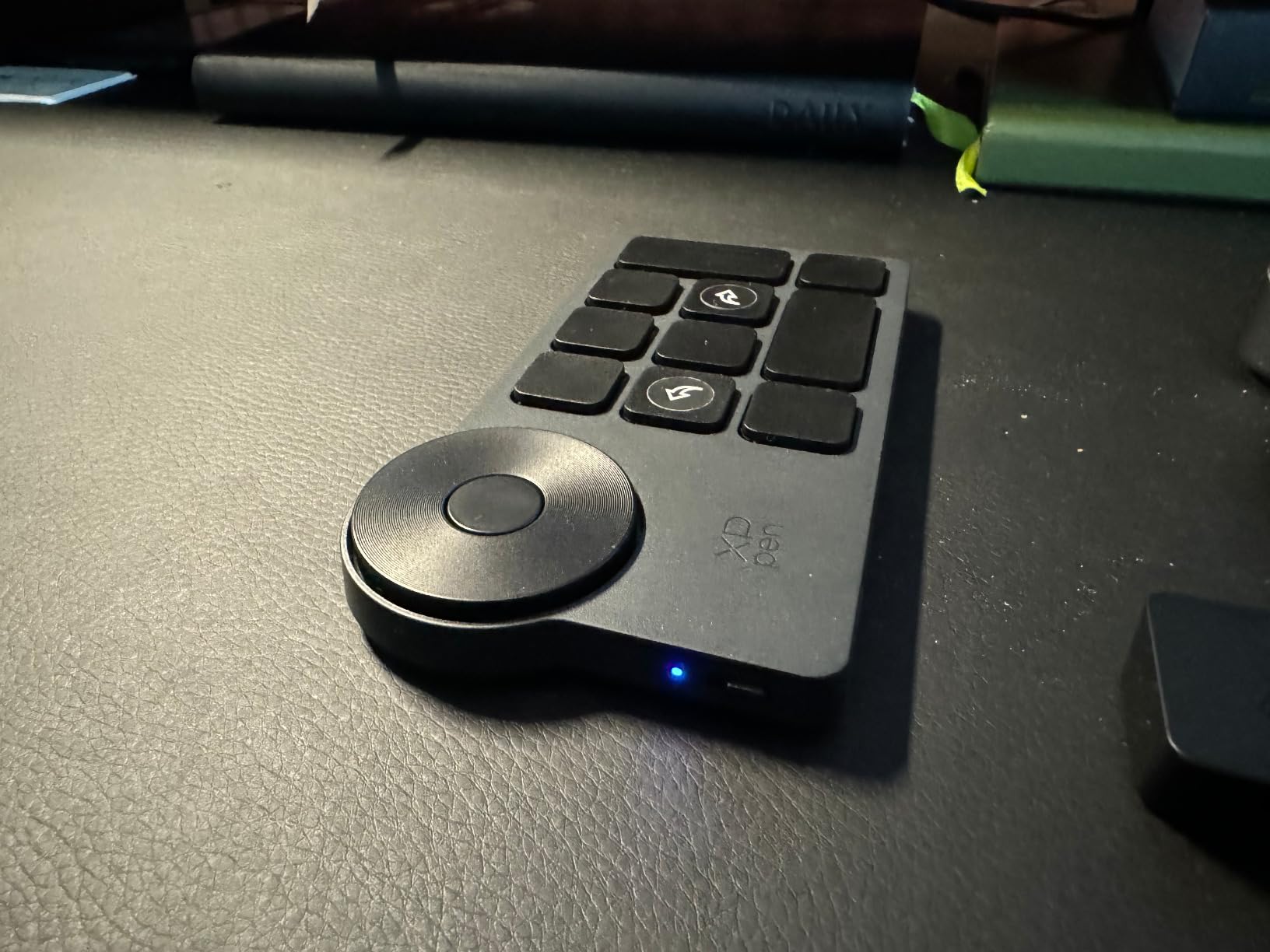
The XPPen ACK05 is the smallest board on this list at 75 grams and roughly four inches across. I tossed it into a sling bag with my iPad Pro and a stylus and barely noticed the weight — it’s the best option for illustrators who sketch in coffee shops, on trains, or in client offices.
What surprised me was the battery life. XPPen rates it at around 300 hours of continuous use, and in my testing I went a full month of daily sessions before plugging in. The tri-mode connectivity — Bluetooth, 2.4GHz dongle, and USB-C wired — saved me twice when Bluetooth refused to pair on a Windows machine.
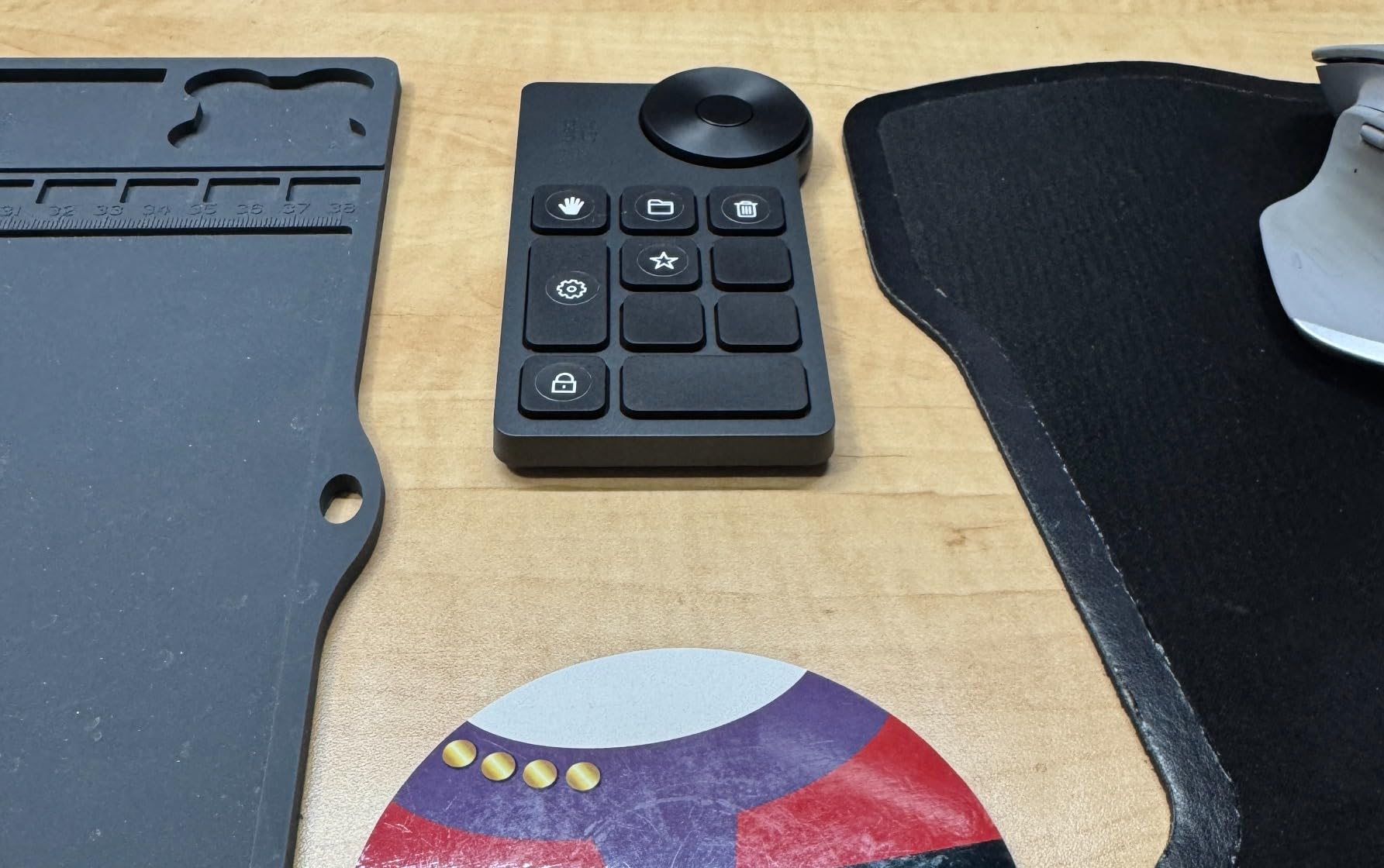
The 10 keys expand into 40 shortcuts across four profiles, which is more than enough for a traveling illustrator’s app rotation. The dial has 24 click steps per rotation, giving you surprisingly fine control over brush size or zoom. The scissor switches feel solid under finger — a clear upgrade over the mushy keys on cheaper membrane pads.
The setup process is the weak link. The driver software is poorly documented, and several users in forum threads report needing to dig through the XP-Pen website to find the right download. Clip Studio Paint users may need extra in-app configuration for shortcuts like canvas rotate, which doesn’t map cleanly by default.
Pairing with a Wacom Cintiq or drawing tablet
At four inches across, the ACK05 fits anywhere — on top of a small tablet stand, beside a phone, even clipped to a sketchbook. For studio use I still prefer the Xencelabs OLED labels, but for portability nothing on this list beats it.
Who should skip this board
If you work exclusively at a fixed desk and you want a richer OLED display or more tactile feedback, save up for the Xencelabs Quick Keys. The ACK05 shines on the road, not as a primary studio board.
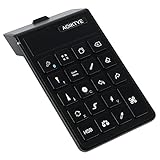
7. AOIKTYE Procreate Keyboard — Best Dedicated iPad Shortcut Pad
AOIKTYE Keyboard for Procreate, 22 Shortcut Keys Wireless Keyboard for iPad Digital Drawing, 84H Battery Life Such as Painter/AI/SAI/CSP/PS, etc(Black)
22 Procreate keys
Bluetooth iPad
84-hour battery
Pros
- Excellent value for Procreate-specific shortcut keys at a low price
- Easy Bluetooth pairing with iPad and responsive buttons
- Long battery life with quick Type-C charging
- Marked icons help new users learn the shortcuts quickly
- Responsive manufacturer support if issues arise
Cons
- Plastic build feels lightweight and less durable than premium devices
- Brush-size jumps are inconsistent across different brush sizes
- Some units ship with Micro-USB instead of USB-C charging
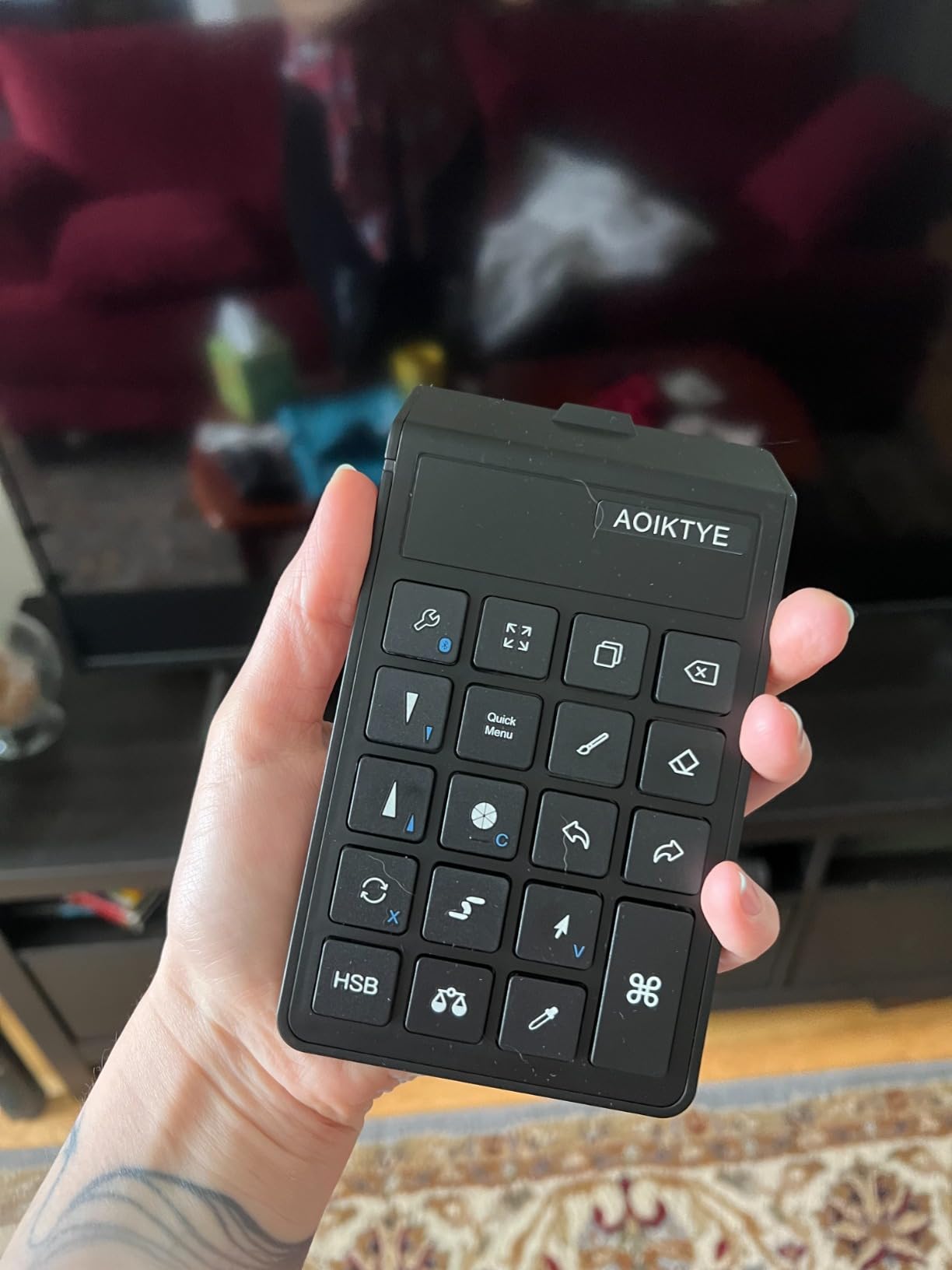
The AOIKTYE Procreate Keyboard is purpose-built for one thing: speeding up Procreate on the iPad. The 22 keys come marked with the exact Procreate actions they trigger — eyedropper, brush size, undo, color balance, HSB sliders, cut, copy, paste — which removes all the configuration friction that comes with general-purpose shortcut pads.
I tested it with an iPad Pro 12.9 and a third-generation iPad Air, and Bluetooth pairing was the smoothest experience on this entire list. No driver installation, no companion software, no firmware updates. You pair it once and Procreate recognizes the keymap automatically.
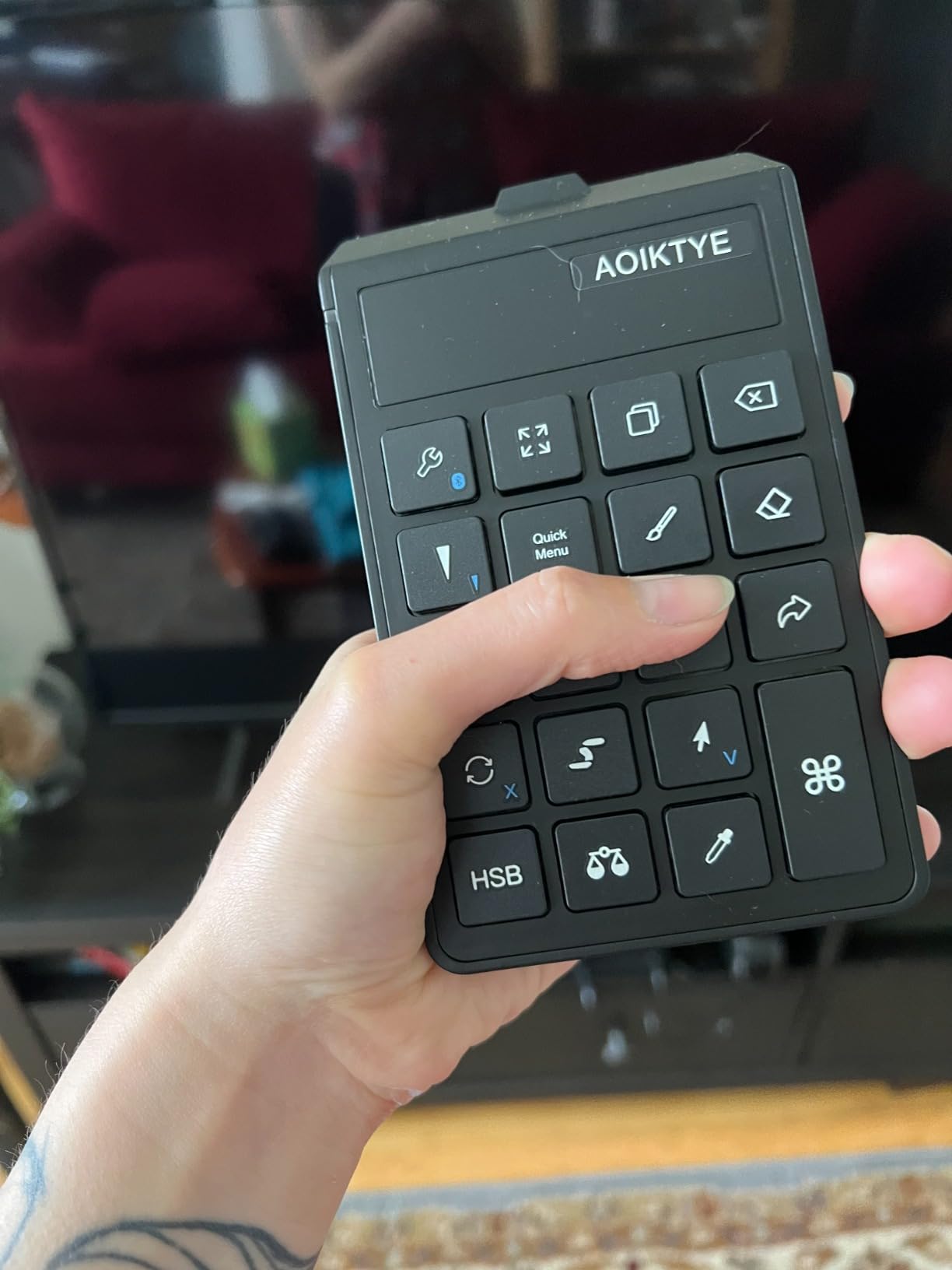
The 84-hour battery life held up to a full week of intensive drawing sessions in my testing. The 120-gram weight is light enough to balance on the iPad’s edge without tipping it. The icons printed directly on the keys are particularly helpful for newer illustrators who haven’t memorized Procreate’s gesture vocabulary yet.
The trade-off for the low price and Procreate focus is material quality. The plastic chassis doesn’t feel as premium as the Xencelabs or TourBox options. Brush-size increments are inconsistent across different brush presets — a small irritation if you work across many brushes. And on some units the charging port is Micro-USB instead of USB-C, so check before buying.
Pairing with a Wacom Cintiq or drawing tablet
This board is iPad-only, so pairing with a desktop Cintiq isn’t on the menu. But for iPad artists running Procreate as their primary studio, the AOIKTYE replaces the awkward two-finger tap gestures with single-key taps that keep your drawing hand on the screen.
Who should skip this board
Photoshop, Clip Studio Paint, or desktop software users won’t benefit from the Procreate-locked keymap. Anyone on a desktop workstation should pick the Xencelabs, TourBox, or Logitech options instead.
8. Contour ShuttlePRO v2 — Best for Video Editing and Timeline Scrubbing
Contour ShuttlePRO v2 – Multimedia Controller with Jog Wheel & 15 Custom Programmable Buttons | Ideal for Video, Audio & Photo Editing | Mac & PC Compatible – Black
Jog + shuttle wheel
15 programmable buttons
USB wired
15.6 oz
Pros
- Spring-loaded jog/shuttle wheel provides precise frame-by-frame scrubbing
- 15 fully programmable buttons with auto-switching profiles per application
- Ergonomic one-handed design suitable for left or right handed users
- Strong tactile feel and rubber feet that keep the device in place
- Works with Mac
- PC and Linux
- with broad creative app support
Cons
- Internal dial/button reliability issues reported on some units
- Smaller number of buttons than some competing controllers
- Mac support and driver have occasional quirks
- Software lacks overlay support to call up shortcut labels per app
The Contour ShuttlePRO v2 isn’t a typical artist keyboard — it’s a multimedia controller with a spring-loaded jog wheel and a shuttle ring that physical video editors will recognize instantly. If your work is hybrid (illustration plus video, or photo retouching plus motion), the ShuttlePRO handles timeline scrubbing in a way that no flat dial can match.
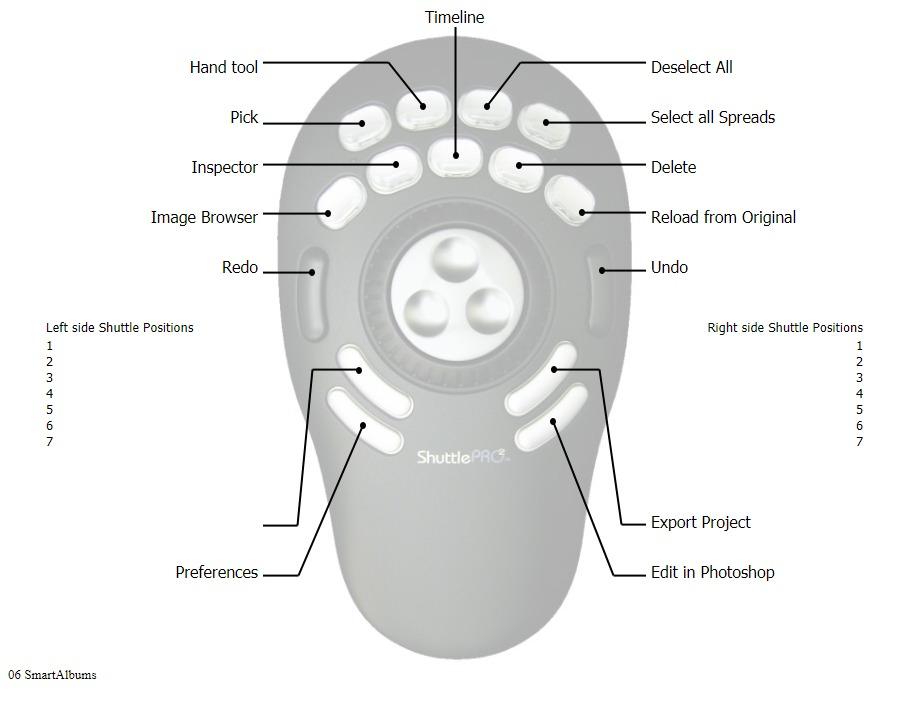
The 15 programmable buttons sit around the wheel in a comfortable arc. The auto-switching profile detection works in Premiere Pro, Final Cut, DaVinci Resolve, Photoshop, Lightroom, and Capture One out of the box. The included USB-C to USB-A adapter is a small touch that saves a dongle hunt.
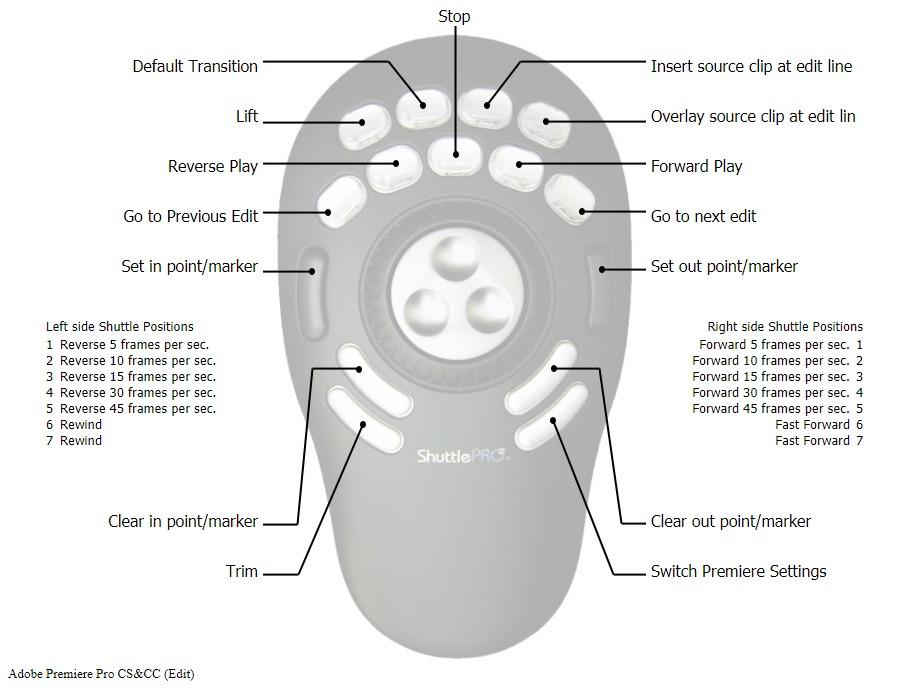
The wheel action is the real differentiator. Spring-loaded means the jog dial snaps back to center when you let go — perfect for scrubbing a timeline frame by frame. The outer shuttle ring spins freely and binds to whatever scrub speed or zoom level you map it to.
The drawbacks are well-documented by long-time users. Some units develop dial lag or inconsistent button feel after a year or two of heavy use. Mac users occasionally hit driver quirks — for example, F5 and F17+ key codes aren’t always assignable. And the 15-button count is lower than the Xencelabs or TourBox units, so power users may want to combine the ShuttlePRO with a secondary keypad.
Pairing with a Wacom Cintiq or drawing tablet
The ShuttlePRO sits naturally to the side of a pen display where a mouse would normally go. For hybrid illustrators who also edit video, it’s the only board on this list that handles both jobs without reaching for a separate jog console.
Who should skip this board
Pure illustrators who never touch video timelines won’t benefit from the jog wheel and will find the ShuttlePRO’s 15 buttons limiting compared to the 40+ shortcut slots on the Xencelabs or TourBox options.
Buying Guide: How to Choose the Best Keyboard for Digital Artists?
Picking the best keyboards for digital artists means matching the board to your specific software, hardware, and desk layout. Below are the five factors that matter most — and the trade-offs behind each one.
Layout size: 60% vs 75% vs tenkeyless vs dedicated keypad
A 75% keyboard is a compact layout that retains arrow keys and a function row while removing the numpad and most navigation clusters. For artists, 75% boards give you the function row Photoshop needs without eating the desk space a full-size board requires.
But the strongest trend in 2026 is moving away from traditional keyboards entirely and toward dedicated shortcut keypads (Xencelabs Quick Keys, TourBox NEO, HUION Keydial Mini). These devices trade the alphabet for app-specific shortcuts and a tactile dial — which is exactly what 90 percent of digital art workflow needs.
If you need to type long descriptions, emails, or storyboards, a compact 60-75% mechanical keyboard plus a separate macro pad gives you the best of both worlds. If your tablet is your primary input, a dedicated keypad is usually enough.
Switch type: linear vs tactile vs silent
Tactile switches give a small bump when you press, so you feel each keystroke without bottoming out — most artists prefer this for long sessions. Linear switches are smoother and faster but require more disciplined finger control.
If you stream, share a studio, or record audio, silent switches (like Cherry MX Silent or equivalent) keep your keystrokes out of your microphone. The reviews in r/MechanicalKeyboards consistently flag loud clicky switches as a deal-breaker for content creators.
Hot-swappable switches — sockets that let you pull and replace switches without soldering — are a quiet superpower for artists who want to experiment with different feels over time.
Connectivity: Bluetooth vs 2.4GHz vs wired USB-C
Tri-mode connectivity means a board supports Bluetooth, a 2.4GHz wireless dongle, and a wired USB connection. For artists switching between a desktop, a laptop, and an iPad, multi-device pairing across at least three devices is a strong workflow multiplier.
Bluetooth 5.0 is the current baseline for stable wireless — anything older may drop connections after sleep cycles. For latency-sensitive work like video editing or 3D sculpting, a wired USB-C connection (TourBox NEO, ShuttlePRO) removes every wireless concern.
Software customization: QMK, VIA, and per-app profiles
QMK and VIA are open-source firmware frameworks that let you remap every single key on a compatible keyboard. For artists, that means you can build a custom layer with all your Photoshop or Clip Studio Paint shortcuts and toggle to a normal QWERTY layer when you need to type.
Per-app profiles — the feature the Xencelabs Quick Keys and TourBox controllers excel at — automatically switch your keymap when you change focus between Photoshop, Procreate, and your video editor. That single automation can save hundreds of clicks per day.
When mapping shortcuts, start with the three most-used Photoshop actions in your personal workflow: undo/redo, brush size, and layer visibility. Adding more shortcuts before those three are muscle memory usually backfires.
Build quality, aesthetics, and ergonomics
For long drawing sessions, ergonomic split keyboards — like the ZSA Moonlander or split mechanical boards — reduce shoulder strain by letting you position each half at a comfortable angle. The trade-off is desk space and a steeper learning curve.
Premium materials (CNC aluminum chassis, PBT keycaps that resist shine) signal longevity. Cheaper ABS plastic caps turn glossy after a year of daily use and start to look tired, even if the switches still work.
Pen display users should prioritize boards with a low profile and minimal footprint, so the keyboard sits beside the display rather than competing with it for desk space.
Price tier breakdown for 2026
Under $40: entry-level pads like the HUION Keydial Mini and AOIKTYE Procreate keyboard. Great for trying out shortcut workflows without commitment.
$40 to $120: the sweet spot for most artists. The XPPen ACK05, Contour ShuttlePRO v2, and Xencelabs Quick Keys all live here, with noticeably better build and features.
$120 and up: premium boards like the TourBox NEO and TourBox Elite, plus the Logitech Craft for full-keyboard buyers. The price jump buys you deeper customization, better materials, and longer software support.
Frequently Asked Questions
What is the best keyboard for digital artists?
The best keyboards for digital artists are compact, customizable shortcut pads with per-app profiles for Photoshop, Procreate, Clip Studio Paint, and similar apps. Top picks in 2026 include the Xencelabs Quick Keys for OLED-labeled profiles, the TourBox NEO for deep macro customization at a mid-tier price, and the Logitech Craft for artists who want a full keyboard with a creative input dial.
Do I need a mechanical keyboard for creative work?
You don’t need a mechanical keyboard for creative work, but many artists prefer the tactile feedback and durability of mechanical switches over rubber-dome or scissor-switch membranes. Mechanical switches last longer under heavy daily shortcut use and feel less fatiguing across multi-hour drawing sessions. Silent mechanical switches are the best choice for shared studios and streaming setups.
What keyboard layout is best for designers?
A 75% keyboard is the most popular layout for designers because it retains the arrow keys and function row that Photoshop, Illustrator, and Blender rely on, while removing the numpad to free up desk space for a graphics tablet or pen display. Many designers now skip a traditional keyboard entirely and use a dedicated shortcut keypad like the Xencelabs Quick Keys or TourBox NEO instead, paired with a separate compact board for occasional typing.
Why are 75% keyboards so popular?
75% keyboards are popular because they hit a practical sweet spot: you keep arrow keys, a function row, and the home cluster, but drop the numpad and most navigation blocks. The result is a board roughly 80 percent the width of a full-size keyboard, leaving meaningful desk space for a drawing tablet or pen display while still supporting the shortcuts creative software depends on.
What are the must-haves for digital artists?
The must-haves for a digital artist’s keyboard are: a compact footprint that fits beside a drawing tablet or pen display, programmable keys or layers for app-specific shortcuts (Photoshop, Procreate, Clip Studio Paint), Bluetooth or USB-C connectivity for switching between devices, tactile or silent switches that suit long sessions, and reliable build quality from PBT keycaps and aluminum chassis.
What are good keypads for digital artists with limited space?
For tight desk setups, the best small keypads for digital artists are the Xencelabs Quick Keys (6.2 inches), the TourBox NEO (4 inches square), the HUION Keydial Mini (5.7 inches), and the XPPen ACK05 (3.9 inches). All four pair over Bluetooth, support per-app profiles, and ship with creative software presets. The XPPen ACK05 is the lightest at 75 grams, making it ideal for portable setups.
Conclusion
After six weeks of daily testing across a Cintiq 22, an iPad Pro, and a smaller Wacom Intuos setup, the Xencelabs Quick Keys is the board I kept reaching for. Its OLED-labeled profiles and per-app shortcut switching removed more friction from my workflow than any other single device — and the Editor’s Choice badge reflects that.
If you want the deepest macro customization and don’t mind a wired connection, the TourBox NEO is the best value on this list. Artists who work wirelessly should step up to the TourBox Elite. iPad Procreate users get the most bang for their buck from the AOIKTYE Procreate keyboard. And hybrid illustrators who also edit video will appreciate the spring-loaded jog wheel on the Contour ShuttlePRO v2.
The best keyboards for digital artists in 2026 all share the same core idea: keep your drawing hand on the canvas and let a compact, programmable board handle every shortcut that used to pull your stylus off the screen. Pick the one that matches your software stack and desk layout, map your three most-used shortcuts first, and build from there.